
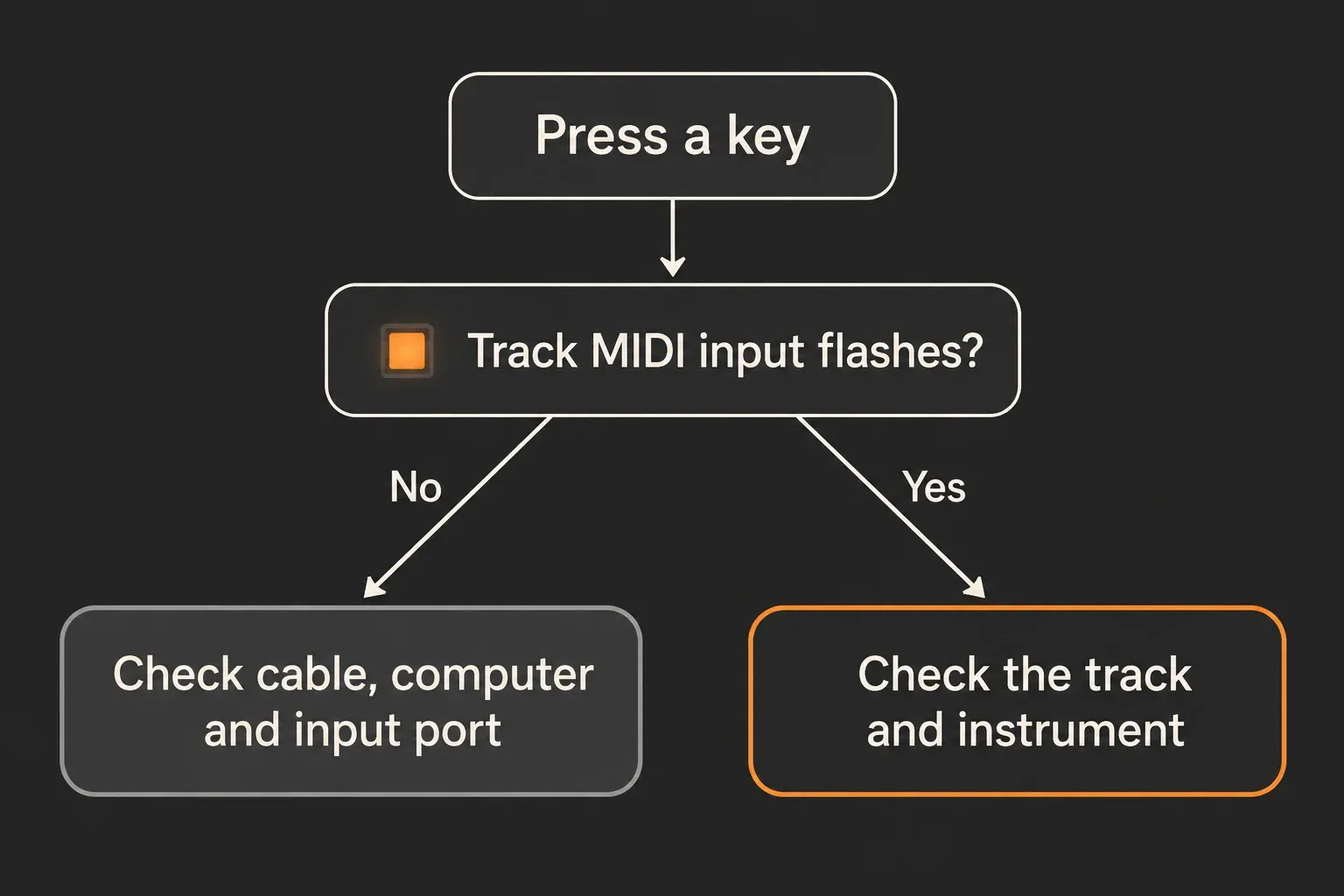
Short answer: press notes on the keyboard you’re testing and see whether Live’s incoming Track MIDI indicator reacts in time with your presses. Remote or clock activity from some other source doesn’t prove the keys reach a MIDI track. If nothing reacts, check the power, the cable, whether the operating system detects the keyboard, and the Track input port. If the keys reach Track MIDI but you still hear nothing, move on to the instrument and track-routing checks further down.
Checked September 7, 2026: this guide covers USB and 5-pin MIDI keyboard detection in Live 12 on macOS and Windows, and it keeps missing note input apart from a silent instrument. Knobs and transport buttons that send data but do nothing yet need MIDI mapping, not a new USB driver.
If you mean the computer keyboard, press M first
Live’s Computer MIDI Keyboard is a separate input from any USB controller. Ableton says it is off by default when a Set loads; press M or click the keyboard icon in the Control Bar to turn it on. If the letter keys now play notes and shortcuts such as A, Q or D stop working as usual, Live 12 lets you hold Shift with a single-letter shortcut. The Computer MIDI Keyboard note and the Live 12 navigation FAQ document both behaviors.
If your problem is a shortcut rather than note input, go to the Ableton shortcuts guide. The USB, driver and MIDI-port checks below are for external hardware.
Read the indicator before changing anything
Live has separate indicators for Track MIDI, Remote and synchronization, and the MIDI indicator section of the Live 12 manual tells incoming and outgoing messages apart. Stop other sequencers and test one keyboard at a time, so any activity has to match its keys. Remote activity can confirm a mapped message without showing that notes are reaching the instrument path.
| Observed response to this keyboard | What you know | Next check |
|---|---|---|
| No Track or Remote input response to keys | No key-message response has been established in Live | Connection, OS endpoint, correct note port and controller mode |
| Track input responds to the keys | This input path is receiving messages | MIDI From, channel, instrument, Monitor and Arm |
| Remote responds, but Track input does not | A remote-control message is arriving, not normal track input | Track switch, note mappings and controller port |
| Knobs respond, but keys do not | Some controller data arrives; key output remains unconfirmed | Keyboard mode, key port/channel and mappings |
Run the test in one empty Set, so existing mappings and instruments can’t muddy the result. What matters is which messages arrive, not whether some light in the Control Bar happens to blink. A steady clock stream or a second controller can easily send you down the wrong path otherwise.
Prove the physical connection
Start at the keyboard and follow the signal toward the computer. A controller can light up and still send no data: some USB cables carry power but no working data line, and an underpowered hub can turn unstable when several devices share it.
- Power the keyboard the way its manufacturer specifies.
- Reconnect it with a USB cable you know carries data, and try one other physical port if needed.
- Test without any optional dock or hub. Keep a required adapter only if it passes data and meets the device’s power needs.
- For 5-pin MIDI, connect the keyboard’s MIDI Out to the interface’s MIDI In. The computer may show the interface’s name rather than the keyboard model.
Ableton’s current MIDI controller FAQ recommends a powered hub when a device needs more power and explains that class-compliant controllers work without a dedicated driver. A controller that isn’t class compliant needs the current driver from its manufacturer, never one from a random driver-download site.
Don’t install every companion utility yet. First find out whether the computer detects the MIDI endpoint. Extra launchers, update agents and control-surface packages add variables before you know which layer failed.
Check whether macOS or Windows sees the keyboard
Check the operating-system layer before you change more Live settings. If the device shows up in the operating system but not in Live’s port list, quit and reopen Live once the connection is stable.
On macOS
- Open Applications → Utilities → Audio MIDI Setup.
- Choose Window → Show MIDI Studio if the MIDI device view is hidden.
- Look for the keyboard or its MIDI-interface port.
Apple’s missing MIDI device instructions use Rescan MIDI in MIDI Studio. A dimmed icon can be a remembered device that is no longer connected, so it doesn’t prove a live connection. For a DIN keyboard, look for the USB MIDI interface first. If it is still missing, check the cable, the power and the manufacturer’s required software before going back to Live, and reopen Live after a successful reconnection.
On Windows
- Open Device Manager.
- Expand the category that holds the controller or MIDI interface. Windows files devices under different categories, so go by the device name and any warning icon rather than one fixed section.
- Look for the controller name, its MIDI interface or a device with a warning icon.
Open the affected device’s Properties and note any error before touching its driver. Microsoft’s Device Manager guidance recommends Windows Update for normal driver updates and the hardware manufacturer for manual downloads. A warning doesn’t mean every controller needs a vendor driver, since class-compliant models can run on the operating system’s own driver. Follow the instructions for your exact model and Windows version, and skip driver-cleaner utilities.
Enable the note input, not every MIDI switch
In current Live 12, open Settings → Tempo & MIDI, find MIDI Ports and enable Track for the input that carries the keys. Older builds and some support images label the page Link, Tempo & MIDI or Link/MIDI. The current Settings manual separates Link from Tempo & MIDI; use the MIDI port controls, not Link’s network settings.
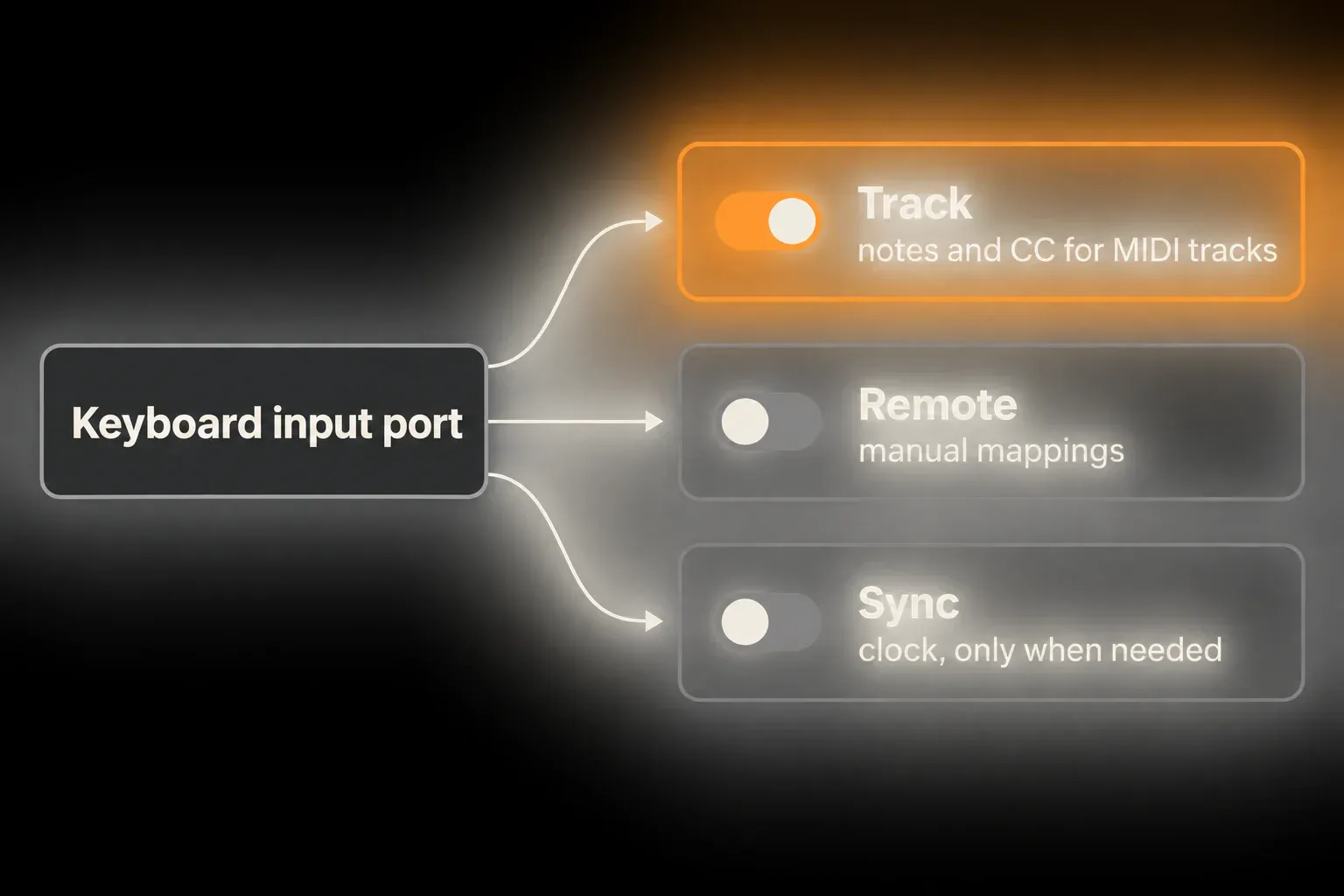
The switches do different jobs:
- Track Input: receives note and CC messages for MIDI tracks.
- Remote Input: enables custom mappings to Live controls.
- Sync Input: receives MIDI Clock or MIDI Timecode. Sync Output sends MIDI Clock; Live doesn’t transmit MIDI Timecode.
A missing Control Surface entry doesn’t stop the keys from playing an instrument. Control Surfaces add predefined device control, while an unsupported keyboard can still send notes through Track Input and use manual mappings through Remote. Ableton’s Control Surfaces guide spells out that distinction.
Turn on only the ports you need. Ableton warns that enabling Sync Input and Sync Output for the same device can create a MIDI feedback loop and interrupt a performance. A simple keyboard with no clocked sequencer or arpeggiator normally doesn’t need Sync at all.
Choose the port that actually carries the keys
Some controllers expose several inputs: a DAW or control-surface port, a general MIDI port and sometimes a DIN pass-through. The keyboard’s lights can work perfectly while Live listens to the wrong one.
- Write down the existing port switches before changing them.
- Enable Track Input for the port the controller manual names.
- Press keys while watching incoming Track MIDI activity, with other MIDI sources quiet.
- If only Remote responds, look at the mappings before blaming the cable.
- If the keys get no response, test another documented note port, and put unrelated settings back afterwards.
Don’t guess from names such as “DAW,” “MIDI,” “Port 1” or “Port 2,” because vendors assign them differently. The device manual is the authority on which port carries keys, pads, transport and feedback.
Separate note input from MIDI mapping
You don’t need MIDI Map Mode to play a software instrument; it assigns hardware messages to Live’s interface controls. In fact, a note that has been mapped to a Live control is taken out of normal MIDI-track input, and the Live manual calls this out as a common source of confusion.
- Save a copy of the Set before changing assignments.
- Enter MIDI Map Mode to show the Mapping Browser, which stays hidden outside the mapping modes.
- Look at the assignments for the particular keys that fail, and remove only a confirmed conflicting mapping in the copy.
- Leave MIDI Map Mode, then test those keys again on a MIDI track.
A control-surface script may handle a message separately from a manual mapping, and its assignments don’t have to appear in the Mapping Browser. If the keys still act as commands, switch to the controller’s documented keyboard or user mode. Don’t erase all assignments or disable unrelated controllers during this test.
Use one empty Set to isolate the last Live-side variable
When the port appears but the indicator behaves inconsistently, create one empty Set instead of taking the production Set apart. Enable Track Input for the correct port and press notes before loading any plug-in or copying routing.
If the empty Set responds to those same key presses, the difference lies in the production Set, in its mappings or track state. That test doesn’t vouch for every key, channel or intermittent cable fault, though. If neither Set receives the keys, close other MIDI apps that may be holding the port, then reconnect and reopen Live once. Note whether the port disappears, shows as unavailable or is simply silent.
Reach for the Live 12 setup checklist only if the problem affects a new installation more broadly. Don’t reset all of Live’s preferences over one missing keyboard until you’ve checked the cable, the OS endpoint, the driver and the input port. A global reset wipes useful custom settings and makes the comparison harder to repeat.
Keep the detection test small
One empty Set, one known input port and one data cable are enough for the first test. The Control Bar indicators don’t need a sample library, so add a lightweight instrument only when you’re testing audible playback. Skip plug-in rescans, extra controller suites and duplicate project copies for a port problem, and keep the original Set and a note of the settings you changed.
Stop when Live receives the message
Once incoming Track MIDI activity follows the keys you’re testing and the correct input port is selected, test an instrument on a MIDI track. Pick that port in MIDI From, allow the intended channel, load an instrument, then use Monitor In or arm the track with Monitor Auto. The MIDI notes not playing guide covers the rest of the signal path. Receiving MIDI doesn’t prove that audio is routed to your speakers.
The Fix Ableton Live hub keeps this hardware and input branch separate from audio-engine faults, crackling and crashes. Switch branches only once the indicator gives you new evidence.
FAQ
Why is my MIDI keyboard not showing up in Ableton Live?
Check for a powered connection and a USB cable that carries data, then look for the MIDI endpoint in macOS Audio MIDI Setup or Windows Device Manager. A DIN-connected keyboard may show up under the MIDI interface’s name instead of its model name. Reopen Live and enable Track on the correct note-input port.
Do I need a Control Surface entry to play a MIDI keyboard?
No. A Control Surface adds predefined control of Live, but note input uses the keyboard’s MIDI input port. Enable Track Input for that port. Unsupported controllers can still play instruments and use manual MIDI mappings.
Should Track, Sync and Remote all be enabled?
No. Use Track Input for notes and CC recording, Remote Input for manual mappings, and Sync only when you need synchronization. Live sends and receives MIDI Clock but only receives MIDI Timecode. Avoid an unnecessary clock loop between Sync Input and Output.
Why does Ableton’s MIDI indicator flash but I hear no sound?
First make sure the incoming Track MIDI activity follows this keyboard’s key presses, rather than another source or just a Remote mapping. Then check MIDI From, the MIDI channel, Monitor, Arm, the instrument and the audio output. A flashing global indicator on its own doesn’t prove an instrument is getting playable notes.
Why do my MIDI knobs work but the keys do not?
The device is connected, but the keys may use a different MIDI port or channel, a controller mode may be suppressing note output, or those notes may already be mapped to Live controls. Test each input port, check the controller manual and look in Live’s Mapping Browser for conflicts.
Can a USB hub stop a MIDI keyboard from working?
Yes. A hub can supply too little power or make the connection unstable. Test the keyboard directly on the computer with a known data cable, and if you really need a hub, use a powered one that can supply the device’s required power.
