
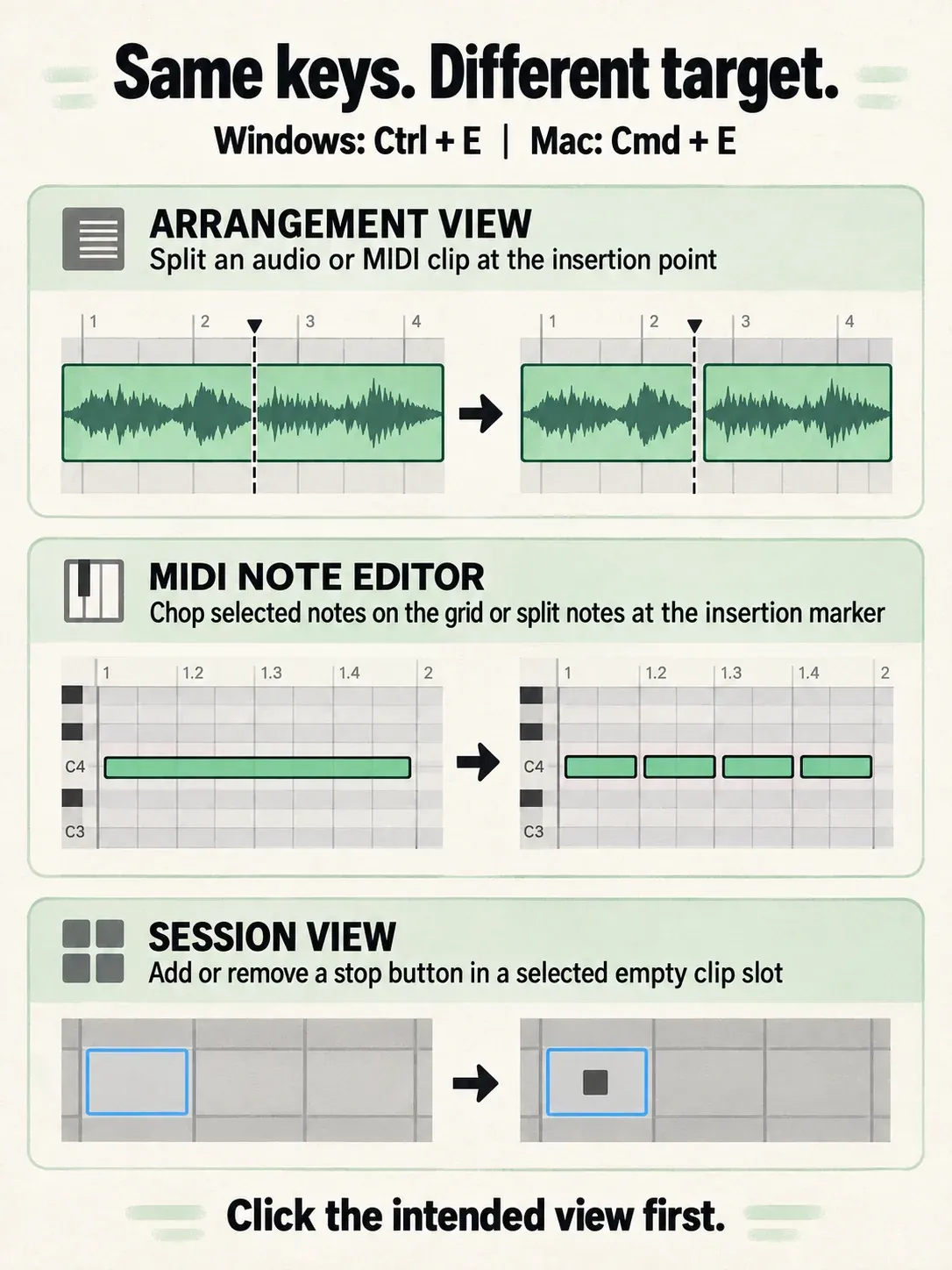
Quick reference: split an Arrangement clip with Ctrl+E on Windows or Cmd+E on Mac; duplicate with Ctrl/Cmd+D; consolidate with Ctrl/Cmd+J. Use the tables below for editing, time commands, views, tracks and recording. Click the intended view first: the same keys can edit MIDI notes or devices instead of clips.
These selected shortcuts follow the current Live 12 keyboard reference, with separate Windows and macOS columns. Copy Time is a Live 12.4 addition; older Live 12 builds differ. Ctrl/Cmd means Ctrl on Windows and Cmd on Mac, while Option is the Mac key sometimes labelled Alt. This is a task-based shortlist, not a complete list of every Live command.
Core Arrangement editing shortcuts
| Task | Windows | macOS |
|---|---|---|
| Undo | Ctrl+ | Cmd+ |
| Redo | Ctrl+ | Cmd+ |
| Duplicate | Ctrl+ | Cmd+ |
| Split at selection | Ctrl+ | Cmd+ |
| Consolidate selection | Ctrl+ | Cmd+ |
Click an Arrangement clip or its time selection before using Split or Consolidate. Split divides it at the insertion point or selection boundaries. Consolidate combines the selected material into a new clip on each selected track. In the MIDI Note Editor, Ctrl/Cmd+E chops or splits notes and Ctrl/Cmd+J joins notes instead. In Session View, Ctrl/Cmd+E adds or removes clip-slot stop buttons. Ctrl/Cmd+G groups selected tracks from their headers, devices in Device View, or notes in the MIDI editor; focus determines the action.
Edit time instead of moving every clip
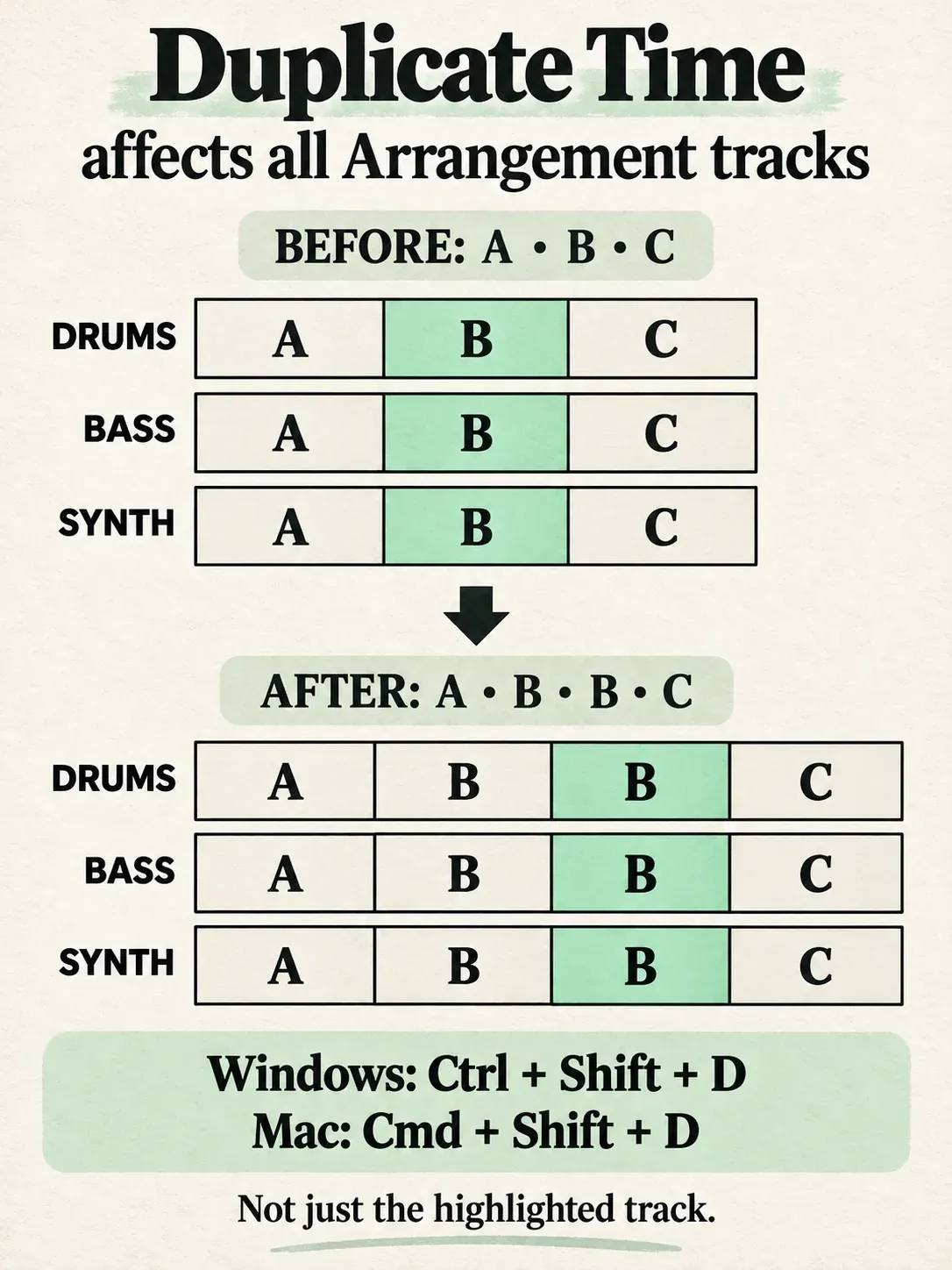
The Arrangement Time commands act across all tracks, not only highlighted tracks. Select the desired timespan, then check what will move on the other tracks before cutting, duplicating or deleting time. Use ordinary clip edits when the other tracks must stay put.
| Task | Windows | macOS |
|---|---|---|
| Cut Time | Ctrl+ | Cmd+ |
| Copy Time (Live 12.4+) | Ctrl+ | Cmd+ |
| Paste Time | Ctrl+ | Cmd+ |
| Duplicate Time | Ctrl+ | Cmd+ |
| Delete Time | Ctrl+ | Cmd+ |
Duplicate Time inserts another copy of that span and makes the Arrangement longer; Delete Time closes the gap and makes it shorter. For example, duplicating bars 9–13 inserts four bars across the Arrangement, even if only the drum track was highlighted. This is useful when extending a song section. Save a version first, then inspect clips, automation, locators and time-signature markers after the edit. The Live 12.4 release notes introduce Copy Time and remove the former Capture MIDI shortcut on Ctrl/Cmd+Shift+C.
Zoom to the decision, then return
In Arrangement View, select a timespan and press Z to zoom to it; X zooms back. W optimizes Arrangement width and H optimizes height. Clip View has its own selection zoom and fit commands, so focus the intended editor before pressing a single key. These controls help when checking a take or making detailed automation edits.
If Z or X changes the keyboard octave instead of zooming, the Computer MIDI Keyboard is active. Press M to toggle that mode, or hold Shift with the single-letter shortcut in Live 12. Finish text entry first and click the editor you want to control. The Live 12 shortcut changes explain the Shift modifier.
Switch views without hunting for panels
- Tab switches Session and Arrangement when Use Tab to Move Focus is off.
- Shift+Tab switches Device and Clip View when Tab focus navigation is off. F12 is the alternative view-switch shortcut.
- Ctrl+Alt+3 on Windows or Cmd+Option+3 on macOS toggles Clip View.
- Ctrl+Alt+4 on Windows or Cmd+Option+4 on macOS toggles Device View.
- Ctrl+Alt+5 on Windows or Cmd+Option+5 on macOS toggles the Browser.
When Use Tab to Move Focus is enabled in Navigate or Display & Input settings, Tab and Shift+Tab move forward and backward between controls instead. Keep that accessibility option if it suits how you work; use the explicit view shortcuts above. The Session and Arrangement comparison explains the difference between the two main views.
Create and organize tracks from the keyboard
| Task | Windows | macOS |
|---|---|---|
| Insert audio track | Ctrl+ | Cmd+ |
| Insert MIDI track | Ctrl+ | Cmd+ |
| Insert return track | Ctrl+ | Cmd+ |
| Rename | Ctrl+ | Cmd+ |
| Group selected tracks | Ctrl+ | Cmd+ |
Select a track header before grouping or renaming tracks. After renaming, press Tab to move to the next track name. That lets you label a run of tracks without reopening the rename command for each one.
Record and play without confusing the command
| Task | Windows | macOS |
|---|---|---|
| Play from Start Marker / stop | Space | Space |
| Continue from the Stop Point | Shift+ | Shift+ |
| Record | F9 | F9 |
| Arm recording in Arrangement | Shift+ | Shift+ |
| Record into Session View | Ctrl+ | Cmd+ |
F9 controls Arrangement recording; it does not select an input or arm the intended audio/MIDI track for you. Prepare the track and monitoring before recording, and use the separate Session command for Session recording. If playback or recording starts from an unexpected position, check the start marker and current Arrangement selection. For an actual delayed take, use the recording-latency checks, not a different hotkey. Whether Arrangement Record starts playback immediately depends on Start Playback with Record in Record, Warp & Launch Settings. With it disabled, recording waits for playback to start. Holding Shift while pressing Arrangement Record reverses that setting for the action. Also check the count-in and punch-in settings before treating a delayed start as a broken shortcut.
Grid, drawing and quantization
Ctrl/Cmd+1 narrows the grid, Ctrl/Cmd+2 widens it, Ctrl/Cmd+3 toggles triplets and Ctrl/Cmd+4 toggles snapping. Ctrl/Cmd+5 switches fixed and zoom-adaptive grid modes. B toggles Draw Mode. A tighter grid is useful for a precise edit, but turn snapping off when the intended position falls between its lines.
In the MIDI Note Editor, Ctrl/Cmd+U applies quantization and Ctrl/Cmd+Shift+U opens Quantize Settings. Choose the grid and amount deliberately; the quantization and groove guide explains how to correct selected notes without flattening the whole performance. Do not confuse editing quantization with the global clip-launch quantization setting.
When a shortcut does not work
- Finish any text entry, close an open plug-in window that may intercept keys, and click the intended Live view. Retry the command from its menu to confirm it is available for the selection.
- For a single-letter command, check the Computer MIDI Keyboard and Key Map Mode. Ctrl+K on Windows or Cmd+K on Mac opens Key Map Mode so you can inspect conflicting assignments; leave mapping mode afterward.
- For Tab or Shift+Tab, check Use Tab to Move Focus. Do not disable needed keyboard navigation just to copy someone else’s setup.
- If F9 or F12 controls a laptop feature instead of Live, use the keyboard’s function-key mode. On an Apple keyboard, hold Fn/Globe with the function key, or change Function Keys in macOS keyboard settings.
- If the problem persists, test in an empty Set. Check only relevant operating-system shortcuts, keyboard layout and conflicting utility mappings; temporarily disable the conflicting shortcut rather than quit unrelated applications.
Ableton’s shortcut troubleshooting checklist covers plug-in windows, custom mappings and operating-system conflicts. Apple documents standard function keys and Fn/Globe. On a Windows laptop, follow the keyboard manufacturer’s function-key instructions rather than assume a universal Fn-lock combination.
What these edits change in the project
Before deleting time or consolidating a long selection, use Ctrl/Cmd+Shift+S for Save As and name the Set version by the edit, such as song-before-bridge-cut. Undo is useful, but a named version is easier to return to after several unrelated decisions. Saving another .als is not the same as collecting every external sample into a portable project.
Consolidating audio clips creates a new sample for each selected audio track, before that track’s effects and mixer. Consolidating MIDI combines MIDI material; it does not render the instrument to audio. If the aim is to commit instrument/effect processing and reduce a running workload, follow the Freeze and Bounce guide. A shortcut has the same resource cost as the command it invokes from a menu; learning keys is not itself a RAM optimization.
Search and load without leaving the keyboard
Use Ctrl/Cmd+F to search the Browser, the down arrow or Enter to reach results, arrow keys to inspect them, and Enter to load the selected item. Shift+Enter previews a selected file. Live 12 also provides Ctrl/Cmd+[ and Ctrl/Cmd+] for Browser history.
Search narrows the Browser results; it does not load every result into your Set. Preview an item before pressing Enter to load it. Keep source folders organized and use specific terms instead of adding an entire drive to Places just to make more material searchable.
Keep a short personal reference
Pick three commands you already need while building a first song. Keep only your operating system’s keys in a note beside the computer, then add a command when a repeated menu trip becomes inconvenient. The Learn Ableton Live hub links the underlying workflows when remembering the keys is not enough.
A remapper can be useful for accessibility or a genuinely missing action. There is no need to install one for commands Live already provides, but there is also no reason to remove a working accessibility tool for an unmeasured memory saving. Document any custom bindings so that the standard tables above do not become misleading.
FAQ
What are the most useful Ableton shortcuts to learn first?
For Arrangement editing, start with Undo, Duplicate, Split, Consolidate and Z/X for selection zoom. Use Tab and Shift+Tab for view changes only when Tab focus navigation is off, or use explicit view shortcuts. Select the intended view before applying an edit.
What is the Ableton shortcut for splitting a clip?
In Arrangement View, click the split position or select a timespan and press Ctrl+E on Windows or Cmd+E on macOS. In the MIDI Note Editor, the same keys chop or split notes instead of the Arrangement clip.
What is the difference between Duplicate and Duplicate Time in Ableton?
Ctrl/Cmd+D duplicates the selected item. In Arrangement View, Ctrl/Cmd+Shift+D duplicates the selected timespan across all tracks and inserts time, making the Arrangement longer. It is not limited to highlighted tracks. MIDI clip time-edit commands operate inside that clip instead.
What does Consolidate do in Ableton Live?
In Arrangement View, Ctrl+J on Windows or Cmd+J on macOS combines selected material into a new clip on each selected track. Audio consolidation creates new samples before the track effects and mixer; MIDI consolidation does not render an instrument to audio. In the MIDI Note Editor, the same keys join notes.
Why do single-key Ableton shortcuts sometimes not work?
Check text-entry focus, the active view, Computer MIDI Keyboard and custom Key mappings. In Live 12, Shift lets single-letter shortcuts work while Computer MIDI Keyboard is on. An open plug-in window or an operating-system shortcut can also intercept keys. F9/F12 may require Fn or Globe on a laptop keyboard.
Do Ableton shortcuts use Ctrl or Cmd on Mac?
Most Windows Ctrl commands use Cmd on macOS, but not every shortcut is a direct substitution. Check the two official columns, especially for Redo, playback-from-selection and navigation commands.
