
Short answer: duplicate the clip and select the notes that need fixing. In Live 12, open the Quantize settings with Ctrl+Shift+U on Windows or Cmd+Shift+U on Mac. Pick the musical grid, turn Start on and leave End off for the first MIDI pass. Try a partial Amount, then compare the result with the untouched copy. For audio, check Warp and the downbeat first; the note-start and note-end controls only apply to MIDI.
Quantization corrects timing; it is not a style preset. The grid says where an event could land, and Amount says how far it moves toward that point. A performance keeps its feel when you choose the right subdivision, fix one dimension at a time and stop as soon as the part sits well in the track.
First decide which kind of quantization you mean
Live uses similar words for four different operations:
| Operation | What moves | Where to set it | Common mistake |
|---|---|---|---|
| MIDI note quantization | Selected note starts and optionally ends | Clip View Transform panel | Correcting every note and duration at 100% |
| Record Quantization | Incoming recorded MIDI notes | Edit menu | Printing a grid before hearing the performance |
| Audio quantization | Warp Markers near detected transients | Warped audio clip Transform panel | Quantizing before fixing the downbeat |
| Global or Clip Launch Quantization | When a Session clip launches | Control Bar or clip launch settings | Expecting it to move notes inside the clip |
If a keyboard part lands late by roughly the same amount throughout, because monitoring latency changed what the player heard, fix the recording setup before you touch every take. The Ableton recording-latency workflow separates driver, buffer and monitoring delay from real performance timing.
Choose the grid from the intended rhythm
The shortest note in a part doesn’t automatically give you the right grid. A straight eighth-note bass line usually wants an eighth-note target, a sixteenth-note hat part wants sixteenths, and a triplet phrase needs a triplet division. Quantizing a triplet performance to straight sixteenths doesn’t tighten it; it turns it into a different rhythm.
Before applying anything, tap or count the intended subdivision while the clip loops. If the accents form a slower pattern than the small ornamental notes, select the main notes first and deal with the ornaments separately. A live drum performance rarely fits one grid across every layer.
Quantize MIDI starts before touching note ends
For MIDI, Ctrl+U on Windows or Cmd+U on Mac applies the current Quantize settings, and Ctrl+Shift+U or Cmd+Shift+U opens them. In Live 12 they live in Clip View’s Transform panel instead of the old floating dialog. Open the panel before applying a saved setting you don’t recognize.
- Duplicate the MIDI clip and select the notes that share one musical role.
- Open Transform and choose Quantize. Turn Auto Apply off while you set it up if you don’t want the notes to jump right away.
- Choose an explicit Quantize To subdivision, or pick Current Grid on purpose. If you use Current Grid, check the editor’s grid before applying.
- Turn Start on and leave End off for now, so the test only moves note onsets.
- Try Amount 50% as a listening comparison, not a required value. With Auto Apply off, press the Apply button once; current interfaces label the action Transform.
- Alternate the corrected clip with the untouched original on the same track. Keep the same sound and level, and play one copy at a time.
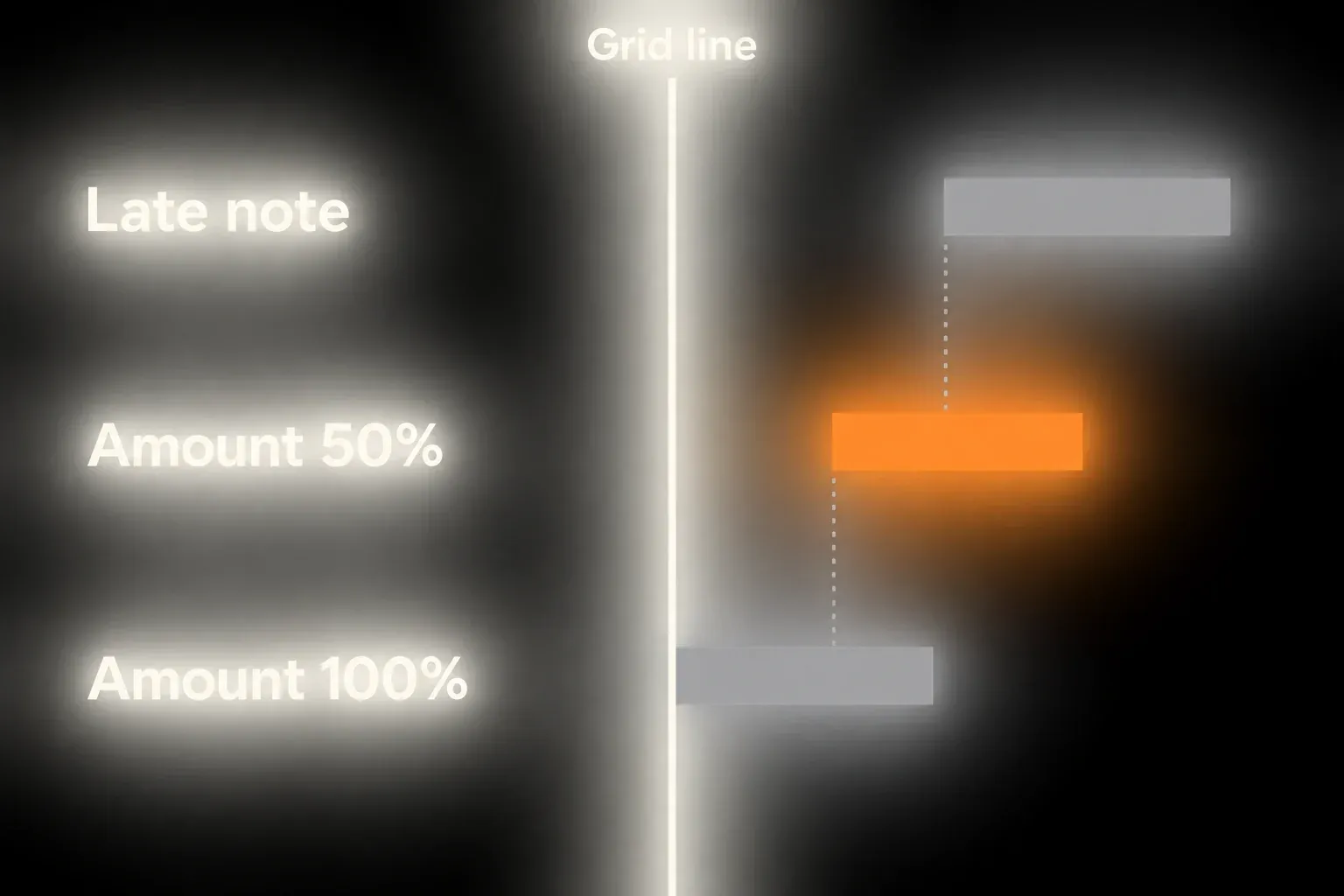
Quantizing End changes a note’s length so its end moves toward the chosen grid. That shifts the MIDI note-off time, not the instrument’s release setting. Depending on the instrument, you may hear different sustain, overlap or legato, and a one-shot may ignore note-off altogether. Treat those as articulation changes and check them separately from early or late starts.
Quantize drums by role, not as one block
Start with the kick and snare hits that sound out of place, not every hit in those lanes. Then listen to hats and percussion against those anchors. A snare that is always a little late may be deliberate. A stray hat that breaks a repeating pattern is a better candidate for correction than a whole lane that already works.
- Correct the obvious kick or snare misses.
- Loop four or eight bars, not one isolated beat.
- Listen for a repeating timing shape in the hats and percussion.
- Quantize only the exceptions that break that shape.
- Leave velocity alone until the timing is approved.
Direct Quantize uses a grid; it doesn’t load a groove template. Triplet targets or moving only the offbeats can produce something swing-like, but that is not the same as applying a Groove Pool timing and velocity pattern. For a fair straight-timing test, set the uncommitted clip’s Groove chooser to None. Global Groove Amount at 0% on its own may still leave Groove Pool Quantize active.
Use partial Amount as a diagnostic, not a magic number
A programmed four-on-the-floor kick may want 100% correction, while a played shaker may sound better with much less, or none at all. The useful comparison is between different treatments of the same original performance, not between unrelated presets. Keep the intentional pushes and lazy accents that help the phrase.
Here is the arithmetic. Say a note is 20 ms late against its grid target. One 50% correction leaves it 10 ms late. If a new 50% correction is then calculated from that already edited position, only 5 ms remains: 75% of the original error has been corrected. That is not the same as adjusting Amount while the same Auto Apply preview is still active. Go back to the source copy or Undo before comparing independent corrections, and don’t estimate the total correction by counting button presses.
Record Quantization is useful only when the target is known
The Live 12 recording manual puts Record Quantization in the Edit menu. It snaps incoming MIDI notes to a chosen subdivision. In Arrangement recording, the quantization is its own Undo step, so you can undo it and keep the performance. The setting can’t be changed in the middle of a recording, in Session or Arrangement.
Use it for a repeated overdub where the grid is part of the brief: a sixteenth-note closed hat, a straight eighth-note trigger pattern or a tightly layered clap. Leave it off for a first expressive take, swung percussion, rubato playing or any phrase whose subdivision you haven’t settled yet.
When you overdub into a looping Clip View, changes to Record Quantization take effect immediately and can’t be undone separately with the Edit command. Record a short test pass before building the full layer.
Quantize audio only after Warp is trustworthy
Audio quantization moves Warp Markers so detected transients move toward the grid lines. If Live has the wrong first downbeat, original tempo or transient, quantizing just moves the wrong reference more precisely. Set 1.1.1, confirm the clip BPM and choose a suitable Warp Mode before correcting timing. The broader Ableton audio-warping guide covers that setup.
- Duplicate the audio clip and confirm Warp is on.
- Check the first downbeat and the loop length.
- Select only the section that needs correcting.
- Open Quantize, choose the intended division and start with a low Amount.
- Listen for smeared transients, flams and phase changes before raising it.
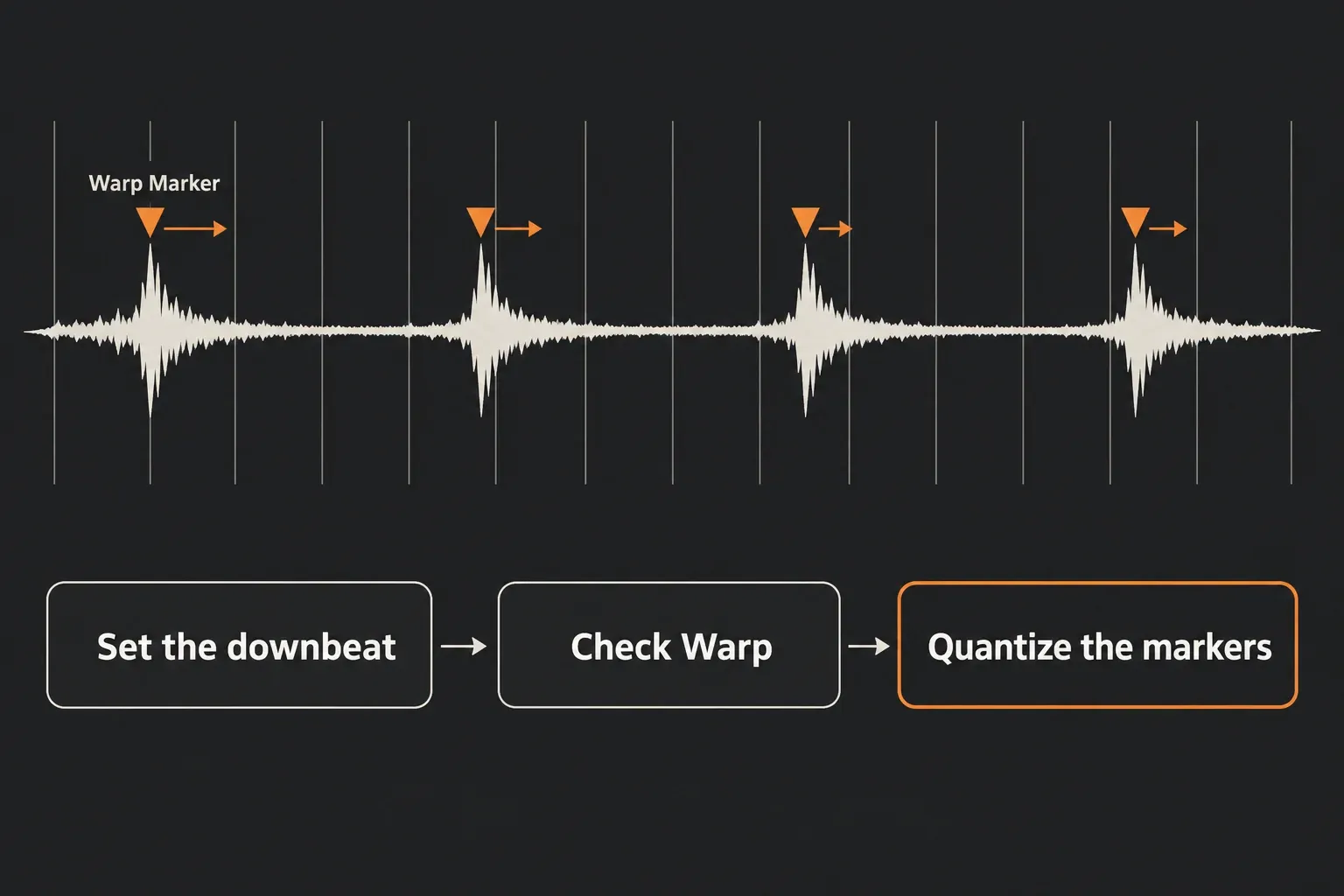
For a multitrack drum recording, keep close microphones and overheads aligned as a group. Live supports shared Warp Marker edits across selected clips of the same length, but that doesn’t license analyzing and quantizing each microphone on its own: different transient detection can produce different timing maps. Save a copy of the Set, use one common time reference, and check that the same marker movement reaches every selected clip. Compare the whole kit before and after, and undo if the tone turns hollow or the attacks split.
Quantize does nothing, or the settings window is missing
In Live 12, Quantize settings moved into Clip View. Select notes in the MIDI editor, then open Transform → Quantize. Check the target grid, that Amount is above zero and whether Start or End is selected. A note already sitting on its target won’t move. With Auto Apply off, changing a value on its own doesn’t apply the edit.
For audio, focus the Sample Editor, turn Warp on and check the detected transients. If the shortcut gets intercepted, use Edit → Quantize Settings and see Ableton’s shortcut troubleshooting. Live 12 saves MIDI Tool parameters with the Set, so a project you didn’t build may carry a different Quantize setup from your usual template.
Four signs that quantization is solving the wrong problem
- The whole take is late by a similar amount. Check monitoring or driver latency before you quantize every note.
- The grid target changes from bar to bar. The performance may use swing, triplets or tempo movement.
- Only note lengths sound wrong. Fix the articulation, not the starts.
- The MIDI is aligned but the sound still feels late. The preset’s attack, the sample start or effect latency may be the cause.
Quantize is a MIDI Transformation, and it matters which part you undo: Undo restores changed notes, while Reset restores only the tool’s parameters. Auto Apply previews parameter changes immediately, and switching it off restores the original notes for that active operation. A clip copy you kept is still worth having once you’ve moved on to other edits.
Keep clip copies; avoid unnecessary renders
- Quantizing MIDI changes note positions or lengths; it doesn’t insert an audio-effect device. The resulting overlaps can still change how an instrument plays, so there is no guaranteed CPU saving.
- For audio, the Warp mode and the amount of stretching shape both the result and the processing load. Pick a mode that keeps the sound you need, and don’t assume a lower Quantize Amount saves RAM.
- Duplicate the clip on its existing track for the A/B rather than duplicating an expensive instrument chain. A normal audio-clip copy points to the same source file; consolidating or rendering creates new audio.
- Keep the original take and wait until the timing is settled before printing another file. If playback overloads, check the actual track and device load instead of deleting the comparison copy.
A correction pass that preserves feel
- Find the audible error. Save a copy of the Set, duplicate the clip and identify the note onsets or audio transients that need correcting. Keep the original clip untouched.
- Choose the musical grid. Select the intended straight or triplet subdivision. For audio, confirm Warp, the downbeat and the timing map first.
- Apply a partial correction. For MIDI, start with Start on and End off, and set up with Auto Apply off if needed. Apply a partial Amount to the selected notes or the intended warped-audio region.
- Compare in context. Alternate the original and corrected clips at the same level, one at a time. Go back to the original before comparing a new independent correction, and keep only the changes that improve the part.
Once the timing is settled, the MIDI and sampling guides help with drum sounds, groove templates and audio slicing. If the notes line up but the sample still speaks late, check its sample-start position and the instrument’s attack before moving the whole performance again.
FAQ
What is the shortcut to quantize in Ableton Live?
With MIDI notes selected or the audio Sample Editor focused, Ctrl+U on Windows or Cmd+U on Mac applies the current Quantize settings. Ctrl+Shift+U or Cmd+Shift+U opens the settings. In Live 12, look in Clip View’s panels instead of expecting a separate dialog.
What Quantize Amount should I use in Ableton?
No single percentage fits everything. Compare a partial setting such as 50% against an untouched copy, then use more, less or no correction depending on the phrase. A new correction applied to positions you already edited can stack up, so go back to the original before comparing independent settings.
Should I quantize note ends in Ableton?
Start with note onsets when timing is the problem. End quantization changes note length and note-off timing, which can alter sustain, overlap or legato depending on the instrument. It doesn’t change the instrument’s release parameter directly. Use it when the articulation needs fixing.
Can Ableton quantize audio?
Yes, as long as the audio clip is warped. Quantize moves Warp Markers so nearby transients line up with the chosen grid, and Amount controls how far they move. Confirm the downbeat and Warp Mode before applying it.
Is Record Quantization the same as Global Quantization in Ableton?
No. Record Quantization snaps MIDI notes as they are recorded. Global or Clip Launch Quantization controls when Session clips launch. Neither one replaces deliberate note or audio quantization after recording.
Does quantizing use more CPU or RAM in Ableton?
Quantizing MIDI edits note data rather than adding an audio-effect device, though changed overlaps can still affect how the instrument plays. Audio quantization relies on Warp, whose processing depends on the mode and material. No particular Amount saves a fixed amount of CPU or RAM; compare on the existing track and skip unnecessary renders.
