
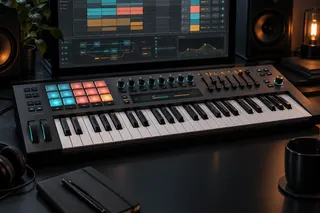


Design the show around decisions you can make on stage
A performance Set should make the next safe move obvious. That move might be launching a section, stretching a loop, muting a stem, playing an instrument, changing tempo, or keeping the show going when a controller stops responding. More clips and more mappings do not give you more control by themselves. Under stage lights they often do the opposite and make the Set harder to read.
This hub covers Session View, scenes, launch behaviour, Follow Actions, MIDI and key mapping, external hardware, backing tracks, monitoring, rehearsal and recovery. Before you build anything, decide which parts of the show are fixed, which are played and which are allowed to change. Then build the Set around those three boundaries.
Choose Session or Arrangement by the required freedom
Arrangement View suits a show whose timeline should run in a set order. Session View suits material that needs sections, alternate paths, clip launching or controlled repetition. A hybrid can work well, as long as you always know which view owns the music at that moment.
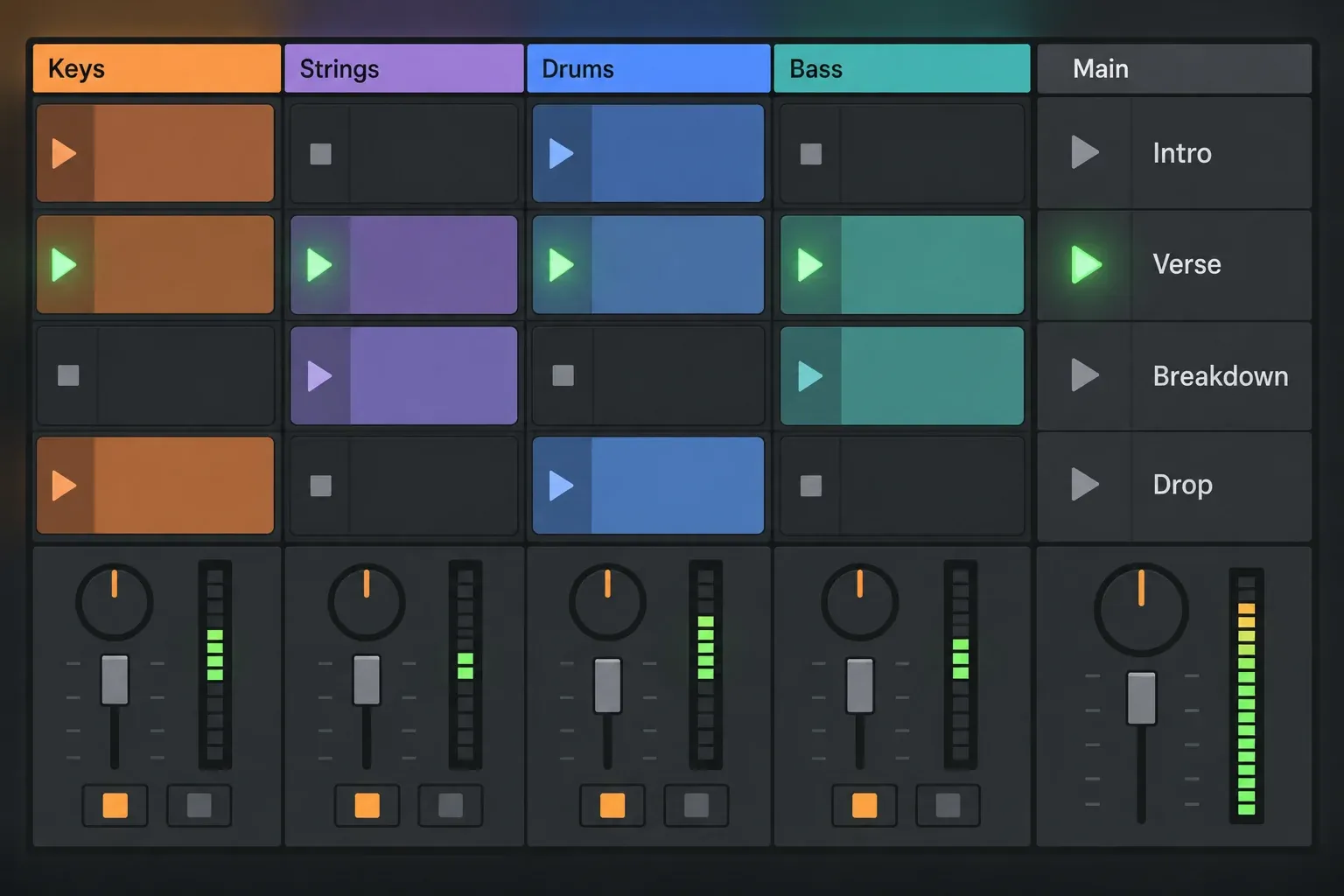
Ableton’s Session View manual describes scenes as horizontal groups of clips that launch together. I like to treat each scene as a musical state with one clear job: intro, verse, breakdown, transition or recovery. Name it for the action you will recognise at a glance, not for an internal file code.
Match the number of live choices to your rehearsal time. If the song is mostly fixed, a reliable timeline with a handful of intentional controls can be stronger than dozens of launchable clips. If improvisation is the point, keep the material modular and make stop behaviour, quantization and empty slots predictable.
Make scene and clip launch behaviour explicit
Set Global Quantization and any clip-specific overrides on purpose. The right value depends on how fast a trigger has to respond and how tightly it has to stay on the grid. Test early, late and repeated presses. A launch that works once with the mouse can behave quite differently when a nervous performer hits the transition a beat early.
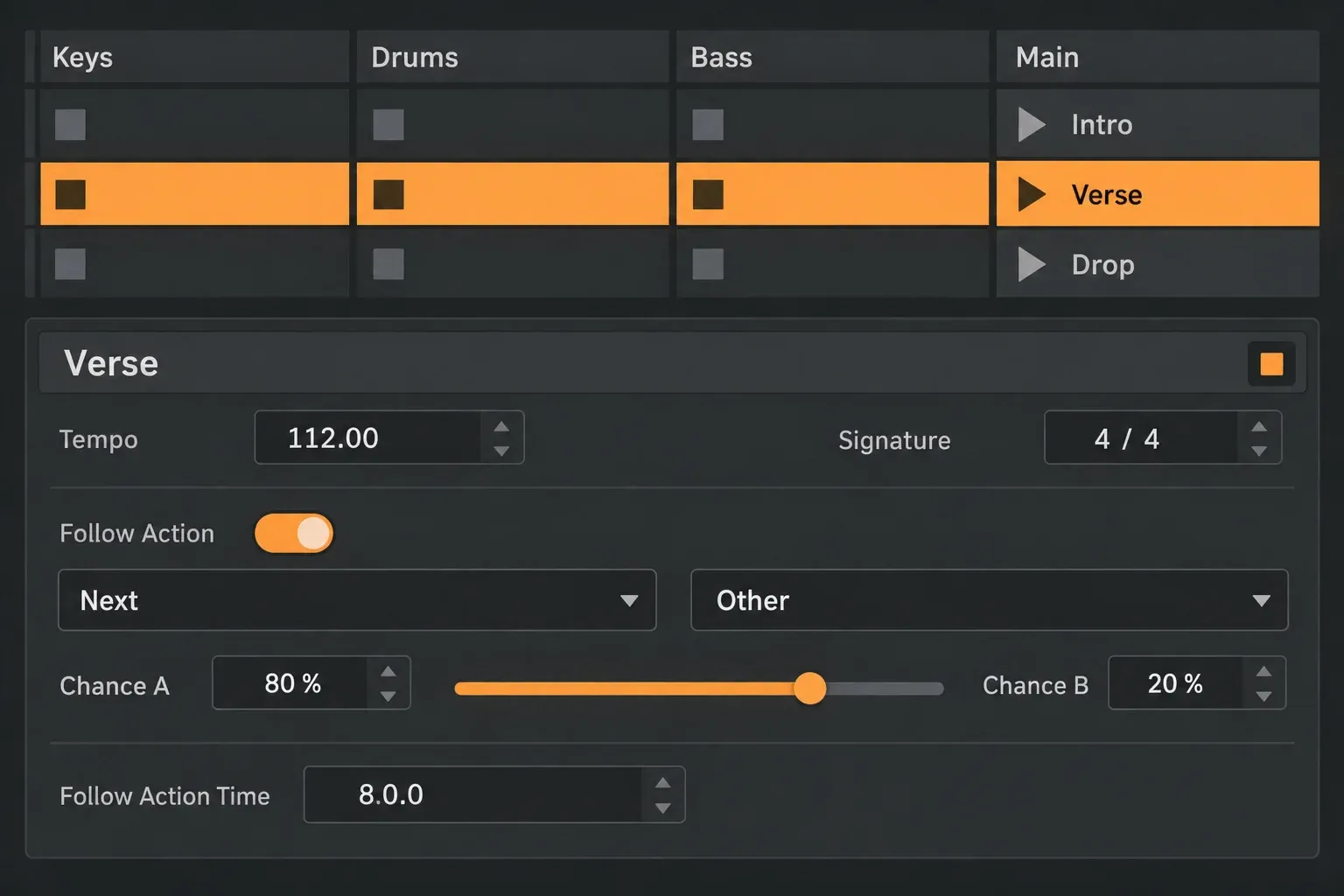
Follow Actions can move between clips or scenes in Session View. Ableton’s Launching Clips chapter documents the action chains, and the Session View chapter covers the scene controls. Automate the transitions that should always happen, and keep manual control wherever timing depends on the room or the other players.
Write down the intended result next to every automated transition, then rehearse a cancellation, a late launch and an early one. If a scene changes tempo or time signature, confirm the change with every clocked device and every backing part. What is selected on screen, what actually launched and what the next Follow Action will do are three different states, so check each of them.
Map actions, not every available control
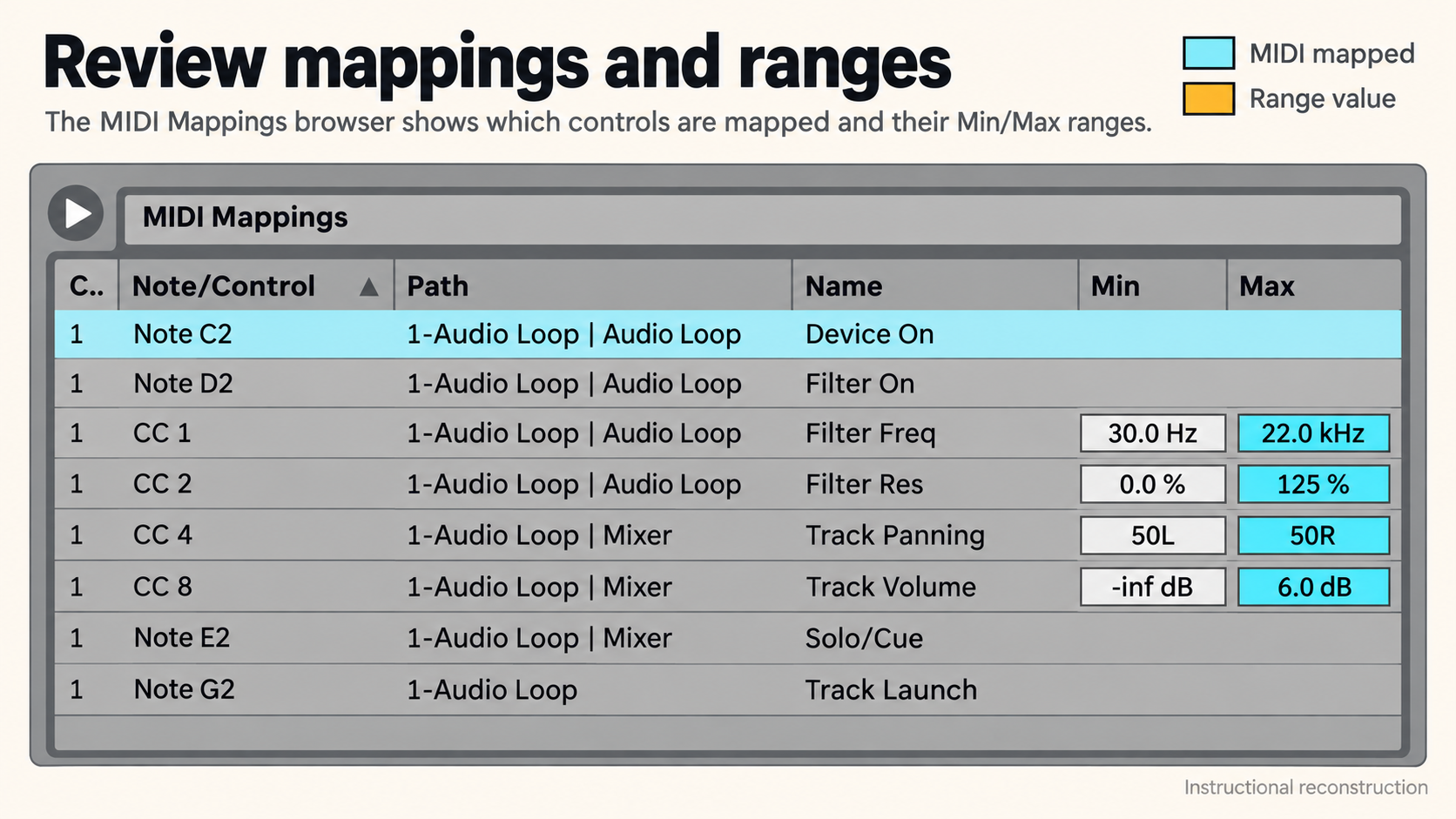
Live’s MIDI and Key Remote Control manual lets you map a great many interface controls to external MIDI or computer keys. Start with the actions that have to work without looking at the screen: next section, stop, emergency mute, instrument level, one performance effect and any monitor control you cannot live without.
Give critical actions their own physical controls. Keep Stop well away from Next Scene if one slip could end the song. Limit parameter ranges so a knob cannot push an effect somewhere unusable. Check the Mapping Browser for duplicate or surprise assignments, and save each mapping inside the performance Set or template that owns it.
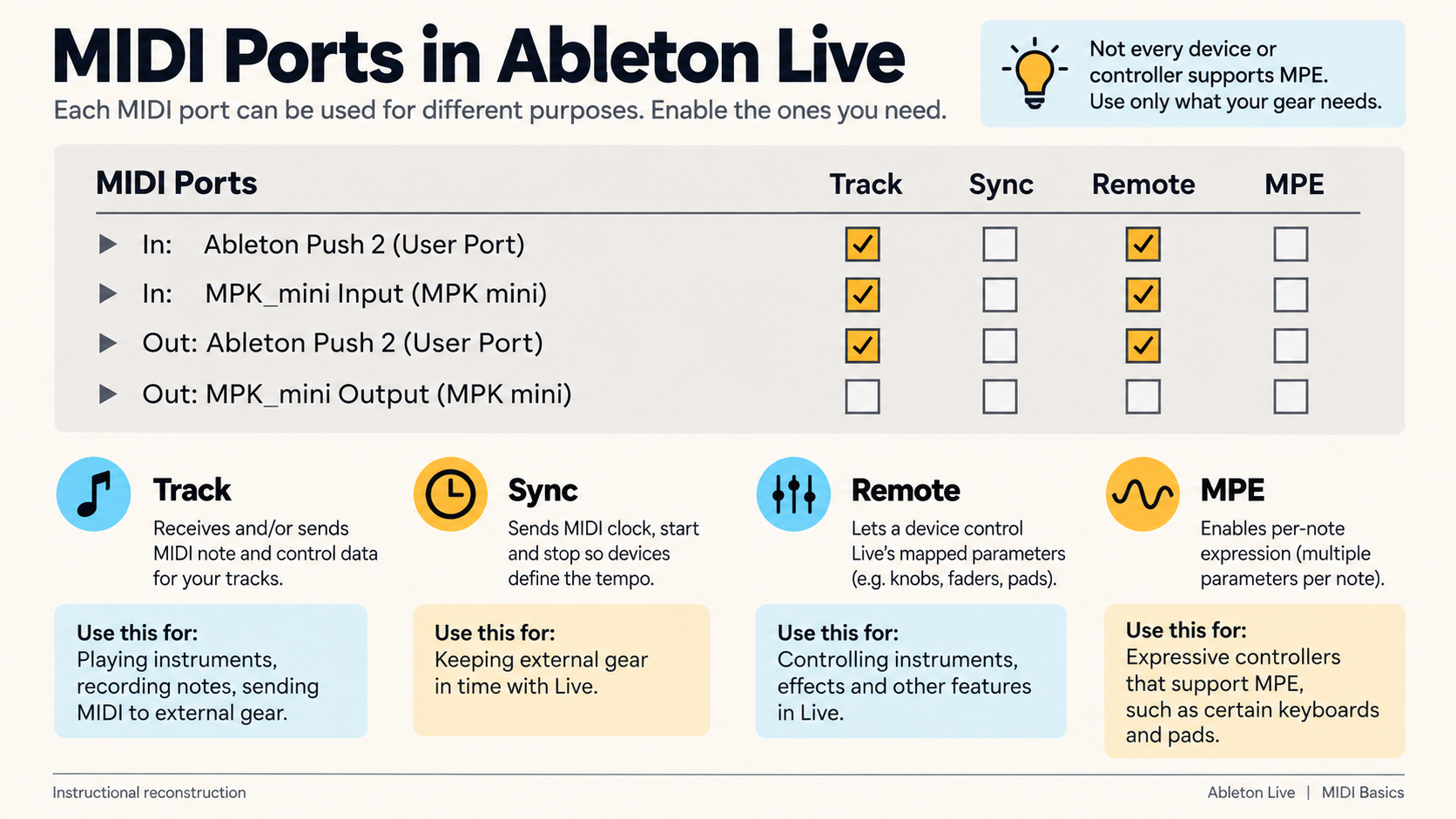
A control surface and a manual MIDI map do different jobs. Find out what your device already controls before you add overrides. Ableton’s MIDI Settings guide keeps the Track, Sync and Remote port roles separate. Switch on only the role each connection needs; sending and receiving sync on the same device at once can cause feedback problems.
Build backing tracks that reveal failure
Separate what the audience has to hear from the click, the cues and the parts that may be played live. Route the front-of-house output and performer monitoring on purpose, label every output, and test them at the physical interface as well as inside Live.
Split into stems only when separate control earns its keep. A single stereo backing file is the simplest option. Several stems let you rebalance, mute or swap parts live, at the cost of more routing and more CPU. Either way, keep every performance file local, collected and checked, and strip unused devices, expensive processing and browser dependencies out of the show Set.
Leave yourself a way out. That could be a fallback stereo mix, a safe scene, a direct instrument sound or a written plan for carrying on without one controller. Rehearse the backup too, and make sure you can reach it without rebuilding routing on stage.
Test the system under show conditions
Rehearse the whole Set from a fresh computer start with the real interface, hub, controllers, power supply and output routing. Play the longest and busiest sections. Keep an eye on Live’s Performance Impact and disk indicators, but also listen for dropouts and make sure every physical control sends the action you expect.
Test disconnecting and reconnecting only in a controlled rehearsal. Find out what happens if the controller is missing at launch, a cable gets knocked, the audio interface changes or a scene is triggered twice. Leave updates, new plug-ins and new mappings alone right before a show unless there is time to repeat the full rehearsal.
Make a show copy after the final clean run, and write down the operating system, Live version, plug-ins and Set revision. A good studio session proves only part of the story. Power, hubs, outputs, monitoring and human timing are all part of the rig.
Questions about performing with Ableton Live
Should I perform from Session View or Arrangement View?
Use Arrangement View when the timeline should stay fixed, and Session View when you need launchable sections, repetition or alternate paths. A hybrid works too, provided you decide which view controls playback at each point and rehearse every handoff.
What are scenes in Ableton Live?
A scene is a horizontal row in Session View that launches clips across several tracks at once. Scenes can stand for song sections, transitions, alternate versions or recovery states, and they can carry their own performance timing behaviour.
What should I map to a MIDI controller first?
The few actions you must reach without the mouse: section launch, stop or emergency mute, essential levels and one or two performance controls. Keep the critical ones physically apart and limit parameter ranges before you add anything optional.
How do I make an Ableton performance Set safer?
Collect files locally, simplify the processing, label the routing, rehearse with the complete hardware chain and keep a tested fallback such as a stereo mix or a safe scene. Then freeze the known-good software and Set revision before the show.