


Separate the notes, the sound and the timing
A MIDI clip is not audio. It tells an instrument which notes to play, when to play them and how they should behave. A sample is audio, but the clip, Warp settings and device around it determine how that recording follows the project. Ableton Live becomes easier to control when those layers stay distinct.
This hub covers MIDI editing, beat programming, Drum Racks, groove, warping, Simpler and Sampler workflows, slicing and resampling. It is organised by the decision you need to make: connect or edit note data, choose a sound source, control timing, or turn the result into new audio.
Start with a MIDI clip you can explain
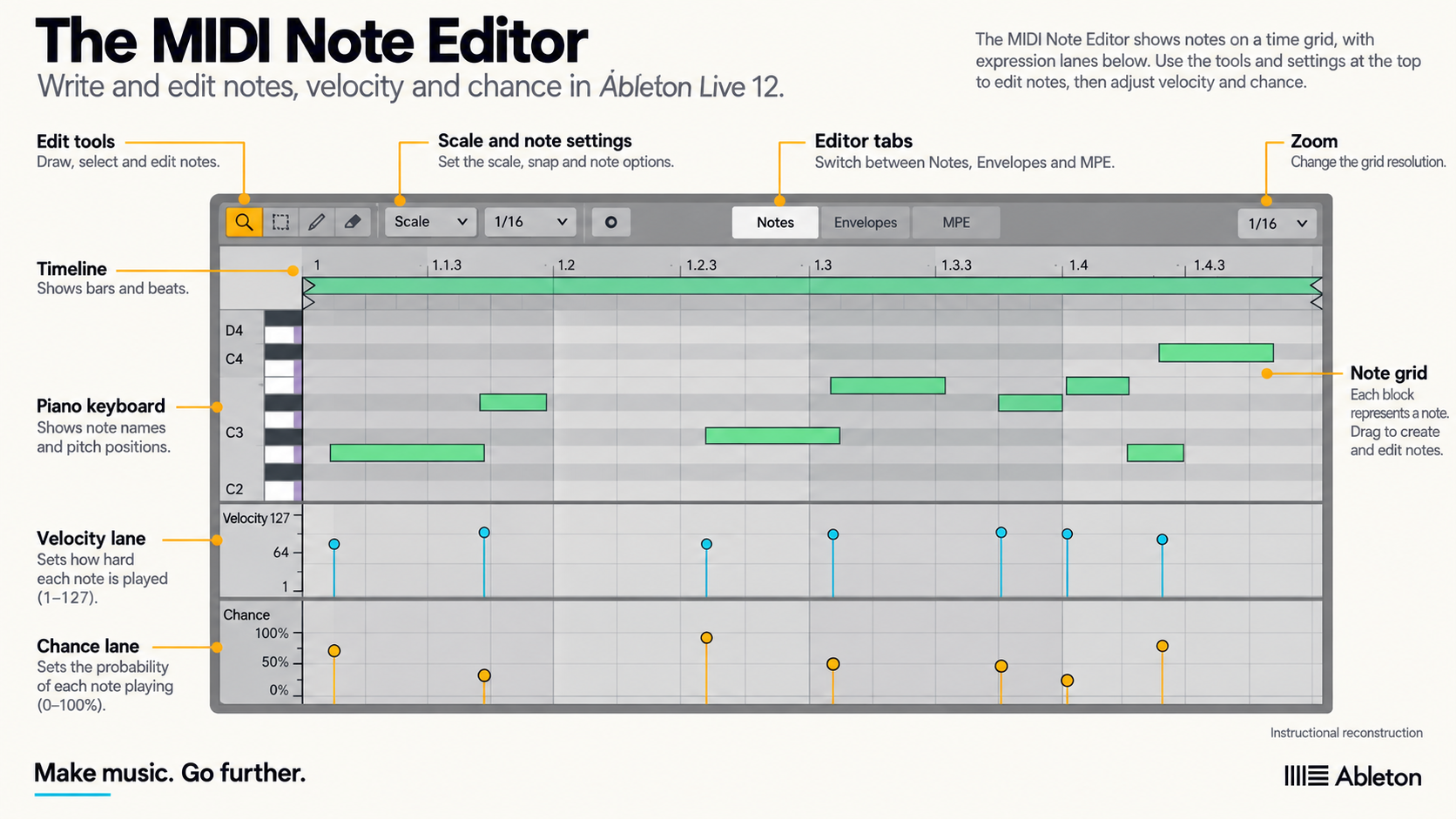
Ableton’s MIDI editing manual defines a clip as note and controller data for a virtual instrument or an external synth. The notes carry pitch, position, length and velocity. Live 12 also exposes Chance and other note-editing tools, but those controls are useful only when the basic pattern already has a clear pulse and accent structure.
Begin with a short clip and one instrument. Set the clip length, place the main notes, and shape velocity so the intended accents are audible. Quantize only the timing that needs correction. A perfectly aligned pattern can still feel static, while random timing can make the groove less coherent. Compare changes at the same level and keep the version that makes the musical role clearer.
Connect MIDI ports by purpose
Live’s MIDI settings separate the jobs performed by a port. A keyboard that plays an instrument, a clock source that synchronises devices and a controller that maps knobs are not the same role. Enabling every option on every port can create duplicate notes, feedback or confusing control behaviour.
When a controller is silent, test one direction at a time. Confirm that Live sees the device, that the intended input role is enabled, that the track receives MIDI, and that an instrument is loaded. If the MIDI indicator moves but no audio reaches the output, the connection has already passed one checkpoint; continue at the track and instrument rather than reinstalling the controller.
Use Drum Rack as a routing system, not just a pad grid
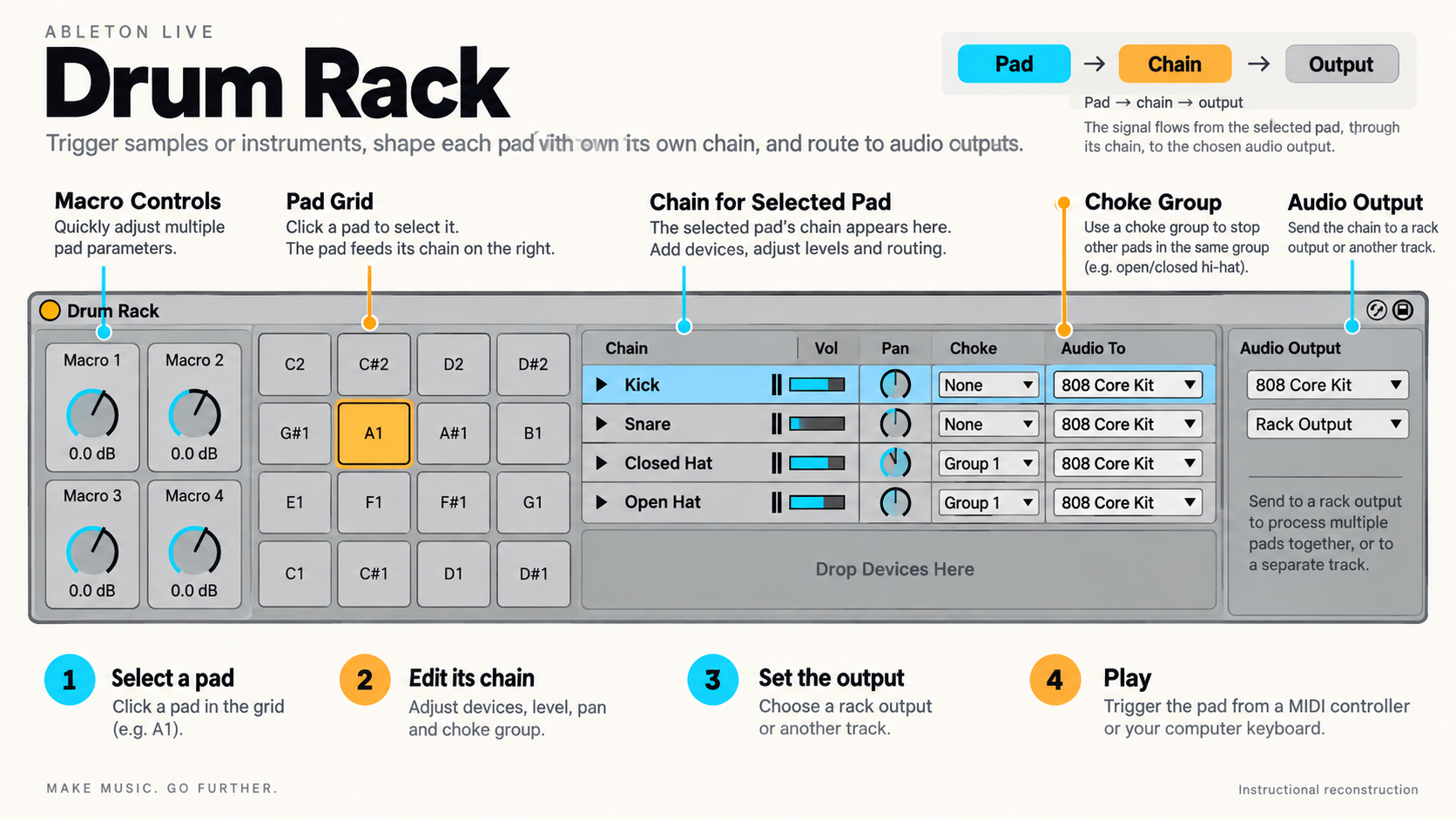
A Drum Rack lets pads address separate chains. The official Rack manual explains the chain, pad and Macro structure behind that surface. A useful Rack keeps the relationship between the MIDI note, the loaded sound and its processing easy to inspect.
Build a small kit before importing a large library. Load the kick, snare or clap, a closed hat and one contrasting sound. Name pads when the source is not obvious. Adjust the sample start and envelope before reaching for more effects. If a pitched sample clashes with the song, check its tuning in Simpler rather than trying to fix pitch with EQ. If two sounds should cut each other off, use an intentional choke relationship and test it with overlapping notes.
Individual chains can carry their own devices and routing, but that flexibility can hide gain changes and unnecessary processing. Level the source sounds first, then add shared processing only when the group needs it. Map a Macro to a musical range you can use, not to every available parameter.
Make groove before adding randomness
Timing, velocity, note length, groove and probability affect different parts of a pattern. Decide which one is wrong. If the beat lacks emphasis, work on velocity and sound choice. If it feels rigid, compare note placement or a Groove Pool setting. If a repeated detail should sometimes disappear, Chance may be appropriate. Randomising all of them at once removes the ability to hear which decision helped.
Keep variation inside the arrangement’s needs. A four-bar pattern may need one changed kick or hat at the turn, not a new generator. Generate or transform a small selection, listen in context, and commit the useful result while it is still easy to edit. For a repeating pattern played from a held note or chord, use Arpeggiator before the instrument; this processes incoming MIDI instead of editing the source clip’s notes.
Warp audio for a defined reason
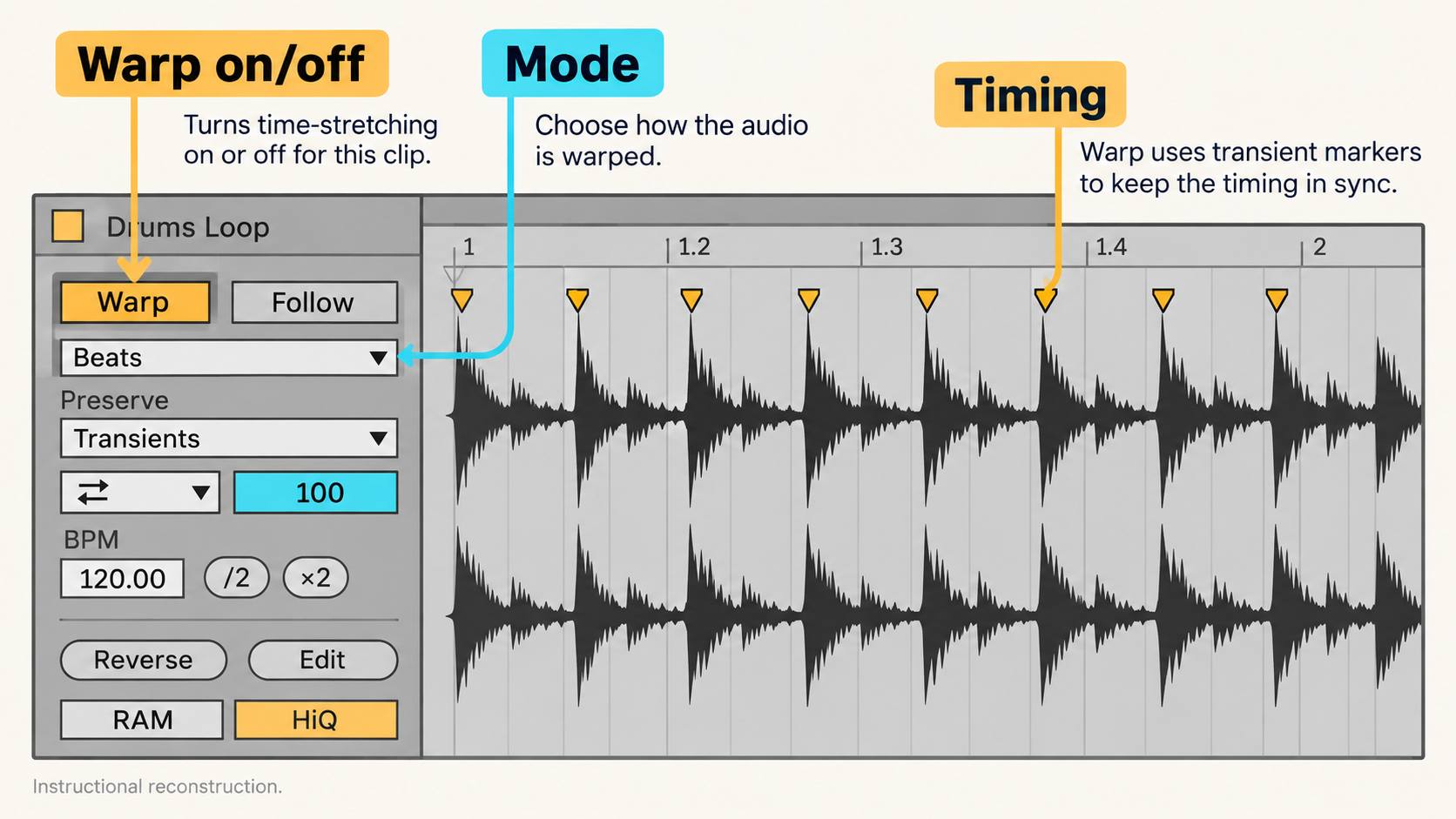
Warping changes how audio time relates to Live’s timeline and tempo. Ableton’s Audio Clips, Tempo and Warping chapter documents the clip controls and modes. Before moving a marker, decide whether the problem is a wrong detected tempo, an incorrect downbeat, genuine performance drift or a creative time change.
Set the meaningful first beat and check the grid across more than one phrase. Use the fewest anchors that preserve the performance. Extra markers can lock local errors into place and make later tempo changes harder to understand. Choose the Warp mode for the material and listen for softened transients, phase change or altered low end instead of assuming the visual grid proves the edit.
Keep an unwarped source or duplicate before a corrective pass. If the goal is to play the recording as captured, turn Warp off and verify the clip at the project tempo. If the goal is synchronisation, document where the timing reference begins. If the goal is sound design, resample the result so the transformation becomes a deliberate new source.
Choose a sampling path by the job
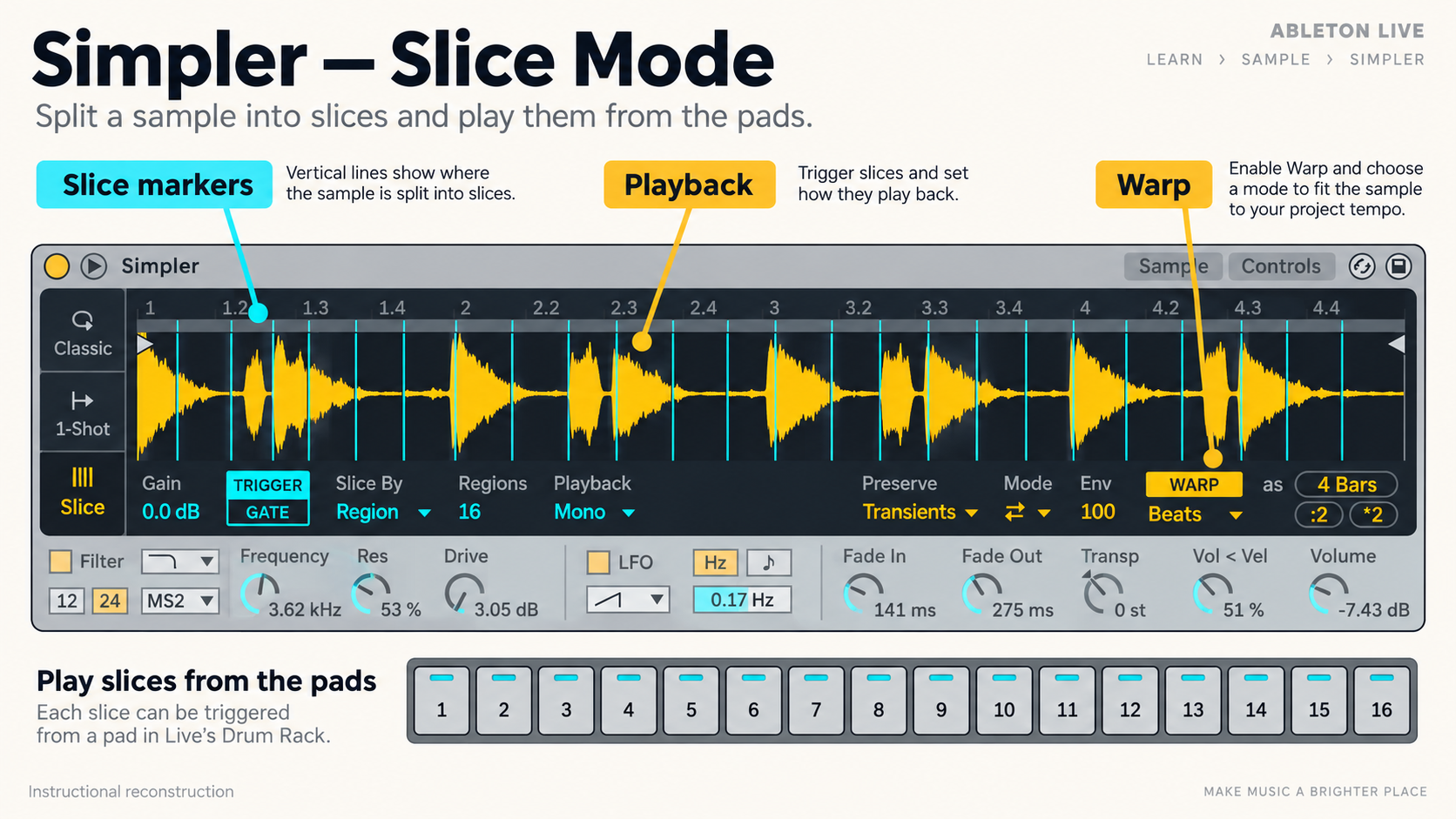
Use a one-shot or sliced workflow when you want to play the original recording or pieces of it. If you want a different instrument to play notes extracted from a recording, choose the appropriate audio-to-MIDI conversion and check the result against the source. Slicing and note conversion solve different problems. Choose a deeper sampler workflow when you need key zones, velocity layers or broader mapping.
Trim silence, set a reliable start point, shape the envelope and match level before building a complex Rack. When slicing, listen for clicks and missing transients at the boundaries. When resampling, name what changed and keep the original source available. Resampling is most useful when it turns a complicated live chain into an intentional piece of audio, not when it hides a routing problem.
Questions about MIDI and sampling
Why does Live receive MIDI but make no sound?
MIDI data does not contain sound. Confirm that the receiving MIDI track has an instrument, that the notes fall within a playable range, and that the instrument’s audio reaches the intended output. A moving MIDI indicator proves input activity, not the rest of the signal path.
What is a Drum Rack in Ableton Live?
A Drum Rack maps MIDI notes to pads and chains. Each chain can hold a drum sound and its own devices or routing, while the Rack provides pad organisation, choke relationships and Macro control for the kit.
What does warping do in Ableton Live?
Warping changes the timing relationship between an audio clip and Live’s project timeline. It can synchronise material, repair drift or create deliberate time changes. The correct markers and mode depend on the source and the reason for changing it.
Should I use Simpler or Sampler?
Use the simpler route when you need a focused one-shot, classic, slicing or basic sample-playing workflow. Choose a deeper sampler workflow when the instrument needs detailed zones, mapping or modulation. Start with the least complex device that completes the musical task.