Start with a working signal path, not the whole program
The fastest useful way to learn Ableton Live is to finish one small project while you learn the controls that project needs. Begin with audio and MIDI that actually reach a track. Build a short idea in Session or Arrangement. Move that idea onto a clear timeline, make one deliberate edit, and export it. That route teaches more than memorising panels because every control has a reason to be there.
This hub is the starting desk for that process. It does not try to replace Ableton’s manual or turn every feature into a beginner requirement. The guides listed below handle one task at a time and state the Live version, operating system and hardware boundary when those details affect the steps.
Use Live’s own help before searching at random
Live 12 already includes two useful learning tools. The Learn View provides structured lessons, while the Info View explains the control currently under the pointer or keyboard focus. The same official First Steps chapter links to the manual, videos and interactive learning tools. Keep those resources close: they are the best reference for what a control is meant to do.
An independent guide has a different job. It should connect several controls to an outcome, show the failure states that interrupt the task, and tell you when a menu path or feature changed. Use the official material for the product definition and use the task guides here when you need to get from a blank Set to a specific result.
A practical first route through Live
1. Install, authorize and confirm the real devices
Follow Ableton’s current installation and authorization instructions, then open Live’s Audio settings and choose the input and output device you are actually using. If you have an external interface, Ableton’s audio-interface setup guide explains the macOS and Windows driver paths. Test one audio track before changing buffer size, sample rate, plug-in folders or performance settings.
Next, create one MIDI track with a stock instrument. A controller is convenient but not required for this checkpoint; the important result is that a MIDI clip can trigger the instrument and reach the Main output. If audio works but MIDI is silent, trace the MIDI track and instrument instead of treating both paths as the same problem.
2. Learn what Session and Arrangement are for
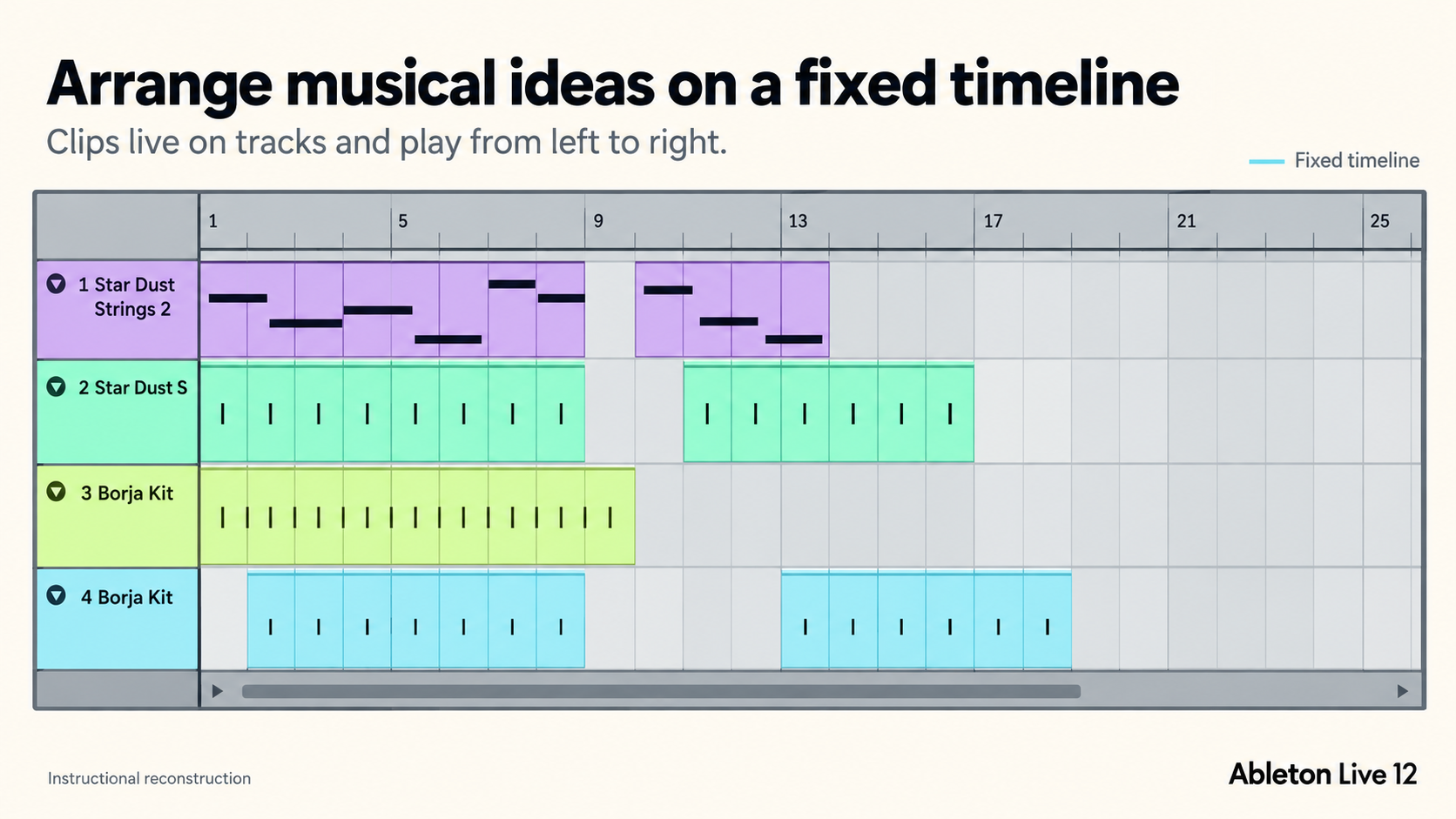
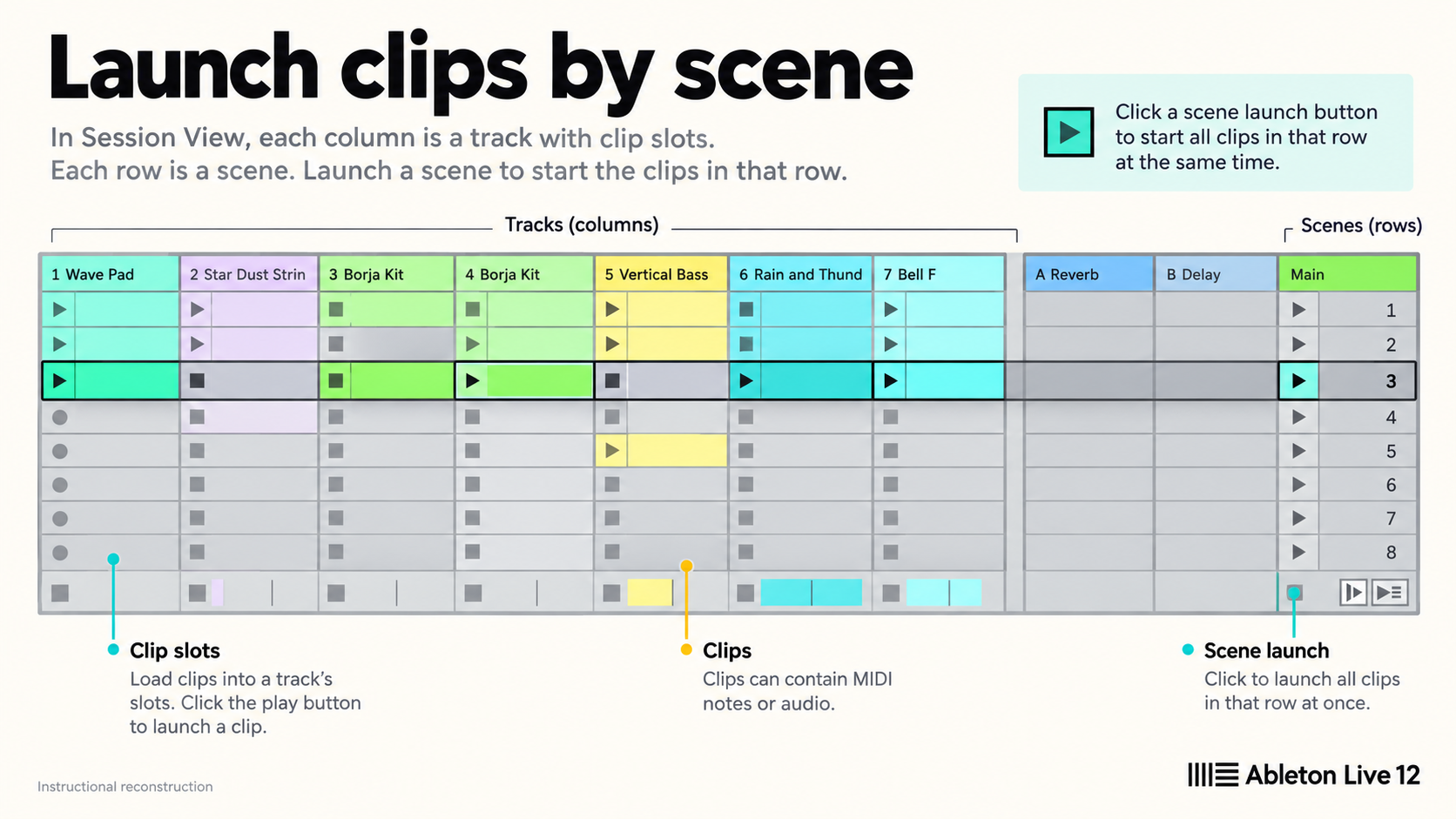
According to Ableton’s Live Concepts chapter, Arrangement lays clips along a linear timeline while Session is a real-time launching space for clips. They share the same tracks and can work together. Session is useful for trying combinations without deciding the final order; Arrangement is where a beginning, change and ending become visible.
You do not have to choose one view forever. For a first track, use whichever view lets you make a short musical idea with less friction. If you start in Session, record or move the useful material into Arrangement before adding more variations. If you start in Arrangement, keep going there until the short track has an ending. Switching views should answer a project need, not delay the next decision.
3. Build eight bars with a small tool set
Use one drum source, one pitched instrument and, if available, one short audio recording or sample. Set a tempo, make eight bars, and change one part in the second half. That is enough material to learn clips, track level, basic editing and the difference between an idea that loops and an arrangement that develops.
Do not begin by downloading a large plug-in collection or replacing every default. Stock devices make the signal path easier to inspect, and a small Set makes a mistake easier to find. Third-party instruments, elaborate Racks and Max for Live devices become more useful after you can identify where MIDI becomes audio and where that audio reaches the Main output.
4. Turn the loop into a short arrangement
Copy or record the eight-bar idea into Arrangement. Remove something at the beginning, introduce the full pattern, create one contrast, then make a clear ending. To change a level or device setting across that timeline, draw or record automation and check that Live plays it back. The goal is not a release-ready song. It is to see how clips, tracks, automation and time relate when the music has a fixed order.
Save the Set inside a named project folder. Before moving it to another location or computer, gather its referenced media with Collect All and Save. Avoid building a complex default template until you know which choices recur across several projects. A useful default removes a repeated decision; a premature template can preserve routing and devices you do not yet understand.
5. Export and listen outside Live
Exporting is part of learning because it proves what the Main output actually contains. Ableton’s file and export reference explains the available render sources and selection controls. For this first checkpoint, export the short arrangement, play the file outside Live, and note any missing tail, unexpected silence, clipping or large level change. Detailed format, dither, stem and delivery choices belong in the Mix & Export route.
What you can leave for later
You do not need every keyboard shortcut, instrument, modulation system, Warp mode or export format before completing a first track. Learn those when a project asks for them. Compare Freeze, Flatten and Bounce when you need to reduce device processing or commit a part to audio; keep the editable original. Push, Move, controller scripts and live-performance routing can wait until you need them too. None is a prerequisite for understanding a basic audio track, MIDI instrument, clip and arrangement.
Choose the next guide from the obstacle you just met. If the audio engine is off, follow the audio troubleshooting route. If recording works but takes are messy, continue to recording and arrangement. If the short track plays correctly and you want to improve the sound or deliver stems, move to mixing and export.
Questions beginners ask
Is Ableton Live hard to learn?
Live can feel unfamiliar because Session and Arrangement present two ways to work with the same tracks. It becomes manageable when you learn one complete route: working audio and MIDI, a short idea, an arrangement, and an export. Treat advanced devices and performance systems as later branches rather than prerequisites.
Should I learn Session View or Arrangement View first?
Learn the view that supports your first task, then understand how the two connect. Session is useful for launching and combining clips without a fixed order. Arrangement is useful for editing against a linear timeline. A beginner making a finished short track should reach Arrangement even if the idea began in Session.
Do I need a MIDI controller to learn Ableton Live?
No. You can create and edit MIDI clips with the computer and use Live’s stock instruments. A controller can make playing, recording and performance more immediate, but it is not required to learn the signal path or complete the first project route.
How long does it take to learn Ableton Live?
There is no honest universal number. Measure progress by completed tasks: configure a working device, make a clip, arrange a short track, export it, and then solve the next specific problem. A promised number of days says less than a project you can reopen and explain.