
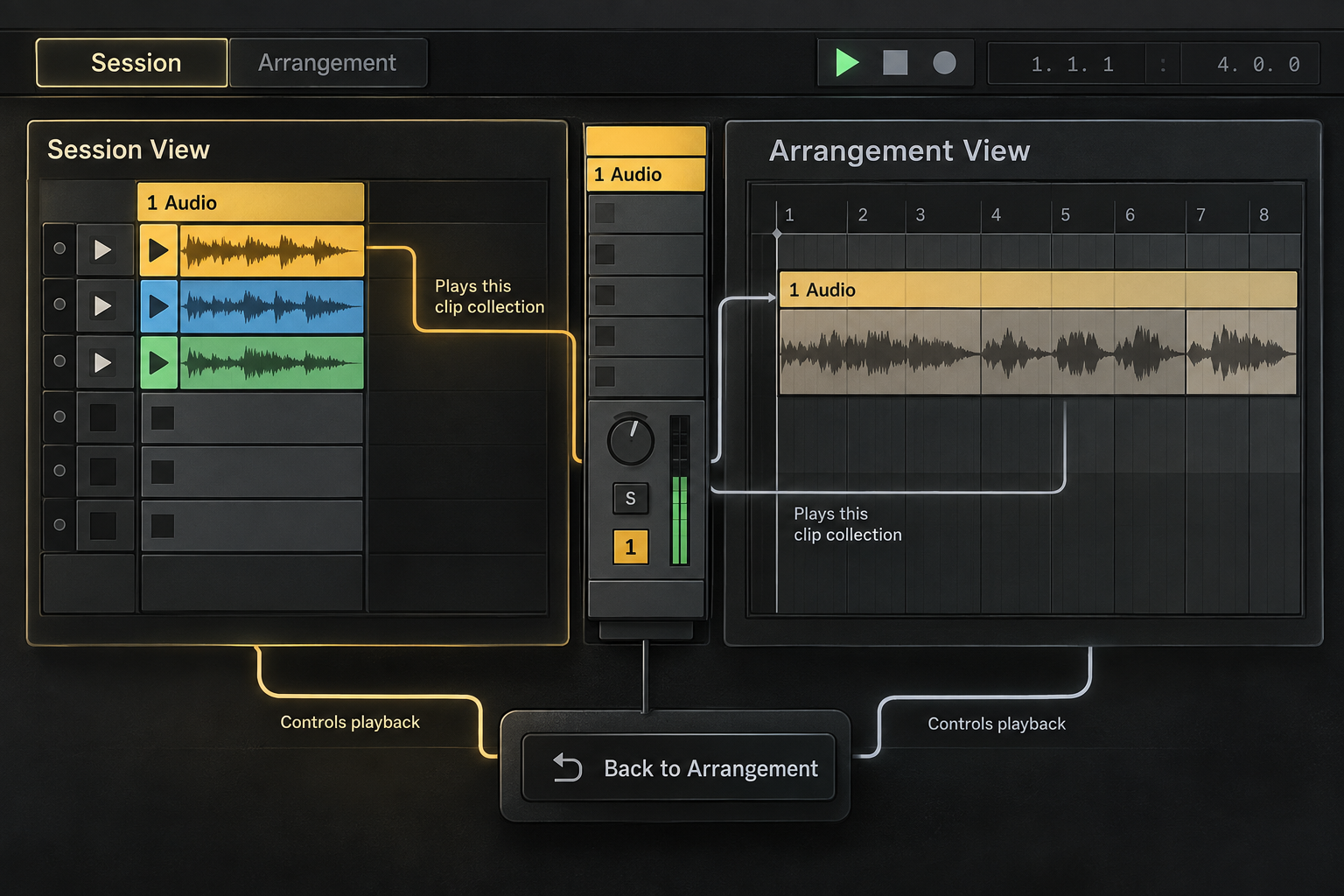
Session View is a grid for launching clips and scenes; Arrangement View places clips on a fixed timeline. They share tracks, devices, mixer settings and routing, but keep separate clips. Launching a Session clip interrupts that track’s Arrangement playback. Changing the visible view does not restore the timeline: use Back to Arrangement for that.
Checked September 8, 2026 against the Live 12 documentation. Neither view is a required first step. The important distinction is between changing what you see, changing what plays, and copying or recording clips into the other view.
The two views share tracks, not clip playback
Live's two views are not separate projects. The kick track in Session View is the same kick track in Arrangement View: its mixer level, devices, sends and routing remain connected. What changes is the collection of clips and how those clips are asked to play.
The Live 12 Concepts manual gives the decisive rule: one track can play only one clip at a time. If you launch a Session clip on a track that was playing its Arrangement, the Session clip takes control of that track. Other tracks can continue following the Arrangement.
If the meters move but the timeline seems ignored, start with the playback checks below rather than rebuilding your audio and MIDI setup. The Learn Ableton Live hub connects these controls to a first project and everyday editing.
Use Session View to try and launch combinations
Session View is a non-linear grid. Tracks run vertically in columns. Scenes run horizontally in rows. Clips can be launched in any order, so their position in the grid does not dictate a fixed song timeline.
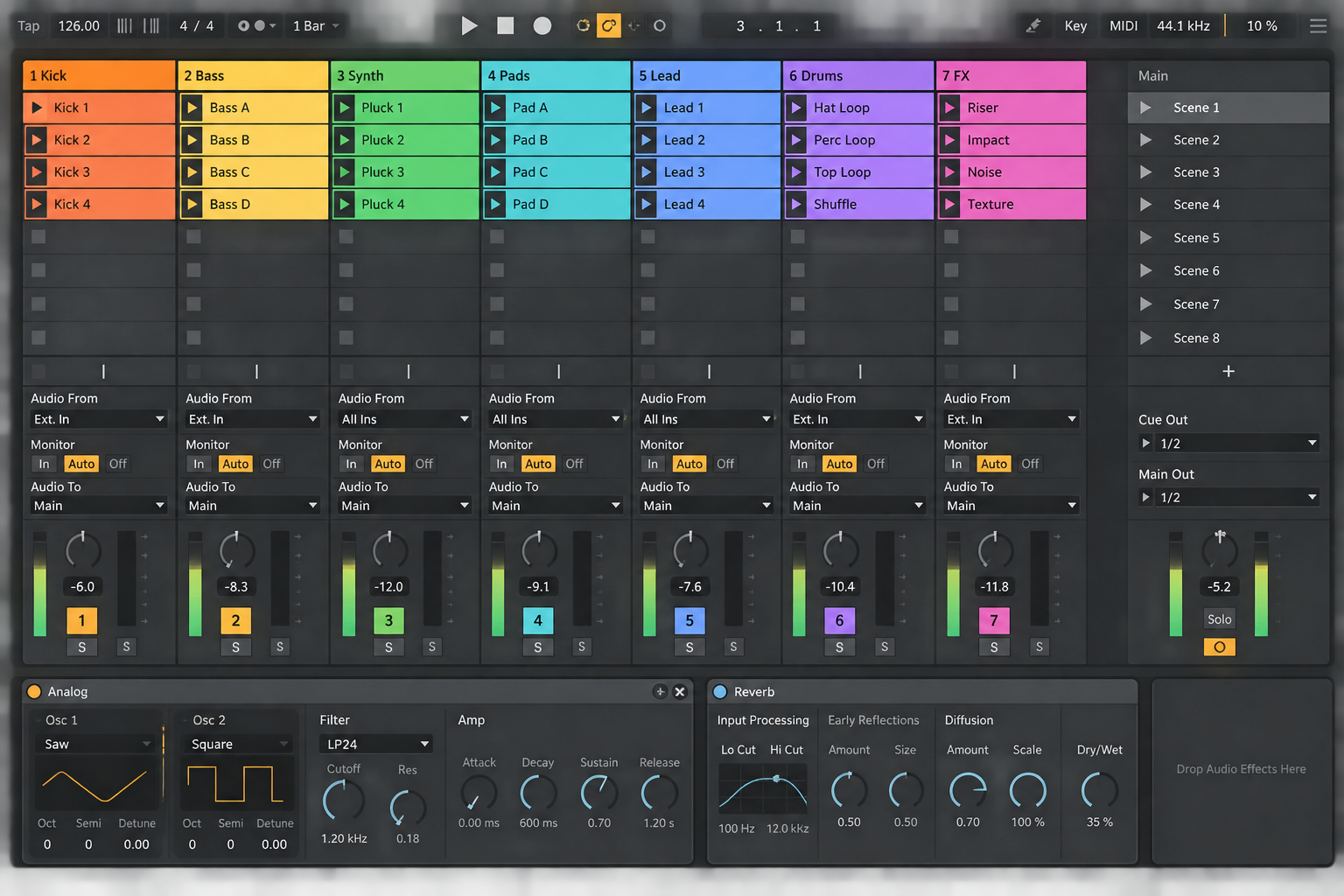
Place alternative drum or bass variations in the same track column, and parts that should play together across a scene row. A Scene Launch triggers that row. An empty slot with a Stop button stops the previous clip on its track; an empty slot whose Stop button has been removed leaves that track’s current clip running. Check this when a scene unexpectedly drops a part. A launch can wait for its launch-quantization boundary; check the global and clip settings before treating a short wait as a failed command.
- Session works well for loop combinations, improvisation, scene launches and performance.
- You can also program timed transitions with Follow Actions. Session is not incapable of a fixed sequence, but Arrangement makes bar-by-bar song editing easier to see.
- Each track plays one clip at a time. Put two simultaneous parts on separate tracks rather than expecting two slots in one column to layer.
Session is not automatically the “beginner view.” It is useful when the order is still negotiable. If the work already has a known beginning, duration and ending, starting directly in Arrangement can be more efficient.
Use Arrangement View for fixed song positions
Arrangement View places clips from left to right: a vocal can enter at bar 17, a chorus can begin at bar 33, and automation can change over a chosen range. Use the song arrangement guide for moving from a repeated idea to sections and transitions.
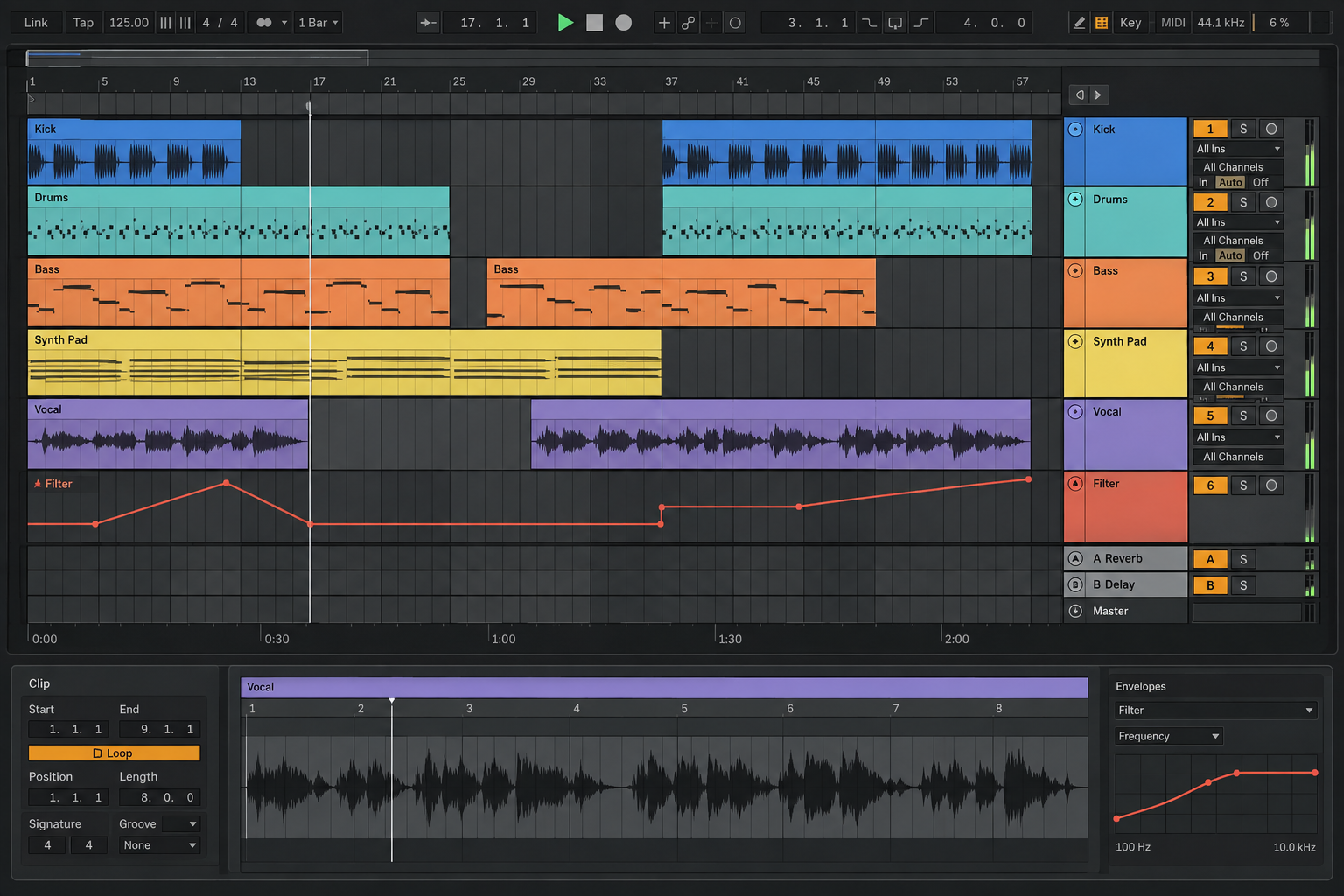
- Use Arrangement for: recording linear takes, defining sections, editing timing, placing transitions, automation and finishing.
- Do not expect Arrangement to require: a Session sketch first. A complete song can begin and end on the timeline.
- Remember: the clips remain on the timeline even when a launched Session clip temporarily overrides one track.
Switching views does not switch playback
Click the Session or Arrangement View selector to switch what you see. Tab also toggles them in a single-window setup when Use Tab to Move Focus is off. With that navigation option enabled, Tab moves keyboard focus instead; the view selectors still work, so there is no need to disable an accessibility preference. See Ableton’s keyboard-navigation documentation for the current controls. Neither method stops clips, restores timeline playback or copies material.
That distinction explains an easy trap:
- Start an existing Arrangement.
- Switch to Session and launch a clip on the bass track.
- Return to the Arrangement screen with its view selector, or Tab if it is assigned to view switching.
- The bass Arrangement looks inactive because the Session clip is still playing; the other tracks can continue following the timeline.
The Arrangement clips have not been deleted. You changed which bass clip plays, not where the saved timeline clips are placed.
Restore timeline playback with Back to Arrangement
Click Back to Arrangement when you want timeline clips to resume. The button lights when one or more tracks are not playing the Arrangement. In Live 12 it is available on the Main track in Session View and at the top right of the Arrangement scrub area; individual Arrangement tracks also provide their own return control.
The global button restores all overridden tracks. Use an individual track’s return control if only that part should return to the timeline. A Session Clip Stop does not restore Arrangement playback; it can leave the track’s clips stopped. This is not an emergency output mute: monitored inputs and effect tails may still be audible. If the Arrangement remains silent after returning, also check deactivated clips, track activators, input monitoring and routing instead of treating every grey clip as a Session override.
Move one idea by dragging or copy and paste
For one clip, copy it in Session, switch with the Arrangement selector, click the intended time on the matching track and paste. Alternatively, drag the clip over the Arrangement View selector and then onto the timeline. Holding the clip while pressing Tab is another option only when Tab switches views in your setup. Copy/paste transfers the chosen material without recording a performance.
- Name the Session clips and tracks before moving them.
- Choose one section or scene, not the entire grid by reflex.
- Drop clips onto their existing shared tracks where practical.
- Play the boundary before and after the new section.
- Keep unused Session variations until the arrangement decision is stable.
Copying existing clips onto their shared tracks avoids bouncing audio or duplicating the device chain just to change views. The Session and Arrangement clips can then be edited independently. Extra clips still add Set data, so this is not a promise of zero memory cost; it simply avoids unnecessary new rendered files and instruments.
Record a Session performance into Arrangement
Save a version before recording over an existing Arrangement. For a Session performance, enable Arrangement Record, start playback and launch the intended clips or scenes. During this transfer, Live records Session clip automation and manual parameter changes on the tracks being recorded from Session. Automation Arm determines whether manual moves are recorded when you record new material directly into Arrangement. Leave tracks unarmed unless you also intend to record new input or MIDI. The automation guide separates recording control movements from re-enabling automation that a manual change has overridden.
In Live 12, use a scene’s Tempo and Time Signature controls, not its name alone, to assign those changes. Enable Scene Tempo and Time Signature in the View menu, then drag the Main track’s left edge to reveal the fields. You can also edit values in Scene View; ensure the intended values are enabled. The scene-tempo documentation explains that tempo values embedded in names of pre-Live-11 Sets are converted when those Sets are opened in newer Live. Recording existing clip launches places clips on Arrangement without creating new audio files merely for that transfer. Simultaneously recording a microphone or a resampling input does create audio.
After recording:
- Stop Arrangement Record or stop playback.
- Open Arrangement with its view selector, or Tab if view switching is enabled.
- Click Back to Arrangement to hear the recorded timeline rather than the last launched Session clips.
- Play the full take, checking launch timing, scene tempo changes and recorded automation.
- Save the useful performance before cutting or rearranging it.
Choose the view from the decision you need
| Decision | Best starting view | Why |
|---|---|---|
| Which drum and bass variations work together? | Session | Alternatives can be launched without committing to a timeline. |
| Where does the second chorus begin? | Arrangement | The answer is a fixed bar position. |
| How should a live scene performance unfold? | Session | The next section can remain flexible. |
| Where should the vocal automation rise? | Arrangement | The move belongs to a repeatable time range. |
| Which improvised launches should become the song? | Session → Arrangement Record | The performance becomes an editable timeline. |
Choose Session when you want to launch combinations on demand and Arrangement when the next edit needs a fixed time position. You can write a complete song directly in Arrangement, or record an improvised Session pass and refine it afterward. The first-song exercise gives one concrete timeline-based starting point.
Resource impact: changing views does not unload the Set
CPU: Session and Arrangement share tracks and devices, so pressing Tab does not create or remove the processing chain.
RAM: Sample instruments and loaded clip data remain part of the Set regardless of which view is visible. Hiding Session or stopping its clips does not guarantee that their memory is unloaded.
Disk and Set size: Copying an existing audio clip usually adds another reference, not a new recording. Consolidating audio, freezing and resampling create additional files; recording new inputs is different from logging existing clip launches.
Lowest-resource route: Use the existing shared tracks for transfer and keep only useful alternatives once you have a backup. Avoid creating a second Project or extra instrument instances solely to switch views.
When not to optimize: Do not bounce or flatten a track merely to simplify switching views. If playback is stable, keep its MIDI, devices and automation editable.
FAQ
What is the difference between Session View and Arrangement View?
Session View launches clips and scenes without a fixed order. Arrangement View places clips on a linear timeline. They share tracks, devices, mixer settings and routing but keep separate clip collections.
Does pressing Tab switch playback to the other view?
No. With Use Tab to Move Focus off, Tab switches the visible Session and Arrangement views; with it on, Tab navigates controls. Neither action changes which clips play. Use Back to Arrangement when Session clips have interrupted timeline playback.
Why are my Arrangement clips greyed out?
Session playback may have overridden the track. Use Back to Arrangement globally or on that track. If it is still silent, inspect deactivated clips, track activators, monitoring and routing too; not every inactive-looking clip has the same cause.
How do I move Session clips into Arrangement?
Copy the clip, switch with the Arrangement selector, choose a time on the matching track and paste. You can also drag over the view selector, or hold the clip and press Tab when Tab is configured for view switching. Arrangement Record captures a performance of launches instead of a simple copy.
Does recording Session View into Arrangement duplicate audio files?
Logging launches of existing Session clips into Arrangement creates timeline clips, not new audio files merely for that transfer. Recording a microphone, an external input or a resampling track at the same time is different and can create new audio files.
Should a beginner start in Session or Arrangement View?
Start in Session when you need to compare loops or improvise an order. Start in Arrangement when the project already needs a fixed timeline. A beginner can use either view and hand material between them later.
