


Diagnose the layer before changing the system
“Ableton is broken” can mean silence, crackles, a disabled audio engine, a missing plug-in, a Set that will not open or an application that crashes before the Set appears. Those symptoms do not share one fix. Reliable troubleshooting starts by describing the failure precisely and finding the smallest layer where it still happens.
This hub covers audio and MIDI signal paths, CPU and disk pressure, latency, plug-in isolation, missing files, startup problems, crashes and recovery. It favours reversible tests over resets and reinstalls. Keep the affected Set untouched, save a copy when Live can open it, and record every change that affects preferences, drivers or third-party content.
Write down the symptom and the last known good state
Note whether the problem affects every Set or one Set, every track or one track, Live only or all system audio. Record when it began, what changed, the Live version, operating system, audio interface, driver and any plug-in involved. A repeatable trigger is more useful than a long list of guesses.
Create a blank Set and test one simple source through the built-in output when possible. If the blank Set works, the application and basic audio path have passed a useful checkpoint. If the original Set still fails, investigate its devices, files and routing. If both fail, stay at the application, driver, hardware or operating-system layer.
Do not delete preferences, libraries or plug-ins as the first experiment. A destructive change removes evidence and may create a second problem. Use temporary disablement, a copied Set and documented before/after states so the test can be reversed.
For no sound, follow the signal from source to output
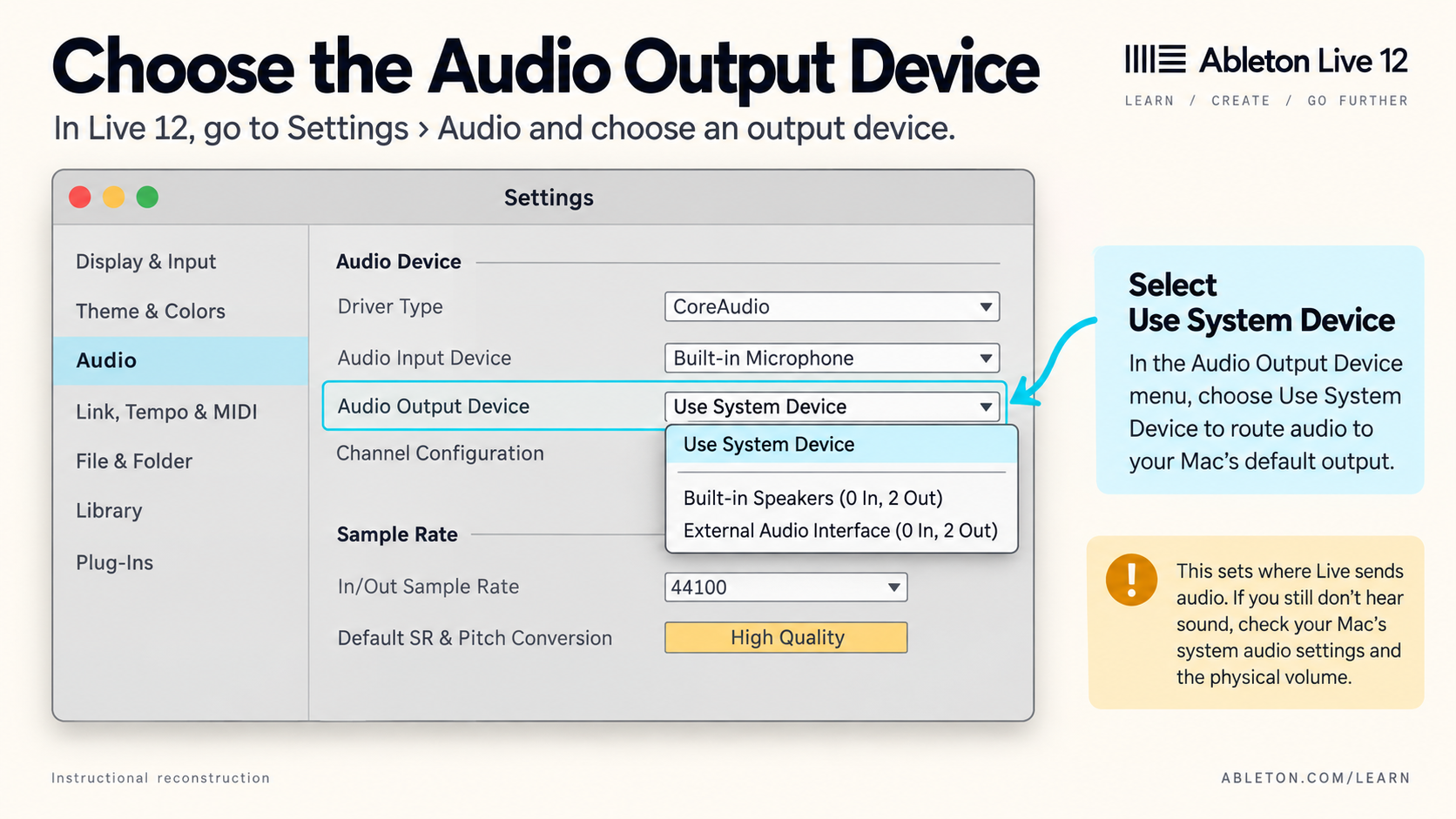
Confirm that the audio engine is on and that Live has the intended input and output device. Check whether the track meter moves, whether the track is active, where Audio To is routed, whether a group or the Main track is muted, and whether the hardware output and monitor level are correct. If playing the keyboard produces no usable MIDI input, check controller detection, ports and channels. Once notes reach a track, remember that note data needs an instrument before it can produce audio.
If meters move in Live but the speakers are silent, the source and much of the track path already work. Continue at routing, the selected output channels, the interface and monitoring. If no meter moves, continue earlier at the clip, input, monitoring mode, instrument or device chain. This split prevents a driver reinstall from becoming the answer to a muted track. If Live plays normally but the exported file sounds quieter, compare the file and the live Main signal through the same output without applying the Main chain twice before adding gain.
Test the computer’s built-in audio path when the interface is a suspect and the test is safe. Ableton’s audio interruption guide recommends using that comparison to help isolate the interface. Return to the original device only after recording what changed.
Separate CPU overload, disk overload and driver trouble
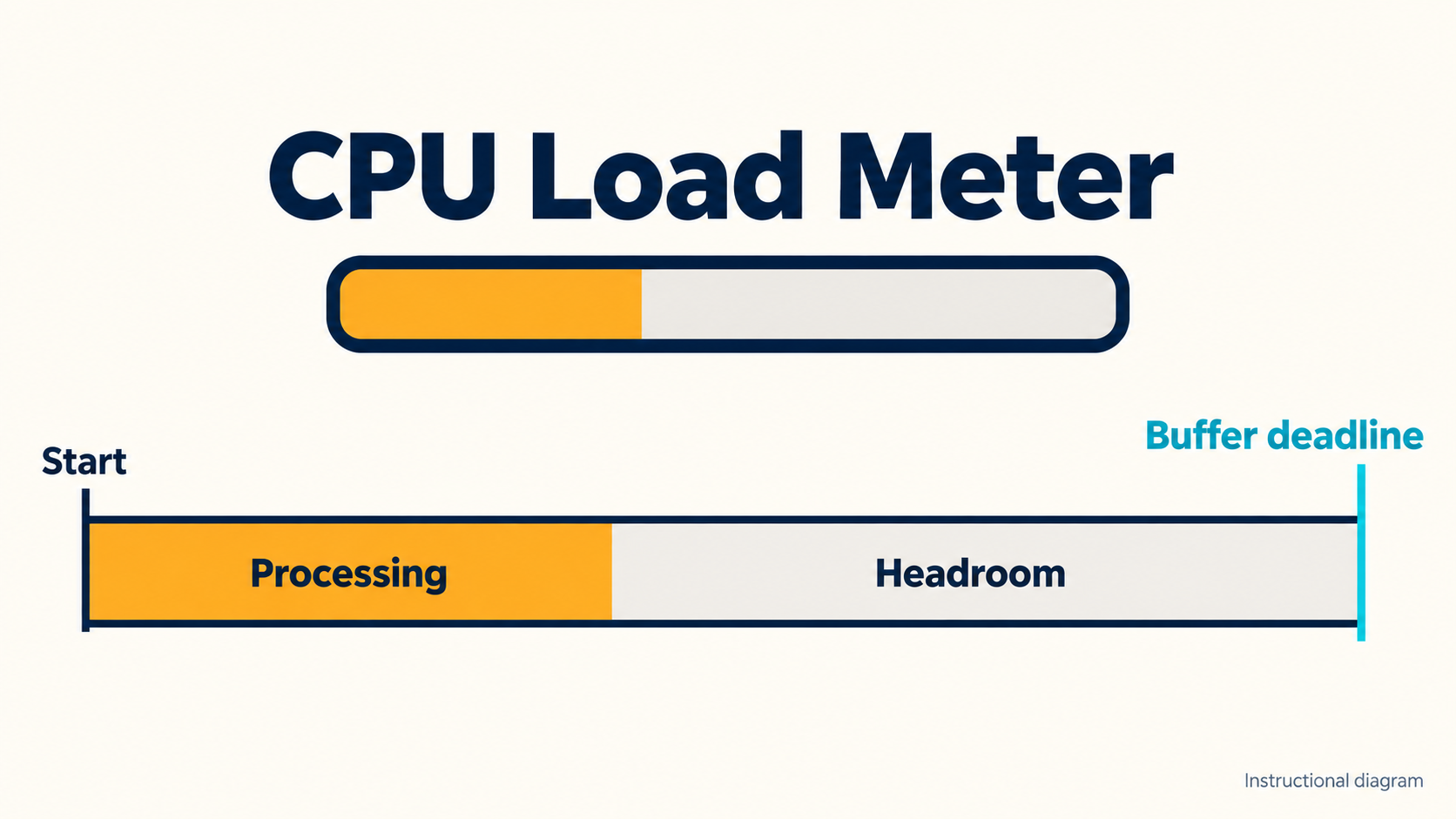
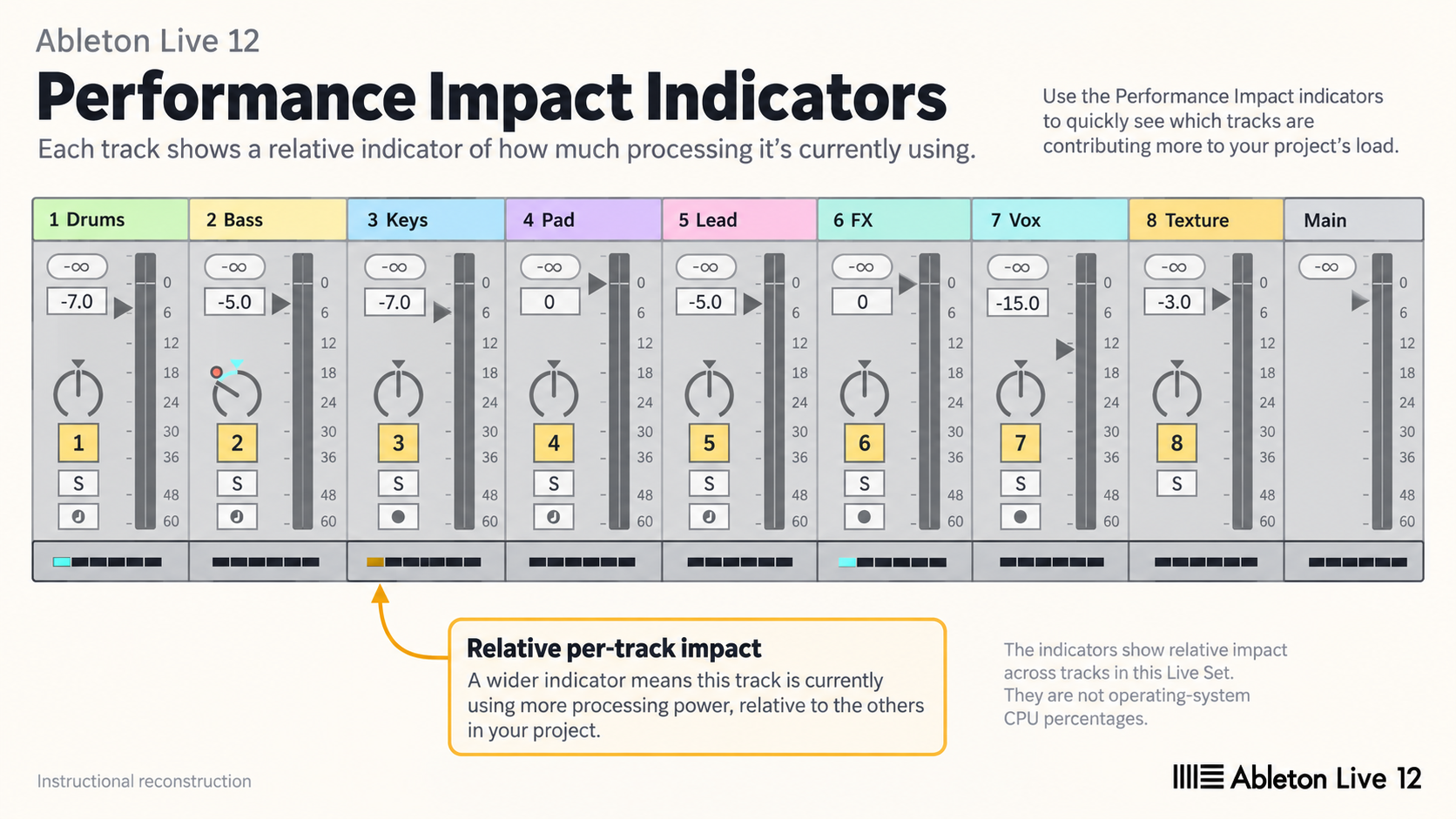
Clicks and dropouts are symptoms, not proof of one cause. Live’s CPU meter represents its ability to complete audio processing on time; it is not the same measurement as the operating system’s overall CPU percentage. Ableton’s CPU meter guide explains the difference between current and average behaviour and the Performance Impact view.
Find the track or device with high impact before disabling half the Set. Freeze, bounce or temporarily remove one expensive layer, then repeat the same playback section. On an M-series Mac, the Apple silicon performance checks also separate device load from plug-in architecture and memory pressure. Review buffer size in the context of the task: recording needs low enough latency to perform, while mixing can tolerate a larger buffer if it improves stability. Do not change buffer, sample rate, driver and plug-ins simultaneously.
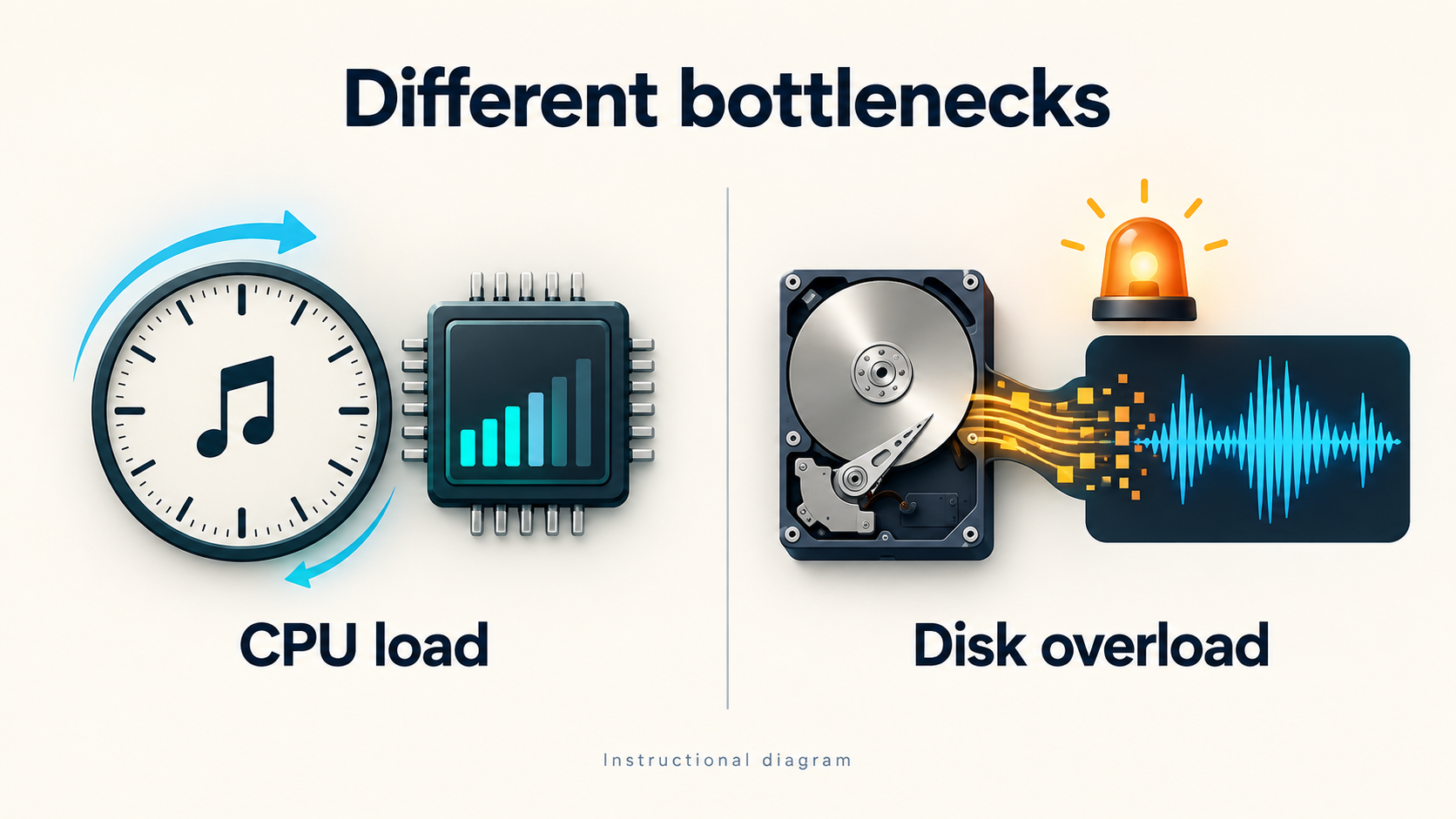
If the disk overload indicator flashes, investigate storage throughput, file location and background sync rather than treating it as a CPU-only problem. If Live fails while other applications also produce broken audio, widen the investigation to the interface, driver, cable, port and operating system. Keep cloud sync, backups and security scans away from an active project test when they contend for the same files or disk.
Isolate plug-ins without losing the Set
Ableton documents a temporary launch test with third-party plug-in scanning disabled: hold Alt on Windows or Option on macOS while Live starts. The official procedure is useful when Live crashes during launch, a Set crashes on open or plug-ins may be causing performance problems.
If the failure disappears, do not conclude that every plug-in is bad. Update and test the suspected device in an empty Set, then reintroduce one variable at a time. Ableton’s plug-in troubleshooting guide recommends current compatible versions, normal install locations and isolated testing.
If disabling scanning changes nothing, record that negative result and move on. If a Max for Live device will not load, check its license, Max installation and device dependencies separately from VST or Audio Unit scanning. Avoid downloading replacement plug-in files from unofficial sources, moving entire system folders or changing multiple format paths without a backup of the current configuration.
Distinguish a crash, a hang and one damaged Set
A crash closes Live unexpectedly. A hang leaves the application unresponsive. A Set-specific failure occurs only when particular content is opened or used. Ableton’s crash workflow separates startup, in-use and export failures and recommends identifying the exact point where the failure occurs.
Test a normal launch, a launch with plug-in scanning disabled and a blank default Set. If Live opens but one project does not, work from a copy and isolate tracks or imported content. If Live hangs before a Set opens, connected devices, scanning, preferences and external libraries become stronger candidates. Reinstalling Live is not a universal reset; Ableton states that it does not repair third-party plug-in behaviour, missing user samples or authorization problems.
Preserve crash reports and the exact reproduction steps. When local isolation does not identify the cause, send Ableton Support the report, system details and a concise trigger sequence. A report sent to a crash mailbox is not necessarily the same as opening a support request, so follow the current support instructions.
Protect the project while recovering
Work on a duplicate Set and keep the original files where they are. Check Live’s recovery offer after a crash, then save the recovered state under a new name. For missing media, search and relink before collecting files into a known local project location. Do not overwrite the only working version with an experimental repair.
After the Set opens, verify playback, routing, automation, plug-in state and export. A successful launch is only one checkpoint. Document the responsible device, driver, file or setting so the same failure can be recognized without repeating every test.
Questions about fixing Ableton Live
Why is Ableton Live crackling when the computer CPU looks low?
Live’s CPU meter measures whether audio processing finishes in time, while the operating system reports broader processor use. One expensive track, a small buffer, a driver problem, disk pressure or another real-time interruption can cause crackles without high total CPU usage. Test those layers separately.
Why does Ableton Live show activity but produce no sound?
If track meters move, begin after the source: check track, group and Main routing, the selected output channels, audio device and hardware monitoring. If no meter moves, check the clip or input, monitoring mode, instrument and device chain first.
How can I open Live without third-party plug-ins?
Hold Alt on Windows or Option on macOS while launching Live and keep it held until startup completes. This temporarily disables third-party plug-in scanning for the diagnostic launch. Restart normally to re-enable scanning.
Should I reinstall Ableton Live when it crashes?
Not as the first step. Identify whether the failure is at startup, in one Set, during export or with one device. Temporarily rule out plug-ins and preferences, preserve crash reports and test a blank Set. Reinstallation does not fix third-party plug-ins, missing user samples or authorization.