
Short answer: if Ableton Live is stuck scanning Audio Units, quit it and hold Option while reopening it until the splash screen closes. If Live opens that way, scanning is the likely trigger; test AUv2 and AUv3 separately in Plug-Ins settings. The Components-folder method below applies to AUv2 only, not to AUv3. Your original projects stay untouched throughout, and deleting a whole plug-in library to get past one scan failure is never necessary.
Checked September 7, 2026: this guide covers Audio Unit scan hangs in Live 12 on macOS. A plug-in that finishes scanning but still does not appear in the Browser needs the missing VST/AU discovery checks. If Live closes or fails before scanning even begins, the startup crash diagnostic is the better starting point.
Confirm that the scan has actually stopped
A large plug-in installation can simply make the next launch slow. Before calling the scan frozen, watch whether names or progress indicators keep changing. Ableton documents background VST2/VST3 scanning from Live 11.1 onward, which says nothing about every Audio Unit scan behaving the same way.
- Photograph or write down the exact text on the splash screen or in the status area.
- Note the last plug-in name, if Live shows one.
- Note what was installed or updated since the last successful launch.
- Quit Live once and reproduce the same stop without other audio applications open.
A scan that is still advancing should not be force-quit again and again. When the launch is stationary and unresponsive, record what happened before trying a different plug-in configuration. One repeatable result is worth more than a guessed time limit.
If Live closes, keep the crash evidence. Ableton lists the macOS report archives in ~/Library/Application Support/Ableton/Live Reports/ in its Crash Report guide, and when no archive exists, the same guide points to Log.txt and macOS system reports. The last plug-in mentioned is a lead, not proof of guilt. Keep the logs for a private support request, since deleting them does not repair the scanner.
Open Live without plug-in scanning
Ableton’s temporary plug-in-disabled launch procedure takes four steps:
- Quit or force-quit Live.
- Hold Option while launching Live.
- Keep Option held until the splash screen closes.
- Open an empty Set, and leave the production project closed for now.
If this launch works, a plug-in or its scanning becomes the likely cause, although Audio Units have not yet been separated from VSTs. The Option launch is a temporary diagnostic mode and does not show that a normal scan now works. If it fails as well, leave the AU files alone and look into the broader startup problem.
Test AUv2 and AUv3 separately
Open Settings → Plug-Ins (called Preferences in some versions) and note how the source switches are set. Turn Use Audio Units v2 and Use Audio Units v3 off while leaving the VST sources as they are, then quit and launch normally. If that launch succeeds, switch on only the AU format you were using and let its scan run, then test the other format separately if needed. Re-enabling a source can start a scan straight away, and the Option launch gets you back into settings after a scanning hang.
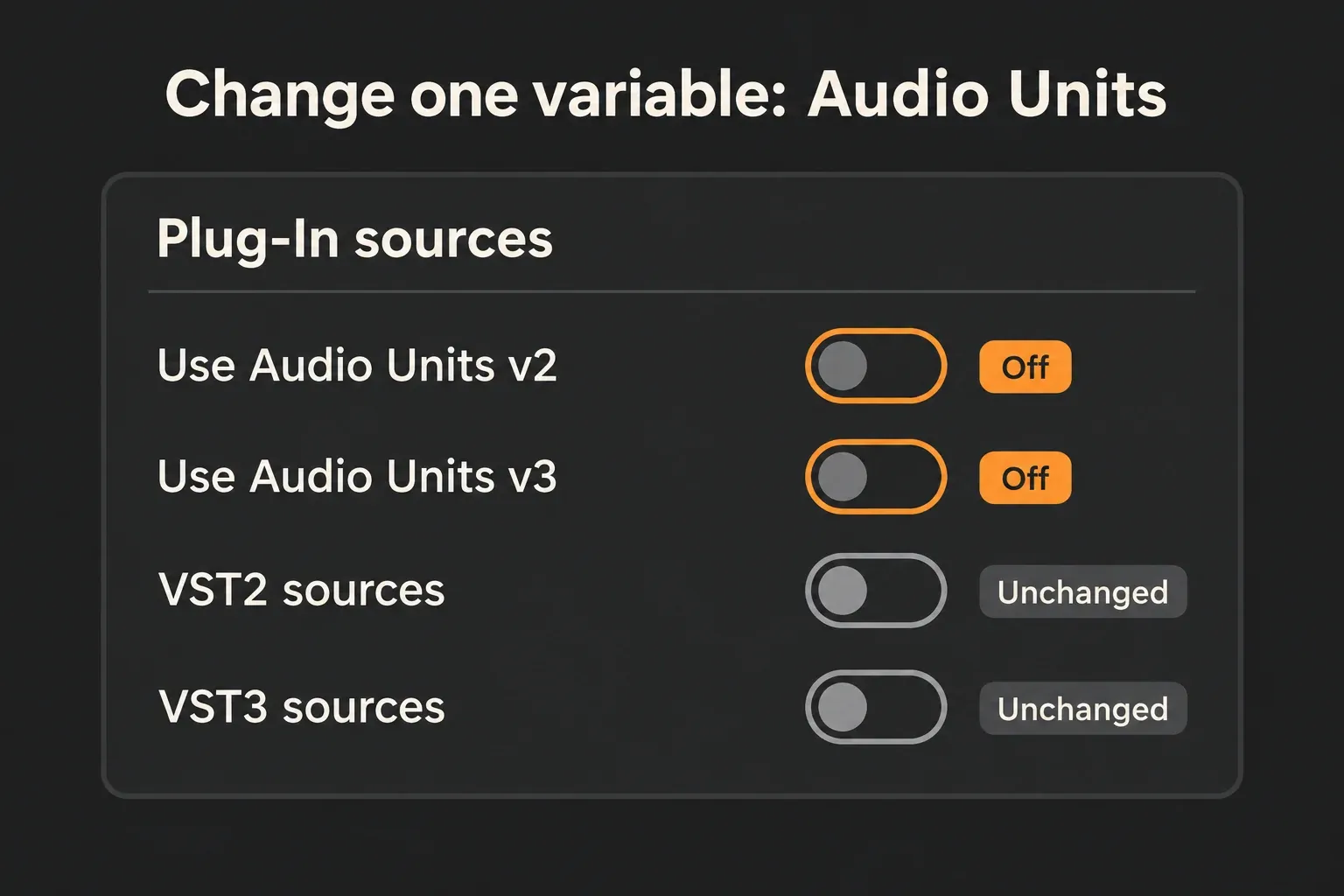
A failure that repeats with one AU format enabled narrows the search to that format. If Live still fails with both AU sources off, an AU-only repair is not justified. If each format works on its own but they fail together, keep that result for support instead of labelling one component faulty.
Ableton’s plug-in source checklist shows the separate AUv2 and AUv3 controls. Disabling a source does not uninstall anything. Keep testing in an empty Set, and never save over a project while its plug-ins are temporarily unavailable.
For AUv2, preserve both Components locations
Third-party AUv2 plug-ins use .component bundles that can be installed system-wide or for your user account. Ableton’s macOS plug-in installation guide names both locations:
/Library/Audio/Plug-Ins/Components~/Library/Audio/Plug-Ins/Components
Quit Live and any other audio applications before moving files. Create a dated holding folder outside both Components directories and record each bundle’s original path. Move only third-party .component bundles you can identify, and never delete them or touch system components, shared frameworks, MIDI drivers or VST folders. When ownership or permissions are unclear, the vendor’s support instructions are safer than forcing a move.
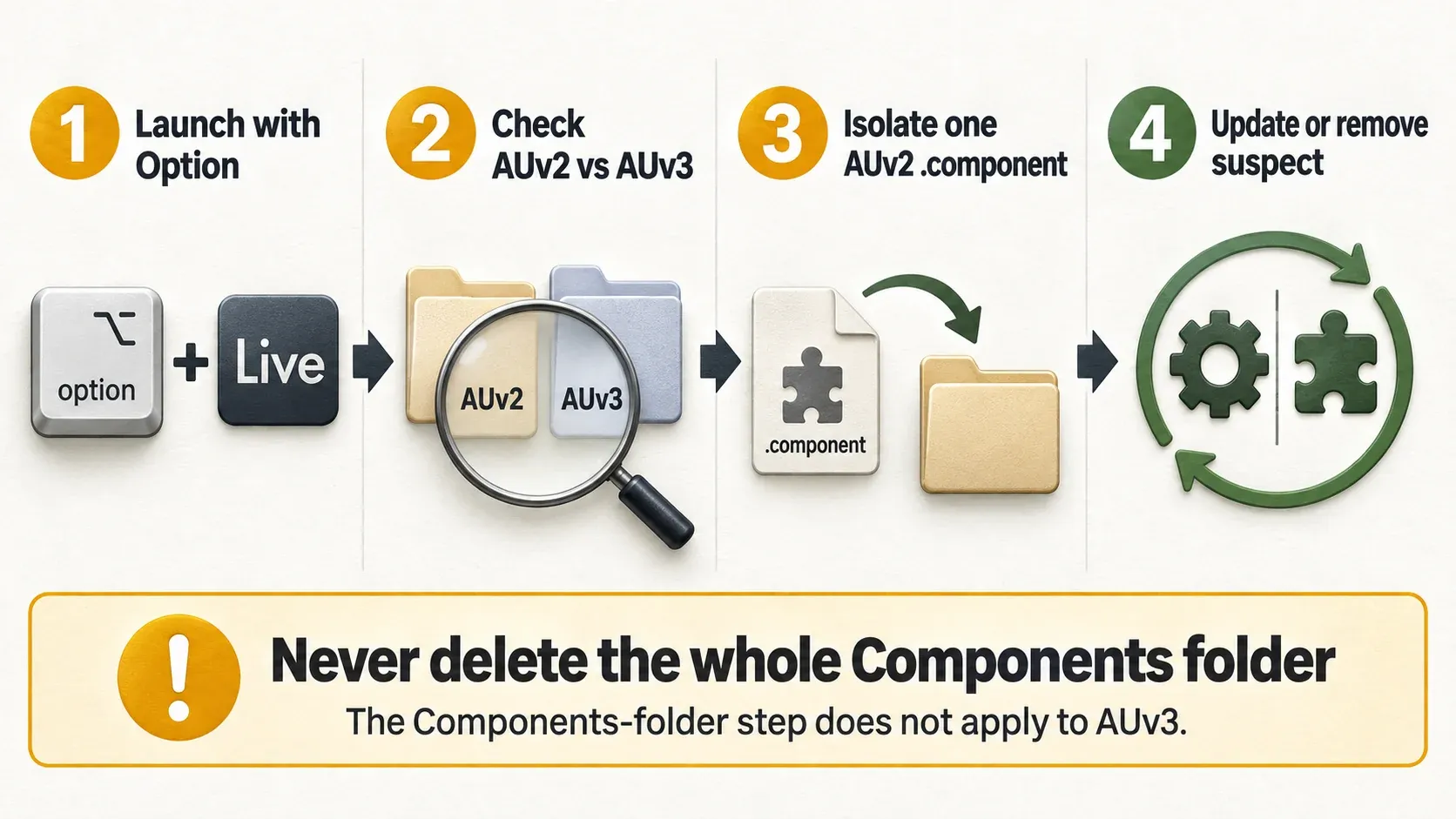
If the failing source is AUv3, skip the file-splitting steps. Apple’s Audio Unit installation explanation separates AUv3 extensions, which install with apps in Applications, from AUv2 components in Library. Update or uninstall the suspected product through its installer or app manager, as its vendor describes. There is no AUv3 .component file to hunt for, and an app bundle should never be taken apart. If you cannot find a safe vendor-specific next step, leave AUv3 disabled for the time being.
Narrow an AUv2 suspect group without assuming only one fault
- If the same plug-in name appears at every stop, test that vendor’s component first. Otherwise, with Live closed, split the third-party AUv2 bundles into groups A and B, and record which bundles are active and which sit in the holding folder.
- Test group A alone, with group B outside the scanned folders. Make sure AUv2 is enabled, launch normally without Option and record whether scanning finishes. If settings are out of reach, use Option to get in, enable AUv2 for the reduced group and repeat a normal launch.
- Quit Live completely. Move A out and return B to its recorded original locations, then test B alone with the same settings. A passing test of A says nothing about B on its own.
- If one group fails repeatedly while the other passes, split the failing group and test both halves again. Keep the other bundles outside the scanned folders during these comparisons.
- If both groups fail, consider several incompatible plug-ins or a shared dependency. If both pass but the full collection fails, look for an interaction or an intermittent problem. At that point the split is no longer a reliable single-file diagnosis, and the test record belongs with the vendor or Ableton.
This half-split is an editorial troubleshooting method, not an Ableton guarantee. It helps when the failure repeats and the bundles can be tested independently. Products built on a shared service or framework may have to be handled as one vendor group, and the shared framework itself should never be moved just to make the test fit.
Ableton’s plug-in troubleshooting guidance allows moving a specific plug-in file outside its installation folder so it is not scanned. That supports a reversible isolation test. It does not justify deleting a whole library or assuming every other plug-in is healthy.
Update or uninstall the suspect through its vendor
Once the tests point to a particular AU or vendor group:
- Check the vendor’s support page for your exact macOS version, processor, Live version and AU format. A newer release helps only if it supports that combination.
- Install the compatible update with the vendor’s installer or product manager, following its authorization steps and checking any required licence service.
- Remove an incompatible older installation only as the vendor directs. Let the installer put the replacement in place, and never copy an old held component over the new build.
- With the relevant AU source enabled, check scanning, then load one instance in a blank Set. If the fault still reproduces, send the vendor the versions together with your test record.
On Apple Silicon, a working standalone app or VST3 version does not establish that the AU is compatible. Ableton’s Mac architecture guidance explains that some Intel Audio Units run through macOS compatibility hosting, while certain devices still need Live under Rosetta 2. Check the exact product and format before changing how Live launches.
Rescan after the suspect has been handled
With the compatible plug-in installed, try a normal restart or Rescan. If the scan information still looks stale, the Live manual’s plug-in scanning section describes holding Option while clicking Rescan for a clean scan. That goes further than testing one AU, because it refreshes all plug-in scan information and can expose a different problem. Looping it while the same suspect is still unchanged achieves nothing.
From Live 12.1, plug-in scanning data lives in its own file, Live-plugins-1.db. Ableton’s Live 12.1 rescan note points to a database reset only after updates and installation have been checked. Deleting that file, Live’s main database, preferences or macOS AU caches is the wrong opening move, and a reset never replaces fixing an incompatible installation.
Restore the remaining components and test a project copy
For AUv2, return the other held bundles to their recorded original folders in controlled groups, closing Live before each move and testing after each restoration. An old backup must never overwrite a vendor-installed update. For AUv3, follow the vendor’s reinstall procedure. After scanning, check the Browser, then open a copy of an affected Set.
If the Set reports a missing AU, leave the original as it is. Restoring a compatible build of the same AU may keep a route back to its saved state. Switching to VST3 does not automatically convert presets or automation, so check the vendor’s migration support and verify the sound in the project copy. If the original still works on another machine, export stems from that working setup before making further replacements.
Keep AU isolation light on CPU, RAM and storage
One Live instance and one scanning test at a time is enough. Keep the production Set closed during startup tests, so its instruments and samples do not add another source of load, and record every result, because repeated scans of an unchanged configuration burn CPU time without narrowing the cause.
- For AUv2, move the suspect bundle instead of duplicating sample libraries. Component sizes vary, and there is no fixed RAM or disk saving to promise.
- Keep the holding folder outside the scanned locations, and avoid creating duplicate installed versions while switching test groups.
- When a controlled test stops producing repeatable evidence, keep the logs and ask the vendor for the next targeted test instead of clearing caches again and again.
Check recovery beyond the splash screen
Two successful normal launches with scanning enabled make a useful quick check, though they do not prove that every plug-in or project is fixed. Confirm that the required AU sources are enabled, the intended collection is restored and the updated device works in a blank Set. Then repeat the task that failed in a copy of the affected project. Intermittent hangs, or a failure that returns with the full collection, still need investigating.
If scanning is no longer the failing stage, the Fix Ableton Live hub offers the next diagnostic route. Keep the holding-folder record and backups until the affected projects work with the intended plug-in versions.
FAQ
How do I start Ableton without scanning plug-ins on Mac?
Quit Live, hold Option while launching it and keep the key held until the splash screen closes. This skips third-party plug-in scanning for that launch only. The next normal launch scans enabled sources again, and the Option test on its own does not identify an Audio Unit.
Where are Audio Unit components stored on macOS?
AUv2 component bundles can be in /Library/Audio/Plug-Ins/Components or ~/Library/Audio/Plug-Ins/Components. AUv3 extensions install with apps in Applications and need vendor-specific installation or removal steps. Record the original path before moving an AUv2 bundle.
Should I delete the Audio Unit cache when Ableton hangs?
Not as a first step. Find out which AU format is involved, investigate the suspect installation and check compatibility before resetting scan data. An unchanged incompatible plug-in can fail again after a cache or database rebuild.
How do I find which Audio Unit is freezing Ableton?
Treat the last name on screen as a lead. For AUv2, test suspect component groups separately and reversibly, then narrow down a group that fails repeatedly. Test both halves, because one successful launch does not clear the other. For AUv3, follow the vendor’s app or installer instructions; Components-folder moves do not apply.
Will disabling Audio Units delete them from my Mac?
No. Turning off an AU source does not uninstall its plug-ins. Keep the original Set untouched while devices are unavailable, because removing or replacing devices and saving the project is a separate change.
How do I deep-rescan Audio Units in Ableton?
Once the suspect installation is handled, go to Settings → Plug-Ins, hold Option and click Rescan. This requests a clean plug-in scan and does not repair the AU itself. It can rescan other plug-ins too, so repeat it only when you have a new troubleshooting reason.
