Short answer: decide whether the recipient needs grouped stems or individual parts, then pick one owner for group processing, shared returns and Main effects. Export every file from one common start and end in the requested lossless format, and re-import the package into a clean Set. If the files don't rebuild the intended balance and timing, the delivery isn't finished.
Scope checked August 29, 2026: current Live 12 behavior for All Individual Tracks, Selected Tracks Only, group tracks, shared returns, Main effects, PCM and real-time external-hardware renders was checked against Ableton's manual and help documentation. The recipient still has to confirm whether they want the package dry, processed or ready for performance.
Stems and parts are not the same package
This guide belongs to the Mix and Export hub, but it solves a different problem from a stereo master. Ableton describes stems as grouped musical roles such as vocals, drums, bass, guitars and keyboards. Separate kick, snare, synth and backing-vocal files are individual tracks, or parts. The same page notes that these Live stems have nothing to do with the Native Instruments Stems format, which Live doesn't support. And if you're trying to pull parts out of a finished mixed file, that is a different job again: see the Stem Separation guide.
| Package | Example files | Best for |
|---|---|---|
| Stems | DRUMS, BASS, MUSIC, LEAD VOCAL, BGV | Remix, performance, compact mix revisions |
| Parts | KICK, SNARE, HATS, BASS DI, BASS AMP | Full external mixing and detailed editing |
| Hybrid | Processed music stems plus a few critical raw parts | Specific handoff agreed in advance |
Ask the recipient which one they want. Sending every raw track and every group “to be safe” creates double ownership, bigger transfers and more ways to rebuild the mix wrongly.
Choose one effects owner before export
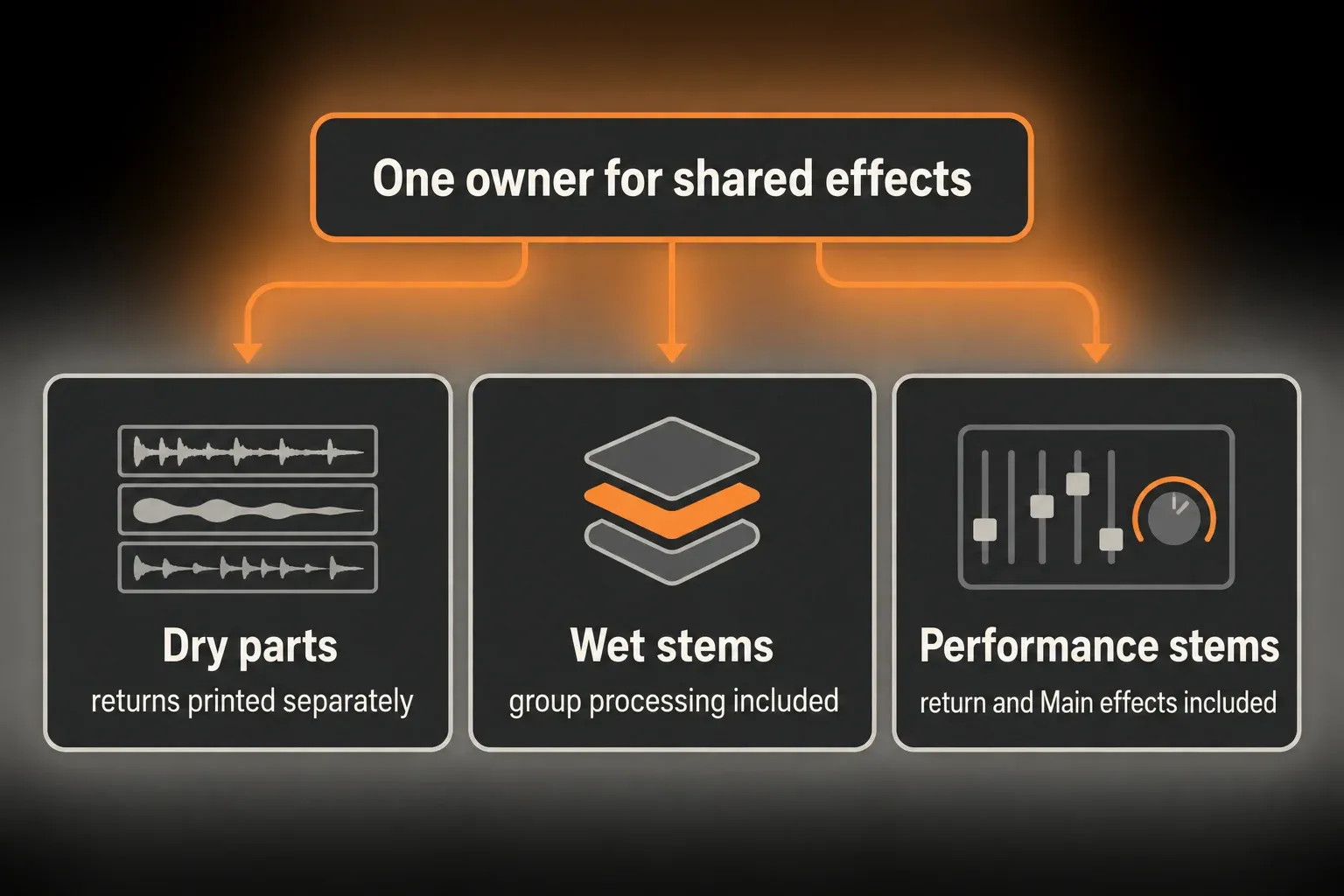
Shared processing is the hard part. A vocal and a snare may feed the same reverb, several synths may hit one group compressor, and the full mix may pass through nonlinear Main processing. Those relationships can't always be split into files that add back up to exactly what the live Set plays.
- Dry parts: deliver the track outputs and print shared return tracks separately, so the mixer rebuilds the send relationships.
- Wet stems: export the role groups with their group processing and the agreed ambience.
- Performance stems: include return and Main effects in each selected render when the goal is dependable playback close to the approved mix.
Live renders each track with its own devices, so “dry” here means free of shared returns and Main processing, not free of inserts. If someone needs one part with no processing at all, record it onto a new track whose input tap is set to Pre FX in the Routing and I/O choosers.
Don't mix all three models without a manifest. A reverb printed into each source plus the same return file doubles the ambience, and Main-bus compression printed into each separate stem can react differently from compression applied once to the whole mix.
Prepare the Set without changing the mix
Save a delivery version of the Set. Don't flatten, freeze or switch off processing just to make the export screen simpler; remove only abandoned tracks, unused duplicates and muted experiments that have no role in the delivery.
- Confirm the approved stereo reference and note its exact range.
- Give every exported track or group an unambiguous role name.
- Check solos, mutes, track activators, automation and routing.
- Print external hardware, or plan for Live's real-time render path.
- Write down whether groups, returns and Main effects are included.
For general decisions about format, sample rate and dither, use the Ableton Live export settings guide. What stems add on top of that is the question of who owns each signal.
Select one common start and end
Select the whole Arrangement from the agreed start reference to the end of the longest musical or effect tail, then open Export Audio/Video (Cmd+Shift+R on Mac, Ctrl+Shift+R on Windows). Ableton's stem guidance says Render Start and Render Length should cover the complete arrangement, whenever each instrument happens to start or stop.
That gives you files of identical length. A bass that enters in bar 17 still carries silence from the common start, so the recipient can drop every file at the same timeline position. Don't trim each part to its first transient.
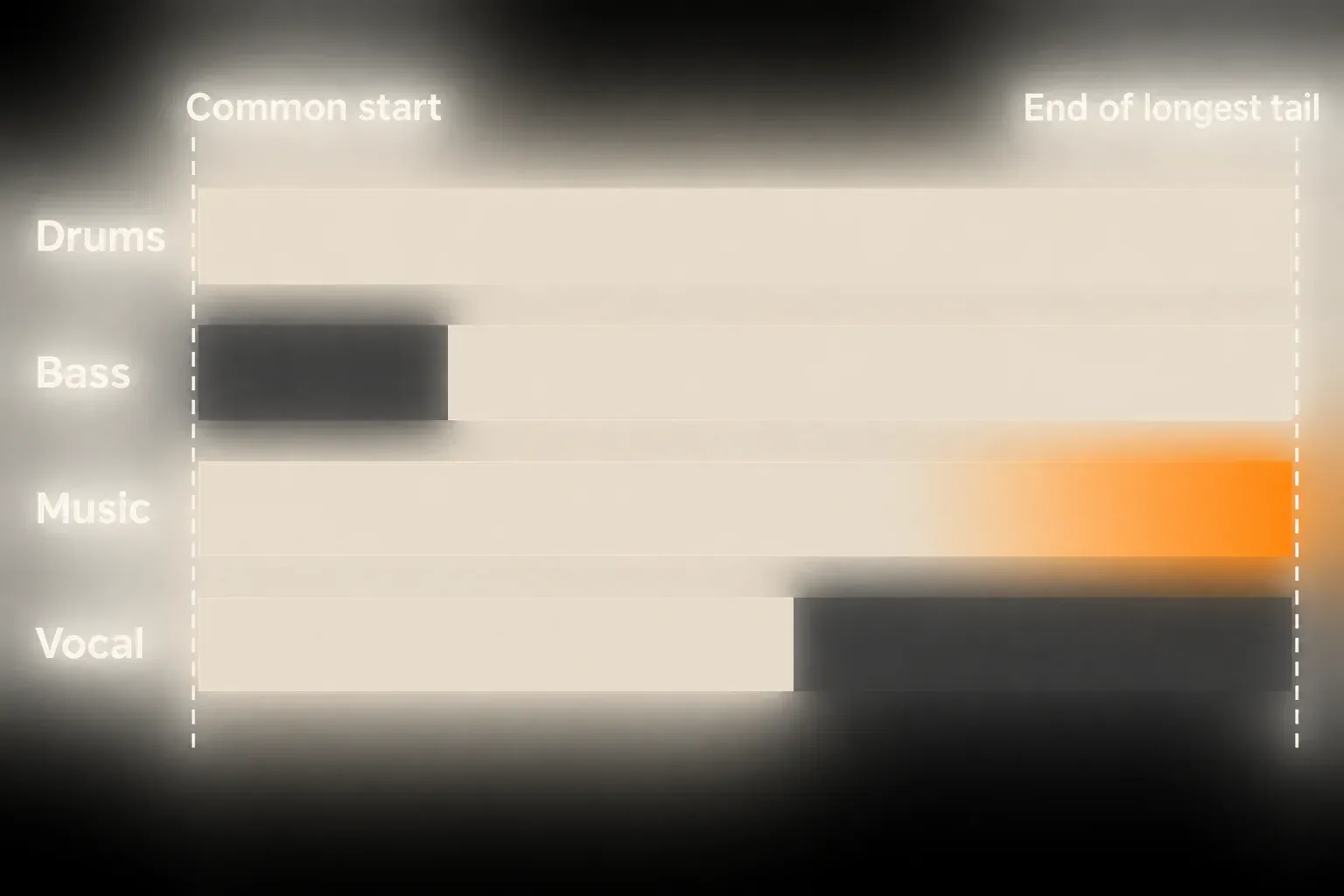
Include a count-in or pre-roll only if the delivery spec asks for it. Use the same range for the reference mix, so timing can be compared without guessing offsets.
Choose All Individual Tracks or selected groups
Choose All Individual Tracks when the recipient needs parts from every track. Live writes a separate, equal-length post-fader file for each individual track, returns included. Grouped tracks also render at group level with their group effects, while their child tracks export without those group effects.
Choose Selected Tracks Only after selecting just the role groups when you want a compact set of stems. That is usually clearer than exporting everything and asking the recipient to rebuild your groups.
Render a ten-second test before the full export. Check that group processing lands where you expect and that the return/Main option is available for the chosen tracks.
Use Include Return and Main Effects deliberately
Live's Include Return and Main Effects option renders each selected track on its own with the return tracks it uses and the effects on the Main track. Ableton calls it useful for live performance, stem delivery and remix work.
That doesn't make it right for an external mix. If a shared reverb receives several sources, printing that return into every source changes how the files add up. If a Main limiter or compressor reacts to the full mix, running isolated renders through it may not reproduce the same interaction.
Use this option when keeping the audible processed character matters more than handing the engineer unprocessed control. Otherwise export the returns separately, deliver processed groups, or supply both a clearly labeled reference and a dry package that was specifically requested.
Keep standard stem rendering options conservative
For an exchange package, Ableton's help workflow switches off Render as Loop, Convert to Mono and Normalize. Encode PCM as WAV or AIFF at the same sample rate as the recipient's session. When the files will be mixed further, Ableton recommends 32-bit so no dithering happens at this stage.
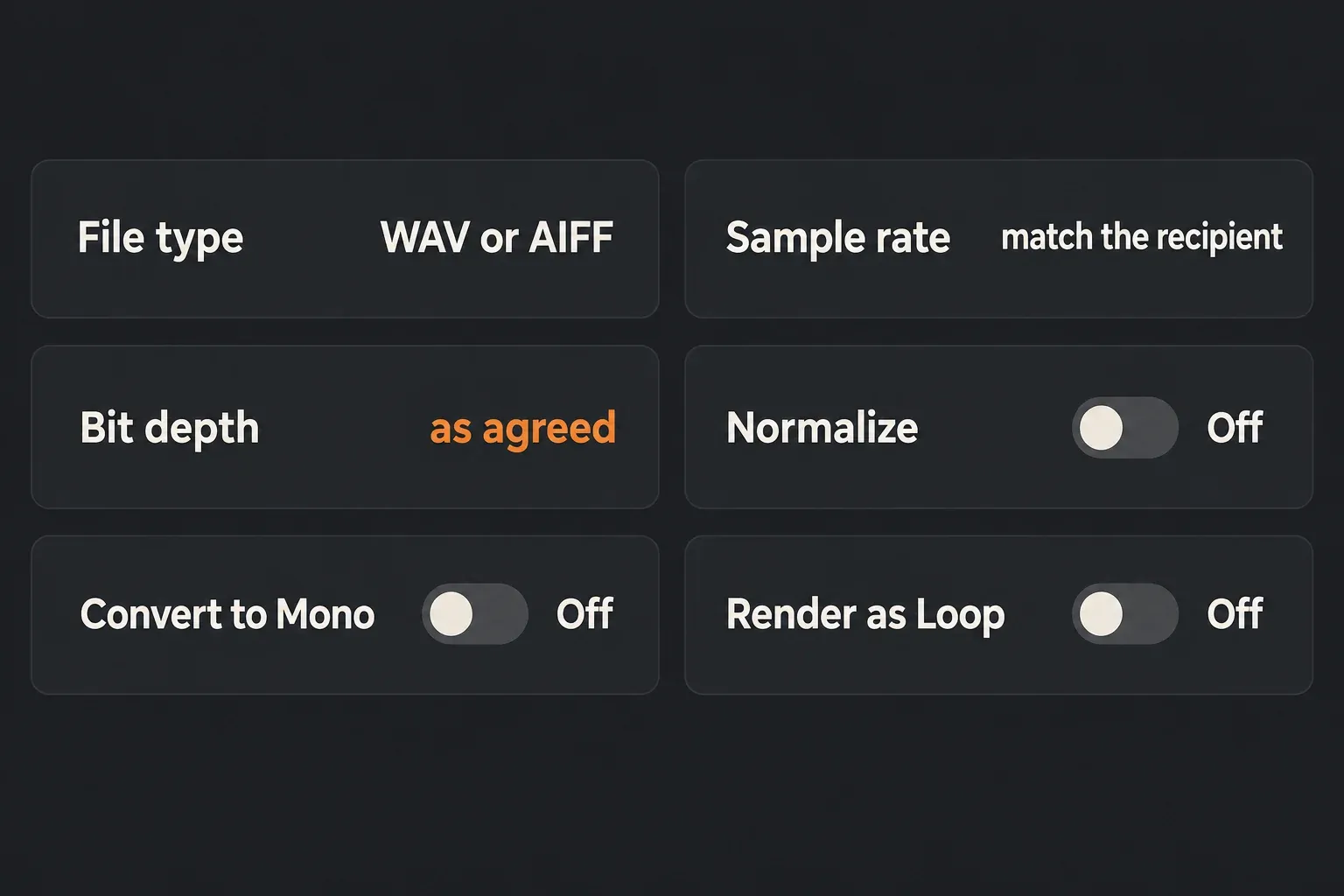
Turn on Create Analysis Files only if the recipient uses Live and wants the matching analysis and settings; otherwise the extra .asd files just clutter the delivery.
Send the smallest package that covers the approved roles. Five purposeful stems and a reference can be far more useful than eighty files with undocumented relationships.
Handle external hardware and long tails
If a signal path uses External Instrument or External Audio Effect, Live may render that path in real time. Let external reverb and delay fall silent before you start, and keep Auto-Restart on when dropouts would spoil the pass. Close applications you don't need instead of adding more frozen or copied tracks to the Set.
Don't use Render as Loop to catch ordinary song tails; extend the common render range through the real tail instead. Render as Loop runs a special preparatory pass meant for a repeating asset, which is a different product.
Build a delivery manifest
Put a short text file next to the audio:
- project and version;
- tempo and time signature where relevant;
- start reference and duration;
- sample rate, bit depth and file type;
- whether the files are stems or parts;
- whether group, return and Main effects are included;
- which file is the approved stereo reference;
- any intentional silence, pickup or printed hardware.
Use sortable names such as 01_DRUMS, 02_BASS and 03_MUSIC. Don't label anything “final” without a version and a date.
Re-import and run the sum check
- Open a clean Set at the source tempo.
- Before importing, turn off Auto-Warp Long Samples, and Create Fades on Clip Edges too, when the files must keep their original timing, silence and first attack.
- Place every file at the same start.
- Confirm equal length, channel count, names and the expected silence.
- Play each file on its own, listening for missing instruments, clicks or cut-off tails.
- Play the whole package together and compare it with the approved reference at matched level.
A perfect null isn't always possible when nonlinear Main processing or shared effects were printed differently. The test still earns its keep: it exposes missing routes, doubled returns, wrong mutes and timing errors. If the package is meant to differ from the reference, write down why.
Resource impact: stem count becomes a storage decision
CPU: rendering many stems repeats the device and routing work, and external hardware may need real-time capture.
RAM: sample libraries and plug-ins stay loaded while the package renders, however many files you export.
Disk and Set size: every stem covers the common time range, so long tails and pointless empty channels can multiply the delivery size quickly.
Lowest-resource safe route: export only the groups or parts the recipient needs, agree on one effects owner, and check the summed result before making alternates.
When not to optimize: don't flatten the source Set if the recipient may ask for revised balances or processing later; a smaller package can turn into a less usable one.
FAQ
How do I export stems from Ableton Live?
Select the full Arrangement range, open Export Audio/Video, choose All Individual Tracks or the selected group tracks, turn off Loop, Mono and Normalize for a standard exchange, pick the agreed PCM format, and export every file from one common start and length.
What is the difference between stems and individual tracks?
A stem combines a musical role such as drums, vocals or music into one processed file. Individual tracks, or parts, keep smaller sources such as kick, snare or backing vocals separate. Agree on the package before rendering.
Should I include return and Main effects when exporting stems?
Include them only when the recipient expects each stem to carry the approved return and Main processing. Otherwise export the shared returns separately or deliver processed groups. One effects owner prevents doubled ambience or bus processing.
Why should Ableton stems all be the same length?
A common start and end lets the recipient place every file at one timeline position and keeps silence, automation, pickups and tails intact. Live's individual-track export produces equal-length files when every file uses the same render range.
Should I export Ableton stems at 32-bit?
Follow the recipient's specification. Ableton recommends 32-bit for stems or parts that will be mixed further, because it avoids dithering at this in-between stage; the receiving engineer makes the final bit-depth decision.
How do I verify exported stems?
Import the files into a clean Set with Auto-Warp Long Samples off, line them up at the common start, check their names and lengths, then compare their sum with the approved reference, keeping any shared or nonlinear bus processing in mind.
