
Short answer: for a stereo mix that still needs mastering, start with Main, WAV, the project sample rate and 32-bit float without dither. Leave Normalize, Convert to Mono and Render as Loop off. For a final delivery, use the required format and bit depth instead; the table below gives sensible starting points. Set the exact start and length, then check the exported file without running it through your Main effects a second time.
I checked these settings against the Live 12 manual on September 5, 2026. They assume a normal stereo song, not a mono deliverable, a loop pack or a multitrack handoff, and written delivery requirements always win. An approved master should never be reprocessed just to match a generic preset.
Choose settings for the destination
This is the final-file stage of the Mix and Export hub. A mastering engineer needs room to work, a distributor needs the approved master, and a video editor needs synchronized audio. Find the row that fits, then read the details below.
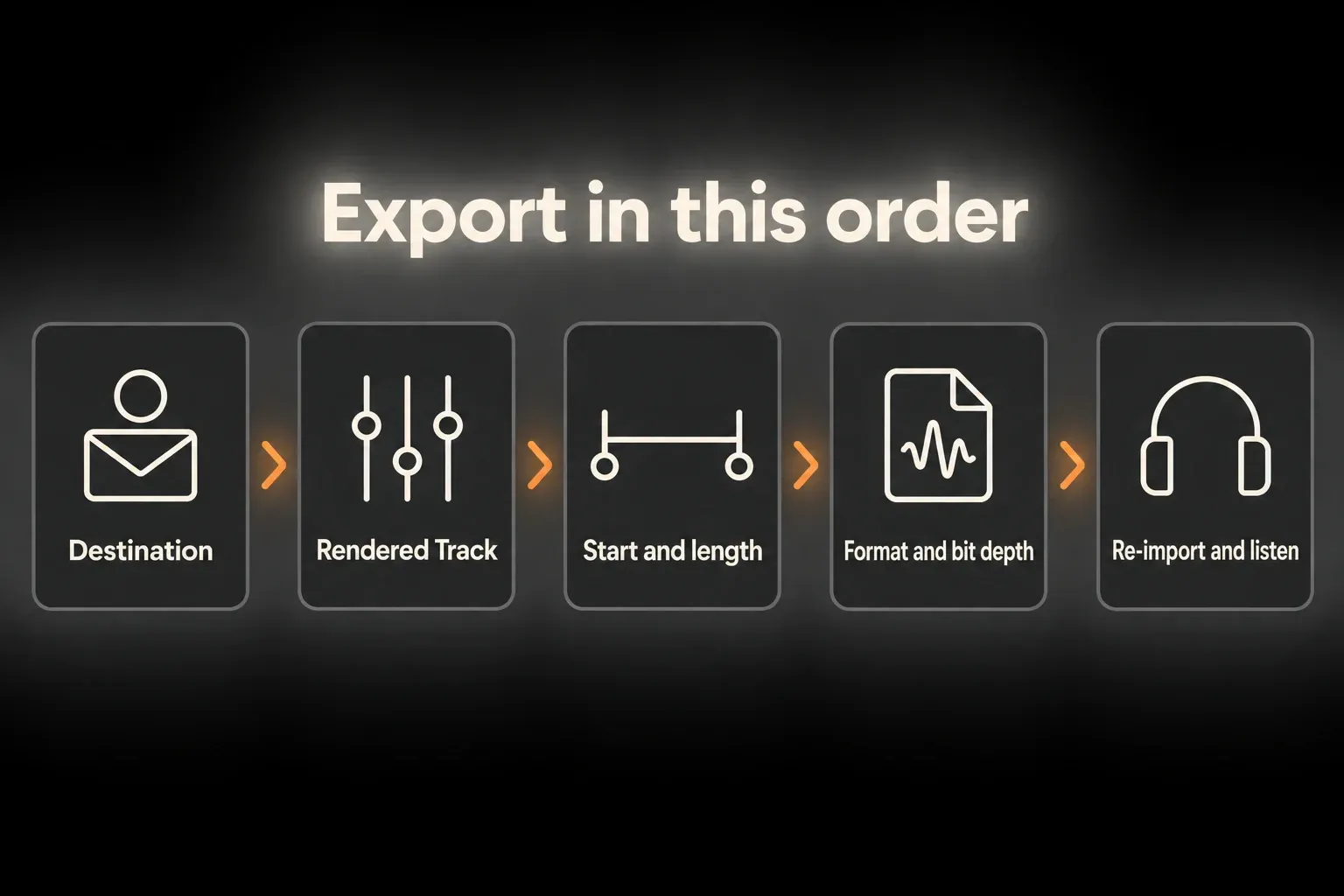
| Destination | Starting settings | Check before delivery |
|---|---|---|
| Mix for mastering | Main; WAV; project sample rate; 32-bit float; no dither | Keep agreed mix-bus processing. Follow the engineer’s requested format and headroom instead if supplied. |
| New final music master | Main; WAV; native production rate; 24-bit PCM; Triangular for this integer reduction | Finish mastering first. Check distributor requirements; do not re-dither or reduce an existing approved master unnecessarily. |
| Audio for a video editor | Main; WAV; 48 kHz; 24-bit PCM; Triangular if reducing bit depth | A starting handoff, not a universal video specification. Preserve the editor’s start reference and required channel layout. |
| DJ compatibility copy | Main; WAV; 44.1 kHz; 16-bit PCM; Triangular if reducing bit depth | A conservative copy to test, not a guarantee for every player. Prefer a higher-resolution supported native file when the exact device accepts it. |
| Client preview | Encode MP3 on: CBR 320 kbps; keep a lossless PCM version too | Confirm it is a preview, not the only master or archive. |
| Editable-audio archive | Main; WAV; project sample rate; 32-bit float; no dither | Retain the original Set and media as well. A stereo render cannot replace an editable project. |
For the stereo-song rows, leave Normalize, Convert to Mono and Render as Loop off, and use the complete agreed range including the ending tail. The table's dither entries apply to a new bit-depth reduction only. Don't add export dither on top of a plug-in that already does that job, and don't casually re-render an unchanged finished master. When the handoff is not defined yet, ask for the sample rate, bit depth, channels, start time and processing requirements.
For hardware playback, AlphaTheta’s format guidance separates the different player usage modes. A file that opens on your computer may still fail from the venue's USB device, so keep the native master separately and test the compatibility copy you actually need.
Make the range explicit in Arrangement View
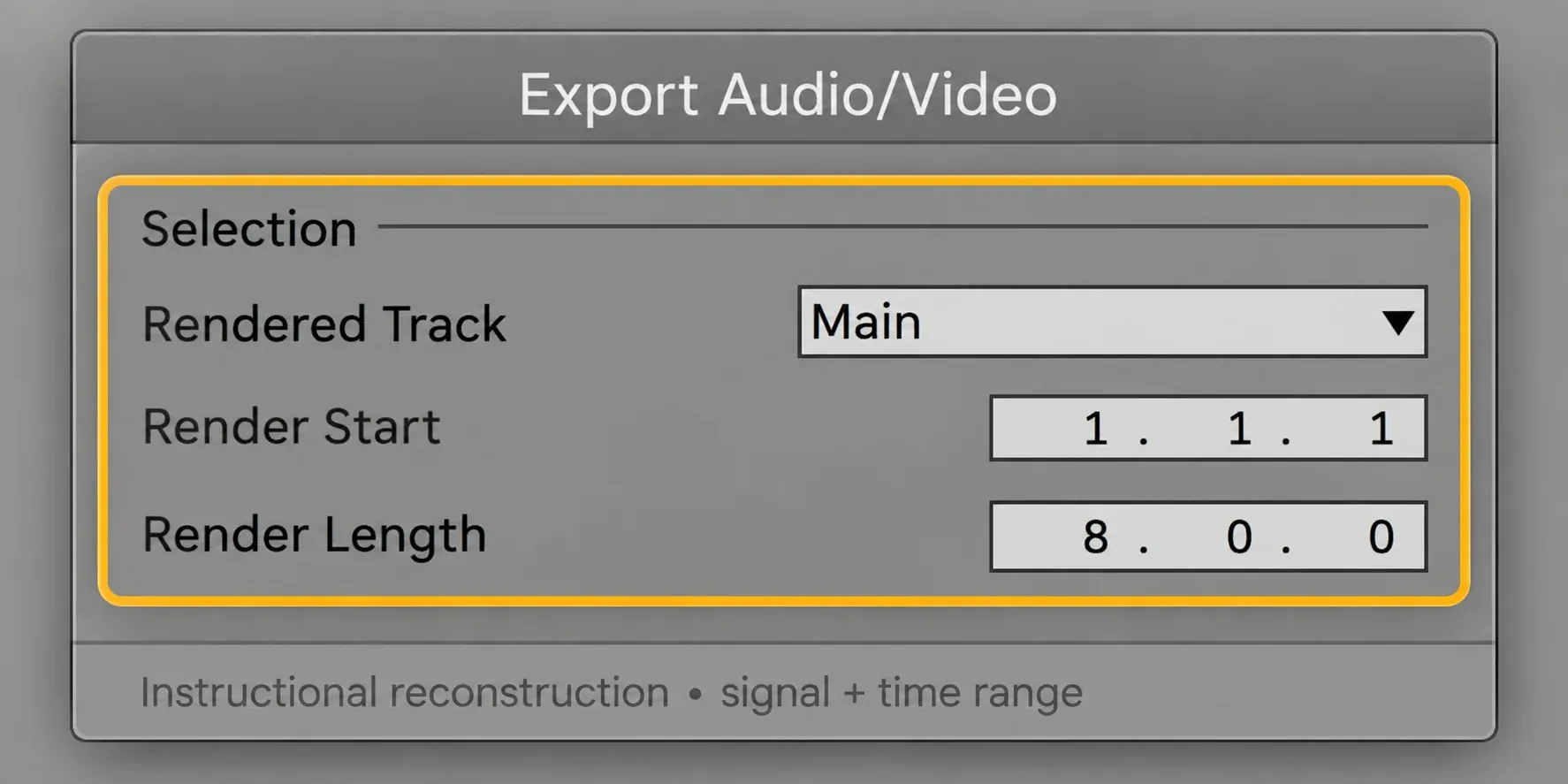
Select the exact time range before opening File → Export Audio/Video, or press Cmd+Shift+R on Mac / Ctrl+Shift+R on Windows. Live uses that selection for Render Start and Render Length. Include only the count-in or pre-roll you need, and carry the end through the tail you want. An Arrangement selection does not stop Session clips from overriding it, so bring Arrangement playback back where needed and listen to what actually plays before you export.
Check the opening attack, any automation changes and the final decay. A short test export that contains those moments tells you more than assuming that pre-playing one bar warms up every effect for the render. For picture work, keep the start reference the editor gave you instead of moving the music to a convenient bar and losing the offset.
Choose the rendered signal before the format
For a normal stereo mix, choose Main. Ableton's rendered-signal selection reference defines it as the post-fader Main output, active processing and fader state included. The start and length shown in the illustration above are examples, not a recommended range.
All Individual Tracks creates separate post-fader files, including returns and MIDI tracks with instruments. It is not a higher-quality version of the stereo export. The stems and parts export guide helps you decide which group, return and Main effects belong in each delivered file.
Confirm solos, track activators, routing and any sidechain sources the mix relies on. For external hardware, Live detects the paths that need real-time rendering; let earlier hardware tails settle, then test a short passage that exercises the real route before the full render. If you need a live input in the song, record it first, because an offline song export will not capture a new performance.
Use lossless PCM as the authoritative file
Switch on Encode PCM and choose WAV or AIFF for an uncompressed working file. The current encoding options also include lossless FLAC. Pick a format the receiving software supports; WAV over AIFF will not improve the mix. For the 32-bit floating-point working copies in this guide, use WAV or AIFF.
Live can create a 320 kbps CBR MP3 at the same time. Treat it as a convenient preview or a requested delivery copy, never the only archive. Lossy encoding throws information away, and another platform may encode the upload again.
FLAC saves storage without losing audio information, but format support still matters, so keep WAV when the next editor explicitly asks for it. And don't confuse the file types Live can import with the choices its Export dialog offers.
Match sample rate to the destination
Keep the project sample rate when no conversion is needed. For a typical video handoff, 48 kHz is a sensible starting point to confirm with the editor, and YouTube’s final video encoding recommendations also specify 48 kHz audio. A WAV sent to an editor is still not a finished YouTube upload.
Ableton's current export documentation says that exporting at a rate equal to or higher than the project rate happens in one rendering step. Exporting below the project rate first renders at the project rate and then downsamples with a high-quality process. Downsampling is not forbidden; it should just be a deliberate delivery conversion.
So a 48 kHz Set delivered as a 48 kHz WAV avoids any rate change, while a destination that explicitly requires 44.1 kHz calls for a deliberate conversion. Upsampling an existing low-rate recording will not bring back detail that was never there. Create only the rate variants you need, and label why each one exists.
Choose bit depth by processing stage
Use 32-bit float for further processing whenever the recipient accepts it, because it avoids reducing the working signal to an integer bit depth at this export. Ableton's Audio Fact Sheet explains why even processing a lower-bit-depth source can produce a 32-bit working signal. A 32-bit file will not undo distortion that was already recorded or created earlier in the chain.
For a required 24-bit or 16-bit integer export, decide the dither policy at that reduction. The manual’s dither guidance names Triangular as the safe default if further processing is possible. That makes "never dither before final mastering" too blunt a rule: 32-bit float without dither is the preferred intermediate, but an obligatory lower-integer handoff is a different case. Pow-r modes are for final output, not for material heading into another mastering stage.
Use one dither stage for that output, never both a mastering plug-in's dither and the export dialog's. If a finished file already has the right format, send it as it is instead of running it through another render for no reason. Dither is very low-level noise that reduces quantization artifacts. It controls neither loudness nor clipping.
Leave Normalize off unless peak normalization is the job
Live's Normalize option amplifies the completed render until its highest peak reaches the available headroom. It does not rebalance the mix, manage true peaks, set integrated loudness or make a mastering decision for you.
Leave Normalize off when the exported gain is meant to reflect the approved Set, and switch it on only when sample-peak normalization is the requested operation. If the mix itself lacks level, trace the Main-output bottleneck before touching the export format; a WAV setting cannot replace a mixing or mastering decision.
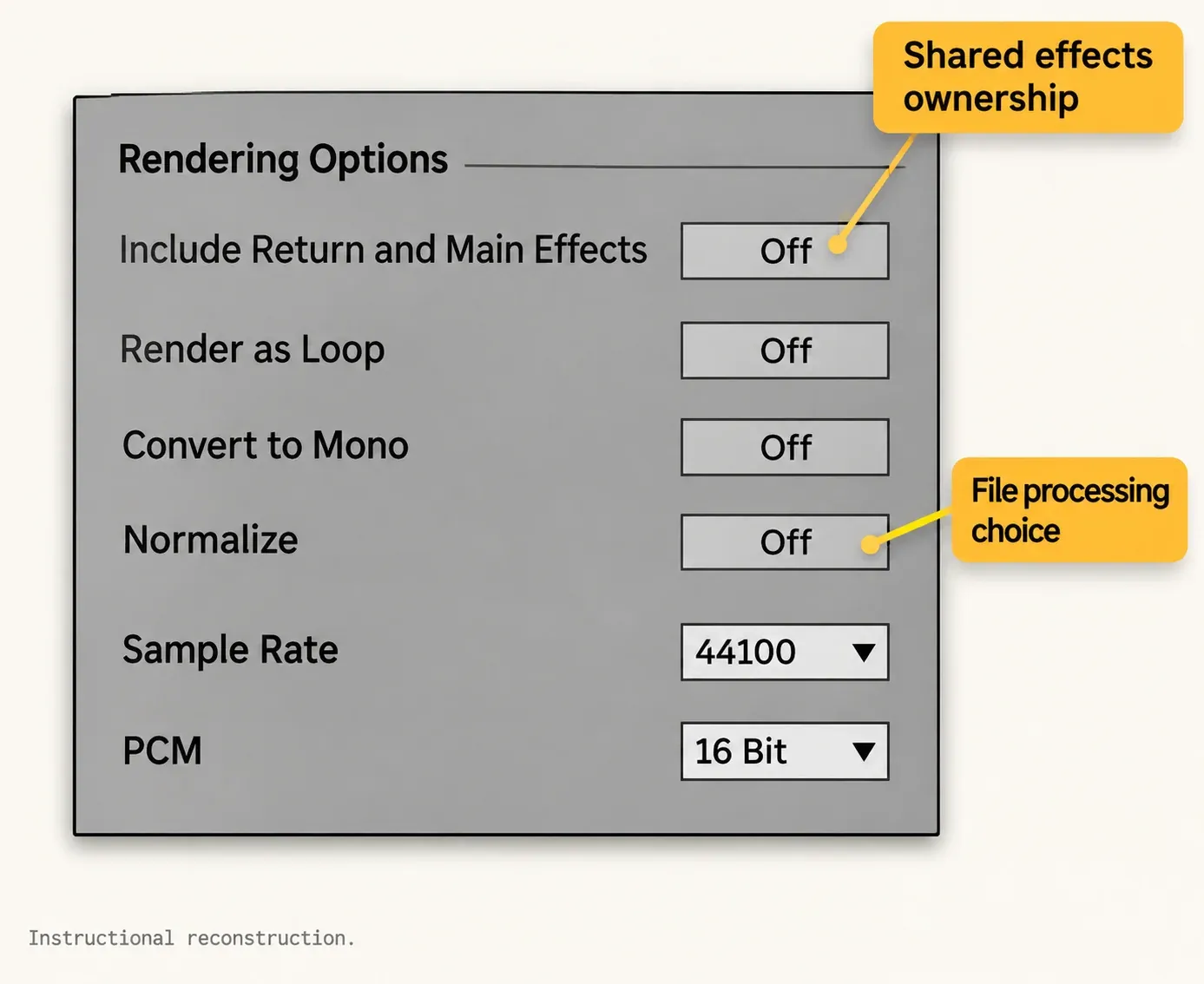
Every switch in this picture changes either what the file contains or how it is processed. Read the values as examples of the controls, not as one preset for every destination; for a mix going to mastering, the table above still points to 32-bit float.
Use Render as Loop only for a real loop asset
Render as Loop is designed for a file that has to repeat without a gap. Live runs a preparatory pass so delay and other tail material can wrap into the rendered loop. Leave it off for a normal song master, even when the ending has a long reverb.
Create Analysis File writes an .asd sidecar that helps when the file is reused in Live; most recipients working in other software don't need it. Analysis files can also carry clip defaults, so during verification look at the clip as it actually imports instead of assuming the current global preferences override its saved settings.
Do not guess the streaming loudness target in Export
The Export dialog does not set a universal streaming loudness target. For file delivery, Spotify’s current audio requirements ask for the native stereo master, prefer FLAC and accept qualifying WAV. They specify at least 44.1 kHz and 24-bit when that is the native master, with 16-bit reserved for recordings that have no higher-bit-depth master. So there is no reason to downsample an approved 24-bit master or turn it into 16-bit just for Spotify. The streaming loudness standards reference lists the current platform targets.
Your distributor is still the one receiving the file, so check its accepted upload format. Approve loudness, peak behavior and tonal balance before delivery; the file format alone does not make a master ready. In the same spirit, test a DJ copy on the actual player and media you will use, not just in a laptop player. A streaming upload and a compatibility copy don't have to be the same file.
Re-import the file before delivery
- Save the source Set, then open a separate empty QA Set. Check that its template has not added devices: no track or Main effects, centered pan, and 0 dB track and Main faders. Match the exported file's sample rate.
- Before importing, note and switch off Auto-Warp Long Samples and Create Fades on Clip Edges in Record, Warp & Launch settings. Restore your previous preferences when verification is finished.
- Import the file at the intended start. Check that Warp is off, the clip starts at the file's beginning, there are no unwanted fades, clip gain is 0 dB, and transpose and detune are zero. Check saved .asd defaults too.
- Check the first transient, leading silence, the complete ending tail, total duration and the mono or stereo format against the delivery specification.
- Listen for the expected processing and compare with the approved reference through one path at a time at matched listening level. Never send an already rendered master back through the source Main chain.
- If the result differs, tell changed playback gain or routing apart from missing content or a wrong export selection. A louder player is no proof of a better export.
- Open the delivered file in the required player or editor, confirm compatibility, label the approved version, and restore any import preferences you changed for QA.
For the comparison route, use the level-matched reference-track guide. If the export seems quieter, the export playback-path checklist separates player gain from real changes in the delivered audio. Name files with the project, revision and destination, and keep the editable Set, its required media and the approved lossless master.
Resource impact: make the export repeatable
CPU: offline rendering can run faster or slower than real time, and complex device chains or external hardware can still decide whether the render finishes reliably.
RAM: choosing WAV, FLAC or MP3 tells you nothing about whether sample libraries or plug-ins were unloaded. Memory use depends on the Set and its devices, so avoid opening several copies of a heavy project just to make alternate deliveries.
Disk: uncompressed PCM grows with duration, channel count, sample rate and bit depth. Store the approved master and the necessary, clearly labeled derivatives; a pile of exports with near-identical names makes verification harder.
When you need several simple format copies, one checked high-precision render can save you from rerunning the whole instrument and effect chain. Keep conversion, gain, fades and dither under control, and never use a lossy preview as the source for a new master.
Don't flatten or delete tracks in the original Set just to speed up delivery. Keep it editable, and make a processing-reduced copy only when there is a real problem to solve.
FAQ
What are the best Ableton Live export settings?
For an ordinary stereo mix going to mastering, start with Main, WAV, the project sample rate and 32-bit float without dither, and leave Normalize, Convert to Mono and Render as Loop off. For a final master, a video or a DJ copy, follow the destination table and the recipient's specification instead. Use the exact range and check the rendered file.
Should I export Ableton at 24-bit or 32-bit?
Use 32-bit float for further processing when it is accepted. If the recipient requires 24-bit PCM, follow that requirement and use an appropriate dither stage for the integer reduction. Don't reduce or re-dither an already approved native master just to match a generic preset.
Should I normalize when exporting from Ableton Live?
Usually leave Normalize off when level is part of the mix or mastering decision. Live's Normalize option raises the render until its highest peak reaches the available headroom; it does not repair balance, dynamics or a loudness strategy.
When should I use dither in Ableton Live?
Use no dither for a 32-bit floating-point intermediate. When you reduce the working signal to 24-bit or 16-bit integer, Ableton recommends a dither mode, and Triangular is the conservative choice if further processing is possible. Avoid doubling plug-in and export dither. Pow-r modes are for final output only.
Should Ableton export sample rate match the project?
Match the recipient's specification. If no conversion is required, keeping the project rate avoids an unnecessary rate change. Live performs a separate high-quality downsampling step when the export rate is lower than the project rate.
How do I check an Ableton export?
Use a separate empty QA Set with no inherited track or Main effects and neutral faders, pan, clip gain and pitch. Switch off unwanted Warp and fades, inspect saved clip defaults, align the file and check its duration, opening silence, tails and channels. Compare one playback path at a time at matched level, test the destination player and restore any import preferences you changed.
