
Short answer: start by separating how loud you hear the song from how loud the file actually is. Then compare average loudness with peaks, because a master can touch 0 dBFS and still sound quiet. Find the source that eats the headroom, look for gain cuts after Limiter, and measure the final export before you add any more gain.
Everything here was checked on September 5, 2026. The controls describe the updated Limiter introduced in Live 12.1, on Mac and Windows; older versions of the device have different controls. A quiet master can come from a low monitor setting, a low digital output, a few isolated peaks or an arrangement that is meant to breathe. Each of those needs its own decision, and none of them is solved by the same louder preset.
Separate monitoring level from master level
Play the problem section and watch Main’s output meter. If the level looks normal for this Set but your speakers or headphones sound quieter than usual, the issue sits further down the line: check the selected interface output, the physical monitor or headphone gain and any system or player volume in that route. Turning up the rendered signal to make up for a low listening control only bakes the problem into your file.
Keep monitoring comfortable. Save a copy before you change the Main chain, and note any Main-fader automation as well as the fader's current value. A negative Main-fader setting lowers the output after the limiter. That may be deliberate, and snapping it back to zero can cause a big jump in level, so turn your monitors down before testing a gain change and keep the fades you meant to have.
Level-match a reference before calling the mix quiet
Turn the louder commercial reference down so the tonal comparison is fair. Route only the reference around the Main chain and leave your own mix's processing where it is; otherwise you are comparing a finished record with a different version of your song. The reference-track routing and level-matching procedure keeps the reference from going through your mastering chain a second time.
Compare matching choruses or drops for 10–20 seconds at the same listening loudness. If your mix still feels smaller, name the difference you hear: a recessed vocal, thin low mids, softened drum attacks, or a bass that masks everything else. Level matching is how you judge those choices. When you compare delivery levels, write down the original, untrimmed file loudness separately.
Read peaks and average level as different evidence
A high peak tells you nothing certain about average loudness. Live’s native mixer meters show peak and RMS information, not an integrated LUFS reading, so reach for a loudness analyzer when you need LUFS and dBTP. The free real-time Youlean Loudness Meter measures integrated loudness and true peak during playback, and nothing in this procedure needs its paid drag-and-drop file analysis. For a bounced file, a browser-based online LUFS meter works too.
For readings you can repeat, keep short-term and integrated LUFS apart. Short-term uses a three-second window, so compare equivalent musical sections. Integrated keeps accumulating from the moment you reset the analyzer: reset it, then play the complete file once from the intended start through its tail, without looping or skipping. Use the same meter configuration for both files, and write down integrated LUFS and maximum true peak separately. Sample peaks in dBFS and true peaks in dBTP are different measurements.
Measure the actual Main render in a separate, empty QA Set rather than sending it back through your mastering chain. The setup matters more than it looks. Use the file's sample rate, Warp off, no unwanted fades or clip envelopes, zero pitch changes, clip, track and Main gain at 0 dB and a centered pan. Keep sends down, the track outside groups, crossfader assignment off and Monitor Off. Route the file track to Main and put the analyzer last on Main. Play one file at a time with nothing else sounding, and apart from that analyzer, keep the track and Main device slots empty. Check saved clip defaults and import preferences as well. These neutral playback conditions stop the measurement setup from changing the file. Keep your physical listening volume safe while you play it.
Skip the universal LUFS target from a forum post. Spotify’s current guidance combines playback normalization with its own mastering recommendations, and other destinations or creative briefs may ask for something else. Follow the real delivery specification, then decide whether the limiting still respects this song’s dynamics. No meter can make that call for you.
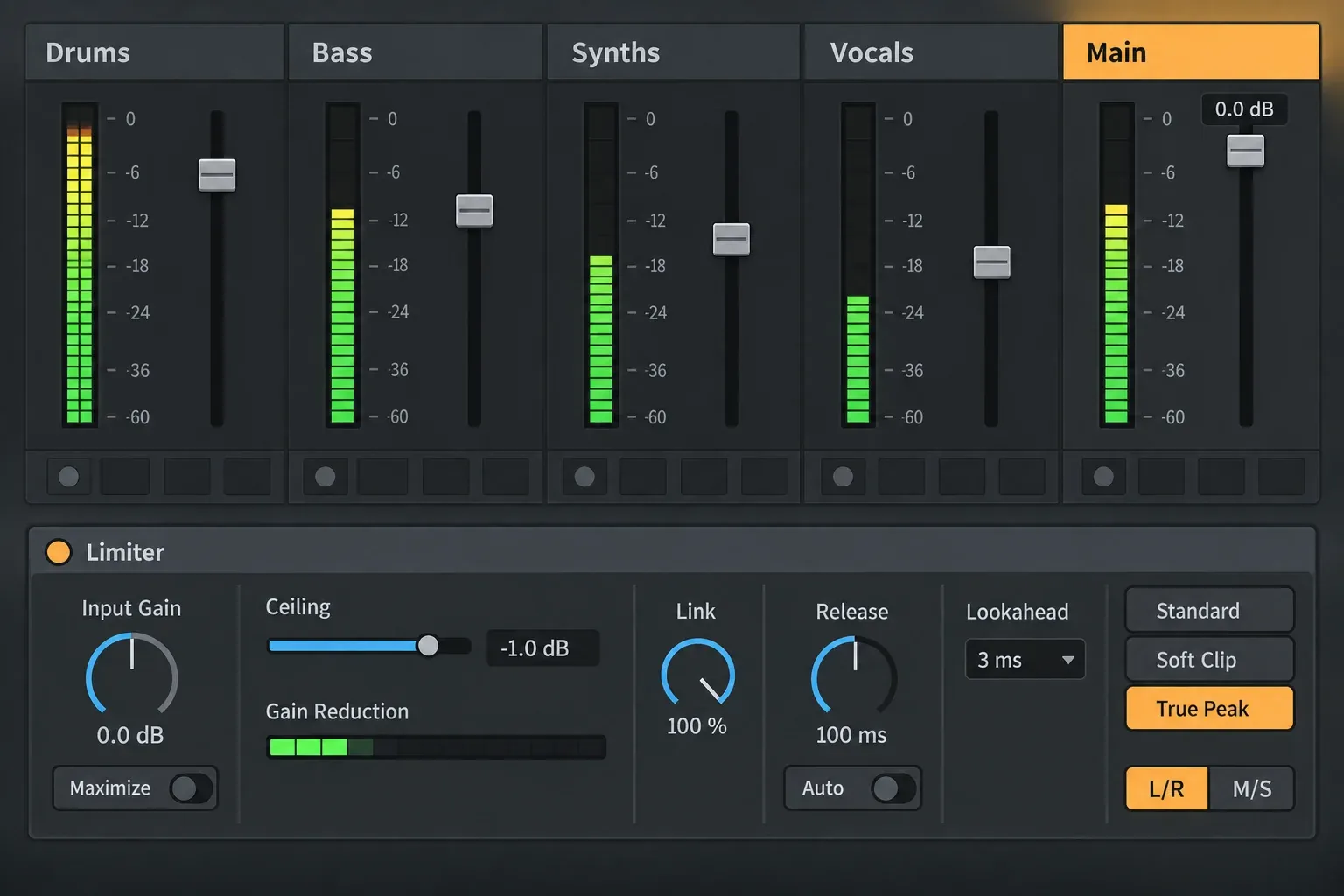
Loop a troublesome section and watch the full mix, then look for the track or group making the tallest events. Solo only to identify the sound, and go back to the full mix before deciding how much to change it. Heavy low-frequency energy can drive gain reduction even when the bass doesn't seem loud on small speakers. When one event is responsible, fix that event and leave the other tracks alone.
Fix the peak source before the Main limiter
Once you have found the source, pick the gentlest fix that works:
- shorten an overly long kick or bass envelope;
- lower one sample or clip instead of the whole drum group;
- use a clip envelope for one exceptional hit;
- adjust saturation or transient shaping when the peak adds no useful impact;
- use compression only when the source needs repeatable dynamic control;
- rearrange overlapping kick and bass events when each one is fine on its own.
The gain-staging guide covers level structure. Sidechain compression only belongs here when one performance should control another track's movement.
Use Limiter last and watch gain reduction
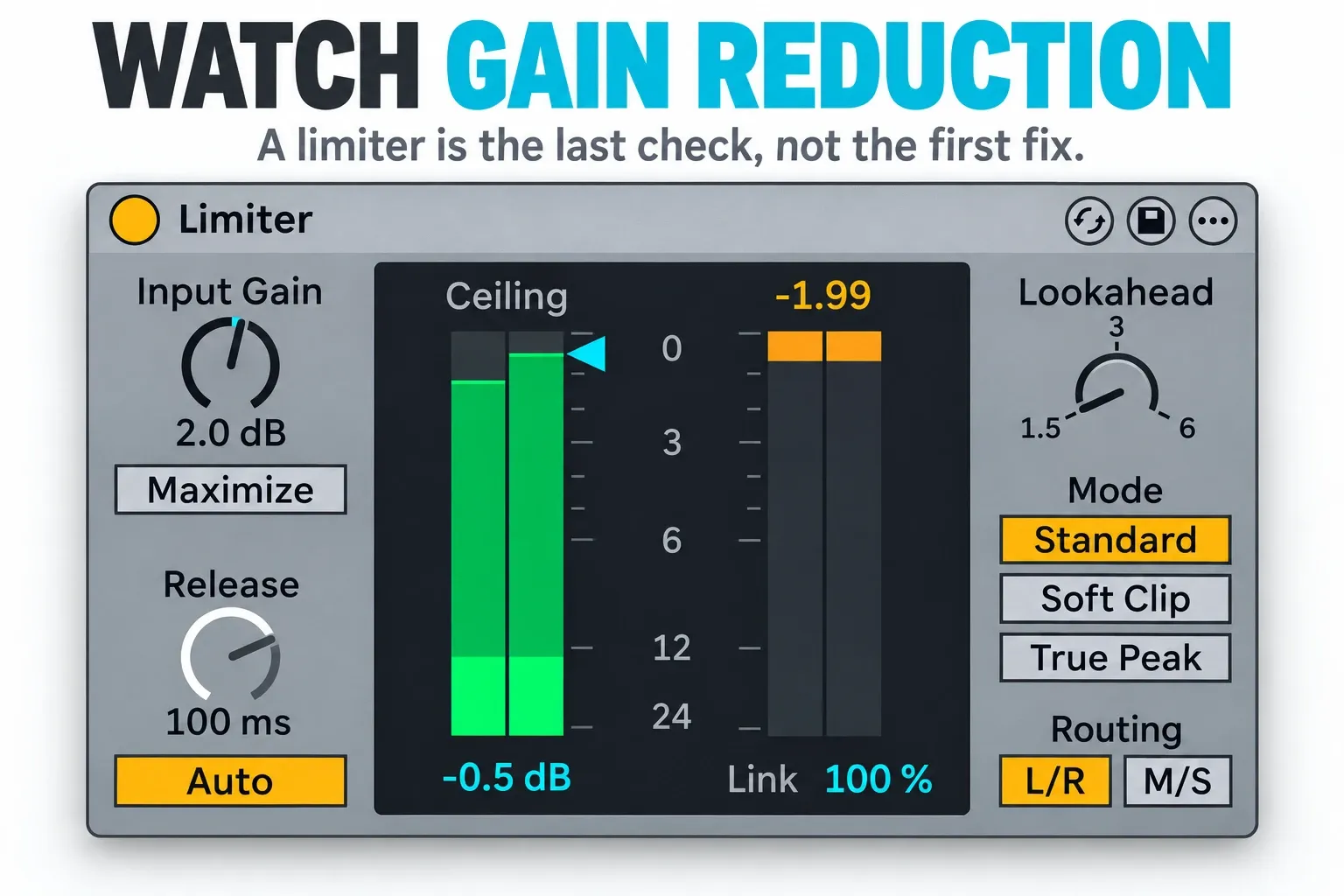
The current Limiter reference keeps Input Gain and Maximize apart. With Maximize off, Input Gain changes the incoming level. Switch Maximize on and Ceiling becomes Threshold while Input Gain becomes Output; lowering Threshold then adds compensating gain after the limiting stage. Set the output you want on purpose instead of treating those labels as interchangeable.
Keep Limiter last among the Main devices that change the signal. Any gain after it, including a positive Main-fader boost, can push past its ceiling. A meter placed after Limiter in the device chain still reads before the Main fader, so use the separate rendered-file measurement above for the level you actually deliver. Add gain gradually and compare at matched listening loudness. If the kick loses impact, the snare loses detail or the bass loses clarity, back off. No gain-reduction number is safe for every song.
Ceiling, True Peak and Lookahead solve different problems
- Ceiling sets the device's maximum output. It has no say over gain changes that come later.
- True Peak mode deals with inter-sample peaks, not average loudness.
- Lookahead offers 1.5, 3 or 6 ms and adds latency.
- Auto Release adapts the recovery to the signal.
If short settings distort low bass, try a longer lookahead and listen again at matched level. Keep whatever serves the sound and the delivery. Then check the final rendered file, and any encoded version the destination needs, because the device's own reading cannot prove that the whole downstream path is safe.
Normalization is peak gain, not mastering
Live’s Normalize export option applies a single gain change to use up the available peak headroom. It leaves the distance between an isolated peak and the quieter music around it exactly as it was. A file with low peaks gets louder; a file whose peak already sits near the maximum barely moves.
Leave Normalize off when you are checking a limiter-controlled delivery ceiling, because peak normalization can lift a deliberately below-zero ceiling toward full scale. It is no substitute for dynamics work or a loudness measurement, and a normalized master can still sound quiet next to a denser arrangement.
Do not confuse a quiet master with a quiet export
If the same mix only gets quieter after export, start by comparing the file with Live through a neutral playback route. That separates rendering and player settings from mastering choices. For the destination's format and bit-depth requirements, use the export settings guide; changing the sample format will not fix loudness on its own.
Why the master stays quiet
- Main output looks normal but the speakers are unexpectedly quiet: check the listening route before adding digital gain.
- High peaks, low average loudness: find the dominant transient or low-frequency source.
- Little limiter reduction: confirm the device is active, then check its mode and the incoming level. No gain reduction is normal when the signal never reaches the limiting level.
- Heavy reduction and lost punch: ease off the drive and go back to the source or arrangement before reaching for a second limiter.
- Limiter output looks right but the render is low: check Main-fader attenuation and automation, then the export and playback route.
- The reference only seems better when it is louder: repeat the level-matched comparison before changing the mix.
Keep the diagnosis light on CPU, RAM and disk
- Use one analyzer and one reference instead of several copies of a heavy Set. For final-file measurements, save and close the source Set and open a separate empty QA Set.
- Keep short, clearly named test renders while you work on the problem section, then check the complete final file. A loop cannot tell you whole-song integrated loudness.
- Pick limiter quality settings for the result you need. The documented cost of Lookahead here is latency, not a measured CPU percentage, so check your actual load before removing useful processing.
- Keep the editable original and the media it needs. Delete only the test files you have identified as disposable, and only after the correction and the final-file check are done.
A quiet-master diagnosis in six checks
- Verify the listening route. Save the Set, note Main-fader values and automation, and separate physical monitor level from digital output.
- Match a reference. Route it around your Main chain, keep your own mix processing intact, and compare equivalent sections at matched listening loudness.
- Measure peaks and loudness separately. Use peak/RMS to find events, and a proper analyzer for short-term LUFS, integrated LUFS and true peak.
- Correct the source. Adjust the track, clip or overlapping event that eats the headroom, then judge the change in the complete mix.
- Check limiting and downstream gain. Listen for damaged transients and pumping, keep later gain from undoing Limiter's ceiling, and watch for Main-fader attenuation.
- Verify the delivered file. Export Main with Normalize off for the ceiling check, measure the complete file through a neutral route, and compare the result with the actual delivery requirements.
Once the master translates at the level you intended, the mixing and export hub helps with routing, stems and delivery. Keep this loudness diagnosis apart from fixing a player-volume mismatch or choosing a file format.
FAQ
Why is my Ableton master quiet even when it peaks near 0 dB?
Because a few transients can reach full scale while the average loudness stays low. Find where those peaks come from and compare equivalent sections at matched listening level. Check integrated LUFS separately, since a peak reading near 0 dBFS is not a whole-song loudness measurement.
Should I turn up the Main fader?
Find out why it is low first, and whether its automation is deliberate. Main-fader attenuation happens after the device chain, and positive gain there can defeat a limiter ceiling. Turn your monitors down before testing a change, keep the fades you meant, and measure the final render instead of resetting the fader on reflex.
Does Normalize make an Ableton export louder?
Peak normalization can raise a file that has unused peak headroom, but it does not compress the dynamics and it cannot guarantee higher perceived loudness. Leave it off when you want to keep and verify a below-zero limiter ceiling, and treat any normalized version as a separate delivery decision.
How much limiter gain reduction is too much?
No amount is safe for every song. Compare at matched loudness and listen for weaker attacks, distorted bass, pumping and lost depth. If more reduction makes the mix smaller or rougher, pull the drive back and fix the source before chasing a bigger number.
Should I use True Peak mode?
The updated Limiter introduced in Live 12.1 has a True Peak mode for controlling inter-sample peaks. Use the mode and ceiling your delivery calls for, avoid boosts after it, and check the finished file. True-peak protection on its own will not make the average level any louder.
Does mastering loudness use much CPU or RAM?
That depends on the processors and the Set. Start with one analyzer and one reference, avoid duplicate heavy Sets, and use a separate empty Set for final-file checks. Watch the real load before removing useful processing. Lookahead adds latency, and its length alone tells you nothing about how much CPU the Set uses.
