
Short answer: gain staging in Ableton Live means controlling level at the points where it changes the sound or risks clipping. It does not mean making every track peak at -12 or -18 dBFS. Record at clean levels, check what goes into nonlinear effects, balance the group sums and protect the final output. A later fader can lower the level, but it cannot undo distortion created earlier in the chain.
Checked September 5, 2026, against the Live 12 manual and Audio Fact Sheet. This guide separates internal floating-point headroom from converter clipping and fixed-point file limits. Plugin calibration depends on the device, and no single peak, RMS or LUFS number applies to every stage.
Separate internal headroom from real output limits
A red internal meter is a reason to inspect the route, not proof that the samples have been hard-clipped. Live’s 32-bit floating-point engine has plenty of internal headroom, yet a saturator, compressor or modeled preamp still reacts to how hard it is driven.
The real headroom limits sit at the physical inputs and outputs and in 16- or 24-bit fixed-point exports, which should not clip. A 32-bit float file can retain samples above 0 dBFS, so those samples can be attenuated before fixed-point conversion or playback through hardware. That rescue covers excess sample level only; clipping distortion already baked in by a converter or an effect stays.
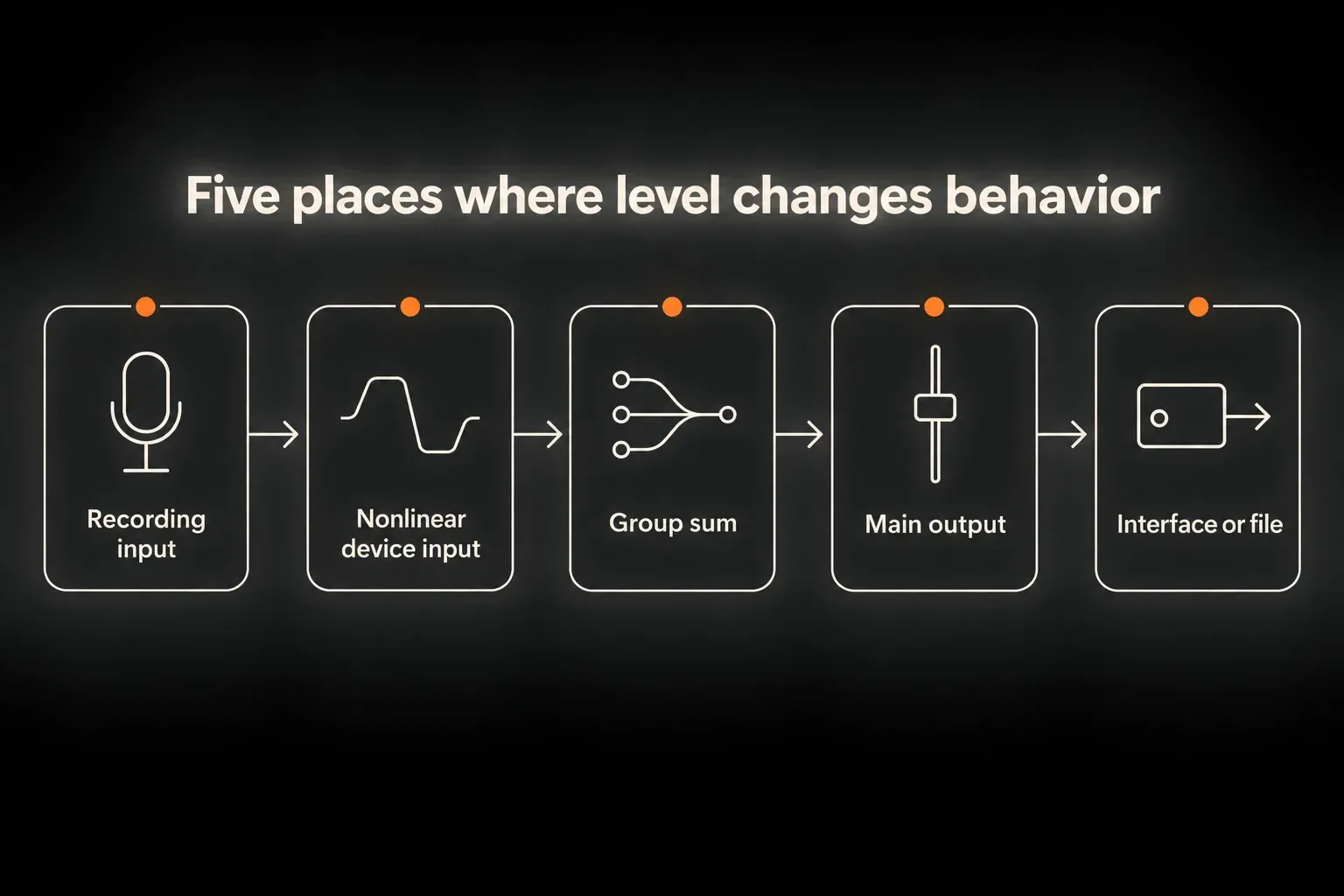
Make meters readable before mixing
Make the mixer taller and the tracks wider so the scale, numeric values and peak indicators are visible. Live’s mixer meters show peak and RMS output level, and input level while an input is being monitored. Peaks describe brief events and RMS describes sustained energy, and neither one is an integrated LUFS measurement. The fader values in the interface example below are not recommended gain-staging targets.
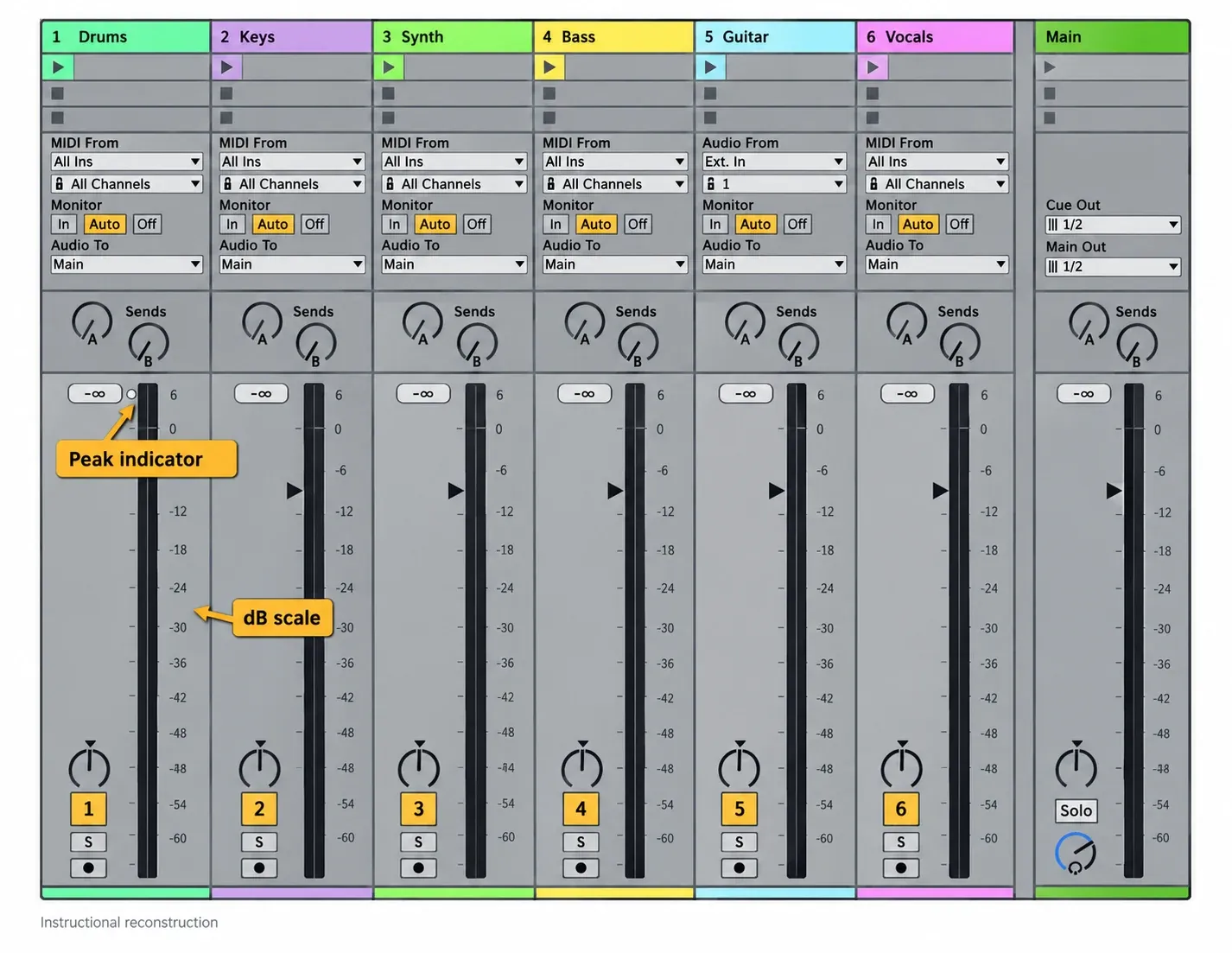
Reset the peak indicators and play the loudest full section of the arrangement. To find a gain jump inside a chain, look at the meters between devices, because a final track meter cannot tell you what reaches one particular effect. For a closer reading, place a diagnostic meter right before or after that effect.
Checkpoint 1: record the input, not the waveform size
With a conventional audio interface, the preamp gain should give the converter a clean input with room left for a phrase that comes out louder than in rehearsal. Listen for noise and distortion. A small waveform is not a problem in itself, and pulling the track fader down after recording does nothing for converter clipping.
Before recording, try the loudest phrase and watch the interface’s overload indicator as well as Live’s input meter. If a take already contains distortion, fix the input and record again when you can. Adding Utility afterward changes the playback level, not what the converter captured.
Checkpoint 2: set the source before the device chain
For an audio clip, Clip Gain adjusts the source before the track’s audio effects, which makes it the right control when that clip consistently hits the whole chain too hard or too softly. For a software instrument, use its output control or put Utility after the instrument and before the first audio effect, since Utility processes audio, not MIDI notes.
The simplest control that fixes the problem is usually the right one. If three Utilities are undoing one another, note their settings and check for automation before removing any. Separate gain stages are worth keeping when they really control different parts of the sound.
Checkpoint 3: drive nonlinear devices intentionally
A compressor may reduce gain harder as its input rises, and a saturator may add distortion. In Ableton’s Amp, Gain controls preamp drive and is the main distortion control. A fader after Amp can make that distortion quieter, but it cannot make the amp clean again.
- Save a comparison copy of the Set and keep physical monitoring comfortable. Check the effect’s input meter, not just the track output.
- Set the incoming level and the effect’s threshold, drive or gain for the sound you want, leaving unrelated devices unchanged.
- Match the processed playback to the bypassed version with a transparent output trim. If the effect has no suitable trim, put a gain-only Utility right after it.
- For the dry comparison, deactivate both the effect and its compensating Utility, and reactivate both for the processed version. A compensator left active during bypass would change the dry level too.
- Compare the same musical section in the mix. Listen for tone, attacks, pumping and clarity, and resist picking the louder version. Restore the intended activation and automation after the test.
Third-party plugins sometimes come with their own calibration guidance, and that guidance wins. A VU meter calibrated to a digital reference might show 0 VU for a -18 dBFS reference signal. That does not mean every musical peak should hit -18 dBFS, and it is not a LUFS target either, so check which measurement the vendor actually specifies.
Put Utility before the level-sensitive stage, or after it for output trim
Utility’s Gain control runs from -infinity to +35 dB. For a gain-only adjustment, keep Channel Mode at Stereo, Width at 100% and Balance centered, with phase inversion, Mono, Bass Mono, Mute and DC off. Saved defaults can differ, so check a newly loaded instance instead of assuming it is neutral.
- Before an audio effect, Utility changes how hard that effect is driven.
- Immediately after an effect, it compensates the output without touching the effect’s input. Bypass this compensator together with the effect when comparing dry and processed sound.
- At the start of a group’s device chain, it trims the summed input before group processing. At the end of a member track, a gain change also alters that track’s contribution to the group and may affect its sends.
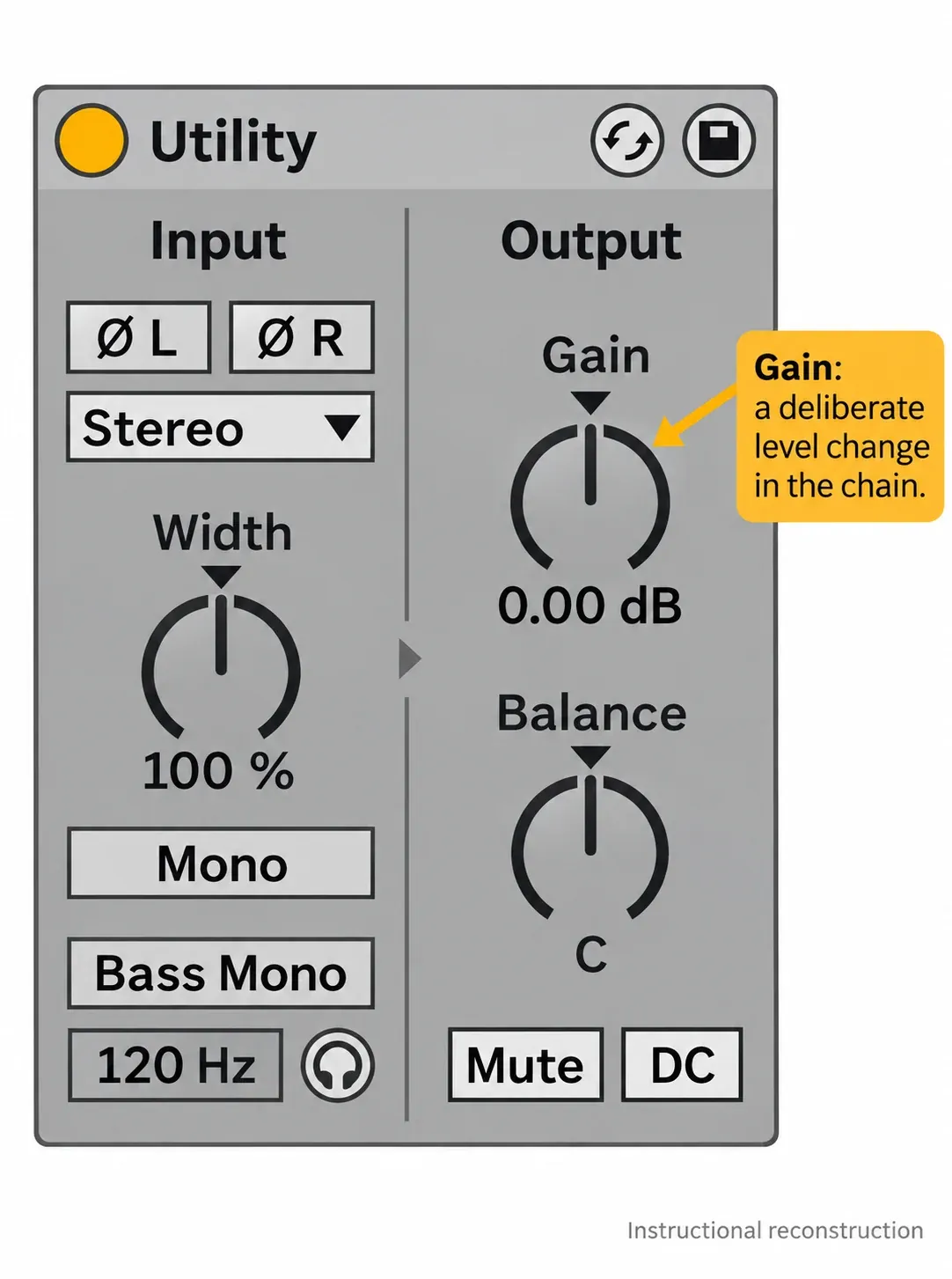
When mix balance is the only change you need, the track fader does the job. Utility earns its place when the gain change has to happen at a different point, or when you want separate controls for automation and balancing. An extra Utility does not improve the sound by itself.
Checkpoint 4: watch the group sum
Good gain staging on a group starts with the members playing together; look at the meter going into the first group effect and the output after each processor. If the sum drives group compression or saturation harder than you want, reduce the contributing signals or trim at the start of the group chain. First decide whether one loud member or the whole group needs the change, and only then touch the balance.
The signal reaches devices before the mixer and fader, so lowering the group fader reduces its output but not the input to its effects. That post-chain move is right when the processed sound is good but too loud; when a processor’s response needs to change, the gain change belongs before it.
The Audio Fact Sheet specifies 64-bit summing at individual mix points, while internal processing uses 32-bit precision. Those are two different statements, and neither promises that a nonlinear group effect will sound the same when driven harder.
Checkpoint 5: protect Main and the outside world
Check Main’s output with the full arrangement playing, returns and automation included, and watch for clipping. A limiter’s ceiling governs its own output, and any gain after it can change the delivered level. Keep physical monitoring safe while testing changes. Main usually feeds the audio interface directly, so internal headroom is no excuse to ignore an over-zero final output.
For a mastering handoff, the engineer’s specification comes first. Main-fader attenuation sits after the Main devices, so in a normal serial route it lowers the output without changing how those processors are driven. An otherwise unchanged mix peaking at -1 dBFS, for example, would peak at -6 dBFS after 5 dB of post-chain attenuation. That is arithmetic, not a mandatory target. Keep fades and existing automation intact, and check unusual feedback or sidechain routes separately. If the distortion itself is unwanted, fix the earlier stage instead. Leave Normalize off when you verify this trim in the Main export.
Run a matched-loudness device audit
Audition the effect and any compensating output trim as a pair, following the procedure above. Solo briefly to find a problem, then go back to the full mix. A processor can still be useful after level matching because it changes dynamics or tone, and a louder bypass comparison is no reason on its own to keep it or remove it.
Swapping separate track saturators for one group saturator just to reduce the device count changes the sound, because processing a sum is not the same as summing separately distorted sounds. Save the original, compare the result and check the actual CPU load before calling that change an optimization.
A practical pass from clips to Main
- Save a mix-check copy. Note gain and activation automation, keep physical monitoring comfortable and reset the peak indicators.
- Play the loudest full section of the arrangement, with every track and return that belongs in the mix.
- Check recorded or instrument source levels before the audio effects, and correct input distortion at its source instead of hiding it with later attenuation.
- Inspect the inputs of nonlinear devices and compare the processed output at matched loudness, bypassing each separate output compensator together with its effect.
- Inspect group input and output. Trim before group processing to change drive, or afterward to change the processed level.
- Check return levels and unintended buildup while keeping intentional ambience.
- Check Main after processing and fader automation. Respect physical-output and fixed-point file limits, and use the format and headroom the recipient asks for.
- Export a short diagnostic test with Normalize off when checking output trim. Compare it through a neutral playback route, then check the complete final render before delivery.
If the extra level comes from reverb or delay, look at return-track routing and sends. If the mix changes level only outside Live, compare the export through a neutral playback route before changing anything. Remove temporary diagnostic devices only after their checks are complete.
Resource impact: level changes are not a CPU strategy
CPU: a lower fader setting will not solve a processing overload. Compare the actual load with unnecessary effects deactivated, and keep the processors that earn their place in the sound.
RAM: turning a gain control does not unload instruments or their samples. Work in one saved Set at a time instead of opening duplicate heavy versions just to compare levels.
Disk: gain edits do not create replacement audio files, while rendering and recording do. Keep diagnostic exports short and clearly named, and keep the original recordings.
Lowest-resource route: start with the existing meters and one targeted level change. Add a diagnostic meter only where it answers a specific question, and remove it once it is no longer needed.
Freezing or bouncing a flexible chain just to calm the meters costs you flexibility for nothing. Once levels behave, the mixing and export hub covers the next task. If a clean master still sounds quiet, look at peaks versus average loudness before forcing every track to a new gain target.
FAQ
What level should tracks be in Ableton Live?
No peak number is required for every track. Keep recording inputs clean, set the input of nonlinear devices for the response you want, and check group sums and the final output. A vendor’s calibrated VU reference is not a universal musical peak or LUFS target.
Is it bad if an Ableton track goes above 0 dB?
Not necessarily inside Live, because floating-point headroom means a red internal meter alone does not prove clipping. Check the nonlinear effects and the final route. Physical converters and 16- or 24-bit fixed-point files have real limits, and while 32-bit float files can hold over-zero samples, they cannot undo distortion created earlier.
Should I use Clip Gain or Utility for gain staging?
Clip Gain changes an audio clip’s level before its audio-effect chain, and Utility changes gain at a specific point inside that chain. On a MIDI instrument track, Utility goes after the instrument so it receives audio. The fader stays free for mix balance when that separation helps.
Why does plugin input level matter in Ableton?
Compressors, saturators, amps and other level-sensitive effects can change their gain reduction or distortion as the input changes. Set the response you want, then compare at matched loudness. If a Utility provides separate output compensation, bypass it together with the effect for the dry comparison.
How much headroom should I leave for mastering?
Whatever the mastering engineer specifies; there is no universal -6 dBFS rule. If the processed sound is right, post-chain Main-fader attenuation can lower the final level without reducing the drive into the earlier Main devices in a normal serial route. Keep the automation, avoid clipping and switch Normalize off when you check that trim.
Where should I put Utility for gain staging?
Put it before an audio effect to change that effect’s input, after it to trim the processed output, or first in a group chain to reduce the summed level before the group effects. For gain-only work, keep Utility’s stereo controls neutral, and add a second stage only when it has a distinct job.
