Short answer: for a shared reverb or delay, put the effect on a Return track, set it to 100% wet and raise the matching Send on each source. Post is the right mode when new audio entering the effect should follow the source fader, and Pre is for a separate auxiliary balance. A reverb tail can keep ringing in either mode after its input stops, so a tail on its own does not point to a Pre send.
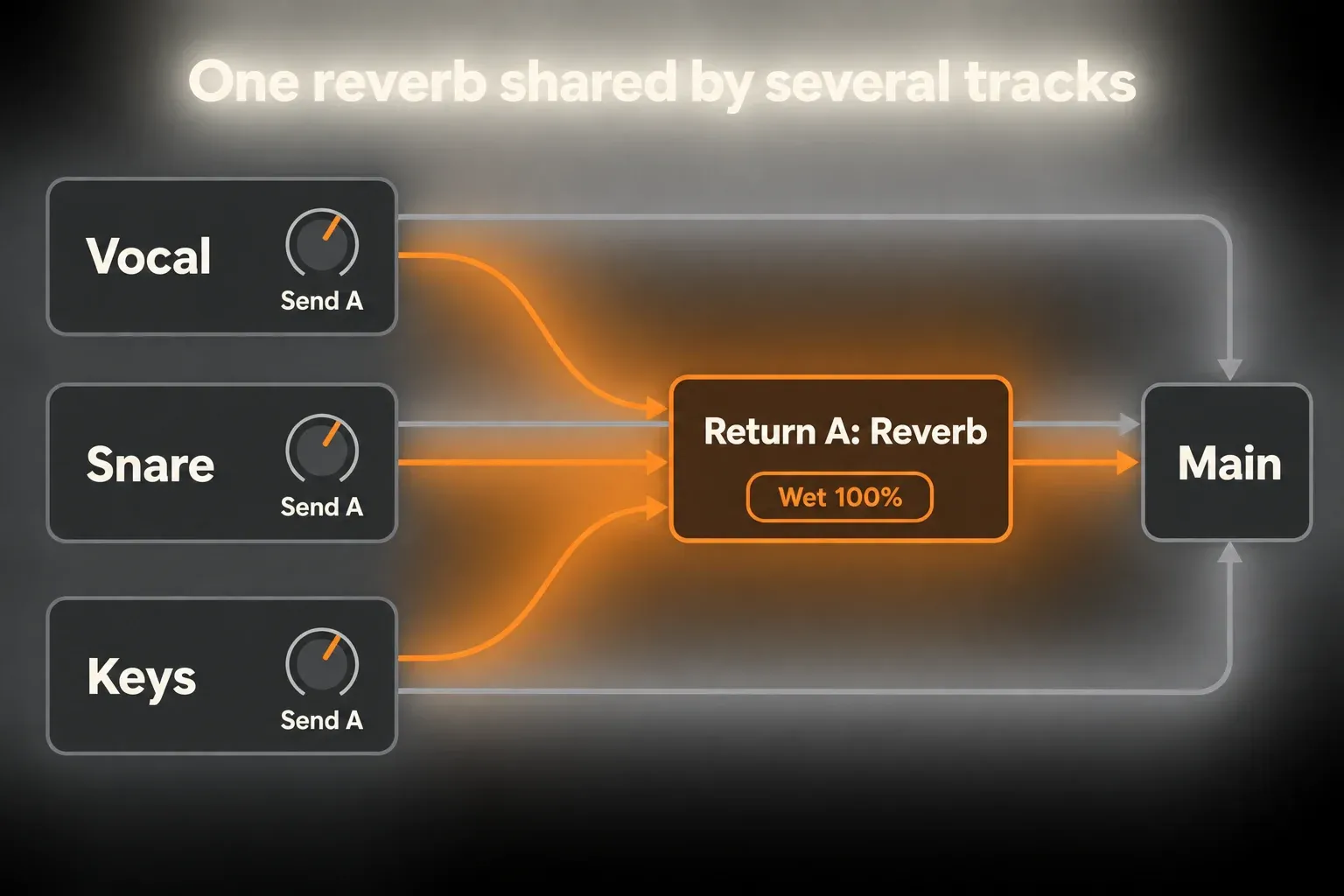
A shared reverb lets a vocal and a snare sit in the same room with different send amounts. Their direct audio still goes to Main, and the return adds the effect on top. The three controls do different jobs without being fully independent: in Post mode, the source fader changes both the direct level and the new audio feeding the reverb.
Build one clean shared-reverb return
- Save a separate version of the Set and lower the monitor volume. Use an unused return, or choose Create → Insert Return Track if your edition allows another one. Leave any effect the current mix already relies on in place.
- Name the return Reverb and note its actual letter, then use the matching Send on your source tracks. A newly created return is not necessarily A.
- Put Reverb on the return and set its Dry/Wet to 100%. Keep the return active, with its Audio To destination on Main for this shared mix effect.
- If Sends and Return Tracks are hidden, show them from View → Mixer Controls. Set the corresponding Pre/Post toggle to Post; the choice applies to every send feeding that return.
- Start with the source sends at −∞ and the return fader at 0 dB. Play one source and slowly raise only its matching Send until the reverb appears, keeping levels low enough to avoid clipping.
- Adjust decay and tone, then set the other sources’ sends in the full mix. When the combined effect is too loud, lower the return fader.
- While the first source plays, lower its fader. In Post, the new input to the reverb should fall, though an existing tail may still decay. Restore the fader and check the normal mix before saving.
Ableton’s current Live 12 Mixing reference defines the job precisely: a return can host effects and receive audio from several clip or group tracks. One reverb can therefore create a shared space without copying the same device onto every source.
Ableton’s edition comparison lists two send/return tracks in Live 12 Intro and twelve in Standard and Suite. Reverb is included in all three, while Hybrid Reverb comes with Suite, so this recipe does not need it. If you have hit your return limit, reuse an unused existing return in the saved copy instead of deleting one blindly.
Keep the return effect wet
The dry source already reaches Main through its own track. If a reverb on the parallel return also passes dry signal, that dry audio arrives twice, once directly and once through the return. The mix gets louder, transients can change, and the return fader ends up controlling more than ambience.
A conventional parallel reverb or delay therefore works best fully wet, so the return adds the effect and not a second unprocessed copy. A headphone mix or a Sends Only submix is a different case and may need the dry program audio, so the 100% wet rule does not apply to every return. Bypassing a reverb can also let dry audio through the return; to compare the mix without it, lower or mute the return output.
Post sends should follow the source mix
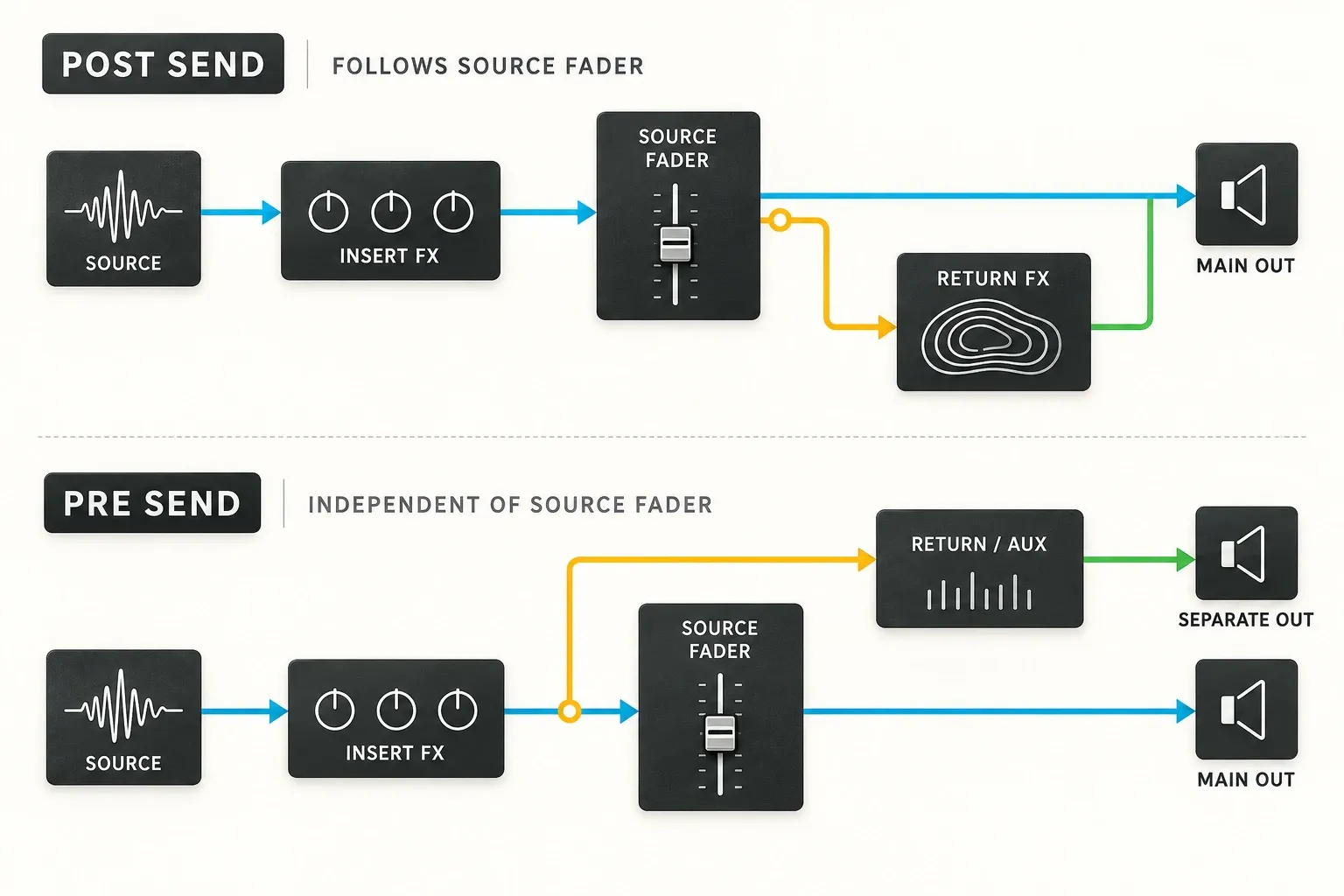
In Post mode, Live taps the send after the source track’s mixer stage, meaning pan, volume and the track-active control. Lowering the source fader reduces the new signal entering that return as well as the source’s direct output. What the effect is already producing is a separate matter.
A reverb or delay can keep producing a tail after its input stops, and Post does not erase that stored sound. Ableton’s Utility documentation shows the distinction: muting before a reverb cuts its input without switching off the reverb’s output. To silence the whole shared effect, set the return fader to −∞ or mute its output, keeping in mind that this affects every source using the return, not just the vocal you faded.
To tell a tail from continuing input, work at low volume in the saved copy. Leave only the source you are checking feeding this return, play a short passage, stop that source clip and listen to the decay. Then restore playback and lower its fader: a fresh phrase that keeps repeating points to continuing input rather than a tail. Check Pre/Post, send automation and other routes. Long decay, Freeze or feedback settings can sustain an effect after its input stops, so an active meter does not prove a Pre send.
Pre sends create an independent auxiliary mix
In Pre mode, the send is tapped before the source mixer stage, so the source fader does not touch the send level. For a separate headphone balance, route the return to a different, enabled hardware output connected to the performer’s headphones and build the balance with its sends. Start with the headphone level low and check the actual output, because not every headphone socket can be routed independently. Keep the required sources playing and shape the monitor mix with the sends. The crossfader and Cue routing guide explains a separate DJ-preview setup, which is a different thing from a musician’s send-based monitor mix.
Pre is not a sound-quality setting. It is the choice when the auxiliary balance should stay independent of source-fader moves. Before a performance, test the fader, mute and Solo states your Set will actually use, since a monitor route that survives a simple fader test is no guarantee for every custom routing or playback state.
Pre-fader does not mean pre-effects. Both ordinary send modes receive audio after the source’s device chain, so an EQ, compressor or gain change on that source changes what reaches the return even in Pre mode. For genuinely unprocessed audio, use a purpose-built Pre FX internal tap on another audio track and check its monitoring and output path; the return’s Pre/Post switch cannot do that on its own.
Three controls solve three different balances
- Source fader: the direct track level and, in Post mode, the new signal feeding the return.
- Send knob: this source’s contribution to one return, at the selected Pre/Post tap.
- Return fader: the combined output after the return’s effects, including existing tails and every source feeding it.
Sends handle differences between sources: more room on the backing vocals, less on the lead, a short delay only on the snare. The return fader handles the whole shared space when it is too loud or too quiet. Turning down ten send knobs to make one reverb quieter overall is the long way round.
Headroom matters on both the source and the return, because several modest sends can add up to a strong return input. The Ableton gain-staging guide shows how to keep that combined path measurable without chasing arbitrary meter numbers.
Choose inserts when the effect belongs to one sound
A return is useful when several tracks should share one processor or when you want dry/wet control outside the device. An insert is clearer when one track needs its own automation, a different decay, a serial effect before another processor, or exact printing with that track.
Compression is usually an insert because it shapes one track’s dynamics. External detector routing is a separate topic, and the sidechain compression guide covers the trigger branch into a compressor placed on the sound that has to duck.
Use Sends Only when no dry path should reach Main
Setting a source’s Audio To to Sends Only removes its ordinary direct route to Main, so in a simple setup you hear it only through the returns it feeds. Ableton documents this return-track submix as an alternative routing method. Other tracks that tap the source can still provide another audible copy, so check custom routes as well.
Sends Only suits a deliberate effect-only path or submix. With the relevant sends down and no other route, the source goes silent. A dry submix does not need a 100% wet reverb on the receiving return, while a reverb-only result does. Label the route so the missing direct output is not mistaken for a fault.
Avoid return-to-return feedback until the basic route is stable
Live can route a return’s own output into another return, or back into itself, through sends. Those return-track send controls are disabled by default because feedback can climb sharply and without warning. Enabling them is an advanced sound-design choice and has nothing to do with setting up shared effects.
For normal shared effects, leave return-to-return sends disabled. If you do experiment in a saved copy, turn down the monitor and receiving-return levels before enabling a path and keep a quick output mute within reach. Watch the actual destination, including any external output. If levels rise unexpectedly, mute the destination first, then disable the feedback route and reduce the device feedback before listening again.
Solo behavior can hide or reveal the return
With Solo in Place enabled, soloing a source can leave the returns audible, so you hear its processing context. Soloing a return mutes the main output of the other tracks while their sends keep feeding that return. Check the relevant return and the other Solo states before reading anything into the result.
If a soloed vocal suddenly sounds dry, look at Solo in Place and the return’s state before touching the send levels. A solo check is a monitoring condition and does not prove that the normal mix route is wrong.
Print or export returns deliberately
First decide whether the recipient needs source-plus-effect files or separate dry tracks with a shared wet stem. Live’s export selection and rendering options handle those as different jobs. Include Return and Main Effects adds both the returns each rendered track uses and the Main processing, so it is not a returns-only switch. The Ableton export settings guide covers the other format and render choices.
For a discrete wet stem, select the required return as the rendered track, check its active state and render range, and listen to the file. A shared wet stem should not be added again to source stems that already contain the same effect. Agree the delivery layout and follow the stem export guide. To record the audible combination while keeping the live setup, use a checked resampling route in a saved copy and keep the original sources.
Why an Ableton return track sounds wrong
- An unexpected dry copy appears as Send rises: check the return effect’s Dry/Wet and whether it is bypassed. Some increase from adding the intended wet effect is normal.
- Reverb continues after the source fader falls: tell a fading tail from new input. Check the other source sends, Pre/Post, automation and device Freeze or feedback before changing the routing.
- No effect is heard: show Sends and Return Tracks, use the matching send letter, and check clip playback, return activation and fader, device state and the actual Audio To destination.
- The source is silent: Audio To may be Sends Only with all relevant sends down. Look for any other routed copy before assuming the track has no output.
- The return distorts or clips: reduce the summed input sends or the gain before the overloaded device. Lowering the final fader cannot undo distortion already created inside an effect.
- Feedback rises unexpectedly: mute the monitored destination, then disable return-to-return sends and reduce device feedback before going back to a low listening level.
- Exported stems are dry or doubled: check the rendered-track selection, Include Return and Main Effects, and whether a separate wet stem duplicates an effect already in the source files.
Resource impact: share heavy effects, not every effect
- CPU: sharing one suitable effect can cut the number of heavy device instances. Compare the same passage in your own Set, because no fixed percentage saving exists.
- RAM: sharing devices can also avoid duplicate memory use, though the amount depends on the devices and the loaded material. A return count is not a memory measurement.
- Disk: recording or exporting wet stems creates extra audio files, a storage cost separate from the live return’s CPU and memory use.
- Separate effects are worth keeping when tracks really need different decay, modulation or automation. Changing the sound just to minimize the number of returns is a poor trade.
Ableton recommends sharing CPU-intensive effects instead of duplicating them, and gives the same advice for reducing RAM load. Its multi-core performance explanation also warns against treating track count as a model of CPU scheduling: dependent parts of a signal path run in sequence, but a shared return does not force the whole Set onto one core.
Check the return before saving or delivering
- Confirm the return’s job and actual output: a shared mix effect, a separate monitor feed or a deliberate submix.
- Check that a parallel reverb is fully wet, while a monitor or dry submix keeps the program audio it needs.
- Test source-fader movement and tell new send input apart from an existing effect tail.
- With all intended sources playing, check the combined return level and its devices for overload.
- Test the normal mix and the relevant Solo states, then restore the intended playback state.
- Render and listen to a short delivery test, without duplicating wet effects across source stems and a shared return stem.
Once the return behaves as intended, check it against the rest of the mix. The Ableton mixing and export hub ties shared effects to bus balance, gain staging and final delivery.
FAQ
What does a return track do in Ableton Live?
A return track receives audio from the Send controls of several source tracks and processes that combined signal with its own effects. It is useful for shared reverb, delay, parallel processing and independent auxiliary mixes.
Should reverb on a return track be 100% wet?
For a conventional parallel reverb return, yes, because the source track already supplies the direct audio. At 100% wet the return adds reverb and not another dry copy. A monitor mix or dry submix is different and may need unprocessed audio.
What is the difference between Pre and Post sends?
Post taps after the source mixer stage, so source-fader changes affect the new audio feeding the return. Pre taps before that stage, which allows a separate auxiliary balance. Both ordinary send modes sit after the source device chain, so Pre is not a Pre FX tap.
Why can I still hear reverb after lowering the source fader?
It may be an existing tail and not a Pre send. Stop the source clip in a controlled test and listen for decay, then check whether fresh input continues while its fader is down. Look at other sources, Pre/Post, automation and device Freeze or feedback. Muting the return output silences the shared effect for every source that uses it.
What does Sends Only mean in Ableton?
Sends Only removes the source’s ordinary direct route to Main, so in a simple setup you hear it through the returns it feeds. A custom track tapping that source can still create another audible route, so check those paths too.
Do return tracks save CPU and RAM?
They can, when several tracks share one effect instead of loading separate instances. The result depends on the devices and the Set, and no fixed saving applies. Printed wet stems add disk storage, which is a separate matter from live routing memory.
