
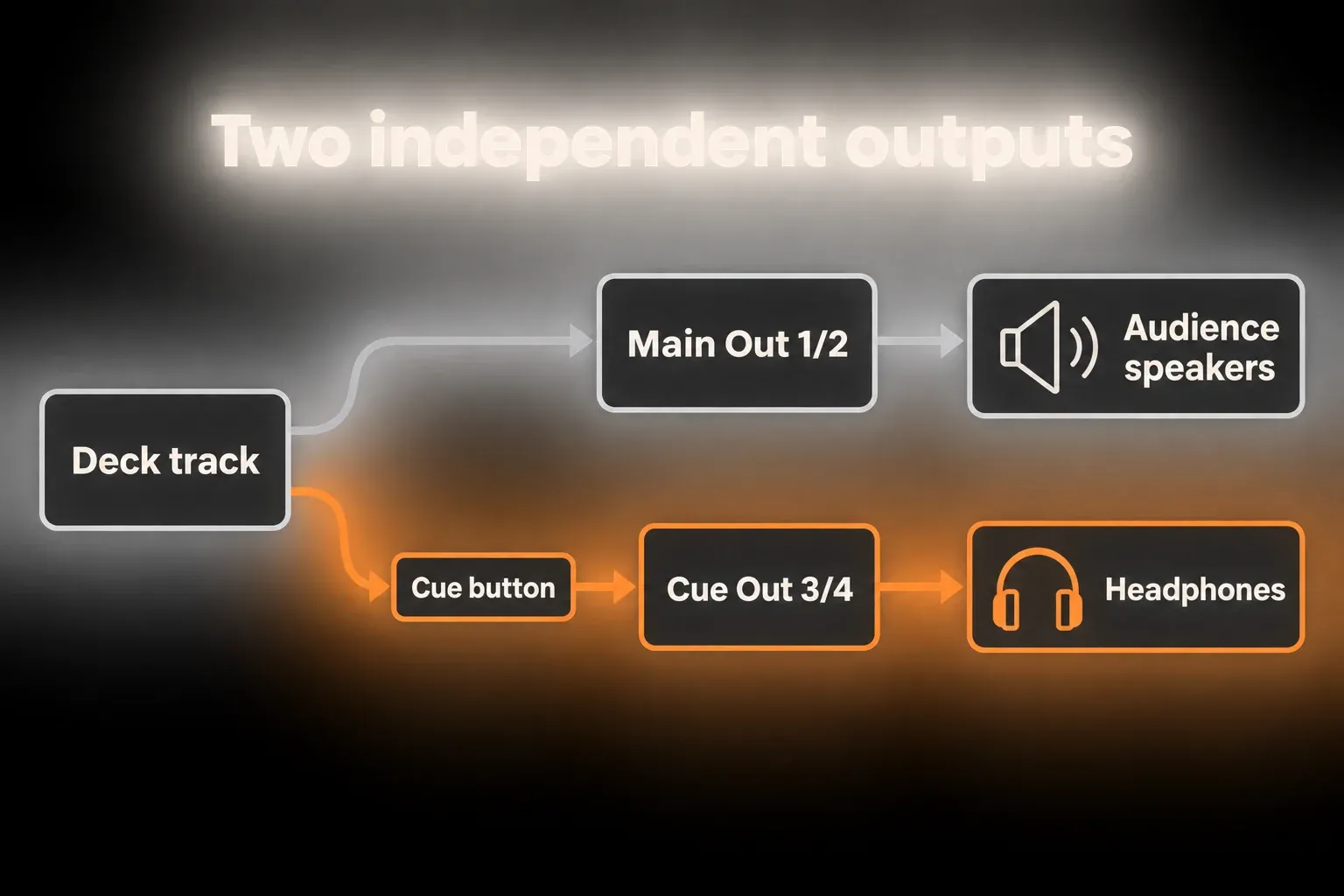
Short answer: you need independent stereo outputs for Main and Cue, the Solo/Cue switch set to Cue, and the headphone button pressed on the preview track. Cue does not mute that track in the audience mix. So for the first private-preview test I would turn its Track Activator off, pull all its sends down and look for any other route to the speakers before the clip starts. Crossfader A and B assignments come after this output test works, not before.
The crossfader and Cue do two different jobs. The crossfader changes the gain of the tracks assigned to it, while Cue opens a separate listening path. Because they are independent, a headphone button can be lit while the same track still plays through Main. Correct output numbers alone therefore do not prove that a preview is private.
Prove the hardware outputs before building the set
- Save a copy of the Set first. The interface needs two independently addressable stereo output pairs, for example outputs 1/2 for the audience and 3/4 feeding the headphone amplifier. Its headphone socket may follow a different pair, so read the interface’s own routing instructions instead of assuming it listens to 3/4.
- In Settings → Audio → Output Config, enable both stereo pairs. Show the mixer with its In/Out controls, then set Main Out to 1/2 and Cue Out to 3/4 on the Main track.
- Keep the listening level low and comfortable, stop the other clips and switch the metronome off. Take one audio test track routed to Main, turn its Track Activator off and set all its sends fully down. Make sure no other track or external mixer forwards its signal to the audience.
- Switch Solo/Cue to Cue and press the test track’s headphone button. The Cue button does not launch anything, so start the clip separately.
- The test audio should now be in your headphones and nowhere else. Check Live’s Main output and the interface’s audience-output meters, and listen to the audience feed at a safe level too. A silent Main meter cannot reveal an external hardware loop or a track routed straight to hardware.
- Stop the test clip and bring back the performance routes one at a time. After enabling sends, returns or extra monitoring paths, repeat the private-preview check.
Ableton’s Soloing and Cueing reference specifies four dedicated output channels, or two independent stereo pairs, for this stereo setup. A headphone socket with its own volume knob can still be mirroring outputs 1/2. You do not need four separate headphone sockets for four channels, but the interface has to deliver Main and Cue as independently routed signals. Mono split-output workarounds are a different setup from the stereo one described here.
Switch Solo mode to Cue
On the Main track, set the Solo/Cue Mode switch to Cue. The track Solo buttons turn into headphone icons. Pressing one sends that track to Cue Out, while its Track Activator still decides whether the audience hears it through Main Out.
Cue will not start a stopped clip. Once the preview track’s public paths are isolated, launch the clip as usual and set a comfortable headphone level with Cue Volume. That knob changes Live’s cue bus and leaves the Main mix alone, yet a wrong route in the interface mixer can still push that bus to the audience.
When cueing is configured and active, browser audio previews also play through Cue Out. That makes a browser preview worth testing before a show, along with a deck clip. If the browser preview leaks to the speakers, look at Cue Out and the interface mixer. If only a deck clip leaks, the track’s own Main, send and forwarded-output paths are the likelier culprits.
Hear the program and the next track together
For a simple timing comparison, enable Cue on both the current track and the preview track. You will hear the two cued tracks, though not necessarily a faithful copy of the finished Main mix with its returns and Main processing. An adjustable program-versus-preview blend is a job for the interface’s headphone mixer, provided it can combine playback 1/2 and 3/4 in the headphones while the audience output stays on 1/2 only. Not every interface can do this, so follow its routing documentation and run the leak test again afterwards.
Live’s Cue Volume sets the level of the cue bus; it is not the Cue/Main blend knob you find on a DJ mixer. Feeding the cue signal back into Main to fix headphone monitoring is a trap. If the interface cannot provide the independent headphone mix you need, accept that as a hardware limit and leave the audience route alone during the performance.
Assign the decks to A and B
Turn on Crossfader under View → Mixer Controls, then assign Deck A to A and Deck B to B. With the fader at the far left, A plays and B is attenuated to silence at its crossfader gain stage; at the far right the roles swap. A microphone or safety-loop track can stay unassigned when it should ignore the crossfader. Unassigned is not the same as guaranteed audible, though, because its activator, routing and other level controls still apply.
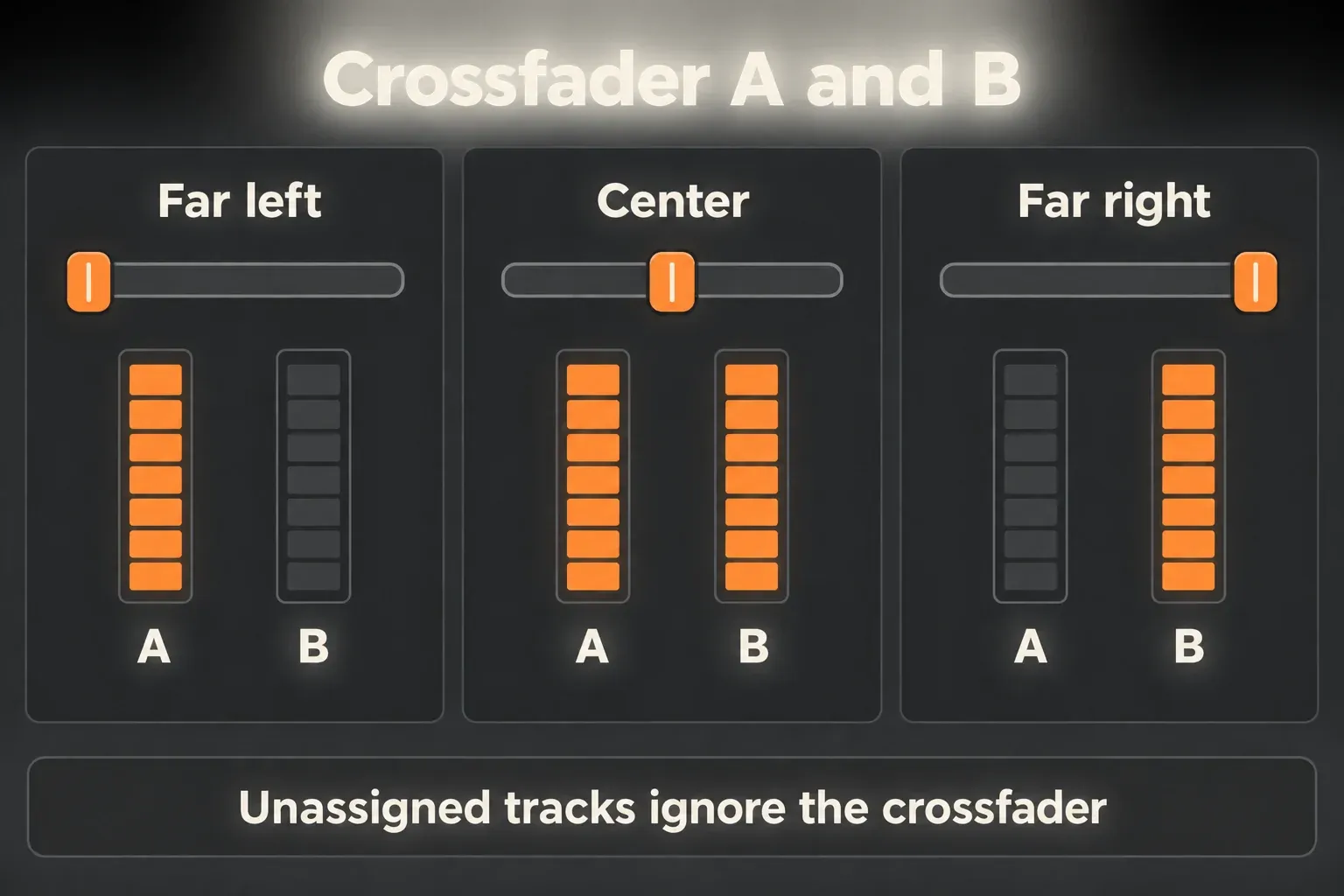
The Crossfader reference makes clear that A/B assignment changes gain, not routing. It can also affect a track sent to an individual hardware output, and not only tracks that pass through Main. In a normal two-deck transition I keep the fader fully toward the deck the audience is hearing while I bring the preview deck’s Track Activator back on. Before moving the fader toward it, check that its unwanted return or forwarded paths are still silent.
Choose a curve by transition behavior
Live offers seven crossfade curves in the crossfader’s context menu. A fair comparison uses two steady loops at matched level:
- An equal-power-style curve keeps the combined energy steadier around the center.
- A sharper curve suits quick cuts and rhythmic switching.
- A gentler curve works for long blends where both tracks stay audible near the center.
No curve is best for every set. Two bass-heavy tracks can still overload or lose energy at the center depending on phase, arrangement and level, so match the deck gains before you judge a curve.
Prepare clips before relying on the crossfader
A smooth fader cannot rescue a drifting beat grid. Warp mode, downbeat, tempo and loop boundaries should be settled before the performance, and the Ableton warping guide covers transient and downbeat alignment.
Clear intro, mix-in, breakdown and exit locators or Session clips make the transitions predictable. A safe loop on each deck means a late decision ends in a loop rather than silence. The broader performance-set workflow covers recovery paths and set structure.
Map only controls you can recover
The crossfader belongs on a continuous MIDI fader or knob. After mapping it, move it to the left, the center and the right, then save the Set. Live accepts absolute or incremental controllers. Its left, center and right mapping fields have one quirk with keys: a key assigned to one of these fields toggles between the two extremes, and it does not necessarily jump to the position the field name suggests. Rehearse the real mapping before you trust a labeled button for a cut.
Cue buttons are worth mapping only when the controller feedback leaves no doubt. A dark button that might still be active is a real risk on stage. The MIDI-mapping guide covers takeover, ranges and controller testing.
Keep returns and the microphone deliberate
A pre-fader send is a separate risk, because it taps the signal before the mixer’s volume and Track Activator controls. Switching the preview track’s activator off therefore does not guarantee silence through a pre-fader return. For the first privacy test, every send on the preview deck should sit fully down, and any track receiving that deck’s pre-mixer signal needs a look as well. Effects come back only after their path to the audience has been checked.
Return tracks can be assigned to A, B or neither. A deck-specific return on the same side as its deck fades out together with it, while an unassigned shared delay can leave an audible tail after the dry deck has gone. The send and return guide covers Pre/Post behavior and feedback precautions. A microphone deserves a clearly named channel and a mute you can reach, and both its direct and effect paths should be tested.
Why cueing or crossfading is not working
- Preview clip audible in speakers: look at its Track Activator, the crossfader position, sends, other tracks receiving its signal, direct hardware outputs and interface mirroring. Cue adds a path; it does not mute Main.
- No headphone audio: check Output Config, Cue Out, the interface’s headphone source and level, the track’s Cue switch, and whether its clip is actually playing.
- The button solos instead of cueing: Main and Cue need different destinations, and Solo/Cue has to be set to Cue.
- A deck ignores the crossfader: its A/B assignment is the first suspect, then any parallel path the assignment does not control.
- Both decks disappear at one extreme: the A/B assignments should be opposite, and their activators and routing need checking.
- The center is louder: lower or match the deck gains and compare curves. Correlated or bass-heavy material can still sum strongly.
- A delay remains after a deck fades: check the return’s crossfade assignment and the tail the effect is already carrying, beyond the source track itself.
- The mix drifts: correct Warp and downbeat alignment; faster fader moves will not hide it.
Keep the performance Set manageable
- Two existing audio decks and the essential effects are enough to start. A/B assignments and Cue do not need duplicate instruments or a second copy of every track.
- Measure playback with both decks and the intended effects running. Warp algorithms and device processing change the load, and there is no universal CPU or RAM figure for a DJ route.
- An interface headphone mixer can handle program-plus-cue monitoring if it supports the independent routing you need. Confirm that the speaker output stays separate.
- Keep a recovery loop and a saved working Set. When performance turns unstable, identify the expensive device or audio setting before removing a safety route.
A safe DJ route in six checks
- Separate outputs. Enable two independent stereo output pairs and give Main and Cue different destinations. Confirm which pair the interface’s headphone output follows.
- Isolate the preview. Turn the preview track’s Track Activator off and all its sends down. Check forwarded tracks and external mixer routes.
- Test privacy. Enable Cue, press the headphone switch and start the clip separately. You should hear it in the headphones and find no test signal on the audience path.
- Assign decks. Put the decks on opposite A/B sides. Test both fader extremes, the return tails and the handoff from preview to the audience.
- Prepare and map. Check Warp, downbeats, loop boundaries and deck levels. Test the crossfader and Cue mappings, then save the Set.
- Rehearse recovery. Practice a stopped clip, an accidental cue and a late transition. After any routing change, recheck that the audience path stays isolated.
Once the two-deck route behaves predictably, the performance and controller guides take it further with mapping, synchronization and recovery. The output test above is a procedure for your own hardware; no particular interface has been tested here.
FAQ
How many audio outputs do I need for Ableton cueing?
Independent stereo Main and stereo Cue take four addressable output channels arranged as two stereo pairs. A headphone socket that only mirrors Main will not do the job, so check how the interface routes its headphone output instead of counting sockets or volume knobs.
How do I hear the next track only in headphones?
Give Main and Cue independent output pairs and switch Solo/Cue to Cue. Turn the preview track’s Track Activator off, bring its sends down and check for other paths to the audience. Then press its headphone switch and start the clip separately. You should hear it in the headphones with no preview signal at the audience output, because Cue alone does not mute Main.
Why does the crossfader not affect a track?
Start with the A/B assignment, since an unassigned track ignores the crossfader. If the track is assigned and some audio still remains, the cause is usually a return, a pre-mixer tap or another parallel route. A/B changes the assigned track’s gain, not every route that carries related audio.
Does the crossfader change audio routing?
No. Ableton describes it as changing gain at the track stage, and A/B assignment leaves the track’s selected output destination untouched.
Which Ableton crossfade curve is best?
It depends on the transition. With steady, level-matched loops you can hear that gentler curves suit long blends and sharper curves suit cuts. Center energy still depends on the material.
Does DJ cue routing use much CPU or RAM?
Crossfader assignments and Cue routing do not need duplicate instruments, but the total load depends on the playing clips, Warp modes, devices and audio settings. Test the actual performance Set, because no fixed CPU or RAM saving follows from a particular routing layout.
