
To warp audio in Ableton Live, find the first musical downbeat, correct the clip’s original BPM, then check whether later bars stay aligned. A steady loop may need nothing more than that tempo map, while a live performance may need extra Warp Markers where it drifts. Pick a Warp Mode by listening at the destination tempo, and leave intentional push and pull alone unless it causes a real timing conflict.
Checked September 8, 2026 against Live 12’s Warp documentation and Audio Fact Sheet. The 90-to-120 BPM example below is an illustrative workflow, not a tested audio result. Using fewer markers is a practical starting point for keeping the feel, and no rule says every source needs the same map.
Warp solves four different timing problems
A loop with the wrong BPM and a live drummer drifting over several minutes call for different corrections, and this guide follows both cases. Related rhythm and sample-editing work lives in the MIDI and Sampling hub, and changing the song’s global tempo is covered in changing tempo in Live.
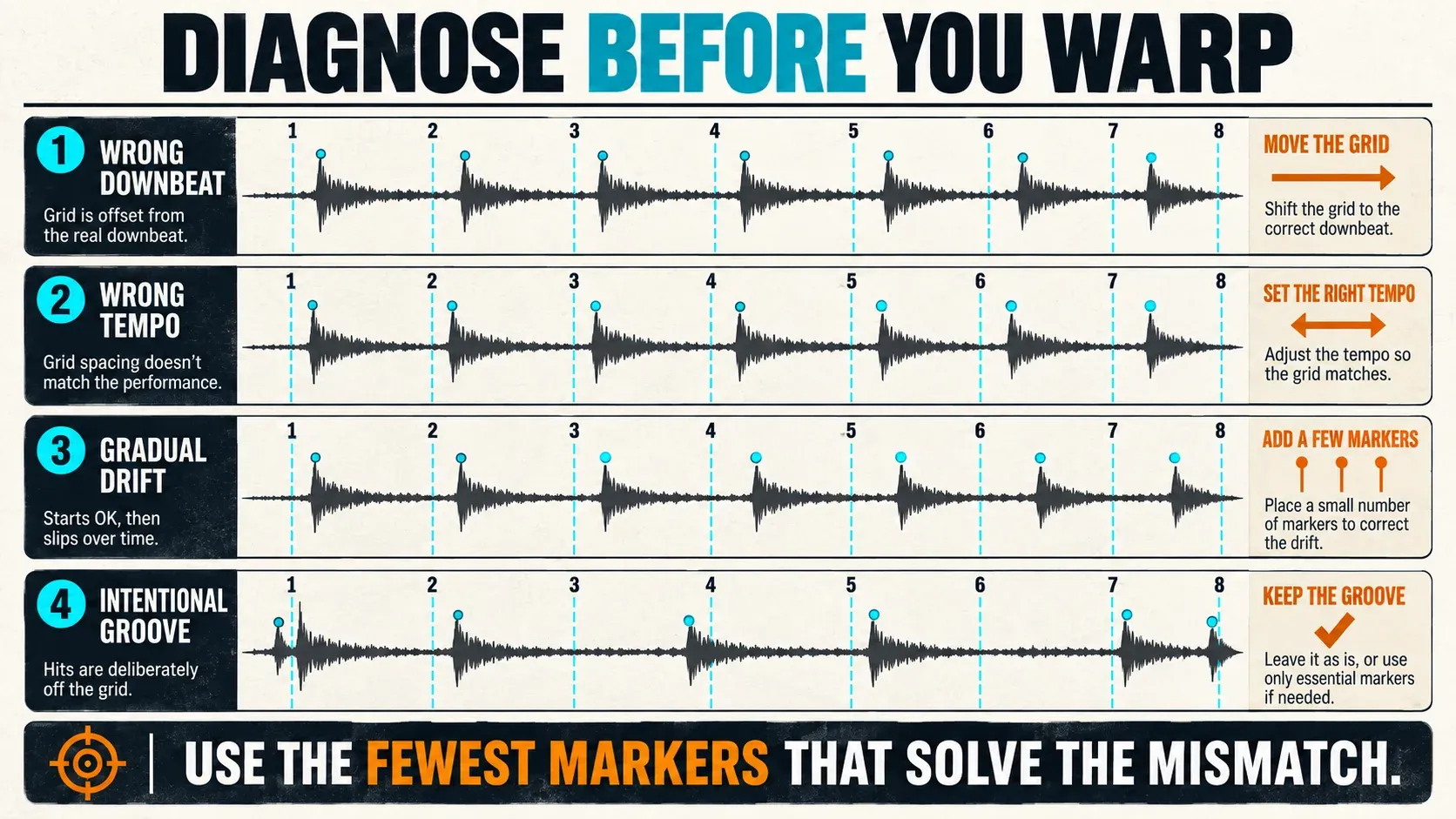
| What you hear or see | Likely cause | First correction |
|---|---|---|
| Every strong beat is offset by the same amount | Wrong first downbeat | Set the true downbeat to 1.1.1 |
| Bar one aligns, but every later bar misses by a steady amount | Wrong clip tempo | Correct the tempo interpretation |
| Early bars align and later bars slowly move away | Variable tempo or live drift | Add sparse section anchors |
| Timing moves around the grid but returns naturally | Human groove | Leave it unless the movement breaks the arrangement |
The table is a first diagnosis, not proof of the cause. A constant offset suggests the musical start is in the wrong place. An error that builds up may come from the overall BPM, local tempo changes or a bad existing marker map. Pinning every transient just because Live detected it is the wrong reflex.
Decide whether the clip needs Warp at all
Double-click an audio clip and open its Audio Utilities panel in Clip View. With Warp off, playback ignores the Set tempo, and at zero transposition the clip keeps its original timing, which often suits spoken phrases, ambience and one-shots. Warp is for tempo synchronization or deliberate timing changes. In Arrangement, set the clip to Follow if it should follow the song; a clip set to Lead makes the Set follow its mapped tempo instead.
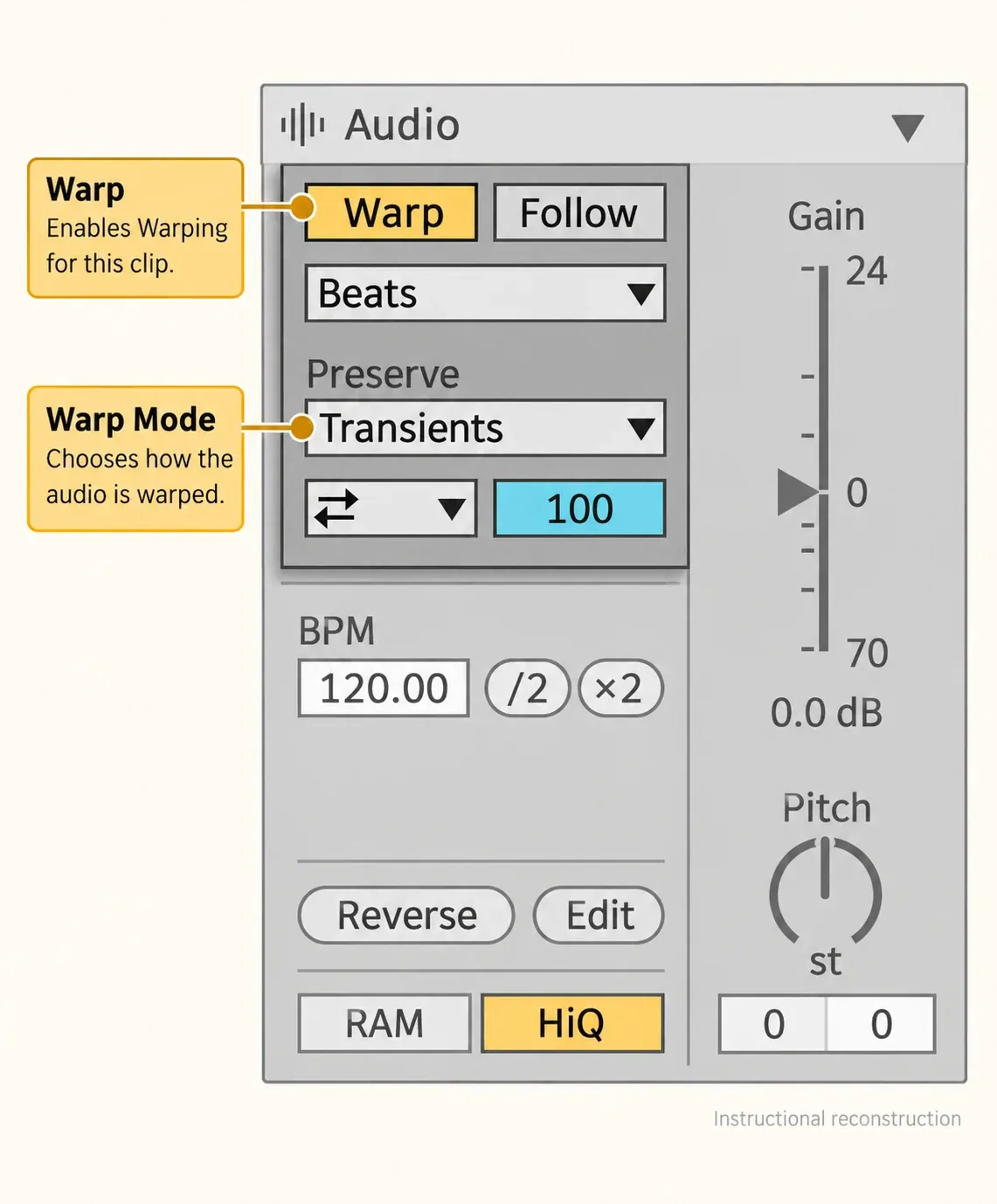
There is no need for a processed duplicate just to audition Warp. Leave the source file untouched, save the Set and use the clip’s non-destructive controls. Render or consolidate only after the map has passed the loop, full-clip and context tests and the new file has a clear job.
Find the true downbeat before touching the tempo
Look for the first unmistakable musical downbeat, which is not always the first visible transient. A pickup note, a breath, room noise or a count-in can all appear before bar one. Right-click the true downbeat and choose Set 1.1.1 Here, and the clip and grid now share a musical origin.
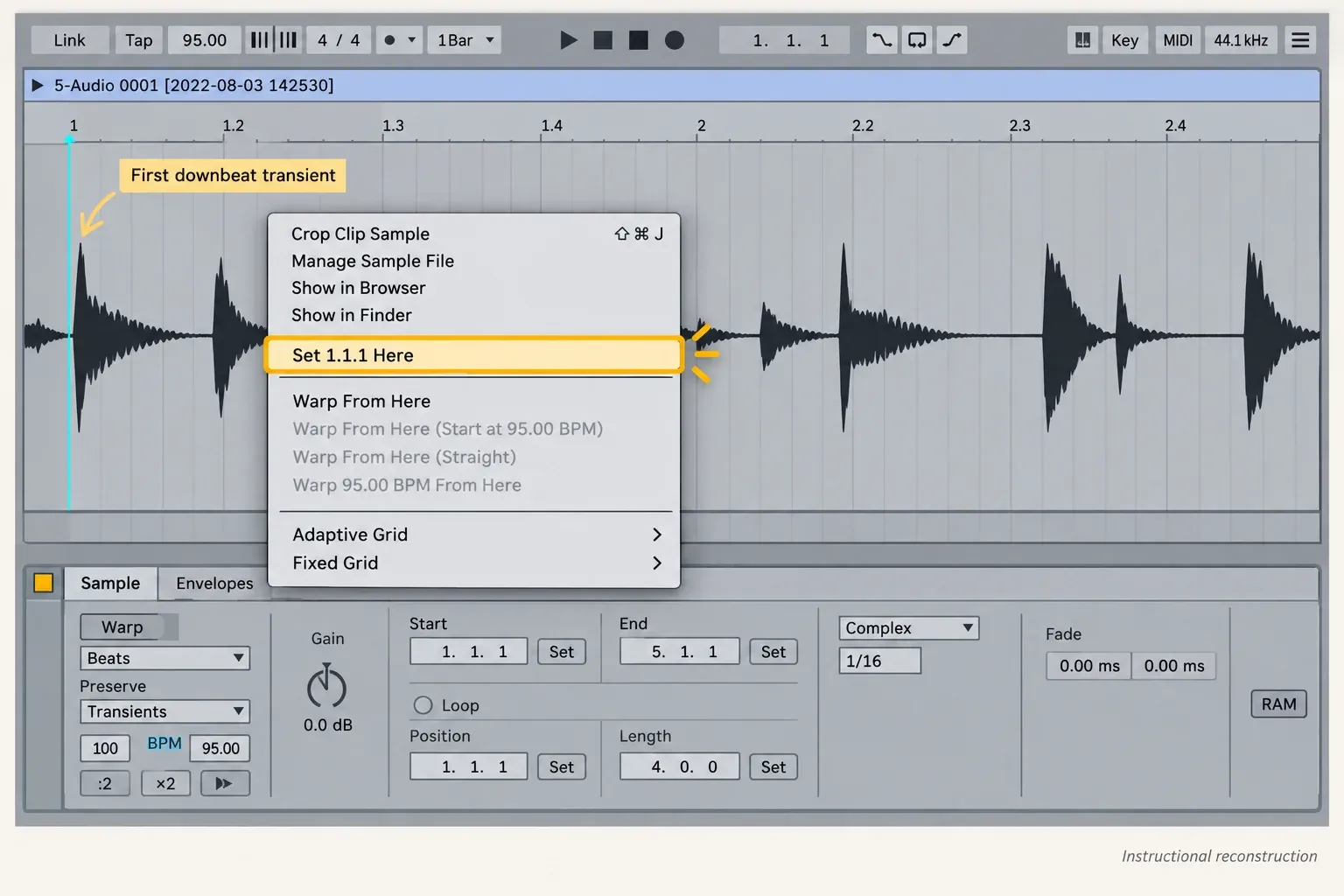
Check the first downbeat and the later phrase boundaries against the metronome, counting musical bars instead of treating every visible attack as beat one. If a pickup belongs before 1.1.1, keep it and set the playback start to include it where needed. Moving the musical origin should never quietly cut part of the performance.
Correct the overall tempo before local timing
For a steady loop, open the clip’s BPM field in Audio Utilities and enter its known original tempo, not the target song tempo. The ×2 and ÷2 buttons next to it fix a half- or double-tempo estimate: for a known 90 BPM source detected as 45, use ×2, and if it was detected as 180, use ÷2. These controls change how Live interprets the source, while the Set tempo stays at the speed you want to hear.
- Save a copy of the Set or duplicate the clip before replacing an existing Warp map.
- For a known four-bar, 4/4 loop recorded at 90 BPM, enable Warp and set the true first downbeat to 1.1.1.
- With a straight tempo map, set the clip BPM to 90 and the Set tempo to 120. In Arrangement, keep the clip on Follow.
- Check that the four-bar loop ends at 5.1.1. At 120 BPM it lasts eight seconds, while the same 16 beats at 90 BPM last about 10.67 seconds. A wrong bar count, or a tail counted as musical time, needs fixing before any local timing edits.
- Listen at the beginning, middle and end. If the whole loop fits, stop adding markers. If one section still drifts, look at the existing markers and use local anchors instead of changing the global BPM again and again.
When an existing map has many markers, the BPM field may describe one segment instead of the whole file. On your copy, the true starting marker’s Warp From Here (Straight) command helps when the source really has a constant tempo; recheck the BPM and the ending afterwards. That command resets the markers to its right and estimates a straight tempo, so keep it away from a carefully edited variable-tempo performance you want to preserve.
Anchor a drifting recording section by section
A Warp Marker locks a point in the sample to a musical position. Live also displays transient markers, and hovering over one reveals a pseudo-marker that becomes a Warp Marker when you double-click or drag it. Creating a marker with no marker after it can also change how the clip’s tempo is interpreted, so work from the start of the clip towards the end and check what each edit changed.
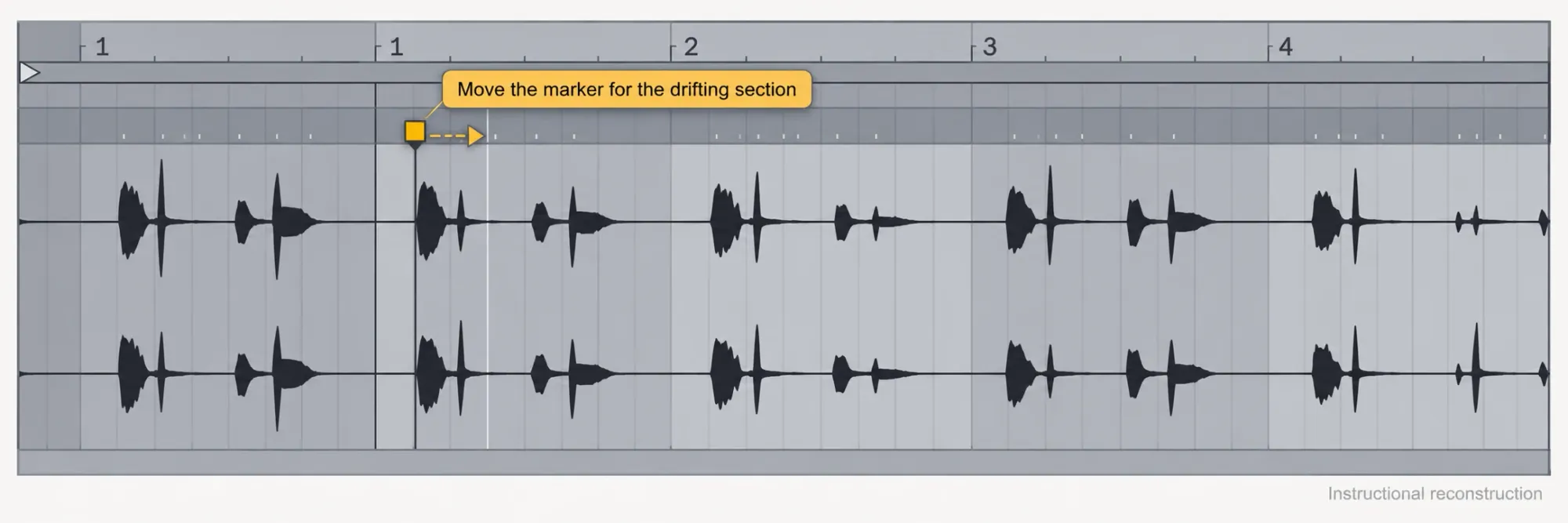
A long live performance is best handled from the first reliable downbeat towards the end. Warp From Here re-runs detection to the right of a chosen marker, so keep a section that is already correct anchored before continuing. When the next phrase drifts, move a marker on its true downbeat to the intended bar and listen through both neighboring sections. If the edit disturbs timing that was already right, add a protective anchor nearby. A drummer’s late snare is not necessarily the place to define the next bar.
Choose the right Warp From Here command
The Auto-Warp controls reset the markers to the right of the chosen point and leave the left side intact. Warp From Here runs detection, and Warp From Here (Start At …) uses the current Set tempo as a starting estimate. Straight assumes a constant tempo. Warp … BPM From Here assigns the current Set tempo as the source tempo, so it only makes sense after you have entered the known source BPM in the Control Bar; restore the song tempo you want afterwards. Straight and BPM From Here are not interchangeable.
If every new long file arrives covered in markers, look at Auto-Warp Long Samples under Record, Warp & Launch Settings. Changing that import preference does not repair maps already saved in the Set, and samples with saved default Warp settings can keep their map. The Warp From Here commands let you recalculate deliberately on a copy.
For multitrack recordings, select equal-length clips with matching recording starts before applying shared Warp edits. Live can apply marker changes across that selection, but unrelated or differently trimmed files are not aligned automatically. Keep the microphones together, compare stereo and mono playback, and listen for phase changes instead of assuming that warping each file separately keeps their relationship.
Preserve intentional groove
Compare the kick, snare, vocal consonants or other meaningful attacks with the musical phrase, not only with the grid. A drummer may place the snare consistently behind the click while every bar stays structurally sound, and moving each snare onto the line destroys that relationship even though the screen looks tidier.
Before correcting a late or early hit, run three tests:
- Repetition: does the timing choice recur in a musically consistent way?
- Function: does it break an edit, a cue, a loop boundary or a layered transient?
- Context: does it feel wrong with the rest of the arrangement, and not merely when soloed?
If the timing is consistent and works with the arrangement, leave it. If two layered attacks flam or a loop boundary fails, fix that conflict while watching the surrounding phrase. If a clip has a Groove Pool assignment, audition it without the groove while you diagnose the original map, or the groove’s timing changes may look like a Warp Marker error.
Choose the Warp Mode by material
A mode is only a starting point, and your ears make the final call. Beats, Tones and Texture stretch time in different ways, while Re-Pitch changes playback speed and pitch together. Complex and Complex Pro suit some mixed material, but they are not universal quality upgrades.
| Mode | Useful starting material | Listen for |
|---|---|---|
| Beats | Drums, percussion, dominant rhythm | Transient shape, gaps or repeated tails |
| Tones | Clear monophonic pitch | Pitch stability and grain movement |
| Texture | Textured, polyphonic or ambiguous sound | Smear, grain size and motion |
| Re-Pitch | Tape/turntable-style speed change | Pitch moves with tempo by design |
| Complex / Complex Pro | Mixed full-range material | Transient softness, phase, formant character and CPU |
Ableton’s Audio Fact Sheet identifies Complex and Complex Pro as non-neutral even at the original tempo, and their processing can also be heavier. Use them when their sound suits the material, not because “Pro” appears in the name.
Run an artifact test at the destination tempo
Loop the most exposed section and compare two or three plausible modes at the actual Set tempo. Listen in the full arrangement, and solo only to pin down a problem. Listen for:
- softened or doubled drum attacks;
- phasiness in sustained chords or cymbals;
- grainy vocal tails and consonants;
- gaps or repeated tails in Beats mode;
- unwanted pitch or formant changes;
- the processing load when several clips use Complex modes at once.
For an unchanged-playback comparison, match the Set to the clip’s original tempo, remove any applied groove, keep transposition at zero and use the source sample rate. Beats, Tones, Texture and Re-Pitch can be neutral when truly unstretched, but matching a BPM number does not undo local Warp moves or other processing, and Complex modes remain non-neutral. If the result later sounds out of tune specifically inside Simpler, the Simpler sample-pitch checks are the right tool; moving timing markers will not fix a tuning problem.
Commit only after a full-clip verification
Listen from before the first marker through the last edited section, checking the start, every loop boundary, the transitions around anchors and the final downbeat. If you plan to slice the corrected audio into a Drum Rack, audition the slice attacks before rendering, since a moved marker can shift the exact transient a pad should trigger.
Keep the original file and a clearly named editable Warp version. Consolidation creates a new audio file and can commit the timing changes; it also normalizes the file and compensates with clip gain, as Ableton’s committing-audio guide explains. Name the render by role and tempo. Fewer redundant files save storage, while RAM savings depend on what is loaded, not on how many files sit on disk.
Resource impact: use the lightest Warp mode that survives listening
CPU: Complex and Complex Pro generally need more processing than the simpler Warp modes, especially across many clips playing at once.
RAM: Warp analysis is no reason to enable Clip RAM mode. Loading long clips into RAM can raise memory pressure without fixing any timing.
Disk and Set size: the source audio remains the large asset, and consolidation and resampling add more files to the Project.
Lowest-resource safe route: turn Warp off when the timing does not need it, choose a mode that fits the material and place only the markers the correction requires.
When not to optimize: damaged attacks, pitch smearing or unstable timing are too high a price for a lower CPU meter. Check the edited file at the destination tempo before committing it.
FAQ
How do I warp audio to tempo in Ableton Live?
Enable Warp, set the true downbeat to 1.1.1 and correct the source BPM in Audio Utilities, using ×2 or ÷2 for a half- or double-tempo estimate. Set the song to the tempo you want, then check the later bar boundaries and add local Warp Markers only where the source needs them.
Why is Ableton warping my audio incorrectly?
Check the first downbeat, the source BPM, any existing Warp Markers and whether the recording changes tempo. An applied groove or an unsuitable Warp Mode can also affect the result. In Arrangement, confirm whether the clip should Follow the Set rather than Lead its tempo.
How many Warp Markers should I use?
Enough to keep the wanted sections aligned without unnecessary local timing changes. A fixed-tempo loop can use a straight map, while a drifting live recording often needs anchors at section boundaries and extra markers where an edit would otherwise disturb good timing.
Which Ableton Warp Mode should I use?
Start with Beats for rhythmic material, Tones for clear monophonic pitch, Texture for textured or ambiguous material, Re-Pitch for tape-like changes of speed and pitch, and Complex or Complex Pro for mixed full-range material. Then audition the choice in context.
Does warping reduce audio quality in Ableton Live?
Time-stretching can change the signal, and how much depends on the tempo change, the source and the Warp Mode. Ableton states that Complex and Complex Pro are never neutral, even at the original tempo, so use them only when they sound better for the material.
Should I turn Warp off for one-shots and spoken audio?
Turn Warp off when the clip should not follow the Set tempo, which often suits one-shots, sound effects and spoken audio. Keep transposition at zero if you also want the original playback speed and pitch. A deliberate rhythmic or synchronized use can still justify Warp.
