
Short answer: type the new BPM into the Tempo field in Live’s Control Bar. MIDI follows the beat grid straight away. Audio follows the new speed only when Warp is on, and if its pitch has to stay put, pick any suitable mode except Re-Pitch. Warp off keeps the playback speed, not a fixed start time in seconds. For a change partway through the song, automate Main → Mixer → Song Tempo in Arrangement.
Checked September 8, 2026 against the current Live 12 documentation. Before you touch the BPM, decide which clips should stretch, and check whether tempo automation, an Arrangement leader clip or synchronization is already controlling the Set. Work in a saved copy so you can compare it with the original.
Check which clips should follow the tempo
- MIDI clips: follow Live’s beat grid; instruments simply replay the notes at the new tempo.
- Warped audio in Follow: stretches or squeezes to match the Set.
- Unwarped audio: keeps its original playback speed and drifts against a changed grid.
- Warped audio in Re-Pitch: follows the tempo but changes pitch along with playback rate.
- Arrangement clip in Lead: can make the clip’s Warp Marker map drive the Set tempo.
- Automation and synced devices: may override or follow the global tempo, depending on how they are set up.
If all you want is a recording’s rough tempo, use Tap Tempo (or an online tap tempo counter) while you listen to a copy with Warp off. Tap on every beat and check several bars afterwards. Tapping gives you an estimate; it doesn’t repair a Warp map, and it can’t promise that a freely played recording has one fixed BPM.
Change the Set tempo for MIDI and warped audio
- Save a new version of the Set.
- Select a few representative clips: drums, vocal, bass and a full mix.
- Make sure Warp is on for rhythmic audio that should follow the Set.
- Choose a suitable Warp Mode for each source.
- Type the new BPM into the Control Bar Tempo field.
- Listen at the transitions, on sustained notes, cymbal tails and consonants.
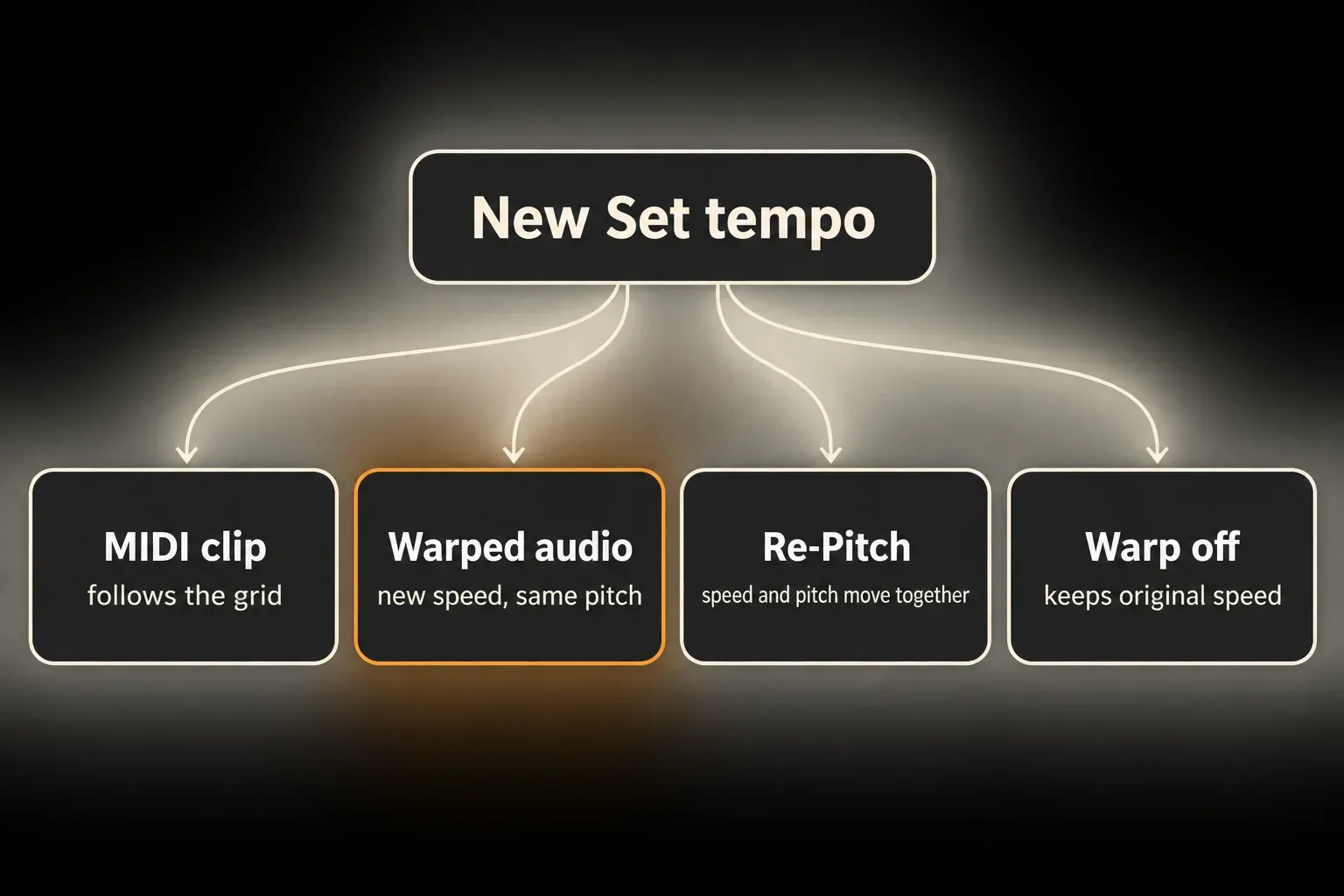
The current Live 12 tempo reference splits coarse BPM from hundredths of a BPM and supports tempo automation. Changing the number never rewrites the source file permanently, but it can reveal wrong Warp markers or an algorithm that doesn’t suit the material.
Keep speech, ambience or a sound effect at original speed
Switch Warp off for a clip that should ignore the Set tempo. Ableton states that an unwarped sample plays at its original speed, whatever the current tempo. That is often the right call for spoken word, one-shot effects, room tone and anything whose real-time length matters more than landing on the beat.
The clip’s Arrangement start stays at its musical bar/beat position, but that position can fall at a different absolute time after a BPM change. With a constant 4/4 tempo, for example, bar 9 starts 16 seconds after bar 1 at 120 BPM and 24 seconds after it at 80 BPM. Warp off keeps the audio’s playback speed; it is not a timecode lock. Check spoken cues and anything tied to video in seconds as well as bars.
Use Follow when the clip should obey the Set
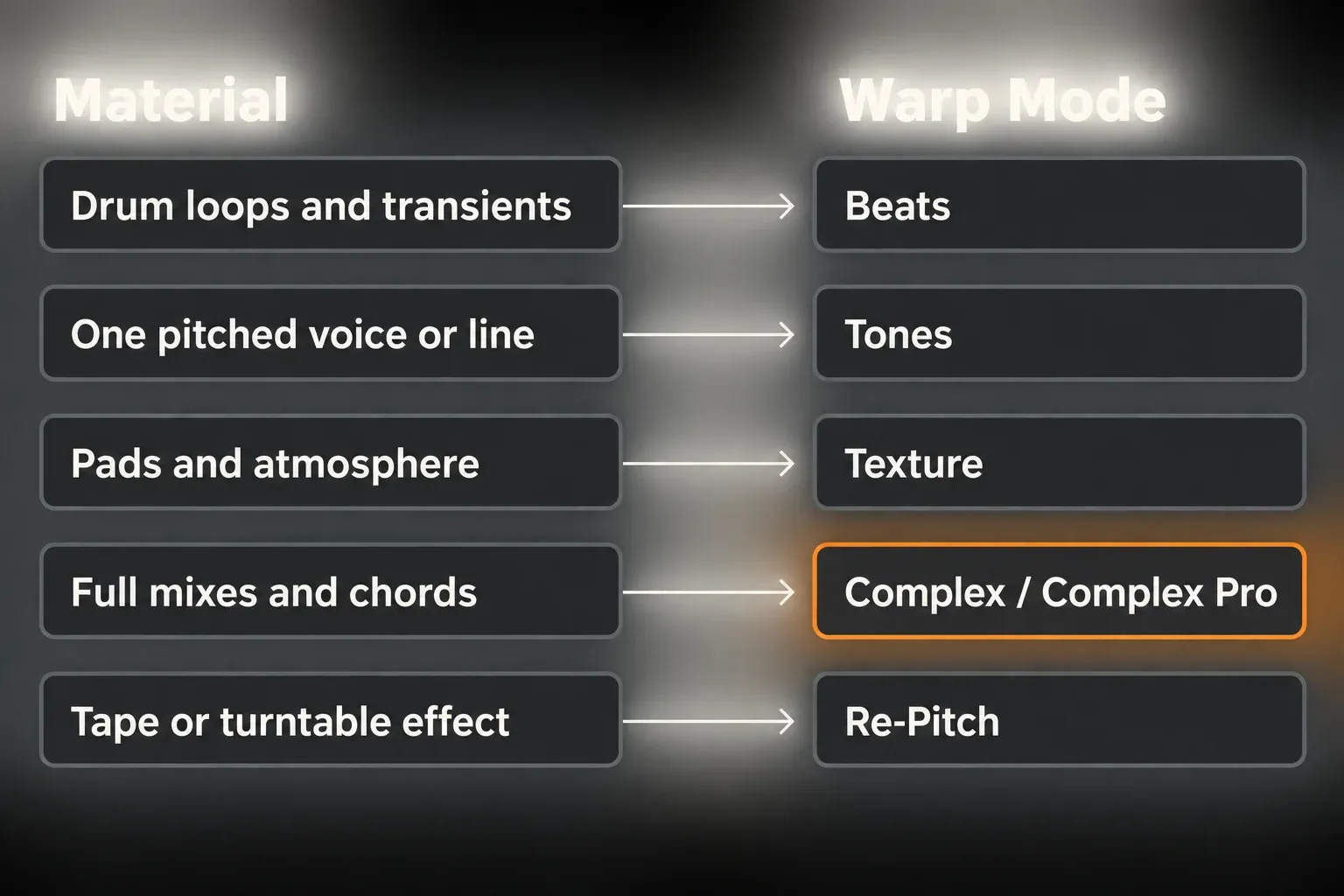
Warped clips follow the Set tempo by default. Check the clip’s first downbeat, its source BPM and the marker placement before you judge the new tempo. If one loop already drifts against the grid, fix that clip with the Warp-marker guide instead of moving the whole song’s BPM to hide it.
Choose the Warp Mode by material:
- Beats: rhythmic, transient-heavy loops.
- Tones: clearly pitched monophonic material.
- Texture: sound with less defined pitch, or atmosphere.
- Complex / Complex Pro: full mixes and polyphonic material, at a potentially higher CPU cost.
- Re-Pitch: speed and pitch tied together on purpose, like tape or a turntable.
Do not use Re-Pitch when the pitch must stay fixed
Re-Pitch changes the playback rate. Slow the Set down and the pitch drops; speed it up and the pitch rises. Ableton’s manual puts it directly: doubling the speed raises the sample by an octave. The clip’s transpose controls are disabled, because the speed is already setting the pitch.
If a vocal, a tuned instrument or a full mix has to stay in key, pick a proper time-stretching mode instead. Re-Pitch is the right tool for tape stops, old-sampler character and DJ-style speed changes, and the wrong one for transparent tempo correction.
Automate a tempo change in Arrangement View
- In Arrangement, turn on Automation Mode with its button, or press A when the Computer MIDI Keyboard is off.
- Expand the Main track, choose Mixer in the device chooser, then Song Tempo in the automation control chooser. You can also right-click the Control Bar Tempo field and choose Show Automation.
- For a ramp, turn Draw Mode off, create a breakpoint at the start and at the end of the change, then set the exact BPM with each point’s Edit Value command. The line between them makes a gradual change.
- For a stepped change, turn Draw Mode on with the grid visible and draw adjacent steps at the boundary you want. Choose the grid resolution on purpose, then switch Draw Mode off to edit exact breakpoint values.
- Play from before the change and watch the BPM display. Check the transition and the flat section after it, so a temporary change doesn’t carry on by accident.
- Listen to warped audio and tempo-synced effects across the boundary. If moving a knob by hand overrides the envelope, restore the intended automation before testing again.
Ableton’s current help page confirms that Live 10.1 and later can use a breakpoint’s Edit Value command for exact BPM. There’s no need to narrow the whole tempo automation range just to hit one value, unless that tighter range is useful in itself.
In Session View, the same job belongs to scenes. Ableton’s Scene Tempo and Time Signature article explains that Live 12 shows these controls once you enable them in the View menu; you can then give a scene its own BPM between 20 and 999, and scenes with an assigned tempo get a colored launch button.
The Ableton automation guide covers editing, re-enabling and avoiding accidental automation overrides.
Let a freely played recording lead the Set
An Arrangement audio clip set to Lead makes its Warp map decide the Set tempo, while the leader itself plays as if unwarped. The Control Bar Tempo field is disabled for as long as that clip controls tempo. That is a different thing from just switching Warp on: an ordinary follower clip obeys the Set.
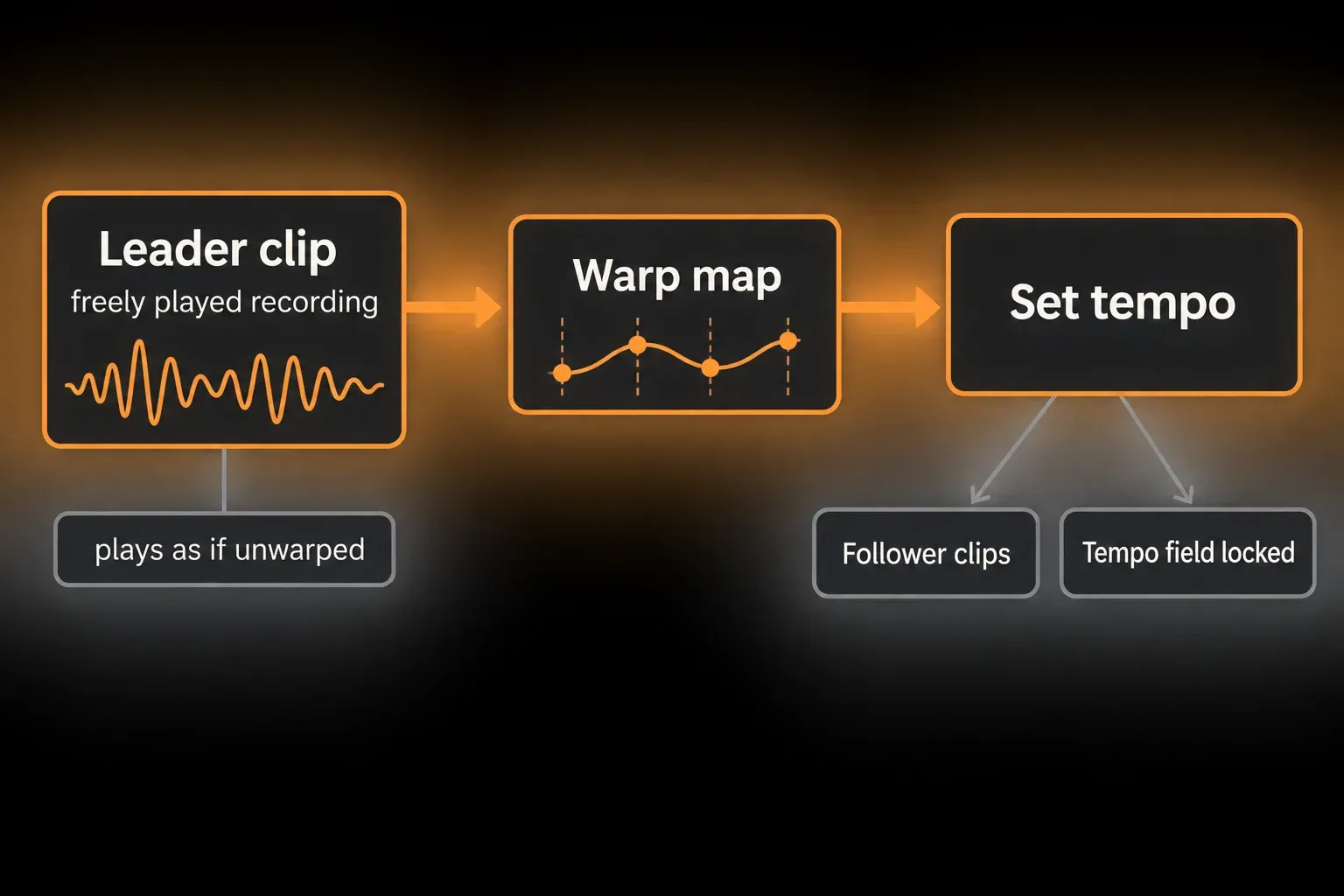
When several leader clips play, the one on the bottom-most track wins. Live writes Main-track tempo automation that you can see but not edit directly. In the Tempo field’s context menu, Unfollow Tempo Automation turns the leader clips back into followers and makes that generated envelope editable. Save a version first, because this changes the tempo-control arrangement.
Don’t mix up clip Lead with the audio-input Tempo Follower. The Tempo Follower listens to a rhythmic input, and leader-clip automation takes priority over it. With EXT on, clip Lead/Follow is disabled. Link is a separate synchronization method, not another name for EXT. In a shared performance, agree on who owns the tempo before anyone changes synchronization settings.
Protect multitrack and phase-related audio
For microphones recorded together, start from files with matching start positions and lengths. The manual’s Multi-Clip Warping section describes spreading marker changes across selected clips of equal length. Equal length on its own won’t line up unrelated source files. Use one coherent reference, and after stretching, listen to phase-sensitive material in mono.
Don’t auto-warp each drum microphone separately and expect the results to match. A tiny difference in marker placement can damage the phase relationship even when every track sounds fine on its own.
Why audio breaks after changing BPM
- Audio drifts: check Warp, the source BPM, the first downbeat and the source alignment. These are possible causes, not a diagnosis from a single symptom.
- Pitch follows speed: check Re-Pitch first, then any instrument or effect that deliberately links pitch to tempo.
- The Tempo field is unavailable: look for active Arrangement leader clips and external synchronization.
- Audio sounds smeared or grainy: compare Warp modes and marker placement at the actual stretch amount.
- An unwarped cue moves in seconds: its musical start can stay put while the tempo map changes its absolute time.
- Related microphones flam: compare their original alignment and shared Warp map instead of fixing each one alone.
- BPM changes unexpectedly: look at tempo automation, leader clips, the audio-input Tempo Follower, MIDI clock and Link peers.
- CPU rises after a change: look at the active stretching and devices, especially Complex/Complex Pro, before blaming the BPM number itself.
CPU, memory and render size
- Time-stretching and tempo-synced processing can change real-time CPU load. Compare the busiest passage at the buffer you plan to use; a pitch-preserving mode isn’t guaranteed to be artifact-free.
- RAM mode, loaded audio and sample instruments all take memory. Don’t load every long clip into RAM just because the tempo changed.
- Warp maps and tempo envelopes don’t rewrite the original sample. Freeze, bounce and resampling do create new audio files, so keep enough disk space and the editable originals.
- Render a finished heavy part only when it fixes a problem you have measured. Don’t give up the pitch behavior you need by switching to Re-Pitch just to lower the meter.
Check the tempo change before committing it
- Save a recoverable version of the Set and find any existing source of tempo control.
- Sort MIDI, warped, unwarped and leader clips, including related multi-microphone recordings.
- Decide which material has to keep its pitch, its playback speed or its absolute cue timing.
- Correct only the Warp maps that are wrong, and keep related clips aligned.
- Change the Tempo field or edit the Main → Mixer → Song Tempo automation.
- Listen across transitions and check sustained audio, cues and multitrack phase.
- Measure the busy passage at the intended sample rate and buffer.
- Render heavy finished parts only if you need to, keeping editable sources and the original-tempo version.
Once the new tempo works, move on to the recording and arrangement guides. For playing alongside other devices, the Link and Link Audio comparison explains what network synchronization carries and what it leaves out.
FAQ
How do I change BPM in Ableton without changing pitch?
Keep Warp on and choose a time-stretching mode such as Beats, Tones, Texture or Complex to suit the material. Avoid Re-Pitch.
How do I change tempo without stretching a clip?
Switch Warp off so the clip keeps its original playback speed. Its start stays at the musical Arrangement position, which may land at a different time in seconds after the tempo changes. Check cues and video alignment, because Warp off is not a timecode lock.
Why did changing Ableton tempo change the key?
The clip is most likely in Re-Pitch, which ties playback speed and pitch together. Pick a pitch-preserving Warp Mode when the key has to stay the same.
How do I change tempo halfway through an Ableton song?
In Arrangement, show the Main-track automation and choose Mixer → Song Tempo. Make a ramp with breakpoints, or a stepped change with Draw Mode and the grid. Edit breakpoint values for an exact BPM, then listen from just before the boundary and check the section that follows.
Why can I not edit the global tempo in Ableton?
Look for an active Arrangement leader clip or external synchronization. A leader clip takes the tempo from its Warp map, and the audio-input Tempo Follower listens to a live rhythmic input. EXT disables clip Lead/Follow. Link peers and tempo automation can also change the BPM, so work out which source is meant to be in charge before you switch anything off.
Does changing tempo use more CPU or RAM?
The workload comes from time-stretching and the devices that react to tempo, not from the BPM field itself. Complex/Complex Pro can raise CPU demand. Loaded samples and RAM mode affect memory; measure the same busy passage and keep the originals before you render a heavy part.
