
Short answer: Link synchronizes musical timing; ordinary Link sends no sound at all. Link Audio adds real-time audio between compatible apps or devices on a local network, and in Live it needs version 12.4 or later. Use Link on its own for a shared pulse, and add Link Audio when the sound itself has to reach another system for monitoring or recording.
Picture two laptops jamming: they can share timing while each performer keeps a local audio output. To stream a Move performance into Live over the network, you add Link Audio, although it is not the only way to get Move's audio into a recording. This guide covers peer discovery, network buffering and monitoring. Interface buffers and recorded clip placement are a separate question, handled in the recording-latency guide.
Choose by the signal you need to move
| Need | Use | What crosses the network |
|---|---|---|
| Same tempo and beat phase | Link | Musical timing/session state |
| Optional shared play/stop commands | Link + Start Stop Sync | Transport commands between peers that enable it |
| Hear another device through Live | Link + Link Audio | Timing plus real-time audio stream |
| Record Move, Note, Push 3 standalone or another Live | Link + Link Audio | Selected peer/source audio into an armed track |
| Internet collaboration across locations | Neither by itself | Link Audio is local-network only |
| Connect an analog synth with no Link support | Audio/MIDI interface route | Physical audio or MIDI, not a Link peer |
Start with the smallest route that works. If performers already hear their own devices and only need a common pulse, Link is enough, and adding network audio would just bring monitoring, feedback and bandwidth decisions with nothing gained.
What ordinary Ableton Link does
Link synchronizes beat, tempo and phase among compatible apps and devices on a wired or wireless network. A participant can join or leave without stopping anyone else. Tempo changes travel across the whole session, while each participant can usually start and stop on their own.
Start Stop Sync shares transport commands only among the peers that enable it. Link is not an audio cable, a MIDI-note connection or an SMPTE timecode source, and it does not hand your Arrangement to another computer. Two more details catch people out: a peer's tempo change can override Live's tempo automation, and Live's metronome recording count-in is unavailable while Link is on. The current synchronization manual describes all of these behaviors.
What Link Audio adds in Live 12.4
The Link Audio FAQ lists support from Live 12.4, Push 3 standalone with software 2.4, Move 2.0 and Note 2.0. Push 2.4 is a software version, not the Push 2 controller. These are minimum feature versions, and they are no reason to stay on the first release once maintenance fixes are out.
Live and Push 3 standalone can send and receive Link Audio; Move and Note only send. A connected Push controller does not become an independent standalone network-audio peer just because Live supports Link Audio. What each sender offers as source tracks varies, so check its channel list instead of assuming every product exposes the same Main, return or individual-track outputs.
Use Link Audio between apps on the same computer
Link Audio also works over localhost, so compatible apps, including several Live instances, can exchange audio on one computer without a second device. Switch on Link and Link Audio in both apps and select the sending peer on a receiving audio track. That is handy for testing or for capturing another project, but it will not route an arbitrary app that lacks Link Audio support. Keep the two projects' output paths apart so the receiving mix never flows back into the sender.
Enable Link and Link Audio
- Save the working Sets and check the supported software versions on every app or device. Update and rehearse before a show, never during one.
- For separate devices, connect them to the same trusted local network. For compatible apps on one computer, Link Audio can also run over localhost.
- Switch on Link in Live's Control Bar, then open its dropdown and switch on Link Audio. The matching Audio setting lives in Settings → Link.
- Switch on both layers on the other Link Audio peer and give it a name you will recognise.
- Confirm the peer appears in the Link settings before you create several receiving tracks. Ordinary Link compatibility alone does not guarantee Link Audio support in a third-party app.
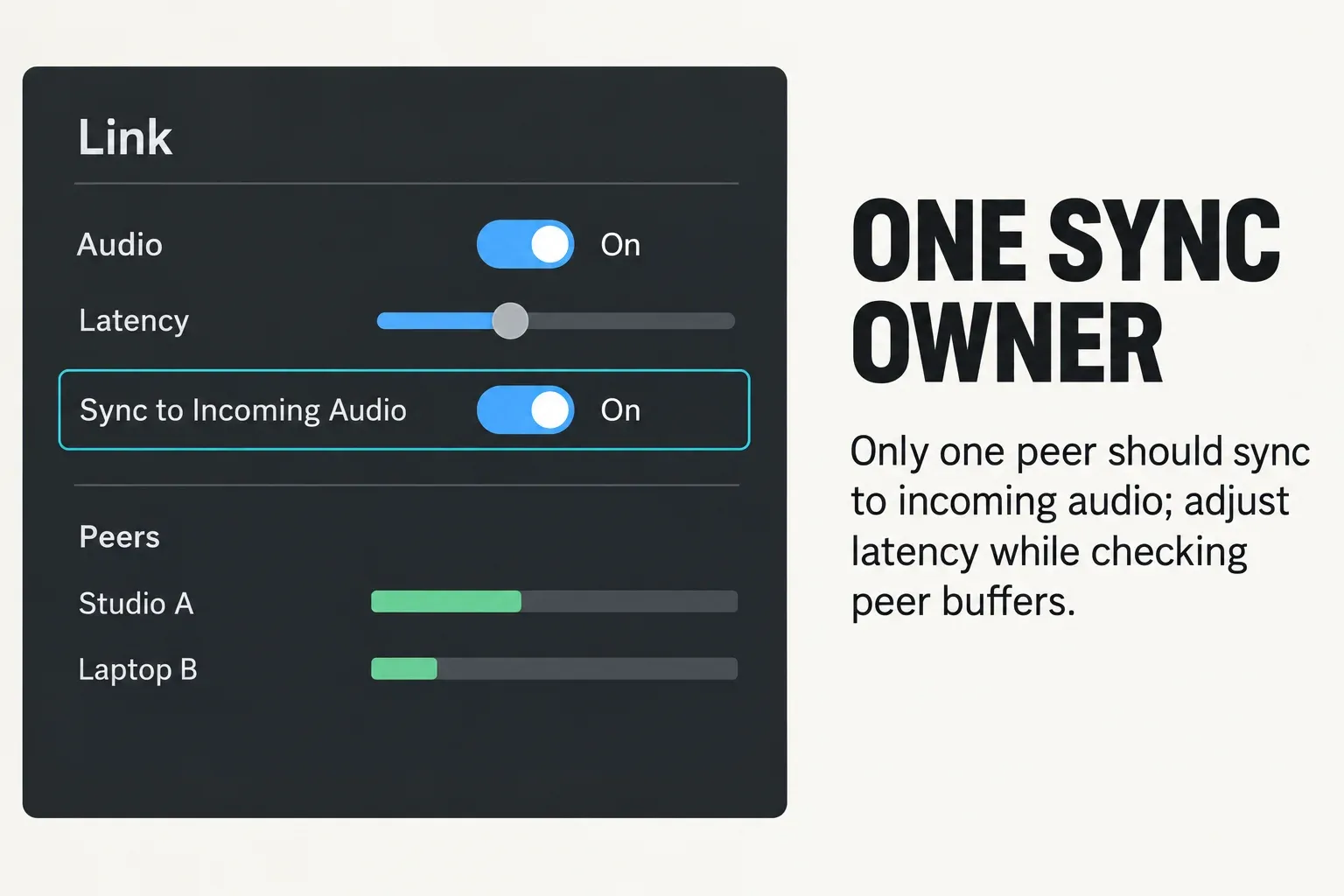
Link Audio needs the main Link toggle on as well. The peers list shows connection status and buffered audio. Names such as Drum Laptop or Move Bass make the sender easy to find later in the track input chooser. Seeing a peer in the list still does not prove the route is audible or recording correctly.
Choose the monitoring arrangement before enabling sync
For a central listening system, enable Sync to Incoming Audio on that one receiving Live system only, and keep it off on the other peers. Live then delays its own playback by the selected Link Audio latency so it lines up with the incoming audio you monitor. The Link settings reference warns that switching this option on for more than one participant stops Link Audio from working correctly.
If each performer listens locally and Live is only recording them, set the incoming tracks to Monitor Off so nobody hears a delayed second copy. Recording compensation and central live monitoring are different jobs, and you do not need to turn every receiving machine into a sync leader. In the central-monitoring setup, listen through the receiving system and switch off the duplicate local listening paths.
Route a peer to one test track first
Create one audio track. In Audio From/Input Type choose the Link Audio peer, then pick the source track or Main signal you need in Input Channel. For central listening, use Monitor In, or Auto with the track armed. For record-only capture while the sender listens locally, use Monitor Off. Arm the track and start recording to capture the stream; Monitor Off switches off play-through, not recording. Keep the listening level low until the route is confirmed.
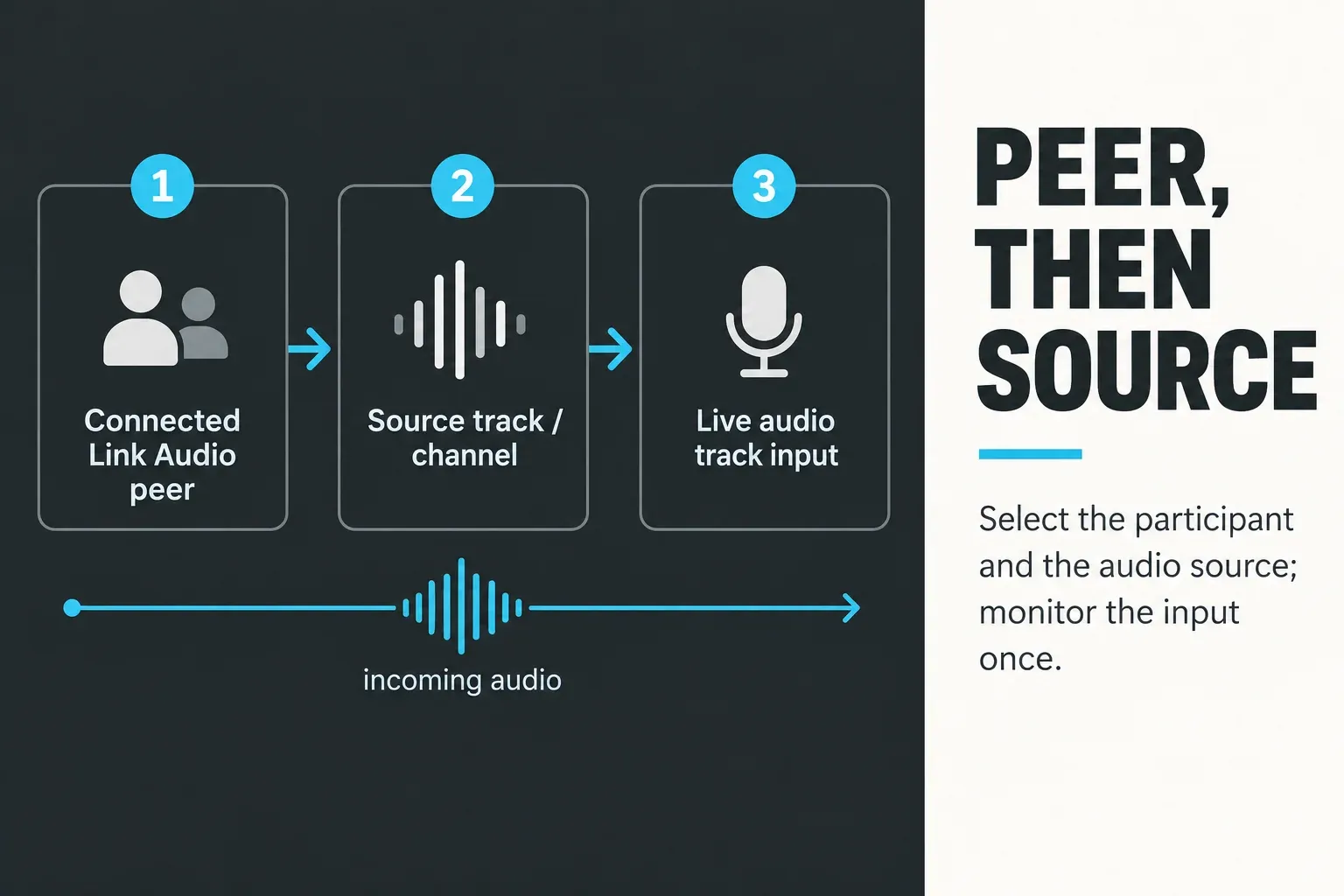
Record a short passage with silence, transients and sustained notes, then listen back for missing audio, timing shifts or a delayed duplicate. Never let two peers monitor and send each other's Main output back around the network, because that can create feedback. Pick one listening point per signal; a bigger buffer will not cure a feedback route.
Use a failure tree when peers do not appear
- Check the supported app versions and switch on both Link and Link Audio. A peer that only supports ordinary Link will not supply a Link Audio stream.
- Confirm that everyone is on the same trusted local network and that its clients are allowed to talk to each other. Guest or corporate Wi-Fi can isolate devices even under the same network name.
- On macOS versions with local-network permissions, check System Settings → Privacy & Security → Local Network and allow the relevant Live application.
- Look at app-specific firewall rules and the router's discovery/multicast settings. Don't switch the whole firewall off or expose ports to the public internet to troubleshoot a local session.
- If a VPN gets in the way, test on a permitted local connection with it paused, then turn it back on afterwards. Don't bypass an organization's network policy.
- Restart the affected apps or devices and retest the same pair. Add other peers only once discovery works.
Ableton’s Link troubleshooting covers discovery, macOS permissions and VPN interference. Link Audio is documented for a local network or localhost, not as a remote internet collaboration service. A VPN is no supported shortcut for turning distant studios into this setup, and Bluetooth is not a Link connection.
Stabilize an unreliable stream in the right order
Use wired Ethernet when you can. On Wi-Fi, improve the signal strength and cut competing traffic first. In Settings → Link, watch the peer buffer levels: raise Latency if streams drop out, or try a lower value when plenty of audio is buffered. Change one setting at a time. This network-latency control is separate from Settings → Audio → Buffer Size, which affects the local audio system, and a lower value is not automatically a stable one.
Test sender and receiver buffer settings separately instead of setting both to the minimum. If one source works but many do not, request fewer streams and check network traffic and device load. For recorded alignment, update past the initial 12.4 release: Live 12.4.1 fixed a Link Audio recording-alignment issue involving latency-inducing effects. Don't work around an old bug by permanently dragging every take or changing Driver Error Compensation. Record a fresh transient after updating and check it again.
Reduce unnecessary streams and duplicate monitoring
- Stick with ordinary Link if timing is all you need. Link Audio brings real-time network traffic and receive buffering, and its resource cost depends on the streams and devices involved.
- A track is transmitted when another peer requests it, so receive only the sources the recording needs instead of requesting every track from every device.
- Reusing one audio receiving track spares you another instrument library. Samples, instruments, plug-ins and buffering still use their own memory, and no fixed RAM saving applies to every Set.
- Monitoring an input is not the same as recording it. Recording writes new audio files, so long multitrack captures need disk space and a saved Project.
- Keep a local recovery clip for a performance. Testing compatible apps on localhost can help, but several Live instances still share one computer's CPU and RAM.
Build a performance fallback
For a show, rehearse the failure itself. Keep a local emergency loop or rendered stem on the receiving system, label the peer input clearly and map a mute that cannot interrupt the rest of the Set. If the network stream drops, the fallback should never require opening Settings on stage.
Use the live-looping safety workflow when the received source feeds a loop, and the cue-routing guide when a performer needs to prelisten before sending network audio to Main.
Check the route before adding more channels
- Choose the connection. Use ordinary Link for timing, or add Link Audio for sound. Check compatible versions and the local network or localhost connection.
- Enable the peers. Switch on Link and Link Audio, give the peers distinct names and confirm discovery in the Link settings.
- Choose monitoring. For central listening, enable Sync to Incoming Audio only on that central receiver and avoid duplicate local monitoring. For record-only capture with local listening, use Monitor Off on incoming tracks.
- Route and record. Choose one peer and source on an audio track, set the intended Monitor mode, arm the track and record a short test.
- Inspect the capture. Listen for transients, dropouts and doubled sound. Adjust the network latency or the local buffer on purpose, and retest after each change.
- Expand and rehearse. Add only the sources you need, check the final recording and rehearse a local fallback before a performance.
The Perform and Control hub connects this network route to cueing, looping, controllers and recovery paths.
FAQ
What is the difference between Ableton Link and Link Audio?
Link synchronizes beat, tempo and phase between compatible peers. Link Audio adds real-time audio streaming between those peers, so Live can monitor or record the sound.
Does Ableton Link send audio?
Ordinary Link does not send audio. In Live 12.4 or later, switch on Link Audio as well as Link when compatible devices on the same local network need to stream sound.
Can Link Audio work over the internet?
No. Ableton documents Link Audio for devices on the same local network, and both devices need peer discovery and local communication. Public, corporate, guest or VPN routes may block them.
Why are no Link Audio peers available?
Check software compatibility, both Link toggles and local network access. Verify the macOS Local Network permission where it applies, app-specific firewall allowances and router discovery/multicast. A guest network or a VPN can stop peers from seeing each other. Use a permitted, trusted local connection rather than disabling network security globally.
Who should enable Sync to Incoming Audio?
Only the central receiver that has to align its own playback with the incoming sound it monitors. Never several peers at once. If performers listen locally and Live only captures their streams, set the incoming tracks to Monitor Off to avoid doubled listening; record-only capture does not need every peer to enable this sync option.
Can Move and Note receive Link Audio?
Move and Note send Link Audio but cannot receive it. Live and Push 3 in standalone mode can send and receive. Push software 2.4 is the minimum Link Audio software generation for Push 3 standalone; it says nothing about the Push 2 controller supporting standalone network audio.
