Short answer: send one monitored audio input into Looper, switch off any second monitoring path, and decide up front whether Live or your first recorded phrase owns the tempo. If Live is already running, a fixed four-bar Record Length ends the first pass on its own. For a footswitch, send momentary MIDI and rehearse the Multi-Purpose Transport Button until the gestures are automatic, because holding it while Looper is stopped erases the buffer.
Checked September 8, 2026 against the Live 12 Looper reference and Ableton’s MIDI-control guidance. Start with one input and a short loop, and run through record, play, overdub, stop and undo before you add more devices. This guide makes no footswitch or latency measurement claims.
Choose Looper or Session clips by the job
Reach for Looper when you want the loop-pedal workflow: record a first pass, overdub onto the same buffer, play it back and undo the latest layer. Reach for Session View clip recording when you want separate clips you can launch, edit, arrange and route independently. Ableton’s own walkthrough of looping in Session View uses a monitored input track feeding armed loop tracks set to Monitor Off, so the instrument is not heard twice while you record.
You can also have both. Drag a good Looper buffer to an audio track when you need separate clips for editing or arranging, and use Follow Actions if those clips or scenes should move on automatically. Keep in mind that Session clips and the Looper buffer have their own recording controls; setting up one leaves the other untouched.
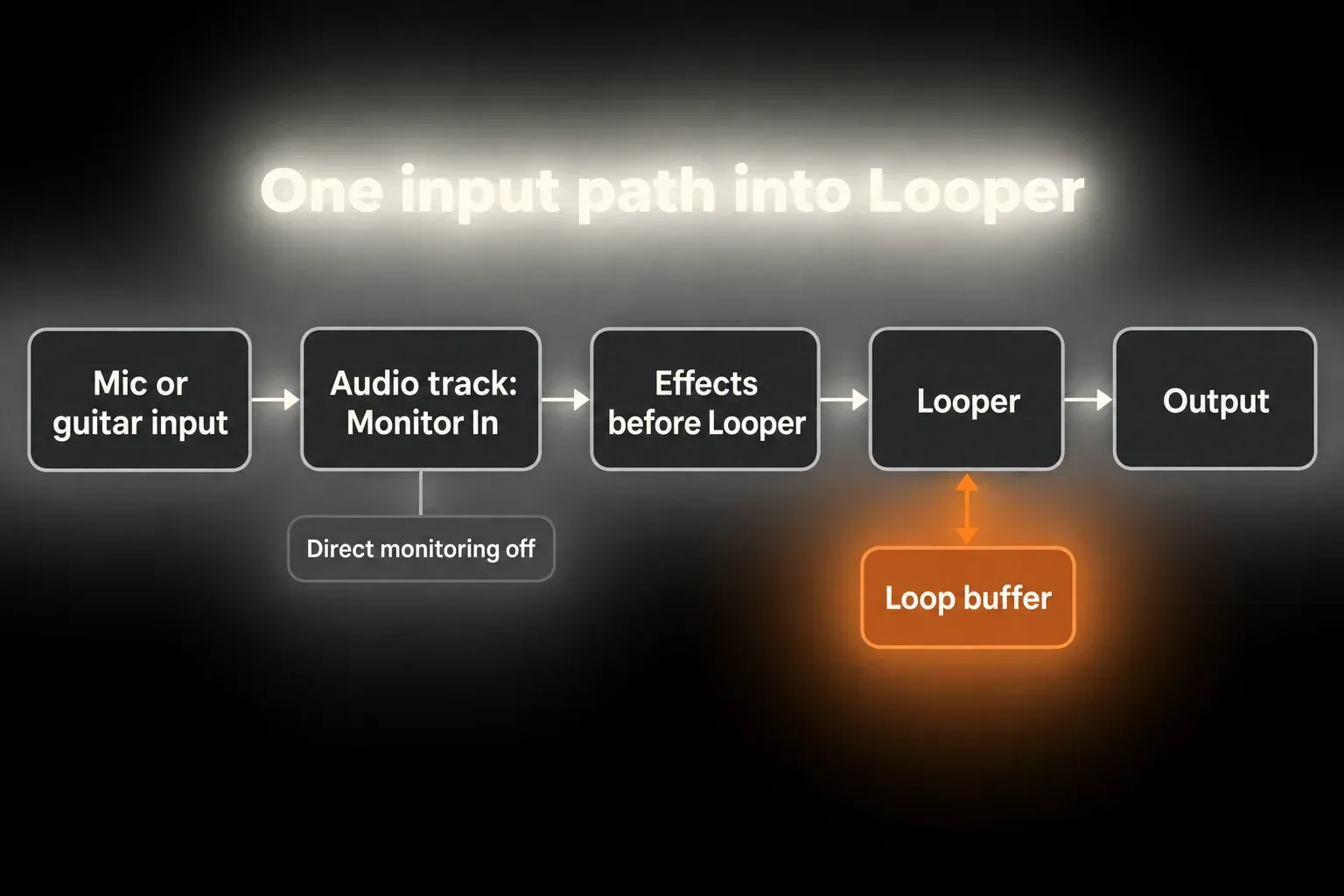
Build one safe input path
- Create one audio track and select the actual microphone or instrument input. Keep speakers low, or wear headphones, while you check microphone routing.
- Set Track Monitor to In, or use Auto with the track armed and no clip playing on that track. In feeds the device chain continuously; Auto monitoring can be interrupted by clip playback.
- Set interface gain so the loudest part you expect to play stays below clipping.
- Insert Looper after only the processing you want printed into its buffer. Effects placed after Looper color the playback but are not part of what it captures.
- Choose Looper’s Input → Output mode and remove any duplicate interface/direct or parallel-track monitoring path.
- With Live running at the intended tempo, record a short dry test and listen separately to the live source and to the buffer playback.
Track monitoring is what sends the live input through the device chain. Looper’s Input → Output menu only decides whether that input continues through Looper to the output; it cannot switch track monitoring on for you. If you also hear direct monitoring from the interface, turn off the route you don’t want without cutting the input Looper depends on. When the monitored performance feels late, work through the recording-latency diagnostic.
Set the clock before recording the foundation
The current Live 12 Looper reference separates two situations:
- Live's transport is running: Looper behaves like a clip, and its transport changes wait for the selected Quantization boundary.
- Live's transport is stopped: Looper responds immediately, whatever the Quantization setting says.
For a predictable band or backing-track performance, start Live first, pick one-bar quantization and set a four- or eight-bar Record Length in advance. Looper then records exactly that length and moves to Play or Overdub, depending on the choice next to it.
When Live is stopped, you end the first recording yourself. With Record Length at x bars, Looper has to guess the tempo, and it can land on half or double the BPM you meant. Choosing four bars first tells it how many bars your finished performance contains; it is not a four-bar countdown at a tempo nobody has set yet. Pick Set & Follow Song Tempo only if that first phrase should decide Live’s BPM.
Choose Tempo Control and Song Control separately
- Tempo Control: None: Looper's internal tempo stays independent.
- Follow Song Tempo: the buffer changes playback speed to follow Live's global tempo.
- Set & Follow Song Tempo: the first recording can set Live's tempo, and later global changes alter Looper's playback speed.
Song Control answers a different question: should Looper start or stop Live's global transport? None leaves the song transport alone. Start Song starts Live when Looper enters Play or Overdub, but never stops it. Start & Stop Song ties the two transports together.
If backing tracks or Link synchronization already set the performance tempo, don't let a stray first loop overwrite it. Choose Tempo Control and Song Control for the behavior you actually want, then try them inside the complete performance Set.
Map one footswitch to the multi-purpose button
Before mapping, set the footswitch to send momentary MIDI: one value on press, another on release. Ableton states plainly that the Looper Multi-Purpose Transport Button needs it. Turn on Remote for the right MIDI input, enter MIDI Map Mode, click the large button and press the pedal. Leave Map Mode and rehearse the whole sequence:
- Empty buffer + one press: Record.
- Recording, overdubbing or stopped + one press: Play.
- Playing + one press: Overdub; another press returns to Play.
- Quick double press from Play or Overdub: Stop.
- Hold for two seconds while playing: Undo or Redo.
- Hold for two seconds while stopped: Clear.
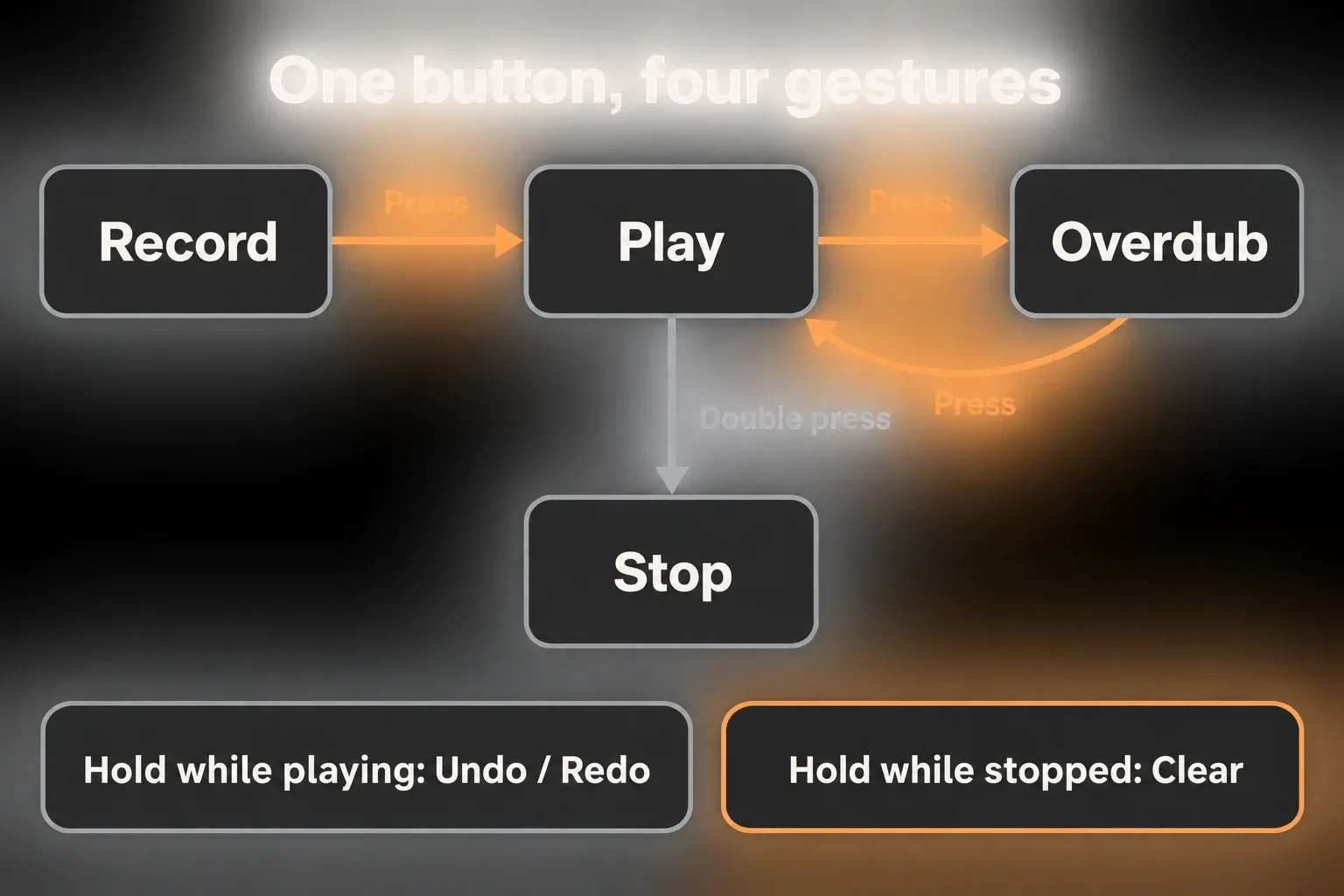
Mapping Clear to a different button does not disable hold-to-clear on the Multi-Purpose Transport Button. If an accidental wipe mid-song is unacceptable, skip that multifunction button altogether: map separate transport controls, keep Clear somewhere hard to hit by mistake, and check how your exact controller behaves in rehearsal. The MIDI-mapping guide covers message types and feedback. Export a good buffer before you try out any destructive gesture.
Use the right Input → Output mode
- Always: the input stays audible in every Looper state; handy for one Looper on one performance track.
- Never: Looper does not pass the input; handy on a return track fed by sends.
- Rec/OVR: you hear the input only while recording or overdubbing; handy with several Looper tracks and separate pedals.
- Rec/OVR/Stop: you hear the input except during Play, so the loop can take over from the live source while it plays.
If the instrument vanishes in Play, look at the selected Input → Output mode and the track’s monitoring. Stop halts the loop, not necessarily the live input: Always and Rec/OVR/Stop can still let it through. If you need real silence, prepare a separate output mute, and include direct interface monitoring and effect tails in that check. A frozen computer calls for an independent hardware way out as well.
Undo an overdub without erasing the foundation
Undo removes everything added since Overdub was last switched on. The original recording and earlier finished overdub passes stay. Redo brings the removed pass back. Go back to Play after each layer you like; then the next Overdub becomes its own undo step, instead of one long stretch holding several musical ideas.
Clear is another matter. In Overdub while Live runs, it clears the buffer but keeps the tempo and length. In any other state, Clear resets tempo and length too. That makes it useful for restarting a four-bar slot on the same grid, but it is no replacement for Undo.
Control accumulation with Feedback
At 100% Feedback, earlier material doesn't fade while you overdub. At 50%, it comes back at half its previous level on each repetition. Feedback changes take effect on the next repetition and do nothing in Play mode.
For a stable song layer, leave Feedback at 100% and fix mistakes with Undo. Lower Feedback is a creative decay effect; it won't rescue a crowded loop. Stack enough full-level overdubs and level and density keep growing, even when no single pass clips.
Export the loop before the next risky move
Drag the buffer from Looper's “Drag me!” area to a track or the Browser, and you get an audio clip. Ableton notes that the new clip uses Re-Pitch Warp Mode by default, so check Warp and tempo behavior before using it elsewhere. If you need a longer routed performance rather than just the Looper buffer, the resampling guide covers the alternatives.
Export a good version before you touch the buffer length. ÷2 keeps the half currently playing and throws away the other half; ×2 duplicates the material into a longer buffer. Changing playback speed changes pitch as well. Both buttons change the sound; they are not a display zoom.
Why an Ableton loop drifts, doubles or disappears
- Loop is late: Live was running and Looper waited for its Quantization boundary.
- First loop is half/double tempo: Looper estimated an open-length pass; set the bar count first.
- Source sounds doubled: interface direct monitoring and Live monitoring are both on.
- Instrument disappears in Play: Input → Output is probably set to Rec/OVR or Rec/OVR/Stop.
- Undo removes too much: several layers went into one continuous Overdub state.
- Old layers fade: Feedback sits below 100% during Overdub.
- Buffer vanished: Clear was triggered, possibly by a hold while stopped.
- Loop stays in time but pitch changes: Follow Song Tempo is changing playback speed; check Tempo Control.
Keep the looping rig within the machine’s limits
- Measure the buffer size and sample rate you need with the real effects running. Heavy amp models, convolution or pitch processing can matter more than any control mapping.
- Keep loop lengths and the number of instances deliberate. Don't assume a mono input halves Looper’s internal RAM use; nothing here establishes that.
- Dragging a buffer out creates audio you have to store and manage. Save the Set and the audio files you keep; a great loop that was never saved is not a backup.
- Start with one short loop and the essential processing, then add layers while you keep an eye on both level and computer load.
- Keep a manual way to recover and a saved good take. Drop heavy processing you don't need before you give up a useful safety control.
A reliable loop in eight checks
- Feed the selected input through Track Monitor In, or Auto with the track armed and no clip playing; remove duplicate monitoring.
- Decide separately which device controls tempo and which controls global transport.
- For an automatic fixed-length pass, start Live at the intended tempo and set four or eight bars.
- Set Looper Quantization and the state it should enter after recording.
- Use momentary MIDI for the multifunction pedal, or map transport controls separately if hold-to-clear is unacceptable.
- Return to Play after each finished overdub so the next pass gets its own undo step.
- Export a good buffer and save it before Clear, buffer-length changes or any other destructive experiment.
- Rehearse loop Stop, a separate output mute, Undo and controller failure, and protect the saved foundation.
For the rest of the show, from cue routing and controller choices to recovery beyond a single Looper, use the performance and control guides. Keep those checks apart from the simpler question of whether the buffer itself records correctly.
FAQ
Can Ableton Live do live looping?
Yes. Looper records a first audio pass, repeats it, adds overdubs and can be controlled from a MIDI footswitch. Session View can also record and launch separate looping clips.
Why is my first Ableton loop half or double tempo?
With Live stopped and Record Length at x bars, Looper estimates the tempo from the first pass you finish by hand. Set a known bar count before recording to steer that guess. For an automatically timed four-bar capture, start Live at the intended tempo first.
How do I overdub without deleting the first loop?
Record the foundation, switch to Play, then enter Overdub. Undo removes whatever you added since that Overdub began, while the original and earlier finished passes stay.
How do I control Ableton Looper with one footswitch?
Send momentary MIDI and map the Multi-Purpose Transport Button. A single press moves between recording, playback and overdubbing depending on the current state; a quick double press stops. A two-second hold in Play triggers Undo/Redo, while the same hold when stopped clears the buffer. If that erase gesture is too risky, use separate controls.
Why do I hear my instrument twice while looping?
Most likely the interface's direct monitor and Live's monitored return are both audible. Switch one of them off, then check Looper's Input → Output mode.
Does Ableton Looper use much CPU or RAM?
It depends on loop length, the number of instances, monitoring latency and the effects around it. Test the rig you actually plan to play rather than assuming Looper or a mono input has a fixed memory cost. Start with one short loop and add processing only when you need it.
