
Short answer: select a Session View clip or scene, choose its Follow Action, set the duration and enable it. Begin with Next at 100% for a predictable chain. Clip timing and scene timing have different modes, and explicit clip quantization can delay a transition. The global Follow Actions switch disables automatic transitions, not audio playback.
A four-section backing track is a useful first test: Intro, Verse, Break, Outro. Decide exactly when each section should end before adding any random choices. A wrong transition usually becomes easier to trace when only one clip or scene is responsible for making it.
Start with one deterministic clip chain
- Put four clips in consecutive slots on one Session View track.
- Name them Intro, Verse, Break and Outro.
- Select Intro and open the clip's Follow Action and Launch controls.
- Enable Follow Actions and choose Next for Action A.
- Set Chance A to 100% and Chance B to 0%.
- Use Linked timing when the move should happen after the clip or a chosen number of loops.
- Repeat the same setup for Verse and Break.
- Give Outro either Stop, No Action or an explicit Jump target.
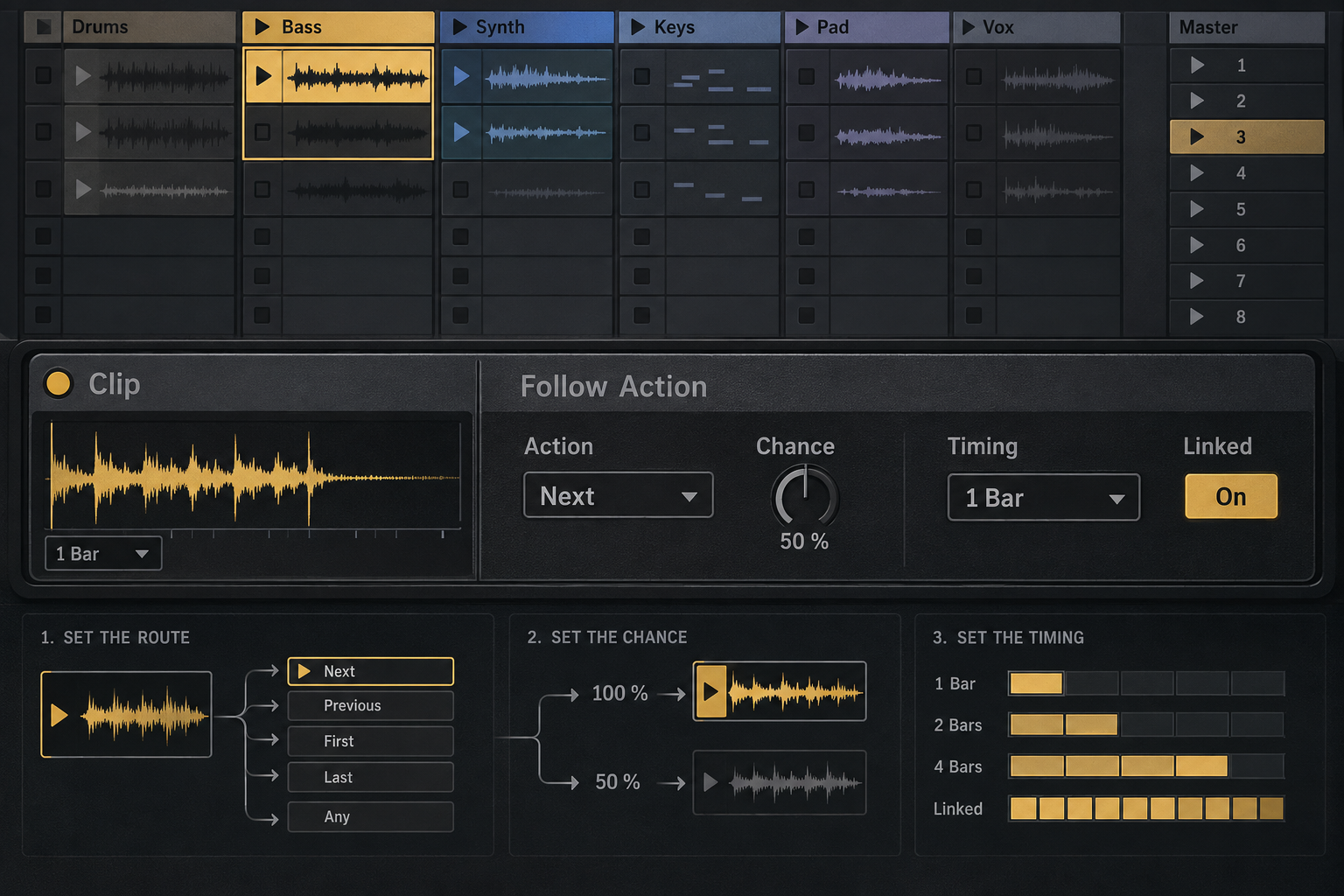
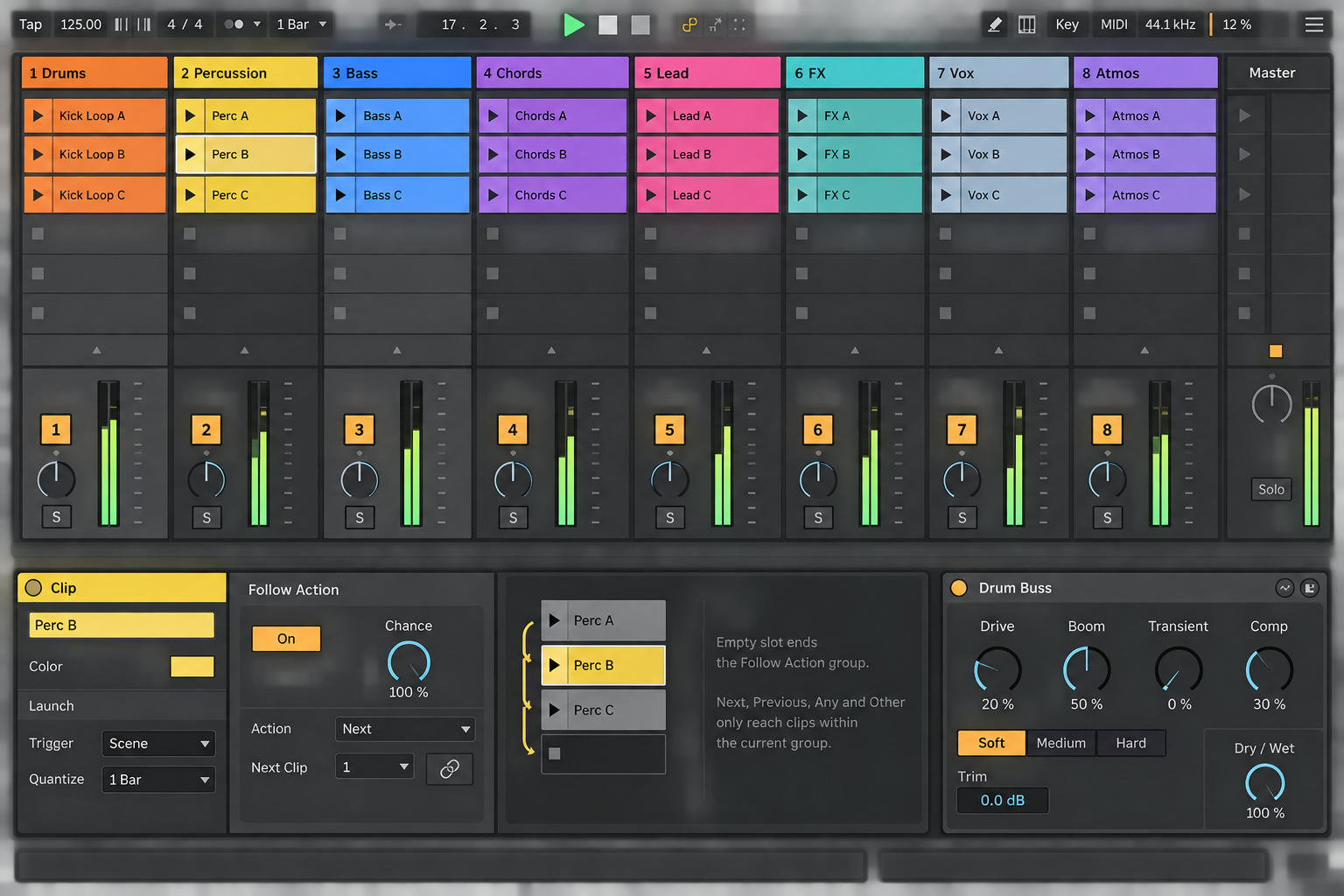
The current Live 12 Follow Actions reference defines a clip group as consecutive slots in the same track; an empty slot separates one group from the next. That boundary matters because Previous, Next, First, Last, Any and Other operate inside the group.
For a quick starting chain, select the intended clips and choose Create Follow Action Chain from a clip’s context menu. The command can include non-contiguous selections. It creates a cycle, so inspect its targets and change the last action if the Outro should stop rather than return to the beginning.
Choose Linked or Unlinked timing deliberately
Linked is the safer starting point for musical sections. The action fires at the clip end or after the loop count in the Follow Action Multiplier. If an eight-bar clip should play twice, keep timing linked and set the multiplier to two loops.
Unlinked ignores the clip's loop count and uses the Follow Action Time in bars, beats and sixteenths from launch. It is useful when a long or looping clip should move after a fixed performance interval, but it is easier to misread. Write the intended duration into the clip name while testing: VERSE — 16 bars is harder to mistake than Verse 2 final.
Scenes support Unlinked and Longest timing in current Live 12. The Live 12.2 release notes added Longest: the scene advances when its longest clip ends, or after that clip’s specified number of loops. Unlinked uses the scene’s fixed Follow Action Time. Do not rely on the older manual sentence saying duration-linked timing is clip-only. Checked September 8, 2026.
Understand the action list before using probability
- No Action: when this option actually occurs, the follow sequence stops making further choices for that launch. The clip can continue playing according to its own loop/end settings. Merely assigning No Action to B with Chance B at 0% does not prevent Action A.
- Stop: stops the clip after the chosen Follow Action time, overriding the clip's loop or region behavior.
- Play Again: restarts the current clip.
- Previous / Next: moves within the current consecutive group; Next wraps to the first clip when it reaches the last.
- First / Last: jumps to the top or bottom clip in the group.
- Any: can choose any clip in the group, including the current one.
- Other: chooses a different clip when more than one exists, avoiding an immediate repeat.
- Jump: targets a specific clip slot or scene number.
An 80/20 chance split does not schedule the alternate once every five launches. A short rehearsal can contain repeated choices. Use a 100/0 Next route or a deliberate Jump when the chorus must arrive at a fixed point.
Clip quantization can move the transition
A Follow Action is evaluated at its specified time, but clip launch quantization still matters. Ableton's manual states that Follow Actions bypass Global Quantization but do not bypass a clip-specific quantization value. In practice, a clip set to 1 Bar quantization can wait for that boundary even when the Follow Action time itself has arrived.
If the chain moves late, inspect the action time or multiplier and the explicit launch-quantization settings on the clips involved. If it moves too early, check the actual loop/end bounds as well. Do not shorten the timer to conceal a quantized launch you have not understood.
Build scene movement only after clip movement is stable
For an entire section to move together, configure scene Follow Actions. If the scene contains four-bar drums and a sixteen-bar vocal clip, Longest follows the longest clip’s relevant length—not the shortest loop. Check every clip’s loop/end bounds. Use Unlinked when you deliberately want a fixed duration instead. The performance-set guide covers the routing and rehearsal around these scene changes.
Clip Follow Actions keep running after a scene action is scheduled, but a scene Follow Action takes precedence when it fires. Avoid placing two independent clocks over the same musical boundary until you have a reason. A scene-owned song form plus clip-owned one-shot variations is easier to debug than duplicate scene and clip instructions both trying to move the arrangement.
Use Legato for variation without restarting position
Legato mode makes a newly launched clip inherit the playing position from the previous clip in the same track. It works well for several versions of the same loop: dry, filtered, sparse and full. Follow Actions can switch between those versions without returning every variation to beat one.
Legato does not guarantee a gap-free change between unrelated audio files. The manual warns that Live may not have preloaded the requested point of a different sample, which can cause a dropout. Clip RAM Mode is a possible remedy for the affected clips, but it moves sample data into memory. Use it selectively, then watch memory use during a long rehearsal.
Keep a manual exit from every automated route
Keep controls for disabling Follow Actions, launching the next critical scene and stopping clips within reach. The MIDI-mapping guide covers controller behavior. Stop All Clips is not an emergency mute: monitored inputs and effect tails may remain audible. If silence is essential, also prepare an appropriate output mute; a crashed computer needs an independent hardware recovery route.
The global Follow Actions button beside Back to Arrangement disables clip and scene Follow Actions. It prevents further automatic transitions; it does not stop currently playing clips, disable Loop or mute audio. It is grayed out when no Follow Actions are assigned in the Set.
Why an Ableton Follow Action is not working
- Nothing happens: enable the selected clip or scene action and confirm the global Follow Actions switch is on.
- Next jumps to the wrong clip: inspect empty slots; they split groups.
- The move is late or early: check clip Linked or scene Longest/Unlinked timing, the multiplier, loop/end bounds and explicit clip quantization.
- The clip restarts unexpectedly: Any may select the current clip; use Other when an immediate repeat is unwanted.
- A scene overrides a clip route: scene Follow Actions take precedence when triggered.
- A random structure repeats: probability does not promise even distribution over a small number of launches.
- A transition clicks or drops out: compare clip material, Warp state and Legato behavior; do not assume the Follow Action itself is the audio fault.
Rehearse the transitions and the manual stop
- Set every route to 100/0 and rehearse the full chain repeatedly; a fixed number of runs is not a reliability guarantee.
- Watch the striped launch indicators and name each expected destination aloud.
- Stop the chain manually at every scene and resume from a known row.
- Disable and re-enable Follow Actions globally while clips are running.
- Only then add one probability branch.
- Record Session output into Arrangement View and inspect the actual sequence.
- In rehearsal, test what happens if the controller disconnects. Reconnect and confirm that controls and recovery mappings work before using the Set live.
Record the Session performance into Arrangement and compare the transitions with the intended section boundaries. The recorded sequence lets you locate a premature jump without trying to remember which clip was active.
Resource impact: Follow Actions are light; their destinations may not be
- CPU: Follow Action logic is light. Instruments, oversampling, convolution, warping and effect tails on the launched tracks create the load.
- RAM: the action settings use negligible memory. Clip RAM Mode, large sample instruments and preloaded performance material matter more.
- Disk and Set size: routes add almost nothing. Duplicate audio clips normally reference the same file, while collected media and alternate renders increase storage.
- Lowest-resource safe route: deterministic scene movement, rendered performance stems where appropriate, only essential live devices and one clearly mapped recovery layer.
- When not to optimize: do not remove named safety scenes, controller feedback or a tested manual stop to save trivial resources. Simplify heavy destinations first.
A reliable Follow Action route in seven checks
- Group intentionally. Consecutive clip slots define the normal clip Follow Action group.
- Start with a fixed route. Use Next 100/0 before adding random actions.
- Set the duration. Choose clip Linked/Unlinked or scene Longest/Unlinked, then check loop/end bounds and the multiplier.
- Check launch timing. Explicit clip quantization can delay a triggered move.
- Separate clip and scene changes. Avoid competing transitions at the same musical boundary.
- Prepare recovery. Keep global disable, a known scene and Stop All accessible; add an output mute if monitored audio must also stop.
- Record rehearsal. Inspect the actual sequence and test manual recovery before the performance.
For cue routing and controller setup around the sequence, continue with the performance and control guides. If the audio itself drifts after launching, check its Warp map before changing the Follow Action timer.
FAQ
What are Follow Actions in Ableton Live?
Follow Actions tell a Session View clip or scene what should happen after a chosen time: stop, replay, move within a group, choose randomly or jump to a specific target.
Why is my Ableton Follow Action not working?
Check both the selected clip/scene Follow Action enable and the global switch. Then inspect clip-group boundaries, clip Linked/Unlinked or scene Longest/Unlinked timing, the multiplier, loop/end bounds and explicit clip launch quantization. A scene may also override a clip action when it fires.
Do Follow Actions obey Global Quantization?
Ableton states that Follow Actions bypass Global Quantization, but they do not bypass a clip-specific quantization value other than None or Global.
What is the difference between Any and Other?
Any can choose the current clip again. Other avoids the current clip when the group contains more than one clip.
Do scene Follow Actions override clip Follow Actions?
Clip actions continue to run, but a scene Follow Action takes precedence when it is triggered.
Do Follow Actions use much CPU or RAM?
The action logic is light. The clips, instruments, effects, warping and Clip RAM Mode used by the destinations have a much larger resource impact.
