Before building the show Set, agree who controls playback, who mixes the audience feed and who looks after the monitors. Those responsibilities decide which tracks, outputs and controller commands you need.
Checked September 8, 2026 against the current Live 12 documentation. The two-song example below is a proposed setup, not a rig we claim to have tested. Adapt it with whoever runs front-of-house and monitors, because software routing alone cannot guarantee silence or automatic failover after a computer fault.
Decide what the computer must do
Start by listing the jobs the computer has during the show. The Perform and Control hub links the individual routing, mapping and looping guides for any job that needs more detail:
- backing audio sent to front of house;
- click and spoken cues sent only to in-ear monitors;
- tempo and section changes;
- live instruments and effects that must stay interactive;
- controller commands;
- the safe stop and restart sequence.
Save a separate performance copy before simplifying anything. Remove unused devices and experimental tracks from that copy only after checking dependencies, leave the studio project’s source files alone, and do not assume a muted track costs no processing. Keep any fallback material the show actually needs.
Choose the smallest useful backing package
A stereo music mix leaves the fewest audience-audio routes to manage. Separate stems make sense when someone needs independent control, for example over backing vocals, percussion or a synth part you may replace live. It is a tradeoff between flexibility and complexity, and one stereo file does not make the whole rig fault-proof.
Export aligned files from the same start position, with silent lead-ins and complete tails. The stems export guide explains how to avoid doubling group, return or Main processing. Agree what is already printed before adding more processing to the show Set.
Use one track layout for every song
Build vertical tracks with fixed roles: MUSIC, BGV, PERCUSSION, FX, CLICK, CUES and any live instrument tracks. Keep their order, colors, outputs and controller mappings identical across the Set, so a musician knows where the click lives even after the screen has scrolled.
Each track plays one Session clip at a time, so alternative song or section clips go vertically in the same role track, and the horizontal scene rows launch the clips that belong together.
Build every song from a repeatable scene block
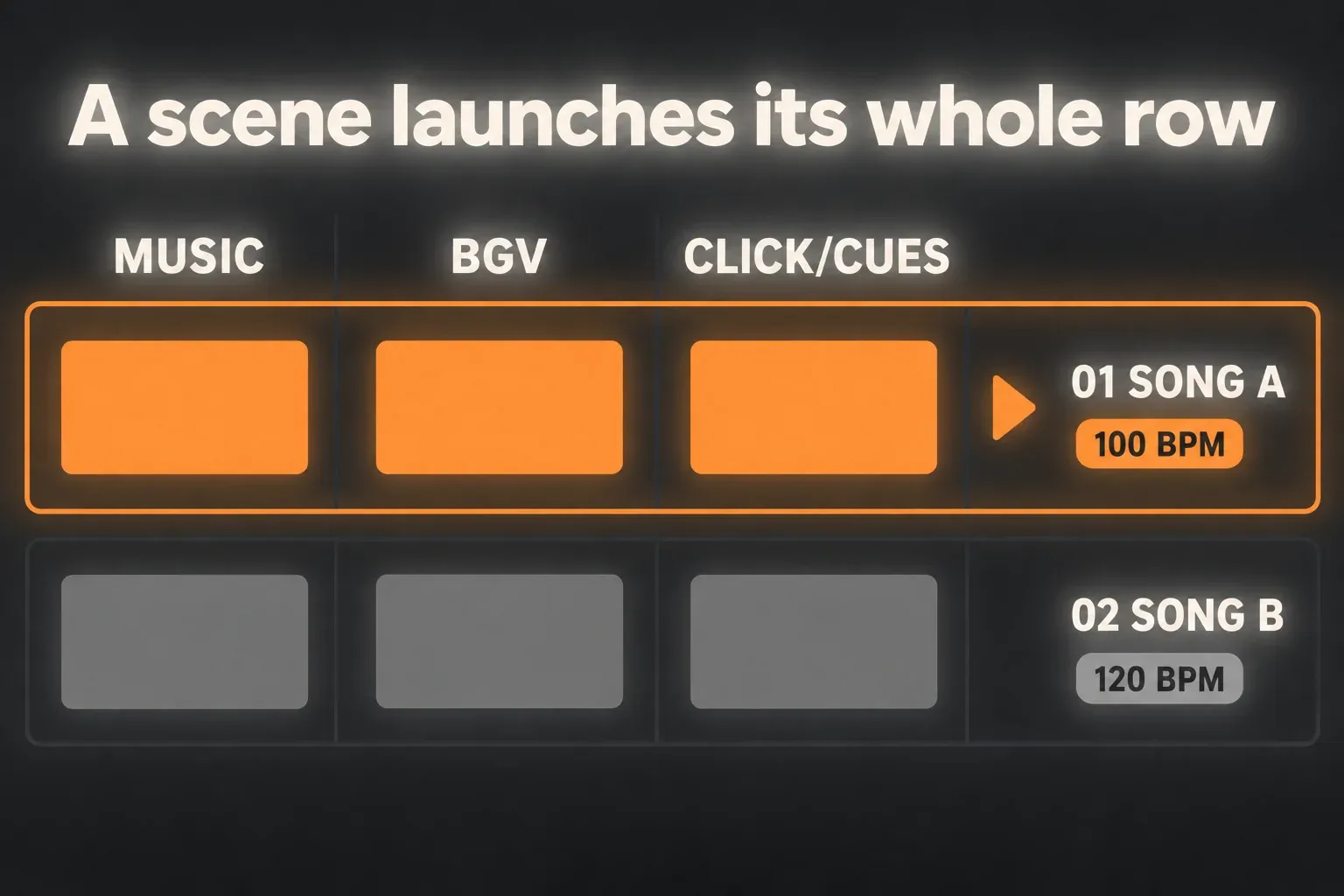
A practical song block can contain:
- SAFE START: silence or a count-in with the correct tempo and time signature.
- SONG: full-length backing clips for a fixed arrangement.
- SECTION scenes: only where the band really changes the form live.
- HOLD / TALK: ambience or silence for talking to the audience.
- STOP: a predictable end state.
- RECOVERY: a known restart point with a count-in.
Set each song’s tempo and meter in Scene View. To show those columns in Live 12, first enable Scene Tempo and Time Signature in the View menu, then drag the left edge of the Main track to reveal them. A name such as “01 SONG, 100 BPM” makes a handy label, but it does nothing without the tempo settings enabled. Rehearse launches from a stopped transport and in the middle of a song that is already running.
Example: two songs through four outputs
For a small fixed-tempo show, route the MUSIC and BGV tracks to Main and send a printed CLICK/CUES track directly to Ext. Out 3/4. Main Out goes to 1/2 for the audience. Cue Out can go to 3/4 as well if you need browser preview, with the built-in metronome off, since the printed click is already playing. The engineer supplies any additional monitor music mix. These assignments are an example, not a required stage wiring standard.
Create one row named “01 SONG A” at 100 BPM, 4/4, and another named “02 SONG B” at 120 BPM, 4/4. For each song, render all three files from the same start, with one bar of silence in the audience stems and an audible one-bar count in the CLICK/CUES file, so the count-in becomes part of playback. Live’s recording Count-In does not promise a count before every Session scene launch.
For files that should play at their recorded speed, disable Auto-Warp Long Samples before importing, then check that every clip has Warp off, Loop off, the true file start and a complete ending. With Warp off, changing the scene BPM does not change the audio speed, so the BPM has to match the printed song and click. If you need tempo changes, prepare and audition aligned warped files with the help of the Warp guide, and never let separate automatic analyses shift stems against each other.
Put the three files of each song in the same row on their matching tracks. Test the count-in and the final tails, then move from Song A to Song B. An empty stop row with stop buttons on the playback tracks handles normal transitions, while an urgent stop belongs to the separately verified mute plan below. For a restart mid-song, prepare aligned section files with their own count-in, because a scene label alone cannot find the right point in every file.
Set launch and stop behavior deliberately
One-bar launch quantization is a useful starting point for musical transitions. Clip-specific quantization can override Global, so check every relevant clip, and remember that clip stops may also wait for quantization. Keep urgent muting separate from quantized scene launches, because a stop scene will not react instantly.
An empty slot with a stop button stops that track’s clip when the scene launches, and removing the button lets the current clip carry on. Check every track, including any hidden inside groups. A scene does not automatically reset every fader, return, device or externally monitored input.
Follow Actions can automate song or section changes, but without a recovery plan they can move the show on when you do not expect it. Keep critical transitions manual until the exact follow timing has been rehearsed many times.
Route audience audio and band cues separately
Backing stems go to Main and the front-of-house outputs. If the audio interface has more outputs, enable them in Audio Settings and set Cue Out on the Main track to the band-monitor pair. Ableton’s metronome-routing guide confirms that Cue Out includes the metronome.
A spoken-cue track can use Audio To → Ext. Out → the band-only pair. That is a direct track output, a different path from the built-in metronome through Cue Out, and Cue Volume does not control every track sent directly to those sockets. Check both routes separately, including interface direct monitoring and the downstream monitor mixer.
Label the hardware outputs and stage-box channels. An interface headphone socket may simply mirror outputs 1/2 instead of offering an independent pair. Have the engineer confirm that music reaches front of house while the click, spoken cues and browser previews do not. Start with conservative monitor levels and verify the actual wired system.
Map only safe performance controls
Map only the commands the show needs: scene selection, launch, stopping and the agreed level or mute controls. The MIDI mapping guide covers bounded parameter ranges. Keep a keyboard fallback, and avoid relying on one button that sends several state-dependent commands you cannot verify.
In rehearsal, test accidental double presses and how the controller behaves after reconnecting. With Push 3, sort out any controller detection and connection problems before rehearsing the show. Pulling audio connections during a show to test recovery is a bad idea. Check which scene is selected after a launch, because Select Next Scene on Launch can move the selection to the next row.
Design the recovery path before rehearsing
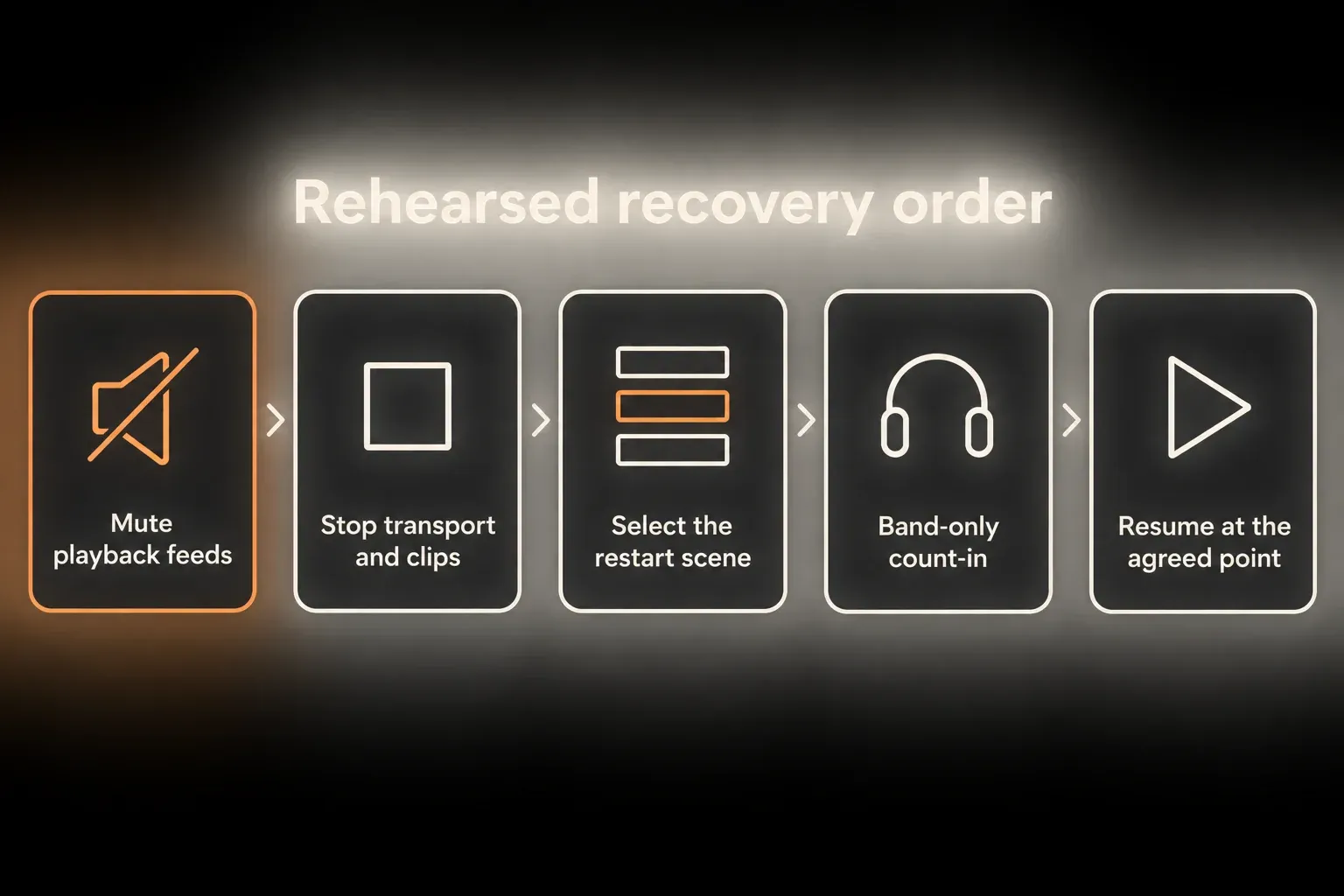
A recovery scene is an ordinary scene prepared for an agreed restart point. It is neither a snapshot of the whole mixer nor an emergency mute. Decide with the engineer which control mutes the computer’s audience feeds and which mutes its band-only feeds. That control has to cover direct outputs and interface monitor paths as well, without accidentally cutting the band’s unrelated microphones. Then rehearse this sequence:
- Mute the affected playback feeds with the agreed, verified output or mixer controls. If the application or computer stops responding, you need a hardware or output path independent of Live.
- If Live responds, stop the transport and clear the active clips. Check the metronome, monitored inputs, sustained instruments and return tails separately, since an empty scene does not mean silence.
- Select the agreed restart scene and restore its known tempo, clip start positions, routing and required device states. Confirm them before reopening the audience feeds.
- Use the prepared band-only count-in, make sure the performers are ready and restore the necessary outputs in the rehearsed order.
- Resume from the agreed musical point. If the computer cannot recover, switch to the separate backup playback or carry on without tracks, as planned.
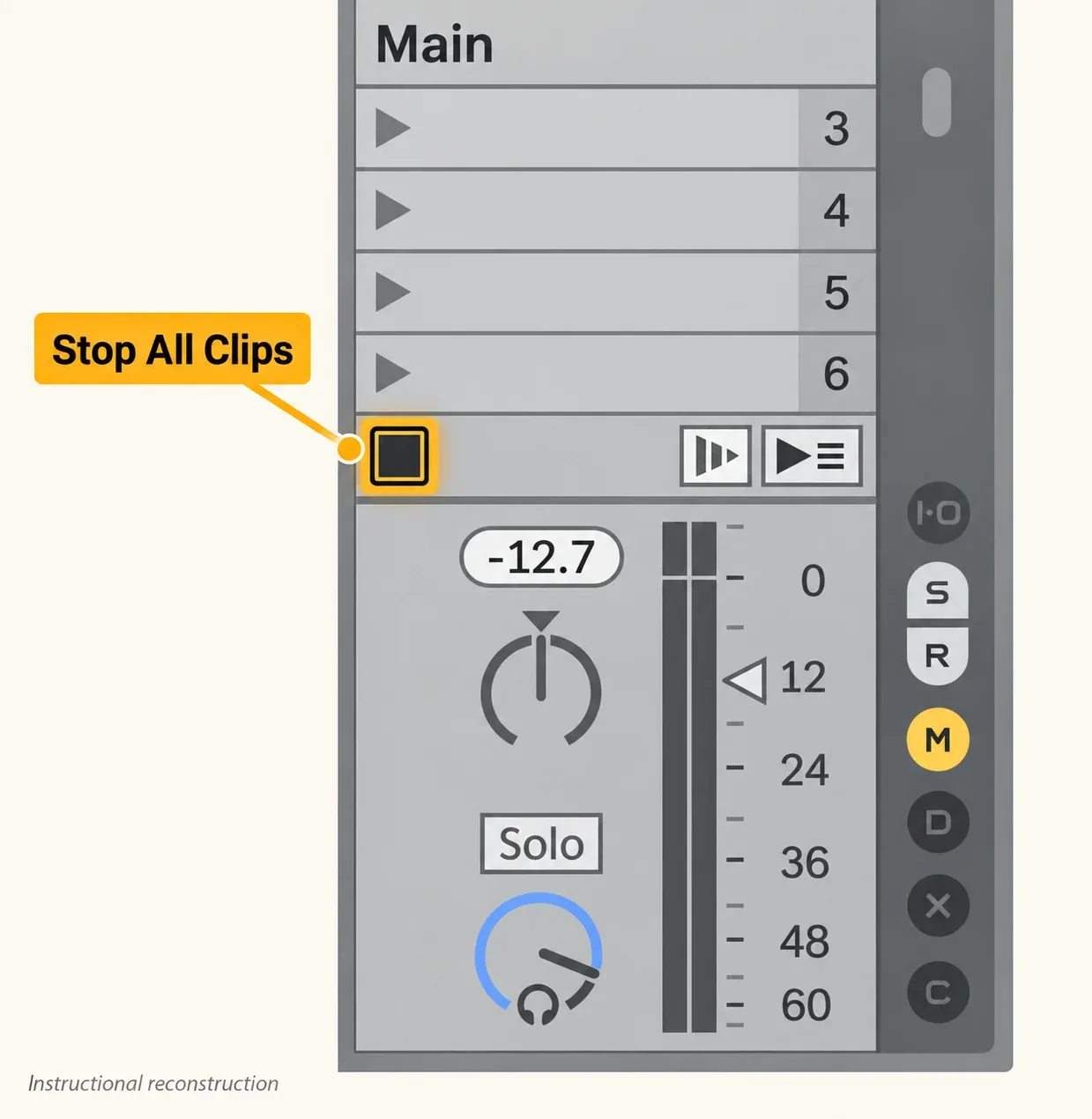
The Session View manual separates stopping clips from stopping the transport. Stop All Clips can leave the transport running, so the metronome may keep going. Pressing the Control Bar Stop twice stops playback and returns the Arrangement position to 1.1.1, which is still not a hardware mute of every output. Input monitoring, direct-output tracks and lingering effects have to be handled according to the actual routing.
Bound CPU and disk load for the show
Freeze or Bounce suits processing that does not need live control, while the original studio Set stays untouched. In Live 12.2 and later, Bounce Track in Place is the renamed and reworked Freeze-and-Flatten route. It replaces the track’s material with rendered audio, so check the render, the Warp setting and the effect tails before relying on it.
Performance Impact indicators show which tracks are demanding; then test the busiest passage with the real interface and buffer settings. Device optimization deals with processing load, and deleting an unused file from disk does nothing for a playing device’s CPU cost. A larger buffer may help playback but can make live instruments or monitored vocals harder to perform.
Several clips can point to one source file without duplicating it on disk, although new renders and real file copies do add storage. Collect All and Save gathers the referenced media; then copy the complete performance project to the backup location and check it there. It does not collect third-party plug-ins, licences or interface drivers.
Run a full pre-show test
- Restart and open the exact show Set well before the performance, so media analysis and instruments have time to finish loading.
- Check the interface, sample rate, buffer, enabled outputs, independent cue routing and available power.
- Play every song and transition, including the busiest section, the first launch after opening and the end of the final song.
- Listen to the audience and band feeds separately, including spoken cues, click, returns and directly routed tracks.
- Rehearse the output-mute, transport-stop and restart sequence, not only Stop All Clips, and check the controller fallback in rehearsal.
- Open and play the backup on its intended device. Another ALS file on the same failed laptop is not independent backup playback.
- Check cables, adapters, sleep and notification settings, and keep the verified software and project version unchanged for the show.
A last-minute edit, plug-in update or different audio interface changes the system you rehearsed. Leave time to repeat the relevant checks and keep the previously verified project at hand. An operating-system or DAW update just before going on stage is asking for trouble.
Resource impact: reserve headroom for the stage
CPU: a live Set has to finish every audio buffer in real time, including the worst transition, return effect and instrument combination.
RAM: loaded samples and sample-based instruments need memory even when their scene is not playing. RAM mode is not something to switch on for every backing clip; use it only for an identified storage problem and stay within the available memory.
Disk and Set size: audio can stream from storage, while RAM-mode clips load into memory. Real duplicated files, freeze files and new bounces take up storage, whereas several clip references do not mean several full audio copies.
Lowest-resource safe route: bounce the parts that no longer need live control, keep the remaining signal paths explicit and rehearse the heaviest scene change.
When not to optimize: never trade the cue, fallback or recovery path for a prettier meter. Reliability includes the resources you need to recover.
FAQ
How should I organize songs in an Ableton Live performance Set?
Give every song the same scene block: a safe start, sections or full-song playback, optional manual variations, and a stop or recovery scene. Keep the same track roles and colors across the whole Set.
How do I send the Ableton metronome only to in-ear monitors?
Enable a separate hardware output in Live’s Audio Settings and set Cue Out on the Main track to that output. Cue Out carries the metronome, while Main keeps feeding the front-of-house path.
Should backing tracks be one stereo file or multiple stems?
As few stems as the show needs. A stereo backing mix is the simplest, and separate music, vocal, percussion or cue stems are justified only when the venue, band mix, emergency muting or live arrangement calls for independent control.
How do I stop all clips in Ableton Live?
Stop All Clips stops clip playback but does not mute every output in an emergency, and the transport and metronome may keep running. Pressing the Control Bar Stop twice stops playback and returns the Arrangement position to 1.1.1. Check live-input monitoring, direct outputs and effect tails separately, and rehearse a hardware or output mute for a computer fault.
How do I reduce CPU risk in an Ableton performance Set?
Find the demanding tracks with Performance Impact indicators, render the parts that do not need live control and keep the editable originals separately. Test every transition with the actual interface and buffer. Deleting unused disk files does not fix CPU load, and a larger buffer trades against monitoring latency.
What should an Ableton recovery scene contain?
Clips with known start points, tempo, meter and a band-only count-in. The scene does not restore every device or mixer state, so set up an independent output mute and a backup playback plan, check silence and readiness, then restart in the rehearsed order.
