
Short answer: first save the Set into its own Live Project, then choose File → Collect All and Save. Tick only the external locations the recipient won’t have, let Live copy the used media files into the Project, and transfer the whole Project folder, not just the .als file. Reopening it on your own machine is only a first check; confirm the media and devices on the destination computer before you call the handoff done.
Checked September 5, 2026: this guide covers packaging a working Live 12 Set for another computer, a collaborator or an archive. If files are already Offline, repair them with the missing-sample workflow before collecting, because Collect All and Save can’t copy a source Live can’t find.
Resource impact
- CPU: collecting is file copying; it does nothing for CPU performance.
- RAM: Copying used samples into a Project doesn’t by itself load all those files into RAM. Memory use still depends on the clips, devices and sample libraries the Set uses.
- Disk/session size: copied audio, video and Max for Live devices can make the Project much bigger, especially when Pack or User Library files are included.
- Lowest-resource safe route: collect only the used files from locations the destination won’t share, then test one copied Project.
- Do not optimize: for a local working Set with stable library paths, duplicating its used Pack and User Library media may be unnecessary. For a handoff with unknown dependencies, collect every location category and accept the extra disk use.
Understand what Save leaves outside the Set
A normal Save or Save As stores references to the files the Set uses. The .als document is not a container holding every sample, video, plug-in binary and library. Ableton’s current Collect All and Save documentation recommends collecting before a Set moves to another computer or another person.
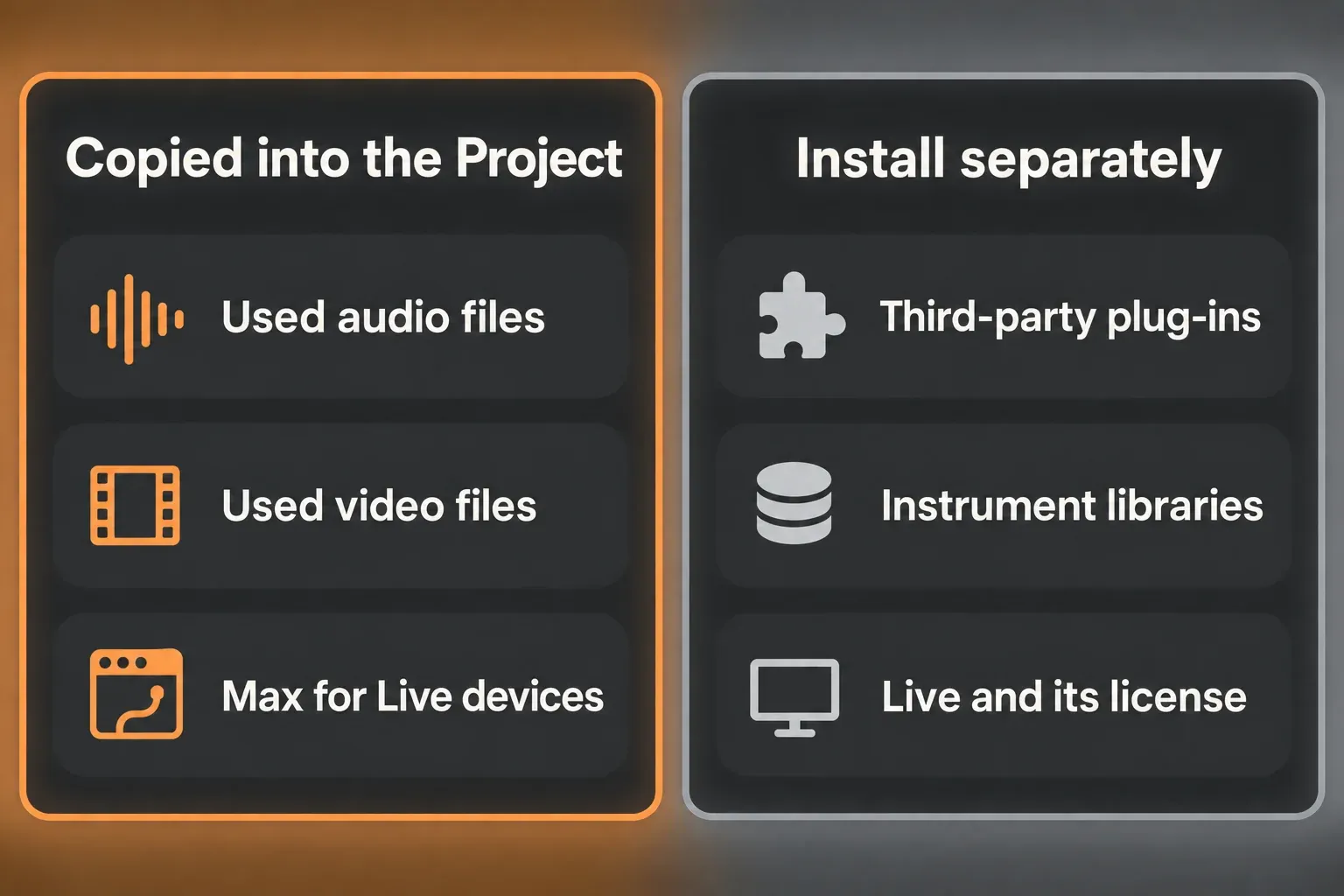
| Item | What Collect All and Save does |
|---|---|
| Used audio files | Copies them into Samples/Collected inside the Project. |
| Used video files | Copies them into Samples/Collected. |
| Used Max for Live devices | Copies them into the Project’s Presets area. |
| Third-party plug-ins | Does not copy the plug-in; it must be installed separately. |
| Live application and license | Not packaged; the destination needs a compatible authorized Live installation. |
A full Samples folder doesn’t make up for a missing instrument, license or compatible Live edition. Check the sound-generating devices as well as the audio files.
Put the Set in a unique Live Project first
Don’t package a song that still sits in a general folder shared with unrelated Sets. Use Save Live Set As and pick a location outside any existing Live Project, and Live creates a new Project folder for that Set. Versions of the same song can stay together; unrelated songs shouldn’t share one Project.
Ableton’s unique-project guidance warns that putting several songs in one Project can bloat it and slow down file management. Keep song-main.als, song-before-vocal-edit.als and song-mix-check.als together if they share media, and start a new Project for the next song.
Don’t save the song into the User Library, which is itself a Live Project. When copying the Project, keep the Ableton Project Info folder with it; that folder is how Live recognizes the Project.
Inspect external files before copying them
Open File → Manage Files → Manage Set. The External Files section groups the used files by location and shows their count and total size. Live treats anything outside the Project folder as external, including files from Packs, the User Library, other Projects and anywhere else on the computer. The File Manager collection controls show what each selected category will add.
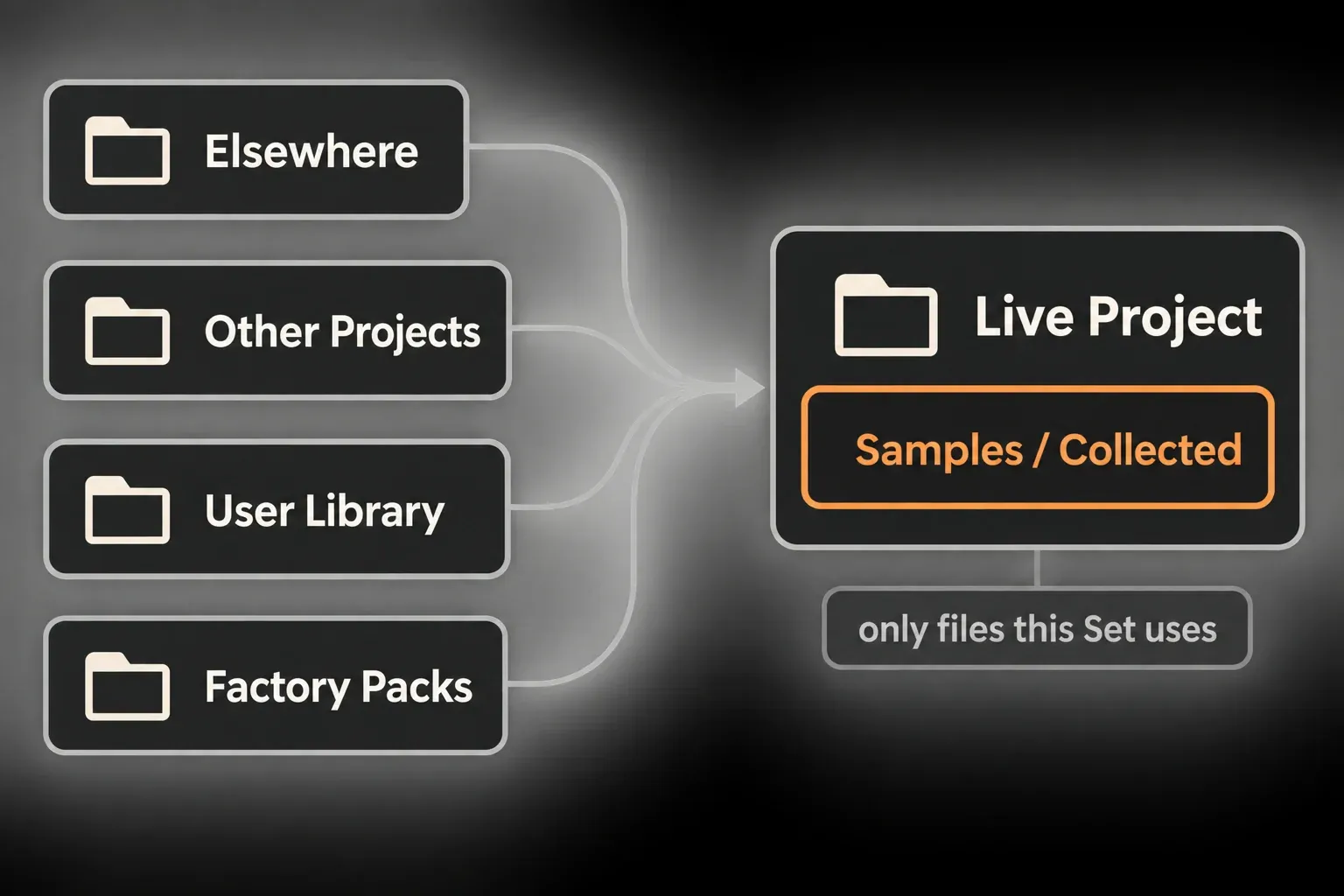
Decide which dependencies the destination really shares. A User Library you transfer separately, or an installed Pack, may work there, but check it instead of trusting an identical folder name. If you’re not sure, include the used files from that category.
Choose each collection source deliberately
These choices pick the locations of files that the current Set references. They don’t copy every file in a whole Pack or User Library. When you don’t know the recipient’s setup, turn on all four categories, and shrink the transfer only where you’ve confirmed a shared dependency.
| Source | Collect when | Skip when |
|---|---|---|
| Files from elsewhere | The Set references Desktop, Downloads, an external sample drive or another arbitrary folder. | The referenced location will remain identical and controlled, which is rare for a transfer. |
| Files from other Projects | The song borrows a recording or bounce from another Project. | You are intentionally maintaining one shared source and are not transferring the Project. |
| Files from User Library | The destination does not receive the same User Library. | Both systems use the same copied/synchronized User Library and paths will remain valid. |
| Files from Factory Packs | The other system may lack the same Pack or you need a self-contained archive. | The same licensed Packs are installed and a smaller working Project is preferred. |
Collect, then verify the new references
- Save a new version of the Set inside the intended Project.
- Open Collect All and Save.
- Select the file locations you need.
- Confirm and let Live finish copying.
- Open Manage Set and check External Files again.
- Save, close and reopen the Set.
Don’t move the Project while collection is running. And don’t delete the source libraries after the first successful reopen: collecting packages the Project; it doesn’t prove your only backup is healthy.
Collect All and Save works on the current Set. If you’re sending several alternate .als versions, check their references too, because collecting one version doesn’t cover the others. Use Manage Project for multiple Sets or open and collect each version you plan to include.
Test the copy locally, then on the destination
Copy the whole Project folder to a second local location with a different parent path. If you’re going to send a ZIP, extract it and open the Set from the extracted folder. That catches an incomplete folder or archive, but it can’t prove independence from your computer, where the external libraries and plug-ins are still installed.
Next, open the transferred Project on the actual destination. Look for missing media and unavailable devices, then audition sections that use:
- a recorded audio file;
- a sample from outside the original Project;
- a User Library or Pack sample you chose to collect;
- a Max for Live device;
- a third-party plug-in.
A clean missing-media status isn’t enough if a plug-in can’t load its own library. The destination also has to meet Ableton’s project-transfer checklist. If you can’t test that machine yet, label the transfer unverified rather than treating a local reopen as the final word.
Handle cross-platform plug-ins before the handoff
Live Sets can move between Windows and macOS, but plug-in formats still matter. Ableton’s cross-platform plug-in guidance supports VST2/VST3 on both platforms, while Audio Units are macOS-only. Install the matching plug-in format and version on the destination. A VST3 installation doesn’t promise that an existing VST2 instance will be swapped automatically.
If the destination can’t run a device, keep an editable original and use the Freeze and Bounce comparison to pick an audio handoff. Bounce only the affected tracks. In the transfer copy, remove the unavailable devices after checking the audio, and keep their editable chains in the separate original. Collect again after making new renders.
Check instrument libraries and Max device dependencies
A sampler plug-in and its sound library are two separate dependencies. Native Instruments documents Kontakt instances failing to recall missing content when library paths change, content is missing or the library needs a newer Kontakt version. Follow the instrument developer’s transfer procedure, and don’t assume Live’s collection dialog packages a third-party library.
Max for Live devices can depend on extra files or platform-specific externals. Cycling ’74’s device-sharing instructions explain that files a device opens while running may need to be included as dependencies, and its device-freezing documentation separates the platform builds of external objects. Collecting an .amxd therefore doesn’t guarantee every dependency works on the target. This Max device-packaging step is also a different thing from Live’s Freeze Track.
Ableton also documents Max devices failing after collection because references to dedicated Max libraries can get lost. If a device worked before collection and fails afterwards, compare it with the untouched original and follow the device-specific packaging instructions. Don’t exclude a whole library category without checking which other files the transfer still needs.
Use the device developer’s packaged release and installation instructions, then test it on the destination. If it still won’t open, move on to the Max for Live device-loading checks instead of collecting the same files again and again.
Match the Live version and licensed features
“Live 12” on its own is not enough detail. Ableton’s backward-compatibility rules state that a Set saved in a newer point release can’t open in an earlier one; their example is Live 12.3 to 12.2. Keep the older original when you update, and agree on a compatible version before anyone edits the handoff.
A Set that uses Suite-only features can open in Lite, Intro or Standard, but with saving and exporting disabled. Check the Standard and Suite feature differences against what this Set actually uses, not just the edition it was made in. Keep the full original and prepare a copy without the unavailable features, or supply audio, before the recipient needs to work on it.
Separate portability, backup and disk performance
Collect All and Save makes a Project more self-contained. It doesn’t create version history, check a backup, repair a failing drive or promise faster playback. A Project copied to a second folder on the same disk still goes down with that disk.
In the same way, putting every file into one Project can concentrate more simultaneous streams on one storage device. If the D indicator flashes after the move, run the disk-overload A/B test instead of collecting the same media again. Packaging and disk throughput are separate problems.
Keep a small transfer manifest beside the Project
Add a short transfer note listing the exact Live version and edition, the operating system, required Packs, plug-in formats and versions, external instrument libraries and any tracks supplied as audio. Note whether the destination was tested and what is still unresolved.
Leave out passwords, license keys and account credentials. List only the dependencies the Set actually uses, with their real names and versions; an installer file doesn’t prove the recipient has a valid license or a compatible build.
Use a final handoff checklist
- The Set lives in a unique Project folder.
- All currently missing files were repaired before collecting.
- External Files was reviewed by location and size.
- Required audio, video and Max for Live devices were collected.
- Required plug-ins, instrument libraries, Max dependencies, Packs and the Live version/edition were listed separately.
- The whole Project folder was copied or compressed.
- The destination opened the transferred Project, loaded the required devices and content, and played representative sections; otherwise the handoff is clearly marked unverified.
- The working original and an independent backup are still intact.
Go back to the Learn Ableton Live hub when your next task is editing or performance rather than moving projects around.
FAQ
What does Collect All and Save do in Ableton?
It copies used audio and video files into the Project’s Samples/Collected folder and used Max for Live devices into the Project, then points the Set at those Project copies.
Does Collect All and Save include plug-ins?
No. Install compatible third-party plug-ins separately and check their own sample libraries and other content. Keep an editable original, and supply checked audio for tracks whose devices won’t be available.
Does Collect All and Save fix missing files?
Not on its own. Live has to be able to find a source before it can copy it. Repair Offline or missing media first, save a new version of the Set, and then collect.
Should I select every box in Collect All and Save?
For an unknown destination or a self-contained media archive, select every location category. That copies the current Set’s used files from those categories, not whole Packs or the entire User Library. Skip a category only when its dependencies are reliably available on the destination.
How do I move an Ableton Project to another computer?
Save the Set in a unique Project, collect its required external files and transfer the whole Project folder. Check the Live version and edition, the plug-ins and their content on the destination, then open and audition the transferred Set there. Reopening a copy on the original computer is only a first check.
Is Collect All and Save a backup?
No. It packages the referenced files into one Project, but it gives you no independent version history and no protection against drive failure. Keep a separate, checked backup.
