






Make the delivery decision before the final render
A mix for your own archive, a premaster for another engineer, stems for a collaborator and an MP3 reference are four different deliverables. They should not all inherit one export preset that nobody can explain. Start by naming the destination. Then decide what has to pass through the Main track, which effects belong in the files and how you will check the result.
This hub covers balance, gain, routing, groups and returns, reference listening, mix-bus decisions, mastering handoff, stems and final export. It is organised around decisions you can verify. There is no magic chain here. The goal is a session whose signal path and rendered files still make sense when someone else opens or hears them.
Find the signal change before adding another processor
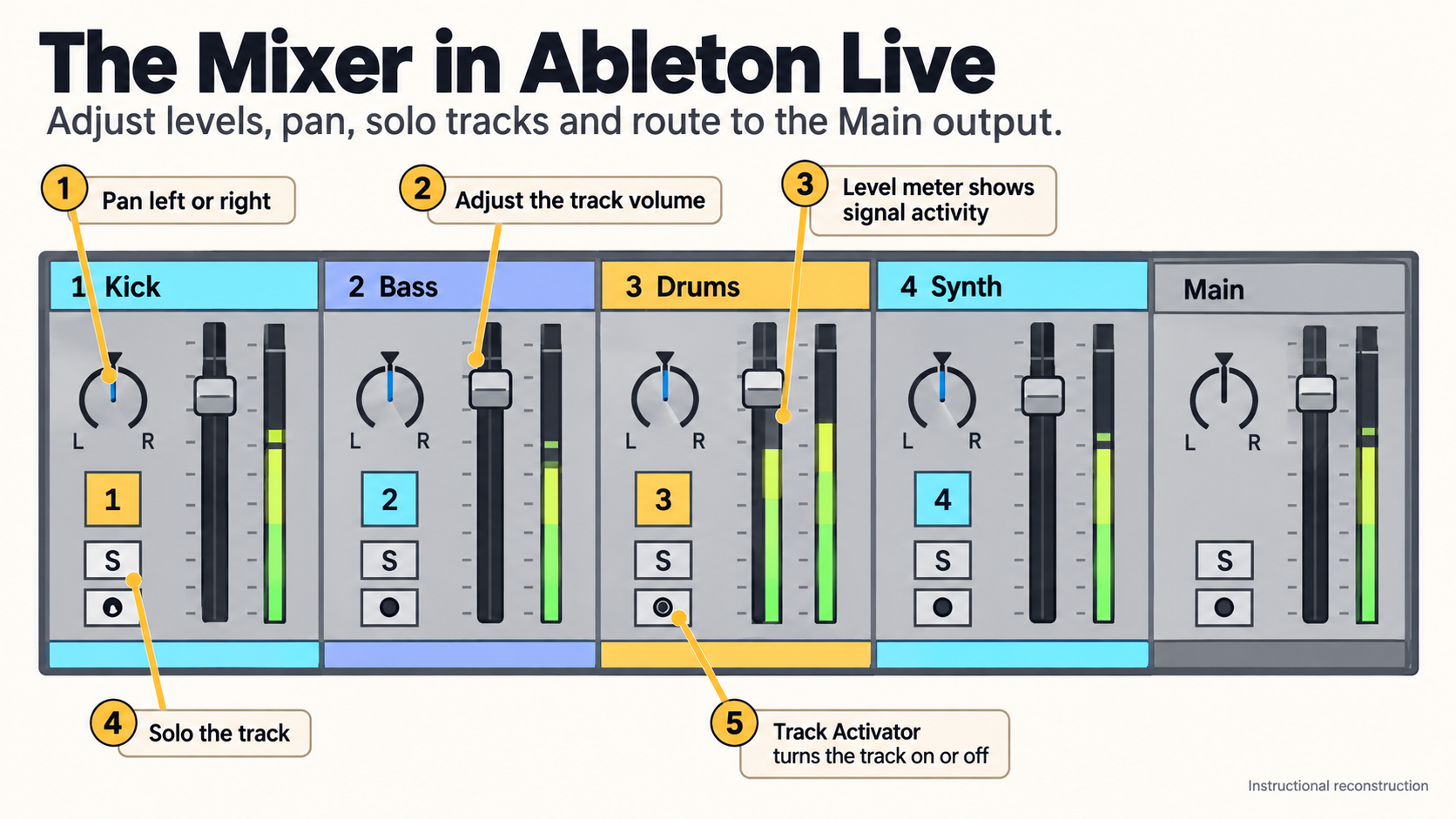
Ableton Live gives you level, pan, track activation, solo, arm and routing controls in both Session and Arrangement views. Its Mixing manual also explains how the meters show peak and RMS behaviour. Use that information to locate the problem before you reach for a device.
If a sound disappears, follow it from the source through the track, group, return path and Main output. If the mix feels crowded, look at arrangement, level, panorama and frequency overlap before deciding that compression or EQ is the answer. If a processor seems to improve everything, level-match the bypass comparison. Louder often sounds more impressive even when the musical balance has not moved at all.
Keep enough headroom for the routing you actually use, and resist turning one meter number into a universal law. Live processes internally at high precision, yet clipping and unintended gain still matter when a signal leaves a device, reaches the Main output or gets rendered to a delivery format. Check the point where the signal changes, not only the last meter you can see.
Build the mix in an order you can reverse
Begin with the arrangement and a static balance. Decide which element leads each section and which parts support it. Work at a repeatable monitoring level, compare against a relevant reference, and take short breaks once repeated listening stops giving you reliable decisions.
Then fix specific problems. Reduce unwanted noise in a recording according to whether it sits between phrases or underneath the performance. For an out-of-tune vocal, compare manual pitch edits and Auto Shift before making pitch correction a default insert. Remove a resonance because you can hear it, control dynamics because the performance needs a narrower range, automate a level because the part's role changes across the song. Keep a before state for any change that affects the whole mix. Ten active devices in a chain are not proof of ten solved problems.
Groups organise related tracks and let them share processing. Return tracks create parallel paths that several sources can feed. The Main track is the final path before export. Each layer is useful when its purpose is clear, so name the important groups and returns, and check whether a send is pre- or post-fader when its behaviour surprises you. Bypass group, return and Main processing separately so that one layer cannot hide another.
Separate mixing from mastering even when you do both
Mixing sets up the relationships inside the song. Mastering judges the finished mix as a deliverable and, where it matters, as part of a wider release. You can do both in Live, and keeping a line between the two stages makes problems far easier to diagnose.
Save a clean mix revision, export it, and listen to that render outside the working Set before you start mastering. Compare tonal balance, dynamics, transitions and how it translates on other playback, all at matched loudness. A limiter preset or a target number does not prove the master is finished. Distribution requirements change, and different destinations may need different files.
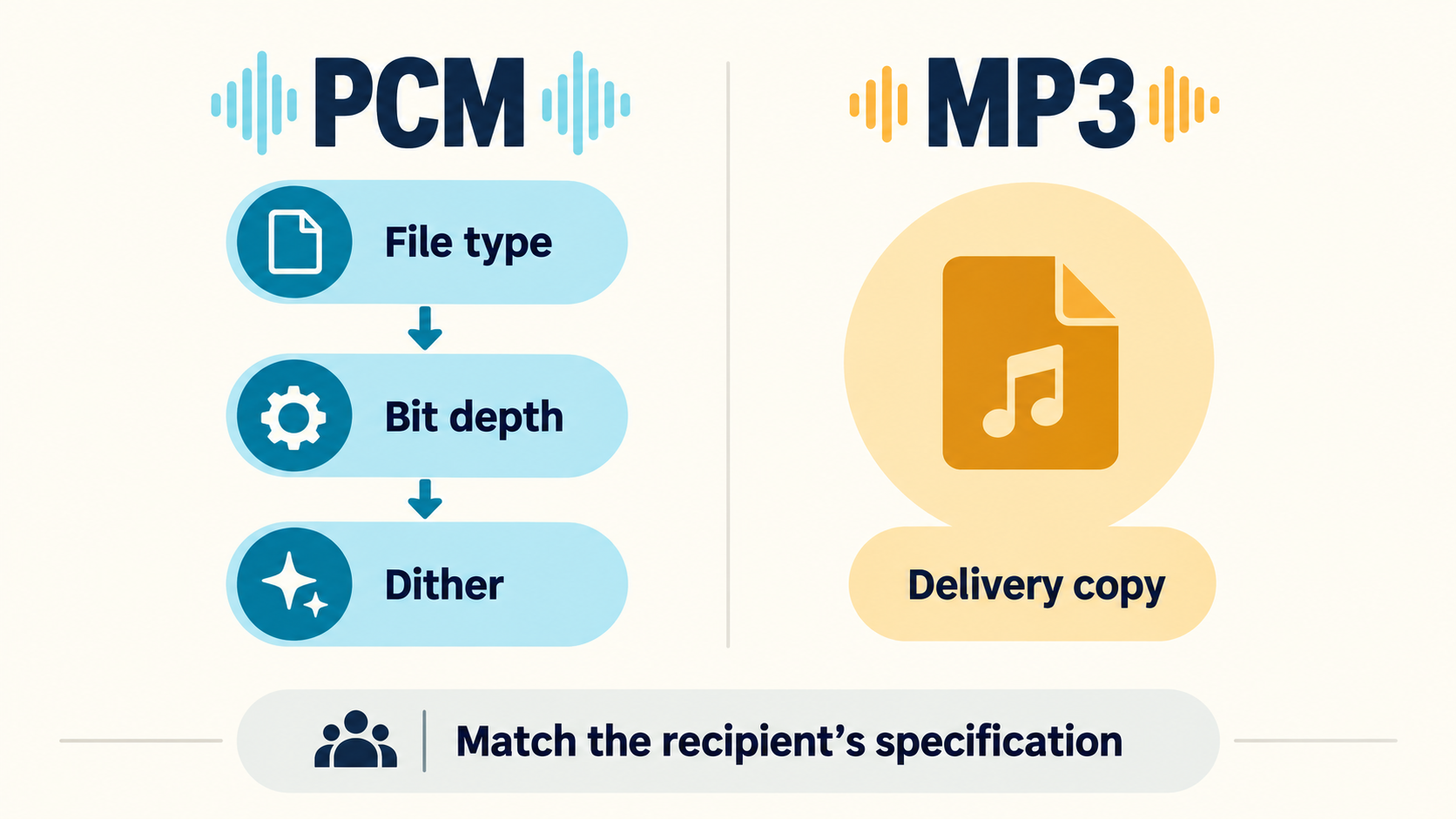
If another engineer is mastering the track, ask for their delivery specification. Don't guess whether they want Main processing, a particular sample rate, extra silence, alternate versions or stems. A short written handoff prevents more mistakes than an elaborate export template built on assumptions nobody agreed.
Choose Rendered Track by what the recipient needs
Live's Export Audio/Video documentation describes several render sources: the Main output, all individual tracks, selected tracks only, or a single named track. The right one depends on the job.
Use Main for the stereo result you hear through that path. Use selected tracks when only certain parts are needed. Use all individual tracks when the recipient needs separate material, then check how group, return and Main processing show up in those files. A track render and that track's audible contribution to the stereo mix are not always the same thing once sends, sidechains or shared buses are involved.
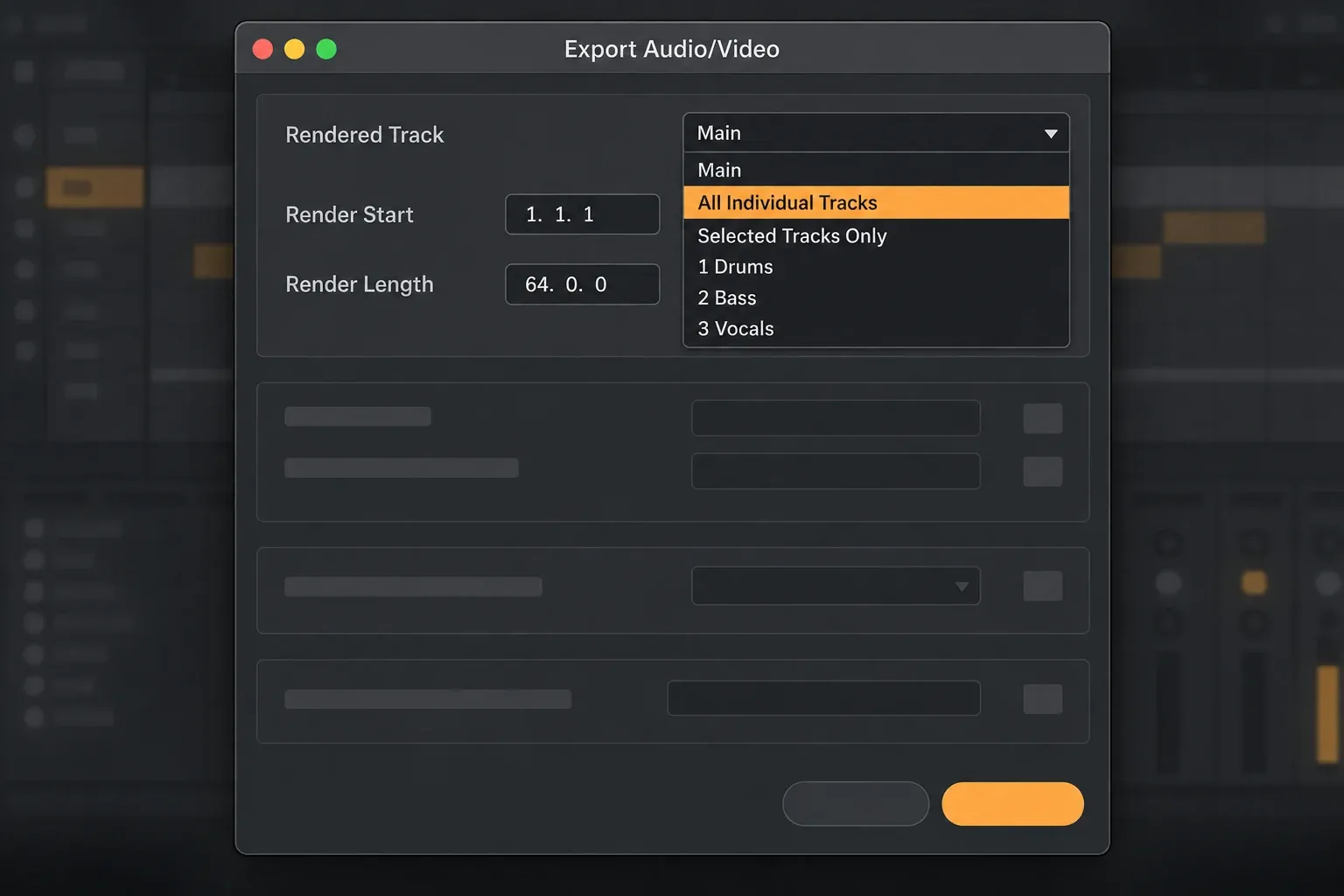
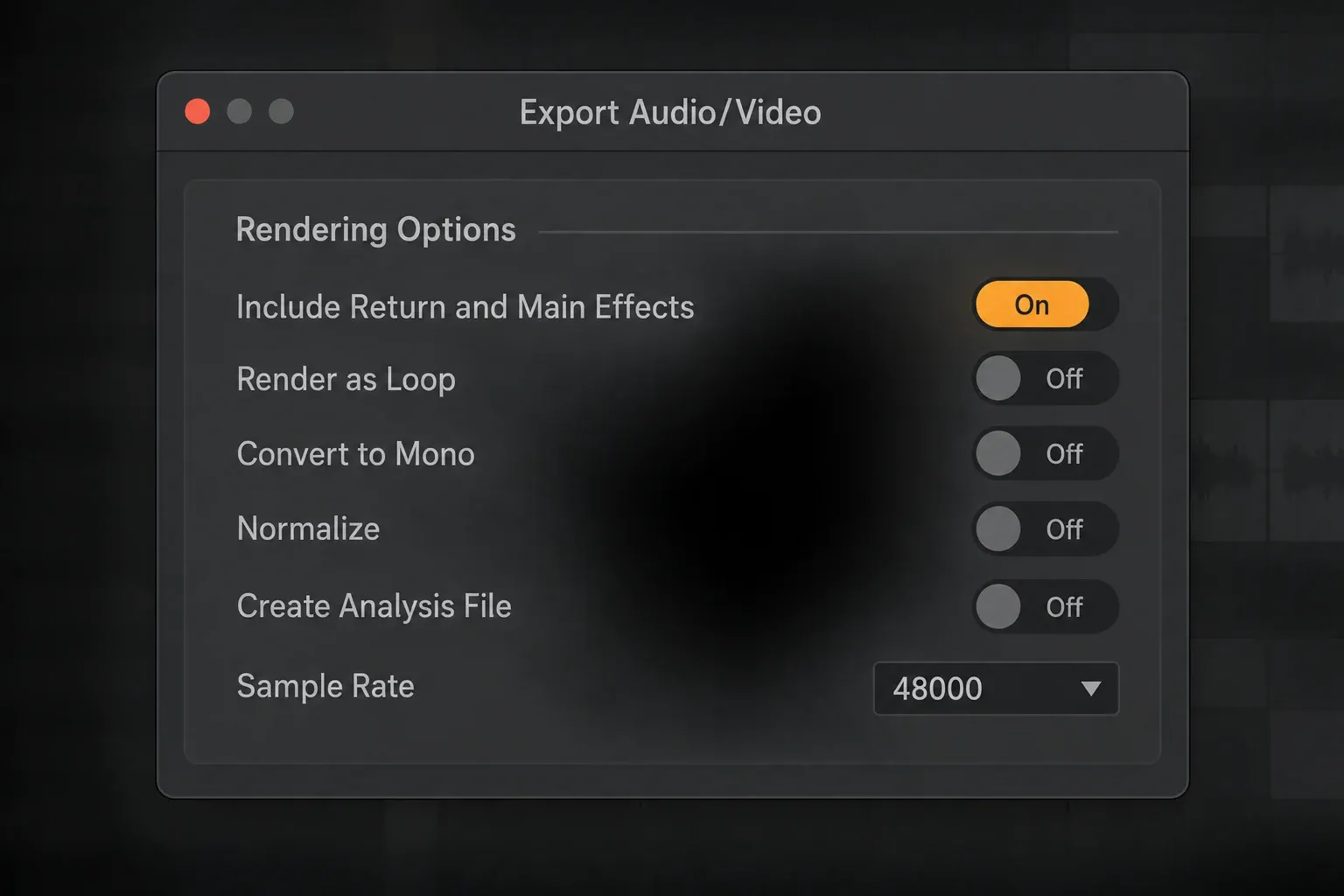
Set the render start and length on purpose, and include the tail of reverbs, delays and sustained instruments. Keep related files on the same timeline when they have to rebuild the arrangement. Pick PCM, MP3 or any other requested output for the delivery, not for convenience. If the deliverable includes picture, check Live’s video-export options and audio sync as well as the audio settings. And when the project matters, keep an uncompressed audio archive.
Treat stems as a specification, not a folder name
Ableton's guidance on importing and exporting stems is built around aligned files that can be dropped into another project together. Before you render, agree whether "stems" means grouped musical sections or every individual track. Settle, too, whether the files are dry or processed, whether they include return effects or Main processing, and whether the recipient wants both wet and dry versions.
Sort out naming before export. Stable labels like Drums, Bass, Lead Vocal and Music survive outside the Set; track numbers do not. Render every required file from the same start point through the end of the longest tail. Put tempo, version and processing notes in the handoff instead of cramming every instruction into a cryptic filename.
After export, open a blank Set and import the files at the same starting position. Check that they line up, play for the expected length and rebuild the intended balance closely enough for the stated purpose. This is where you catch missing returns, cut tails, muted tracks, unintended Main processing and wrong render ranges before anything leaves your hands.
Verify the file, not only the export dialog
Reopen the stereo render and listen from the first moment through the final tail. Check the start, the loudest section, transitions, silence between sections and the ending. Confirm the format, channel count, sample rate and filename against what the recipient asked for, and try a second playback path when the destination matters.
Keep the Live Set revision that produced the approved files, and collect its samples into the project folder so the session can be reopened later. Note the render range, source choice and any processing variations. If the result differs from live playback, compare the Set and the rendered file systematically instead of exporting over and over with random option changes.
Questions about mixing and export
What are the best Ableton Live export settings?
There is no universal preset. Match the render source, range, sample rate, bit depth and file type to the destination. A stereo master, an MP3 reference, an archive and stems for another engineer each need different decisions, and the recipient's specification wins whenever one exists.
Should I normalize when exporting from Ableton Live?
Normalization is not automatically right or wrong. It changes the file level according to the selected export behaviour, so use it only when that change serves the delivery. For a mix or premaster handoff, keep the intended level unless the recipient asks for something else.
How should I export stems from Ableton Live?
First find out whether the recipient wants groups or individual tracks, and whether effects, returns and Main processing should be included. Render the required sources from a common start point through the full tail, name them clearly, then import them into a blank Set to check the alignment.
Can I master a track inside Ableton Live?
Yes. Live can host the processing and metering a mastering workflow needs. Keep a separate mix revision, judge the exported mix as a complete file, compare at matched loudness and make delivery choices for the actual release rather than relying on one fixed device chain.