
Noise reduction in Ableton Live starts with listening for when the noise happens. Known gaps are best edited out, Gate handles quieter noise between phrases, and targeted EQ deals with confirmed rumble or hum. What Gate cannot do is remove hiss underneath a word while it is open. When the unwanted sound runs under the whole performance, a better recording or a dedicated denoiser on a copy will serve you far better than forcing the gate to cut into the voice.
Checked September 8, 2026 against Live 12’s Gate controls and current repair documentation. This guide deals with noise already captured in a recording. Clicks that change with computer load belong to the crackling and dropouts diagnostic, and if the input itself is noisy, the vocal recording setup is worth reviewing before you process another take.
Identify when the noise exists
| What you hear | First route | Why |
|---|---|---|
| Noise only in empty gaps | Edit, fade or automate | No detector needs to guess where silence is |
| Noise between phrases, clean source above it | Gate with a reduced Floor | Level difference gives the gate a usable boundary |
| Steady low rumble | High-pass or narrow EQ after listening | The problem occupies a limited frequency region |
| Single electrical hum and harmonics | Narrow notches, then fix hardware | Targeted bands can be reduced without muting gaps |
| Broadband hiss or room noise under speech | Rerecord or specialist denoise | The noise overlaps wanted audio in time and frequency |
| Clicks that change with buffer/load | System diagnosis | That is not a recorded noise floor |
Before any noise reduction, a short passage with a quiet phrase, a louder phrase and a gap tells you most of what you need. Listen to it solo, then in the mix at a normal level, and decide whether the problem is continuous, intermittent, tonal or broadband. A quiet, unobtrusive room tone is often better left alone when every repair attempt makes the words sound clipped or dull.
Fix the source before repairing the file
If the take can be repeated, reduce the noise reaching the microphone first. Headphones, distance from fans and a position with less room reflection all help. Use the connection type the source and interface are designed for, bearing in mind that a balanced cable does not turn an unbalanced source into a balanced one. Set input gain against the loudest part of the performance, not against the silent room, and test suspected peripherals one at a time with monitoring turned down. Removing a mains safety-earth connection is never the cure for hum; Sennheiser’s ground-loop guidance separates proper audio isolation from that dangerous workaround.
Normalization does not reduce noise. When it adds gain, the recording and its noise rise together and their ratio stays the same. The gain-staging checks help you set a comfortable working level, and the repair should be judged at matched loudness. Normalizing before or after a repair is fine in itself, but it cannot rescue a poor signal-to-noise ratio.
Edit known gaps instead of making Gate guess
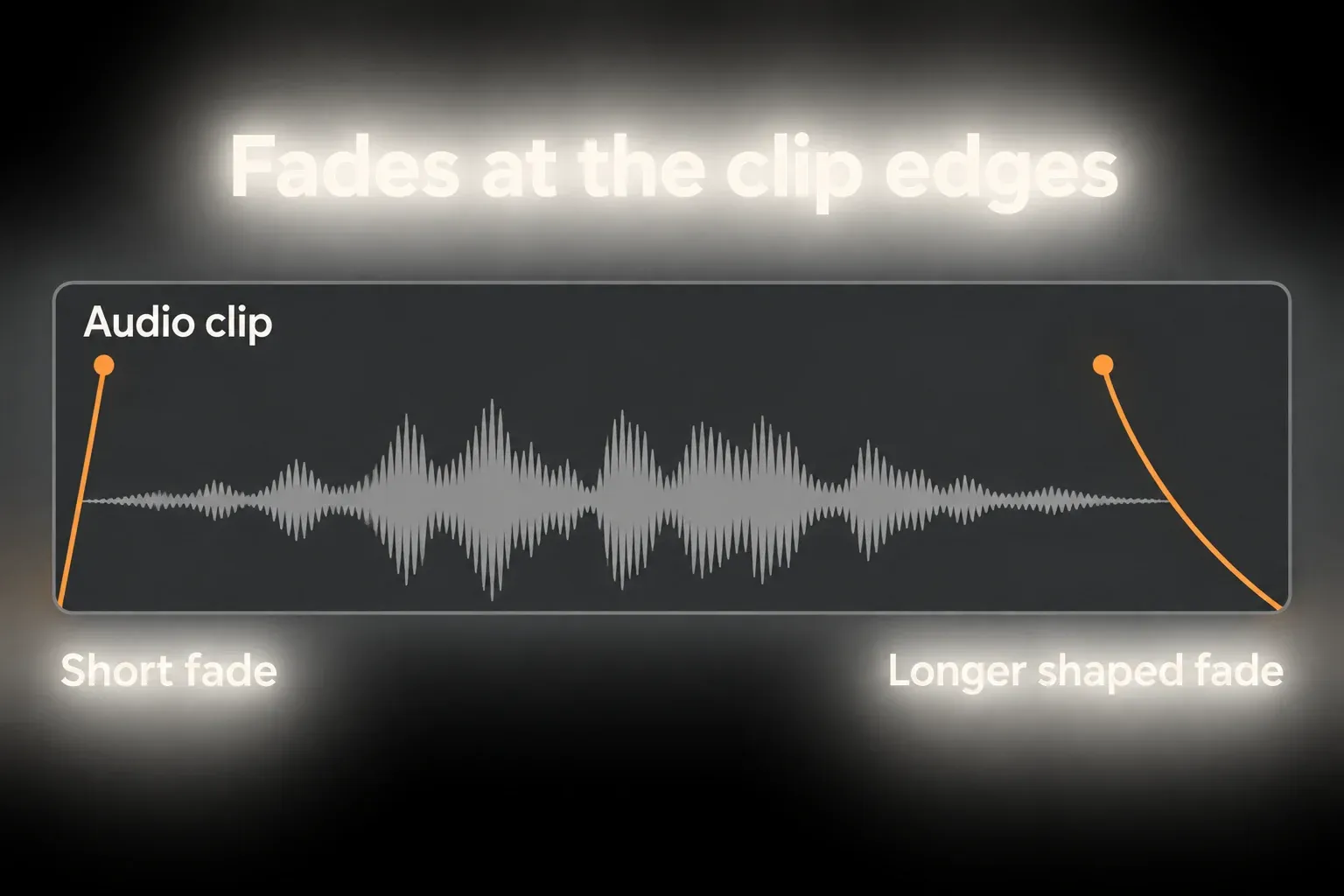
A spoken line, a vocal comp or an isolated instrument with clear unused regions is easiest to clean by hand. Split around the wanted phrases and lower or remove the gaps, keeping a little natural room tone wherever absolute digital silence would expose each edit. Fades at the boundaries stop the cuts from clicking or clipping breaths.
The Arrangement fade controls soften the edited edges, and the breaths and consonants beside each cut deserve a careful listen. No fixed fade length guarantees a clean result, because a fade that removes a click can also soften a wanted attack. When the unwanted regions are known in advance, editing is usually simpler than any detector.
Use Gate only for a usable level difference
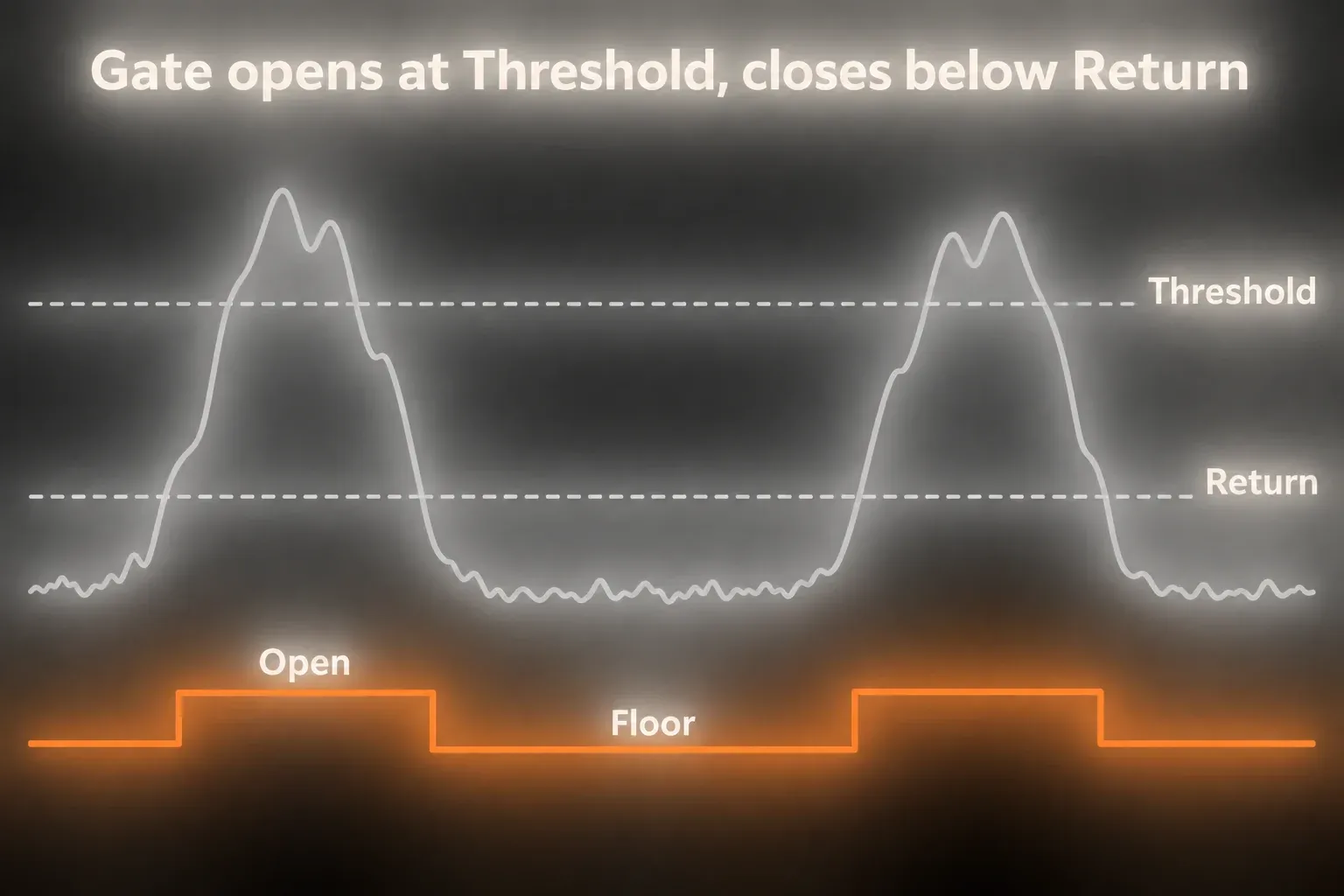
For cleaning a dry recording, Gate usually goes before compression, distortion and added reverb. Move it if the noise is created later in the chain, since a gate placed before an amp effect cannot suppress noise that the amp itself adds. In Ableton’s Gate reference, Threshold controls opening and Return separates opening from closing. Start with Flip off, the external sidechain off and sidechain Listen off, or the gate may work in reverse, follow another track or output the detector signal in place of the processed recording.
- Loop a quiet phrase with its lead-in and natural decay, and begin with Flip, the external sidechain and sidechain Listen off.
- Raise Threshold above the gap noise while making sure the quietest wanted word still opens Gate. If their levels overlap, edit that phrase instead of pushing Threshold higher.
- Adjust Return to reduce repeated opening and closing around the threshold, watching the separate closing line and listening for chatter.
- Set Attack so the onset survives without an audible click. Judge it on the first consonant or pick transient, not only on the gap.
- Increase Hold only as far as needed to stop brief internal dips from cutting the phrase.
- Set Release by the natural decay so the phrase closes smoothly and keeps its last syllable.
- Set Floor for partial attenuation when full muting sounds abrupt. At 0 dB a closed gate reduces nothing; at negative infinity it mutes.
Use Lookahead for attacks, not as a quality switch
Gate offers 0, 1 and 10 ms Lookahead. The 1 and 10 ms settings add that much delay so the detector has time to open, while 0 ms adds none. Compare the first consonant or pick attack and keep the lowest setting that works. Imagine a noise floor at −50 dBFS with soft words near −30 dBFS: there is room to try a threshold between them. If the soft words also sit near −50 dBFS, no threshold separates them cleanly. Those numbers illustrate the decision and are neither a measured result nor a recommended preset.
Live monitoring depends on the whole signal path. Lookahead adds to the latency from pitch correction and other devices, and compensation cannot make a live input arrive before it was played. If the monitored performance feels late, the recording-latency guide walks through it. Playback alignment and comfortable live monitoring are two separate checks.
Filter the detector before filtering the recording
Gate’s sidechain EQ changes the frequencies its detector listens to and leaves the audible recording alone. Filtering low-frequency handling noise out of the detector helps when that noise keeps opening the gate. The headphone Listen button lets you hear what triggers it, but switch Listen off again before judging the result, because while it is on it replaces Gate’s normal output with the sidechain signal.
On the audible signal, a high-pass belongs only below the useful musical content, and a narrow notch only at a confirmed hum peak and any troublesome harmonics. Cutting 50 or 60 Hz automatically because the recording hums is a guess; find the actual peaks and listen for lost bass. EQ Eight is included in Standard and Suite but not Intro, according to the edition comparison, so use another suitable EQ you already have if it is missing. A broad treble cut may hide hiss, and it can take the consonants and brightness with it.
Preserve room tone when silence would reveal the edit
Dialogue and exposed vocals often sound unnatural when every pause drops to absolute silence. Attenuating the gap with Floor above negative infinity keeps the space believable. Another option is to capture a clean section of the same room tone, lay it consistently beneath the edits and crossfade it so the background does not jump at each phrase.
A very short looped room sample can give itself away when a fan cycle or electrical pattern starts repeating. A long, stable section works better, and the end of every phrase is worth a listen on headphones.
Know the boundary of stock dynamics and EQ
Gate, clip edits and static EQ are not adaptive broadband denoisers. They cannot reliably separate hiss from a voice when both share the same moments and frequency range. Stem Separation is a different source-separation task, and its existence does not turn Gate into a vocal extractor. Heavy gating can pump or truncate phrases, and aggressive EQ can dull the recording. If you are choosing a dedicated denoiser, the difference between RX's two main options is covered in Voice De-noise vs Spectral De-noise.
For an irreplaceable take, try an external repair tool on a separate copy. Audacity Noise Reduction, for example, learns a profile from a noise-only selection and then previews the reduction over the wanted passage, and its Residue option shows whether wanted sound is being removed. It suits reasonably steady noise and offers no guarantee against traffic, crowd sounds or heavy overlap. Back the amount off if you hear watery or metallic artifacts, and keep the untreated file.
Resource impact
- CPU: clip edits, one Gate and only the EQ you need make a light starting point. Spectral repair can cost more processing, though the actual device and settings decide the load; no benchmark is claimed here.
- RAM: Clip RAM Mode on long recordings is rarely necessary. External editors and sample buffers can add memory use beyond the Gate itself.
- Disk and Set size: non-destructive edits still reference the source files. Consolidating, freezing or printing a repair creates more audio, so keep a clearly named original and the accepted render.
- Lowest-resource route for noise reduction: fix the source when you can, edit the known gaps and use partial Gate reduction only where it improves the transitions between phrases.
- When not to optimize: never overwrite the only untreated recording or flatten it just to drop a small device chain. Compare the original and processed versions one at a time.
Run a damage check, not just a noise check
- Match processed and bypassed loudness before deciding that quieter noise means better sound.
- Listen to the softest word, note and tail, including the breaths you mean to keep.
- Check for chatter, missing consonants and clipped phrase endings.
- Check low hum on headphones or speakers that can reproduce it, since small speakers may hide the fundamental.
- Listen in the full arrangement, where the remaining noise may already be masked.
- Export a short test and audition it outside Live, so the original processing is not applied twice.
- Keep the untreated source until the delivery is accepted, and use the reference A/B workflow for a fair comparison.
The Mix and Export hub connects this repair to gain, routing, reference checks and delivery. Noise reduction is finished when the recording works in context, not when the waveform in the gaps looks empty.
FAQ
Does Ableton Live have a stock noise-reduction plug-in?
Live gives you Gate for noise between sounds, clip edits and fades for known gaps, and EQ for specific frequency regions. None of them removes broadband noise adaptively from underneath the wanted signal. Device availability depends on the edition: Gate is in Intro, Standard and Suite, while EQ Eight requires Standard or Suite.
Can Gate remove background noise from a vocal?
It can turn down background noise between phrases when the vocal rises clearly above Threshold. The background comes back while the gate is open, so Gate cannot isolate a vocal from continuous overlapping noise.
What does Return do in Ableton Gate?
Return sets a separate closing level below the opening Threshold. This hysteresis cuts down the rapid opening and closing known as chatter when the signal hovers near the boundary.
Should Gate Floor be set to negative infinity?
Only when complete muting sounds natural. A partial reduction often keeps the room tone believable. Floor at 0 dB attenuates nothing even with the gate closed, so check it first if Gate seems to do nothing.
Does Gate Lookahead add latency?
The 1 and 10 ms choices add lookahead delay. At 0 ms the lookahead adds none, although the interface and other devices can still delay live monitoring. Choose by whether it keeps the wanted attack intact and the monitoring route usable.
When should I use a dedicated denoiser?
Try one on a copy when steady broadband noise sits underneath speech or music and restrained editing, gating and EQ are not enough. Preview the result together with any removed-signal or residue mode. Variable or very loud noise may still leave an unacceptable result, so keep the original and do not expect a perfect recovery.
