
Short answer: select your microphone’s input on an audio track, choose between direct monitoring and monitoring through Live, and set the input gain while the singer performs the loudest phrase. Arm the track and use Arrangement Record for a linear take. An XLR microphone normally needs an interface with a mic preamp, while a USB microphone connects as an audio input device of its own. If you hear two dry voices, direct and Live monitoring are probably running at the same time.
Scope checked September 5, 2026: Ableton Live 12 input routing, Monitor modes, Keep Latency and recording controls. Hardware gain and phantom power depend on your microphone and interface, so keep their manuals next to the steps below.
Trace the vocal path before pressing Record
For an XLR microphone, follow the path from the mic to the interface preamp, the enabled Live input, the audio track and finally the recorded clip. The headphone feed branches off either from the interface’s direct-monitor mixer or from Live’s output. A USB microphone has the input hardware built in, so it needs no extra XLR preamp. Record with headphones and the room speakers muted, so neither the backing track nor the monitored voice leaks back into the mic.
If Live does not recognise the device, finish the Ableton Live 12 audio setup first. This guide takes you from a connected microphone to a usable take, and the recording and arrangement guides cover the editing that follows.
Turn the headphone and speaker levels down before connecting a microphone, and follow the manufacturer’s instructions for the cable, input mode and power. Focusrite’s phantom-power guidance recommends switching 48V off before connecting or disconnecting equipment and enabling it only for compatible microphones that need it. If your interface switches power in banks, check the other connected devices as well.
Enable only the interface inputs you need
Open Settings → Audio and select the interface you record and play back through. For a USB mic, select it as the input device together with the output you will actually listen through; driver and headphone-monitoring options depend on the model. Open Input Config and enable the microphone’s mono input. A stereo pair only makes sense when you really need two input channels, and a stereo backing track is no reason to choose one.
Use Create → Insert Audio Track if you need a new track, and show the In/Out section through the mixer’s view menu. In Audio From, choose Ext. In and then the same mono input number. The Live 12 recording manual states the rule that decides everything: a track records whatever source is selected in its In/Out section.
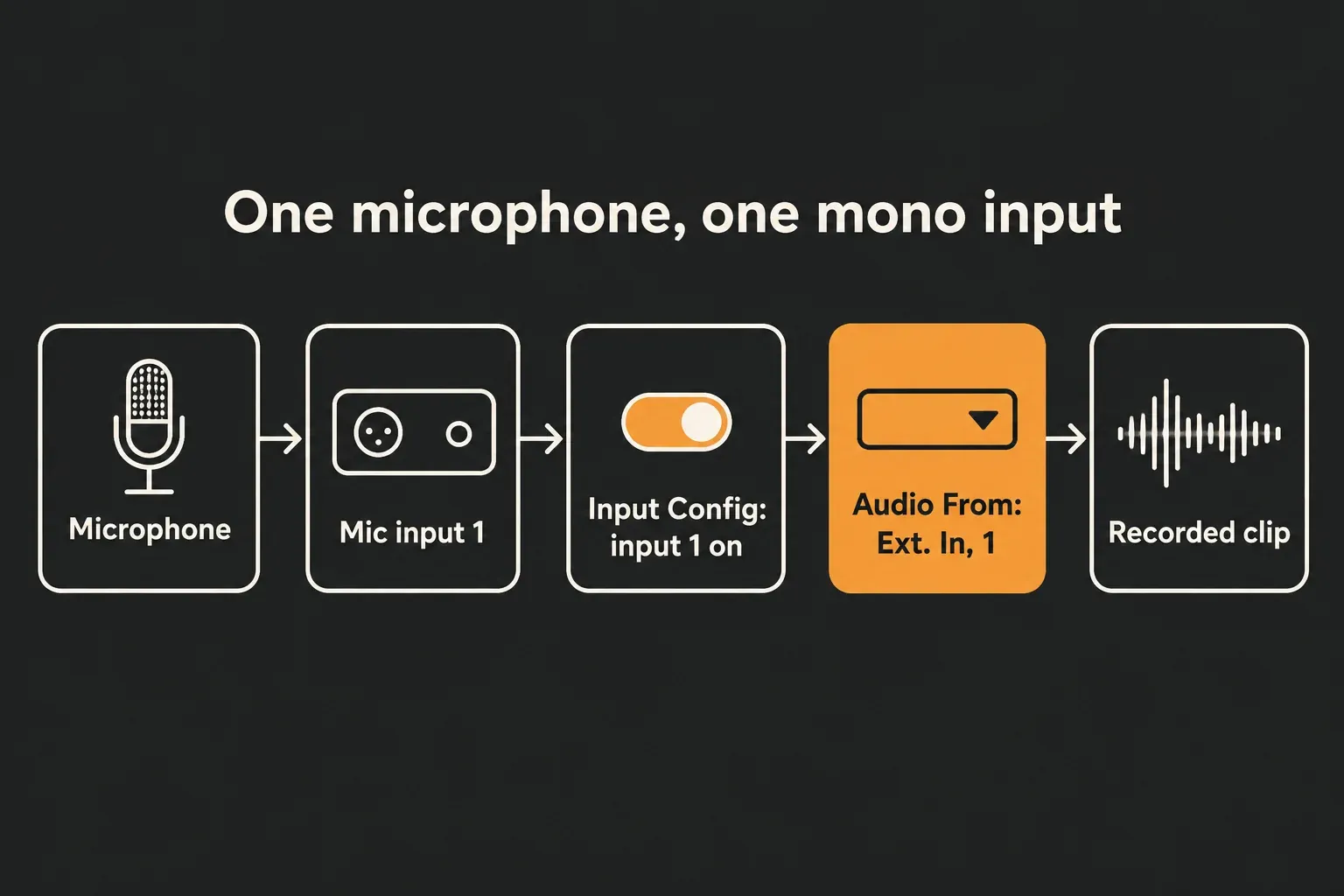
Arm the vocal track, speak and watch its input meter. A silent meter points to the cable, the hardware input, the input mode, the gain or Input Config, and never to the track fader. On a Mac, also check Live’s microphone permission and Mic Mode: the permission covers USB mics and interface inputs too, and Ableton recommends Standard Mic Mode. A moving meter proves that an input arrives, not that the headphone route is right.
Choose direct monitoring or software monitoring
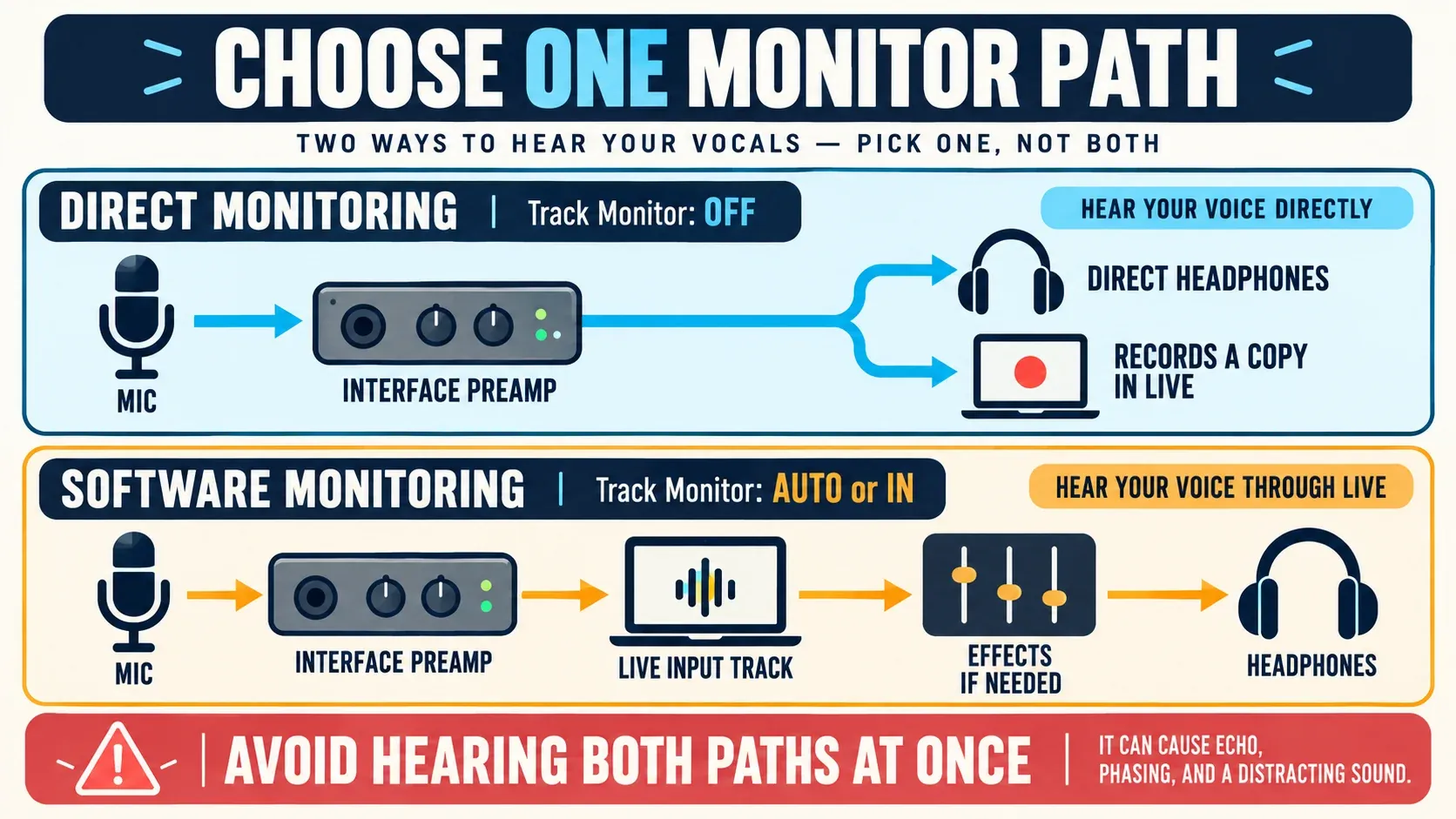
Direct monitoring routes the microphone from the interface input straight into its headphone mix, without sending that listening path through Live first, while a copy still reaches Live for recording. It usually gives the shortest monitoring path, though the available blend, routing and onboard effects depend on the interface. If headphone spill still ends up on the take, RX De-bleed is the repair route.
Software monitoring sends the input through the Live track, its device chain and the output path before it reaches the headphones. The singer can hear Live effects, but the path includes interface conversion, the audio buffer and any device latency. The diagram below shows two simple starting setups, each with one dry monitoring path.
| What the singer hears | Interface direct monitor | Live Track Monitor |
|---|---|---|
| Interface's input mix | On | Off |
| Live input while armed and no clip is playing | Off | Auto |
| Live input continuously, even when not armed | Off | In |
The Live 12 monitoring documentation defines Auto as passing the input while the track is armed and not playing a clip. In passes the input all the time and suppresses clip playback, and Off stops Live from monitoring that input while still allowing recording. Two audible dry paths can produce a doubled or comb-filtered voice, so start with one. A deliberate direct dry signal plus a fully wet cue reverb is a different case: the Live route must carry no second dry vocal, and the reverb still arrives with its own delay.
Build a low-latency recording Set, not a finished mix
Latency is the time taken by conversion, buffering and processing. A smaller buffer generally shortens the software-monitor path but makes the computer process audio more often, and once the buffer is too small for the Set, crackles and dropouts replace the latency problem.
For software monitoring, choose the lowest buffer that remains stable through a full rehearsal. Save a separate copy of the Set before removing mix devices, then check the monitoring chain:
- remove latency-inducing devices from the saved tracking copy, including lookahead, linear-phase or pitch-processing devices when their current mode adds delay;
- check the vocal track, its Group, receiving tracks and the Main path;
- use a simple cue effect and check its reported device latency;
- freeze unrelated instruments to reduce CPU demand, or commit them to audio and remove the original devices to get rid of their device latency;
- close unnecessary background work instead of installing yet another monitoring plug-in.
With Delay Compensation enabled, hovering over each device’s title bar shows its latency in samples and milliseconds in Live’s status bar. Ableton’s device-latency reference explains why switching off the Device Activator or bypassing leaves the reported latency in place. Remove the device from your copy; an unlit button does not make the path faster.
Ableton’s current latency guide recommends direct monitoring when the interface supports it, with Track Monitor Off for that route. It also explains that Reduced Latency When Monitoring bypasses the compensation added by other tracks for the monitored path, without removing latency from devices on the vocal track, its Groups or the Main route. It is a specific tool, not a universal latency switch. If you use it for a take, check the recorded vocal against the backing afterwards, since Ableton’s recording-sync guidance warns that recordings made with Reduced Latency When Monitoring can end up out of sync. Normal Delay Compensation stays on for recording, arranging and export.
Set preamp gain from the loudest realistic phrase
Place the singer at the intended distance and ask for the loudest line of the real performance, not a quiet “check.” Raise the interface preamp until the signal is strong and clean, then leave room for a slightly louder take. If any input stage clips, lower the hardware gain.
A conservative peak makes a better starting point than the edge of clipping, and Focusrite gives around −12 dBFS as an example. It is a starting point, not a pass/fail target. Leave more room if the singer’s level varies a lot, and watch the actual preamp or converter overload indicator. A recording that is already clean gains nothing from more gain just to make the waveform look bigger.
The Live track fader sets the track’s output level and cannot repair clipping that has already happened at the microphone preamp or converter. Set the capture level at the interface, and make the singer comfortable through the headphone or cue mix without touching the recording gain.
Use Keep Latency from the monitoring decision
Live 12 adds Keep Monitoring Latency in Recording to tracks monitored through Auto or In. With Keep Latency on, Live adjusts the recorded timing to reflect the round-trip delay the performer heard through software monitoring. With it off, the recorded audio keeps the timing at which it reached Live, without that monitoring delay. Auto and In keep the option on by default. Right-click Auto or In to change it, or enable Track Options in the mixer’s view menu to see the Keep Latency toggle.
The current Ableton recording-sync guide recommends Monitor Off for a vocalist heard through interface direct monitoring. If the vocalist needs to hear reverb through Live while the dry performance timing should not inherit the monitoring delay, use Auto or In and consider switching Keep Latency off. Record a short clap or consonant test against the metronome before the real take and check the playback, rather than discovering the timing choice after an hour of vocals.
Guessed Track Delay or Driver Error Compensation values are not a way to push a take into place. Driver Error Compensation corrects measured errors in the interface’s reported latency and does not make the voice reach the headphones any faster. The calibrated physical loopback lesson is only for testing a suspected reporting error.
Check a short take before recording the song
- Name the track and choose the exact mono input.
- Select direct or software monitoring and confirm there are not two dry vocal paths.
- Set the preamp gain from the loudest rehearsal line.
- Set a count-in, or leave enough pre-roll for breathing and position.
- Arm only the intended vocal track.
- Use Arrangement Record for a short test, then Stop. Disarm and switch Monitor from In to Auto or Off before playing the clip back.
- Check for noise, distortion, headphone bleed, timing and the start of words.
- Save the Set before recording the full performance.
Keep the headphones at a safe level. Louder headphones do not keep improving pitch or timing, and too much cue level adds fatigue and bleed. Give the singer a clear backing track, enough of their own voice and a way to ask for changes without anyone touching the recording preamp.
Record clean takes and preserve the source
On an audio track recording Ext. In, Live records the selected input before that track’s Live effects. You can hear an insert compressor or reverb while the recorded clip stays unprocessed by them, although hardware processing before the input still gets printed. To record Live effects on purpose, use a separate post-effects routing; the manual’s Post-Effects Recording example explains the difference.
For the first take in Arrangement: place the cursor where recording should start, with Loop and Punch-In/Out off for a simple uninterrupted pass. Arm the vocal track and press the Control Bar’s Arrangement Record button. If the transport does not start, press Play; this depends on Start Playback with Record in Settings → Record, Warp & Launch. Press Stop at the end, and switch Monitor In to Auto or Off for playback, or Live keeps sending the live input in place of the clip.
For a separate Session clip: arm the track and click the Clip Record button in an empty slot. The clip’s Launch button ends recording and loops the result, while the Control Bar’s Stop button stops everything. These controls are documented in Recording New Clips.
Arrangement suits linear vocal passes and later take-lane comping, and Session suits separate clips and launches. Keep the original takes while choosing phrases and adding fades; there is no need to bake a different effect chain into every attempt.
After a useful take, stop, disarm while you talk about the next pass, and save. Name the takes or add locators while you still remember what worked. Detailed warping, normalization and consolidation belong to the editing stage, so the original performances stay available for comparison.
Keep the recording session light
CPU and RAM: a small buffer gives the processor less time for each block. Freeze unrelated instruments if they get in the way of stable recording, and avoid duplicating a large instrument-heavy Set just to store alternate vocal takes. Extra audio files on disk are not the same as extra samples loaded into RAM.
Storage: keep enough free space for a full session and save the Set before the long take. Once the Set is saved, Live stores recorded samples in the Project’s Samples/Recorded folder, while unsaved Sets use the configured Temporary Folder. Keep the source takes until the edit and the backup are secure. After tracking, keep the Set that contains the new takes and restore the mix devices there from your original Set, never overwriting this recording Set with the old mix version. Raise the buffer once you no longer need live monitoring.
FAQ
How do I record vocals in Ableton Live 12?
Select the interface or USB microphone in Audio settings, choose the microphone’s mono Ext. In input on an audio track, set up one dry monitoring path and check the loudest phrase. Arm the track, press Arrangement Record and press Play if the transport stays stopped. Press Stop, then use Auto or Off for clip playback.
Should vocal monitoring be set to Auto, In, or Off?
Off for interface direct monitoring. Auto to hear Live’s input while the track is armed and not playing a clip. In monitors the input continuously and suppresses clip playback, so switch to Auto or Off to hear the recorded take. Avoid two dry monitoring paths.
Why do I hear my voice twice while recording?
Direct monitoring and Live’s software monitoring may both be sending a dry vocal to your headphones. Either keep direct monitoring and set the Live track to Off, or disable direct monitoring and use Auto or In. If the doubling remains, check other monitored tracks, returns and the interface mixer.
How loud should vocals be recorded in Ableton Live?
Set the input gain from the singer’s loudest realistic passage and leave headroom below clipping. Around −12 dBFS peak is a conservative starting example, not a universal target. Watch the hardware input as well as Live, because lowering the track fader cannot repair preamp or converter clipping.
How can I reduce vocal monitoring latency in Ableton Live?
Use interface direct monitoring where available, or a stable low buffer for monitoring through Live. In a saved tracking copy, remove latency-inducing devices from the vocal, the downstream Groups, receiving tracks and Main, and check any cue Returns. Bypass or Device Activator off leaves the reported device latency in place.
What does Keep Latency do for vocal recording in Live 12?
With Auto or In, Keep Latency decides whether the recorded timing keeps the delay heard through Live, and it is on by default. For a singer who needs Live reverb but wants the original performance timing recorded, consider switching it off and check a short take. With direct monitoring and Monitor Off, Keep Latency does not apply.
