
Short answer: show the vocal track's Take Lanes, audition complete phrases, then copy the strongest regions to the main lane. Build the performance before fixing noises or timing. Move every suspicious boundary, create short crossfades only where the edit needs them, and keep the source lanes until the comp is approved. Consolidate last — it creates a new file and is not an Undo substitute.
Checked September 8, 2026 against current Live 12 documentation. Comping is available in Intro, Standard and Suite from Live 11 onward; linked-track editing requires Standard or Suite. The workflow below builds an editable performance from recorded takes, with tuning and vocal mixing left for later.
Comping starts after capture, not during it
A comp is one main performance assembled from parts of several recordings. If the input, monitoring or timing was wrong, return to the vocal recording workflow before choosing phrases. Comping cannot restore a clipped preamp, remove headphone spill cleanly or make an uncomfortable singer sound relaxed.
Keep the alternate recordings so you can change a word, restore a breath or move an edit later. The Record and Arrange hub connects this editing stage with recording and arranging the rest of the song.
Save a source version before opening the lanes
Save a clearly named captured version, such as Song_Vocals_Captured, then a comping version. Related Sets can share media inside one Live Project, which avoids unnecessary file copies. Those versions are not independent backups if they all rely on the same disk and audio files: keep a separate backup of the complete project too.
Rename the takes by pass or intention while they are still recognizable: full take, quiet take, final chorus, doubles. Do not delete a lane because its first line is weak. The same lane may contain the cleanest breath or final word later.
If you have not recorded the takes yet, set the vocal input and monitoring, arm the audio track, define an Arrangement loop around the phrase and record several passes. Use a new or backed-up capture track, not an unprotected finished comp. The recording guide covers levels, count-in and monitoring. For existing files, insert take lanes and align those recordings to their true common start; importing them alone does not synchronize different performances.
Show Take Lanes and understand the main lane
In Arrangement, right-click the vocal track header and choose Show Take Lanes, or use the main-lane toggle. The shortcut is Ctrl+Alt+U on Windows or Cmd+Option+U on Mac. Take lanes are hidden in Automation Mode; the Show Take Lanes command itself exits that mode. If you are looking at the Session grid, switch to Arrangement first.
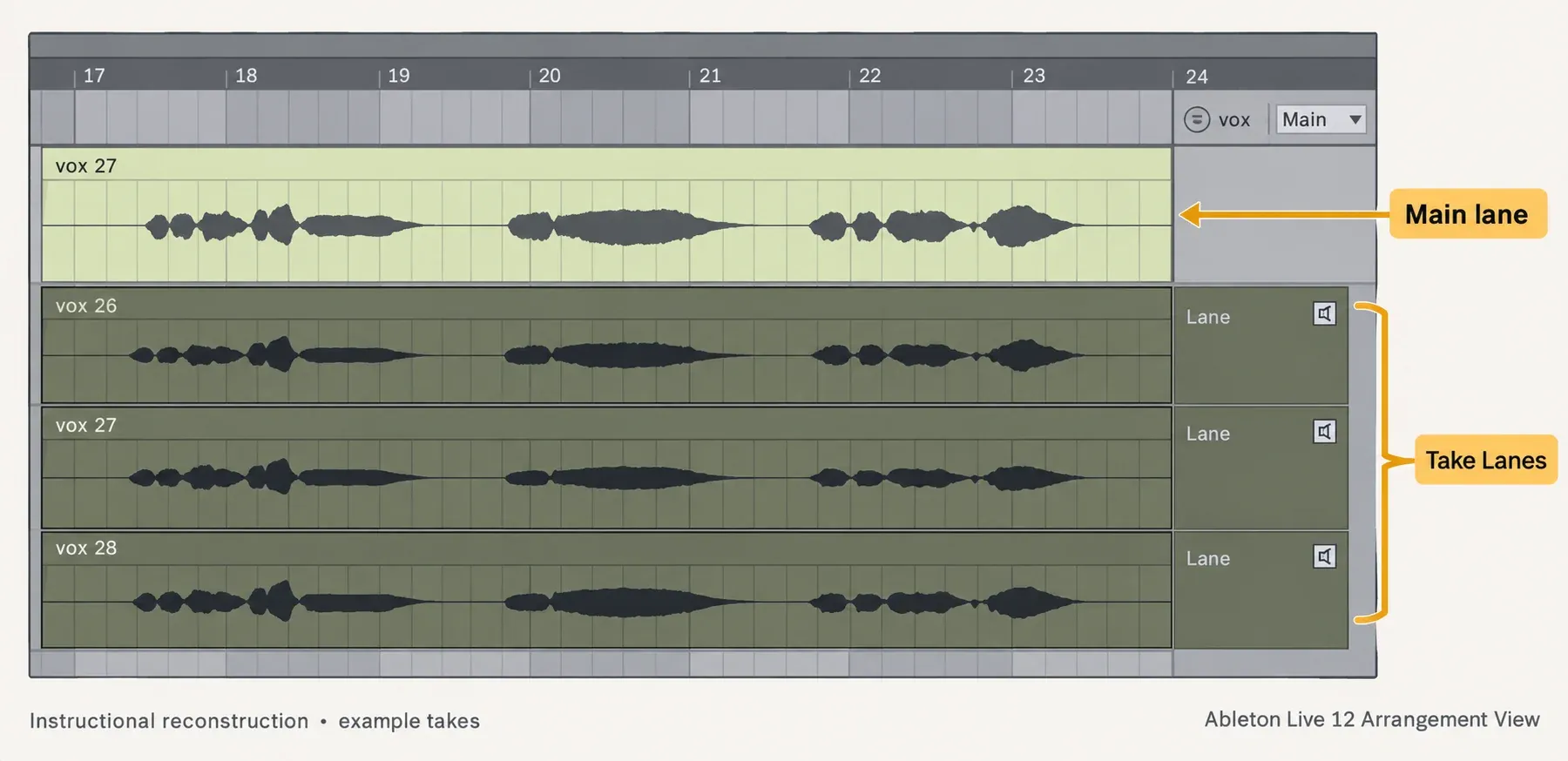
The main lane is audible unless a take lane is being auditioned. Arrangement recording creates take lanes as needed, reusing an existing lane when there is no clip after the punch-in point. The latest recorded material also appears on the main lane. Preserve an existing comp before recording again on that track—do not assume another pass only adds a harmless lane beneath it.
Audition in phrases, not isolated syllables
Select a phrase with enough context to hear its entrance and ending. Click a take lane’s speaker icon, Audition Take Lane, or select the lane and press T. Only one take lane per track can be auditioned at a time. Turn audition off before judging the assembled main-lane comp, otherwise you may still be hearing an alternate take.
Write one reason for the choice: “take 3 carries the sentence,” “take 1 has the clean ending,” or “take 4 matches the next breath.” A reason prevents endless A/B switching. If two takes are equal, choose the one that requires fewer boundaries.
| Pass | Question | Do not decide yet |
|---|---|---|
| Performance | Which full phrase communicates the line? | Plugin chain, EQ, tuning |
| Continuity | Does the choice enter and leave naturally? | Final fade length |
| Detail | Is one word, breath or consonant genuinely better elsewhere? | Consolidation |
Prefer a longer convincing phrase to several technically cleaner syllables that do not join naturally. Replace a word only when it improves the line in context. Keeping every selection at a grid boundary is less useful than preserving the timing of the actual consonant or breath.
Copy selected regions to the main lane
Select time inside the chosen take-lane clip and press Enter, or choose Copy Selection to Main Lane from its context menu. In Draw Mode, drag over the region and release. With a clip or time range selected, Ctrl+Up/Down on Windows or Cmd+Up/Down on Mac cycles the chosen material through other takes. Selecting a lane header instead can reorder lanes, so check the selection before using that shortcut.
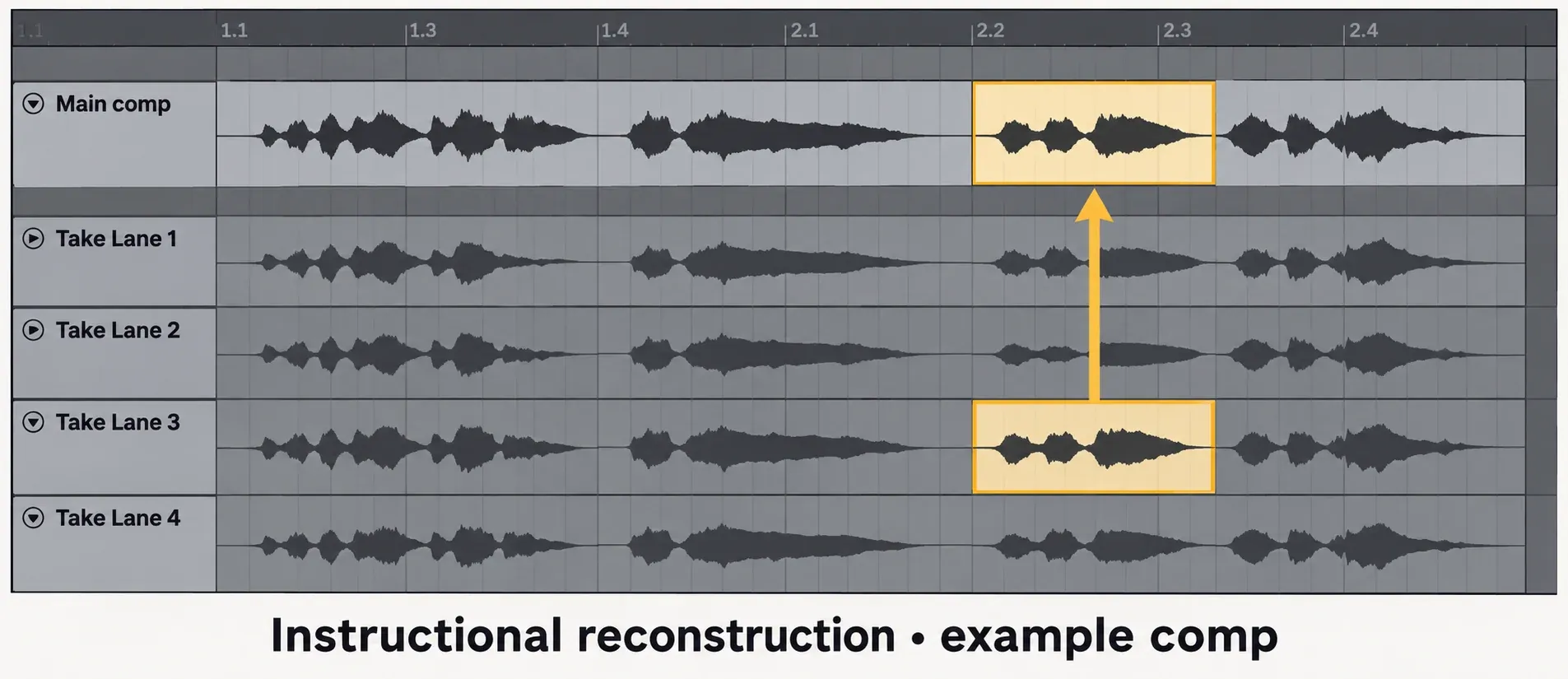
The main-lane clip is an independent copy of the take-lane clip’s settings and arrangement. Editing that copy does not edit the source-lane clip. They may still refer to the same underlying audio file, so this is not permission to delete or externally overwrite the source sample. Keep both the lane alternatives and their media available.
Move the split point before adding a fade
After the whole performance exists on the main lane, turn off the loop and listen from before the first edit to after the last. Mark a boundary only when you hear a click, doubled consonant, missing breath, abrupt ambience change or level discontinuity.
Where source highlights are visible, drag a highlight edge to adjust the split between adjacent comp regions. Highlights require matching clip positions and properties; independently edited clips may no longer show them. Look for a quiet gap or a compatible sustained sound and listen across the boundary. Avoid cutting a consonant merely because the grid line happens to run through it.
For adjacent comp clips, Create Fades on Clip Edges in Record, Warp & Launch Settings creates four-millisecond crossfades. To add fades manually, select the adjacent clips and press Ctrl+Alt+F on Windows or Cmd+Option+F on Mac. Then adjust the fade handles in Arrangement while listening. Four milliseconds is the documented automatic value, not a universal repair for a change of room tone or performance.
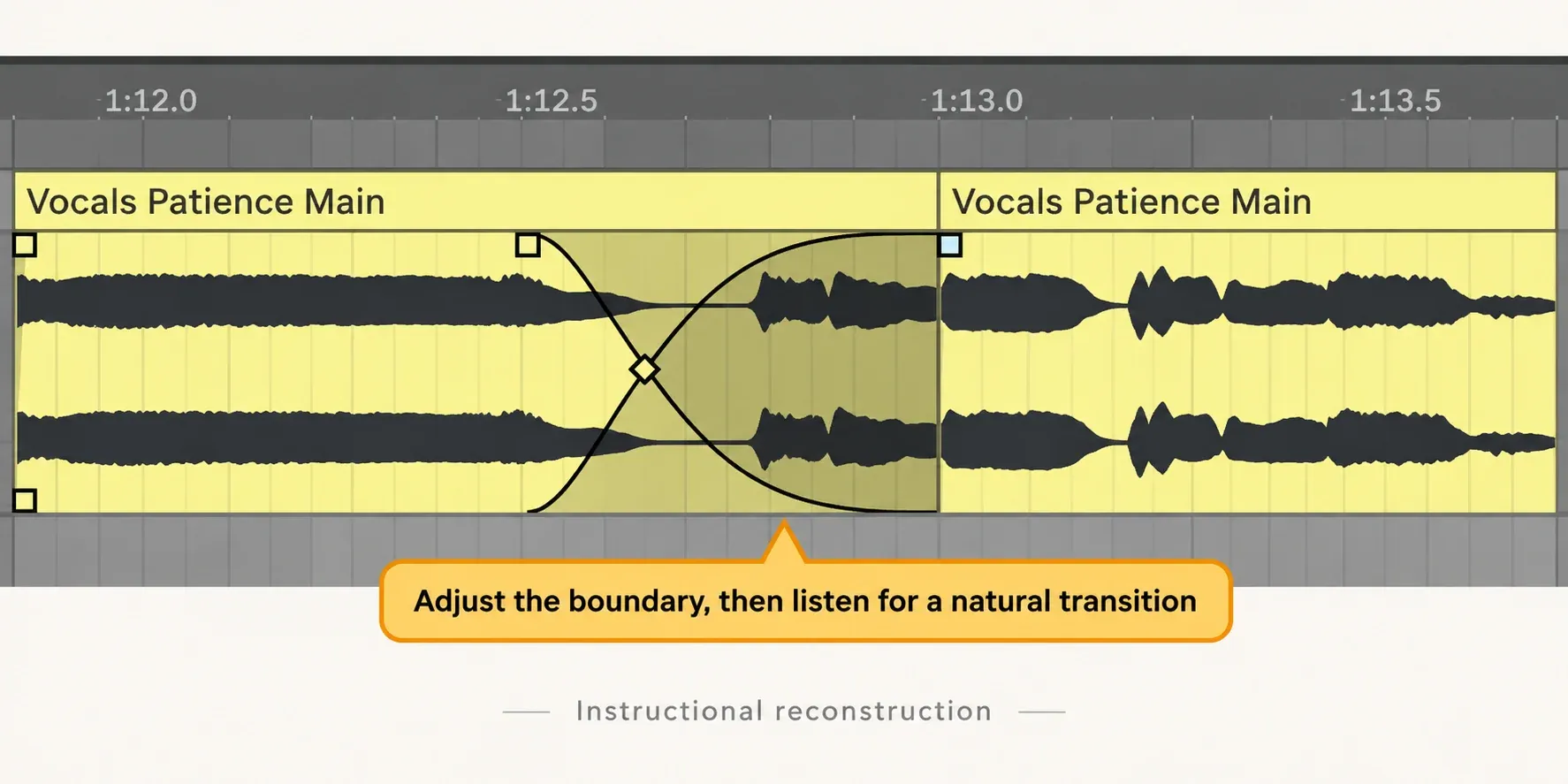
A long crossfade can smear consonants, double pitch movement or make one breath swell. Use the shortest fade that removes the discontinuity. If the edit still announces itself, change the source take or boundary.
Separate cleanup from performance selection
Once the sequence feels like one singer giving one performance, make a cleanup pass. Trim unwanted pre-roll only when it is not useful for a fade. Reduce an isolated breath only if it distracts; do not erase every breath and leave an unnatural vacuum. Align timing only when the phrase is musically late or early, not because every consonant misses a grid line.
Compare the takes through the same monitoring chain. Starting with little processing makes it easier to hear edit problems; if a deliberate vocal effect is central to the performance, also check the choices through that sound. Apply pitch correction after the main phrase choices are stable, rather than let different tuning presets decide which take you prefer.
Do not delete unused lanes as a routine cleanup
Live provides Delete All Unused Take Lanes, which removes lanes without material currently represented in the main-lane comp. That is a destructive editorial decision, not a harmless screen cleanup. A currently unused lane may contain the replacement needed after a lyric, tuning or arrangement change.
Hide the lanes to reduce screen clutter without discarding alternatives. Delete unused lanes only when a recoverable pre-comp Set and its media are backed up. Removing lane references is not the same as safely deleting unused audio files across every saved version of the project.
Consolidate only when one new clip is useful
Listen once for the performance, again across edits, and at a comfortable lower level for abrupt changes. These are useful listening tasks, not a rule that three plays certify a finished vocal. Save the chosen comp. You can mix its separate main-lane clips without consolidating them.
Select the intended main-lane time range and use Ctrl+J on Windows or Cmd+J on Mac to Consolidate. Live creates a new audio file in Current Project → Samples → Processed → Consolidate. The official Committing Audio guide distinguishes what is printed: Warp/time-stretching, transposition and applicable clip-level processing are committed, but Mixer envelopes in Clip View and the track’s device chain are not. Do not assume every envelope is baked into the new file.
Consolidate normalizes the new audio and compensates with the resulting clip’s Gain to maintain the previous playback level. Resetting that Gain or using the raw file elsewhere can change the level you hear. Check the beginning, joins and ending after consolidation. If you need the vocal effects printed, use the appropriate bounce or export route instead.
Resource impact: finish the comp before rendering it
CPU: audition through a consistent, light chain and measure the actual busy passage before removing processing. Take-lane count alone is not a measured CPU ranking; effects and other active tracks remain part of the workload.
RAM: A Set with many clips and sample-heavy devices can use substantial memory even when only one vocal track is playing.
Disk and Set size: take recordings, consolidation files and complete project copies use storage. Before handing the comp to another computer, use Collect All and Save and verify the complete copied project there. The ALS alone is not the collection of vocal recordings or plug-ins.
Lowest-resource safe route: Comp the clean source, keep one safety version, and postpone heavy processing until the selected phrases are stable.
When not to optimize: Do not consolidate or delete unused lanes merely to make the Set smaller before the edit has survived the full-song checks.
FAQ
How do I comp vocals in Ableton Live?
Show the track's Take Lanes in Arrangement, audition complete phrases, select the best region in a take lane and copy it to the main lane with Enter or Draw Mode. Repeat by phrase, then move split points and create short fades only where a boundary clicks or changes room tone.
How do I show Take Lanes in Ableton Live 12?
In Arrangement, right-click the track header and choose Show Take Lanes, or use Ctrl+Alt+U on Windows / Cmd+Option+U on Mac. The command exits Automation Mode, where take lanes are hidden. Comping is available from Live 11 in Intro, Standard and Suite; linked-track editing requires Standard or Suite.
Does editing the comp change the original vocal takes?
Main-lane and take-lane clips have independent settings, so editing the comp does not edit the source-lane clip. They can still share the underlying audio file. Keep the source lanes and media backed up, and save the comp before recording new material onto its track.
Why does a vocal comp click at an edit?
The boundary may cut a waveform away from a quiet or compatible transition, or adjacent clips may have different room tone or level. Move the split point and add a short crossfade; do not stretch a long fade across consonants merely to hide a poor selection.
Should I consolidate a vocal comp?
Consolidate only after selection, timing and fades are approved and a recoverable source version is saved. Consolidation creates a new pre-effects audio file and commits clip-level changes; it is not required just to hear or mix the comp.
Does consolidating a vocal comp include track effects?
No. Consolidate creates a new pre-effects audio file. It commits Warp, pitch and applicable clip-level processing, but not the track device chain or Mixer envelopes in Clip View. The new file is normalized with compensating clip Gain. Use bounce or export when you need effects printed.
