
Short answer: Live 12.1 added Auto Shift in every edition. For ordinary vocal correction, put it on a clean solo vocal, start at 100% Dry/Wet, select the input range and correct musical scale, then adjust Correction Strength and Smooth. Tuner only measures pitch. Clip Transpose shifts an entire clip or a separately edited region; Auto Shift continuously follows the performance but does not provide an offline editor of detected notes.
Checked September 8, 2026 against the current Live 12 manual. If the recording itself is noisy, doubled or poorly edited, start with the vocal recording setup and take-lane comping. If the singer hears a delay, use the recording-latency checks; stronger tuning will not fix monitoring.
Auto Shift, Tuner or clip Transpose?
| Job | Stock route | Important limit |
|---|---|---|
| See whether a sustained note is sharp or flat | Tuner | Measures; does not move pitch |
| Correct one-note-at-a-time audio in real time | Auto Shift | Input analysis is monophonic |
| Create hard-tuned or subtle scale correction | Auto Shift Quantizer | Wrong key produces confidently wrong notes |
| Drive the result from exact notes or build harmonies | Auto Shift MIDI input | Needs a MIDI source and deliberate routing |
| Move a whole clip or selected region | Clip Transpose | Not automatic note-by-note correction |
| Edit individual notes, transitions and drift offline | Manual clip edits or specialist editor | No stock Auto Shift timeline of detected notes |
Use Tuner to identify a stable note, Auto Shift for continuous correction, and clip Transpose when a complete phrase needs a fixed interval change. If only one region needs shifting, split and edit a copy with suitable fades. Check timing and tone after transposition; pitch and playback speed are not independent under every clip/warp setting.
If Auto Shift is missing, check that Live is version 12.1 or newer and search the Audio Effects browser without restrictive filters. The 12.1 release notes confirm that it is included in all editions, including Lite; installing a third-party Auto-Tune plug-in is a different task.
Start with a clean monophonic signal
The current Live 12 Auto Shift reference specifies a monophonic audio signal for pitch tracking. A lead vocal, bass line, whistle or solo instrument is a suitable source. A chord, full stereo mix, doubled vocal printed into one file or reverb-heavy bus contains competing pitches and reflections. The device may jump between partials because there is no single note to follow.
Comp the vocal before tuning and keep the original takes. Use the isolated lead rather than a printed stack of doubles. Place Auto Shift before added reverb and delay so that the detector receives the cleaner signal. If ambience or bleed is already recorded into the file, a different source take may help more than aggressive gating. Keep breaths and consonants; cutting them indiscriminately damages the words.
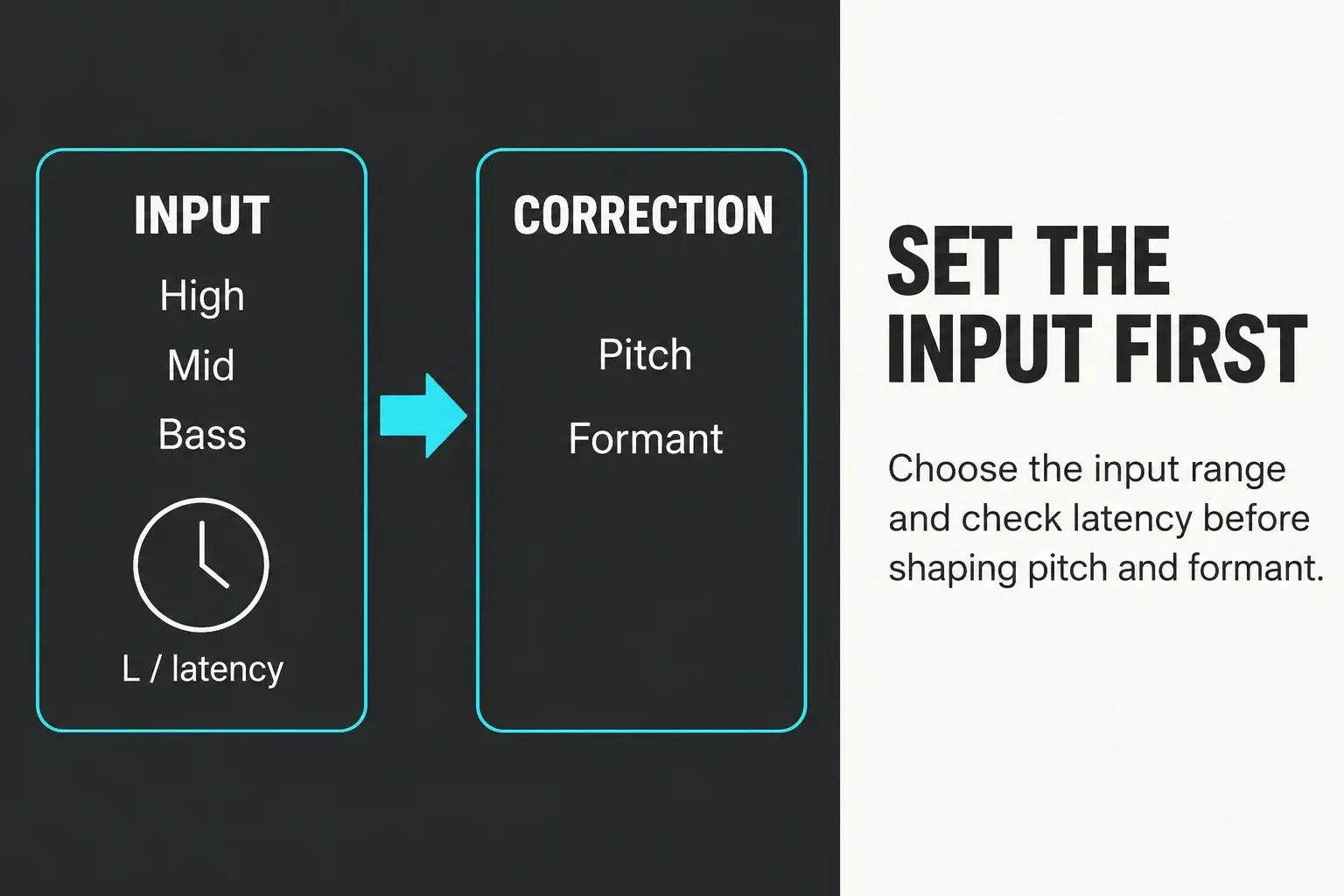
Select the input Pitch Range
Choose High, Mid or Bass from the input’s register. The range indicators show where incoming pitches fall; watch a complete phrase, including its lowest and highest notes. A range name is not a voice-type preset. Compare detection in the plausible ranges, then check the latency readout because the choice also changes device latency.
Watch the Input Pitch display while the dry signal plays. If it names the stable notes sensibly but correction sounds wrong, inspect the key, included notes and transition behavior. If the display itself jumps unpredictably, return to the input: isolate the lead, reduce printed ambience, and confirm the range.
Set the musical target before the correction amount
In Quantizer, choose Root and Scale or select a custom set of allowed notes. Use Current Scale follows the clip’s current scale, rather than listening to the vocal and automatically discovering the song’s key. It also disables the manual Root and Scale choosers. Leave genuine borrowed or chromatic melody notes available; forcing them into a simpler scale can create wrong notes.
Loop the hardest phrase and watch the target note beneath the correction meter. When the performance approaches an excluded note, Auto Shift must choose somewhere else. Increasing Correction Strength cannot repair a wrong target; it only makes the wrong decision more obvious.
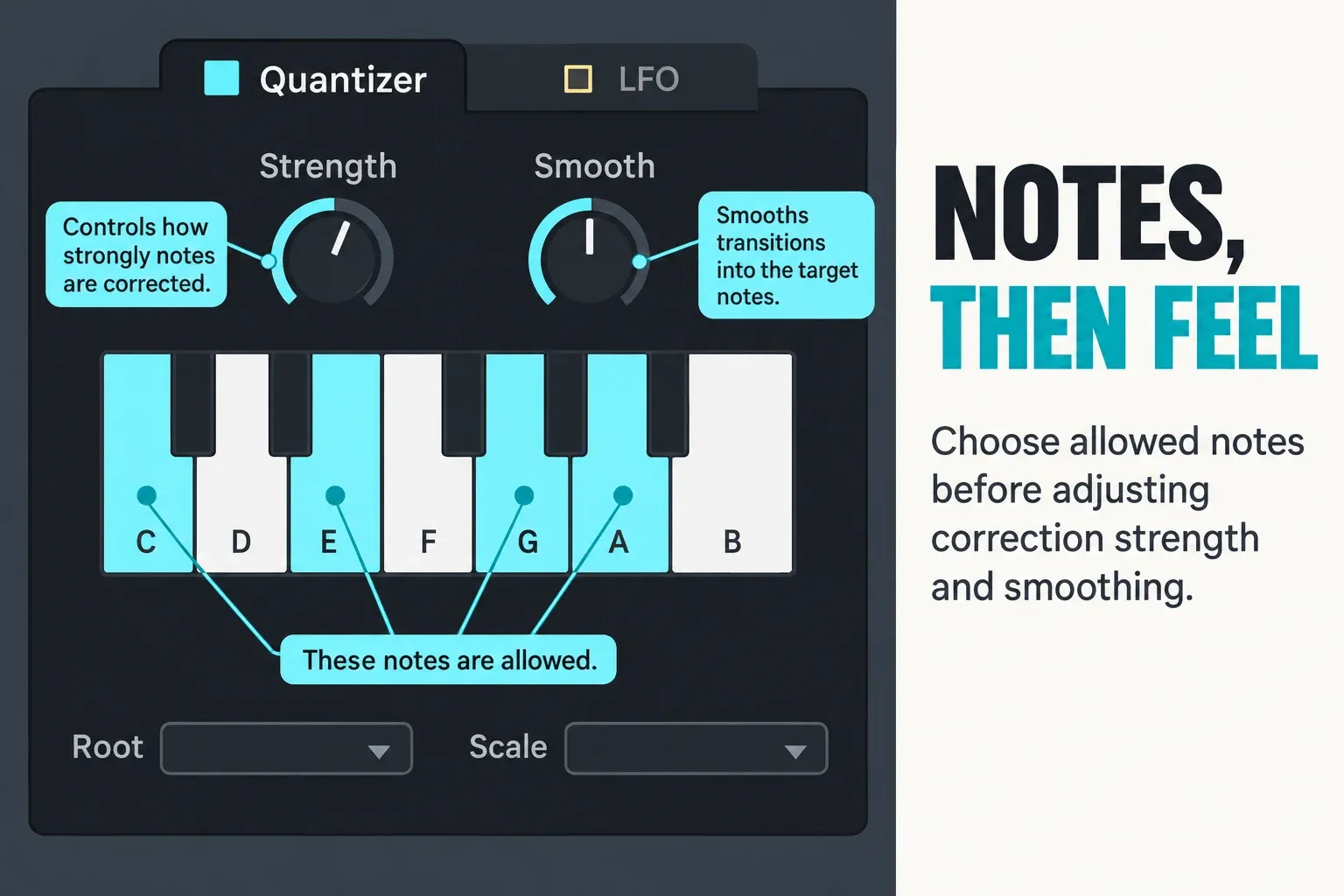
A starting point for natural correction
- Set MIDI On off for ordinary scale-based correction. Start with Dry/Wet at 100%, so you hear the corrected signal rather than a dry/corrected double.
- Choose Pitch Range and the intended notes. For an initial experiment, set Correction Strength around its midpoint and Smooth on with Smoothing Time at 80 ms. This is a suggested starting point, not a tested universal vocal preset.
- Loop a difficult phrase. Increase strength only if a held note still misses the intended center; verify the target before increasing it.
- If transitions sound abruptly stepped, try more smoothing. If a fast melodic change seems to arrive late or smear, try less. The available Smoothing Time range is 0–200 ms; musical context matters more than one number.
- Leave creative pitch/formant shifts, added vibrato and LFO modulation neutral while judging repair. Compare bypass at matched loudness in the arrangement.
For an obvious hard-tuned effect, use stronger correction and reduced or disabled smoothing intentionally. At 50% Dry/Wet, the uncorrected and corrected signals are blended, which can make a doubler effect; it is not equivalent to reducing Correction Strength. If the vocal sounds like two pitches at once, check Dry/Wet, parallel tracks and direct monitoring before changing the scale.
Use MIDI when the target must be explicit
Auto Shift can take notes from another MIDI track instead of the Quantizer. In Mono mode, one incoming note sets the target and Glide controls movement between overlapping notes. Poly mode can create up to eight voices for harmonization. This does not mean Auto Shift suddenly analyzes a polyphonic source: the input remains a monophonic line, while MIDI instructs or multiplies the processed output.
MIDI In reveals the panel; MIDI On activates MIDI-controlled correction. Choose the source track and verify that notes reach the MIDI tab. Post FX or Post Mixer includes a Scale MIDI effect on that source; Pre FX does not. Quantizer scale awareness is unavailable while MIDI input is active. If the wet vocal disappears, check the notes and routing first. Note Latch can hold a note until the next Note On, and Release Time can extend the envelope after release—silence is not necessarily tied exactly to a Note Off.
Know what formant and pitch shifting are doing
The Auto Shift reference distinguishes the Quantizer’s scale-degree pitch shift from the Pitch section’s semitone and fine-cent shifts. Formant Shift changes resonances and vocal character without itself transposing the fundamental pitch. Formant Follow controls how formants follow a pitch shift. These are creative controls, not a cure for a wrong target note or a guarantee of a natural voice.
Compare the full phrase, not one vowel in solo. A setting that sounds impressive on a held note may make consonants, breaths or fast note changes less believable in the mix.
Decide whether correction belongs in the monitor path
Auto Shift reports its latency, and its Pitch Range affects that latency. In the official input-section documentation, Live Mode can reduce latency for performance, but Ableton warns that slight glitches may occur at note onsets or during rapid pitch changes. If the performer does not need to hear the corrected sound, monitor directly or use a light cue path and tune after recording. If the effect changes how the singer performs, use Live Mode only after testing the most difficult phrases at the actual buffer.
Keep the correction reversible and the session light
- CPU: measure the actual project at the intended buffer. MIDI harmony voices and other active processing change the workload; do not assume an unmeasured universal cost per Auto Shift instance.
- RAM: Auto Shift does not require a large sampled-instrument library. The project’s loaded audio, instruments and other devices still need memory; no comparative memory benchmark is claimed here.
- Disk: printing a processed take creates another audio file. Keep a labeled dry source and a recoverable Set rather than overwrite the only recording.
- If live correction is unnecessary, record dry and process the comp afterward. When a measured bottleneck warrants printing or freezing, retain the editable source and verify the render before disabling the working chain.
When stock correction is not enough
Auto Shift has no offline lane of detected vocal notes where you can redraw one note's center, transition and drift independently across time. You can automate parameters, split clips, use different instances or drive targets with MIDI, but a complicated phrase can turn that workaround into more editing than a dedicated note editor.
Keep Auto Shift when continuous correction or a creative real-time effect does the job. For an isolated problem note, a manual clip edit may be enough; for detailed note centers, drift and transitions, evaluate a dedicated editor. A specialist editor is not automatically suitable for chords or a full mix either—check its supported source material and algorithm before buying.
Check the finished vocal
- Save a recoverable Set and comp a clean monophonic source, retaining the original takes.
- Choose Pitch Range and confirm stable detection across the phrase.
- For scale correction, turn MIDI On off, choose the actual allowed notes and start with Dry/Wet at 100%.
- Adjust Correction Strength and Smooth on difficult phrases; check transitions, consonants, breaths and sustained vowels.
- If monitoring through correction, test the latency readout and Live Mode at the performance buffer; keep a dry monitoring option where appropriate.
- Compare bypass at matched loudness in the full mix, render a test and retain the dry source for revisions.
Use a level-matched reference to judge the rendered vocal in context. For the next stage, the Mix and Export hub connects tuning with gain staging, effects routing and delivery.
FAQ
Does Ableton Live have built-in Auto-Tune?
Live 12.1 and later includes Auto Shift in all Live editions. It provides real-time monophonic pitch correction, scale or MIDI targets, pitch and formant shifting, vibrato and modulation. It is Ableton's stock correction device, though it is not the Antares product named Auto-Tune.
Can Auto Shift correct chords or a full mix?
No. Ableton specifies monophonic input for pitch tracking and correction. MIDI input can create polyphonic harmonies from that line, but it does not turn the source analyzer into a polyphonic chord editor.
How do I make Auto Shift sound natural?
Begin with the right Pitch Range and allowed notes, MIDI On off and Dry/Wet at 100%. Try medium Correction Strength, Smooth on and 80 ms as an adjustable starting example. Listen for stepped transitions or sluggish note changes and adjust smoothing accordingly; no setting guarantees a natural result for every performance.
Why does Auto Shift mute my vocal in MIDI mode?
With MIDI On active, the corrected signal needs MIDI note input. Check the selected source track, notes and tapping point; MIDI In only opens the panel. Note Latch can hold notes and Release Time can extend their envelope, so note release does not always cut sound immediately. Dry/Wet also determines whether you still hear the unprocessed signal.
Does Live Mode remove Auto Shift latency?
It can reduce latency, but Ableton does not describe it as zero-latency. The manual warns that slight glitches can occur at note onsets or rapid pitch changes, so test the actual performance and monitoring route.
Is Tuner a pitch-correction effect?
No. Tuner measures and displays pitch. It helps diagnose a note or instrument, but it does not move the incoming signal to a target note.
