
Short answer: give the reference its own audio track with Warp off and Pitch at zero, then route Audio To → Ext. Out to the same output pair as Main. Its sends stay at −∞ and its numbered Track Activator stays off. Once the Solo checks below are done, Solo on plays the reference and Solo off brings back the mix. Match the loudness of the passages before judging tone, and make sure neither path leaks into the other.
A reference track is not an instruction to copy someone else’s master. It gives your ears a stable point outside the mix after they have got used to your own work. The comparison turns misleading as soon as the reference is louder, warped, routed through your limiter or taken from a completely different section.
Build a reference track that stays outside the mix
- Save a separate version of the Set and lower the monitor volume before touching the routing. Create an audio track outside your mix groups and name it REFERENCE, DO NOT EXPORT. It stays disarmed with Monitor Off.
- Import a high-quality reference file you have permission to use. In Clip View, turn Warp off and set Pitch to zero semitones and zero cents. The clip itself stays active.
- Add Utility for gain trim. A low starting gain works best, with neutral panning and no accidental mono, width or polarity changes.
- Show In/Out. Set the reference’s Audio To to Ext. Out and pick the same hardware output pair that appears under Main Out. Look at the actual pair, because it is not always 1/2.
- Turn every send on the reference track down to −∞ and make sure no automation raises it again. Then switch its numbered Track Activator off. That is a separate control from Monitor Off and from deactivating the clip.
- Set Solo/Cue to Solo, clear any other solos and select only the reference track. For this check, turn Solo in Place off in a Solo button’s context menu, and note its previous setting so you can restore it later.
- Start the mix and the reference clip together. With the reference Track Activator still off, Solo off gives you the mix and Solo on gives you the reference. Verify the isolation described below before you rely on that switch.
- Pick comparable passages and trim Utility Gain until the changeover has no obvious jump in loudness. The interface monitor level stays fixed between A and B.
The muted-reference Solo method depends on that Track Activator step, because an active reference plays over your mix the moment you unsolo it. Test at low volume. With the reference soloed, stop only its clip, and the mix should go quiet too. If you still hear the mix, look at other solos, routed tracks, return paths and external monitoring before you compare anything. Then restart the reference clip, unsolo it and confirm that only the mix remains.
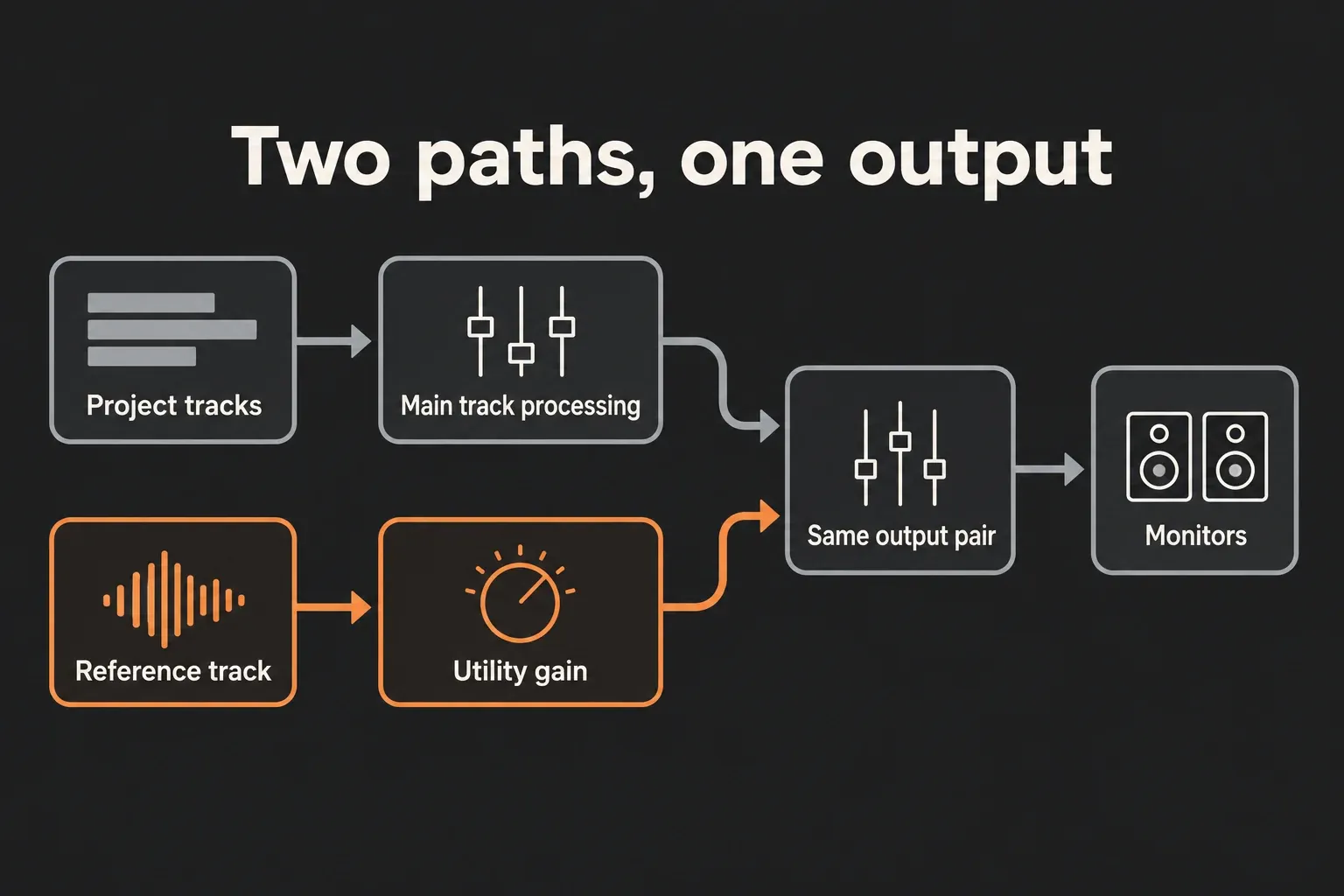
The current Live 12 Routing and I/O reference states that Audio To selects a track’s output and that Ext. Out addresses the available audio-interface channels. A track routed to Ext. Out does not use the Main track as its destination, so Main EQ, compression and limiting never touch the reference.
Direct Ext. Out routing leaves the sends working, though. The Live mixing reference places pre-fader sends before the track-active control, which is why muting alone is not enough and the reference sends belong at −∞. Solo in Place can also keep returns audible, and the setup above switches it off for the comparison. In a Set with more elaborate routing, trust what you actually hear over the assumption that Solo isolates every path. The return tracks and sends guide explains those parallel routes.
Show the I/O controls before changing Audio To
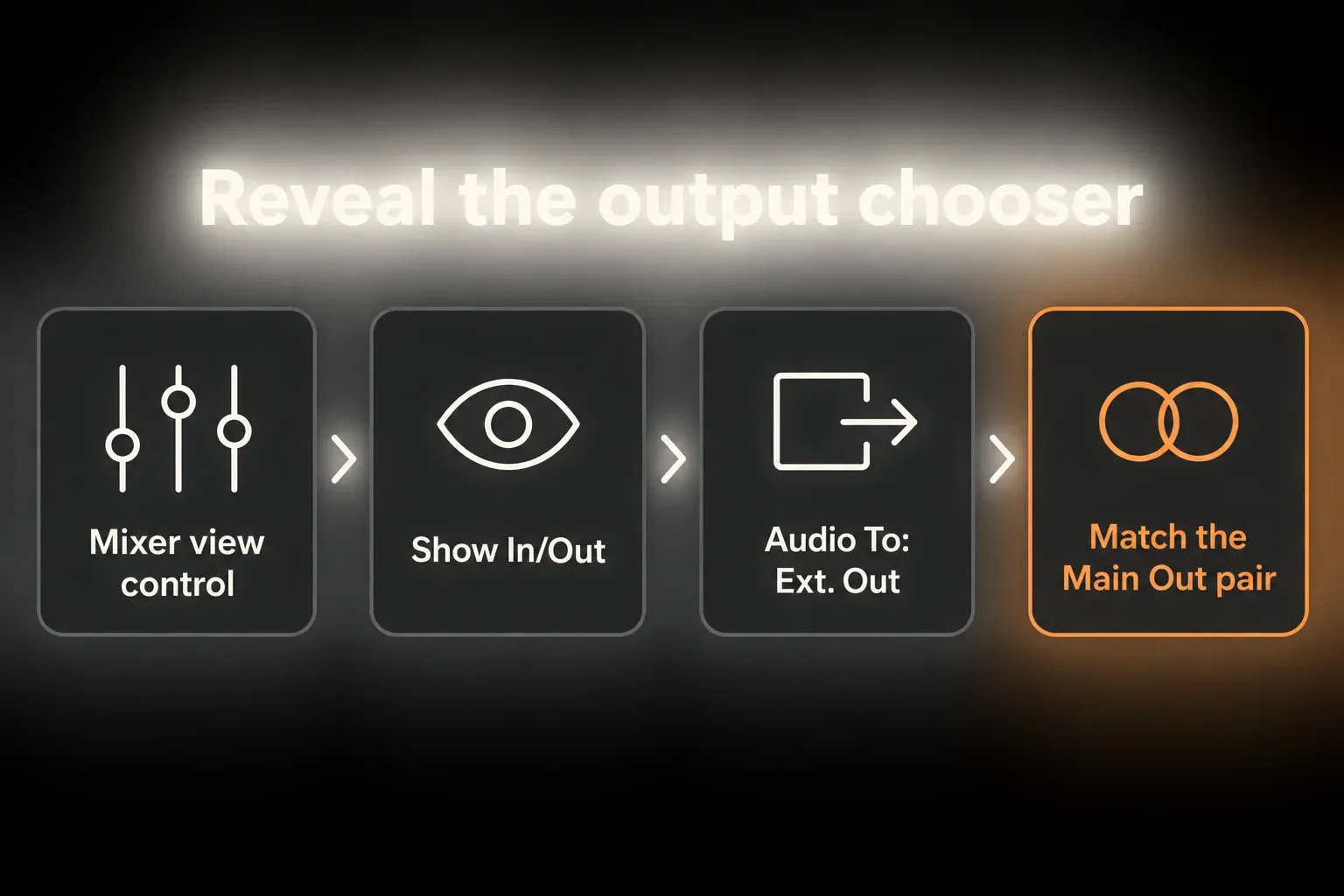
When Audio To is hidden, open the mixer view control at the lower right and show In/Out. The output channels you need also have to be enabled in Audio Settings, since an unused hardware pair can leave the reference silent while its track meter still moves. It is worth confirming that the reference clip is playing, Monitor is Off, and the mixer buttons are in Solo mode, not Cue mode with headphone icons.
Direct external routing bypasses the Main fader as well. During the comparison, keep the interface monitor level, the Main fader and the reference track fader where they are, and trim the reference with Utility Gain. Moving Main would change only the mix side of the A/B.
“Bypass Main” has one important exception: monitor correction. If room or headphone calibration sits on Main, the external reference skips it too. Either give both signals an equivalent correction path or compare with correction bypassed on both. Creative mix EQ, compression and limiting stay on the mix side, but a corrected mix should never be judged against an uncorrected reference.
Turn Warp off unless tempo conversion is part of the test
A finished reference should normally play at its original speed and pitch. With Warp on, Live can time-stretch the file to the Set tempo, which may soften transients and make the timing between sections seem closer than it really is.
Switching Warp off does not reset the clip’s Pitch controls or remove pitch envelopes, so check for zero semitones and cents with no pitch modulation. Ableton’s Audio Fact Sheet describes neutral playback under specific conditions, including a matching sample rate and no transposition. Warp off alone does not promise that the whole output path is unaltered.
To repeat a section without warping it, put the Arrangement loop around the passage or replay it by hand. The Loop switch inside an audio clip needs Warp, and turning Warp back on just to reach that button would undo the point. Comparable sections can sit at convenient timeline positions without stretching either recording.
Match loudness before judging tone
A mastered release is usually louder than an unfinished mix. iZotope’s reference-mixing advice recommends bringing the reference down before any EQ or compression decision. Skip that, and you end up changing the tone to chase a level difference.
I put Utility on the reference because its Gain value is visible and easy to reset. A good starting exercise is to repeat 10–20 seconds of comparable material with the Arrangement loop or manual replay, then trim the reference until switching no longer causes an obvious jump in loudness. That duration is a practical example, not a required measurement window. Match the body of the section, not a single peak.
Loudness meters help when they measure equivalent passages with identical settings. The mix meter belongs after the processing you are judging and the reference meter after Utility. Device-insert meters sit before the track faders, so identical readings need not sound equally loud when the faders further down differ. Treat the meters as a starting point and confirm the final match by ear, or measure both signals at a common point further downstream. A meter on Main cannot see the external reference route at all, and whole-song integrated values are no substitute for comparing the chosen passages.
Compare the same musical job
A sparse verse cannot fairly tell you whether your dense chorus has enough low end. The reference section should match yours in arrangement density, vocal role, drum activity and energy. It does not need identical instruments, only a comparable musical problem to solve.
- Low end: how long the kick rings, how long the bass sustains and how much space sits between them.
- Midrange: how steady the vocal or lead stays against guitars, synths and percussion.
- Highs: brightness and transient edge, without chasing codec fizz.
- Width: what stays in the center and what carries the sides.
- Depth: dry foreground elements against reverb and delay tails.
- Movement: changes between sections, rather than one static spectral curve.
Switch often and ask one question at a time
A narrow question makes the switch useful. “Is my kick tail longer?” points to something you can change, while “Does mine sound professional?” does not. Here is a short listening exercise that uses the verified Solo states and leaves the reference Track Activator off.
- Play five to ten seconds of your mix.
- Switch to the level-matched reference at the comparable moment.
- Go back to the mix.
- Write down one difference in plain language.
- Make one small change and repeat.
Always return to the mix before adjusting it. After a change that alters loudness, check the level match again, or the next comparison will answer a different question.
Use mono and quiet listening as separate tests
A fair mono check needs a common monitoring control further downstream, or equivalent Utility settings on both paths. A Utility only on Main will not reach the externally routed reference, and a mono reference against a stereo mix tells you nothing. Put both back in stereo when the mono test is finished.
At a quieter level, listen for whether the vocal, snare or lead still carries the song. In mono, listen for parts that weaken or vanish and for instruments fighting in the center. These are two separate checks, and neither replaces listening to the stereo mix at your usual comfortable level.
Use Spectrum as a clue, not a target shape
A spectrum analyzer can show broad differences such as unusually heavy sub energy or a persistent upper-mid buildup. It cannot decide whether those differences serve the arrangement. Different keys, instruments and master dynamics produce legitimately different curves.
A Spectrum instance on Main misses the reference routed to Ext. Out. Matching analyzer settings belong on the mix after its processing and on the reference after gain trim, or on both at a common point downstream, always on equivalent passages. Drawing an EQ curve to trace every peak is a mistake, since different notes and arrangements naturally produce different shapes.
Choose two or three references with distinct jobs
A single track can become a trap. Its bass balance may be exactly what you admire while its vocal depth does not suit your song at all. A small set works better:
- one for low-end timing and weight;
- one for vocal or lead placement;
- one for width, depth or section contrast.
Two or three tracks with separate jobs make a manageable starting set. Another one earns its place only when it answers something the others cannot. There is no required number, and a large playlist inside every project mostly makes the comparison harder to organize.
Keep the reference out of exports
Before exporting, clear Solo, leave the reference Track Activator off and confirm that its sends are still at −∞. A direct Ext. Out destination sits outside the Main render, but a send or another custom route can still feed Main. Check the Rendered Track choices, export a short test and listen to the resulting file.
For stem delivery, choose Selected Tracks Only and leave the reference out of the selection. All Individual Tracks does not promise to skip a reference file just because its activator is off, so inspect the rendered files and keep unwanted reference stems out of the delivery. The export settings guide covers the remaining format and render options. A saved working Set can keep your reference setup, and you do not need to delete its source file to deliver the mix safely.
Why a reference comparison lies
- Both songs play after unsoloing: the reference Track Activator is probably still on. Switch it off and check the sends and any other routed copy.
- The mix or reverb remains during B: look at other solos, Solo in Place, return routing and external monitor paths, then repeat the clip-stop isolation test.
- The reference pumps or sounds processed: check its Audio To destination, sends and device chain before blaming the released master.
- The reference changed speed or pitch: check Warp, Pitch and pitch envelopes.
- Clip Loop is unavailable: leave Warp off and use the Arrangement loop or manual replay.
- The reference is silent: check clip playback, Monitor Off, Solo/Cue mode, Utility Gain and the enabled Ext. Out pair.
- The reference always seems better: recheck the level match and compare a section doing the same musical job.
- The export contains reference audio or a reference stem: check sends, custom routes, the Solo state and the Rendered Track selection, then render and listen again.
Keep reference playback economical
- CPU: the audio file and Utility are enough to begin with. A real-time analyzer is worth adding only when it answers a specific question, and no fixed CPU saving applies to every Set or computer.
- RAM: the clip’s RAM Mode can stay off for normal disk playback unless you have a reason to use it. With RAM Mode on, Live loads the clip’s audio into memory instead of streaming it from disk.
- Disk: copying long lossless references into every Project adds up. Keep the few files you actually compare, along with the source audio needed to reopen the Set.
- The output-isolation and export checks are not where to save resources. They prevent a wrong comparison or a wrong delivery, even in a small project.
The Clip View manual’s RAM Mode section explains that disk and memory are different tradeoffs. A small track count alone does not tell you how much memory the whole Set uses.
A reliable A/B in six checks
- Choose a reference passage that answers one specific balance or production question.
- Keep Warp off and Pitch at zero, and use Arrangement looping or manual replay for an unwarped passage.
- Route the reference to the same external monitor pair as Main, set its sends to −∞ and keep the monitoring conditions equivalent.
- Keep the reference Track Activator off, use the Solo setup above and test that A plays only the mix and B only the reference.
- Match passage loudness with Utility, switch briefly and recheck the match after edits that change the level.
- Clear Solo, leave the reference muted, check the sends and render selection, then listen to a short export before delivering.
When the comparison exposes a wider balance problem, the gain-staging guide is the better next step than more processing. For bus routing and final delivery, the Ableton mixing and export hub links the related workflows.
FAQ
How do I add a reference track in Ableton Live 12?
Import the file into a separate audio track with Monitor Off, turn Warp off and set Pitch to zero. Add Utility for gain trim and route Audio To → Ext. Out to the same pair as Main. With the sends at −∞ and the Track Activator off, set up and test the Solo switch described above.
Should a reference track bypass the Main track?
It should bypass creative Main processing, so the released reference is not compressed, limited or EQ’d a second time. Direct Ext. Out routing handles that for the track’s main destination, while the sends need their own check. Monitor calibration and mono checks should apply equally to both listening paths.
Why should I turn Warp off on a reference track?
Warp can stretch the file to the Set tempo. For original-speed playback, turn it off and confirm Pitch is at zero with no pitch modulation. The Arrangement loop or manual replay repeats a passage, because the clip-level Loop switch requires Warp.
How do I level-match a reference track?
Repeat comparable passages and trim the reference with Utility until switching causes no obvious loudness jump, using Arrangement looping or manual replay with Warp off. Compare the loudness of the passage rather than peak height. Meters need consistent settings and have to account for any gain changes after them, and the final match is confirmed by ear.
Can the reference track end up in my export?
Yes. Sends or custom routing can feed a Main render, and selected or individual-track exports can produce a reference stem. Clear Solo, keep the reference muted with its sends at −∞, leave it out of a selected-track delivery and listen to a short test export.
Does a reference track use much CPU or RAM?
There is no universal CPU or RAM figure. The file and Utility are the starting point, with analysis added only as needed. RAM Mode loads clip audio into memory, so leave it off for normal disk playback unless you need it. Copied reference files also add to Project storage.
