




Record the source you mean to keep
Good recording workflow in Ableton Live begins before the Record button. Name the source, choose the input, decide how it should be monitored, and confirm where the signal ends. Then choose Session or Arrangement based on the kind of take you need. A clean recording can still become an unusable project when takes, clips and timelines have no clear ownership.
This hub follows material from input to arrangement. It covers audio and MIDI recording, clip capture, takes and comping, Session-to-Arrangement work, timeline editing, automation and project organisation. Mixing decisions and export formats have their own route; faults such as crackles, missing inputs and excessive latency belong in Fix Live.
Set the route before you arm the track
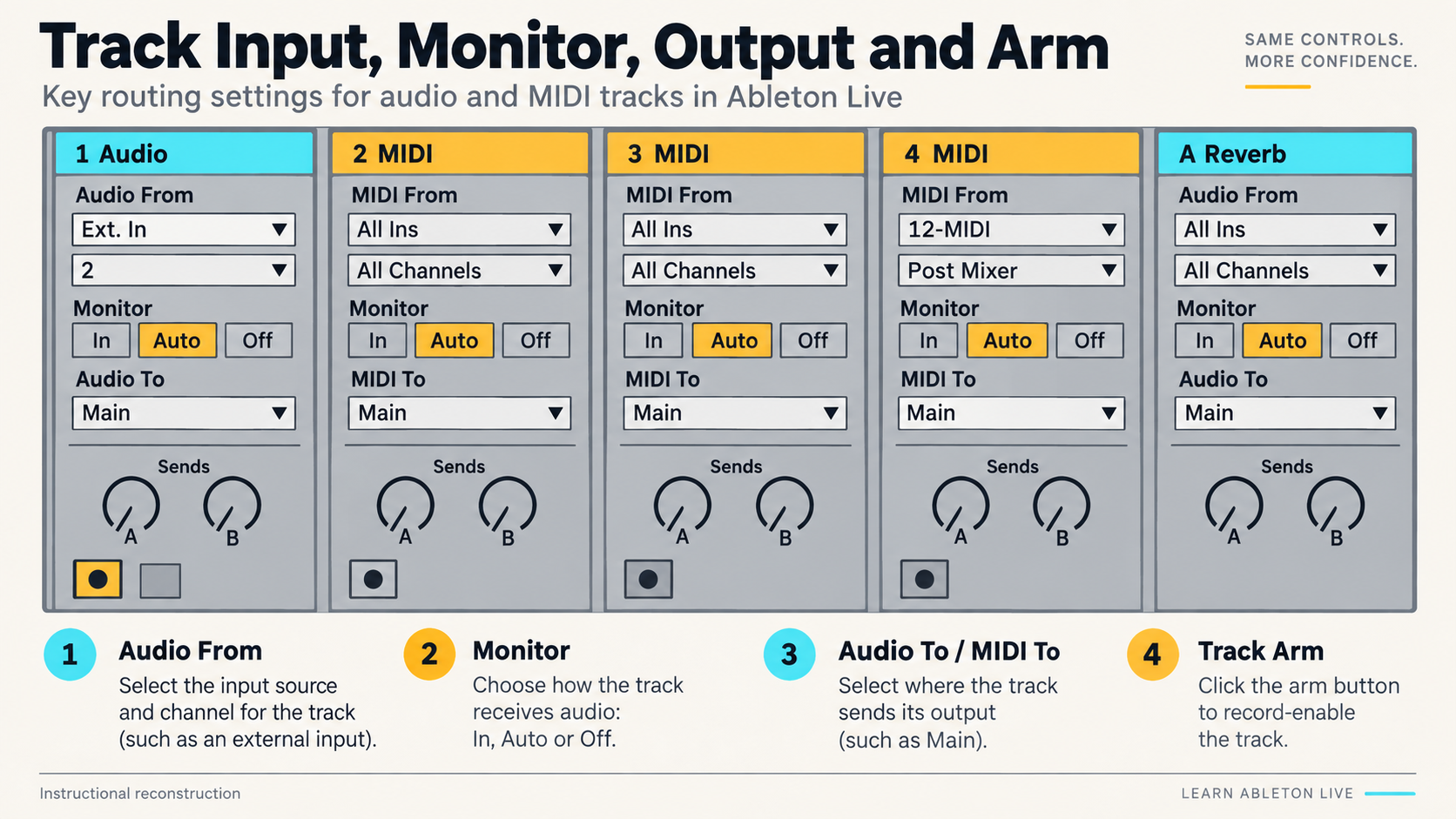
Ableton’s Recording New Clips chapter states the core rule plainly: a track records the source shown in its In/Out section. Check the track type, selected input and channel before recording a full take. On an audio track, confirm that the expected meter moves. On a MIDI track, confirm that the notes reach an instrument and produce audio at the intended output.
Arming tells Live which track should record. Monitoring determines whether the input passes through the track while you perform. Those are separate decisions. If you hear a doubled vocal or instrument, or hear nothing despite a moving input meter, stop and inspect monitoring and interface routing before changing the arrangement.
Choose the recording view by the shape of the take
Use Arrangement for a linear performance
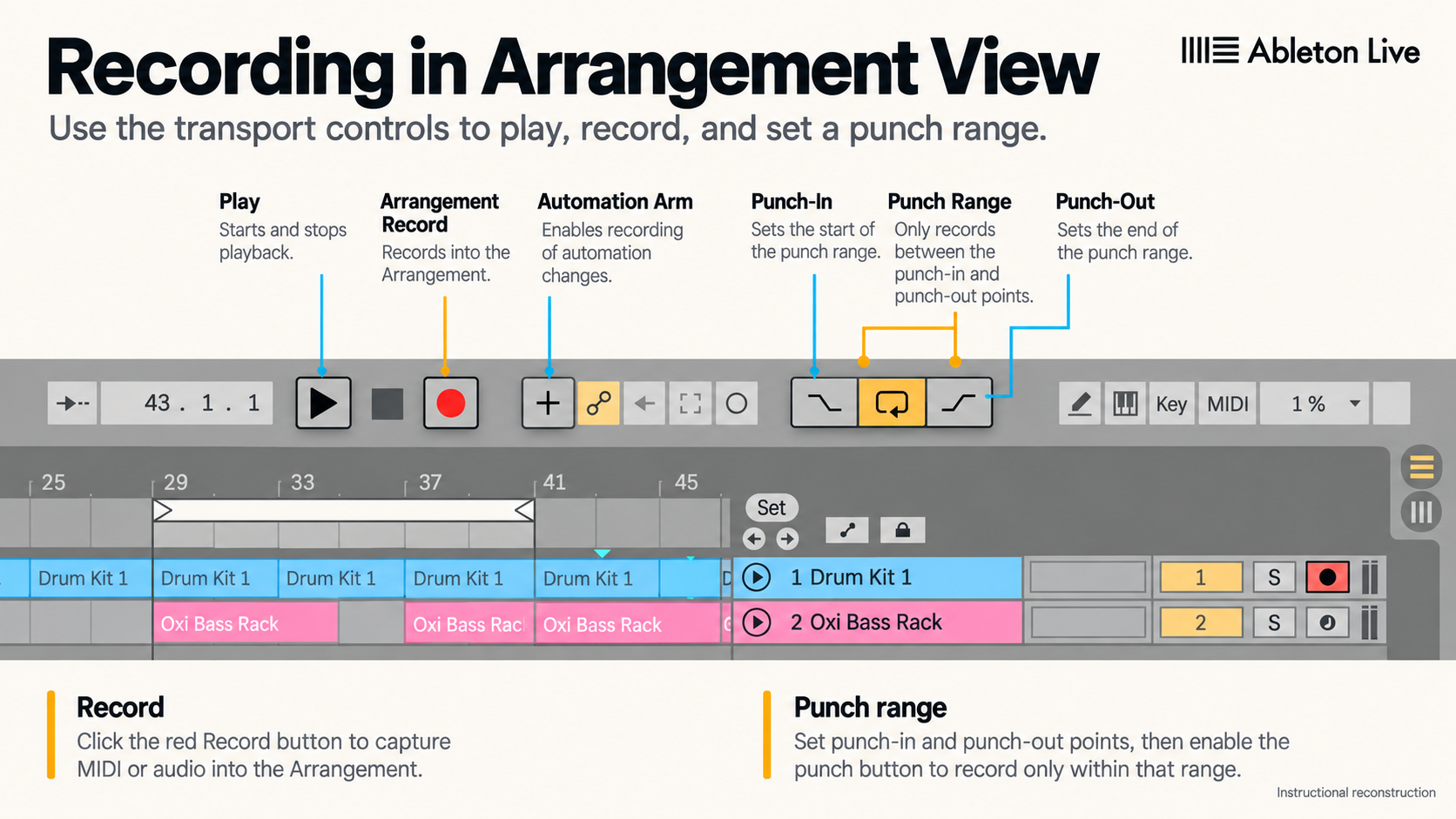
The Arrangement View places clips on a fixed timeline. It is the clearer choice when you need to see a performance develop from start to finish, record several armed tracks together, use a defined punch range, or compare repeated passes against the same song position. Vocals, guitar takes, full-song MIDI performances and multitrack recording normally benefit from that visible time relationship.
Use Session for replaceable ideas and clip performance
Session View is useful when you want to record into clip slots, keep several ideas available, or perform by launching scenes and clips. The official recording manual notes that recording is available in both views. The difference is not sound quality; it is whether the material belongs to a linear position or to a clip that can be launched independently.
Do not let Session become an unlimited holding area. Name useful scenes, remove duplicate clips, and decide when the project needs a timeline. The purpose of an exploratory view is to make combinations cheap, not to postpone structure forever.
Move Session decisions into Arrangement
Live can record a Session performance into Arrangement. Ableton’s Session View manual explains that Arrangement Record logs launched clips, relevant clip changes, device and mixer automation, and scene tempo or time-signature changes. The result is a timeline of the performance, not a new audio recording of every clip.
After capture, switch to Arrangement and listen from the start. If you launch another Session clip on a track, that clip temporarily takes control of the track and the Arrangement no longer represents what you hear. Live exposes a Back to Arrangement control for this state. Use it deliberately before editing, bouncing or judging a transition.
You can also copy or drag selected clips between views when a live pass is not useful. A captured performance preserves timing and automation choices; a deliberate transfer is cleaner when you already know the intended order. Choose the method that preserves the decisions you want, then remove the alternatives that no longer serve the track.
Keep takes separate until the choice is clear
Live’s comping system uses take lanes in Arrangement. Recording passes over the same region can create lanes automatically, and selected material from those lanes can be copied to the main lane. The source takes and the copied main-lane clips can then be edited independently.
That independence is useful only if the lanes remain understandable. Rename or colour takes when the distinction matters, audition them against the same surrounding material, and make the edit at a phrase or breath boundary that sounds intentional. Keep a clean source lane until timing, fades and pitch decisions have survived a full listen.
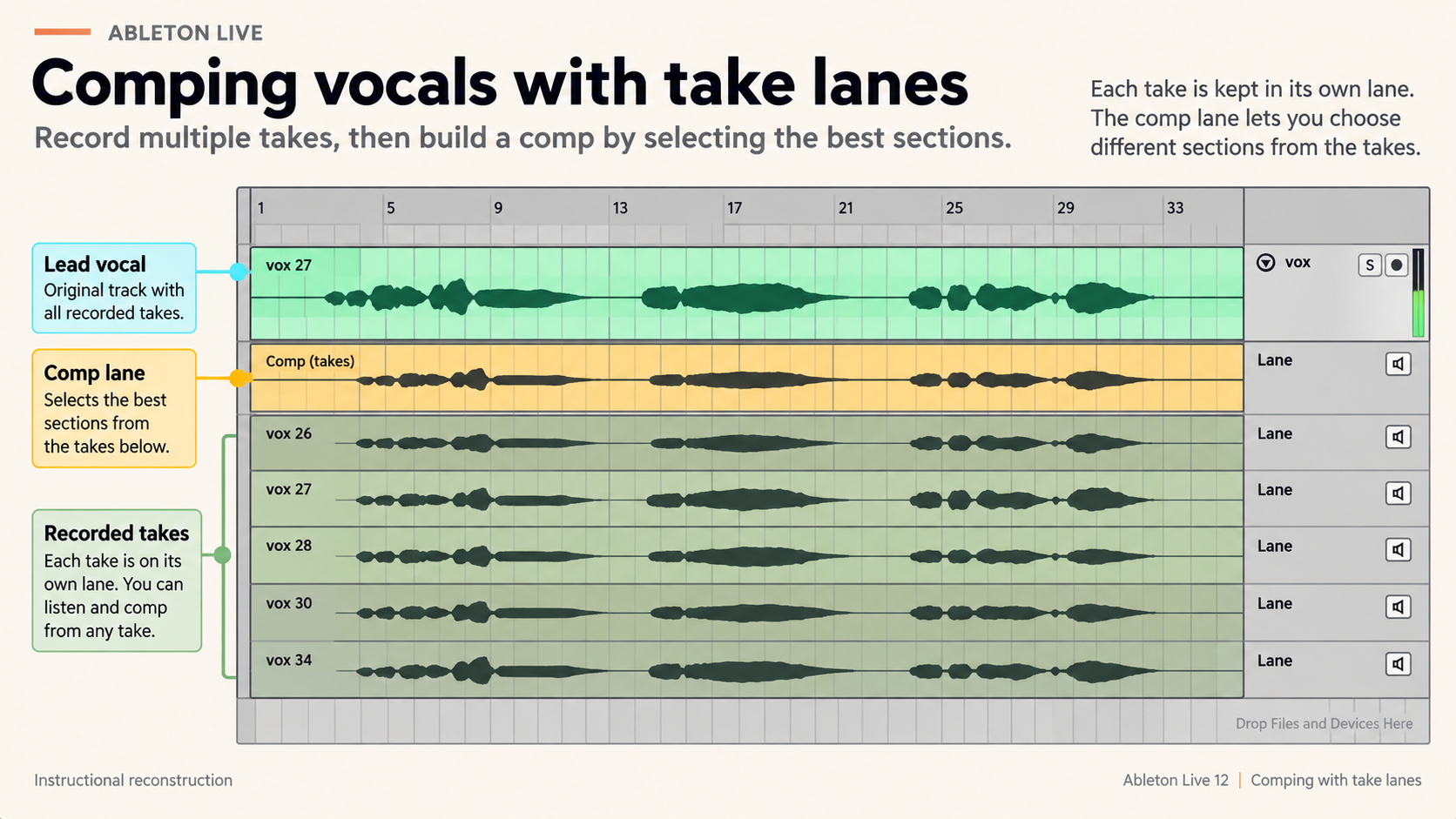
Comping is not limited to vocals, but not every performance needs it. A single continuous take can carry timing and energy that a heavily assembled comp loses. Use take lanes to make a musical choice, not because every small difference must be preserved.
Turn the timeline into decisions
Once the useful material is in Arrangement, mark the sections that already exist and listen for what changes between them. Delete empty time that serves no purpose, shorten repeated material, and make transitions audible before adding more devices. Arrangement editing should expose the song’s logic: what enters, what leaves, what repeats and where the ending begins.
Keep automation attached to a clear intention. If a filter, send or level move creates the transition, name or locate that section so the change can be found again. Before consolidating, freezing or bouncing, ask what must remain editable. A commitment is useful when it reduces ambiguity; it is dangerous when the source or routing cannot be recovered.
Keep the project reopenable
Save related Sets inside a named Live Project and keep version names meaningful. “Song final final 3” does not explain what changed. A short note such as “vocal comp,” “arrangement cut,” or “pre-mix” preserves the decision boundary. When external samples or recordings matter, confirm that the project references the intended files before handing it to another computer.
Do not build a large template from one session. Repeated input names, return tracks and routing can earn a default after several projects. A template should remove a known repeated decision, not make every new song inherit devices and paths that nobody remembers adding.
Questions about recording and arrangement
Should I record in Session View or Arrangement View?
Use Arrangement for a linear performance, repeated takes at the same song position, punch recording or multitrack work. Use Session for clip-based recording, scene launching and replaceable ideas. Both views share tracks, so the decision is about structure rather than audio quality.
How do I move Session View clips into Arrangement?
You can record a Session performance with Arrangement Record, which preserves the timing of launched clips and relevant automation, or copy and drag selected clips into the timeline. Record the performance when its timing matters; transfer clips directly when the order is already decided.
Why does my Arrangement look right but play something else?
A launched Session clip can take control of its track, so the visible Arrangement is no longer the material you hear on that track. Use Live’s Back to Arrangement control when you want Arrangement playback to resume, then verify the full section before editing or export.
What is a take lane in Ableton Live?
A take lane stores recorded passes beneath a track’s main lane in Arrangement. You can audition the passes and copy selected regions into the main lane to build a comp while keeping the source takes available for later changes.