
Use Inst for a guitar or bass plugged directly into a Focusrite Scarlett. Use Line for a synthesizer, drum machine, mixer, external preamp or modeller set to a line-level output. A microphone connected by XLR uses the microphone preamp path, so it is neither a Line nor an Inst source.
| Source connected to Focusrite | Input mode | What to check |
|---|---|---|
| Passive electric guitar or bass, direct | Inst | Use the 6.35 mm instrument-capable input |
| Active guitar or bass, direct | Inst first | If the output is unusually hot, follow the instrument manual and reduce gain |
| Synth, keyboard or drum machine | Line | Use two line inputs for stereo |
| Mixer or external microphone preamp | Line | Do not send it into another instrument stage |
| Traditional guitar pedal chain | Usually Inst | Confirm the last pedal's documented output |
| Amp modeller or multi-effects unit | Usually Line | Select its line output mode if available |
| Microphone by XLR | Mic preamp | Use XLR; phantom power only when the microphone requires it |
| Guitar-amp speaker output | Neither | Do not connect it directly to the interface |
The mode is chosen by the signal arriving at the interface, not by Ableton Live. Live records whichever Focusrite channel you select; it does not convert an instrument-level source into line level or repair an electrical mismatch.
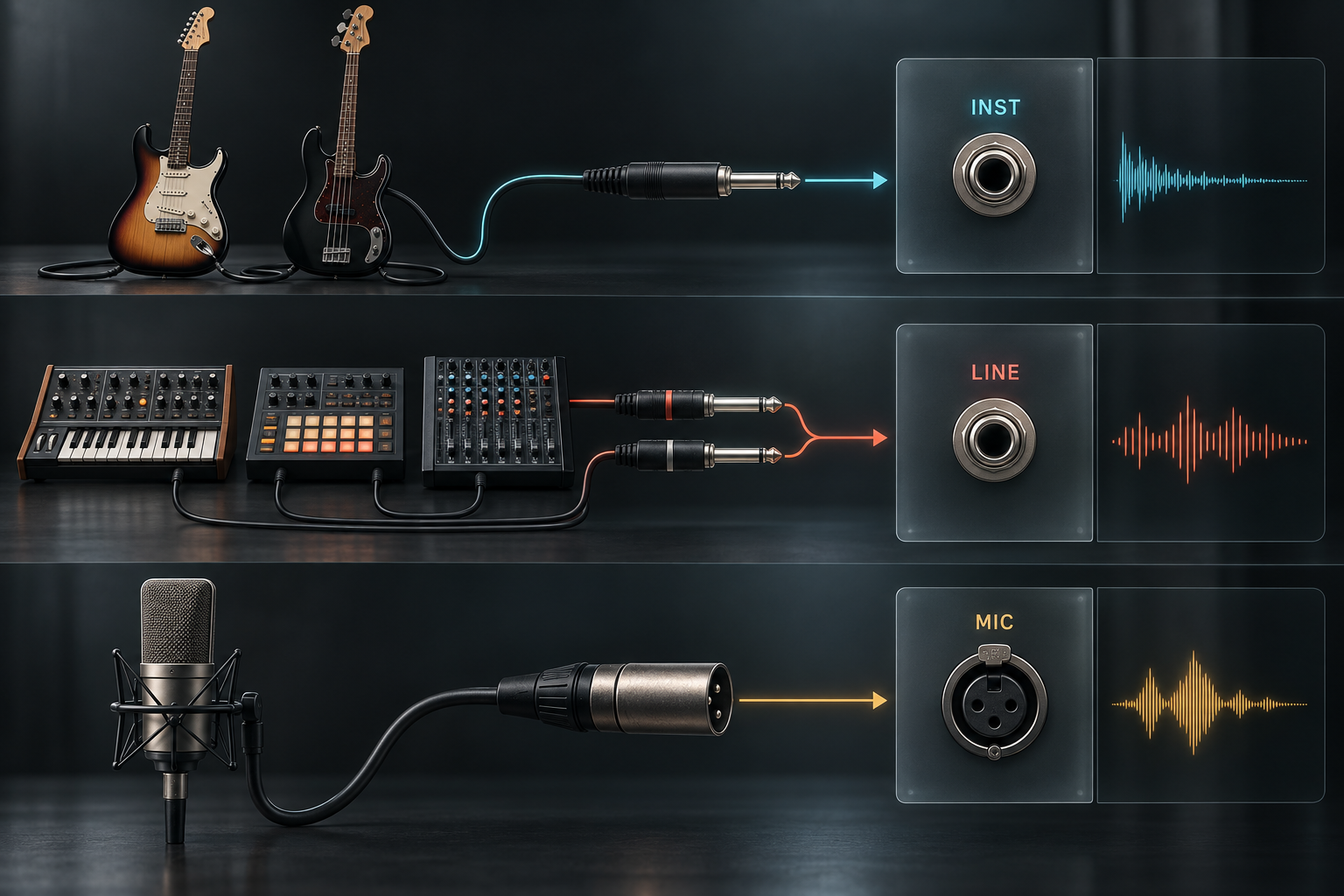
What the Inst switch actually changes
Line and Inst can share the same 6.35 mm socket, but they are not interchangeable labels. Focusrite explains that changing the input type adjusts two electrical characteristics: input impedance and the maximum input level the circuit is designed to accept.
A guitar pickup is a high-impedance, comparatively weak source. Inst mode presents the kind of high-impedance load that preserves its level and frequency response. A synth or mixer produces a stronger, low-impedance line signal. Line mode gives that source more suitable headroom.
This is why turning Inst on is not an “analog warmth” switch and does not increase Ableton's sound quality. It changes how the Focusrite input receives the source before the audio reaches Live. Exact impedance and maximum-level figures vary across Scarlett generations, so use the manual for your model when the source is unusual.
How to choose Line or Inst on a Focusrite
Plug a guitar, bass or mono hardware source into an input that supports the mode you need. On some Scarlett models the front panel has an Inst button for each supported channel. Other generations expose input type in Focusrite Control or Focusrite Control 2. Select the physical input, choose Inst or Line, then set gain from the loudest part of the performance.
Do not infer the mode from the cable alone. A 6.35 mm TS cable may carry an instrument source, while a 6.35 mm TRS or TS connection may carry line level. The output specification of the device decides. Focusrite also notes that its current TRS line inputs are balanced mono inputs; a stereo synthesizer therefore uses two interface inputs, not one stereo TRS input.
If you are connecting a microphone, use the XLR portion of the combo socket. Focusrite dedicates that XLR path to microphone level. Our Ableton vocal recording guide covers phantom power, monitoring and recording levels without mixing them into the Line-versus-Inst decision.
Set up the Focusrite input in Ableton Live
- Install the current Focusrite driver or control software required by your exact interface and operating system.
- Open Live's audio settings. Choose Core Audio on macOS or the Focusrite ASIO driver on Windows.
- Select the Focusrite as the input device and, if you monitor from it, the output device.
- Open Input Config and enable the mono input or stereo pair you plan to record.
- Create an Audio Track. Under Audio From, choose Ext. In and select the matching Focusrite input number.
- Set Monitor to Off, Auto or In for the listening path you want, then arm the track when you are ready to record.
- Play the loudest expected passage and set hardware gain so the signal stays clear of clipping.
This follows Ableton's current interface setup guidance: choose the platform's recommended driver type, select the device and activate only the channels you need. If Live reports that the audio engine is off or the device cannot open, work through the audio-engine troubleshooting checklist before changing input mode.
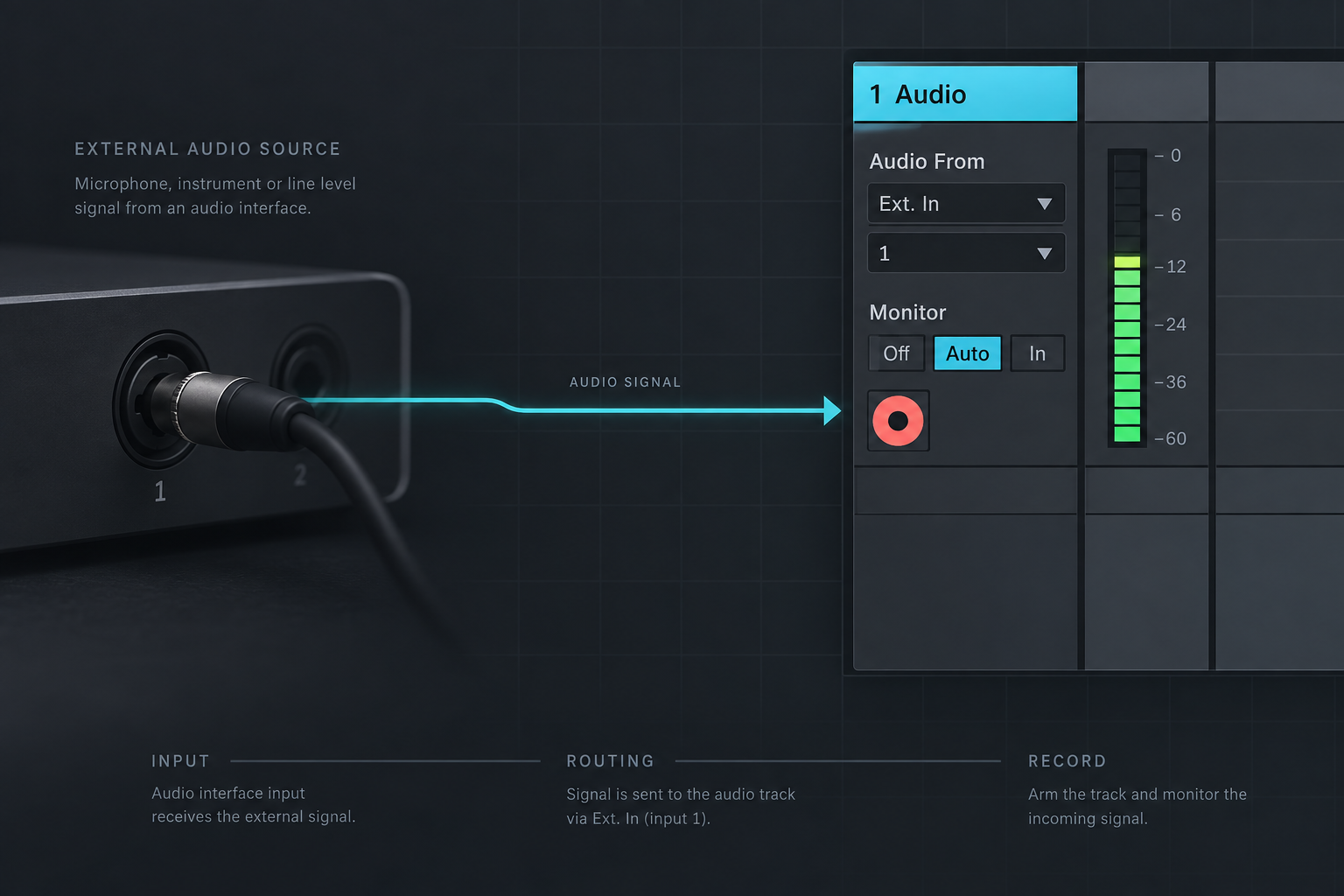
For a stereo synth, enable and select the matching stereo pair, such as 1/2. For a mono guitar, select the single mono input. Recording a mono source through a stereo pair can leave the signal on only one side. The hardware synth recording guide covers stereo cabling and track routing in more detail.
Direct monitoring and monitoring through Live
Direct monitoring routes the Focusrite input to its headphone or monitor output inside the interface. It gives the performer a short listening path and avoids the computer buffer, but the direct signal normally does not include Live's track devices.
Monitoring through Live sends the input into the computer, through the armed or monitored track, and back to the Focusrite. That route lets you hear an amp device, reverb or other processing, but it includes driver, buffer and plug-in delay. A lower buffer can reduce that delay while increasing CPU pressure. Our recording latency guide explains that trade-off.
If you hear a doubled or hollow signal, you may be listening to both routes at once. Choose one main monitoring path before blaming Line or Inst. Input mode affects the electrical capture; monitoring mode affects what reaches your headphones.
Symptoms of the wrong input mode
A direct guitar in Line mode may sound weak, dull or unusually quiet. Raising preamp gain can increase level, but it does not create the same impedance relationship as a proper instrument input. Switch the channel to Inst before adding software gain.
A line-level synth in Inst mode may become loud too quickly or overload the input. Start with Line, lower the source output if necessary and set gain again. A red clip indicator means the analog input has already exceeded its clean range; turning the track down in Live happens too late to repair that clipping.
When the result is still wrong, use this order:
- Confirm the source's documented output type.
- Confirm that the cable reaches an input capable of that mode.
- Confirm the channel's Line/Inst state in hardware or Focusrite software.
- Confirm the same input number is selected on the Live track.
- Separate direct monitoring from Live monitoring.
- Then adjust hardware output, preamp gain and Live's buffer.
Pedals, DI boxes and reamp paths
A traditional stompbox chain placed between a guitar and an amplifier often remains an instrument-style source, so Inst is the sensible starting point. That is not a rule for every pedal, preamp or modeller. If the last device offers a balanced line output or a selectable output level, follow its specification and use Line.
A DI box solves a different routing problem: it converts a high-impedance unbalanced instrument signal into a low-impedance balanced microphone-level path for a microphone preamp. It is useful when you need a mic input rather than an instrument input. It does not mean “set everything to Line.”
Sending a Focusrite line output back through traditional guitar pedals reverses the problem. The interface output can be hotter and lower-impedance than the pedal expects. A purpose-built reamp box converts that feed to a more suitable level and impedance. Keep the article's decision narrow: Inst and Line are input modes; DI and reamp boxes adapt signal paths when the available input or output does not match the device.
Final checklist
- Direct guitar or bass pickup: Inst.
- Synth, drum machine, mixer, external preamp or documented line output: Line.
- Microphone by XLR: microphone preamp path.
- Stereo hardware: two line inputs and a stereo pair in Live.
- Unknown pedal or modeller: check its output specification instead of guessing from the connector.
- Weak or dull guitar: verify Inst before adding gain.
- Signal clips immediately: verify Line and lower the source or input gain.
- Live receives the wrong channel: match Ext. In to the physical Focusrite input.
- Doubled monitoring: choose either direct monitoring or the Live monitoring path.
The durable rule is simple: classify the source first, set the Focusrite input second, then route that same channel in Live. Once those three steps agree, gain and monitoring become ordinary recording decisions rather than guesswork.
