If Live shows that its audio engine is off, stop playback and try the engine toggle once: Ctrl+Alt+Shift+E on Windows or Cmd+Option+Shift+E on macOS. If it stays off, open Settings → Audio and check the driver and selected device. Run Test Tone quietly: an audible tone confirms a working output path at that moment, not every track or hardware output.
Ableton lists the Audio Engine On/Off shortcut in the Live 12 manual. It toggles both ways, so do not keep pressing it after the engine starts. It cannot make an unavailable interface or rejected driver work. Open Settings with Ctrl+, on Windows or Cmd+, on macOS if the engine will not stay on.
Scope checked September 8, 2026: Live 12 on macOS and Windows. Start with the engine state, then the device; a silent Set with a working Test Tone needs different checks from a device that Live cannot open.
What “The audio engine is off” actually narrows down
The message means Live’s audio engine is not running. It may have been switched off, or Live may be unable to open the selected device. Missing hardware, no device selection, an incompatible driver or device settings, and access conflicts are different possibilities—not reasons to reinstall everything at once.
Do not begin by deleting preferences, rescanning plug-ins or reinstalling Live. None of those actions proves whether the computer can open the audio device. Start at the output and make one change at a time.
| What you see | Where to go next |
|---|---|
| The engine is off and a device is selected | Try the engine toggle once, then check whether it stays on. |
| No output device is selected | Choose the driver/device route for your operating system, then run Test Tone quietly. |
| Your interface is missing from the list | Check power, cable, direct connection and the manufacturer’s supported driver. |
| The device appears but Live says it cannot open it | Use the macOS or Windows driver branch below. |
| Test Tone works but the Set is silent | The tested output works now; check the Set routing and the actual Main output pair. |
| Audio plays but crackles or drops out | Use the crackling/dropouts checks if the engine remains running; note separately if it stops. |
Use the chart to choose a starting branch, not to rule out every other fault. A silent tone can still be caused by the listening hardware, while an audible one does not test all Main/Cue output pairs. Check the engine toggle before moving into these device tests.
Start with the engine switch and Test Tone
- Save the Set if Live still responds. Stop playback and lower the listening level before changing the audio device.
- If the engine is shown as off, press Ctrl+Alt+Shift+E on Windows or Cmd+Option+Shift+E on macOS once. If it starts, leave it on; if it stays off or reports a device error, continue below.
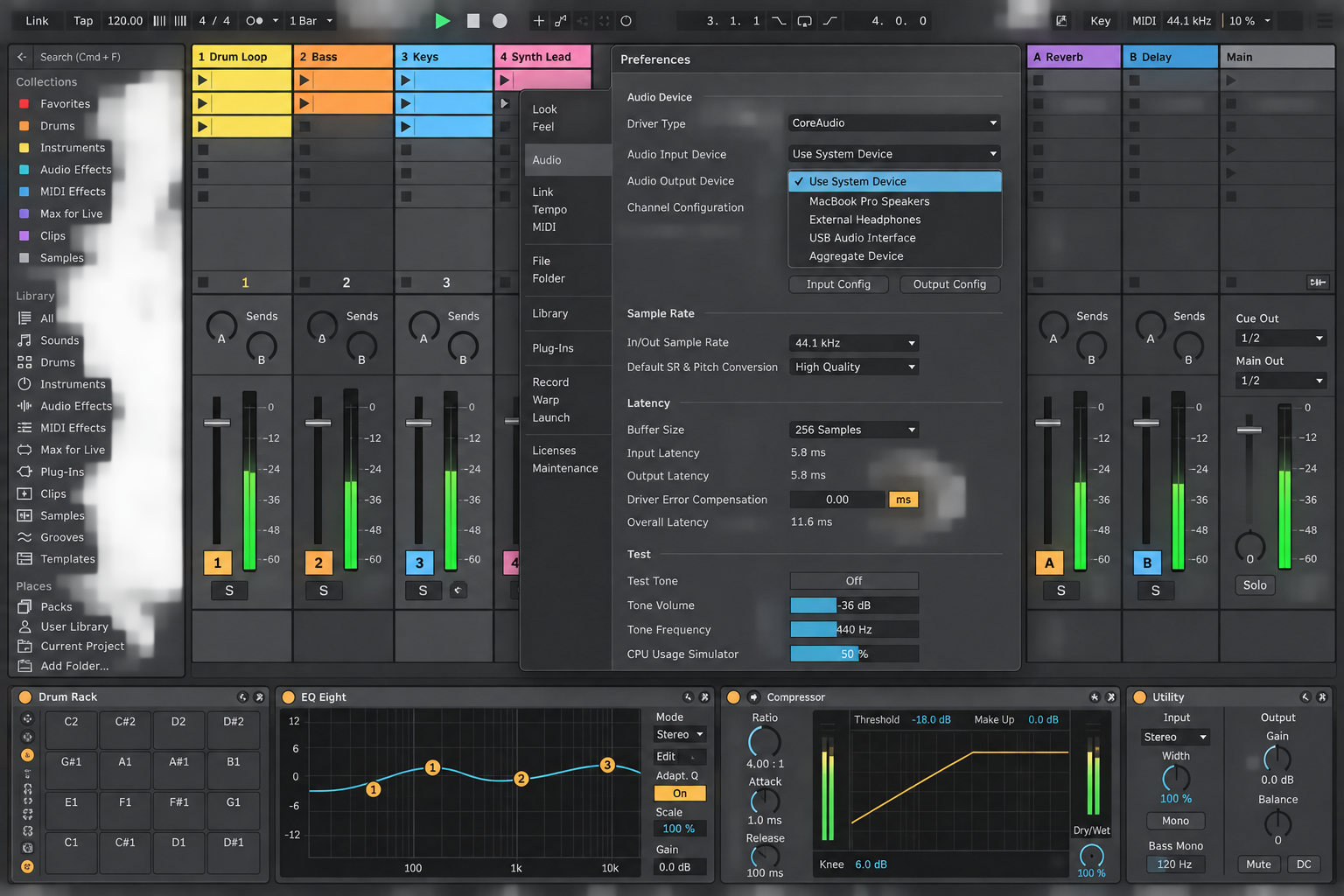
- Open Settings → Audio with Ctrl+, on Windows or Cmd+, on macOS. Note the current Driver Type, device and sample rate before changing them. Older releases call this window Preferences.
- On macOS, use CoreAudio and choose your connected output or the built-in speakers/headphones. On Windows, use ASIO and the interface’s native Audio Device when available; the built-in sound card is not normally another output of that interface’s ASIO driver. See the Windows section for an optional built-in-output test.
- Enable Test Tone at a low volume. If it plays, switch it off and continue with If Test Tone works but the Set is silent. A successful tone does not test every output pair.
- If Test Tone is silent, check the selected physical output, speaker/headphone level and connections as well as the device settings. If Live refuses to open the device, follow the matching operating-system branch below.
Ableton’s audio configuration instructions use Test Tone for exactly this basic proof: it checks the selected output without depending on the routing inside your Set.
If the interface is missing from Live
Check whether the computer and the manufacturer’s software can detect the interface. Stop playback and lower monitor/headphone levels before reconnecting or power-cycling it; follow the manufacturer’s power sequence, with powered monitors off when changing audio cables.
- Confirm that the interface is powered and completes its normal startup indication.
- Reconnect the data cable at both ends. If possible, test another known-good cable and another port.
- Connect the interface directly to the computer for this test. Ableton’s interface setup guide recommends a direct connection where possible; a powered hub is the fallback when the required port is unavailable.
- On macOS, look in Audio MIDI Setup. On Windows, check Device Manager and the manufacturer’s control application. Windows Sound settings may show playback endpoints, but an absent endpoint there alone does not prove that a dedicated ASIO driver is missing.
- Check the manufacturer’s compatibility and driver instructions for your exact interface and operating system. Install its supported driver if required; some macOS interfaces are class-compliant. Update firmware only by the vendor’s procedure when applicable, with stable power—not as the first response to a missing cable.
If built-in output passes Test Tone but the interface does not appear, the Set is not the cause. Keep the diagnosis at the cable, port, power, operating-system recognition and vendor-driver layer.
macOS: check CoreAudio and the selected output
On macOS, select CoreAudio as the driver type. Live 12 can use separate input and output devices, and its Use System Device option can follow the output selected in macOS. Ableton documents this behavior in the Live 12 Audio settings section.

- In System Settings → Sound → Output, select the output you can physically monitor.
- In Live’s Audio settings, choose Use System Device or explicitly choose that same output.
- Run Test Tone.
- If built-in output works, select the external interface again after it is connected and ready. Restore its original input/output routing before recording.
- If it drops out again, save work, close other audio applications and follow the interface manufacturer’s power-cycle procedure. Reconnect directly if possible, then test again. If needed, restart the Mac after saving work in other applications too.
Do not paste a command that restarts CoreAudio without understanding its effect on other audio applications. A normal restart is a simpler check after saving work; it is not evidence that the underlying interface fault has been fixed.
Windows: use the driver branch that matches the hardware
For an interface with a manufacturer-supplied driver, select ASIO as the driver type and choose that native device. Ableton’s Windows audio guidance recommends ASIO and puts the manufacturer’s driver first.
To compare built-in audio on Windows, first record your ASIO device and routing. If MME/DirectX is available in Driver Type, it can select the computer’s built-in Audio Output Device for a temporary Test Tone check; this is a different driver route, not the interface’s ASIO output. Ableton documents separate device selection for MME/DirectX, but does not recommend it for regular Live use. Restore native ASIO and the original routing afterwards. A successful built-in test does not validate the interface’s driver.
If a native ASIO device appears but will not open
- Close browsers, chat apps, games and other DAWs that may be using the interface.
- Open the interface control panel through Hardware Setup and confirm that the device is online.
- For a Windows playback endpoint shared with other applications, compare its Advanced-tab sample rate with Live’s rate. Ableton’s exclusive-mode troubleshooting recommends matching them. Use the corresponding endpoint—not an unrelated HDMI or Bluetooth output.
- If another app appears to hold that endpoint, note the existing setting and close the app. Following the linked guide, uncheck “Allow applications to take exclusive control of this device” on that playback device’s Advanced tab. Reopen Live and retest. Restore the setting if it does not help; shared access depends on the driver and is not guaranteed by this checkbox.
- If the interface still cannot open, save work and power-cycle it according to its manual, with monitor levels down. Launch Live only after the device is ready.
If there is no native ASIO driver
ASIO4ALL is a fallback, not the automatic first choice. Ableton’s ASIO4ALL setup page says to use a native interface driver when one exists. If you do use ASIO4ALL, open Hardware Setup and enable the actual input and output endpoints inside its panel.
There is one important exception to generic “install ASIO4ALL” advice: Ableton warns that it can conflict with Focusrite Scarlett’s proprietary driver. For a Scarlett, use Focusrite’s supported driver and control software rather than stacking a generic driver on top.
If Test Tone works but the Set is silent
An audible Test Tone confirms that Live can send sound through the tested output at that moment. It does not validate every hardware pair, a separate headphone mix or the routing in your Set. Switch the tone off before playing the Set, then check:
- Confirm that the Main track’s output reaches the same physical output pair you are monitoring.
- Watch the track and Main meters during playback. If the track is intended to reach Main but Main stays silent, follow Audio To through any group or receiving track. Ext. Out may intentionally bypass Main; do not overwrite custom routing just to make Main move.
- On a MIDI track, confirm that an instrument receives the notes and produces audio. For clip notes or instrument problems, use the MIDI notes not playing guide; if the keyboard sends no usable note input, follow the MIDI keyboard connection checks.
- For a live input, check the track’s Monitor state and Arm button. Ableton’s Routing and I/O chapter explains when Monitor In, Auto and Off pass an incoming signal.
- Check suspect devices one at a time while watching input/output meters. Lower the listening level before bypassing an effect: removing attenuation or limiting can cause a level jump. Preserve each device’s settings and restore its state unless the test identifies it as the cause.
When meters move but no sound reaches the speakers, trace the selected Main output pair through the interface to the listener. If audio plays but breaks up while the engine stays running, use the crackling and dropouts guide. The Fix Ableton Live hub links the other device, CPU and project-specific checks.
When the audio engine keeps turning off
A repeating failure needs a repeatable boundary. Write down the exact event immediately before the engine stops: waking the computer, connecting a hub, opening a video call, changing sample rate, switching interfaces or launching a specific Set.
- Fails after sleep: test a fresh reboot and wait for the interface to be ready before opening Live.
- Fails when another app opens: close that app and retest; on Windows, check sample-rate and exclusive-mode behavior.
- Fails only through a hub: retest the same cable directly.
- Fails only with one interface: compare a second known-working device or the built-in-output route described above. Check the affected interface’s compatibility and driver history.
- Fails only in one Set after the engine successfully starts: that is not the same state. Investigate plug-ins and project devices without changing a working system driver.
Keep the exact “Failed to open” wording, device name, driver type, Live version, operating-system version and the event that triggered it. Send those details and the results of the isolated tests to the interface manufacturer or Ableton Support if the failure persists.
What not to reset first
- Do not reinstall Live first. It does not prove that CoreAudio, ASIO or the operating system can open the interface.
- Do not delete the User Library or Sets. They are not the first diagnostic layer for a global engine-off status.
- Do not install several generic Windows audio drivers at once. Use the interface manufacturer’s supported driver when available.
- Do not tune buffer size blindly. First establish whether the intended device is present and selectable. If its configuration is rejected, use a setting supported by the interface and record the previous value. Some ASIO buffer/sample-rate controls must be changed through Hardware Setup rather than Live.
- Do not follow a terminal command you cannot reverse. Reselecting a device, testing built-in output and rebooting give clearer evidence with less risk.
Use an empty Set for a low-resource test
Save your work before opening an empty Set. Test Tone does not need instruments, sample libraries or plug-in scans, so there is no reason to load a large project just to check device access. An empty Set also removes much of the project’s CPU and RAM load from the comparison. Do not delete Packs, clear the User Library or freeze tracks to repair a missing device; those actions do not select or start its driver.
FAQ
Why does Ableton say the audio engine is off?
The audio engine is not running. It may have been switched off, or Live may be unable to open the selected device. Check the engine toggle once, then the driver and device in Settings → Audio. Missing hardware, rejected settings and access conflicts need different checks from a silent track.
How do I turn the audio engine back on in Ableton Live?
If the engine is shown as off, try Ctrl+Alt+Shift+E on Windows or Cmd+Option+Shift+E on macOS once. This shortcut also turns it off, so do not keep toggling. If it will not start, select the correct driver and device in Settings → Audio, then run Test Tone quietly.
Why does Ableton fail to open my audio device?
Possible causes include a disconnected or undetected interface, an unsupported driver, rejected device settings or an access conflict. Save the original settings, test another available output route, and isolate the interface, cable and driver. On Windows, built-in audio may require a different driver route from the interface’s native ASIO driver.
Should I use ASIO4ALL with Ableton?
Use the interface manufacturer’s native ASIO driver when one exists. ASIO4ALL is a fallback for devices without a native ASIO driver or a bounded troubleshooting test. Ableton specifically warns that ASIO4ALL may conflict with Focusrite Scarlett drivers.
What if Ableton’s Test Tone works but my project has no sound?
The engine and tested listening route work at that moment, not necessarily every hardware output. Switch Test Tone off, then check Main Out, the monitored output pair, track and Main meters, mute/solo state, MIDI instruments, monitoring and the device chain.
