
Short answer: start at the last meter that moves and check only the next destination. If a track meter moves but Main stays still, look at track, group and device routing. If Main moves, look at Main Out, the enabled hardware output pair and the path from the interface to your speakers. A moving meter tells you where the signal still exists; it doesn’t tell you the next stage is receiving it.
Scope checked September 5, 2026: this guide uses current Live 12 terminology and the official routing documentation. Live 12 calls the final mix track Main; older releases, and plenty of searches, call it Master. The page assumes Live can open an audio device. If Test Tone fails, go to the Audio Engine Is Off guide for device and driver checks. A silent Test Tone can also come from the hardware listening path, so on its own it doesn’t prove the engine is off.
Find the last meter that moves
Don’t start clicking through every audio setting. Play a section that should make an obvious sound, then read the meters in order: the source track, its destination group if it has one, Main, the audio interface and finally the speakers or headphones.
| Last meter that moves | Next checks |
|---|---|
| Only MIDI activity | Instrument and audio output on that MIDI track |
| Audio track | Audio To, destination group, Track Activator and devices |
| Group | Group Audio To, group devices and Main |
| Main | Main Out, enabled hardware pair and listening path |
| Audio interface | Monitor/headphone level, mute or dim, cables and powered speakers |
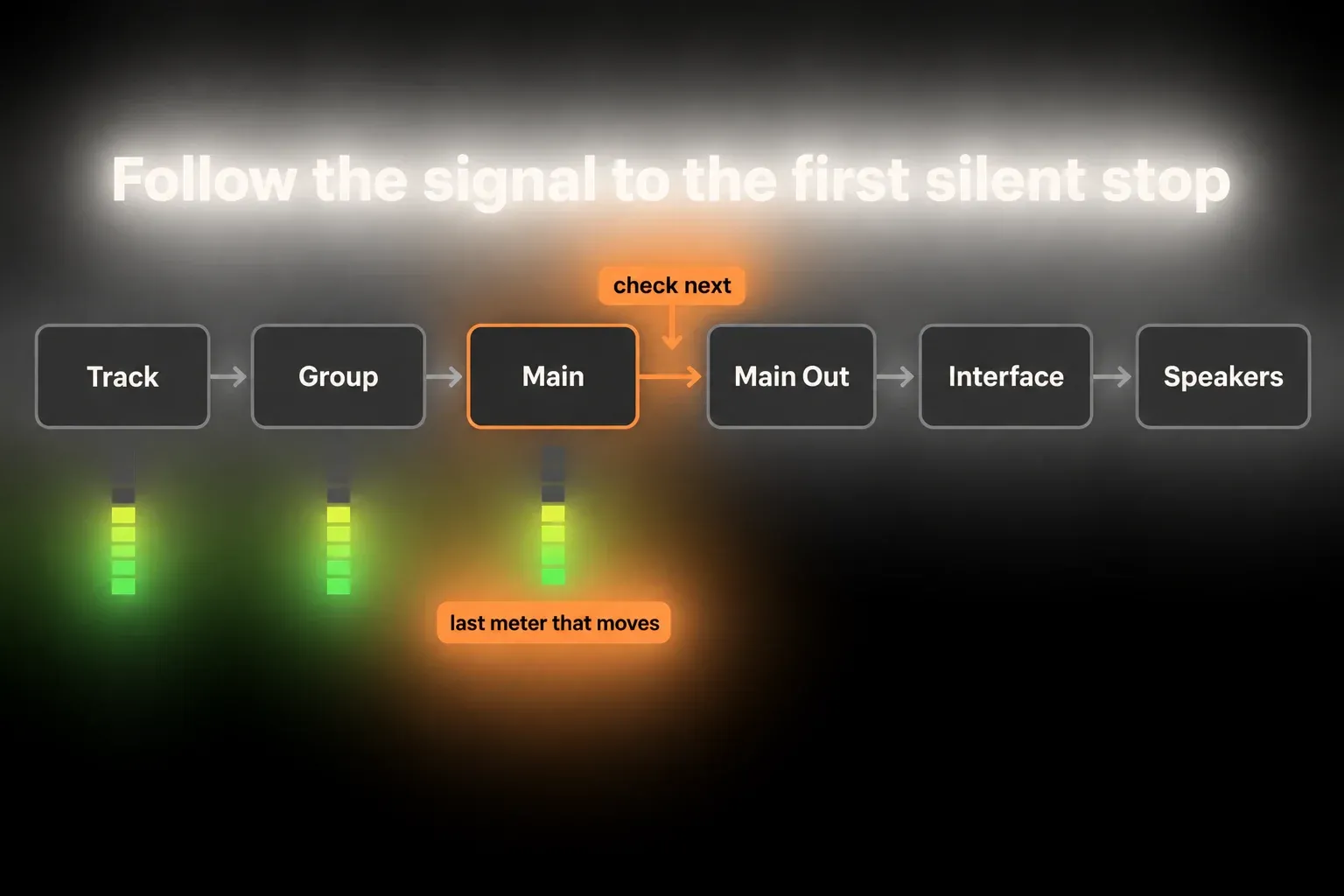
The method comes straight from Live’s own routing model. The Routing and I/O chapter describes the mixer’s In/Out section as a patchbay where every signal has a source and a destination. When the meters move and you hear nothing, “is Ableton making sound?” is the wrong question. Ask which destination stops receiving it.
Start with Test Tone and one audio clip
- Run Test Tone in Settings → Audio. Keep its volume conservative. A tone you can hear is strong evidence that Live opened the selected output device. If it stays silent, check the selected device, the output connections and the monitor levels; Test Tone can’t tell you which of those failed.
- Play one audio clip you know contains sound. Check that its Audio To route is supposed to reach Main, directly or through a group. If the track meter moves and Main doesn’t, follow that routing inside the Set. A track routed to Ext. Out skips Main on purpose.
Ableton’s Audio setup instructions use Test Tone to check the selected output without relying on the Set’s track routing. Treat it as a boundary test; when it already works, it gives you no reason to replace drivers. A browser stereo test runs the same check outside Live.
If a track meter moves but Main does not
Show the mixer’s In/Out section from the view-control menu at the bottom right, or choose View → Mixer Controls → In/Out.
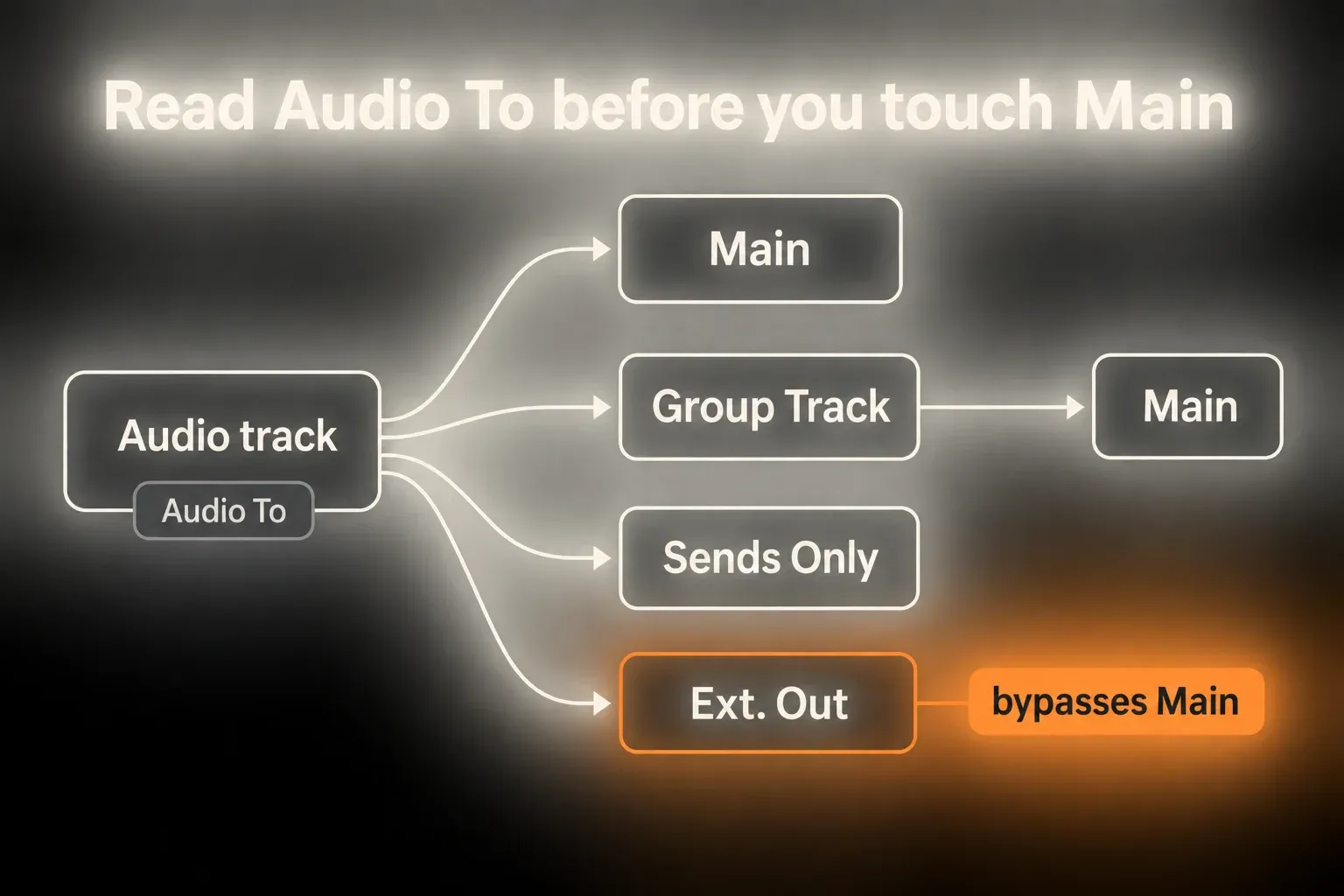
- Find the moving track and read Audio To. An ordinary clip track may feed Main, a Group Track, another track, Sends Only or a physical output.
- If it feeds a group, follow that group’s meter and Audio To chooser. Don’t jump to Main while the signal is sitting inside a submix on purpose.
- Check the Track Activator on the source track and on any destination group or receiving track. Switching it off mutes that track’s output.
- Check suspect devices on the source and destination tracks one at a time. Lower the listening level before switching a device off, because bypassing attenuation or a limiter can make the audio jump. Keep the settings and restore each device unless the test shows it is the cause.
- Clear stray solo states. A solo somewhere else can silence tracks that aren’t part of the active signal path.
If the Set uses the crossfader, check the A/B assignments too. A track assigned to A is muted with the crossfader hard right; a track assigned to B is muted hard left. Note the original position, test with the crossfader centered, and put back any intended performance setting. These assignments change gain, not the Audio To destination.
A track can also bypass Main by going straight to Ext. Out. That is valid routing, not a mistake, but the track won’t register on Main. Trace the chosen physical pair instead of forcing everything back to Main before you understand the Set.
If Main moves but there is still no sound
When Main’s meter moves, begin with Main Out and the hardware listening path. Don’t assume Main’s effects sit after its meter: one meter reading doesn’t test every device on the track. Look at Main’s level and automation as well, especially if the sound drops out at the same point on every playback.
- Check Main’s level and any automation pulling it down. If device input and output meters disagree, or Main goes silent during playback, inspect its device chain. Lower your listening level before bypassing a suspect effect, then restore its state after the test.
- Read Main Out and select the hardware pair you actually listen to. That may be 1/2, but no pair is universal: some interfaces feed monitors, headphones and digital outputs from different channels.
- Open Settings → Audio → Output Config and confirm the selected mono or stereo pair is enabled. The official manual notes that Channel Configuration decides which physical outputs Live can use.
- Run Test Tone on the selected audio device at a low level. A tone proves one listening route works, not that every hardware output pair is right. If the tone plays but the Set doesn’t, compare Main Out with the pair your interface sends to the speakers or headphones.
Live’s Mixing chapter describes Main as the default destination for other tracks and Main Out as the interface output for the main mix. Check those two points before you touch the operating-system default device.
If the interface output meters move, check the listening path
In the interface’s mixer, tell the hardware-input meters, the computer-playback meters and the physical-output meters apart. Watch the playback feed from Live and the output wired to your speakers; a moving meter on some unrelated channel clears nothing. Then check:
- Use the monitor or headphone control that belongs to the connected output. Interfaces often have separate knobs or software-controlled mixes.
- Check mute, dim, alternate-speaker selection and talkback attenuation where your interface has them. Read its manual before changing a control you don’t know; these controls differ between models.
- Confirm the left and right cables leave the same output pair that Main Out has selected.
- Confirm powered speakers are switched on, their input sensitivity isn’t at minimum and the correct input is selected.
- Compare headphones and speakers on the same Live playback feed. If only one works, look at the other branch’s routing and level control. Headphones may have their own mix, so hearing them doesn’t prove the speaker outputs work.
Change one connection at a time and write down what changed. Before you unplug speaker cables, stop playback, turn the monitor level down and switch powered monitors off as their instructions say. Reconnect first, then power up and bring the level up slowly.
If only one speaker or headphone side is silent
A one-sided failure is narrower than total silence. First see whether both the left and right channels of Main’s meter move. If only one side reaches Main, check source panning, stereo-width devices and any split-stereo pan setting before you touch the interface. Ableton’s mixer documentation separates normal stereo panning from Split Stereo Pan Mode, where the left and right channels can be placed independently.
When a mono mic or guitar comes out of only one side, check Audio From before the speakers. Select the single input socket in use, such as 1, instead of stereo 1/2. Ableton’s one-sided monitored audio guidance explains this input-selection mistake, which is a different thing from a dead output cable.
If both sides move on Main, follow the selected stereo pair into the interface:
- Confirm Output Config exposes a stereo pair and not just one mono channel.
- Listen on headphones with the same Live playback feed selected. Hearing both channels there suggests the feed is intact, but a separate headphone mix doesn’t test the monitor-output pair.
- Stop playback, turn the monitor level down and switch powered monitors off. Swap only the left and right plugs at the interface outputs, leaving each cable attached to its original speaker. Resume at a low level. If the silence moves to the other physical speaker, look at the interface output channel or the routing upstream. If the same physical speaker stays silent, look at its cable, the speaker or its input. Swap in a cable you know works to separate a cable failure from a speaker failure.
- Restore the original connections and label the result. Don’t leave a reversed temporary test in place as your new studio wiring.
The output-swap test separates an upstream output fault from a downstream cable or speaker fault; on its own it can’t tell a cable from a speaker. Focusrite’s speaker troubleshooting procedure adds a separate known-working cable test for that. Its MAIN/ALT control settings apply to the listed Scarlett models, not to every interface.
Don’t work around a dead channel by hard-panning the mix or converting it to mono. That hides the fault, and the Set will sound wrong when you open it again on a working system.
Input meters, monitoring and MIDI can look like audio output
A moving track meter isn’t always the post-device output you think it is. Ableton’s mixer documentation says a track meter normally shows output level, but while monitoring it can show input level. For a live microphone or instrument, check Monitor In, Auto or Off, the Arm state when Auto is used, and the track’s Audio To destination. The official monitoring FAQ explains what those modes mean for recording and playback.
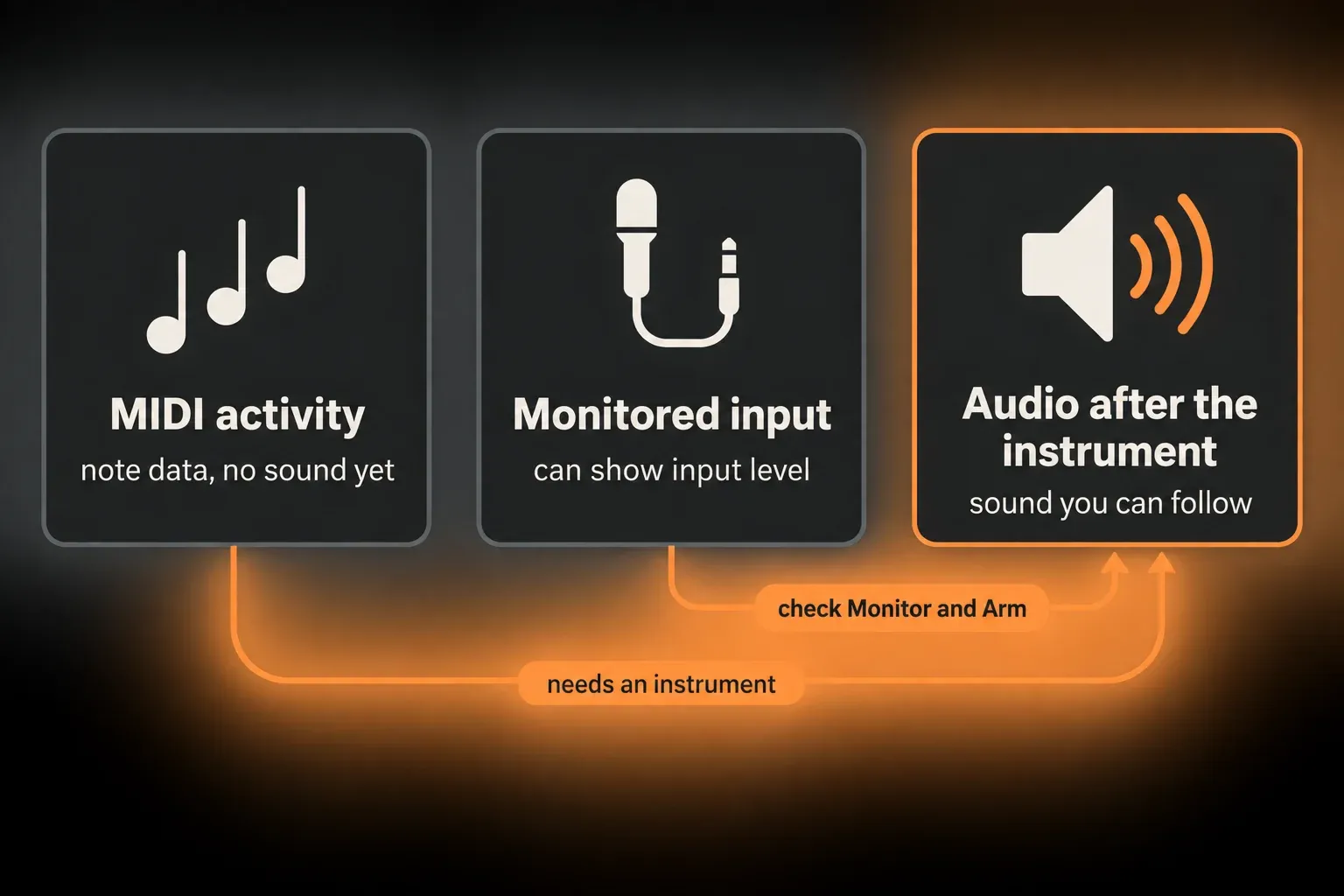
A MIDI activity indicator marks a different boundary. MIDI carries note and control data, not sound. A MIDI track needs an instrument to turn those events into audio before an audio meter and Main can carry anything. If only MIDI activity moves, leave the audio output device alone for now; load or inspect the instrument and follow the audio meter it produces. For a focused check of clip notes, instrument state and note range, use the MIDI notes not playing guide.
Why the metronome or browser preview may use another output
Live can send cue audio to a different hardware pair from Main. In a cueing setup, Ableton documents that browser previews play through Cue Out, and its metronome-routing guide confirms the click can use Cue Out too. If the metronome or preview is missing while the mix plays fine, or the other way round, compare Main Out and Cue Out before you suspect the whole engine.
This happens a lot with interfaces that offer a separate headphone mix. Match the output chooser to the physical socket and its level control, and don’t assume the headphone jack mirrors the monitor pair. The crossfader and Cue Out routing guide covers separate preview and audience outputs.
Check the Main track’s Preview/Cue Volume knob at a low listening level. For browser samples and clips, also switch on the Preview toggle at the bottom of the browser and select a file to audition. Ableton’s browser preview controls show where those controls sit.
What not to change while meters are already moving
- Do not reinstall Live first. Moving audio meters already show that much of the application and the Set are working.
- Do not change buffer size to solve stable silence. Buffer problems usually show up as latency, crackles or dropouts, not as a clean routing break further down the line.
- Do not select output 1/2 by habit. Pick the pair that is physically connected to whoever is listening.
- Do not delete Main or group devices. Bypass one device at a time and keep its state.
- Do not confuse a moving MIDI or input meter with audible output. Follow the signal until an audio meter moves after the instrument or monitoring stage.
The Fix Ableton Live hub covers engine-off, driver, CPU, disk, plug-in and crash failures if the checks here point past output routing.
Once the sound is back, write down four facts in the Set notes or a project log: the last meter that moved before the fix, Main Out, the enabled output pair and the physical socket you actually listened to. That short record gives you a known-good baseline and makes the next recurrence much quicker to isolate.
Keep this test light on CPU, memory and disk
One existing audio clip is enough to test routing, so you don’t need another large instrument or sample library. Changing an output chooser renders no audio files. Freezing tracks can help CPU-heavy playback, but it won’t fix the wrong output pair. Save RAM cleanup and buffer tuning for real memory pressure, dropouts or latency; they are not the first response to steady meters and silence.
FAQ
Why do Ableton’s meters move but no sound comes out?
A moving meter proves a signal exists at that point, not that it reaches you. Find the last meter that moves, then check only the next destination: a group, Main, Main Out, the enabled hardware pair, the interface, or the speakers and headphones.
What if Ableton’s Main meter moves but I hear nothing?
Start with Main Out and the enabled hardware output pair, then follow that pair through the interface’s monitor or headphone routing, level controls, mute or dim state, cables and speakers. Check Main’s level and automation too, and don’t assume its devices sit after the meter.
What if a track meter moves but Ableton’s Main meter does not?
Show In/Out and read Audio To. The track may feed a group, Sends Only or a physical output instead of Main. Check any destination group or receiving track, Track Activators, devices, solo states and crossfader A/B assignments.
Why does Ableton’s input meter move but I cannot hear the input?
An input meter can show a signal before monitoring sends it to the track output. Check Monitor In, Auto or Off, the Arm state when using Auto, the track’s Audio To destination and the meters further down. Choose the monitor mode that fits your recording workflow rather than flipping it blindly.
Does a moving MIDI meter mean Ableton is producing audio?
No. MIDI activity is note or control data. A MIDI track needs an instrument that turns MIDI into audio before an audio meter and the Main output can carry sound.
