Short answer: first separate a silent MIDI clip, silent live keys and silent note preview. A clip containing notes can be tested without a keyboard; it does not prove that a connected keyboard works. On one track, check the source or clip, monitoring, an active instrument and the audio output. MIDI is performance data, so it needs a software instrument or a receiving sound generator before you can hear it.
Checked September 7, 2026: this Live 12 guide follows notes through to audible output. For live keys, confirm that incoming Track MIDI activity follows those particular key presses. Remote or clock activity is different. If no key input reaches Live, start with MIDI keyboard detection. If the clip already holds the notes you want to play, test that clip directly.
Prove whether the silence affects live input, clip playback or both
Do not change the controller, plug-in and audio driver together. First name the silent source:
- For live playing, press the tested keyboard’s keys while watching incoming Track MIDI activity; keep other MIDI sources quiet.
- For clip playback, locate a note inside the intended playback region and start that clip.
- Watch for MIDI activity before the instrument and audio level after it. A MIDI indicator is not an audio meter.
- Select or move a note in the MIDI Note Editor to test audition separately.
- Record which of the three paths is silent before changing the track.
| Evidence | Likely boundary | First check |
|---|---|---|
| Track MIDI input follows keys, but they are silent | Track routing or instrument path | MIDI From, channel, Monitor and Arm |
| Clip contains notes but is silent | Playback state or sound generation | Launch, active notes, instrument and Audio To |
| Live keys sound; recorded clip does not | Clip playback or monitoring choice | Monitor In, loop range and Session override |
| Clip sounds; selected notes do not | Editor audition | Preview switch |
| Audio meter after the instrument responds to the notes; speakers silent | Downstream audio route | Group/Main, device and hardware monitoring |
For example, if the clip plays but selecting a note is silent, go straight to Preview. If neither the clip nor live keys produces audio, check the instrument and output. Keep the same short test phrase so changes in the music do not obscure changes in the routing.
If only note audition is silent, turn on Preview
When the clip plays but selecting or moving notes is silent, enable Preview beside the MIDI editor’s piano keys. The switch is shown as a headphone icon in the manual example below; use its label or Info View if your layout differs. This auditions edits without rebuilding the controller route.
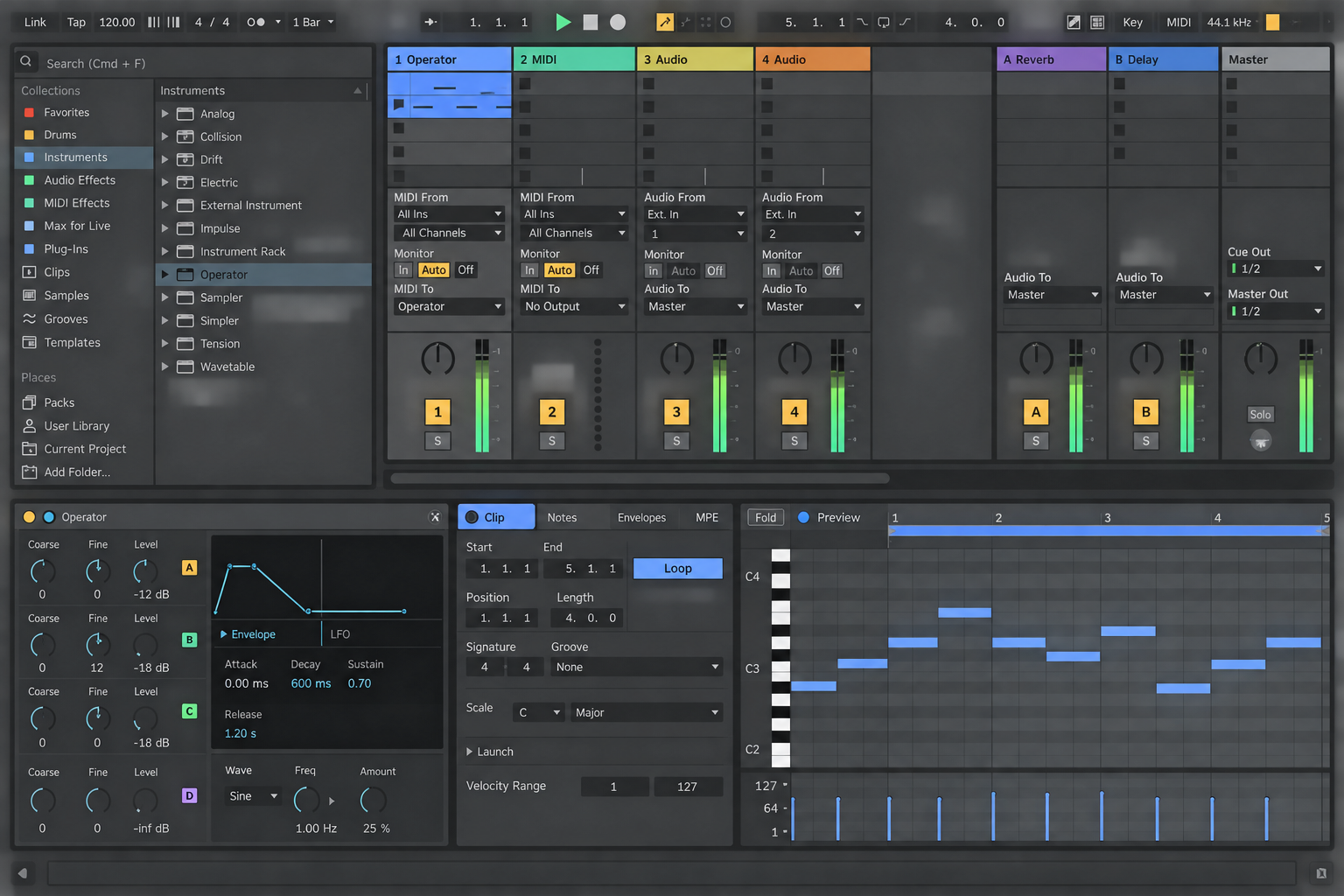
A silent preview still does not create sound without an instrument. Ableton’s current manual makes that dependency explicit: Preview auditions notes only when the MIDI track’s device chain contains an instrument. The switch applies across MIDI tracks in the Set, so check it once before changing individual clips.
Put one known instrument on the MIDI track
A MIDI track can contain a melody without a sound generator. The device-chain manual separates MIDI processing, the instrument and subsequent audio effects. If this track has no instrument, send its MIDI to a track that has one or to a hardware sound generator. The destination still needs an audible audio route.
- Preserve the original Set, then create one empty test Set with a MIDI track.
- Load a small instrument preset included in your Live edition; keep third-party plug-ins out of this test.
- Create a one-bar clip with one active note in that instrument’s playable range.
- Use Monitor Auto, launch the clip and check for audio at a safe listening level.
If that note sounds, you have a working reference for clip playback. It says nothing yet about the keyboard’s live input. Compare the silent track with the reference one device or setting at a time. A preset’s Browser preview alone is not this test: hear the loaded instrument respond to the actual clip.
An audio effect is not an instrument. EQ, reverb, compression and utility devices can process audio only after something creates it. A MIDI effect such as an arpeggiator or scale device also does not create audio by itself.
Set MIDI From, Monitor and Arm for the job
For live playing, show the track’s In/Out section and choose the tested keyboard port under MIDI From. Use All Channels for the initial test unless the controller requires a particular channel. All Ins also works but merges inputs, which can hide which controller caused the activity.
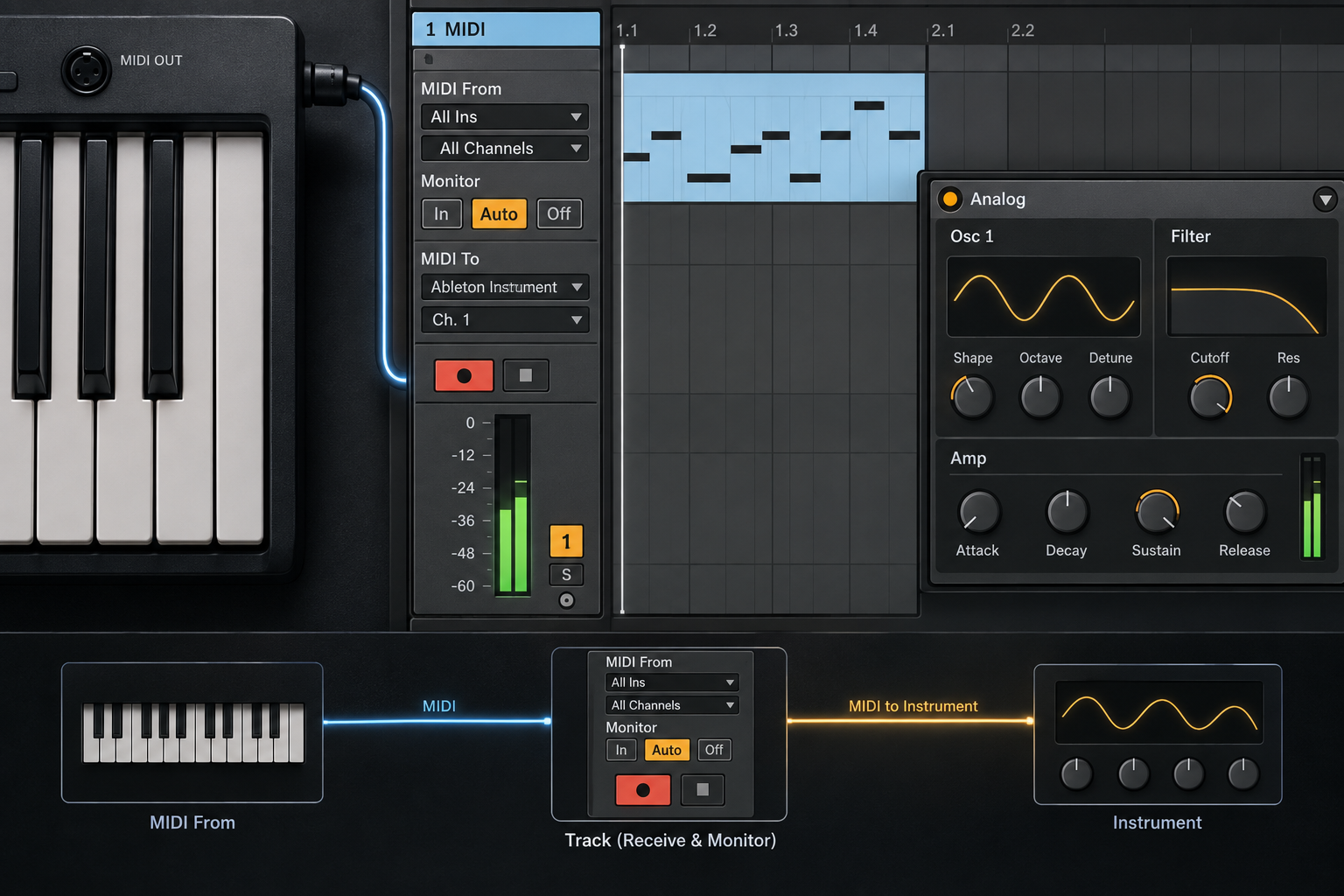
The Live 12 monitoring documentation separates input monitoring from clip playback:
- Monitor In: always passes the selected input through the track and suppresses the track’s clip output.
- Monitor Auto: passes live input when the track is armed, but inhibits that input while the track is playing clips.
- Monitor Off: does not pass the live input through the device chain.
Test the two jobs separately. For live keys, stop clip playback and use In, or Auto with that track armed. For the existing clip, choose Auto, disarm the test track and launch the intended clip. This avoids relying on overdub or controller auto-arm behavior. If keys sound but clips do not, check for In first. Keep other tracks unarmed during this comparison.
Once notes make sound, any delay between the key press and the instrument belongs to the separate Ableton recording-latency path. Do not reduce the buffer or change the audio driver while the current evidence is still “no sound.”
Check the instrument and device-chain state
When notes reach the track but the meter remains flat, inspect the chain from left to right:
- Confirm that an instrument device exists after any MIDI effects.
- Confirm the instrument’s Device Activator is on.
- If the instrument is inside a Rack, check that the Rack and the relevant chain are active.
- Return volume, filter and envelope controls to a known audible preset rather than randomizing the device.
- Bypass one MIDI effect at a time if it could filter, transpose or constrain notes.
Use the device-chain meters to find where activity stops. Some instruments also show voices or notes, but not every device has that display. If MIDI reaches the instrument yet no audio leaves it, inspect its preset and any missing samples. If audio leaves the instrument but disappears later, bypass suspect audio effects one at a time in the test copy. Check automation too if a level or device state changes back when playback starts.
For a MIDI-effect example, Pitch in Block mode rejects notes outside its Lowest/Range setting; bypassing it briefly can expose that cause. The Pitch device reference distinguishes Block from Fold and Limit. In Drum Rack, compare the clip’s note with a populated pad’s Receive note. An empty pad has no sound to trigger; the Drum Rack guide covers pad and chain assignments.
Confirm the clip is actually playing the notes you see
A visible note does not guarantee that the playhead crosses its start. Zoom out and inspect the clip’s start, loop start and loop end. In Arrangement View, confirm that the transport is playing through the clip and that the clip itself is active.
- Confirm the clip is active and its playback region contains the intended notes.
- For deactivated grey notes, select only those notes and press 0 to reactivate them. The same key also deactivates active notes, so check the selection first.
- For an intermittent or absent note, inspect its Chance value. Test a single ungrouped note at 100% in a copy, without replacing intentional probabilities across the whole clip.
- For playback starting partway through a long note, check Options → Chase MIDI Notes.
- If Session playback has taken over the Arrangement track, use that track’s Back to Arrangement button. The global button returns all tracks, which may interrupt intentional Session playback elsewhere.
The MIDI editing manual documents note activation, and its Chance section explains why a visible note need not trigger every time. Live enables note chasing by default, as described under Arrangement transport and playback. Chasing does not override a muted note, an empty pad or a blocked device path.
Follow the audio after the instrument
Once the instrument creates audio, the MIDI track behaves like an audio path. The track meter should move. If it does, continue downstream:
- Check the track activator and a safe audible fader level; inspect whether another track’s Solo or automation explains the silence.
- Inspect Audio To. In the empty test Set, use Main; preserve intentional production routing rather than overwriting it.
- For a grouped track, follow the group meter, activator and output.
- Check the Main meter and the configured hardware output channels.
- Confirm the intended device in Audio Settings and the speakers or headphones connected to it.
If audio-level activity after the instrument corresponds to the tested note, follow the downstream route. A MIDI-only track’s indicator does not establish that audio exists. The meters moving but no sound guide checks the remaining audio path; the Fix Live hub helps separate it from input and playback faults.
Treat external hardware as a round trip
A hardware synth needs two paths: outgoing MIDI with Track Output, the correct port and the synth’s receiving channel; then an audio return you can monitor. Connect its audio outputs to configured interface inputs, or use supported USB audio with the required device setup. A USB MIDI connection alone does not imply USB audio support.
Use an audio track to monitor that return, or External Instrument if your edition includes it. With separate tracks, select the return’s Audio From input and enable monitoring for the listening test. Ableton’s hardware synthesizer guide explains both arrangements. Sound from the synth’s headphone jack confirms local audio, not a working return to Live.
Test local control and MIDI echo carefully. If both the keyboard and Live trigger the synth at once, notes can double. Do not change Local Control until the hardware manual explains the intended configuration and you have a working return path.
Use the smallest possible test to protect CPU and RAM
One short clip and a small included instrument keep the test easy to follow. Large sampled presets, multiple instruments and extra effects add loading time and more possible causes. Keep the original production Set intact; use the empty test Set to compare routing, not as a replacement project. Freezing or rescanning plug-ins is unnecessary until you know which part fails.
Confirm audible playback, then return to the production Set
A useful result is repeatable: the intended clip or live key triggers the instrument, audio reaches the selected output and you hear it. If you have proved only the first two stages, the output path still needs work. If the empty Set works but the production Set does not, compare routing, device state and automation one change at a time.
Keep that small reference Set until the production track works. Save its instrument and any required sample so the comparison can be repeated. Use the Live 12 setup guide when the wider installation still needs audio and MIDI configuration.
FAQ
Why do MIDI notes show in Ableton but make no sound?
MIDI notes contain performance instructions, not audio. Put an active instrument on the MIDI track or route the notes to an external sound generator, then confirm that the resulting audio reaches Main.
Why does Ableton receive MIDI but the instrument does not play?
First check that Track MIDI activity follows the particular keys you are testing. Then inspect MIDI From and the channel. With clip playback stopped, use Monitor In or arm the track with Monitor Auto. Check the instrument, Rack chain and MIDI effects; Remote activity or a mapped key is not proof that notes reached the instrument.
Should Monitor be In or Auto for a MIDI keyboard?
Use In when you always want that selected input to pass through the track; it suppresses the track’s clip output. Use Auto and arm the track for normal record-enabled monitoring. For a clean clip-playback test, use Auto and make sure the correct clip or Arrangement is active.
Why does my MIDI clip have no audio output to freeze?
A MIDI-only track has no audio to render. First make its software instrument sound, or capture the external synth’s audio return. That is separate from proving a keyboard connection. The freeze and bounce guide explains the available rendering workflow for the Live version and track type.
Why does my MIDI keyboard play the instrument but the clip stays silent?
If Monitor is In, switch to Auto for a clip-only test. Check that the intended clip is playing, that its notes are active and inside the playback region, and that note Chance and Drum Rack assignments allow them to trigger. In Arrangement, also check whether Session playback has taken over that track.
Why are notes silent only when I click or move them in the MIDI editor?
Turn on the MIDI Editor’s Preview switch beside the piano keys and confirm that the track contains an instrument. Preview is an audition control; it is separate from clip playback and live keyboard monitoring.
Does MIDI use much CPU or RAM in Ableton?
The notes themselves use very little. CPU and RAM use come mainly from the instrument, sample library and audio effects that turn those notes into sound. Use one lightweight instrument for diagnosis and optimize only after a real load problem appears.
