
Put Ableton’s Arpeggiator in front of an instrument on a MIDI track. Start from a sustained chord with Up style, Sync, Rate 1/16, Gate 80%, Steps 0 and Hold off. Listen to the note spacing and articulation first; octave movement and swing can wait. When you want to keep the generated notes for editing, record the source track’s Post FX MIDI into a second MIDI track.
A plain chord can come out of Arpeggiator as a bass figure, a repeated pluck or a melody that keeps shifting. The notes you feed it decide which pitches exist. Style puts them in order, Rate sets the pulse and Gate sets how long each note lasts. Test with a short phrase and you will hear exactly what each control does.
Put Arpeggiator before the instrument
- Save a copy of the Set, then pick a MIDI track with a simple instrument sound.
- Place Arpeggiator before that instrument and bypass any other MIDI effects for now.
- In an ordinary 12-tone-tuned test Set, draw C3, E3, G3 and B3 with the same start and a one-bar length. They spell a C-major-seventh chord purely as an example; no key is required.
- Loop the clip. For this test, set Style Up, Pattern Offset 0, Steps 0, Hold off, Repeats infinite and Groove Straight.
- Turn on Sync, choose Rate 1/16 and set Gate 80%. While the chord lasts, the four-note Up pattern should cycle C–E–G–B; the source clip’s note labels confirm the register.
The Live 12 Arpeggiator reference describes patterns generated from a chord or from a single incoming note. Arpeggiator works on MIDI, and the instrument is what turns MIDI into audio. That is why MIDI effects sit before the instrument in Live’s device order, and why Arpeggiator never goes after a synth’s output like an audio effect.

Rate sets spacing; Gate sets note length
Rate decides how often a new arpeggiated note starts. In Sync mode it uses tempo divisions such as 1/8, 1/16 or 1/32; in Free mode it uses milliseconds. Gate sets each note's length as a percentage of that Rate.
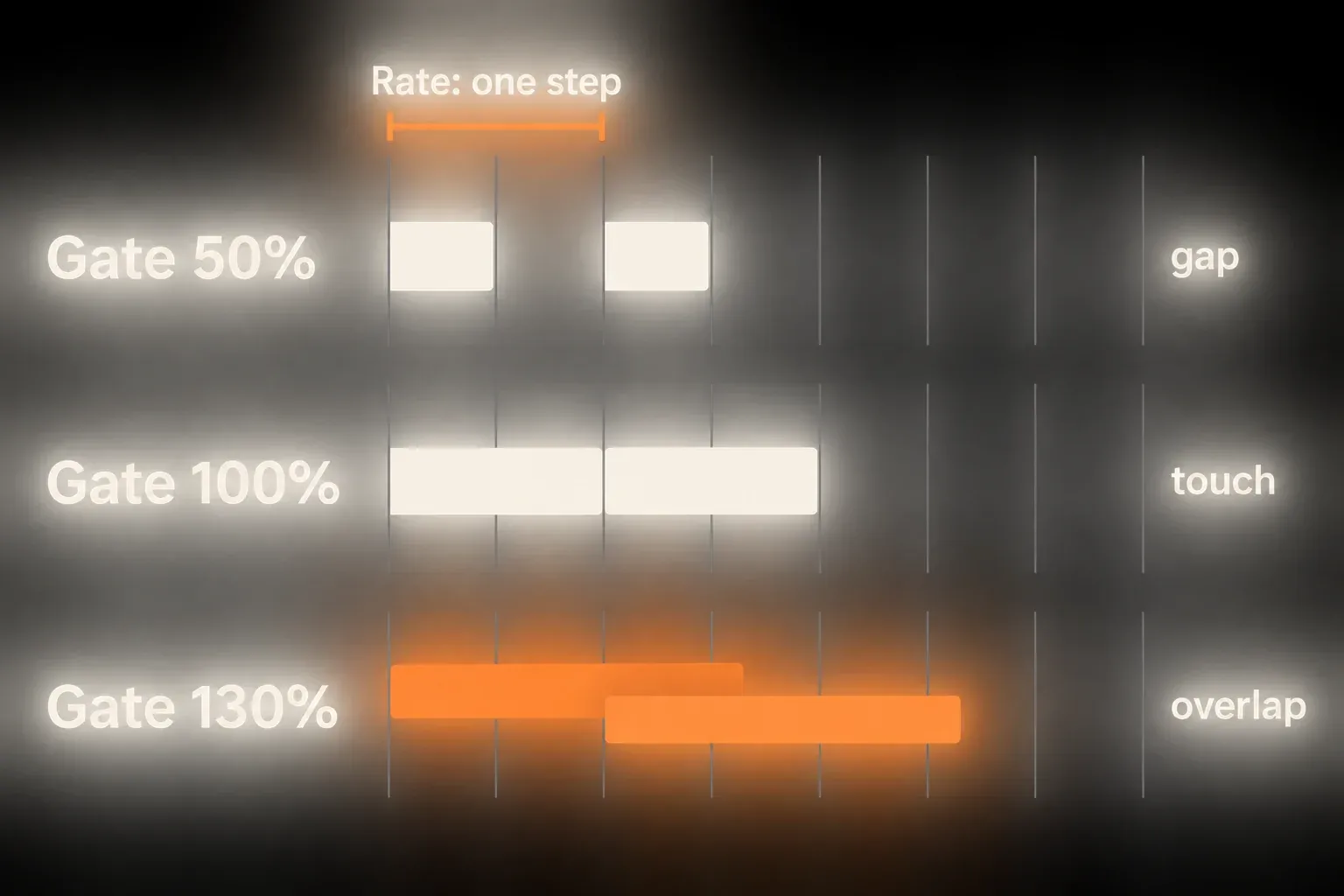
- Gate below 100%: each note ends before the next step, which suits plucks and clearly separated attacks.
- Gate at 100%: a note runs right up to the next step boundary.
- Gate above 100%: notes overlap, giving legato when the instrument supports it.
At 120 BPM, a straight 1/16 Rate is 125 ms, and Gate 80% gives a 100 ms MIDI note. That number describes the note message, not how long the sound rings. A synth’s release or a sample’s one-shot playback can keep going after note-off, so look at the instrument envelope before you decide Gate isn't working.
Choose Style by the contour you need
Style decides the order in which the held notes play. Pick a predictable style first and listen to a full cycle:
- Up or Down: a clear directional line and the easiest place to start.
- UpDown or DownUp: turns around at the top and bottom of the range.
- Converge or Diverge: alternates inward or outward through the chord.
- Play Order: follows the order in which you played the notes, so entry timing matters.
- Chord Trigger: repeats the incoming notes as a block chord instead of one note at a time.
- Random: keeps choosing from the incoming notes.
- Random Other: avoids repeating one note until the other incoming notes have been used.
- Random Once: creates one random order and repeats it until the input changes.
Random Once is the one to use when you want a repeating phrase to stay put while you choose a sound. Continuous Random makes sense when the variation itself is the point. If a particular random take matters, record its MIDI output, because changing the incoming notes can produce a new Random Once pattern.
Add octaves with Distance and Steps
Distance sets the transposition interval. Steps sets how many transposed repetitions follow the original pattern. Ableton's current example uses Distance +12 st and Steps 2: an input starting at C3 plays at C3, then C4, then C5.
With a +12-semitone Distance, Steps 1 adds a single higher-octave repetition after the original pattern. More Steps make the sequence longer and the pitch range wider; they do not make notes arrive faster while Rate stays the same. Check whether the new register suits the instrument, and whether Retrigger restarts the pattern before it ever reaches the added steps.
Use Current Scale follows the clip’s scale and switches off the device’s own Root and Scale choosers. With it off, you set the device’s scale yourself. Distance can count in semitones or scale degrees, so read the displayed unit before assuming +12 means an octave. Scale-aware transposition shapes the generated range; the input chord still supplies the musical material.
Use Hold as a performance latch, not a hidden default
Hold keeps the pattern going after you let go of the controller keys, and the next key press starts a new held pattern. To build a pattern up instead, keep the first keys physically held while you press more; playing an included note again removes it. Adding notes while holding keys and playing a replacement after release are two gestures that are easy to mix up.
In arrangement clips, leave Hold off unless the latch is part of the idea. The clip's sustained notes already decide how long the input lasts, and a hidden Hold state makes edit boundaries confusing.
Make restart behavior predictable with Retrigger
Retrigger controls when the pattern jumps back to its start:
- Off: the pattern runs without forced restarts.
- Note: a new incoming note restarts the pattern.
- Beat: the pattern restarts at the Interval you choose.
Choose Note when each new input note should restart the sequence; a rolled chord can therefore trigger several restarts. Choose Beat with an Interval when the restart must land on a bar or beat. Sync controls the pulse and Retrigger controls the restart, and neither one fixes a drifting external clock or a late recorded performance on its own.
Pattern Offset rotates the note order without touching the chord or the style. It is a tidier way to start on a different note than rewriting the source chord just to move step one.
Limit repetitions when the pattern needs space
Repeats defaults to infinity, so the arpeggio runs for as long as the input exists. Set Repeats to 1 or 2 for a finite gesture followed by silence. Ableton points out that short repeat counts can imitate strumming, and pairing them with Beat retrigger gives recurring bursts.
For a short fill, try Repeats 1 with a longer Beat retrigger interval. Listen to the gap after the pattern as closely as to the notes. If the fill never reaches its top octave, lengthen the interval or cut the number of transposed repetitions.
Add swing through Groove after the straight pulse works
The Groove chooser applies a groove to the arpeggiated pattern, and its intensity follows the Global Groove Amount in the Groove Pool or Control Bar. Start straight, and compare at the same tempo once the Rate and chord cycle feel stable.
The Groove Pool guide explains Timing, Random, Velocity and Commit. Arpeggiator's Groove chooser only borrows the timing feel; the full clip-groove workflow still lives in the Groove Pool.
Shape dynamics with the velocity slope
Turn on Velocity to reveal Decay and Target. Decay sets how long the pattern takes to reach the Target velocity. A long Decay with Target 0 fades the note velocity out, though what you actually hear depends on how strongly the instrument responds to velocity.
With velocity Retrigger on, the slope starts over whenever the pattern does. Pair it with Beat retrigger for repeated swells. Try it on a neutral instrument first, because a compressed or velocity-insensitive patch can hide perfectly correct MIDI changes.
Why the arpeggiator sounds wrong or out of sync
- No output: confirm incoming notes, track monitoring/arm state, device order and instrument output. If the instrument stays silent, follow the one-track MIDI signal trace.
- Wrong speed: choose Sync for tempo divisions; a Free Rate uses milliseconds.
- Notes blur together: lower Gate and shorten the instrument's release.
- Pattern restarts unexpectedly: look at Retrigger Note and at changing input notes.
- Pattern never stops: turn off Hold or shorten the source MIDI note.
- High notes become unusable: reduce Steps or Distance.
- Swing is inaudible: make sure a Groove is selected and Global Groove Amount is above zero.
- Random cannot be arranged: use Random Once for a repeatable cycle.
Record Arpeggiator’s output as editable MIDI notes
Recording straight onto the source track captures the incoming chord, not the note stream Arpeggiator produces. Live’s Post FX MIDI routing taps after MIDI effects and before the instrument, so a separate MIDI track can catch that stream. If you want the instrument’s audio rather than note events, use resampling.
Create an empty MIDI track named Arp Capture. In its MIDI From chooser, pick the source track, and in the lower chooser pick Post FX. Leave the capture track without an instrument, with Monitor Off and MIDI To No Output. You keep hearing the original instrument while recording, with no second audible copy and no feedback route.
Temporarily set Edit → Record Quantization to No Quantization so the capture doesn't snap to another grid. Arm Arp Capture, start the source chord clip and record into an empty Session slot on Arp Capture. Stop recording after a few bars, then stop the source clip. The captured clip should show separate short notes, not just the long input chord. Set its Groove chooser to None so a default assignment doesn't add a second groove on playback.
To hear the capture without loading another instrument, copy the clip into an unused slot on the original instrument track and bypass Arpeggiator. Play only that captured clip. Keep the original chord clip and the saved Set for comparison, and don't run the captured notes through Arpeggiator again unless you want a second arpeggiation. Put your earlier Record Quantization setting back when the test is done.
These steps cover Live’s stock Arpeggiator in a normal track device chain. A plug-in’s built-in arp is a different case: it has to expose MIDI output, and MIDI-output-capable VST plug-ins are selected by name in the receiving chooser. Don't assume a top-level tap shows every independent pattern inside a nested Rack. Begin with the plain stock-device route and check the recorded notes.
Control instrument load without changing the pattern unnecessarily
- A faster Rate can trigger more notes per second. Gate overlap, long instrument releases and Chord Trigger can raise the number of simultaneous voices. Look at the receiving instrument’s voice limits and the real CPU load before you change the musical part.
- Steps changes how many transposed repetitions play, not the event rate by itself. At a fixed Rate and Gate, more Steps is not automatically more polyphony or CPU, although different registers may trigger different sample layers or instrument behavior.
- Keep the source chord and the device settings. Capture MIDI into an empty track and play it back through the existing instrument, rather than duplicating a large sample library just to inspect notes.
- Resampling creates audio files and can freeze an exact sound, but keep the editable source first. No particular Gate or Steps value saves a fixed amount of RAM. If load is high, identify the expensive device and judge any simplification by ear.
A musical Arpeggiator setup in six decisions
- Prepare the input. Save a copy of the Set. Put Arpeggiator before an instrument and use a sustained test chord, with other MIDI effects bypassed.
- Set the pulse. Turn on Sync, choose Rate 1/16 for the first test, and confirm the instrument can articulate repeated notes.
- Set note length. Try Gate 80%, then compare shorter and longer values while listening to the instrument’s envelope and release.
- Choose order. Start with Up, Pattern Offset 0 and Steps 0. Hear a full cycle before changing Style.
- Define range and restart. Set Distance and Steps for the range you need. Check the Distance unit and choose Off, Note or Beat Retrigger on purpose.
- Add and capture movement. Add Groove, Velocity, Hold or finite Repeats as needed. For editable output, record Post FX MIDI to a second track and check the notes before replacing the source.
If you would rather write the arpeggio straight into a clip, the Arpeggiate MIDI Transformation edits selected notes instead of processing the incoming stream during playback. The MIDI and sampling guides connect that pattern to drum programming, groove and resampling.
FAQ
How do I use Arpeggiator in Ableton Live 12?
Put Arpeggiator before an instrument on a MIDI track, then hold or draw a chord. For a simple test, use Up, Sync, Rate 1/16, Gate 80%, Steps 0 and Hold off. Rate controls spacing and Gate controls note length. Treat these as starting values to adjust for the instrument, not as a preset for every style.
What is the difference between Rate and Gate?
Rate sets the time between new arpeggiated notes. Gate sets each note's length as a percentage of that time. Below 100% leaves gaps, 100% reaches the next step and above 100% makes notes overlap.
Why does Ableton Arpeggiator keep playing?
Check Hold first, then whether the source clip or controller is still sending held notes. Infinite Repeats repeats an active pattern, but with Hold off it does not latch released input on its own. A synth release or delay tail can also ring on after the MIDI notes stop; look at the captured notes to tell MIDI activity apart from ringing audio.
How do I keep Ableton Arpeggiator in sync?
Use Sync rather than Free Rate, pick a tempo division, and set Retrigger to Note or Beat when the pattern has to restart predictably. Beat retrigger with a set Interval can realign a long held chord at regular points.
What do Distance and Steps do?
Distance sets the transposition interval and Steps sets how many transposed repetitions follow the original pattern. With +12 semitones and Steps 2, the pattern plays at the original octave and then two octaves higher.
Does Ableton Arpeggiator use much CPU or RAM?
Rate, Gate, instrument release and Chord Trigger can change how many notes sound at once. Steps alone changes the transposed repetitions, not note speed. CPU and RAM depend on the receiving instrument, its samples and effects, so no fixed saving follows from a particular Steps value. For a low-overhead comparison, capture to an empty MIDI track and reuse the original instrument.
