
Short answer: assign a groove to a duplicate of the clip, then check both its Timing value and the Set’s Global Amount. Keep Random and Velocity at zero while listening for swing. Do not press Commit to make the groove audible: it already affects playback. To compare with the original, choose Groove None on an uncommitted copy; Global Amount 0% leaves Groove Pool Quantize active.
Groove Pool changes how an existing pattern lands and accents its notes. It does not generate a new drum part. A straight kick can stay put while sixteenth-note hats swing, provided those parts have separate clip assignments. Start with the notes you want to move, then choose a template that moves those rhythmic positions.
Assign a groove without changing the clip permanently
Live stores grooves as .agr files. The current Live 12 groove manual supports three useful starting routes:
- drag a groove from the browser directly onto a MIDI or audio clip;
- double-click a groove to load it into Groove Pool before assigning it;
- enable Hot-Swap above the clip's Groove chooser and step through candidates while the clip plays.
Open or close Groove Pool from the browser view control, with Ctrl+Alt+6 on Windows, or Cmd+Option+6 on Mac. A groove in the Pool can serve several clips. Inactive grooves remain listed with grayed parameters, which explains why a loaded groove may appear to do nothing until a clip actually uses it.
Since Live 12.1, the default Set can load a groove automatically and assign it to new MIDI clips, with Global Groove Amount initially at 0%. The Auto Load Groove option controls assignments to new MIDI clips. A custom template or older Set may differ. Turning Auto Load Groove off stops future automatic assignments; clear existing clips through their Groove chooser if you want them straight.
Read the controls from left to right
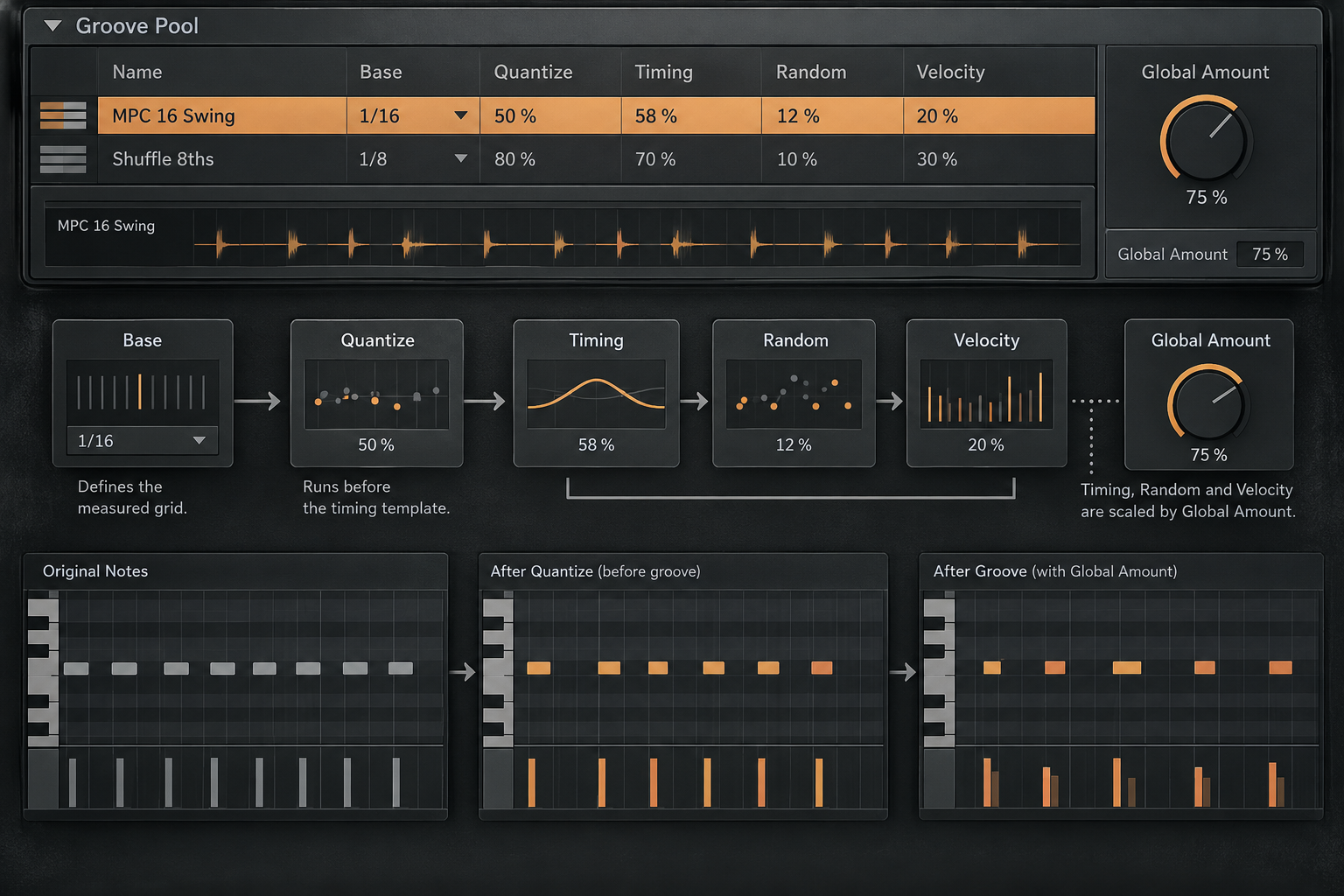
| Control | What it changes | Safe first move | Failure signal |
|---|---|---|---|
| Base | Resolution used to measure groove offsets | Match the musical subdivision | Wrong beats are being pulled |
| Quantize | Straight correction before groove | Start at 0 for an already coherent take | Original push/pull disappears |
| Timing | Strength of stored timing offsets | Raise while the full rhythm section plays | Backbeat or bass relationship collapses |
| Random | Different random timing per voice | Leave at 0 until the repeating groove works | Simultaneous notes flam apart |
| Velocity | Influence of stored velocity pattern | Audition after timing is approved | Accents fight the instrument or mix |
| Global Amount | Overall Timing, Random and Velocity scale | Use as final wet-intensity control | All grooves become exaggerated together |
Base decides which timing relationship is transferred
Base is not the clip grid display. It tells Groove Pool how the source groove's notes are measured against a regular pulse. At 1/8, each groove note is compared with the nearest eighth note. Assigned clip events are then moved proportionally toward those stored offsets. A 1/16 Base measures a finer layer.
Start with the groove’s intended subdivision: a sixteenth-note swing template is a useful test for sixteenth-note hats. Base alone does not invent swing. If the template has no offset at the positions your clip uses, turning up Timing may produce little audible change. Try the same groove on a continuous straight hat pattern before changing the original performance.
Quantize happens before the groove
Groove Pool's Quantize control performs straight correction toward the Base grid before Timing applies the groove offsets. That order matters. At 100% Quantize, the assigned clip is first pulled to the straight grid, then toward the groove. At 0%, its existing timing remains the starting point.
If the source clip contains mistakes, correct the outliers first using the partial quantization workflow. If it already has a coherent performance, keep Pool Quantize low or at zero so the groove augments rather than erases it.
Groove Pool can also act as non-destructive straight quantization: set Timing, Random and Velocity to 0%, then adjust Base and Quantize. The actual groove pattern is ignored until Timing returns.
Timing transfers feel; Random creates variation
Timing controls how strongly the stored groove offsets move events in every assigned clip. Start low, listen with kick, bass and main percussion together, and raise it until the rhythmic relationship becomes obvious. Then back off slightly.
Random is different. It applies a differing timing fluctuation to every voice. Notes that originally occurred together can be offset from the grid and from each other. This can make a doubled texture less exact, but it can also turn a layered clap into a flam or make a chord lose its attack. Random is not a substitute for a designed groove because its result is not the same repeating relationship.
Velocity influence can reverse the accent pattern
Velocity ranges from -100 to +100. Positive values transfer the groove's stored velocity relationship. Negative values reverse it, so source accents become quieter relative to the opposite positions.
That information interacts with the instrument. A velocity-sensitive drum rack may change sample layers, filter response and volume; a synth with velocity disabled may barely react. Approve timing first, then audition Velocity at the actual mix level rather than reading the lane alone.
Global Amount is not a second Timing control
Global Amount scales Timing, Random and Velocity for every groove in the Set. It does not scale Base or the straight Quantize value. At 100%, each groove uses its assigned parameter values; the control can reach 130% for exaggeration.
Global Amount 0% is not a complete bypass: Groove Pool Quantize can still straighten the clip. For an original-versus-grooved comparison, switch the uncommitted clip’s Groove chooser to None and back, or alternate between an untouched copy and the processed copy. Do not play both copies together. Changing Global Amount also affects other clips with groove assignments; adjust one groove’s Timing for a local change, remembering that other clips may share that groove.
Hear swing on a simple hat pattern
For a listening exercise, create a one-bar 4/4 clip with a closed hat on every sixteenth note, all at the same velocity. Keep a straight kick on another track. Duplicate the hat clip, select a sixteenth-note swing groove on the copy, and start with Base 1/16, Quantize 0%, Random 0%, Velocity 0% and Global Amount 100%. These are diagnostic settings, not a genre preset.
Raise Timing from 0% to 50%, then briefly to 100%, and listen for the alternating hats moving relative to the kick. The groove’s stored pattern determines the offset; Timing 50% does not mean a 50% swing ratio. Alternate Groove None and the chosen groove on the same clip, without changing its track level. If only the downbeats play, add intervening sixteenths to the test copy so the template has off-grid events to affect.
Groove Pool not working? Check these before Commit
First confirm that the playing clip—not merely a highlighted row in the Pool—has the intended groove selected. Check that Timing and Global Amount are above zero. Try the continuous hat exercise: sparse notes may fall on positions the template does not move. For audio, enable Warp and check the downbeat and source tempo. If a previous Commit set the chooser to None, the applied timing is already written into that clip; compare with the saved original rather than expecting None to undo it.
A reported Live 12 swing problem was resolved by raising Global Amount. That is a useful check, not proof that every silent groove has the same cause. If a test clip responds but the song’s clip does not, inspect that clip’s assignment and note positions before resetting the Set.
Apply grooves to one drum voice when roles differ
A groove affects an entire clip. That becomes a problem when straight hats, a late snare and stable kick share one MIDI clip. The official manual suggests extracting the relevant chain from a Drum or Instrument Rack so one voice can live in its own clip and track.
For a Drum Rack pattern, decide whether the groove belongs to the kit or one voice. When separating a snare, use the Rack’s mixer extraction workflow if you need its MIDI notes as well as the devices. Save a Set copy first, then check shared effects, sends and choke relationships: moving the chain to another track is not a guarantee of the same mix.
Audio grooves require Warp
Grooves work on MIDI and audio clips. Audio must have Warp enabled because the result changes warping behavior. Confirm 1.1.1, original tempo and Warp Mode before assigning a groove; otherwise the template is applied to a bad timing map. The audio-warping setup establishes that reference.
Listen for softened attacks, uneven tails and audible stretching at the same playback level. Version matters for Re-Pitch: Live 12.4.3 changed it to follow clip groove settings. Older advice that Re-Pitch ignores grooves is therefore not reliable for current Live. Re-Pitch still links playback rate and pitch; compare an appropriate pitch-preserving mode if that pitch movement is unwanted.
Extract a groove from material worth copying
Live can extract timing and volume information from audio or MIDI. Drag the source clip into Groove Pool or choose Extract Groove from its context menu. Extraction considers only the playing portion of the clip, so set the start, loop and end boundaries before creating the .agr.
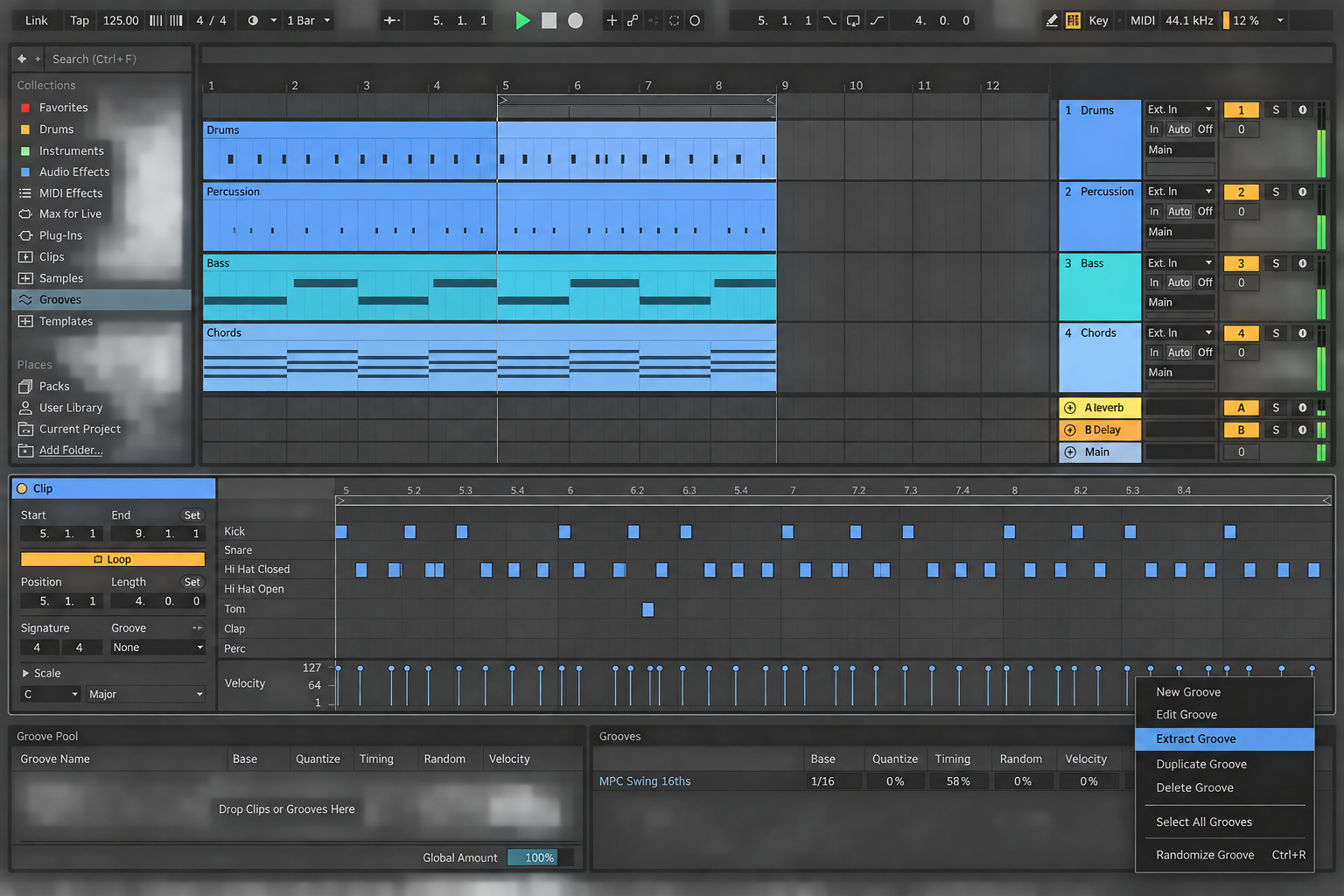
Choose a source with a stable role: a strong shaker, a drummer's hat pattern or a MIDI part with a clear repeating accent. A full mix with competing transients may produce a less intelligible template. To edit a groove's notes directly, drag the groove from the browser or Pool to a MIDI track, edit the resulting clip, then extract it again.
Commit changes the clip; preview does not
Before Commit, the Groove chooser and Pool parameters remain a non-destructive playback layer. Commit writes the current result:
- MIDI notes move to their resulting positions;
- audio clips receive Warp Markers at the resulting positions;
- the clip's Groove chooser automatically changes to None.
Commit when you need to edit the moved notes directly, export the pattern as plain MIDI, hand a clip to another workflow without the groove assignment, or inspect the exact timing. Keep the groove live while arranging, comparing templates or expecting tempo and part changes. Duplicate the approved clip immediately before Commit.
Keep the experiment small without losing the original
- Duplicate the clip on its existing track for the comparison, rather than duplicating the whole instrument and effects chain. Play one copy at a time. A normal audio-clip duplicate refers to the same source file; it does not by itself render another recording.
- Groove Pool does not add MIDI notes. Timing shifts can change which notes overlap, but there is no fixed CPU or RAM saving from a particular Timing or Random value. Check the actual Set if playback becomes unstable.
- For audio, choose Warp mode by sound quality and measured load. Do not render or consolidate every candidate merely to audition a groove; those operations create new audio files. Keep the editable clip and original sample.
- Commit is an editing decision, not a guaranteed performance optimization. If the Set is overloaded, identify the expensive track or device instead of assuming the Groove Pool list is the cause.
A controlled Groove Pool pass
- Assign and audition. Save a Set copy and duplicate the clip. Assign one groove, verify Timing and Global Amount, and audition without pressing Commit.
- Set the timing resolution. Choose a Base appropriate to the groove and the note positions you want to move. For audio, first check the clip’s downbeat and Warp setup.
- Compare against the original. Adjust Quantize, Timing, Random and Velocity separately. Use Groove None on the uncommitted copy for a complete bypass; Global Amount 0% still leaves Quantize active.
- Commit only when necessary. Duplicate the chosen clip before Commit writes the result into notes or Warp Markers. Play the committed copy, confirm its Groove chooser is None, and check timing and accents against the version kept for comparison.
If you need new notes rather than timing offsets, use MIDI Transformations and Generators. For choosing the next step after the rhythm works, the MIDI and sampling guides cover drum programming, audio slicing and resampling.
FAQ
How do I open the Groove Pool in Ableton Live 12?
Use the Groove Pool entry in the browser view control, press Ctrl+Alt+6 on Windows or Cmd+Option+6 on Mac, or drag a groove from the browser onto a clip. Double-clicking a groove loads it into the Pool without assigning it to a clip.
What does Base do in Ableton Groove Pool?
Base sets the timing resolution used to measure the groove's offsets. At a 1/8 Base, groove notes are compared with their nearest eighth note, and assigned clip events move proportionally toward those offset positions.
What is the difference between Quantize and Timing in Groove Pool?
Quantize applies straight grid correction before the groove. Timing controls how strongly the groove's timing offsets affect assigned clips. Setting Timing, Random and Velocity to zero lets the Pool act as non-destructive straight quantization.
Does Ableton Groove Pool work on audio?
Yes, but the audio clip must have Warp enabled. The groove changes its warping behavior in real time. Commit creates Warp Markers at the resulting positions, so verify the clip's downbeat and Warp setup first.
What happens when I Commit a groove in Ableton?
Commit writes the current groove result into the clip. MIDI notes move to their resulting positions; audio receives Warp Markers. The clip's Groove chooser then changes to None. Duplicate the clip before committing.
Does Groove Pool use much CPU or RAM?
Groove Pool changes timing and velocity; it does not generate additional notes. Timing changes can alter voice overlap, while warped audio and the instrument or effects can add processing load. There is no universal CPU or RAM percentage for a groove assignment. Audition a clip copy on the same track and measure the actual Set before freezing or rendering anything.
