
Short answer: load an empty Drum Rack onto a MIDI track, drop a few samples onto pads and program a short pattern. The Chain List is where you edit each sound’s devices, note assignment, choke group and mixer settings. Add a shared return for ambience, or extract a drum to its own track when it needs separate MIDI editing. Listen again after any routing change, because a separate output is not automatically the same mix in a new place.
This Live 12 guide follows one kit from its first samples to individual mixing and safe extraction. Kick, snare and hats are enough to start, and layers can come once that pattern works. The routing checks matter most when a kit already has shared effects or mutually choking hats.
A pad is a MIDI note, not the sound itself
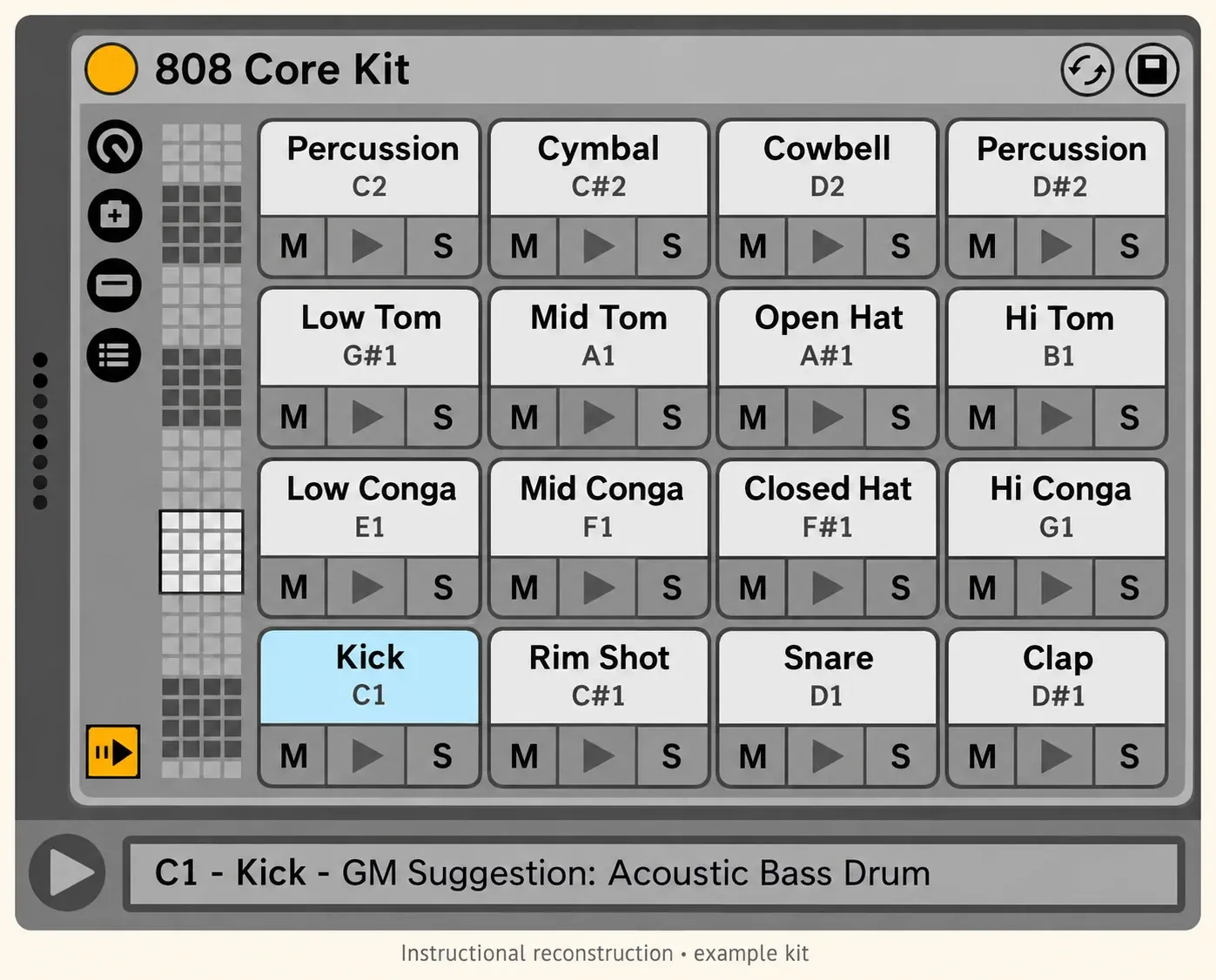
Each Drum Rack pad stands for one of the 128 MIDI notes, and one or more chains can respond to that note. The chain holds the instrument and any MIDI or audio effects. Pads give you a playable layout, while the chains decide what actually makes and processes the sound.
With the standard setup for dropped samples, a sample on an empty pad creates a chain containing Simpler, and an audio effect dropped on that pad lands after the instrument. Live also supports custom defaults for dropped samples, so if you see a different sampler or different starting settings, check your defaults before assuming the Rack is broken. Layered pads can hold several chains, so make sure you know which one you are editing.
Build the kit from roles before browsing variations
Create a MIDI track, load an empty Drum Rack and write down the roles the pattern needs. A practical first pass might use a kick, a snare or clap, a closed hat, an open hat and one percussion voice, with more roles added only when the rhythm asks for them.
- Load one kick, one snare or clap, a closed hat and an open hat onto separate empty pads, and name the chains by role.
- Create a one-bar MIDI clip in 4/4. For a simple test pattern, put kicks on beats 1 and 3, snares on 2 and 4, and closed hats on the eighth notes. It is an exercise, not a rule for every style.
- Replace one closed hat with an open hat and let it ring into the next closed hit, which gives you an audible choke test later.
- Vary a few hat velocities so the pattern is not identical on every hit, and listen before replacing samples or adding layers.
- Save a version of the Set before building effects and routing around the kit.
Unused alternatives are better left in the Browser than loaded into the Rack, because loaded samples and devices can use memory even when they barely feature in the pattern. Compare one useful layer at a time; three layers that mask each other make both mixing and troubleshooting harder.
Open the Chain List to see what each pad controls
Show the Chain List and select a pad. The selected chain shows its devices, and the Rack’s Input/Output section exposes Receive, Play, Choke and the output controls, while the chain mixer handles level, pan and send amounts.
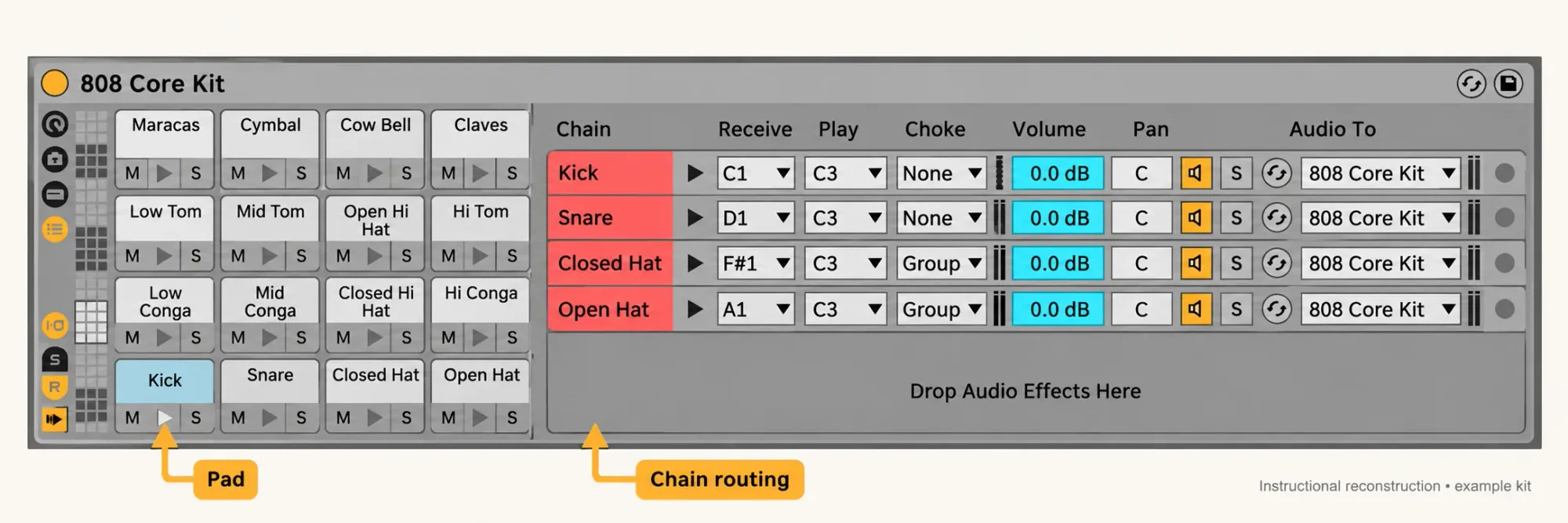
- Receive sets the incoming MIDI note for the chain.
- Play sets the note sent on to the devices inside the chain.
- Choke puts the chain into one of sixteen mutual-silencing groups.
- Vol and Pan shape the chain before it joins the Rack output.
- Sends feed the Drum Rack return chains once those returns exist.
- Audio To decides where the chain output goes.
Auto Select helps when troubleshooting a large Rack, because the chain that receives a note becomes selected as the note triggers. Switch it off when you want the device view to stay on one chain while the pattern plays.
Use choke groups for physical relationships
Give the open and closed hi-hat chains the same Choke number when one should stop the other. Trigger the open hat, then the closed hat, and the open tail should end at the second note. Any chain in a shared group silences the other members, so the same number should not be reused casually for unrelated sounds.
Let the open hat ring long enough for the next closed hit to cut it off clearly. Test without reverb returns in the listening path, since a separate wet tail can carry on after the dry sample stops. If Choke is greyed out, look at Receive: All Notes disables Play and Choke. The choke-group setup and troubleshooting guide covers nested chains and effect tails in detail.
Process one pad inside its chain
Select the snare pad and add an audio effect after its instrument inside the chain. That device processes only the snare chain, before the chain mixer, which makes it the place for a necessary correction or a character decision on one sound: shortening a resonant tail, filtering one sample or taming a sharp transient.
A per-chain effect suits a change that belongs to that drum alone. A shared return is useful for parallel ambience, and an effect after the Rack processes the whole kit. These placements are not interchangeable, because one compressor reacting to the whole kit behaves differently from separate compressors on each sound.
| Device location | What it processes | Best question |
|---|---|---|
| Inside one drum chain | One chain/pad role | Does this sound alone need the change? |
| Drum Rack return | Post-fader sends from selected chains | Should several drums share a parallel effect? |
| After the Drum Rack | The summed Rack output | Does the complete kit need the change? |
| Separate track | The selected input, or an extracted chain on a MIDI track | Does this drum need separate editing or recording? |
Add Rack returns only for shared parallel effects
Show the Rack’s Return section and add an audio effect to its return-chain area. Drum Racks offer up to six returns, and the matching send controls then appear on the drum chains. These sends are post-fader, so lowering a drum chain also lowers what it sends into the shared effect. The Rack manual describes this internal send and return path.
For a conventional shared reverb or delay, set the effect’s Dry/Wet to 100% wet, since the dry drum already comes through its own chain. Raise only the sends that need ambience and label the return, for example Short Room. A deliberately parallel processor can call for a different setting, but avoid adding a second dry copy by accident. If you route a Rack return into a Set return, check the destination and levels with the send and return routing guide.
Mix the chains before creating more tracks
A multi-chain Drum Rack can unfold in the Session mixer with the fold/unfold button beside the parent track’s title. Its chain strips have no clip slots and simply mirror the Chain List’s mixer controls, and clicking a chain’s mixer title shows its devices. The MIDI pattern stays on the parent track while you balance the individual drums.
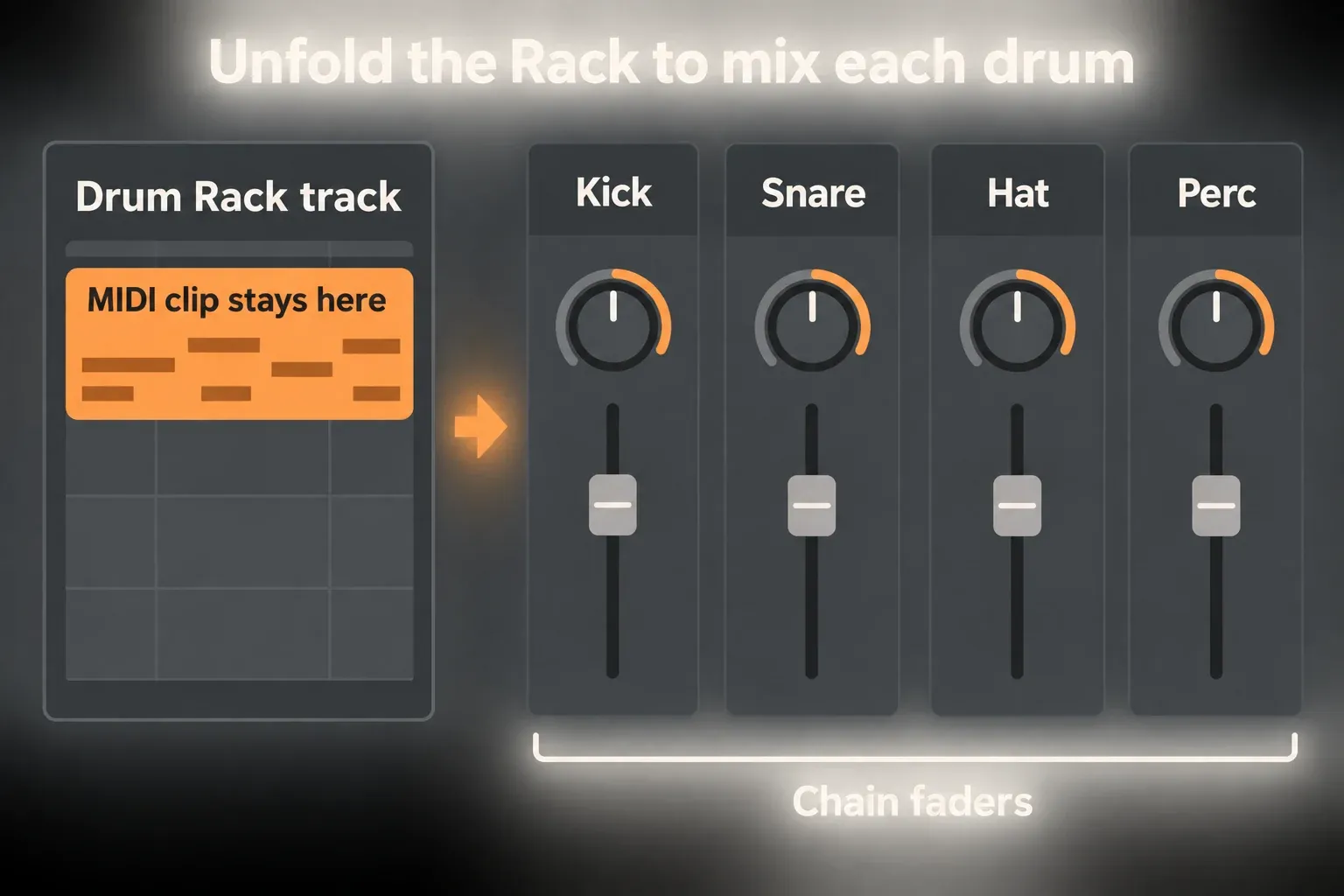
Balance the chains with the whole pattern playing. Check the input and output levels of any processors as well as the Rack output; gain staging in Live explains why turning down only the final fader does not change the level already driving an earlier effect. Solo briefly to find a fault, then listen in context again.
Choose the output path before recording separate drums
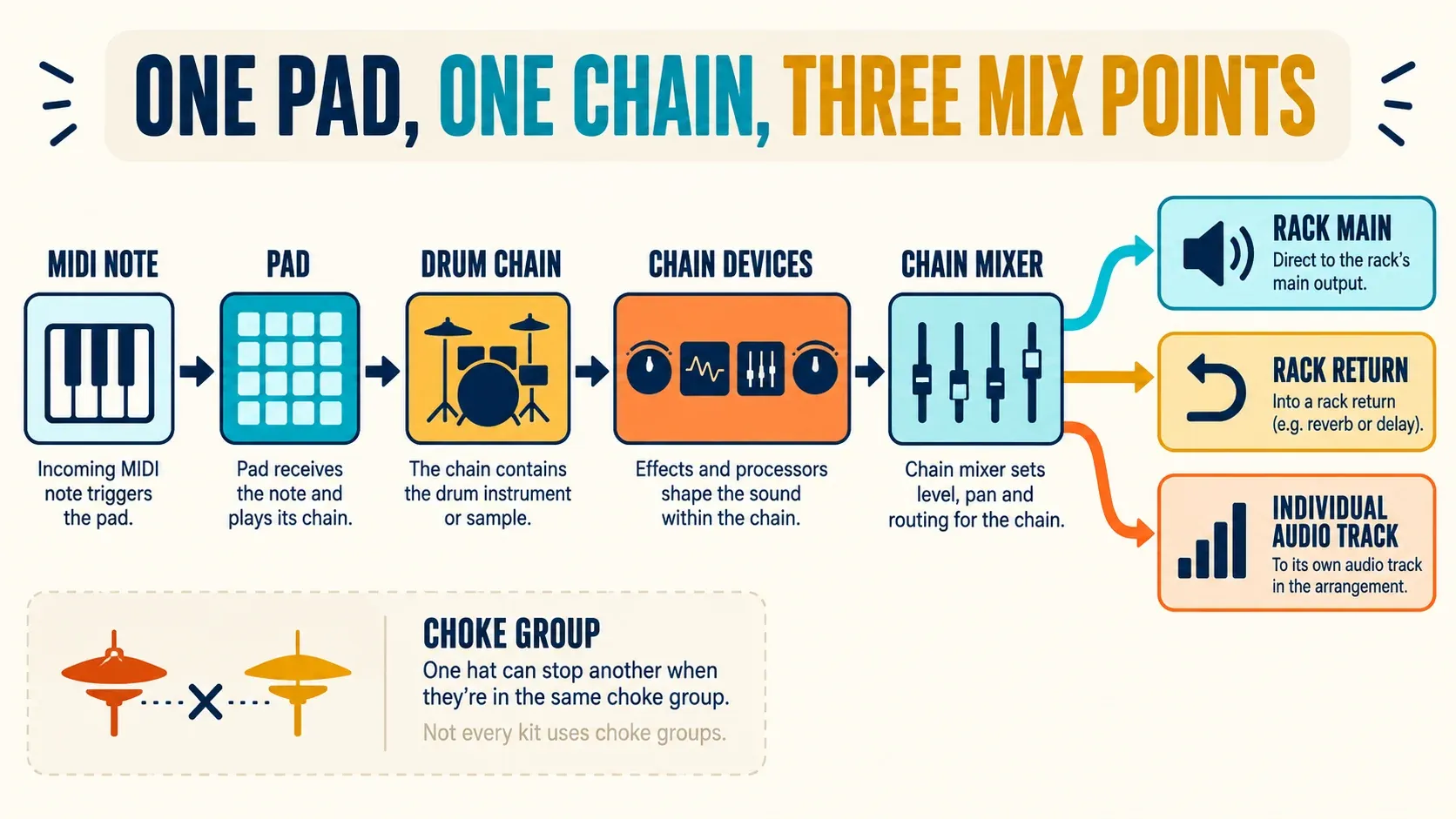
For separate MIDI editing, the extraction workflow below is the clearest documented route. For audio recording, select the source track in an audio track’s Audio From chooser and look at the source paths its second chooser actually offers, since not every Rack or pad shows an identical set of taps. A short test establishes what the chosen path contains:
- On a saved copy, choose one named source path and record a short drum pattern with the receiving audio track’s monitoring off, so the test adds no second live output.
- Record once with a clearly audible chain effect enabled and once with it bypassed. The comparison shows whether that path includes the chain’s processing.
- Try a temporary chain-level change, then restore it. Test shared returns and any effect after the whole Rack separately, because hearing the drum does not prove those paths are included.
- Stop recording before listening to the captured clip on its own. Undo the temporary changes and check the intended full-kit playback before keeping the route.
The routing-point reference describes Pre FX, Post FX and Post Mixer for Instrument and Effect Rack chains and discusses Drum Rack return chains separately. Post Mixer on a chain sits before the Rack’s combined output, and it does not mean a separate shared return has been mixed back into that chain. An isolated drum recording may also miss processing placed after the whole Rack. Decide on the required stem contents and export checks before delivering the files.
Extract a chain when it truly becomes a track
Save a separate version of the Set. In the Session mixer, unfold the Drum Rack, select the drum chain’s title bar and drag it to the mixer’s empty drop area. The manual’s extraction workflow moves both the devices and the MIDI notes that trigger that chain to a new track, while dragging from the Chain List moves only the devices. They are different operations, not interchangeable shortcuts.
After extraction, compare the new track with the saved source: MIDI notes, chain effects, shared return feeds and any processing after the original Rack all matter. Keep mutually choking articulations together unless you plan to rebuild their interaction, because matching group numbers in separate Racks do not create a shared group. A dry drum that still plays is no promise of identical stems. And if all you need is a separate fader, the unfolded Rack mixer already gives you one.
Save the Rack after the playback test
Replay soft and hard hits, the open and closed hat pair and the full pattern, then test the returns and listen for doubled outputs. On a saved copy, remove only confirmed unused layers and devices, and save a named Rack preset such as Dry Break Kit or Short Room Acoustic Kit. Keep the previous version until the replacement has been checked.
Saving a Rack preset is no reason to delete its source samples. For a project handoff, collect the required project files and test the saved Set with those files available. Useful alternate kits work best as separate presets, so opening one kit does not load every alternative. For the next part of the beat, the MIDI and sampling workflow connects the kit with grooves and chopped phrases.
Keep loaded samples and effects under control
CPU: empty pads cost almost nothing; active instruments, per-pad effects, oversampling and shared return chains create the real processing load.
RAM: Simpler instances and sample-based devices use memory while their material is loaded. A large sample folder on disk does not mean the whole folder sits in RAM.
Disk and Set size: duplicate samples and repeated resampling passes make the Project grow faster than the Rack structure itself.
Start with the sounds the pattern actually uses. Share effects where a shared signal path makes sense, and split tracks for a concrete editing or routing need, not in the hope of saving resources.
If you render or bounce a drum while still editing its MIDI, keep the original Set and the editable device. A separate audio copy can be useful, but losing the only editable source is an avoidable mistake. Recheck choke behavior, velocity and any shared effects before replacing live playback.
FAQ
How do I create a Drum Rack in Ableton Live?
Create a MIDI track, load an empty Drum Rack and drop samples onto separate empty pads. The standard setup creates Simpler chains, although custom defaults for dropped samples can change the device or its settings. Program a short pattern, check the levels and choke behavior, and save a named Rack preset while keeping the source samples.
What is the difference between a Drum Rack pad and a chain?
A pad stands for a MIDI note and every chain that can receive it. A chain holds the instrument, sample and effects that process the note, along with its own level, pan, sends and routing. One pad can represent several layered chains.
How do choke groups work in Ableton Drum Rack?
Put the chains that should stop one another into the same Choke number. Triggering any chain in that group silences the others, which is useful for open and closed hi-hats. Drum Rack offers sixteen choke groups.
Can I put effects on one Drum Rack pad?
Yes. Place the audio effect after the instrument inside the chosen drum chain, and it processes that chain instead of the whole Rack. On a layered pad, check every chain, because an effect inside one layer does not automatically affect every sound the pad triggers.
How do I route Drum Rack pads to separate tracks?
For independent MIDI tracks, extract the chains you need from the Session mixer on a saved copy. For audio recording, look at the source paths the receiving track’s Audio From choosers actually offer and test what the selected path includes. Check the dry sound, inserts, shared returns and Rack-wide processing separately, and avoid monitoring duplicate output paths.
What happens when I extract a Drum Rack chain?
Dragging a drum chain from the Session mixer to the empty mixer area moves its devices and the MIDI data that triggers it onto a new track, while dragging from the Chain List moves only the devices. Save a source version first, then check returns, shared processing and any choke relationship after the move.
