
Short answer: open the Drum Rack Chain List and its Input/Output section, then assign the open-hat and closed-hat chains the same Choke number, such as 1. Trigger the open hat and then the closed hat while the first tail is still audible. Test with the effects removed from the listening path: the second hit should silence the first chain, while a separate reverb return may continue ringing.
Choke groups work in both directions. Any chain in the group can interrupt another, not just the closed hat. If the result sounds wrong, check the group numbers, the actual receiving chains, All Notes and the effect routing before replacing the samples.
Reveal the chain controls that contain Choke
- Select the Drum Rack, not only the Simpler inside one pad.
- Show the Chain List with the list button on the Rack's left edge.
- Show the Input/Output section so Receive, Play and Choke appear.
- Rename the two chains Open Hat and Closed Hat.
The current Live 12 Rack manual documents sixteen choke groups. Any chains sharing a group silence one another when triggered. Ableton uses open and closed hi-hats as the direct example.
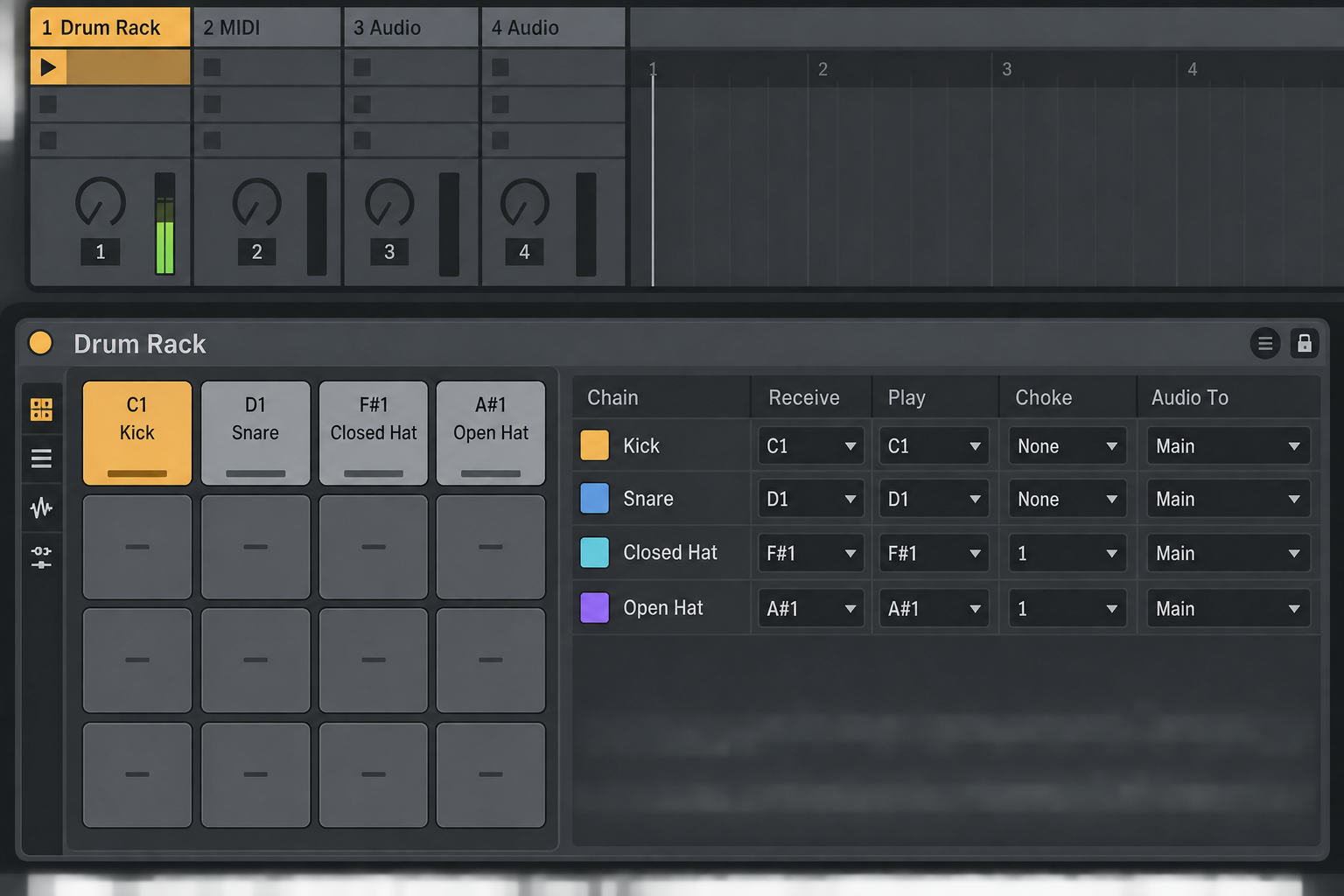
Put both hi-hat chains in one group
- Find the open-hat chain and choose 1 in its Choke column.
- Find the closed-hat chain and choose 1 there as well.
- Leave unrelated kicks, snares and percussion at None unless they need their own exclusive behavior.
- Use a different number for another family, such as two mutually exclusive shaker articulations.
The number has no sound or priority. Choke 1 is not stronger than Choke 2. A group number only defines which chains interrupt one another.
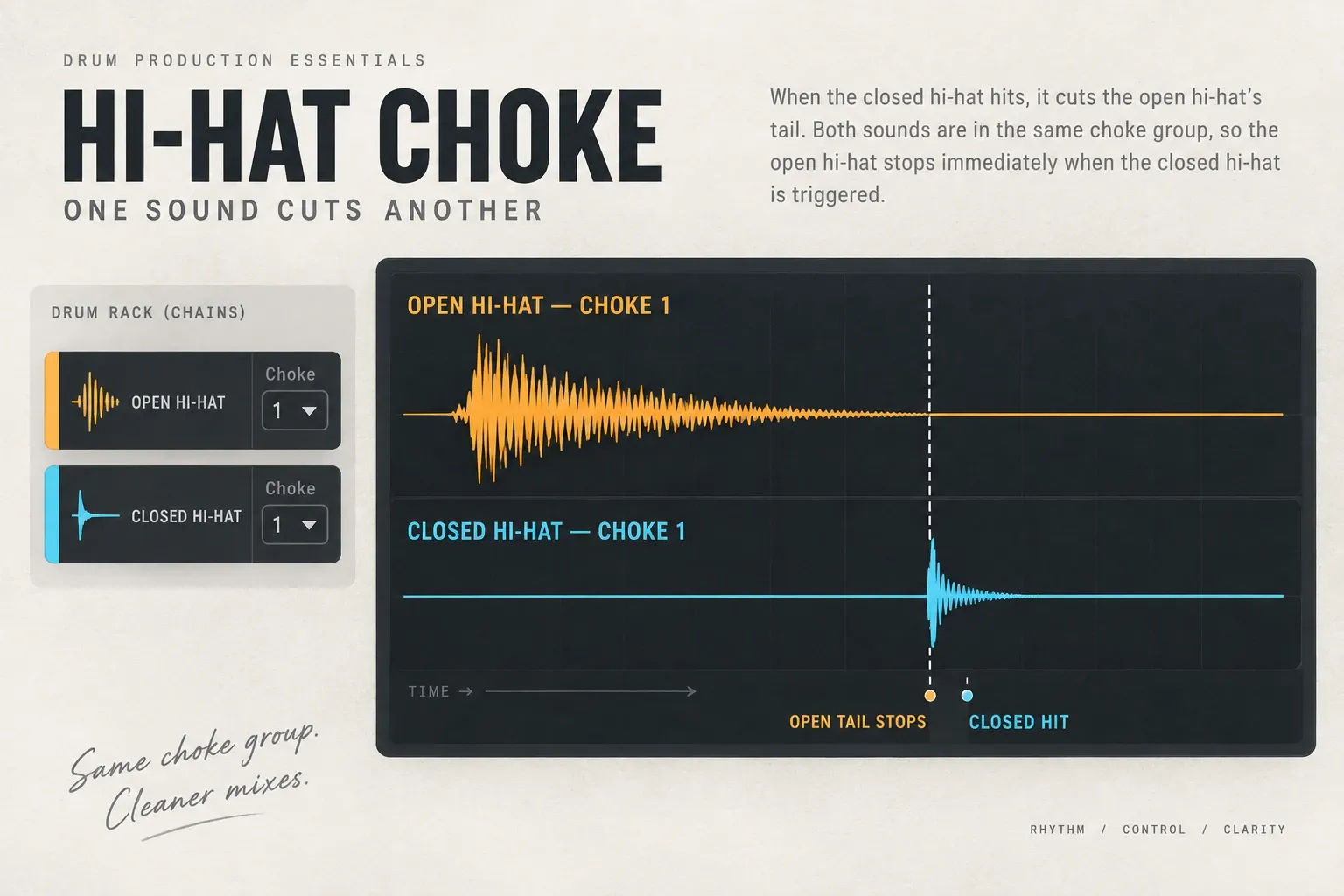
Test the interruption, not just the settings
- Save a copy of the Set before changing the kit. Solo the Drum Rack track for the test.
- Temporarily bypass effects inside the hat chains and after the Rack. Mute the relevant Rack and Set return outputs too; soloing the drum track alone does not establish a dry signal.
- Use the chain Preview buttons, then make a short MIDI clip with one open-hat note followed by one closed-hat note. Use distinct trigger times rather than simultaneous hits.
- Leave enough space to hear the open tail. It should still be ringing when the closed note arrives; otherwise the test proves nothing about choking.
- Listen at the closed note: the dry open hat should stop. Reverse the order to check the mutual behavior, then restore the original effects and return levels.
Preview is useful because it tests the chain away from controller mappings. A two-note MIDI clip is better for judging the exact musical stop point and repeatability.
Choke groups act on chains, not visual pad labels
A Drum Rack pad represents a MIDI note and can trigger one chain, layered chains or a nested Rack. Choke belongs to a drum chain in the particular Rack you are editing, not to a universal pad label. If a pad displays Multi, inspect all the chains receiving that note and identify the Rack level shared by the two articulations.
Two common consequences follow:
- Assigning Choke inside a nested Rack may not affect a sibling chain at the parent level.
- Changing a pad name does not change its Receive note or chain assignment.
Enable Auto Select and trigger each pad to see which chain receives the note. If that reveals a nested instrument instead of the expected sample, follow the Drum Rack pad and chain routing before assigning more groups.
Do not use All Notes on a chain that needs Choke
If a chain's Receive chooser is set to All Notes, Ableton disables its Play and Choke choosers. The chain passes incoming notes to its devices instead of behaving as one mapped drum articulation.
Assign a specific Receive note to the open and closed chains. Confirm that the MIDI clip actually contains those notes and that each note selects the expected chain. If changing Choke seems impossible because the field is greyed out, All Notes is the first place to look.
Separate sample tails from effect tails
A choke can stop the open-hat chain while a reverb or delay continues to ring. That does not prove the group failed. Locate the effect:
- Inside the open-hat chain: bypass its effects and compare with dry sample playback. Do not assume every plug-in or effect buffer will respond identically to a choke; confirm the actual chain you are using.
- Drum Rack return: the send feeds a separate effect path, which can keep ringing after the dry hat stops.
- After the Drum Rack: a downstream delay or reverb receives the combined Rack output and may already contain a tail.
- Set return track: the hat can send audio to a return shared with other tracks. Identify that destination before muting or automating it.
If the dry test works, decide whether the ambience should remain. Turning down a send stops new input; it does not necessarily silence a tail already inside the effect. To cut that audible tail, control the level after the effect or use a suitably configured Gate after the reverb or delay. Use a short, audible-testable fade rather than an abrupt level jump if it clicks. A shared return level change affects every sound on that return: give the hats a separate path when other instruments should keep their ambience. Check send and return routing before changing the whole mix.
Check Simpler playback only after the group is correct
In Simpler’s One-Shot mode, Trigger lets the sample run after note release; Gate begins fading it on release according to Fade Out. Classic mode has its own amplitude envelope. These settings control individual note playback, while a choke group links separate articulations. Shortening every MIDI note is not a substitute for checking that relationship.
Check the sample’s region, playback mode and envelope in the dry test. If a third-party instrument still rings, compare two plain Simpler chains with the same MIDI pattern on the saved copy. A working plain pair narrows the problem to the original chain or routing; it is not a reason to reset all of Live. If the hat stops at the right time but its pitch bends unexpectedly, check Simpler’s pitch envelope and tuning controls.
Place the closed note where the cymbal should close
The interruption follows the incoming trigger, so compare the actual closed-note position with the intended rhythm. If it is late, changing the Choke number cannot move it. Avoid using two notes at exactly the same timestamp to judge which articulation wins; place a clear open-then-closed pair first.
Zoom into the MIDI clip and place the closed hit at the actual foot-close or stick event. Use the partial quantize workflow when timing needs correction; do not quantize the whole hat pattern merely to fix one late choke.
Why the open hat still rings
- Only one chain has a group number: assign both to the same number.
- The numbers differ: Choke 1 and Choke 2 are separate groups.
- Receive is All Notes: map each chain to a specific MIDI note.
- The MIDI note triggers another chain: use Auto Select and verify Receive assignments.
- The sound is nested: set the choke relationship at the chain level shared by both articulations.
- The dry sample stops but ambience remains: isolate Rack returns, downstream effects and Set returns.
- The closed note arrives late: edit the MIDI trigger position.
Keep the kit light without cutting wanted tails
- Choke is an articulation setting, not a RAM-unload command. It does not remove the sample from the kit or create a new audio file.
- Shorter overlap can reduce active voices, but processing depends on the instruments, effects and routing. Measure the actual Set rather than expecting a particular CPU saving.
- Use only the layers and independent effects the kit needs. Shared ambience can avoid duplicate effects, but give hats their own path if only their reverb must stop.
- Do not put cymbals that should ring together into one group. Preserve the original Rack and restore any temporary mute or bypass used in the test.
Confirm the saved kit
- Save a copy, select the correct Drum Rack and show Chain List plus Input/Output.
- Give the open and closed hat chains specific Receive notes, not All Notes; check which chains the notes actually trigger.
- Assign both chains the same Choke number at their shared Rack level.
- Test a clearly separated open-then-closed pair with chain effects bypassed and relevant return outputs muted; reverse the order once.
- Restore effects and returns. If only the wet tail should stop, control a dedicated path after its effect rather than merely reducing its send.
- Place the closed note at the intended musical point, replay the full pattern and save the corrected Rack without overwriting the original test reference.
Once the hats stop correctly, return to the MIDI and sampling workflow to balance the rest of the kit and shape its groove. Keep choke groups limited to the articulations that should interrupt one another.
FAQ
What is a choke group in Ableton Drum Rack?
A choke group links Drum Rack chains so that triggering any chain in the group silences the others. Live 12 provides sixteen choke groups, and open/closed hi-hats are the standard use case.
How do I make a closed hi-hat stop an open hi-hat?
Show the Drum Rack Chain List and Input/Output section, then set both the open-hat and closed-hat chains to the same Choke number. Trigger the open hat first and the closed hat second to verify the cut.
Why is the Choke chooser greyed out?
The chain's Receive chooser is probably set to All Notes. Assign a specific incoming MIDI note to the chain; Live disables Play and Choke when All Notes is selected.
Why does reverb continue after the open hat is choked?
A Rack return, downstream effect or Set return can hold an independent tail after the dry hat stops. Test dry first. To silence the existing wet tail, control a dedicated output after the effect; reducing only the send stops new input, not necessarily the tail already sounding. Do not mute a shared return unless every sound on it should stop.
Are Ableton choke groups one-way?
No. Chains in the same group silence one another when triggered. A closed hat stops an open hat, and a later open hat can also silence any remaining closed-chain voice.
Do choke groups save CPU or RAM?
They can reduce overlapping voices, but actual CPU savings depend on the devices and effects. Choke groups do not unload the kit’s samples from RAM. Use them for the intended articulation, then measure resource use separately.
