
Short answer: Transform reshapes MIDI notes you already have, and Generate creates new ones. Both edit a clip; neither is an instrument or a MIDI effect that keeps running. Work on a duplicate, narrow down the note or time selection, turn Auto off and apply one result before you judge it against the track.
The Arpeggiate, Rhythm and Seed exercises below need Live 12 Standard or Suite, according to Ableton’s edition comparison. Intro still includes Quantize, but not every tool covered here. Open a MIDI clip’s Notes view and look in its Transform or Generate panel. The MIDI Tools manual explains how they all handle selection and replacement.
Change existing notes or create a new pattern
A four-note chord with the right harmony already has an identity. Strum can offset its note starts, Arpeggiate can break it into a pattern, Recombine can shuffle one note property, and Span can reshape the articulation. Those are transformations, because the source notes matter.
An empty one-bar Drum Rack clip has no pattern to protect, so Rhythm can build a bounded beat in it. An empty melodic clip can use Seed or Shape to suggest notes inside a pitch range you control. Those are generators, because the result doesn’t depend on selected input notes.
| Starting state | Use | Good first tool | Protect this |
|---|---|---|---|
| Chord progression is right, performance is rigid | Transform | Strum | Pitches and bar positions |
| Sustained note should become a pattern | Transform | Chop or Arpeggiate | Source pitch and phrase length |
| Empty drum lane needs a pulse | Generate | Rhythm | Pad, bar length and density |
| Empty bass clip needs candidates | Generate | Seed | Scale, pitch range and one voice |
| Existing notes play but feel mechanically ordered | Transform | Recombine | Choose only one dimension |
Protect the source before opening a MIDI Tool
- Duplicate the MIDI clip, not the instrument track, and keep the original for comparison.
- Decide on one specific edit, for example staggering a chord’s starts without changing its pitches.
- For a Transformation, select the source notes. For a Generator, select an empty time range or use an empty clip with the loop length you need.
- Turn on the clip scale for a melodic exercise. Scale-aware pitch controls then count in degrees instead of semitones; check the displayed notes as well.
- Turn Auto off before adjusting parameters. The manual calls it Auto Apply; in Live 12.1 and later the button reads Auto, and the manual-apply button reads Transform or Generate.
With Auto on, every parameter change alters the notes immediately. Switching it off can bring back the note state from before the active preview, but it doesn’t reset every earlier edit. Changing the note selection commits the operation, after which you need Edit → Undo. To apply manually with Auto off, click Transform or Generate, or press Ctrl+Enter on Windows and Cmd+Enter on Mac. The Live 12.1 button-label changes explain why older tutorials look different, and the shortcuts guide covers other editing commands.
Project 1: turn a held chord into an editable pattern
Try this in an ordinary 12-tone, 4/4 Set. On a MIDI track with a simple pluck or piano, draw C3, E3, G3 and B3 starting together and lasting one bar. Duplicate the clip, select all four notes in the copy and choose Arpeggiate in Transform. These are example settings for a C-major-seventh pattern, not a genre preset.
- With Auto off, choose Up, Rate 1/16, Steps 0 and Gate 80%.
- Click Transform once. The long chord should turn into short notes cycling through C–E–G–B, with no extra transposed repetitions.
- Look at the notes, then listen with the drums. A straight 1/16 rate gives sixteen time slots in one 4/4 bar; that is timing arithmetic, not a reported audio test.
- If the articulation needs work, try Gate 50% or 100% on another copy of the source. Note length isn’t the same as audible length, because an instrument’s release can ring on after note-off.
- If you add Steps later, check Distance and its unit. More transposed steps make the sequence longer; they don’t raise its note rate by themselves.
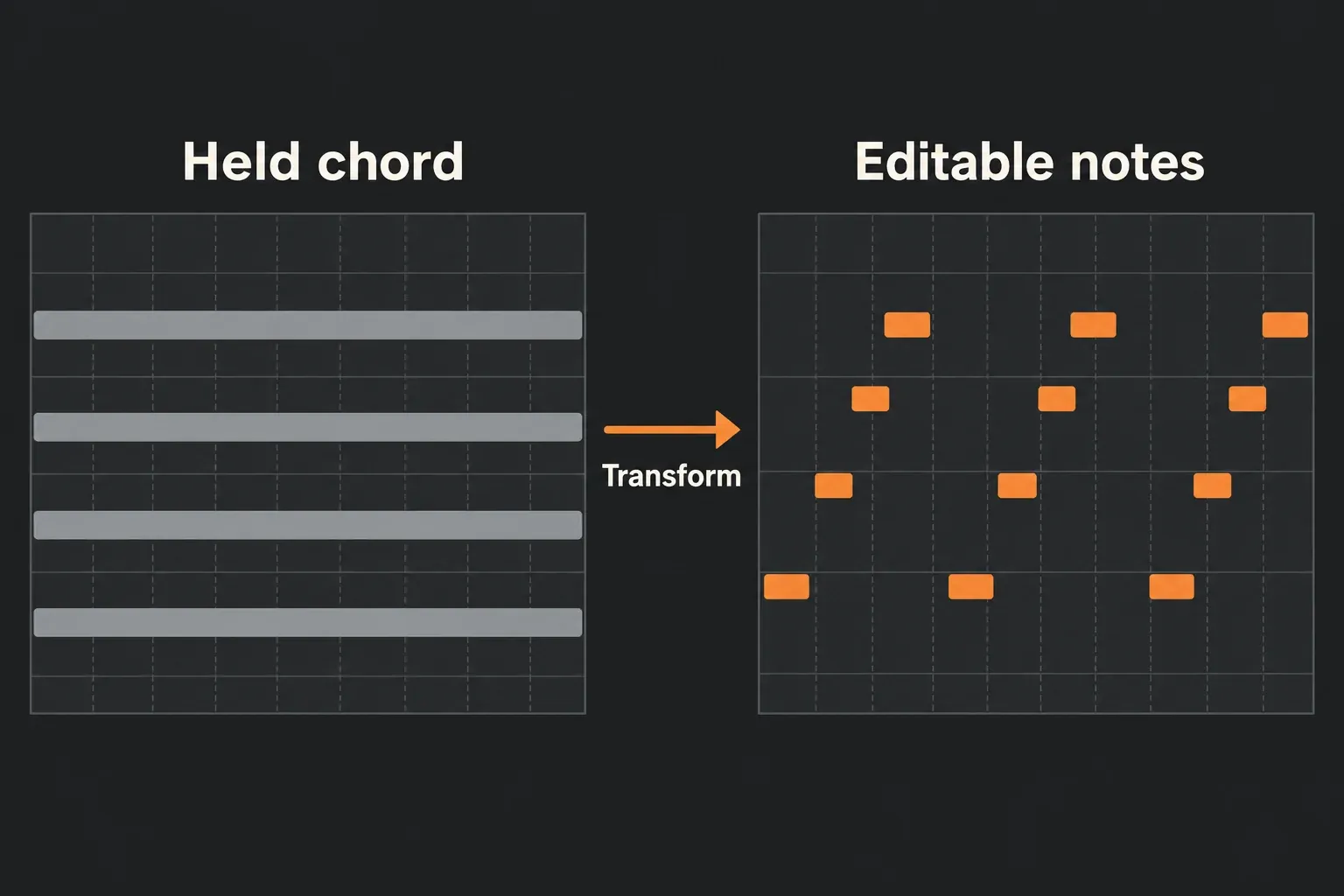
The result is ordinary MIDI, and that is the point. You can lengthen one note, mute a collision, change a single velocity or go back to the untouched clip. If the part has to react to held notes in real time, you want the Arpeggiator MIDI effect instead, which lives in a device chain rather than being a one-off edit.
Project 2: generate one Drum Rack lane at a time
For a predictable first drum example, open an empty one-bar, 4/4 MIDI clip on a Drum Rack with loaded pads. Choose Rhythm in Generate. The Pitch control picks the target note or drum pad, and one kit’s kick isn’t guaranteed to sit on the same note as another kit’s kick.
- Select the whole one-bar time range and pick the loaded kick pad with Pitch. Keep Auto off.
- Set Steps 4, Step Duration 1/4 and Density 4, with Split 0% and Shift 0. With every step filled, that gives four quarter-note kick events in the selected bar.
- Set Velocity and Accent to 100 for this equal-velocity exercise, then click Generate. Check that four notes landed on the intended kick lane and audition them.
- Deselect the kick notes. Select the same bar again, choose a loaded closed-hat pad and set Steps 8, Step Duration 1/8 and Density 8. Generate the hat lane and confirm the kick notes are still there.
- For a sparser variation, duplicate the clip, lower Density on the chosen lane and adjust Pattern. Pattern controls where the notes go, and Density controls how many notes each pattern holds. Keep Split at 0 while you learn those two.
Steps 16 with Step Duration 1/16 also covers one 4/4 bar, but Density decides how many of those positions get a note. Split can subdivide events, so it breaks this simple counting exercise. If the notes show up but make no sound, check the chosen pad and work through the MIDI signal-path diagnosis before generating the pattern again.
Project 3: constrain Seed before asking for bass notes
For an example bass candidate, create an empty two-bar clip on the existing bass instrument track. Turn on C minor, choose Seed and switch Auto off. Set the pitch limits to C2–C3, Voices 1, Duration 1/16–1/8, Velocity 80–100 and Density 25%, then click Generate. These are starting constraints, not a promise of a particular melody or note count: Seed is random, and its Density is a percentage rather than an event count like Rhythm’s. Use the pitch ruler to check that the register suits your instrument.
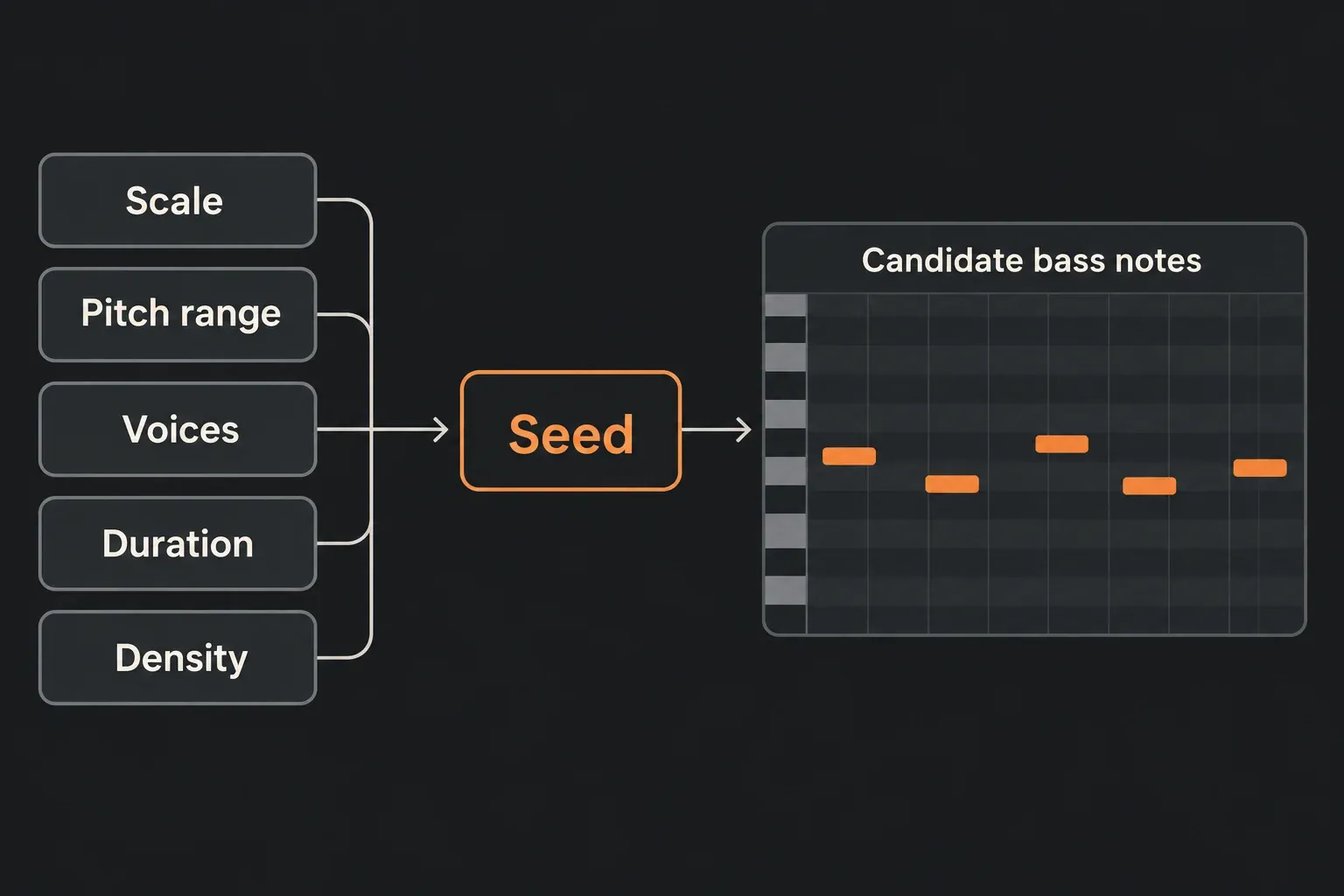
Check the generated notes against the kick and the chord progression. Keep the motion that works, delete stray pickups and adjust note lengths by hand. Voices 1 limits how many generated MIDI notes play at once, though a synth with a long release can still overlap its audible tails. Save a clip you like before generating again, because the same settings won’t necessarily generate the same random phrase twice.
Use Transformations one dimension at a time
Recombine shuffles values among the selected notes. Its Dimension chooser picks Position, Pitch, Duration or Velocity, one at a time. Try Velocity on a copied phrase first: Shuffle reassigns the existing values, Mirror reverses their order and Rotate moves them around the selection. If every velocity is identical, shuffling them can’t create any dynamics, so enter a few different velocities first.
The same idea applies elsewhere:
- Strum changes chord start times. With Strum Low and High both at zero there’s no offset to hear, so raise one on purpose.
- Span changes note length through legato, tenuto or staccato. Tenuto keeps the existing lengths unless Offset or Variation changes them.
- Chop divides notes; choose the subdivision before adding gaps or timing variation.
- Quantize corrects selected timing. Check its grid, Amount and note-start/end choices instead of correcting everything at once.
- MPE Transformations edit note expression. Look at the Pitch Bend, Slide or Pressure lanes, and use an instrument that responds to the expression you’re changing.
Understand selection and replacement before Apply
Transformations act on the current note selection, the time selection, or the clip loop when neither exists. Generators act on the time selection or the clip loop. Generated notes that overlap existing content can replace it, while notes that don’t overlap may simply be added alongside. That is why an empty time range and a duplicated clip are safer than relying on Undo as your only way back.
Undo and Redo cover MIDI note edits, not MIDI Tool parameter settings. Reset restores the selected tool’s parameters, not the original notes. In recent Live 12 versions, an active MIDI Tool chain can also pass edits from an earlier tool into later Transformations; the Status Bar shows when that chain is active. Keep the untouched source clip rather than hoping Reset or one Auto toggle can undo a whole experiment.
Third-party MIDI Tools are Max for Live devices, not VST plug-ins
Native MIDI Tools are built into Live. You can adjust their musical parameters, but you can’t open their implementation for editing in Max. Custom Max for Live MIDI Tools are .amxd files. The manual’s licensing and installation section requires Suite, or Standard with the Max for Live add-on, for third-party tools and for editing or building tools. Standard’s bundled Velocity Shaper and Euclidean don’t give you permission to run every downloaded AMXD without that add-on.
For a documented installation route that doesn’t depend on disputed folder names, save the downloaded AMXD in a folder you’ve added to Places in Live’s browser, then pick it in the matching MIDI Tool selector. The Help article’s User Library folder names differ from the manual’s, so don’t rename a library that already works to match this guide. AMXD files don’t belong in VST2, VST3 or Audio Unit scan folders. Follow the creator’s requirements and try an unfamiliar tool in a throwaway Set.
If you want more tools, Ableton’s free MIDI Tools by Philip Meyer Pack adds five Max for Live devices: Polyrhythm, Phase Pattern and Stages as generators, Retrigger and Slice Shuffler as transformations. It comes with Live 12 Suite, otherwise needs Standard with Max for Live at version 12.1 or higher, and Ableton notes that MIDI Tools aren’t available on Push Standalone. Generators by Iftah holds Patterns for drums and Sting for acid-style basslines. Its current Pack requirements are Live 12.3 or later with Suite, or Standard plus Max for Live. Both are optional Packs, separate from the built-in Rhythm and Seed tools used above.
Keep the instrument load under control
- A generated clip stores MIDI events, not a new sample library. Reuse one instrument track and switch between the source and result clips to compare.
- Native tools edit notes instead of adding an effect that runs in the track’s device chain. Dense chords, short retriggers and long releases can still raise the number of voices the receiving instrument plays at once.
- Don’t read a RAM saving into a lower Density number. Instrument design, samples, voice count and effects decide the real cost, and no single CPU or RAM figure applies.
- Keep one untouched source clip and one useful result. There’s no need to duplicate a large instrument Rack just to audition another generated phrase.
- If playback gets expensive, identify the CPU-heavy instrument or effect before you delete musical ideas, and keep editable MIDI before considering an audio bounce.
MIDI Tool parameters can be Key/MIDI mapped, except for Max for Live MIDI Tools, but they can’t be automated, according to Ableton’s MIDI Tools FAQ. A mapped knob is not an automation lane that keeps generating new music during playback. For instrument or effect settings that should evolve once the notes are chosen, use track and clip automation.
A four-step MIDI Tool workflow
- Protect the source. Duplicate the MIDI clip on the existing instrument track and turn Auto off before adjusting a tool.
- Select the material. Pick source notes for a Transformation or an empty time range for a Generator, and check the clip loop and scale.
- Set useful limits. Choose the timing, pitch, duration or density limits of the selected tool. Not every tool has the same controls.
- Apply and compare. Click Transform or Generate, look at the resulting notes and listen with the track. Keep the original clip and save the result you like.
Once the notes work, connect the phrase to the rest of the arrangement with the MIDI, drums and sampling guides. A generated bass phrase and a drum groove have to work together, not just look convincing in two separate piano rolls.
FAQ
What is the difference between Transform and Generate in Ableton Live 12?
Transform reshapes existing MIDI notes; Generate creates new ones in the time selection or clip loop. Both edit a clip instead of running as a continuous track effect. The Arpeggiate, Rhythm and Seed examples here need Live 12 Standard or Suite; Intro includes Quantize but not all of these tools.
Do Ableton MIDI Generators overwrite existing notes?
Generated notes can sit next to existing notes when they don’t overlap, but overlapping generated notes replace the existing content in that range. Duplicate the clip or generate into an empty time selection before you experiment.
Why does an Ableton MIDI Transformation do nothing?
Make sure the MIDI clip is open in Notes view, not Envelopes view. Transform is inactive when the clip or the selected time range has no notes. Then check the chosen tool and its settings: a zero Strum offset or a shuffle of identical values can make no visible difference. With Auto off, click Transform to apply the settings.
Are Ableton MIDI Tools scale-aware?
Yes. With a clip scale enabled, pitch-related MIDI Tool controls use scale degrees instead of semitones. Scale awareness narrows the pitch choices, but you still have to judge the result against the song’s harmony.
Can I undo a MIDI Generator in Ableton Live?
Use Edit → Undo for a committed MIDI note edit. Turning Auto off can restore the active preview before the selection changes, but it doesn’t undo all earlier operations. Reset restores tool parameters, not notes. Keep a duplicate of the source for a reliable comparison.
Do MIDI Transformations and Generators use much CPU or RAM?
A native MIDI Tool produces MIDI note data, not a track effect that keeps running. Playback cost depends on the instrument, voices, samples and effects those notes trigger. Compare clips on one instrument track and measure the actual load; a lower Density value doesn’t guarantee any particular CPU or RAM saving.
