
Replay the section that breaks up and compare Live’s Current CPU with the track Performance Impact meters. If a track repeatedly rises with the warning, test its devices one at a time. If no track stands out, check shared processing, the audio buffer and system activity. You can try a larger buffer early when extra monitoring latency is acceptable; do not freeze the whole Set just to make the meter fall.
Checked September 8, 2026 against the current Live 12 manuals and Ableton’s CPU guidance. This page covers real-time CPU overload while Live is open and its audio engine runs. For crackling without a repeatable CPU clue, use the broader dropout diagnostic to separate CPU, disk, buffer and driver problems.
Confirm that Live is missing an audio deadline
Live’s CPU percentage is not the percentage shown beside Ableton Live in Task Manager or Activity Monitor. The official CPU-meter explanation says Live compares the time needed to calculate one audio buffer with the time available before that buffer must play. A reading above 100% is possible when processing takes longer than playback.
That difference explains an apparently impossible symptom: Live can warn about CPU overload while the operating system reports plenty of unused processor capacity. One demanding signal path can miss its deadline even when other cores are available. Ableton’s multi-core FAQ specifically warns against treating the relationship as a simple “one track per core” calculation.
- Click Live’s CPU meter and show Current as well as Average.
- Choose the busiest 10–20 seconds of the Arrangement or the densest scene.
- Loop that passage and note whether the overload indicator appears at the same moment.
- Keep the Set, output device, sample rate and buffer unchanged during the first comparison.
The overload indicator follows Current, or peak, load. It may light even when Average never appears to reach 100%. A repeatable peak is useful evidence. A number that rises only while Live indexes the Browser after first launch may be temporary; Ableton notes that indexing can use CPU, disk and RAM until it finishes.
The Fix Ableton Live hub keeps this CPU path separate from silent output, a disabled audio engine and disk/interface faults. Stay on this page only when the overload warning or Current CPU follows the symptom.
Use Performance Impact to narrow the search
In Live 12, open View → Mixer Controls, or open Mixer Config with the triangle at the bottom right, and enable Performance Impact. Each MIDI or audio track receives a relative six-block display. The blocks compare tracks inside the current Set; they are not percentages of the computer’s total CPU.

Play the actual problem section. An idle synthesizer or an effect receiving silence may show little impact because Live suspends work that does not contribute useful audio. The Live 12 manual recommends stressing the real Set state when checking peak capacity.
- Watch for the track that consistently lights the most blocks when Current CPU peaks.
- Save a new Set version before changing its devices or clips.
- Lower the listening level before deactivating a device: bypassing attenuation or limiting can make the output louder. Deactivate one device in Live, replay the same passage, then restore it if the peak does not change. Do not use track or clip mute as a substitute for this device test.
- Try the next plausible device or clip setting. If none changes the result, stop that branch and use the shared-processing, buffer and system checks below.
- Choose the least destructive remedy that preserves the sound and the work still ahead.
Treat the brightest meter as a lead, not a diagnosis. When no individual track explains the peak, check devices farther along the signal path, including Group, Return and Main processing. The multi-core processing guide explains why dependent stages must finish in order even when they sit on different tracks. Test one device at a time and restore it if it makes no difference. Rearranging tracks merely to “spread them across cores” is not a reliable fix. If the Set gives no repeatable device clue, use the buffer and system checks below.
Reduce processing where it makes a difference
Ableton’s current device-optimization guide supports several targeted reductions. Apply them one at a time and listen after each change:
- Polyphony: lower the maximum voice count when the musical part never needs the extra voices.
- Spread and unneeded stages: turn off unused filters, LFOs, effects or Spread where the sound survives the change.
- Warp quality: avoid Complex or Complex Pro when a simpler mode or no Warp is correct for the clip.
- Plug-in windows: close unused plug-in GUIs. Auto-Hide only hides a window; Ableton says the open instance can still add load.
- Shared effects: one Return-track effect can replace duplicate instances when the routing and wet/dry behaviour remain appropriate.
Freeze first when you still need the source
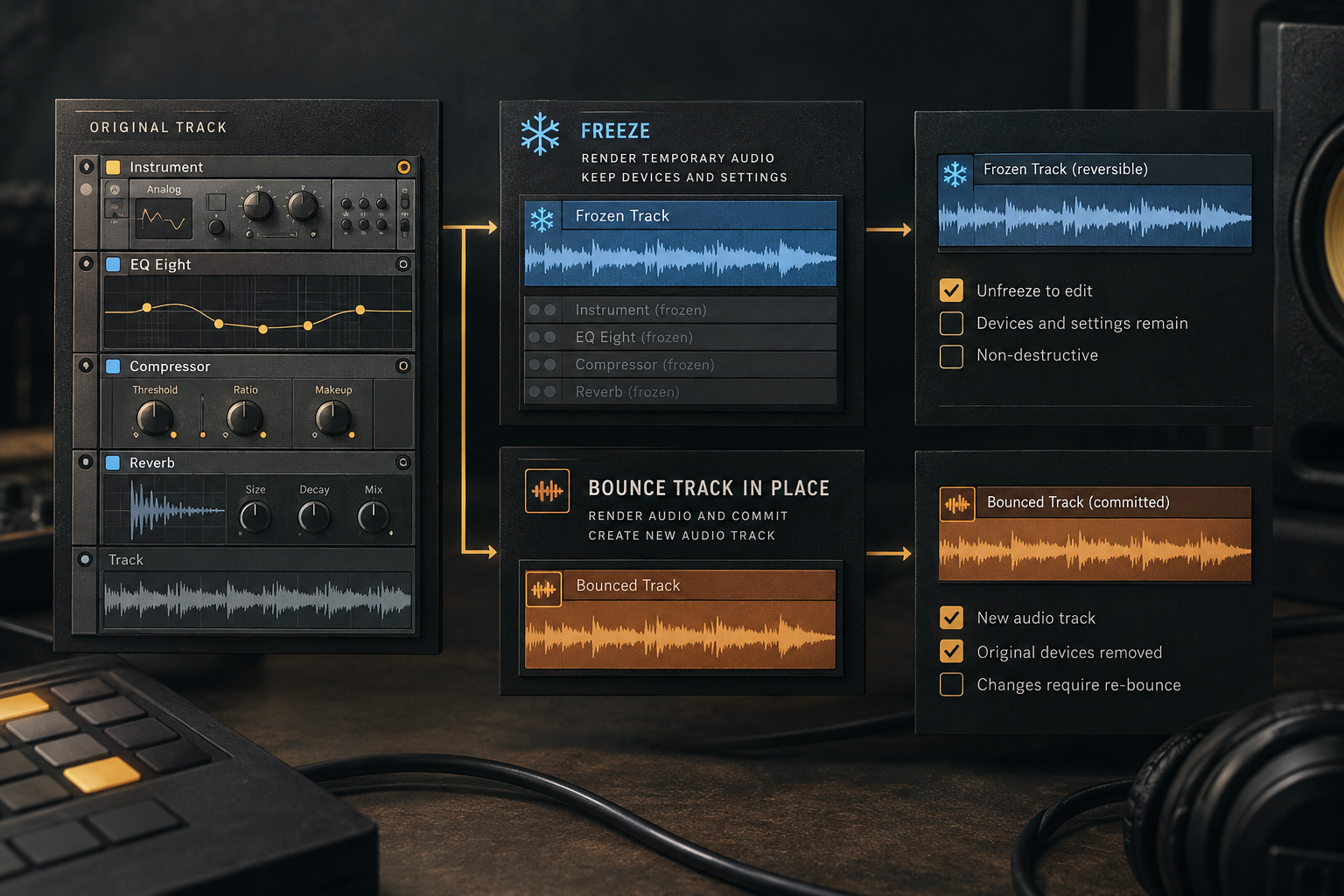
Freeze Track creates temporary audio and deactivates the track’s devices, so Live plays the rendered freeze files instead of calculating the chain in real time. Choose Freeze when the sound is approved for now but MIDI, device settings or clip processing may need another edit.
Right-click the track header and choose Freeze. To edit the real-time chain again, select the frozen track and choose Unfreeze Track. Group Tracks cannot be frozen directly; freeze the clip-bearing tracks inside the group. A track using External Instrument or External Audio Effect may need to freeze in real time because Live must capture external hardware.
Freeze only the parts that no longer need live input or immediate editing. Keep a named pre-freeze Set and allow room for the rendered files. Freezing trades real-time computation for audio playback; it is not a promise that every loaded sample library will release its RAM. The Freeze, Flatten and Bounce guide covers the editing and routing limits before you commit a part.
Use Bounce only when commitment helps
Older Live tutorials say Freeze and Flatten. Ableton renamed that committed action to Bounce Track in Place in Live 12.2. It renders the current state to an audio clip and removes the devices and source clips from that track. Use it when the part is finished and an editable instrument chain is no longer worth the processing cost.
To keep the original beside rendered audio, use Bounce to New Track from a clip or time-selection context menu: Ctrl+B on Windows or Cmd+B on Mac. The current Bounce to Audio manual confirms that the new audio is placed on a separate track and the source clips or selection are muted. To reduce device processing, deactivate the unneeded devices on the original track explicitly; muting its clips is not the same operation. Check for other unbounced sections that still need those devices, and keep the editable source clearly named. Replay the problem section to confirm the CPU change.
An individual-track bounce is post-FX but pre-mixer. It does not bake in the later Group, Return or Main processing. If one of those later stages is the bottleneck, bouncing an upstream instrument may not remove it. Keep the original routing and compare the actual result; a bounce is not proof that the whole signal path has become cheaper.
| Choice | Use it when | Recovery path |
|---|---|---|
| Freeze | The sound is stable but may need another edit | Unfreeze the track |
| Bounce to New Track | You want audio beside a preserved source | Keep the source; deactivate unneeded devices |
| Bounce Track in Place | The part is approved and commitment reduces complexity | Return to the saved pre-bounce Set if needed |
Test the buffer when monitoring allows
A small buffer leaves less time to finish each audio block. Raising it is a reversible test you can try before locating a particular track, especially while editing or mixing. The cost is extra monitoring latency. During a vocal take or a live software-instrument performance, that delay may be unacceptable; choose a workable recording and monitoring plan before changing it. There is no universal CPU-safe buffer value.
- Write down the current buffer and loop the same difficult section.
- Increase the buffer by one available step.
- Replay without changing devices, sample rate or output.
- Keep the lowest stable value that suits the monitoring requirement.
Ableton’s latency guide confirms the trade-off: lower buffers require more CPU power, while higher buffers increase latency. Higher sample rates also add processing demand. Do not change the project’s sample rate in the middle of diagnosis unless you understand the audio and delivery consequences.
If no track stands out, test the system boundary
If the track and shared-device checks do not isolate the peak, keep the same test passage and check the audio setup and operating system:
- Close other applications that show meaningful activity in Task Manager or Activity Monitor.
- Close, rather than merely hide, unused third-party plug-in windows.
- Disable audio inputs and outputs the Set does not use; moving multichannel audio through the driver creates a constant processing cost.
- Confirm the laptop is on appropriate power, ventilated and not thermally throttling.
- Allow Browser indexing to finish before judging a new installation.
- Record the exact Live, plug-in and driver versions. Check relevant release notes for the reproducible issue; back up the Set before updating one component, then retest. Do not reinstall or change several components at once.
Use the operating-system monitor for this boundary, not as a substitute for Live’s meter. On macOS, Activity Monitor can report more than 100% because 100% can represent one fully used core. On Windows, Task Manager distributes its percentage across the available cores. Neither number alone proves that Live can or cannot meet the next audio deadline.
Apple Silicon needs one more qualifier. Ableton’s current monitoring guide says Live 12 may show a higher idle value in Activity Monitor than earlier versions because it reserves processing headroom. An idle system number without audio interruption is not, by itself, a fault.
Retest the passage and keep the useful changes
Replay the difficult passage several times, then check the other demanding parts of the Set, including live inputs and long effect tails. Keep changes that improve reliable playback without spoiling the sound. If crackling remains without a matching CPU peak, stop adding CPU fixes and return to the dropout diagnostic. Record the Live, plug-in and driver versions, output device, sample rate, buffer and reproducible symptom before asking support to investigate.
Keep the original Set until the final render has been reopened and checked. Do not delete freeze files, bounce files or sample dependencies during diagnosis. Remove redundant test versions only when you know which media the working Project still needs.
Resource impact and recovery
CPU: reduce unnecessary real-time device work or allow more time per buffer. Measure the same passage after each change; a lower operating-system percentage alone is not the goal.
RAM: loaded sample libraries can create separate memory pressure. Extra memory can help a memory-limited system, but it does not by itself shorten a CPU-bound chain. Keeping a muted source after bouncing may also keep its devices and samples loaded.
Disk and Set size: freeze and bounce add audio files and playback reads. A flashing D indicator needs a disk-overload check even if the same Set also shows CPU peaks.
Lowest-resource safe route: close unused plug-in windows, test a suitable buffer, and deactivate unneeded devices or freeze a heavy track whose sound is approved. Preserve the editable source and change one variable per comparison.
When not to optimize: Do not freeze the monitored instrument or raise the buffer during a latency-critical recording pass unless you also change the monitoring plan.
FAQ
Why does Ableton show CPU overload when Task Manager looks low?
Live measures whether audio processing finishes before each buffer must play. Task Manager and Activity Monitor measure broader operating-system CPU use. One demanding signal path or a brief interruption can miss the audio deadline while the computer-wide average still looks modest.
Where is Performance Impact in Ableton Live 12?
Open View → Mixer Controls, or click the triangle at the bottom right to open Mixer Config, then enable Performance Impact. The relative meters appear below individual MIDI and audio tracks.
Does freezing a track reduce CPU in Ableton?
Yes. Freeze Track renders temporary audio and deactivates the track’s devices, reducing the processing needed for that chain. Try it on a high-impact track that does not need live input or immediate editing, then compare the same passage. Use Unfreeze Track to edit the source again. It will not necessarily fix overload elsewhere in the Set.
What is the difference between Freeze and Bounce Track in Place?
Freeze preserves an Unfreeze path to the source. Bounce Track in Place commits the current track to audio and replaces its source clips and devices. Save a pre-bounce Set if you may need those later. Bounce to New Track preserves the source separately, but you must deactivate unneeded source devices to reduce their processing load.
What buffer size fixes Ableton CPU overload?
There is no universal value. Increase the buffer one available step at a time and replay the same difficult section. Keep the lowest stable setting that fits the job, because a larger buffer normally increases monitoring latency.
Why is Ableton using CPU in a new or idle Set?
Browser indexing after first launch can temporarily use CPU, disk and RAM. Open plug-in windows, enabled audio channels, background applications and driver activity can also add load. On Apple Silicon, Live 12 may reserve processing headroom that appears as higher idle use in Activity Monitor without causing an audio fault. Let indexing finish, close expendable applications and compare Live’s Current CPU with the operating-system monitor.
