Short answer: tell audio dropouts, slow loading, interface lag and memory pressure apart before you change any settings. On an Apple-silicon Mac, the baseline is a compatible Universal build of Live with native plug-ins. Check the exact Live version before you follow old buffer or core-scheduling advice. Rosetta can keep an Intel-only device usable, but it is not a universal speed fix.
Checked September 7, 2026: this guide covers Apple-silicon Macs running Live 12 and points out the Live 11 version differences that still matter. For detailed track diagnosis use the CPU overload guide, for audible interruptions the crackling checks, and for a device that is simply missing the VST discovery guide.
Classify the slowdown before changing settings
| Symptom | Best first evidence | Likely branch |
|---|---|---|
| Live meter spikes; audio breaks | Performance Impact and track routing | Real-time critical path |
| Launch or Set open is slow | Option-launch without plug-in scan; blank Set | Plug-in scan, device or content index |
| Interface lags but audio is clean | Blank Set, display state, external monitor | UI/display or one device interface |
| Memory Pressure turns yellow/red | Activity Monitor Memory tab | Sample load, swap, another application |
| Only one old Set is slow | Disable devices and compare signal paths | Project-specific plug-in or routing |
| Performance falls after sustained load | Temperature, power state, repeatable test | Thermal or power throttling |
Pick one repeatable 30–60 second playback section. Save a copy of the Set, note the audio interface, sample rate and buffer, and change one thing at a time. If the song, interface and buffer all change after every restart, you’ll never know which change mattered.
Confirm Live is running natively
Ableton’s Mac compatibility guide confirms native support in Universal Live 12 and Live 11.1 or later; Live 11.0 and Live 10 run through Rosetta on Apple silicon. Before you update a working installation, check that your Live, macOS, interface driver and required plug-ins are a supported combination. Keep the original Set and a backup rather than upgrading every component in a single test.
Quit Live. In Finder, select the actual application in Applications, choose File → Get Info and look at Open using Rosetta. Leave it off when every required plug-in runs natively, then relaunch that application. The official Rosetta instructions describe switching it on for Intel-only devices. Also check which installed copy of Live the Dock actually opens.
Use Rosetta only when a required legacy plug-in needs it
The official plug-ins on Mac guide says native Live recognizes VST2 and VST3 plug-ins compiled for Apple silicon. Some Intel Audio Units can load through macOS compatibility hosting, while other devices still need Live under Rosetta. Get an updated plug-in from its developer first; a Set that happens to open under Intel mode isn’t automatically the best permanent setup.
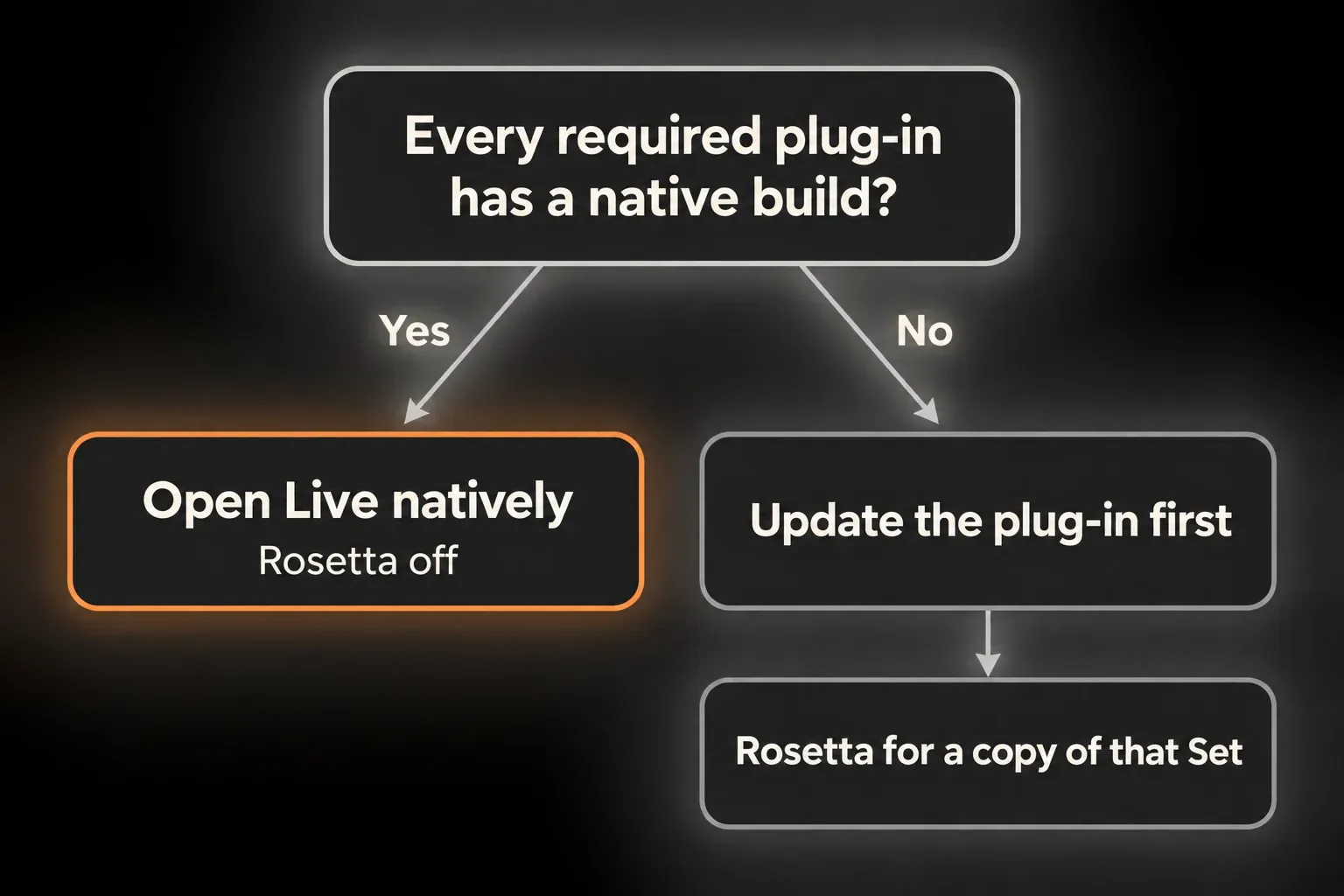
If an older Set needs Rosetta, test the migration on a copy. Install compatible builds of the same plug-ins first. An AU, VST2 or VST3 edition doesn’t automatically replace the saved plug-in instance, so check presets, automation and audio if you swap formats. Keep the working original until the migrated Set reopens and sounds right.
Read Live's CPU meter as an audio-deadline meter
Live’s meter is not a copy of Activity Monitor’s total CPU percentage. Ableton’s CPU meter explanation describes it as the time needed to process the current audio buffer compared with the time available. One late serial chain can cause a dropout while macOS still shows plenty of unused CPU.
Ableton’s system CPU explanation describes extra processing headroom in Apple-silicon Live 11.3.x and Live 12, so a higher idle reading in Activity Monitor is expected. That doesn’t excuse a dropout you can reproduce, overheating or a frozen interface; write those symptoms down separately.
Why some CPU cores look idle
Since Live 11.3, Ableton’s default audio scheduling uses Performance cores on machines that have them. Efficiency cores are not spare audio capacity you can swap in, so the total core count on a Mac’s spec sheet can’t tell you how many instances one Live Set will play. Leave scheduling overrides alone during the first test; Ableton’s CPU guidance recommends the ordinary troubleshooting before its optional fallback.
Check the signal path that misses the deadline
As Ableton’s multicore FAQ explains, independent parts can run in parallel, but dependent processing has to finish in order. One heavy instrument feeding effects and a return can become the path that sets the limit. Groups aren’t slower by nature, and moving devices between tracks doesn’t remove their audio dependencies. Cut processing cost you have actually measured before you rearrange a working mix.
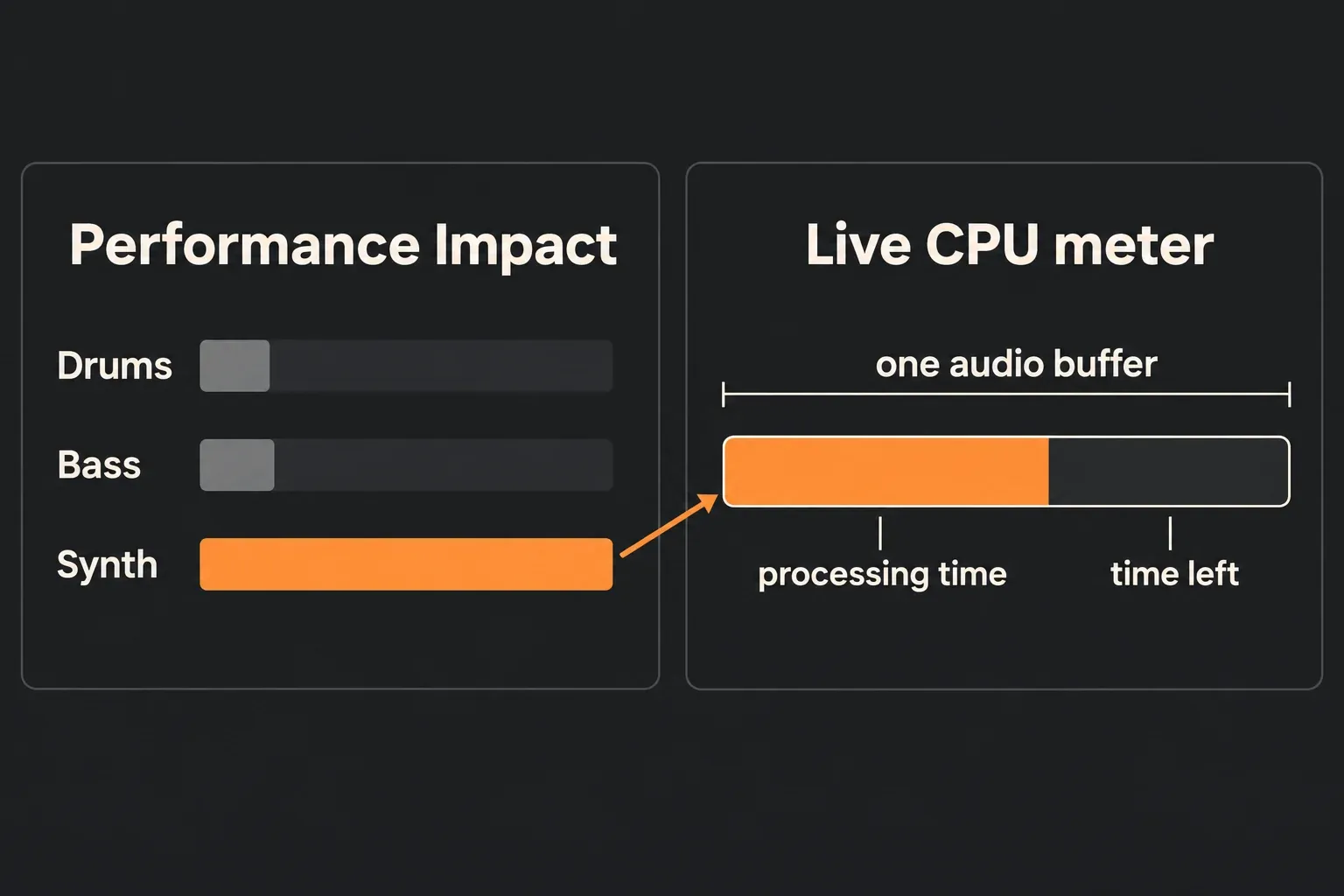
In Live 12, open the Mixer Config triangle at the lower right and enable Performance Impact; Live 11 uses the mixer’s C button. Loop the affected passage and test one costly device at a time. Compare its quality modes or deactivate it, and if the result is unclear, remove it from the copied Set and compare again. A lighter result is a lead, not proof of a software bug. For devices that won’t load at all, use the Max for Live repair guide.
Choose buffer size for the current job
Ableton’s macOS buffer guidance applies from Live 11.3.25: larger buffers may lower CPU pressure in exchange for more monitoring delay. Test the same passage at your current setting and at the next larger one, with the sample rate fixed. On an earlier Live 11 build, look for compatible updates first; an old “128 is fastest” forum result doesn’t carry over to current Live, and not every increase helps.
- Recording: keep the smallest buffer that stays stable for the monitoring path you need. Hardware direct monitoring may let you use a larger Live buffer.
- Mixing: try larger settings step by step rather than jumping to the maximum, and keep the one that really improves repeatable playback.
- Sample rate: leave it fixed during this comparison. A higher rate means more samples processed every second and may add CPU load; it is not a free quality or speed upgrade.
- Export: a clean offline render says nothing about stable real-time monitoring.
The same Ableton guide asks you to leave Driver Error Compensation at its default 0.00 ms unless you have measured the exact offset your hardware needs. If the project runs stably but performers feel a delay, use the recording-latency workflow instead of chasing the lowest meter reading.
Separate memory pressure from CPU load
Open Activity Monitor → Memory while the slowdown is happening. Apple’s memory usage guide separates Memory Pressure from the number of gigabytes in use: the graph weighs swap rate, available memory and other allocations. Watch whether pressure climbs as the Set or a sample instrument loads. A nonzero Swap Used reading on its own doesn’t prove memory is causing the current lag.
Close unrelated memory-heavy apps, then test the same Set again. Ableton’s macOS guide also suggests closing programs such as your web browser and turning off Wi-Fi and Bluetooth when you don’t need them. If a sample instrument is responsible, reduce loaded articulations only through its documented controls and keep an unmodified project copy. Pressure that stays yellow or red means the active workload needs trimming; it doesn’t mean your RAM is faulty. Keep disk space free too: Ableton’s 10% free-space recommendation is a rule of thumb, not a line below which every Mac suddenly fails.
Test launch speed without destroying the plug-in database
Hold Option while launching Live for one test with plug-in scanning disabled, then relaunch normally to bring scanning back. If that changes the symptom, look into the relevant plug-in format, and don’t save a production Set while devices are missing. Use Audio Unit scan isolation when an AU scan stalls. VST scanning in Live 11.1+ can run in the background, so not every slow launch is a VST scan hang.
If the Option launch changes nothing, open a blank Set. A blank Set that is quick while one production Set is slow points back to that project’s devices, media or routing. A slow blank Set points to Live preferences, the User Library and the operating-system or display state instead. Don’t delete the whole plug-in database before you’ve made that split.
Compare power, temperature and displays separately
For a repeatable power test, stay on the same power source and note the selected mode. Apple’s Power Modes guide describes Automatic as the normal balance; compare with Low Power Mode off if it was on. Don’t assume every Mac has High Power Mode or that it guarantees better audio. Keep the vents clear and note whether the same passage only gets worse after sustained use.
When the interface lags but the audio stays clean, close third-party plug-in windows and compare a blank Set. On a MacBook, also try the built-in display alone; on a desktop, try a single display. Change display scaling separately from audio settings. An improvement narrows down the trigger; it doesn’t prove a universal display bug. If a current compatible Live build still lags in a blank Set, note the Live and macOS versions, the display setup and the exact actions for Ableton Support.
Keep a short comparison record
- Record the symptom, exact Live/macOS versions, interface, buffer, sample rate and Memory Pressure while the copied Set is running.
- Confirm native Live and plug-in compatibility; keep a separate working copy if legacy devices require Rosetta.
- For audio interruptions, compare buffers at a fixed sample rate, keeping the Live 11.3.25 version boundary in mind.
- For a costly track, use Performance Impact and test one device or quality setting at a time in the copied Set.
- For loading or interface lag, compare a blank Set; use one Option launch for scanning, or a display and plug-in-window test for UI symptoms.
Keep the smallest change that removes the failure you reproduced. The Fix Ableton Live hub sends whatever symptom is left to the CPU, crackling, scan, no-sound and startup diagnostics.
FAQ
Should Ableton Live run natively on Apple silicon?
Yes. Live 12 and Live 11.1 or later use a Universal build that runs natively on Apple-silicon Macs. Treat the current build with native plug-ins as your normal performance baseline.
Does Rosetta make Ableton Live slower?
Rosetta adds a compatibility layer and can affect performance, but the real result depends on the Set and the legacy plug-ins it needs. Use it when an Intel-only device requires it, then compare against an updated native device chain.
Why is Ableton CPU high on an M-series Mac?
The two meters measure different things. Live reports audio-deadline load, while Activity Monitor reports system process use and may show extra idle headroom. On Apple-silicon Live 11.3 and later, the default audio scheduling uses Performance cores where they exist. A long chain of dependent processing can still limit a Set even when other cores look idle.
Why is Ableton slow when Activity Monitor memory pressure is high?
Sustained memory pressure can come with compression and swapping when the active workload needs more memory than is free. Close unrelated apps and test large instruments on their own. Compare the pressure during the slowdown, not just total RAM or an old Swap Used value; those numbers alone don’t identify the cause.
Should I enable every Apple-silicon optimization option I find online?
No. Start with supported software and a controlled comparison. Ableton documents an optional change to core scheduling, but recommends other troubleshooting first. Don’t paste old Options.txt tweaks into a working installation, and don’t read idle Efficiency cores as proof that Live is broken.
How do I know whether one plug-in is slowing Live?
Repeat the affected passage and use Performance Impact to find a good starting track. Test one device at a time in a copied Set. If deactivating it is inconclusive, remove that instance in the copy, then try the same device and preset in a blank Set. Lower load is a reason to investigate further, not proof that the plug-in is defective.
