Short answer: first load one bundled Max for Live device in a blank Set. If every bundled device fails, diagnose Max itself: license, bundled/external application selection and Max preferences. If the bundled device works but one downloaded AMXD fails, stop resetting Live and inspect that device's dependencies, version, Pack location and CPU-architecture support. VST and AU rescans do not repair Max devices.
Checked September 7, 2026: this guide covers Max for Live application and AMXD-device failures in Live 12. For a missing VST3, use the VST plug-in discovery guide; for an AU scan hang, use the Audio Unit scan guide. If Live itself cannot open, start with startup crash recovery.
Classify the failure with one bundled device
| Test result | Likely layer | Next move |
|---|---|---|
| No Max category or entitlement warning | Edition/license | Verify the license and add-on before file repair |
| Every bundled device fails | Max engine/application/preferences | Check bundled path and start state |
| Bundled device works; one AMXD fails | Device/dependency/version | Replace or update that device only |
| Pack is missing from Browser | Pack installation/library index | Confirm Pack and User Library locations |
| Apple-silicon external warning | Binary architecture | Update the Pack; test Rosetta only if needed |
| Device loads, UI blank or function missing | Dependency/JavaScript/external | Open Max Console and check creator requirements |
Create a blank Set and load an Ableton-supplied Max Audio Effect, Max Instrument or Max MIDI Effect appropriate to your license. Do not test from the problem Set first: a missing device reference, template or Set corruption can obscure whether Max itself starts.
Confirm the license before reinstalling anything
The current Live 12 Max setup manual says Max for Live is bundled with Suite and available with Standard when using the Max for Live add-on. If a Set was created with an entitlement not present on this machine, the device is unavailable by design. Re-authorize the intended Live license and confirm the exact edition/add-on in the Ableton account.
An entitlement warning needs an account or edition check, not another Max installer. The Standard versus Suite comparison explains the broader edition choice; for this repair, confirm that the license authorized on this computer includes Max for Live.
Return to bundled Max unless you chose an external installation
Ableton’s bundled Max guide confirms that Max is installed with Live. In Settings → File & Folder → Max Application, use the bundled option for the baseline test unless you deliberately need a compatible external Max. If using a separate installation, choose its installed application through Browse, then restart Live. Do not select an installer or an unrelated application folder.
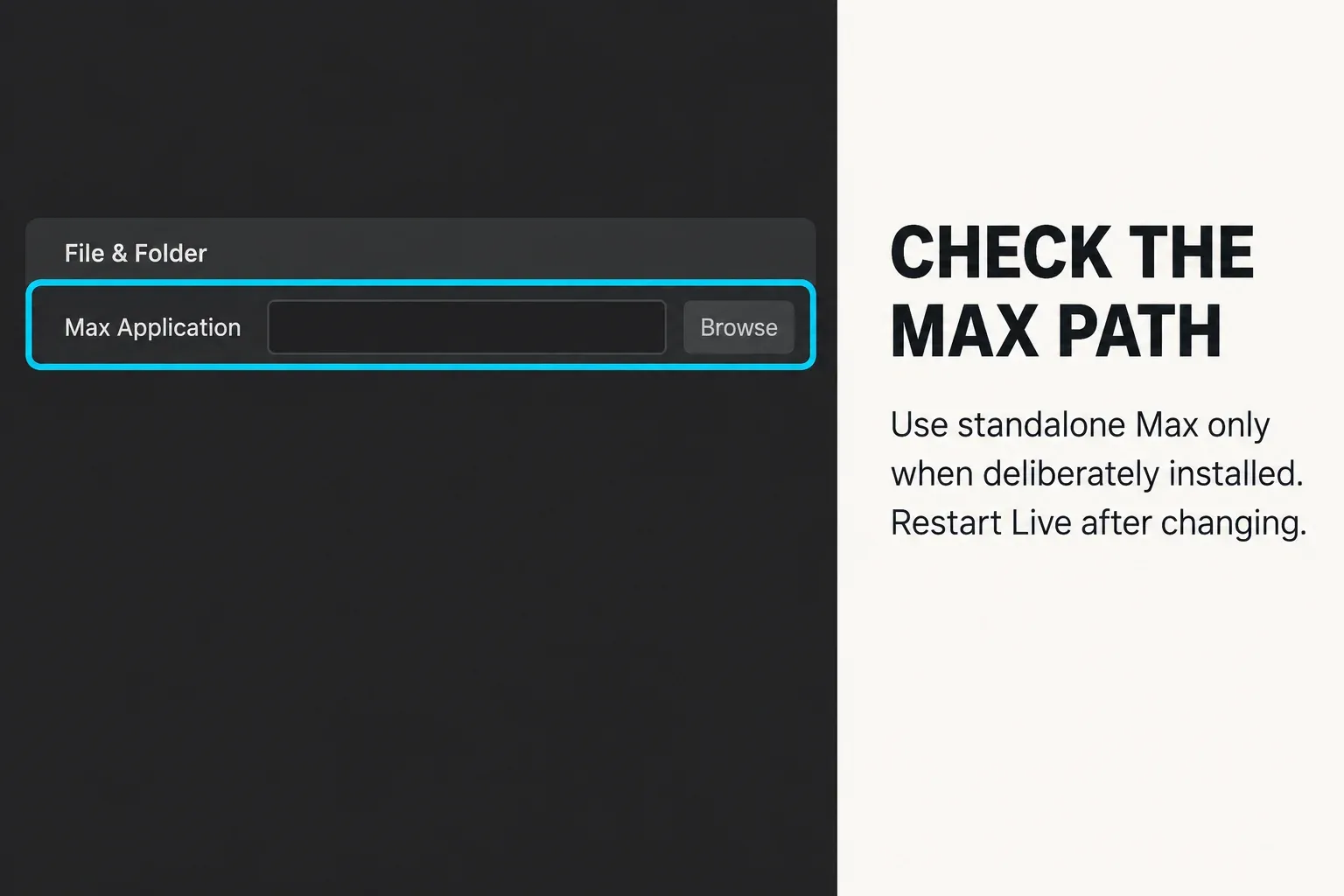
Max 9 is supported with Live 12. Cycling ’74’s Max for Live compatibility FAQ explicitly does not support Max 9 inside Live 11 or earlier. For those versions, return to bundled Max or the recommended compatible Max version; a standalone Max license does not change this pairing requirement.
Fix “The selected Max application could not be loaded”
Ableton’s selected-application error guide identifies launching Live from its installer as one cause. On macOS: quit Live, open the downloaded DMG, drag Live into Applications if it has not been installed, wait for copying to finish, then close and eject the DMG. Launch the installed Live application from Applications and test a bundled Max device.
On Windows: finish the official Live installation, close the installer and open the installed Live application from its Start menu entry. Do not use Mac instructions such as ejecting a DMG or selecting /Applications/Max.app. If a deliberately selected external Max still fails, verify its Live/Max compatibility and installed path, then restart Live. Keep a working standalone Max installation intact; do not delete it just to test the bundled route.
If one device fails, inspect its package instead of Max
An .amxd device can depend on samples, images, JavaScript, other patches and compiled externals. The manual’s Max Dependencies section describes freezing a Max device to package its dependencies. This is not Freeze Track: it does not render a Live track to audio or make an incompatible external run on another processor.
- Download the device again from its real creator or Pack source.
- Read the stated Live, Max, operating-system and architecture requirements.
- Place the complete device folder in the User Library or an intentional Places folder.
- Do not separate the AMXD from sibling dependency folders.
- Load it in a blank Set and open Max Console for missing object/file messages.
- Compare with a bundled device before changing Max preferences.
Collect All and Save helps gather project files, but it cannot supply a developer’s missing dependency or convert an external to another architecture. If the device comes from a Pack, update or reinstall that Pack as a unit. Ask the creator for a complete compatible package rather than moving individual support files at random.
Open Max Console and read the actual error
In Live 12.2 and later, open the device-header menu and choose Edit in Max; earlier Live versions have an Edit button. Once the Max editor is open, choose Window → Max Console, as described in Cycling ’74’s Console guide. Copy the relevant error lines before changing anything. Opening the editor is a diagnostic step here: close it without saving changes to the original device.
A “no such object” message names something Max could not instantiate; it is not a command to reset the whole application. Cycling ’74’s external-object documentation distinguishes an object that cannot be found from code that cannot load for the current architecture. Send the object name and message to the device creator. If Max itself cannot open, record that failure instead—Console output is not a prerequisite you can always obtain.
Separate Browser visibility from device execution
If the device is not visible, confirm the User Library and Pack locations in Settings → Library. Allow Live to finish indexing a newly installed Pack. Drag the known AMXD file directly into a compatible track type as a test: a Max Audio Effect belongs after audio; a Max Instrument belongs on a MIDI track; a MIDI Effect belongs before an instrument.
If direct drag loads and runs this device but Browser search misses it, investigate filters, library locations or indexing before resetting Max. This test confirms that this device ran in this Set—not that every Max device or saved project is healthy.
Handle Apple-silicon externals as a compatibility branch
On Apple silicon, an older device may contain Intel-only compiled externals. Ableton displays an explicit incompatibility message rather than treating this as a generic missing file. The supported first move is to install the latest Pack/device version.
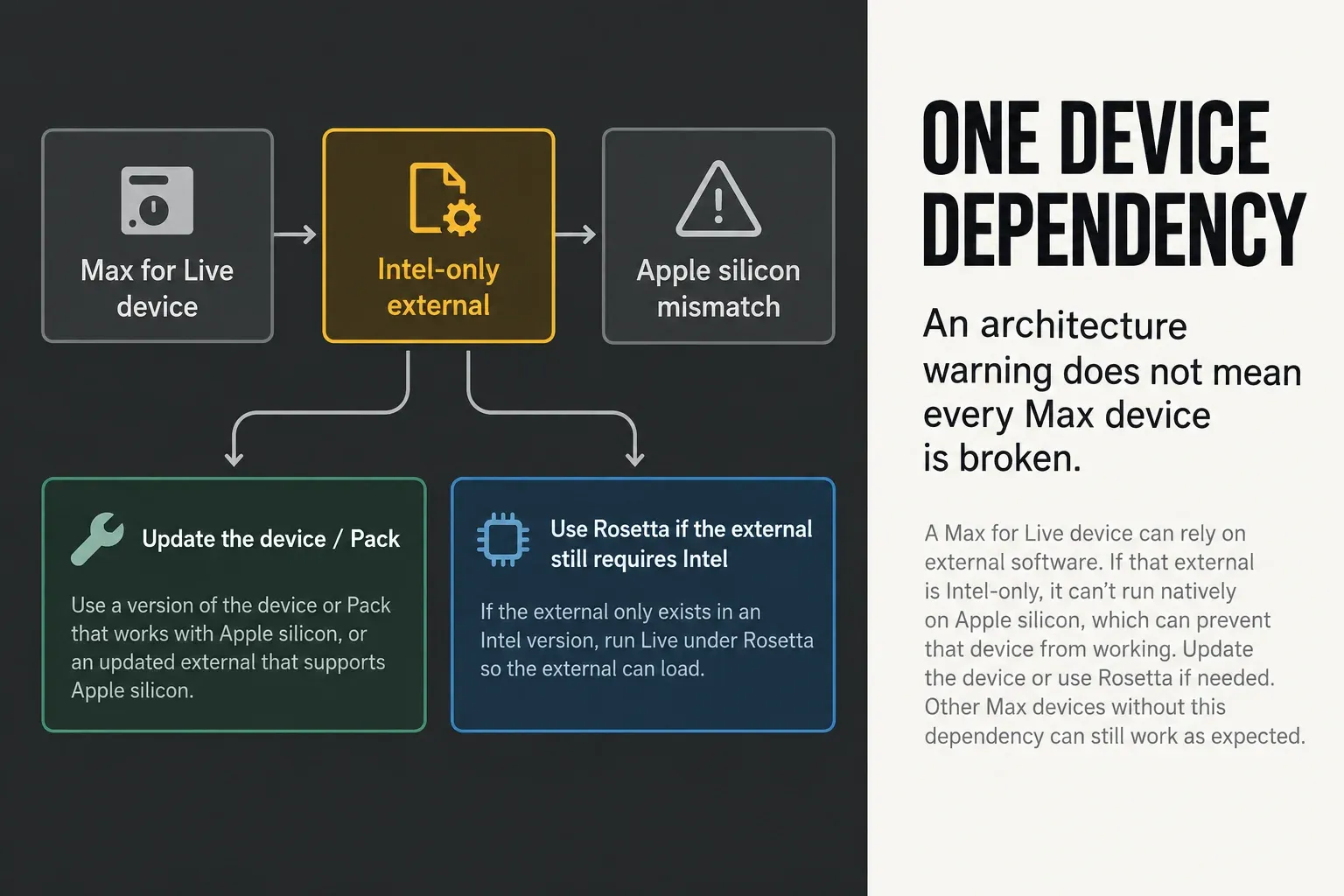
The official Apple-silicon externals guidance also allows testing Live under Rosetta. Use that as a compatibility diagnosis or temporary route, not an automatic permanent setting: native Live is the preferred baseline when all required devices support it.
Check that the complete device package is accessible locally
Look for a concrete file-access problem: a dependency is still cloud-only, the package was extracted incompletely, or the creator’s folder is unreadable. Download the whole package locally and test a copy in a folder your account can read. If a required file remains blocked, keep the exact operating-system warning for the creator or administrator; do not clear quarantine recursively or disable system protection.
Keep the AMXD and its dependency folders together. A successful local-copy test points toward the original file location or availability. It is not permission to move the only copy of a working device: Live Sets can retain references to its original path. Do not save a replacement over the original Set while troubleshooting.
Reset Max only after creating a preferences backup
Ableton’s Max reset procedure targets the Cycling '74 preferences folder, not Live’s preferences or a whole Library directory. It affects all installed Max versions, including standalone Max. Quit Live and standalone Max, preserve a dated backup, then move the identified active folder to a safe holding location before restarting Live for a clean-preferences test.
The user-specific folders are %APPDATA%\Cycling '74 on Windows (normally C:\Users\<username>\AppData\Roaming\Cycling '74) and ~/Library/Application Support/Cycling '74 on macOS. Test a bundled device before restoring custom settings. If the reset does not help, close both applications before restoring the backup; keep any newly created folder separately rather than merging settings blindly. Preserve Live’s Log.txt and any available Max Console messages for support.
Keep the test small enough to interpret
- Use one blank Set and one test device. Do not run several Max editors, scans or production Sets while isolating a startup fault.
- Keep sample, video and buffer dependencies in mind when a device loads but uses excessive resources. Device size alone does not predict CPU or RAM use.
- Close the Max editor after collecting the error messages. Keep the original project and device package intact; repeated preference resets or duplicated Packs add recovery work without explaining a one-device failure.
Recheck the affected project without overwriting it
- Load one bundled Max device in a blank Set after confirming the Max for Live entitlement.
- Identify whether the failure affects bundled devices, one AMXD, Browser visibility or an architecture-dependent external.
- For an application failure, test bundled Max or verify the compatible external application and restart Live.
- For one failing device, keep its complete package together and inspect Max Console without saving edits to the original device.
- For an incompatible external, update the device or Pack; test Rosetta only when the required Mac device still needs it.
- Only if Max preferences remain a plausible cause, back up the Cycling '74 folder before a clean-preferences test. Recheck the affected project in a copy.
The Fix Ableton Live hub separates Max failures from plug-in scanning, no-sound routing, CPU overload and full startup crashes.
FAQ
Why do all Max for Live devices fail to load?
If an Ableton-supplied device also fails in a blank Set, check the Live license, bundled or selected Max application and Max preferences. Do not begin with the downloaded device's Pack.
Why does only one Max for Live device fail?
A single AMXD may need missing files, JavaScript, a compiled external or another supported Live/Max version. Keep its package together, check the creator’s requirements and inspect Max Console. One missing-object message does not automatically identify an architecture problem.
Do I need to install Max separately for Live 12?
No for the normal bundled route. Max is installed with Live, and Max for Live is included with Suite or available to Standard with the add-on. Select a separate Max application only when you intentionally installed a compatible standalone version.
Will a VST or AU rescan fix Max for Live?
No. Max devices are AMXD devices handled by Max for Live, not VST or Audio Unit plug-ins. Test bundled Max and the device package instead.
Why does a Max device fail only on Apple silicon?
It may contain Intel-only externals. Install the latest Pack or device build first; Ableton also documents Rosetta as a compatibility test when no native update is available.
Is resetting Max for Live safe?
A reset changes settings for all installed Max versions, including standalone Max. Quit both Live and Max and back up the exact user-specific Cycling '74 preferences folder first. Use a reversible clean-preferences test only after checking the license, application selection and device package.
