
Short answer: start with a reversible launch test, not a reinstall. Hold Alt on Windows or Option on macOS while opening Live, until the application fully opens and the splash pane closes. A successful launch makes plug-ins a likely lead, not a proven culprit. Test Shift separately for the factory Default Set. If neither helps, back up the current-version preferences before moving them; keep your projects and User Library intact.
Checked September 7, 2026: these steps cover Live 11 and 12 on macOS and Windows, with the version-specific note below for Live 12.4.5. Use this page when Live closes during launch or remains unresponsive before a usable Set opens. If Live starts normally but audio breaks up, use the crackling and dropout diagnostic instead.
First separate a crash from a hang
A crash and a hang look similar when you are staring at the splash pane, but they produce different evidence. Ableton defines a crash as Live shutting down unexpectedly. A hang means Live remains open but stops responding until you force-quit it. Write down which one occurred, the last visible launch stage, and what changed immediately before the first failure: a Live update, an operating-system update, a plug-in installation, a new interface or controller, or a new Default Set.
The last words on the splash pane identify a stage to investigate, not necessarily the component that failed. Note the exact message and whether progress continues. Force-quit only if Live remains unresponsive; unsaved changes may be lost. Save any accessible work before restarting the computer.
- Restart the computer once, then launch the Live application directly rather than double-clicking the suspect project.
- Record whether Live closes, remains unresponsive or eventually opens after a slow launch.
- Keep a copy of the affected Set and note recent Live, OS, plug-in or hardware changes.
- Leave the installed application and User Library in place while trying the reversible tests below.
The Fix Ableton Live hub separates startup failure from audio-engine, output, CPU and disk faults. Stay on this branch only while Live itself cannot reach a usable Set.
Check the installed build and recent changes
Before a broad reset, compare your installed build with the current Live 12 release notes. Live 12.4.5, released August 26, 2026, fixed a startup crash when opening a Set with an accompanying lesson in Learn View. That is one specific case, not a cure for every startup failure. Back up the project and check plug-in and OS compatibility before a relevant update; do not change Live, drivers and all plug-ins together.
Test the plug-in scan with Alt or Option
Quit or force-quit Live. Hold Alt on Windows or Option on macOS while starting the application, and keep holding the key until Live has fully opened and the splash pane has closed. Ableton's current plug-in bypass instructions confirm that this temporarily disables third-party plug-in scanning. A normal restart re-enables scanning.
If the Alt/Option test opens Live, plug-ins are worth investigating, but the result does not identify a particular device. Plug-ins are temporarily unavailable in this mode. If you remove or replace one while testing a Set, use Save Live Set As to create a separate test copy; do not overwrite the only original or your working template.
- Record the name, version and format of a suspected plug-in. Check its developer’s compatibility notes and relevant updates for your Live version and OS.
- Use the manufacturer’s installer or product manager for a justified update. Do not randomly delete older formats: existing Sets may depend on them.
- Test one suspected device in a blank Set when Live can open normally. If the issue repeats, preserve the original project and contact the developer with the reproduction.
- If temporarily moving a plug-in out of its scan folder, record its exact path and keep a restorable copy. Isolate the specific device, not the whole library.
- Relaunch normally after each controlled change and compare the result. Re-enable or restore anything that did not help.
On Windows, inspect custom paths before moving files. Ableton's custom VST folder warning says that selecting a broad directory containing unrelated .dll files — including the root of C:\ — can make Live crash while scanning. VST2 and VST3 files belong in separate dedicated folders. Do not copy an entire plug-in library to a second location; that adds duplicate files and makes the next scan harder to interpret.
Live 12.1 introduced a separate plug-in database, Live-plugins-1.db. The official 12.1 rescan note describes a full rescan on the first launch after that update; it does not mean later versions never scan new or changed plug-ins. Check installation, compatibility and folder paths before resetting that database. For a repeatable “Scanning Audio Units” stall on macOS, use the Audio Units isolation steps rather than treating every scan problem as a preferences reset.
Use Shift to test the Default Set
If the Alt/Option launch still fails, quit Live and hold Shift while launching. According to Ableton's crash troubleshooting guide, Shift temporarily opens the factory Default Set instead of the configured startup Set.
If Shift opens Live, the configured Default Set or something it loads is a likely lead. Preserve that template before making changes. For a permanent return to the factory default, find DefaultLiveSet.als under Library → Templates in Live’s Browser, right-click it and choose Set Default Live Set, then relaunch normally. Holding Shift once does not make that permanent change.
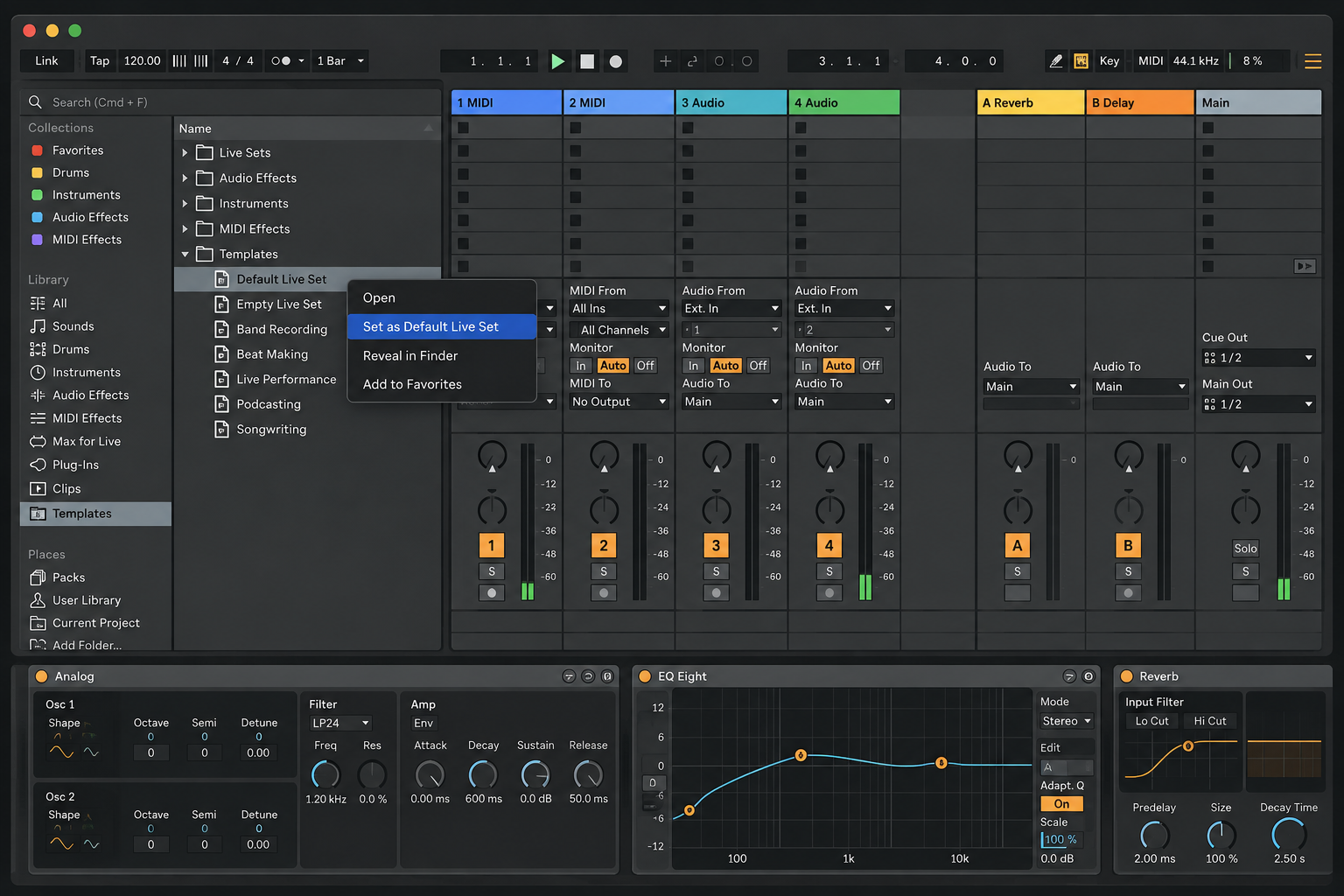
The usual Live 11/12 template locations are /Users/[username]/Music/Ableton/User Library/Templates on macOS and C:\Users\[username]\Documents\Ableton\User Library\Templates on Windows. If you moved the User Library, use its actual Templates folder instead. Keep a copy of the specific suspect template; do not move or erase the whole library.
Move preferences; do not delete them first
A preferences-only test and the full reset are different steps. Moving Preferences.cfg makes Live recreate settings such as audio/MIDI configuration and plug-in paths; moving Undo also removes that stored undo history from the active configuration. Ableton’s full reset procedure separately resets the Default Set through DefaultLiveSet.als → Set Default Live Set. Do not assume that moving preferences has completed the template step. Record settings you need and keep the moved files as a rollback copy.
Live 11 and 12 on macOS
- Close Live. In Finder’s Go menu, hold Option and open Library.
- Open Preferences/Ableton/Live x.x.x for the exact installed version—not a different version’s folder.
- Create a clearly named, dated backup folder on the Desktop. Move Preferences.cfg into it; move Undo too if present. Do not overwrite a backup from another test.
- Relaunch and note the result. This tests preferences; use the separate Default Set step above when a full reset is intended.
Live 11 and 12 on Windows
- Close Live. Enter %AppData% in File Explorer’s address bar; it normally opens AppData\Roaming.
- Open Ableton\Live x.x.x\Preferences for the exact version you are launching.
- Create a clearly named, dated Desktop backup folder and move Preferences.cfg into it. Move Undo too if present; preserve earlier backups separately.
- Relaunch and note the result. Reset the Default Set separately using the Browser command above when needed.
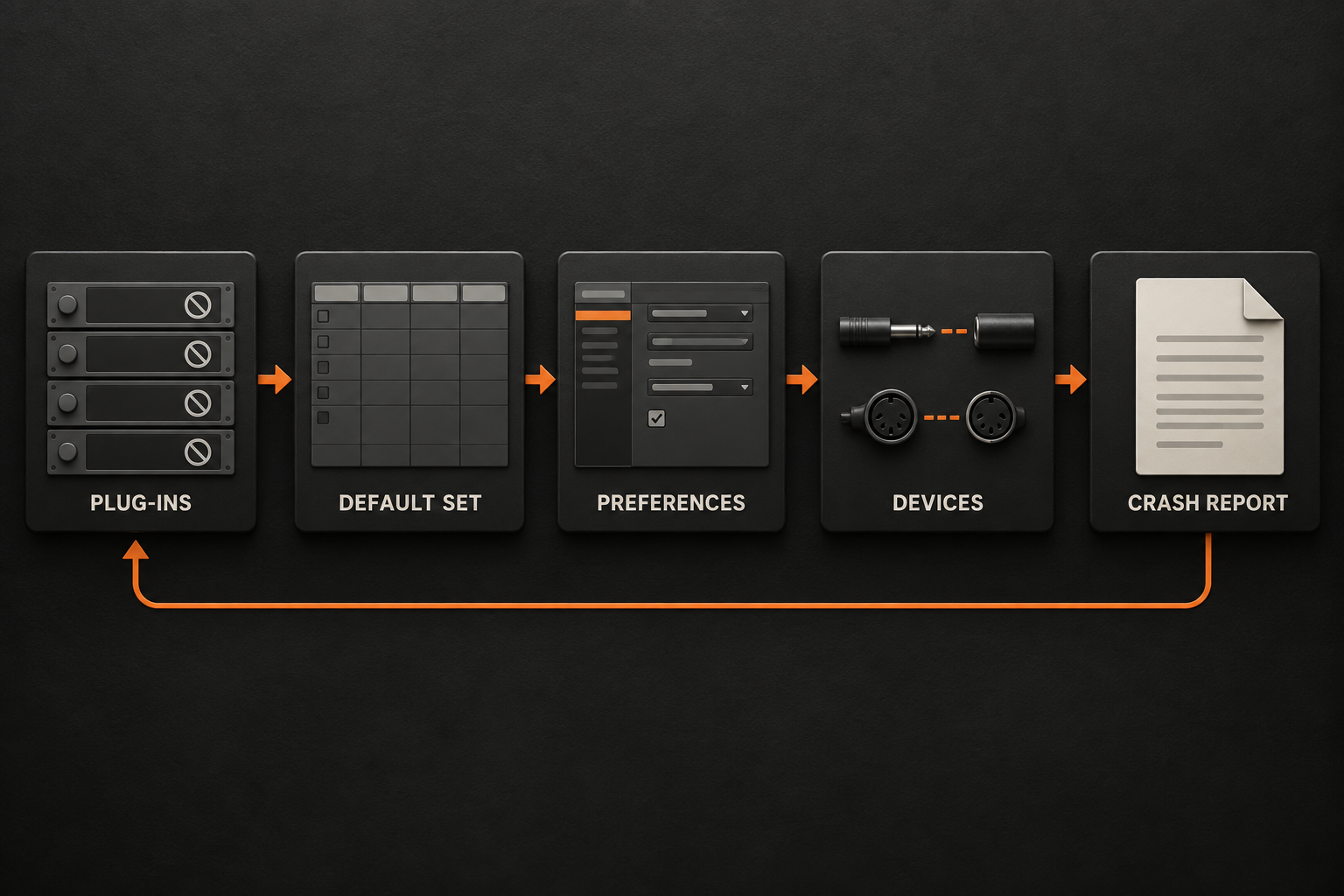
If the test makes no difference, close Live before restoring the original files. Move newly generated replacement files aside first, then return the originals to their exact locations. Keep both sets until you have verified the result. If the test helps, rebuild the needed audio/MIDI and plug-in settings gradually; copying the entire old folder back can reintroduce the problem. The diagram below summarizes branches to investigate, not definitive diagnoses from a single successful launch.
Disconnect external devices and update their software
For a repeatable “not responding” hang, shut down the computer before disconnecting nonessential external devices, including interfaces, controllers and hubs. Protect any work on external drives; do not unplug a drive while it is in use. Restart and test Live. If it opens, close Live and reconnect devices one at a time, relaunching between tests. Follow the device maker’s connection instructions.
Ableton’s launch and hang guidance identifies outdated MIDI drivers, remote scripts and Max for Live devices as possible causes. Check support and relevant updates for the implicated component. If the launch stops around “Starting Max,” compare logs and check the Max for Live loading and configuration steps; do not delete all Cycling ’74 settings just because Max was the last splash message. A Max reset can affect standalone Max as well as the bundled environment.
Read Log.txt before guessing at a plug-in
Copy Log.txt before repeated experiments overwrite or extend the evidence. It records recent runs, not just crashes. Find the last run near the final rows of hashmarks, then inspect the preceding activity. A missing normal Exit: End marker suggests an unexpected stop; it does not by itself identify the cause. Some VST3 entries containing “error” are harmless.
- Windows:
C:\Users\[Username]\AppData\Roaming\Ableton\Live x.x.x\Preferences\Log.txt - macOS:
/Users/[Username]/Library/Preferences/Ableton/Live x.x.x/Log.txt
The official crash-report reading guide explains how a failed plug-in can bring down Live. Use a restoration or scan entry as a lead, then compare a controlled retest and relevant developer guidance. On Windows, also consider graphics-driver compatibility or a VPN/VNC conflict with Live’s web connector if the symptom fits. Do not disable firewall or security protection broadly, and restore any temporary network-app test change afterward.
Send the right report when the local tests fail
A Crash Report archive is normally created on the first launch after a crash, so it may be missing when Live cannot get far enough to create it. If an archive exists, the Crash Report location guide gives these folders:
- Windows:
\Users\[username]\AppData\Roaming\Ableton\Live Reports\ - macOS:
/Users/[username]/Library/Application Support/Ableton/Live Reports/
Attach the available archive to an Ableton Technical Support request with the Live/OS versions, crash-versus-hang distinction, reproduction and results of each test. If no archive exists, attach Log.txt instead; on macOS include the system crash report following Ableton’s linked instructions. Reports can contain local paths and setup details, so send them privately to support rather than posting them publicly. Emailing crashes@ableton.com only logs the archive for analysis; it does not open a support ticket or guarantee a reply.
Consider reinstalling only after the targeted checks or on support’s advice. Reinstalling the application does not necessarily change plug-ins, drivers, templates or preference files stored elsewhere. Once a test helps, verify a normal launch and the affected Set before restoring devices or settings. Keep the backup until that verification is complete.
Resource impact: diagnose startup before deleting content
A slow launch is not automatically a crash. The first scan after an update and Browser indexing can use CPU, RAM and disk resources. If progress continues and Live eventually opens, investigate that startup workload rather than repeatedly force-quitting it at an arbitrary time limit.
A demanding Default Set can load instruments and samples before you see a usable project. Shift provides a low-content comparison, but success there only narrows the search; it does not prove a RAM shortage or a damaged template file.
For persistent slow Browser initialization, review Places. Ableton recommends a few selected folders instead of entire drives. Removing an unnecessary location from Places is different from deleting its source files; keep your projects and sample library intact.
Work with one test Set and one named backup per configuration change. Avoid duplicating the entire plug-in or sample collection just to test one suspect item.
If the crash remains, stop changing unrelated settings and send the recorded evidence to the relevant support team. A reproducible small case is more useful than a workstation with several untracked resets.
FAQ
How do I start Ableton Live without third-party plug-ins?
Hold Alt on Windows or Option on macOS while launching Live, and keep the key held until Live fully opens and the splash pane closes. This temporarily disables third-party plug-in scanning. The next normal launch re-enables scanning.
What does holding Shift while opening Ableton do?
Holding Shift during launch temporarily opens the factory Default Set. If Live opens with Shift, the custom Default Set or content loaded by it is the likely branch to inspect.
Will resetting Ableton Live delete my projects?
The documented reset targets settings and the Default Set, not your project folders. Preserve Preferences.cfg and Undo before moving them. In Live 11/12, the full reset also includes a separate Browser step: right-click DefaultLiveSet.als in Templates and choose Set Default Live Set. Moving preferences alone does not complete that Default Set step.
Where is Ableton Live's Log.txt file?
On Windows it is under C:\Users\[Username]\AppData\Roaming\Ableton\Live x.x.x\Preferences\Log.txt. On macOS it is under /Users/[Username]/Library/Preferences/Ableton/Live x.x.x/Log.txt. Read the last startup events as leads, not automatic proof of a culprit.
Why does Ableton Live hang while scanning plug-ins?
A plug-in, an incorrect custom folder or scan data may be involved. Launch with Alt on Windows or Option on macOS as a reversible test, then check compatibility and isolate a specific device. Successful startup makes that branch more likely; it does not prove which plug-in failed. Check files and paths before forcing a full rescan.
Should I reinstall Ableton when it crashes on startup?
Not first. Try reversible plug-in, Default Set, preferences and device tests, preserving the original files. Reinstallation may leave the relevant external settings or devices unchanged. If the cause remains unclear, send a support request with the Crash Report, or Log.txt when an archive is unavailable.
