Short answer: pick a format and installer the developer supports for your OS, processor and Live version. Install to the recommended location, enable that source in Settings → Plug-Ins, wait for the scan and test the loaded device in a saved Set. For a new setup that crosses platforms, VST3 is usually the simplest choice where it’s supported; keep any older format your existing projects still rely on.
Checked September 7, 2026: this guide covers a first installation in Live 12 on Mac and Windows: choosing the format, the component folders and a real playback test. If the device is already installed but missing from the Browser, the troubleshooting section at the end points you to the right scan check.
Choose the format before running the installer
| Format | Windows | macOS | Choose it for |
|---|---|---|---|
| VST3 (.vst3) | Yes | Yes | New cross-platform work when the developer supports both builds |
| VST2 (.dll on Windows; .vst on Mac) | Yes | Yes | An existing Set or device that still needs this format |
| AUv2 (.component) | No | Yes | A supported Mac-only workflow without direct plug-in MIDI output |
| AUv3 | No | Yes | A compatible Mac app-extension plug-in installed by the developer’s method |
Live 12 supports 64-bit VST2 and VST3 on Windows and Mac, plus compatible AUv2 and AUv3 devices on Mac. Read Ableton’s Windows installation guide or macOS format guide alongside the developer’s requirements. Installing only a standalone synth app doesn’t necessarily give Live a VST or AU it can load.
If you collaborate across Mac and Windows, install the same supported VST format and a compatible plug-in version on both machines, since AU is Mac-only. Don’t assume AU, VST2 and VST3 instances can stand in for each other when an older Set reopens, and keep one format for every instance of the same product within a Set. The macOS guide also marks Waves as unsupported in AU format in Live, with VST3 recommended. If a plug-in’s arpeggiator has to send MIDI to another track, use a VST build that exposes MIDI output: Live’s plug-in MIDI-output workflow doesn’t work as direct AU MIDI output.
Check compatibility and authorization first
- Check the developer’s supported OS, processor architecture, Live version and plug-in format.
- Download the newest compatible installer or the official product manager; the newest one isn’t always compatible with an older OS.
- Find out how the license works: account activation, a license file or the vendor’s licensing service.
- For an existing project, note the installed version and format before updating, and keep a restorable copy of the project.
Don’t copy a plug-in binary over from an old computer or a backup and call the installation done. Installers may add shared libraries, copy protection, presets and content indexes. Ableton’s Windows guide specifically recommends a fresh install over migrating plug-in files.
Install VST3 on Windows in the system folder
The standard 64-bit VST3 location is:
C:\Program Files\Common Files\VST3Run the manufacturer’s installer and leave VST3 pointed at that folder unless the vendor documents a different requirement. In Live, open Settings → Plug-Ins and turn on Use VST3 Plug-In System Folders. You normally don’t need a VST3 custom folder.
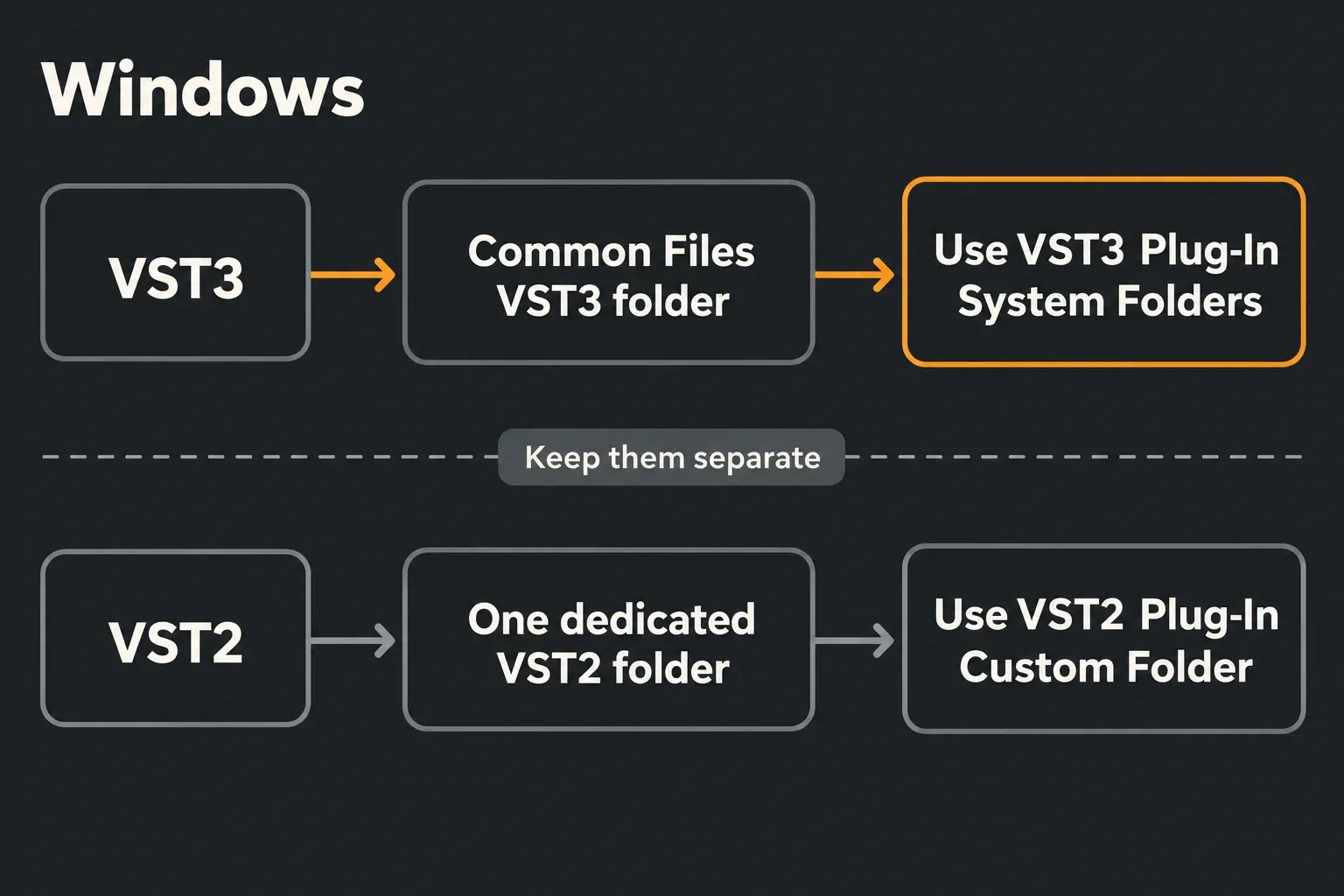
The Program Files (x86) VST3 location is for 32-bit builds, and it isn’t a stash of compatible files to move into Live 12’s folder. Keep VST2 DLLs, presets, libraries and standalone applications out of the VST3 scan location. Install the developer’s package normally, and don’t strip files out of an installed plug-in bundle.
Keep legacy VST2 in one Windows folder
VST2 installers often ask where to install. Ableton lists this as a safe dedicated path:
C:\Program Files\Common Files\VST2If the installer allows it, keep all VST2 devices in one dedicated folder and select that exact path under Use VST2 Plug-In Custom Folder. Some vendors use a fixed location; follow that device’s instructions instead of moving its files by hand. VST2 and VST3 sources must stay separate, and neither one belongs inside Live’s application folder.
If the vendor offers both formats and no older Set depends on VST2, install VST3 only. Duplicate formats take up disk space, clutter the Browser and add failure points during migration, without making the sound any better.
Use the default system folders on macOS
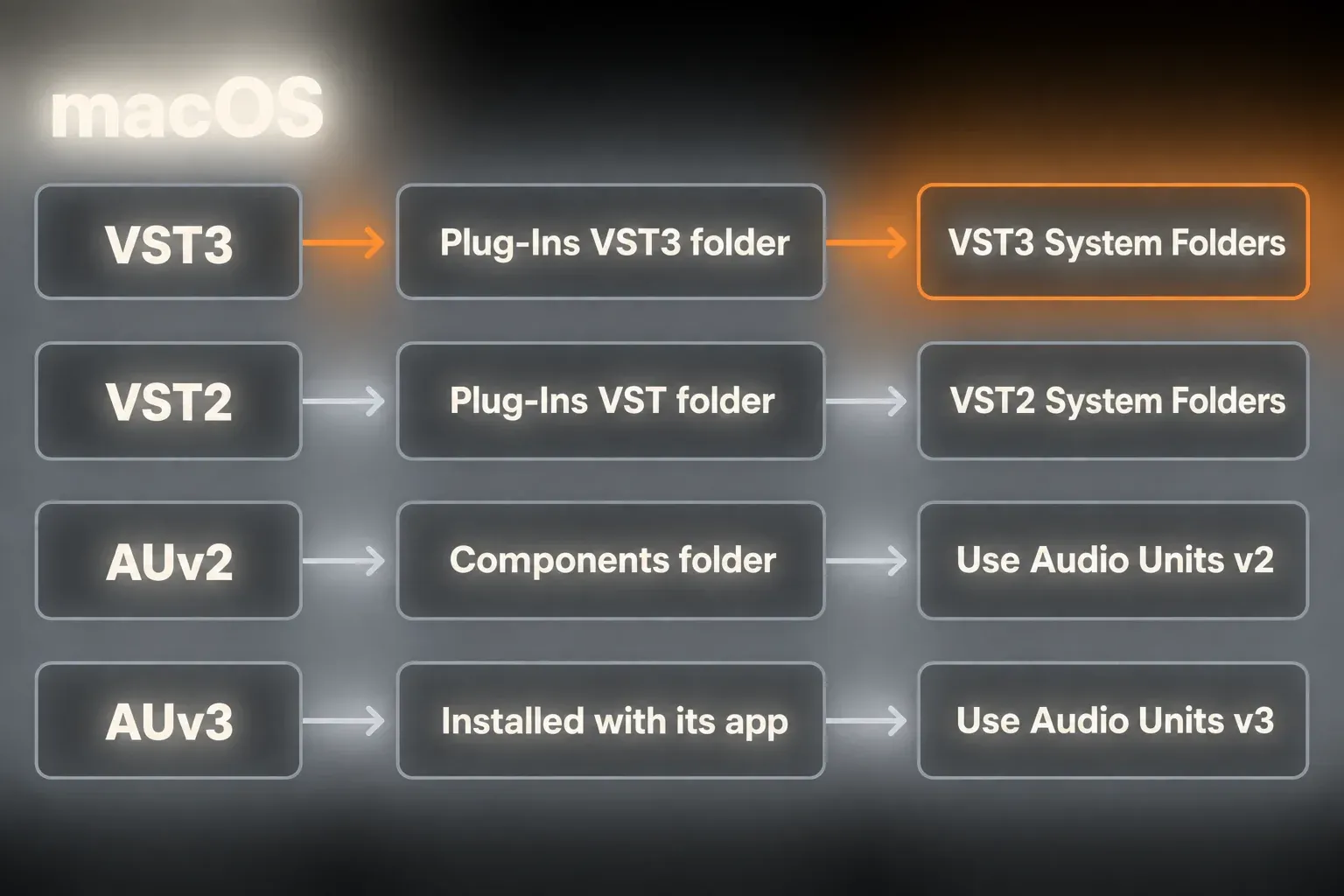
For VST components and AUv2, the usual system-wide Mac folders are:
AUv2:   /Library/Audio/Plug-Ins/Components/
VST2: /Library/Audio/Plug-Ins/VST/
VST3: /Library/Audio/Plug-Ins/VST3/
The matching folders inside the current user’s hidden Library are below. Here the Components path is for AUv2 only; it is not an AUv3 installation folder:
~/Library/Audio/Plug-Ins/Components/
~/Library/Audio/Plug-Ins/VST/
~/Library/Audio/Plug-Ins/VST3/
Run the manufacturer’s installer, then enable the matching VST system source or Use Audio Units v2/v3 in Live’s Plug-In settings. AUv3 is an app extension: install its containing application the way the developer describes instead of copying it into Components. Keep custom VST2 and VST3 directories separate, and don’t select a system source a second time as a custom source.
Check Apple silicon before choosing Rosetta
When Live runs natively on Apple silicon, VST2/VST3 need native-compatible builds. Intel Audio Units are a separate case: macOS can host many of them through AUHostingCompatibilityService, while some still need Live under Rosetta. So an AU showing up in the Browser doesn’t prove that the same product’s VST build is native. Ableton’s Apple-silicon plug-in guide explains the difference.
Look for a supported native update first. If an older project depends on an Intel-only device, keep its working version and export safety stems before changing architecture or plug-in format. Test the changed setup on a copy, and don’t overwrite the only editable Set after missing-device warnings appear.
Put sample libraries outside plug-in folders
A sampler’s content can be far larger than its plug-in component. Install that content through the developer’s manager to a supported storage location, away from VST2, VST3 and Components. The right place depends on the library’s requirements, and not every library supports a removable or cloud-synced drive.
If you move content, use that product’s relocation or locate/repair process and wait for a complete local download where that applies. A clean component scan doesn’t check every sample, so test a preset that uses the relocated library before you delete the old copy.
Scan once, then verify a saved Set
- Save your work and quit every Live instance before installing.
- Run the compatible manufacturer installer and finish its authorization steps.
- Launch one Live instance and open Settings → Plug-Ins.
- Enable the exact system source or dedicated custom source that matches the installed format.
- Let the scan finish, then find the device under the Browser’s Plug-Ins label.
- Load an instrument on a MIDI track, or an audio effect on an audio track or after an instrument. Test its response with a real note or audio clip.
- Save a small test Set, close Live, reopen that Set and check the intended preset, authorization and required samples again.
For the instrument test, use an active note in a playing clip with Monitor on Auto, or live input with the track armed. For an effect, send it known audio and check that it changes the signal. A MIDI-processing device needs its documented MIDI route and a sound generator after it. Reopening confirms the tested preset on this machine; it doesn’t vouch for every library, every future license check or a collaborator’s computer.
Stop installing when the problem becomes scanning
If a compatible device sits in the correct enabled folder and still doesn’t appear, stop creating folders and copying the binary around. Ableton’s missing plug-in troubleshooting sequence starts by confirming compatibility and installation, then switching the correct source off and on and letting indexing finish. If the device is still missing, hold Alt on Windows or Option on Mac while clicking Rescan for a deep rescan.
If it remains missing after that, use the VST scan-path diagnosis. If startup stalls specifically during Audio Unit validation, follow the AU isolation checks. Keep your working plug-ins installed while you isolate the problem product.
Keep the new plug-in from becoming a performance problem
Installation takes disk space, and scanning, installers and license services may use CPU or memory even when no instance is playing. For the first sound test, use one instance and a small preset. If a real-time load problem shows up, check the product’s quality and voice settings, then run the track-first CPU check. Don’t remove formats that old Sets use just to shorten the Browser list.
Go back to the Learn Ableton Live hub for the next setup and workflow step. Lite and Intro support plug-ins too, but their edition limits and included devices are a separate Lite-versus-Intro decision.
FAQ
Where is the VST3 folder for Ableton Live on Windows?
Install 64-bit VST3 files in C:\Program Files\Common Files\VST3. In Live, open Settings > Plug-Ins and turn on Use VST3 Plug-In System Folders. Keep VST2 DLL files, presets and sample libraries out of that VST3 folder.
Where are Ableton plug-ins installed on a Mac?
Common system paths are /Library/Audio/Plug-Ins/Components for AUv2, /Library/Audio/Plug-Ins/VST for VST2 and /Library/Audio/Plug-Ins/VST3 for VST3. Installers can also use the matching folders under your user Library. AUv3 is installed through its containing application, so follow that developer’s instructions instead of assuming it belongs in Components.
Should I install AU or VST3 for Ableton Live on Mac?
Use a supported VST3 build for sharing between Mac and Windows, or when the plug-in has to send MIDI straight to another Live track. AU is Mac-only and has no direct MIDI-output route in Live. Keep whatever format an existing Set needs, because choosing another format doesn’t replace its saved instances.
How do I rescan plug-ins in Ableton Live 12?
Open Settings > Plug-Ins, make sure the correct source is enabled, and click Rescan. If a correctly installed, compatible plug-in is still missing, hold Alt on Windows or Option on Mac while clicking Rescan for a deep rescan.
Why does a newly installed plug-in not appear in Ableton?
The usual causes are the wrong folder, a disabled source, a 32-bit binary, an unsupported operating system or processor build, indexing that hasn’t finished, missing authorization, or VST2 and VST3 files mixed in one folder. Confirm the installation before you rescan again and again.
Do installed plug-ins use RAM when Ableton opens?
Installed files take disk space, while loaded instruments and samples use working memory. Scanning, installers and licensing services can also use CPU and RAM before a plug-in plays in a Set. Test one instance and a small preset first; duplicate formats may add scan work but can still be needed by older projects.
