Short answer: when VST plug-ins are missing from Ableton Live, clear the Browser filters first and find out which plug-in format the vendor actually installed. Match that format to its enabled source, let the scan finish, then try one normal Rescan if you still need it. No number of deep scans will install a missing component or make an incompatible build work.
Checked September 7, 2026: this guide covers installed plug-ins that don’t appear in the Live 12 Browser on Windows and macOS. If Live hangs specifically while scanning Audio Units, go to the AU scan-isolation workflow. For VST scan crashes, or a failure before the Browser even opens, use the startup-crash checks.
Start with the missing file, not the product name
“Serum is installed” or “Kontakt works standalone” tells Live nothing about which component to load. One vendor package can hold a standalone application, VST3, VST2, Audio Unit, AAX, presets and a sample library. Live can only use a supported plug-in component; the application and the preset folders can’t stand in for it.
- Open the vendor’s installer or product manager and write down the exact product version.
- Note the installed format: VST3, VST2 or AU.
- Note the component path and whether it is an instrument or an audio effect.
- Check the vendor’s current operating-system, Live and processor requirements.
- Finish authorization before you ask Live to load the device.
A standalone app that opens fine proves nothing about its DAW plug-in. If the vendor’s installer lists no Live-supported format, follow the plug-in installation steps for Mac or Windows and pick a compatible component. For products delivered through a shell, look for the vendor’s shell file instead of expecting one file per effect.
Clear the Live 12 Browser before touching folders
Live 12 can hide a correctly indexed plug-in behind a label, search term, tag or content filter. Ableton’s current Browser and Tags FAQ points out a distinction that is easy to miss: the x clears only the search text, while Clear removes both the search and the active filters. Third-party plug-ins live under All or Plug-ins, not under the Sounds label.
- Select Plug-ins in the Browser sidebar.
- Click Clear, not just the x in the search field.
- Search once by product name and once by vendor name.
- Remove any Format filter that excludes VST3, VST2 or AU.
- Check whether the device landed in an instrument or audio-effect category you didn’t expect.
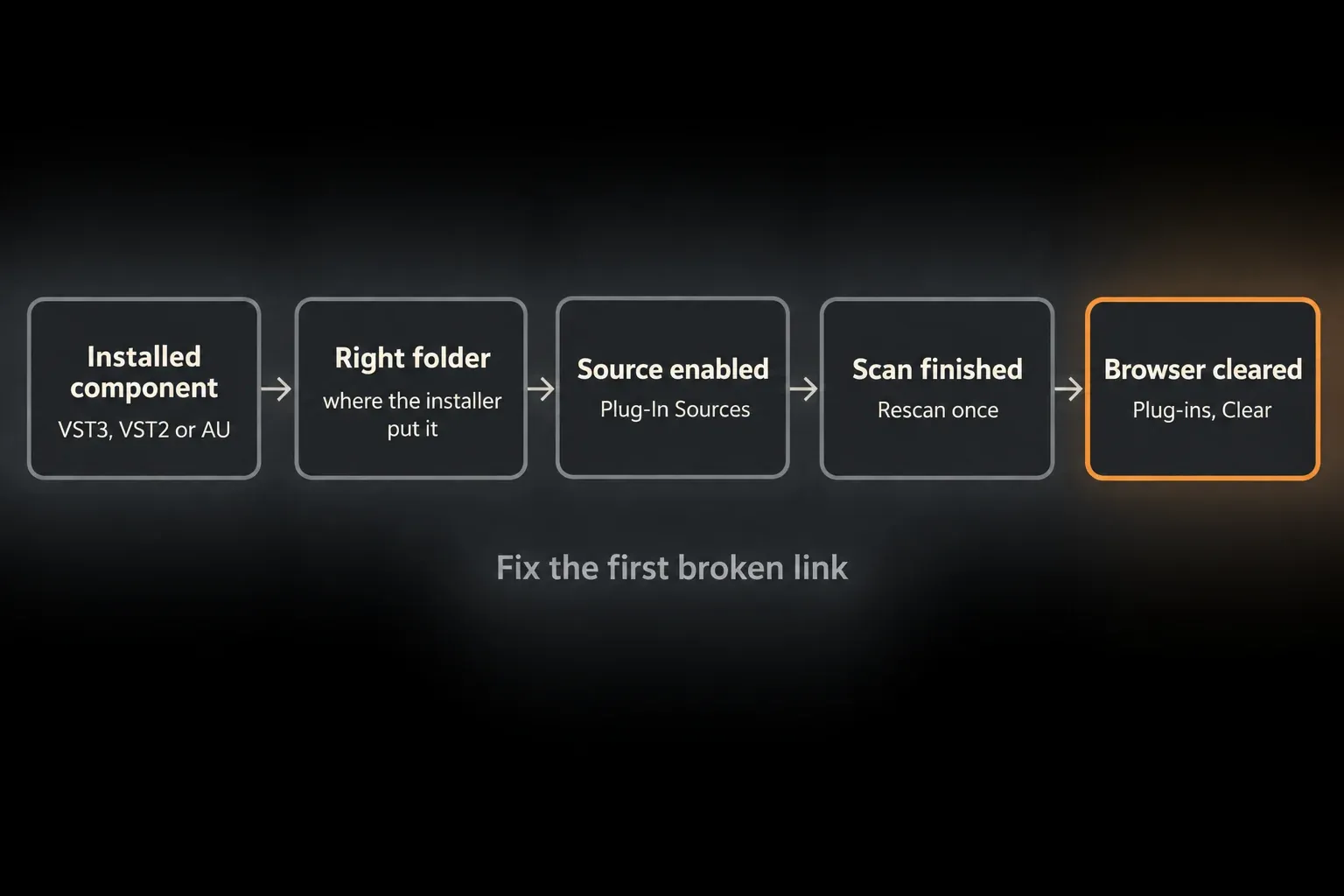
If the device shows up once the Browser state is cleared, that discovery problem needed no rescan. Still load it in an empty Set before calling the installation healthy, because a visible entry can run into an authorization or loading error.
Match the installed format to Plug-In Sources
Open Settings/Preferences → Plug-Ins; the wording depends on the version. Enable the source for the component you actually installed. Switching on every format may add scan work and show several editions of the same product, and it still won’t install an edition that isn’t there.
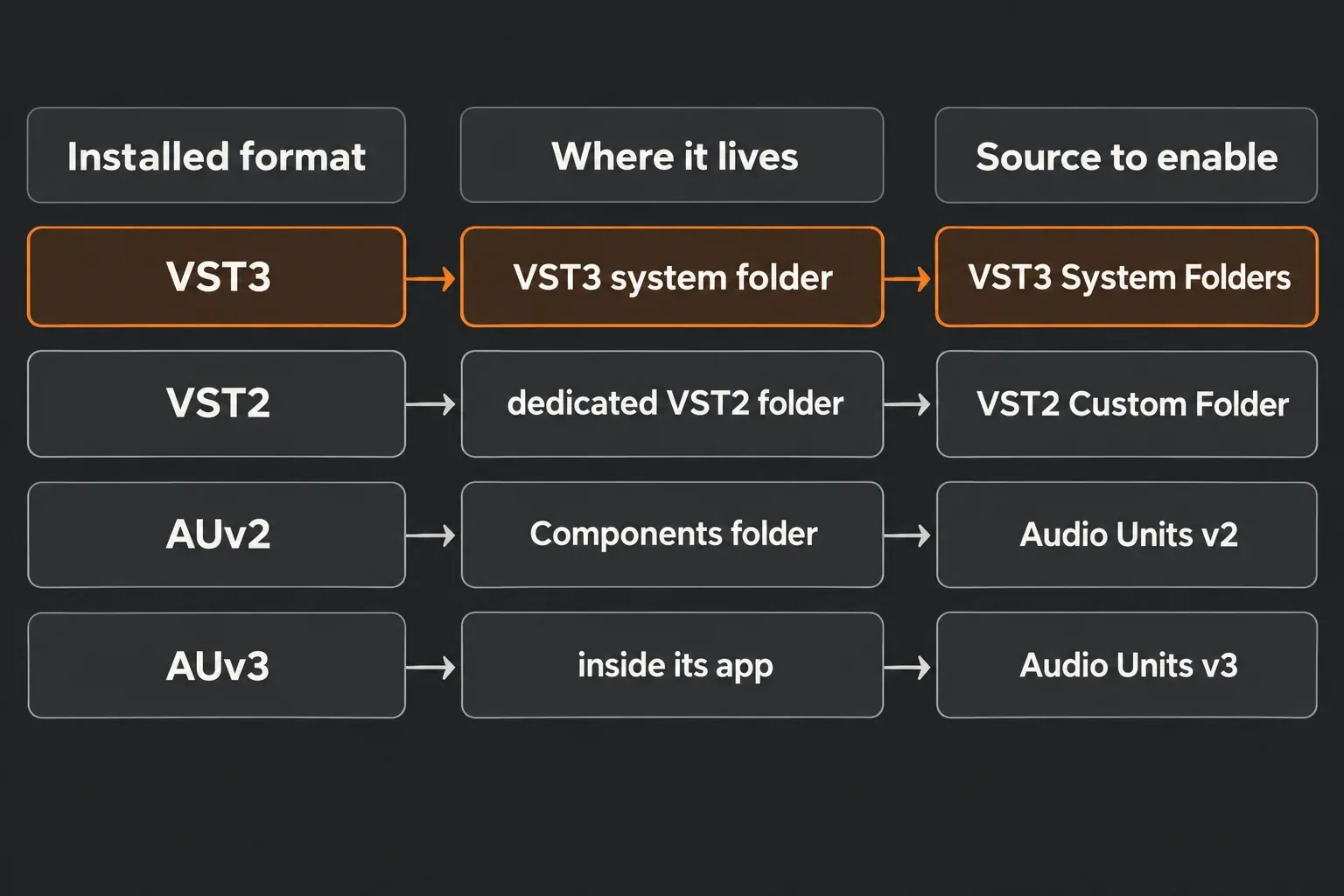
| Installed format | Platform | Source to verify |
|---|---|---|
| VST3 | Windows and macOS | VST3 System Folders; a dedicated custom folder only if the installer uses one |
| VST2 | Windows | VST2 Custom Folder pointing to the vendor’s installed .dll files |
| VST2 | macOS | VST2 System Folders or the dedicated custom folder containing the .vst bundles |
| AUv2 | macOS | Use Audio Units v2; component installed in a system or user Components folder |
| AUv3 | macOS | Use Audio Units v3; vendor’s Audio Unit extension installed with its app |
After changing a source, let the scan finish before you change anything else. Ableton documents background VST2/VST3 scanning on Mac from Live 11.1 onward, so a device that is briefly missing after an install or update has not necessarily failed to scan. Keep only one instance of Live running during the test.
For VST3, verify the standard system folder
Ableton’s current Windows and macOS installation guides point VST3 to standard system locations:
- Windows:
C:\Program Files\Common Files\VST3 - macOS system:
/Library/Audio/Plug-Ins/VST3 - macOS user:
~/Library/Audio/Plug-Ins/VST3
Look for a .vst3 component belonging to the product. On Windows, Ableton’s VST installation guide recommends the system drive and says VST2 and VST3 must stay in separate dedicated folders. Don’t point Live at all of Program Files, Downloads or a whole disk. A scan that broad can’t supply a missing binary, and it makes Live inspect unrelated files.
If the installer put no VST3 component where it says it would, uninstall and reinstall through the vendor instead of dragging a binary in by hand. Some devices rely on support files, services or license data that live outside the plug-in folder.
Treat VST2 as a different device format
VST2 and VST3 editions can share a product name and still be different components. On Windows, VST2 usually comes as a .dll; on macOS it is a .vst bundle. Enable the VST2 folder that really contains that component. Never use the VST3 system folder as the VST2 custom folder, and never give both custom sources the same path.
This matters again when an old Set reports a missing plug-in. Installing the current VST3 edition doesn’t guarantee Live can swap it in for a VST2 instance saved in the project with the same state and automation. Keep an untouched copy of the Set before you test a format migration. For new work, Ableton recommends sticking to one format of a product within the same Set.
On macOS, separate AU visibility from VST compatibility
AUv2 uses .component bundles in /Library/Audio/Plug-Ins/Components or the matching user Library folder. AUv3 works differently: Apple describes Audio Unit extensions installed with apps in Applications. Enable the right AUv2 or AUv3 source in Live, and don’t go hunting for an AUv3 .component file. Seeing either AU format in the Browser says nothing about whether the separate VST3 build is installed.
This gets important on Apple Silicon. Ableton’s Apple Silicon plug-in guide says the Universal build of Live 11.1 and later recognizes VST2/VST3 plug-ins compiled natively for Apple Silicon. Some Intel Audio Units can still appear through macOS’s AUHostingCompatibilityService, which is exactly why “the AU is visible but the VST is missing” comes up so often.
- Check the vendor’s compatibility page for the exact product version and format.
- Install the current Apple Silicon-native build where one exists.
- Use Rosetta only when the vendor documents an Intel-only requirement you still need.
- Keep a native Live path available rather than changing your only working setup blindly.
A visible AU is no reason to switch Live to Rosetta. First check whether the vendor offers a compatible native VST build. Keep a copy of a working project before you change architecture or plug-in format, since a different executable mode can show a different set of installed devices.
Run one normal rescan, then one evidence-based deep rescan
Once the file, format, architecture and source are right, click Rescan. Let the scan finish, clear the Browser again and search by vendor and product. If the component is still missing, Ableton’s updated missing plug-in procedure describes a deep scan: hold Alt on Windows or Option on macOS while you click Rescan.
A deep rescan rebuilds scan information, and that is all it does. It can’t turn a 32-bit component into a 64-bit one, make an Intel-only VST native, add a format the installer left out or fix a folder Live never watches. Current 64-bit Live doesn’t list 32-bit plug-ins at all, so repeated deep scans won’t bring one back.
When a scan stalls, the last name on screen is a lead, not proof that every missing plug-in is broken. For an Audio Unit scan hang, follow the AU-specific isolation steps. For a VST scanner crash, use the plug-in-disabled startup test and crash evidence. Mac Components-folder instructions don’t apply to Windows VST files.
If the file is still missing after a clean scan
Quit every Live instance and let the processes close fully before reopening one; a computer restart is the surest way to clear them. Ableton’s missing plug-in checklist also covers installation and access problems. It warns that on Windows, moving, renaming or uninstalling a product’s standalone version can stop the matching VST from working, and it lists the Visual C++ 2010 SP1 runtime as a requirement for some 64-bit plug-ins. If security software shows a notification, check it for the exact trusted vendor file; don’t disable protection globally or run Live as administrator as a blanket fix. When access is blocked, solve that specific installation problem with the vendor or your administrator.
For Waves, the file Live scans is a WaveShell, which links it to the installed products. Waves’ custom-folder instructions explain which shell belongs in the scan folder and warn against moving the product files out of the Waves installation directory. Follow the instructions for the version you have installed, not an old forum recipe.
Live 12.1 introduced a separate scanner database, Live-plugins-1.db. Only after you’ve checked for compatible updates, the installation and the sources should you consider the official targeted scanner-database reset procedure. Don’t delete the whole Ableton database or preferences folder. If the device still won’t appear, send the vendor or Ableton the exact versions, the installed path, the enabled source and the scan result.
If it appears but will not load, change branches
Discovery is done the moment the exact device shows up in the Browser. A load error, an authorization prompt, a missing content library or a project-specific “device unavailable” message belongs to a different branch.
- Create an empty Set and load one instance of the device.
- Complete authorization in the vendor’s current license manager.
- Make sure presets and samples stay in the vendor-supported content path, not inside the VST folder.
- If only one old Set fails, compare the format and version it needs with the one now installed.
If the device loads in an empty Set, basic discovery and loading worked in that test. An old project can still need another format, version, preset or content library. Keep the original project intact while you chase that narrower failure; one clean blank-Set test doesn’t vouch for every instance in a production Set.
Use the lowest-resource repair path
Keep sample libraries and standalone applications out of plug-in scan folders. Test one device in a blank Set, run a single Live process, and write down every change you make to source folders. Don’t rescan an unchanged installation again and again, and don’t enable unused duplicate formats just to make the list longer.
The Fix Ableton Live hub separates missing Browser entries from scan hangs, silent tracks and performance problems. Let what actually fails choose the next diagnostic, not the number of times you’ve already rescanned.
FAQ
Why is my VST3 not showing in Ableton Live?
Confirm the installer supplied a compatible VST3, enable the source for its documented folder, clear the Live 12 Browser filters and let the scan finish. Check operating-system and processor support before asking for a deep rescan; a vendor shell may stand for several plug-ins.
Where should VST3 plug-ins be installed?
The standard system location is C:\Program Files\Common Files\VST3 on Windows and /Library/Audio/Plug-Ins/VST3 on macOS. Some Mac installations use the matching user Library folder. Go with the vendor’s installer and its documented location rather than moving files around by hand.
How do I deep-rescan plug-ins in Ableton?
Open Settings or Preferences → Plug-Ins, hold Alt on Windows or Option on macOS, and click Rescan. Do it only after checking the installed component, format, folder and compatibility; a deep rescan rebuilds scan data but can’t repair the wrong binary.
Why does the Audio Unit appear but the VST3 does not?
AU and VST3 are separate components. On Apple Silicon, macOS can host some Intel Audio Units through AUHostingCompatibilityService, while Live’s Universal build needs a native Apple Silicon VST2/VST3. Confirm the exact VST build with the vendor.
Can Ableton Live use 32-bit plug-ins?
Current 64-bit Live doesn’t load 32-bit plug-ins directly. Install a current 64-bit VST3, VST2 or AU build from the vendor; a rescan can’t change the component’s bit architecture.
Why can I open the plug-in standalone but not see it in Live?
The standalone application and the DAW plug-in are separate components. Run the official installer again, choose a Live-supported format, confirm its file and path, then enable the matching source and scan once.
Why is the plug-in visible in one Set but missing in an older Set?
The older Set may need a different format or version, such as VST2 rather than the VST3 you have now. Keep a copy of the Set, find out which format it saved, and reinstall that compatible component before trying a migration.
