
Short answer: work out what is late before changing any settings. If your voice or instrument reaches the headphones late, the monitoring path is the problem. If the performance feels right but the recorded clip lands late, look at the Monitor mode and Live 12’s Keep Latency behavior before touching Driver Error Compensation. Pick direct monitoring or monitoring through Live, never both, confirm the audio driver, use the lowest buffer that stays stable, and take latency-heavy devices out of the monitored signal path.
Microphone choice, input levels and takes are covered in the vocal recording workflow. The checks below deal with the delay you hear and with where recorded clips land.
A lower buffer gives the CPU less time to process audio, and it will not unload a sample library from RAM. A short test recording is the best place to start. Before removing devices, save a separate copy of the Set, so the mix can be restored without duplicating the entire Project.
Name the symptom before touching the buffer
| What you observe | First branch |
|---|---|
| Your live input reaches headphones late | Monitoring route, buffer, plug-in path |
| The performance feels fine, but the clip lands late | Monitor mode, Keep Latency, interface reporting |
| Both the live input and the clip are late | Driver and monitoring choice before compensation |
| Only a software instrument responds late | MIDI input plus instrument/audio device latency |
| Latency grows after mix devices are added | Device and routing latency in the Set |
Build a small test Set with one input track, the metronome and no plug-ins, then record the same short transient or spoken count there and in the problem Set. The comparison separates interface and buffer latency from the processing that the production session adds.
Choose one monitoring path
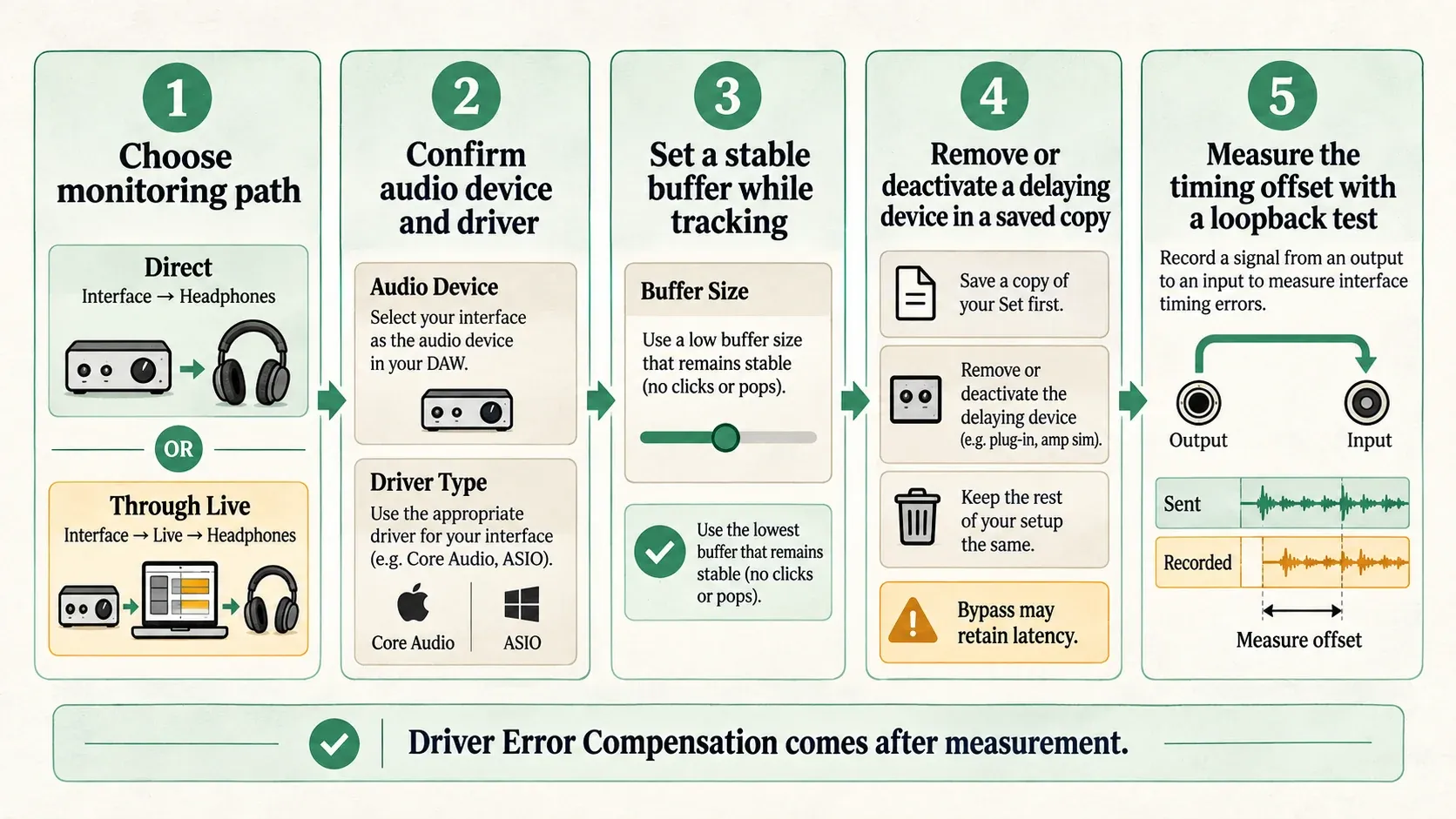
Direct monitoring: the interface sends the input to the headphones without passing the monitored sound through Live. Set the recording track’s Monitor to Off. Live still records the input; Off only stops Live from sending a second monitored copy back to the performer. Live’s insert effects are missing from the direct path, but the performer gets the quickest response the interface can offer.
Monitoring through Live: set Monitor to Auto on an armed track that is not playing a clip, or to In for continuous input. Mute the interface’s direct-monitor path, or you may hear the signal twice, once immediately and once delayed.
The current Live 12 monitoring manual recommends Off for acoustic listening, an external mixer or interface direct monitoring, and Auto or In when the performer has to hear Live’s device chain.
Blending both paths and then trying to cure the comb-filtered double with buffer settings will not work. Make the route unambiguous first.
Understand Keep Latency in Live 12
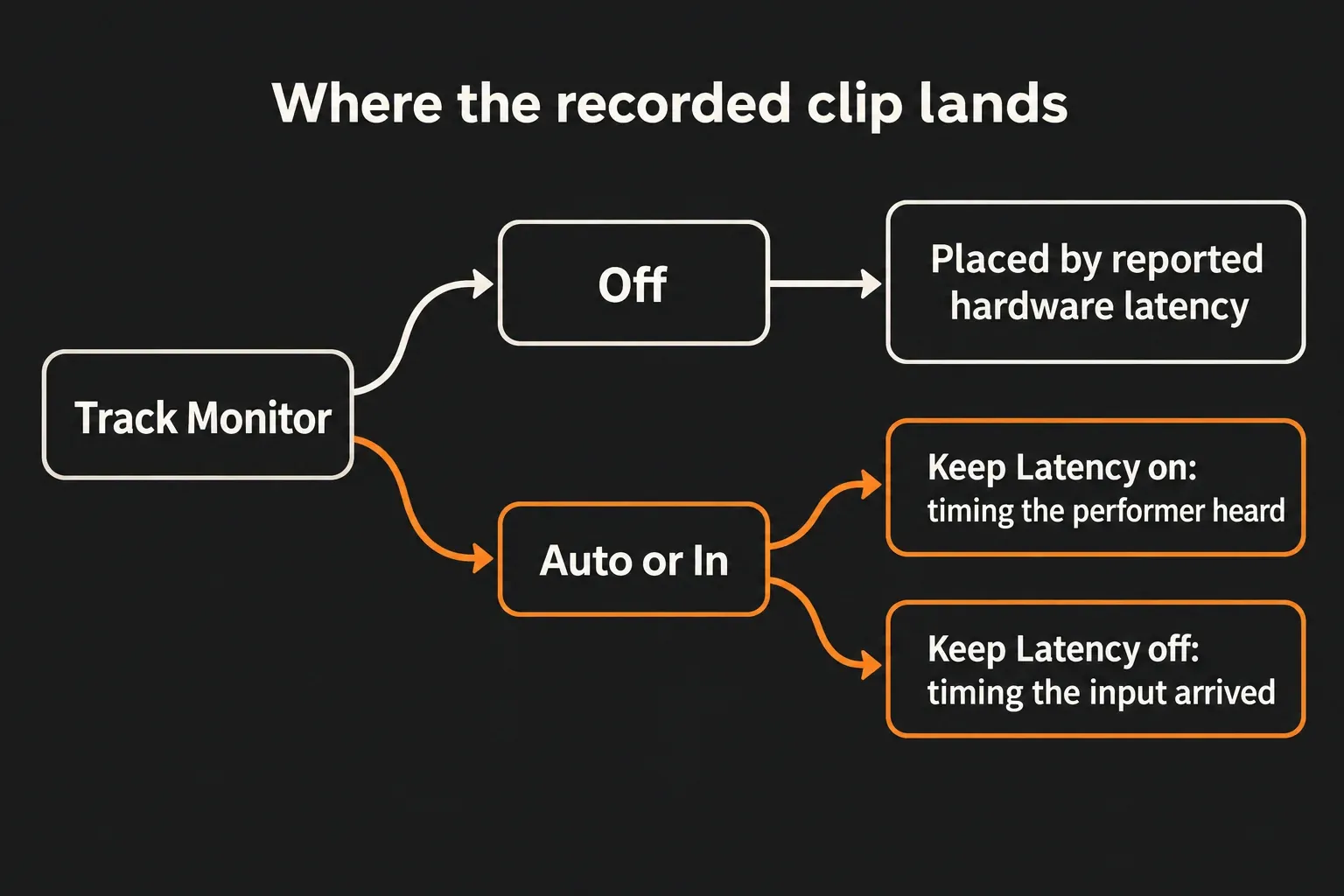
Live 12 adds Keep Monitoring Latency in Recorded Audio for tracks set to Auto or In. Ableton’s current recordings-out-of-sync guide frames the choice by which timing you want to keep:
Right-click the recording track’s Auto or In Monitor button to change Keep Monitoring Latency in Recorded Audio. To show the Keep Latency toggle in the mixer, enable Track Options in the Mixer View menu. Auto and In keep latency by default, but a saved Set may differ, so check it instead of assuming the default is still active.
- Keep Latency on: keeps the timing of what the performer heard through Live. This fits cases where the player reacts to the delayed monitored result, such as a software instrument played from a MIDI keyboard.
- Keep Latency off: keeps the moment the incoming performance reached Live, without the monitored delay. Ableton’s example is a vocalist hearing reverb through Live while the dry vocal should keep the performance timing.
Monitor Off is a separate branch. Keep Latency does not apply there, and Live uses the interface’s reported hardware latency to place the recording. That is why copied advice to “always turn it on” or “always turn it off” can move the symptom without solving it.
Confirm the audio driver before tuning the buffer
Open Settings → Audio. On macOS, pick the intended Core Audio device. On Windows, Ableton’s latency guide recommends the interface’s native ASIO driver where one exists, instead of the default multimedia driver. For the first test, input and output should point to the same intended interface.
If an aggregate device, Bluetooth output or network route is involved, repeat the test with the interface connected directly by wire. Those routes add variables that a buffer change inside Live may not control.
Set the lowest stable buffer, not the lowest number
A lower buffer cuts the time audio waits for each processing block but gives the CPU less time to finish it. A higher buffer improves the processing margin and lengthens the delay when you monitor through Live. The right tracking value is the lowest setting that gives clean, stable audio in the current Set.
For scale, 128 samples at 48 kHz take 128 ÷ 48,000 × 1,000 = 2.67 ms per buffer. That is not the total roundtrip latency, because input and output buffering, driver safety buffers, converters and device processing can all add more. Compare the reported latency in Audio settings, then listen for dropouts while playing or recording.
- Start from the interface’s current stable value.
- Lower it one step.
- Record for at least the length of a real take.
- If you hear a click or dropout, go back one step.
- Raise the buffer again for mixing once real-time playing is finished.
If a lower buffer makes the audio unstable, the crackling and dropouts diagnostic takes over. A sample count named in a tutorial is no reason to keep going lower.
Remove latency from the monitored signal path
Check the input track, its Group, any receiving track and Main. Lookahead, linear-phase modes and some pitch-correction or noise-reduction devices add delay even when the CPU meter is low, so judge the actual device and mode, not the effect category.
With Delay Compensation enabled, hovering over a device’s title bar in Device View shows its latency in samples and milliseconds in the status bar. Ableton documents both this check and the difference between removing and deactivating a device in viewing device latency. Check the value again after changing a device mode such as lookahead or oversampling.
Ableton’s Reduced Latency When Monitoring FAQ explains that latency stays in the monitored track, the downstream Groups, receiving tracks and Main. In the saved tracking copy of your Set, remove the device from that path, because switching its Device Activator off or bypassing it leaves the reported latency in place. The original Set remains your way back to the mix.
Delay Compensation should stay enabled for normal recording, arranging and export, since it keeps the playback paths aligned. Reduced Latency When Monitoring can remove the extra wait a monitored track gets because other tracks are slow, but it can change relationships with Returns and does not erase the monitored path’s own device latency.
If you record with Reduced Latency When Monitoring on, check the clip against the backing tracks afterwards. It can make playing feel more responsive without guaranteeing that the recording lands in sync, and Ableton warns about exactly this in its recordings-out-of-sync guidance.
Use a resource-light tracking version
When a dense mix will not play cleanly at your recording buffer:
- remove latency-inducing mix and mastering devices in the saved tracking copy;
- freeze non-performed parts to reduce processing, or commit them to audio and remove the original devices when their device latency has to go;
- use a simple cue reverb in place of a heavy final chain;
- disable unused input channels in Input Config, keeping the recording input enabled, and avoid unnecessary oversampling;
- go back to the larger mix buffer after tracking.
If CPU pressure stays high at a reasonable buffer, follow the track-first CPU overload workflow. Freezing the recording track or adding routing complexity makes sense only once you know which path is late.
Test recorded placement before changing DEC
Driver Error Compensation (DEC) corrects an interface that reports its hardware latency inaccurately. It does nothing for what the performer hears in real time. Ableton’s DEC FAQ points to a calibrated loopback lesson: an interface output is physically routed to an input, a known signal is recorded, and the offset is measured.
Run that test only after the driver, sample rate, buffer and monitor mode are settled. The measured correction belongs to that exact configuration, and changing the buffer or sample rate can call for a new measurement. Without a measured reporting error, DEC stays at its default.
Track Delay is no substitute either. It can hide one session’s symptom while the real monitoring or interface configuration stays wrong.
Recheck with one controlled take
- Record a sharp transient against the metronome.
- Listen during the take through the single monitoring path you chose.
- Stop and look at where the waveform begins.
- Repeat in the saved tracking copy after removing latency-inducing devices from the monitored path.
- Restore the devices one routing stage at a time and compare the response and clip placement again. This is a practical check, not a calibrated measurement of interface latency.
The Fix Ableton Live hub keeps recording latency apart from no-sound routing, MIDI detection, CPU overload and disk failures.
FAQ
Why is there a delay when I record in Ableton?
The delay you hear can come from the audio input and output buffers, monitoring through Live, plug-ins on the monitored route or the system driver. First decide whether the problem is monitoring response, recorded placement or both.
What buffer size should I use for recording in Ableton?
The lowest buffer that stays stable for the current Set and interface. Lower buffers reduce monitoring delay but raise real-time CPU pressure, so no single value is right for every computer or project.
Should Monitor be Off, Auto or In while recording?
Off when you listen through interface direct monitoring or acoustically. Auto or In when you need to hear the input through Live and its devices, followed by the Live 12 Keep Latency setting that matches what should land on the timeline.
Does Reduced Latency When Monitoring fix recording latency?
It can bypass delay compensation added because of latency elsewhere in the Set, but it does not remove latency from devices on the monitored signal path, and Ableton does not present it as a general fix for recorded sync.
Should I change Driver Error Compensation?
Only after a controlled loopback test shows that the interface reports its hardware latency incorrectly. Driver Error Compensation changes recorded placement and does not reduce real-time monitoring latency.
Why does lowering the buffer cause clicks in Ableton?
A smaller buffer gives the computer less time to finish each real-time audio block. When the Set cannot meet that deadline, clicks or dropouts follow. Raise the buffer one step or cut CPU-intensive processing while tracking.
