
Short answer: plug the guitar into a suitable instrument/Hi-Z input, choose that device in Live and select the connected mono channel under Audio From → Ext. In. Arm the audio track, settle on one monitoring path, then start Arrangement Record or record into an empty Session slot. To hear software effects, use Auto with the interface’s direct monitoring off; to listen through the hardware, use Monitor Off. Stop and play back a short take before you record the whole part.
I always start with a short dry recording, even when the final sound will be heavily distorted, because it tells you whether a fault is already in the recorded input or only appears after the amp simulation. The setup below covers Live 12 on Mac and Windows. Channel assignments on USB amps and modelers depend on the hardware.
Connect the guitar at instrument level
A guitar plugged straight into an interface needs an input that supports Instrument or Hi-Z mode, with that mode switched on. Not every quarter-inch socket is an instrument input, and Focusrite’s instrument-input troubleshooting explains the difference. With a DI box, connect its specified output to the right preamp input and follow its power instructions.
- Electric guitar direct: guitar → instrument/Hi-Z input.
- Acoustic guitar with pickup: an instrument input, unless the pickup system or DI specifies line level.
- Microphone on a cabinet or acoustic guitar: microphone → mic preamp, with phantom power only when the microphone requires it.
- External amp modeler: follow its output specification; a balanced line output normally belongs on a line input.
If your amplifier or modeler supports USB audio recording, it can act as the recording input without a separate interface box. Select its supported driver and audio channels in Live. Fender’s USB recording guidance is one manufacturer example, but your own model’s manual decides the channel assignments, the headphone routing and whether USB carries dry or processed sound. A USB socket used only for firmware updates says nothing about audio support.
Turn the headphone or speaker level down before connecting anything. Start with the input gain low, play the loudest part and watch the interface’s input meter or clip indicator, leaving headroom instead of aiming just below overload. A red Live track meter after effects does not show where distortion began, since an Amp, another effect or the output path may be responsible. And lowering Live’s track fader cannot repair overload that was already recorded at the input.
Select one mono input in Live
- Open Settings → Audio and choose the interface.
- Open Input Config and enable the mono channel you use.
- Create an audio track and show In/Out.
- Under Audio From, choose Ext. In and the exact mono input, such as 1.
- Rename the track before recording, for example Guitar DI.
- Arm the track and check that the meter follows the guitar.
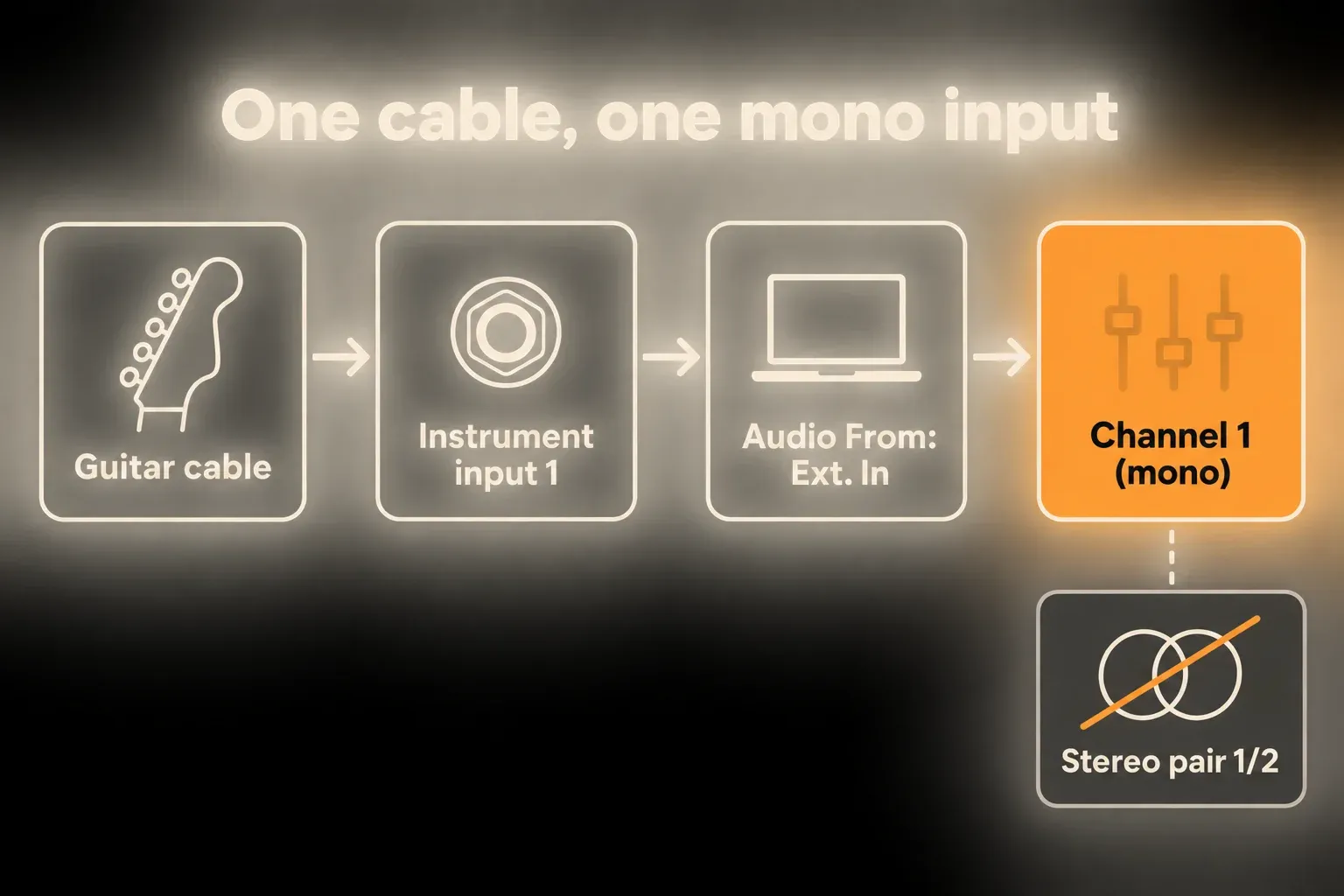
Ableton’s current audio-recording guide uses exactly this guitar example: Ext. In → mono channel 1. Selecting the stereo pair 1/2 with only input 1 connected can put the guitar on one side and silence on the other.
Choose direct monitoring or monitoring through Live
Monitoring through Live lets you hear Amp, Cabinet or another licensed effect chain while you play. Set the track to Auto, arm it and switch off the interface’s direct-monitor path. A clip already playing on the same track can block the live input, so stop it. The guitar travels into Live and back out to the interface, and both the audio buffer and the device processing can add delay on the way.
Direct monitoring routes the input inside the interface, which gives the shortest practical listening path. Switch direct monitoring on at the interface and set the Live track to Off. You will hear the dry or hardware-processed source, without any software Amp inserted in Live.
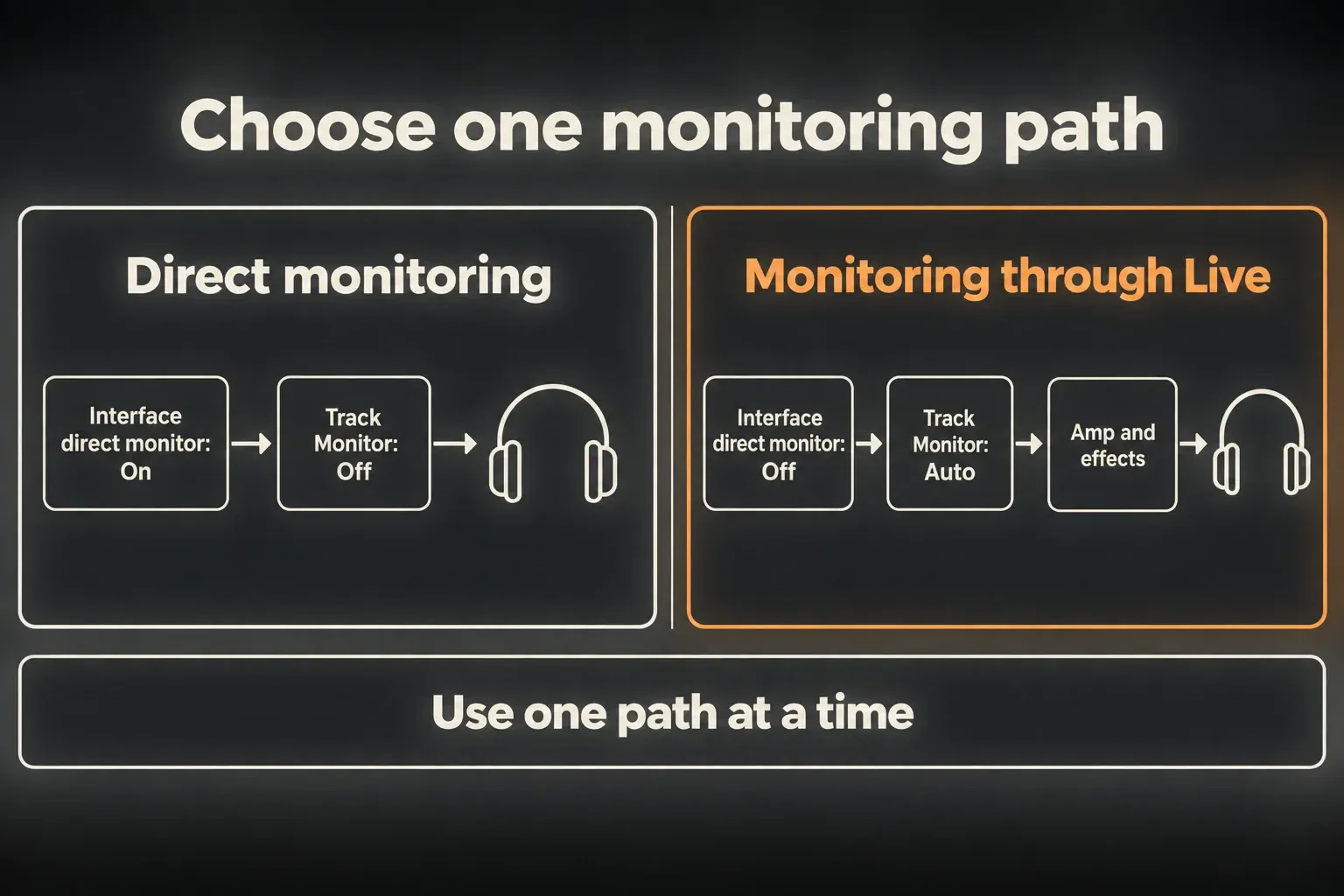
When both paths carry the same guitar, the direct signal and the delayed return from Live can sound hollow or doubled, so start with one audible path. If a recorded take lands late, rather than the live sound merely feeling delayed, the Ableton recording-latency guide is the place to go, because recorded placement and monitoring delay need different checks.
Build an Amp path without losing the DI
The current edition comparison lists Amp and Cabinet as part of Suite, not the base Intro or Standard package. Check your licence before following this chain. You can record guitar without those devices and use any other amp simulator you own, and the Standard versus Suite guide covers the broader purchase decision.
The Amp reference names seven models: Clean, Boost, Blues, Rock, Lead, Heavy and Bass. Tuner → Amp → Cabinet makes a useful starting chain, with delay or reverb afterwards if needed. Cabinet is designed to follow Amp, though that is a tone choice and not a requirement for recording.
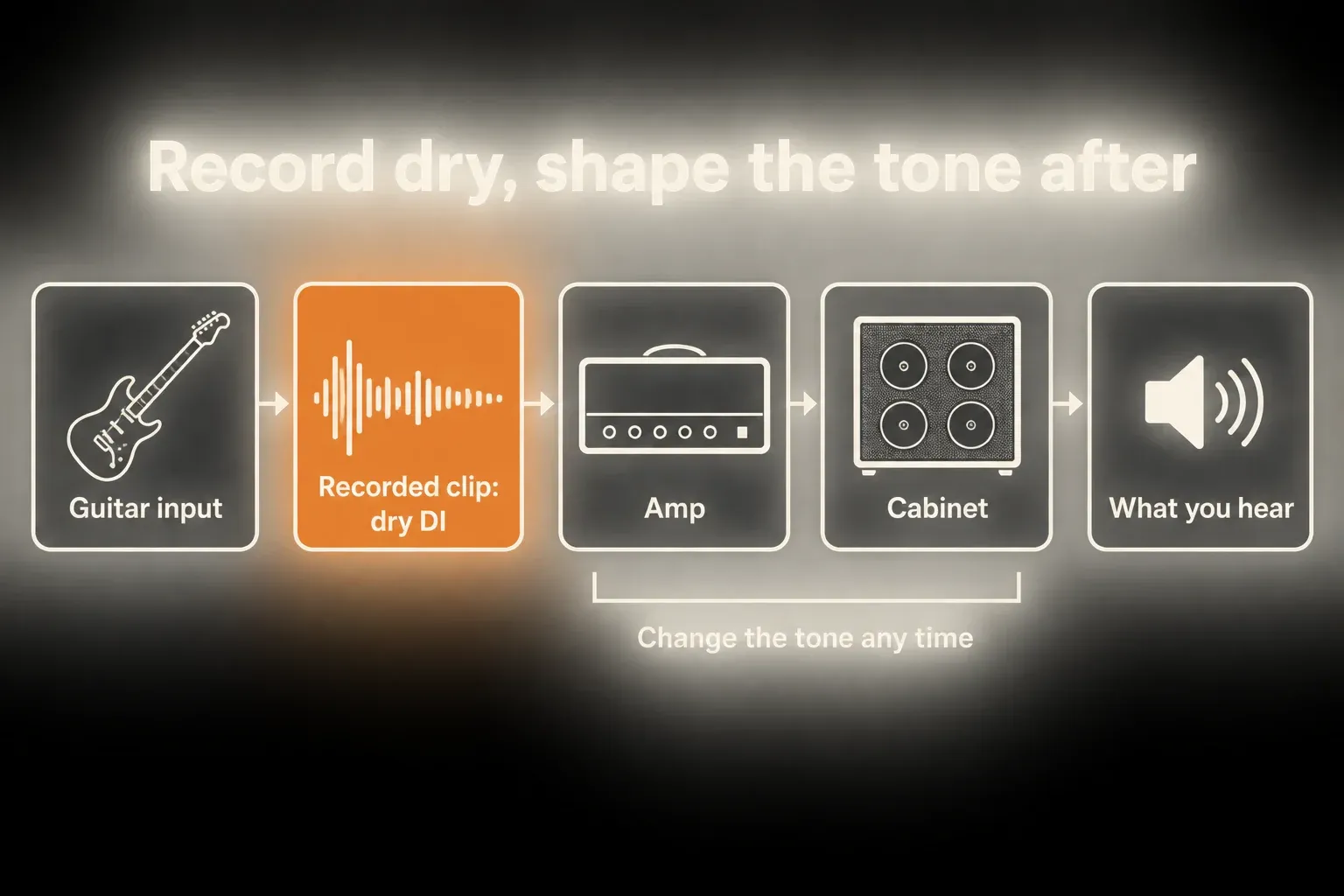
To record a dry DI file while hearing the processed sound in your headphones:
- Keep Audio From on Guitar DI set to the physical Ext. In channel.
- Put the amp chain on that track and monitor through Live while recording the external input.
- Keep the resulting DI clip and its original audio file before bouncing, resampling or replacing the track.
- Change the software tone after the take. Any distortion added by hardware before the input stays part of the recording.
Live records the selected input, not the output of that same track’s device chain. To print the software effects on purpose, Ableton’s post-effects recording example uses a second track that receives the processed track Post FX. Keep the dry take as well, because resampling the return as your only recording leaves you far less freedom to change the tone later.
Reduce playing latency without destabilizing the Set
- Use a supported driver for your hardware: ASIO on Windows or CoreAudio on macOS, preferably the manufacturer’s own driver when one exists.
- Connect the interface directly where practical, and enable only the inputs and outputs you need.
- Lower the buffer one available step at a time while playing through the actual project, and step back up as soon as clicks or dropouts appear.
- If a device offers a low-latency mode or adjustable lookahead or oversampling, compare its reported delay before and after changing that setting.
- Freeze CPU-heavy backing tracks where it makes sense, but do not mistake that CPU saving for removing a device’s reported latency.
Save a separate version of the Set before removing devices. Ableton’s device-latency guidance says that switching a device off does not remove its reported latency. With Delay Compensation enabled, hovering over a device’s title bar shows its delay. Remove a delay-causing device from the test copy, or commit a suitable playback track while keeping the original. The Freeze, Flatten and Bounce guide explains the version-specific commands. The only editable DI should never be committed just to test a lower-latency chain.
Ableton’s interface setup guide explains the buffer tradeoff. The right setting is the lowest one that stays stable for your performance, not a number copied from someone else’s computer. If a small buffer still feels slow, check the guitar track, its groups and the Main processing, because a smaller buffer cannot remove all device delay.
Start recording in Arrangement or Session
Arming only prepares a track; it does not start recording. After the input and monitoring checks above, this short test confirms the whole path. Ableton’s recording manual separates Arrangement Record from the controls in Session slots.
- Save the Set first. On a new audio track, confirm the selected input, input gain and monitoring path, then arm only the track you intend to record. For a first Arrangement test, use empty timeline space with Punch-In and Punch-Out off.
- For an Arrangement take, place the insert marker at the start and press Arrangement Record. If the transport stays stopped, press Play, since this depends on Start Playback with Record in Settings → Record, Warp & Launch. Wait for any count-in before playing.
- For a Session take, click the round record control in an empty slot on the armed track. A suitable Global Quantization value, such as one bar, keeps a looping clip aligned to the grid. Make sure the clip actually starts recording before you play.
- Play a short phrase, then press the Control Bar Stop button and check that a new audio clip holds a waveform. Disarm the track and set Monitor to Off for the playback check, then play the Arrangement from the start of the take or launch the recorded Session clip.
- Listen to the recorded file, not just the live input. Check for distortion, missing audio, one-sided playback and timing, then save again. Before the next take, restore the intended monitoring mode and arm the recording track.
Arrangement suits a full performance, punch recording and comping. Loop recording keeps the audio from every pass, so save before editing and use the Take Lanes and comping guide to choose sections afterwards; its lane workflow applies to guitar just as well. Session suits riffs and launched loops, and its quantization aligns clip actions, not every note you play.
Mic an amplifier without creating a feedback path
Put on headphones or turn the monitor speakers down before opening a microphone input. Connect the mic to its preamp, check whether it needs phantom power and set the gain from the loudest playing. An amplifier’s speaker output must never go straight into an interface input, because speaker level can damage mic, line and instrument inputs. With a load box, follow the amplifier and load-box manuals for power, impedance, speaker-load requirements and the correct recording output, and do not improvise those connections.
If you record a DI alongside the mic, check timing and polarity between the microphone and the DI or processed path before combining them. Move or delay-align only after listening, since matching waveforms visually does not guarantee the best tone.
Why Ableton is not recording the guitar
- No input meter: check the selected audio device, Input Config, the Audio From channel, the cable and the source output. On a Mac, Live also needs microphone permission.
- The meter moves but no clip appears: confirm Arm, the right Record control and a moving transport. In Arrangement, look at the punch switches and the count-in.
- Guitar on one side only: a single mono input may have been recorded as stereo 1/2. If the file itself is mono, check panning and effects.
- Dry guitar with no software amp sound: you are probably hearing direct monitoring instead of Live’s processed return.
- Hollow or doubled guitar: look for direct plus software monitoring, duplicate tracks or a second routed return.
- The take plays late: compare the monitoring settings and recorded placement with the linked latency guide, and avoid shifting every take by an arbitrary offset.
- Distortion with Amp off: this alone does not prove converter clipping. Check the dry file in a clean playback path as described below.
- Missing recording file: save the Set and find its Project folder, because recordings made before the first save may still be temporary.
To track down distortion, save the project and audition the recorded DI in a separate simple test Set, with no devices on the track or Main and a conservative output level. If it sounds clean there, the original effect or output chain is the suspect. If the file is distorted too, check the guitar or processor output, the cable, the interface gain and its input indicators, then record a new short take. Focusrite’s guitar-signal checks recommend taking other hardware out of the chain while troubleshooting. One software meter is not enough to diagnose a converter fault.
Keep the recording session manageable
For CPU, keep only the processing you need to play through and freeze suitable backing tracks. For RAM, look at the whole Set and the other open applications, not the guitar track alone, and close unused applications after saving their work. No universal CPU or memory figure applies to a guitar recording.
Disk use grows with recording length, channel count and the takes you keep. Record a genuinely mono source in mono, leave space for new recordings and keep the original DI and the useful takes. Deleting source recordings or backups just to shrink the Project folder is a bad trade.
Save the DI and its audio files together
Save a new Set in its own Project folder, outside any existing Project. After saving, Live normally puts recorded audio under Samples/Recorded, while before the first save it can sit in the temporary recording location. Renaming the track before recording makes its files easier to identify. The recorded-file instructions describe the folder structure and how to locate a clip’s source file.
When moving or archiving the project, use Collect All and Save and keep a separate backup. Ableton’s transfer guidance notes that collecting does not bundle third-party plug-ins. Once the guitar takes are safe, the recording and arrangement hub covers the path from recording to an arranged song.
FAQ
Can I plug a guitar directly into my computer?
You need a supported USB audio interface with a suitable instrument input, or a guitar processor or amplifier that explicitly supports USB audio. An external preamp on its own does not digitize the signal, so check your hardware’s connection and channel instructions.
Should guitar be recorded mono or stereo in Ableton?
A single guitar cable is normally mono, so select the connected mono interface channel. Record stereo only when the source really delivers two channels, such as a stereo processor.
Why do I hear my guitar twice in Ableton?
Usually because interface direct monitoring and Live monitoring are playing together. Use either Auto on an armed track in Live with direct monitoring off, or Monitor Off in Live with direct monitoring on. Duplicate tracks or another routed return can cause the same effect.
How do I hear Ableton Amp while recording?
If your licence includes Amp, insert it on the audio track, arm the track and use Monitor Auto with the interface’s direct monitoring off. Stop any clip already playing on that track if it masks the input, and test a stable low-latency buffer.
Should I record the guitar with effects?
You can hear software effects while recording the dry external input on the same track. Keep that DI file before printing the tone, and remember that effects applied by hardware before the recording input are already part of the captured signal.
Does recording guitar use much CPU or RAM?
The whole project decides the load. A lower buffer leaves less processing time, amp chains and other live effects add work, and sample-heavy tracks and other applications affect memory. Test a short take in the real Set and keep disk space free for recordings.
