
Short answer: use Freeze Track when the goal is reversible CPU relief. In Live 12.2 and later, use Bounce to New Track when you want editable audio beside a preserved source, and reserve Bounce Track in Place for a deliberate commitment. “Flatten” is the old name: Live 12.1 and earlier used Freeze and Flatten for what current Live calls Bounce Track in Place.
Checked September 5, 2026: individual-track Bounce commands below require Live 12.2 or later; the group commands require 12.3 or later. This guide compares CPU relief, editability and what gets rendered inside a Set. Final export settings and stem delivery are separate tasks.
Resource impact
- CPU: Freeze replaces real-time device and clip calculations with rendered playback. Bounce Track in Place removes the original device chain. Bounce to New Track preserves it: muting the source clips is not the same as switching off its devices.
- RAM: Freeze may help with large sample libraries, but memory savings depend on the devices. A muted source clip does not prove that its instrument has unloaded. Preserve an editable Set before removing any source devices, and measure the actual change.
- Disk/session size: both methods create 32-bit audio. In a saved Project, Freeze writes to
Samples/Processed/Freezeand Bounce toSamples/Processed/Bounce. Save the Set before rendering so processed files are anchored to its Project. The Freeze-file location for an unsaved Set is the configured Temporary Folder. Keep all referenced files until the Project is backed up and verified. - Lowest-resource safe route: find the highest-impact track, save a new Set version, Freeze that one track and replay the busiest section before touching anything else.
- Do not optimize: do not bounce every track in a stable Set merely to make it look tidy. More rendered audio means more disk traffic, less editability and more project housekeeping without guaranteed playback benefit.
Translate old Flatten tutorials into current Live 12 commands
The terminology changed in Live 12.2. Ableton’s current committing-audio documentation states that Freeze and Flatten Track, and Flatten on an already frozen track, were renamed Bounce Track in Place. The behavior is the important part: it converts the source track’s current sound into audio and replaces the original content.
| Goal | Current command | What remains editable | Main risk |
|---|---|---|---|
| Reduce processing and keep a return path | Freeze Track | Unfreeze restores device and clip editing; mixer controls remain available while frozen | Rendered tails, randomness and Session-loop behavior can differ |
| Commit the whole source track | Bounce Track in Place | The resulting audio clips and mixer settings | The source MIDI, devices and clip state are replaced on that track |
| Create audio beside the source | Bounce to New Track | New audio plus the preserved source; the selected source clips are muted | Project disk use grows and the two tracks can become confused later |
| Follow a Live 12.1-or-earlier tutorial | Freeze and Flatten / Flatten | Equivalent end state to current Bounce Track in Place | Searching for a menu name that no longer exists |
Older tutorials still use Flatten. In Live 12.2 or later, choose Bounce Track in Place only if you want to replace the source; choose Bounce to New Track if you want to keep it.
Measure one busy section before rendering anything
Do not start by freezing the largest-looking device chain. Open the part of the Arrangement or Session where the Set actually struggles, show the track Performance Impact indicators through View → Mixer Controls, and replay that exact passage. Ableton’s CPU-intensive device guidance recommends using the per-track indicators to find the track contributing the most load.
- Save a new Set version.
- Loop the busiest eight to sixteen bars.
- Note the Current CPU meter, audible clicks and the highest-impact track.
- Freeze only that track.
- Replay the same loop under the same buffer and sample-rate settings.
If the symptom remains unchanged, the bottleneck may be elsewhere. A flashing disk indicator needs the disk-overload A/B test; monitoring delay needs the recording-latency checks; intermittent clicks across a light Set belong in the broader crackles and dropouts diagnosis. Check the symptom before rendering more tracks.
Freeze first when you still expect revisions
Freeze Track creates one Freeze file for each Session clip and one for the Arrangement, then plays those files instead of recalculating the track’s device and clip settings in real time. Device and clip editing is restricted while frozen, but you can unfreeze, make the change and freeze again. That makes Freeze the normal first move during writing, arrangement and early mixing.
Right-click the track header and choose Freeze Track. The shortcut is Ctrl+Alt+Shift+F on Windows or Cmd+Option+Shift+F on macOS. After freezing, listen through transitions with long tails or modulation; use Unfreeze Track to revise the source.
If the track uses External Instrument or External Audio Effect, Freeze and Bounce render in real time. Keep the connected hardware available and check the recorded result. A slow real-time pass is not by itself evidence that rendering has stalled.
Listen for frozen tails, loops and random devices
Freeze is reversible, but it is not a promise that every time-dependent behavior remains live. Ableton’s Audio Fact Sheet documents several exceptions: Arrangement reverb and delay tails become rendered audio; frozen Session clips contain two loop cycles; Arrangement automation is rendered; and random device behavior is captured at the moment of freezing.
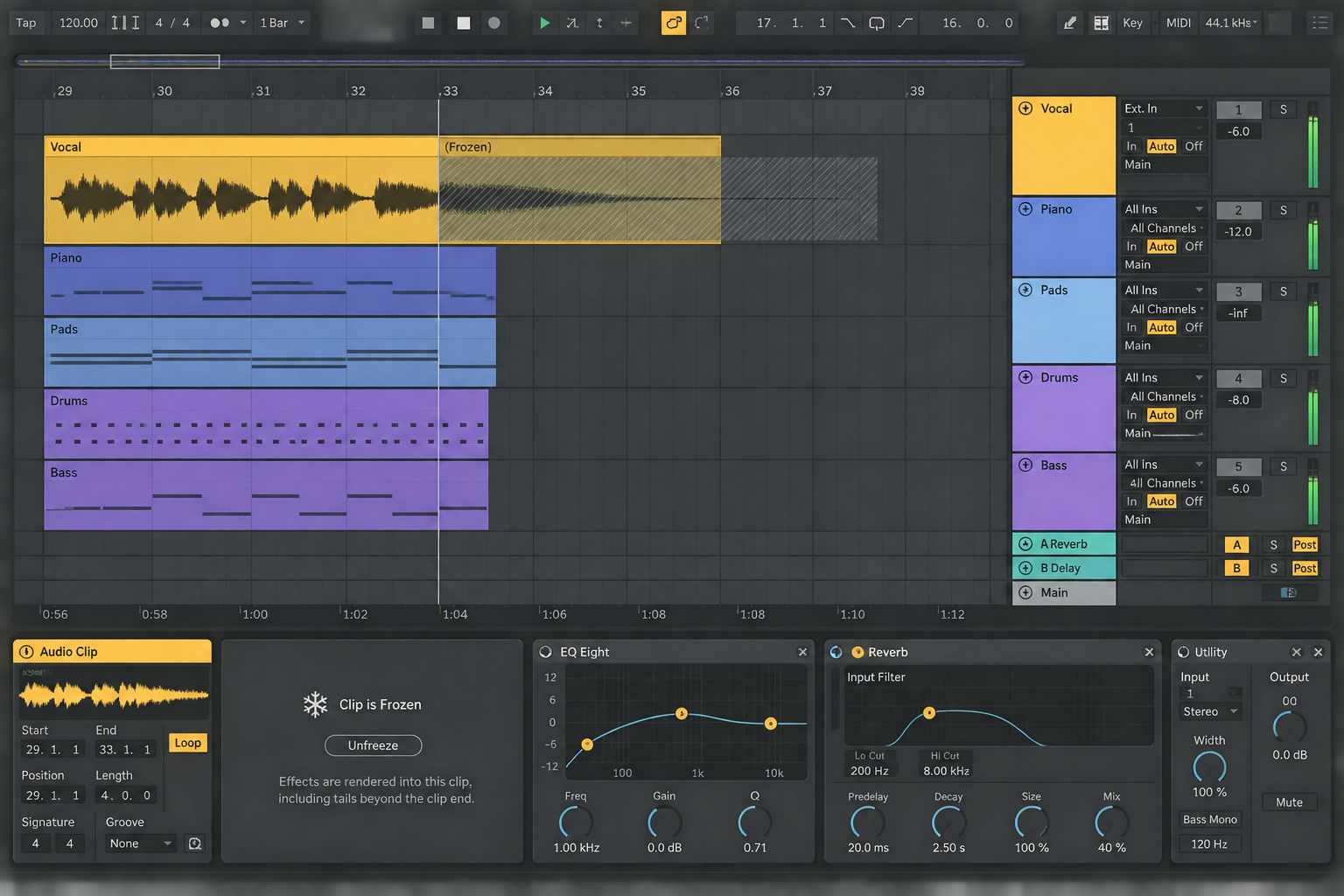
Run a short before/after check around the most revealing material: a note ending into a long reverb, a delay feedback transition, a probability-driven device and a Session clip with an unlinked envelope. If Freeze changes the musical result, unfreeze and choose a more controlled print point rather than accepting the mismatch for the sake of a lower meter.
Use Bounce Track in Place only when replacement is intended
In current Live 12, Bounce Track in Place commits an Audio or MIDI track to audio and replaces the source. Ableton’s Live 12 Bounce manual describes the replacement behavior. It affects both Session and Arrangement: invoking it in one view also replaces the track and bounces its clips in the other. Check both views before proceeding, particularly if Session contains unused ideas you still want to edit.
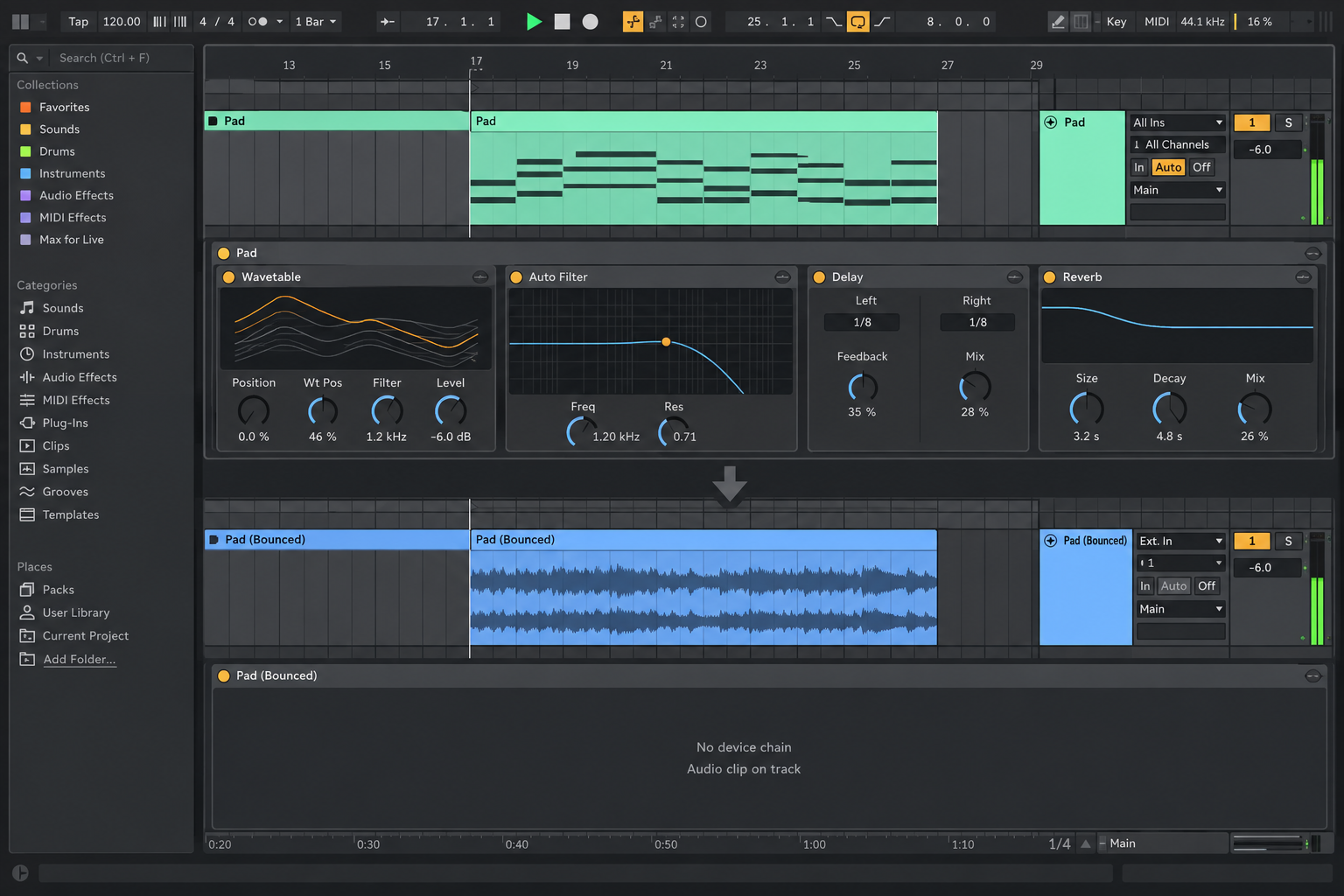
Before replacing the track:
- Save a separate Set version that keeps the original MIDI, devices and clips.
- Play the track from silence through its longest tail.
- Check automation, sidechain inputs, external hardware and routed returns.
- Bounce in place.
- Compare the result with the pre-bounce Set at the same listening level. Open one Set at a time to avoid duplicating the memory load.
Do not rely on Undo as the archive. A separate Set version preserves editable state, but its .als file still references media; it is not a portable backup by itself. Collect the required files and back up the whole Project separately. If the track is still likely to receive note, patch or device changes, stay frozen instead.
Choose Bounce to New Track for the safest editable handoff
Bounce to New Track is the better default when you want audio but do not want to destroy the working source. In Arrangement View, select a time range containing Audio or MIDI; in Session View, select one or more clips. Use the context menu or Ctrl+B on Windows / Cmd+B on macOS.
Live creates a separate audio track, preserves the original track and deactivates the source clips or selection to avoid doubled playback. The new track inherits the source track’s mixer settings. Name both sides immediately—for example, Lead — SOURCE and Lead — BOUNCE—so a future edit does not accidentally revive both.
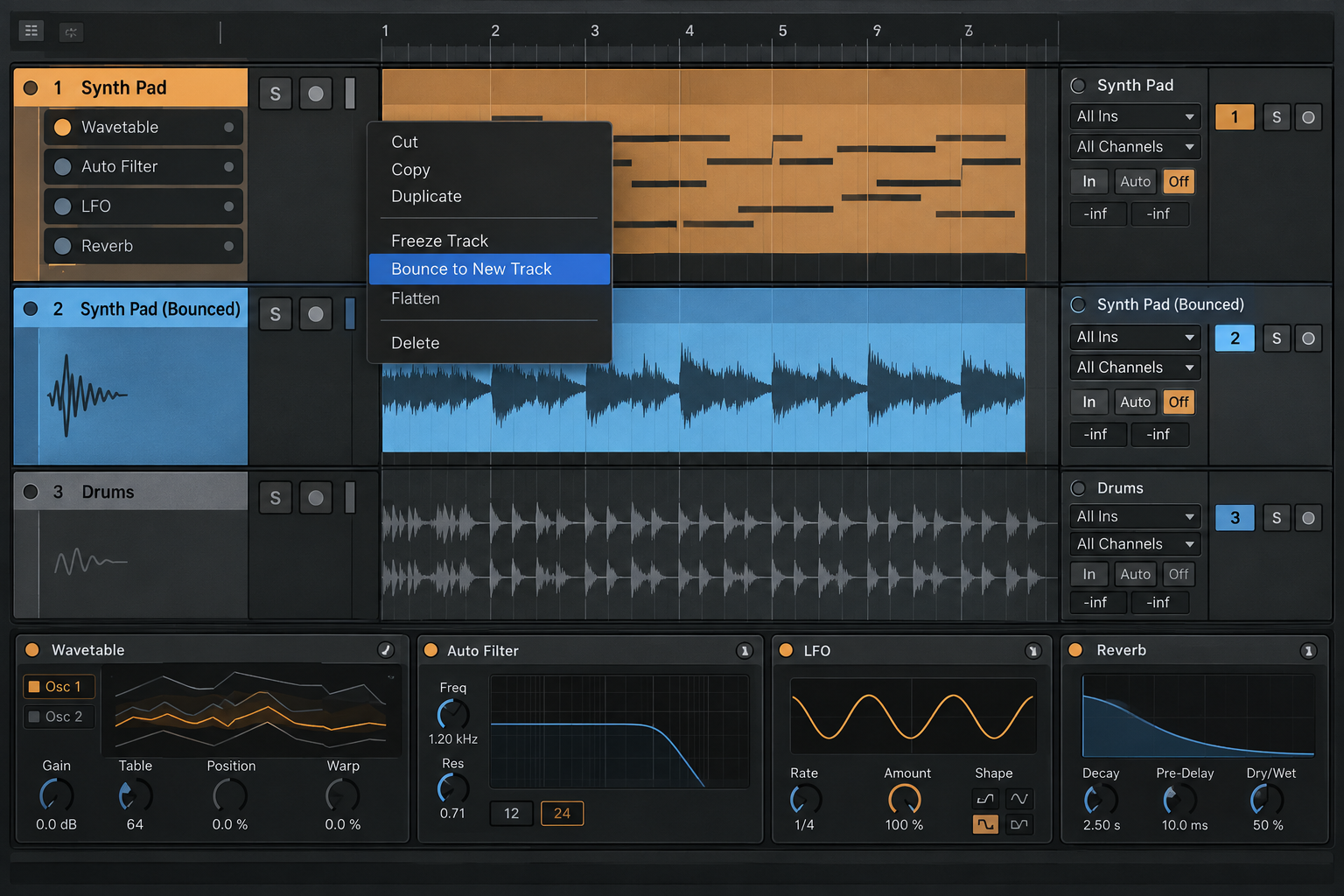
If Bounce to New Track is missing from the menu, make a valid selection first. Ableton’s current Bounce FAQ requires a time selection containing Audio or MIDI in Arrangement View, or a selected clip in Session View.
New Track creates a track in both views, but only renders the clips or time range selected in the view where you invoked it. A bounce made from Session therefore leaves the new track empty in Arrangement. Do not mistake that empty view for a failed render.
Know what the audio file does and does not print
For individual tracks, Bounce is post-device but pre-mixer. The audio file commits MIDI notes and velocity, clip envelopes and properties, Warp/transposition, Groove behavior and the track device chain. It does not print the track’s volume, pan or send levels into the file; those mixer settings are carried to the resulting track.
A bounce file auditioned outside its copied track may sound louder, quieter or drier because the mixer settings and return routing are different. Compare it in the Set first. The Live 12.3 release notes introduced native group bouncing; its signal boundary is different, as explained below.
Bounce and Freeze files are 32-bit audio. That protects headroom during internal commitment, but it also means disk use can rise quickly across long stereo tracks. The bounce is not a final delivery file and needs no dither at this stage.
Group Bounce is not group Freeze
You cannot Freeze a Group Track itself. In Live 12.3 or later, use Bounce Group to New Track to retain the group, or Bounce Group in Place to replace it. Earlier group-freeze workarounds are not the same command.
The group-bounce routing rules capture the group post-mixer from the Main path before Main processing. Tracks routed outside the group are omitted. Participating return tracks are included only when their final output reaches Main. Check routing before replacing a group; do not expect a file that also contains the Main effects.
Make the RAM decision from the device, not the word “audio”
Ableton’s current RAM guidance recommends Freeze and, when necessary, Flatten/Bounce for Sets using large sample libraries. The help page still uses the older Flatten name. It does not establish a fixed amount of RAM saved for every instrument or plug-in.
Compare memory use before and after freezing one track. If CPU playback improves and memory is comfortable, keep that reversible version. For a genuinely memory-bound Set, first save a separate editable original, then use Bounce to New Track in a working copy. Its muted clips may leave devices loaded. Switch off unused source devices and measure again; if removal is necessary, remove them only from that copy. Reopen the copies one at a time to compare memory use and confirm the original still opens correctly.
Do not enable Clip RAM Mode across every new bounce. Live normally streams samples from disk; forcing many long files into RAM can move the bottleneck rather than remove it. If the new audio increases disk failures, return to the disk diagnostic instead of assuming a more destructive bounce is the cure.
Prepare a collaborator version without throwing away the source
When the recipient lacks a plug-in, Bounce to New Track creates playable audio beside the preserved source track and its muted clips. Keep the editable Set version on your side, identify the affected tracks, and then run Collect All and Save for a portable Project. Bounce solves device availability; collection solves referenced media. Neither operation replaces a backup.
Before sending, reopen a copied Project folder and check one source/bounce pair, one tail, one return-dependent section and the busiest arrangement transition. A successful render inside the working folder is not proof that the handoff contains every required file.
Use this final decision order
- No audible problem and acceptable headroom: leave the track live.
- CPU spike on a track you may revise: Freeze Track.
- Need editable audio beside a recovery route: Bounce to New Track.
- Source is finished and replacement is intentional: save a new Set version, then Bounce Track in Place.
- RAM or disk remains the problem: measure that resource directly before rendering more tracks.
Return to the Learn Ableton Live hub when the next job is editing, arrangement or project organization rather than resource relief.
FAQ
What is the difference between Freeze and Bounce in Ableton Live?
Freeze renders playback files temporarily; Unfreeze restores device editing. Bounce Track in Place replaces the source with audio in both Session and Arrangement. Bounce to New Track creates a separate audio track and keeps the original, muting the selected source clips rather than guaranteeing that its devices are unloaded.
Where is Flatten in Ableton Live 12?
In Live 12.2 and later, the old Freeze and Flatten Track and Flatten commands are named Bounce Track in Place. Live 12.1 and earlier still use the old Flatten terminology.
Does freezing a track reduce CPU and RAM?
Freeze reduces real-time CPU work by playing rendered Freeze files and deactivating device processing. Ableton also recommends it for RAM-heavy projects, especially tracks using large sample libraries, but the actual RAM change depends on the devices and samples in that Set.
Does Bounce in Place include volume, pan and sends?
For individual tracks, bounced audio includes clip and device processing but excludes mixer volume, pan and sends; those settings remain on the resulting track. Group bouncing in Live 12.3 or later is post-mixer and can include participating return paths, but excludes Main-track processing.
How do I bounce without losing the original track?
Select clips or an Arrangement time range and use Bounce to New Track. Live creates a separate audio track and deactivates the source clips or selection to prevent doubled playback. Save a new Set version before any in-place commitment.
Do Freeze and Bounce create extra files on disk?
Yes. For a saved Set, Freeze files are stored under Samples/Processed/Freeze and bounced files under Samples/Processed/Bounce inside the Project. Save the Set before rendering; an unsaved Set’s Freeze files use the configured Temporary Folder. Both methods can reduce processing load while increasing disk use.
