
In Arrangement View, press A to show automation, pick the actual device or mixer parameter, and draw or record its envelope. For a curve, turn Draw Mode off, hold Alt on Windows or Option on Mac, and drag the segment. If a written envelope stops controlling its parameter after you touched it by hand, re-enable that parameter’s automation instead of redrawing it.
This guide covers Live 12 Arrangement automation, Session clip envelopes and getting back from manual overrides. Start with a saved copy of the Set and a musical part that already exists. Drawing a filter movement needs no new instrument or duplicate sample library; deciding where that movement goes is part of the song arrangement.
Keep the test small
- Reuse an existing track and a parameter you can clearly hear. Save a new version of the Set before replacing recorded movements.
- Use as many breakpoints as the gesture needs. A busy curve isn’t automatically a performance problem; simplify only when editing gets hard.
- CPU and RAM depend on the device and what its automated controls do. Envelope data doesn’t remove an instrument’s samples or voice-processing cost, and deleting a few points saves no fixed amount of resources.
Choose the parameter and the place where it should live
Live’s automation reference covers mixer and device parameters as well as song tempo. Before you write anything, decide whether the movement belongs to the song timeline or to a repeating Session clip.
| Decision | Best starting place | Why |
|---|---|---|
| A filter opens at bar 33 of the song | Arrangement automation lane | The move belongs to absolute song time. |
| A four-bar clip repeats its own parameter motion | Session clip envelope | The movement travels with that clip. |
| You want to perform a knob movement into the timeline | Arrangement recording with Automation Arm | The gesture becomes track automation while the Arrangement records. |
| The written envelope exists but playback ignores it | Re-Enable Automation | A manual parameter change may have overridden the written state. |
An Auto Filter that opens once before a chorus, for example, belongs on the Arrangement timeline. The same filter opening on every repeat of a Session loop belongs in that clip. Double-check the device instance and parameter name, because two filters on one track are still two separate targets.
Show the envelope instead of drawing on the wrong layer
In Arrangement View, press A to toggle Automation Mode. Click the device or mixer control you want to automate and Live shows its envelope over the track. The Device chooser picks the mixer or device, and the Automation Control chooser picks the parameter. Show Automated Parameters Only helps when a Set already holds several envelopes. Once a parameter carries automation, Live marks it with a small red dot.
If A doesn’t change the view, click out of any text field and check the Computer MIDI Keyboard. Ableton’s automation-editing help points out that the keyboard can swallow A. You can also click the Automation Mode toggle above the Arrangement track headers. Hiding an automation lane doesn’t switch its envelope off.
Draw steps or edit breakpoints deliberately
Press B to toggle Draw Mode. Dragging with it on draws steps that follow the visible grid; hold Shift while dragging vertically for finer values. For freehand drawing, turn off Snap to Grid with Ctrl+4 on Windows or Cmd+4 on Mac. To ignore the visible grid for a moment while drawing, hold Alt on Windows or Cmd on Mac; note that the Mac key here differs from the Option key used to bend curves.
With Draw Mode off, click a line segment to add a breakpoint, then drag the point to its time and value. Right-click a breakpoint and choose Edit Value for an exact number, and click a breakpoint to remove it. Start with only a few points so you can hear what each part of the envelope does.
To curve a segment, turn Draw Mode off, hold Alt (Windows) or Option (Mac) and drag it; hold the same key and double-click it to straighten it again. For a rhythmic pattern, right-click a time selection and choose an automation shape. Waveform shapes can span the parameter’s full range, so check their limits before playback, and remember that an on/off switch has discrete values and can’t make a smooth curve.
Record Arrangement automation without overwriting blindly
- Save a new version of the Set and select an existing Arrangement track. For an automation-only pass, disarm audio/MIDI recording on the track so the pass doesn’t capture new clip material.
- Turn on Automation Arm. Choose a short region and be clear about the exact parameter you’ll move.
- Turn on Arrangement Record, start playback and move the control through the gesture you want.
- Stop recording and playback at the end of the pass. Look at the written envelope and replay it with Arrangement Record off.
- Check that the original audio or notes are intact before another take, and undo the pass if it replaced material you meant to keep.
Automation Arm and Arrangement Record let manual parameter changes be written into Arrangement. Track Arm is a separate recording control, and you don’t need it just to record a mixer movement. When you record a Session performance into Arrangement, Session clip automation comes across too, along with manual changes on the tracks being recorded from Session.
Don’t assume that letting go of a controller ends an Arrangement pass. Stop recording on purpose and check where the written envelope ends. The manual’s touch/latch description and clip-loop punch-out describe Session automation recording specifically, which is covered next.
Record automation into a Session clip
For the usual Session workflow, turn on Automation Arm, arm the destination track and click Session Record. Before recording into an existing MIDI clip, look at Settings → Record, Warp & Launch → Session Automation Recording. Its option for recording into all playing Session clips lets you record automation without arming those tracks, which can avoid adding MIDI notes. It can also catch more playing clips than you meant, so stop unrelated clips during the test.
In Session recording, a mouse gesture stops writing as soon as you release the button. With a MIDI knob or fader, recording carries on after you stop moving it until the end of the clip loop, then punches out. Session clip automation turns into track-based automation when it’s copied or recorded into Arrangement. The Session and Arrangement comparison explains how their playback differs.
Find Session automation and distinguish it from modulation
Double-click the Session clip and open the Envelopes tab in Clip View. Pick the device or Mixer on the left, then its parameter on the right. Choose Automation rather than Modulation when you want to write the parameter’s actual value, then draw and edit with the same breakpoint techniques as in Arrangement. The Clip Envelope Editor reference describes these choosers.

Automation sets a value at a given time; modulation shifts the base or automated value. Both can act on the same control, so check the modulation if what you hear doesn’t match the automation curve. According to Ableton’s automation and modulation guide, modulation envelopes can only be drawn or edited with the mouse, not recorded. In Arrangement clips, Clip View offers modulation, while device and mixer automation lives on the track’s Arrangement lane, so the missing Session Automation/Modulation toggles there are expected.
Re-enable automation when the lane turns inactive
If you change an automated control while Live isn’t recording, your manual value overrides the written envelope. Live lights the Re-Enable Automation button to show that one or more controls have stopped following their recorded state. Click it to restore every overridden control, or use a parameter’s context menu to re-enable just that parameter.
In Session, relaunching a clip that holds automation can bring back that clip’s overridden parameters. Check the current value before restoring automation mid-performance, because the written envelope may jump a control abruptly. Re-Enable Automation hands control back to the envelopes; Back to Arrangement hands playback back to Arrangement on tracks that Session clips have taken over. The two buttons solve different problems.
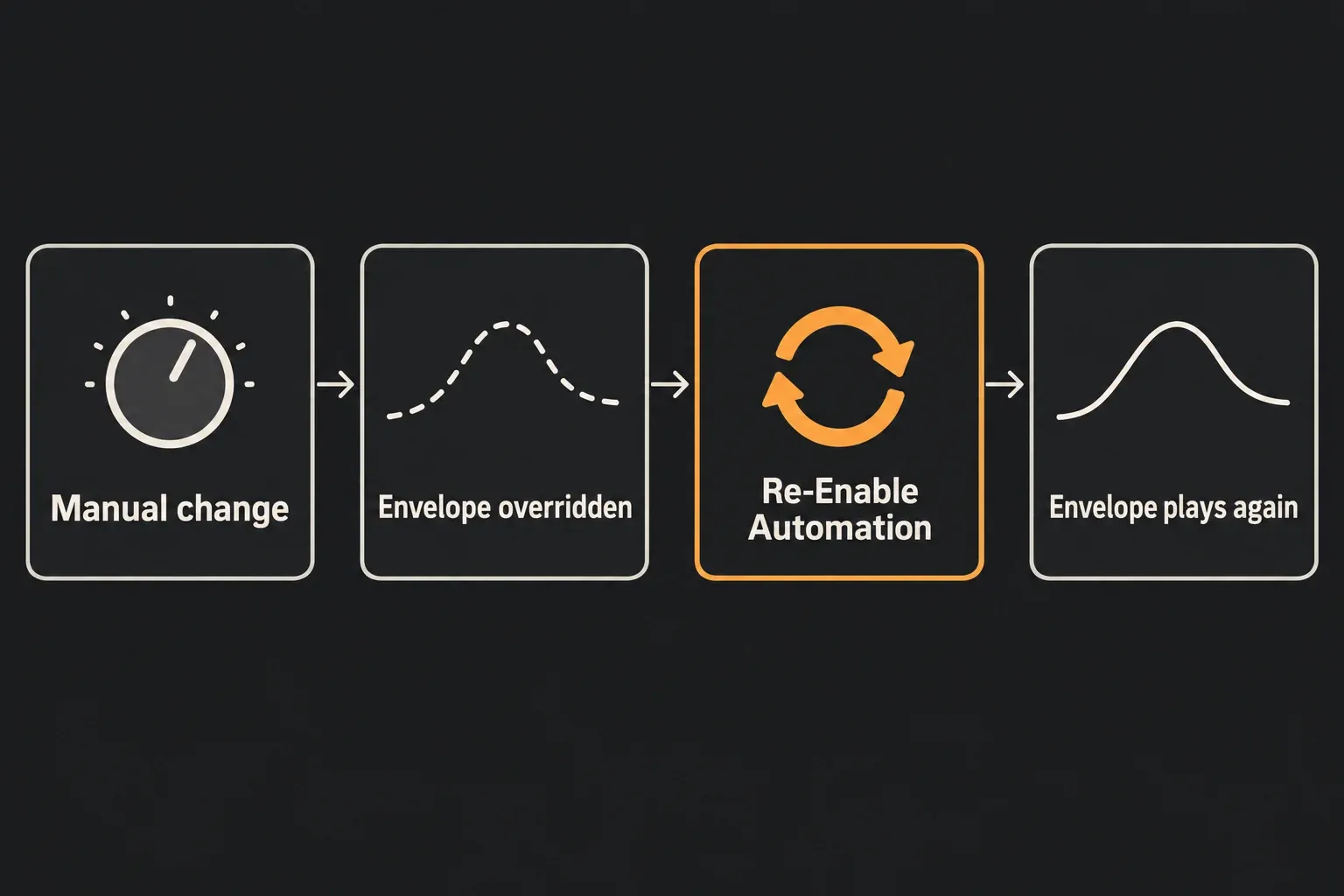
If Re-Enable Automation lights up again straight away, save a copy and look for stray controller messages or plug-in resets. Ableton lists MIDI feedback, faulty controllers and linked plug-in controls as possible causes. Disconnect the suspect controller or isolate the plug-in in the copy, then play the same section again. Swapping plug-in formats in the working Set is not a good first test.
In current Live devices with A/B states, automation isn’t shared between the states. Switching to B can disable a parameter automated in A, and switching back doesn’t re-enable it automatically, so check that state before rewriting the lane. For third-party plug-ins, Configure exposes parameters the plug-in publishes to Live: turn Configure on, move the target control, then turn Configure off. A parameter the plug-in doesn’t expose may need its own setup from the vendor; not every control can be added this way.
Edit an envelope without detaching it from the music
Automation normally moves with Arrangement clips. The Lock Envelopes switch changes that by keeping envelopes at their song position while clips move. Check it before rearranging a section, or a correct curve can stay behind, or move, when you expected the opposite.
A selection inside an automation lane lets Cut, Copy, Duplicate or Delete act on that envelope without touching its clip or other envelopes. To move clip material and its automation together, make the selection in the clip track with Lock Envelopes off. Copying an envelope onto a different parameter can change what it means musically, because parameter ranges differ, so listen to the result. The time-editing shortcuts come in handy once the selection is right.
Simplify recorded automation only when density blocks editing
Make a time selection over a dense envelope, right-click and choose Simplify Envelope. Live reduces the selected data to straight or curved segments where it can. Keep the original version of the Set and compare the sound before accepting the change. Ableton’s automation and modulation guidance notes that simplifying doesn’t apply to discrete controls such as on/off switches.
To delete just part of an envelope, select that range in its automation lane and delete it. Delete Automation in the automated control’s context menu is a much bigger hammer: it clears that control’s automation across Arrangement and Session clips, so never use it to remove one unwanted breakpoint. For tempo automation, unfold the Main track and choose Mixer → Song Tempo; the tempo-change guide covers how that affects clips.
Run a one-parameter automation test
- Save a new version of the Set. On a playing Arrangement track, select its mixer volume envelope with Automation Mode on and Draw Mode off.
- For a simple four-bar example in a safe test section, place points at 1.1.1, 2.1.1, 4.1.1 and 5.1.1. Set them to −12 dB, −12 dB, −6 dB and −6 dB with Edit Value.
- Listen at a comfortable monitor level. You should hear a lower level, a rise between bars 2 and 4, then a steady level. These are example values, not a recommended mix level.
- Hold Alt on Windows or Option on Mac and bend the rising segment, then compare that curve with the straight ramp.
- With recording off, move the fader by hand, then re-enable automation from its context menu. Replay the section and check that the written movement is back.
- Save, close and reopen the Set to check that it all persists. Keep the original version of the Set, and don’t leave the test envelope on a finished mix unless you actually want it.
This exercise gives you a playback and override check you can hear, using a mixer control that’s already in the Set. If the envelope moves correctly but the arrangement still feels flat, work on the transition itself with the Learn Ableton Live guides. No software test was performed for this example, so check the behavior in your own saved copy before using it on a performance Set.
FAQ
What is the shortcut for automation in Ableton Live?
Press A to toggle Automation Mode in Arrangement View, and B to toggle Draw Mode. If a single-letter command doesn’t respond, check which field has keyboard focus and whether the Computer MIDI Keyboard is on.
How do I record automation in Ableton?
For an automation-only Arrangement pass, leave the track’s audio/MIDI recording arm off, turn on Automation Arm and Arrangement Record, then move the target control and stop recording on purpose. For Session clips, use Automation Arm and Session Record with the intended track armed, or the Session Automation Recording preference for all playing clips when you need to record without arming the track.
Why is Ableton automation greyed out or not playing?
First confirm you’re looking at the right parameter, and whether Arrangement or a Session clip is playing. A manual change can override written automation; re-enable the parameter from its context menu, or use the global Re-Enable Automation button for every overridden control. If it lights up again immediately, look at controller input and plug-in behavior instead of deleting the envelope.
What is the difference between Arrangement automation and clip automation?
Arrangement automation is written on track lanes at song positions. Session automation is stored in a clip and becomes track-based automation when it’s copied or recorded into Arrangement. Modulation is something else: it shifts a parameter’s base or automated value, and for Arrangement clips it stays in Clip View.
How do I make curved automation in Ableton?
Turn Draw Mode off, hold Alt on Windows or Option on Mac, and drag the line segment between two breakpoints. Hold the same key and double-click the segment to straighten it again. Curves only work on continuous values, not on an on/off control.
Does automation use much CPU or RAM?
Automation stores parameter changes; the device itself decides most of the playback cost. Some automatable settings can change processing load, while an instrument’s samples and voices keep their own memory cost. Simplify dense curves when that makes editing easier, but don’t expect a fixed CPU or RAM saving from fewer breakpoints.
