
Short answer: lay your existing parts out on a provisional Arrangement timeline, mark the section changes with locators and build a first version by removing or varying parts. Listen to the transitions before adding more sounds. It is one useful way out of an eight-bar loop, and no rule says every song must stick to a fixed palette.
Commands checked September 8, 2026 against current Live 12 documentation. The section names and bar counts below are an illustrative arrangement exercise, not a required song form or a report of a studio test.
Separate captured material from arrangement decisions
Start with material you can already judge as a musical idea: a loop, a chord progression, a vocal phrase or an instrumental performance. If the hook depends on a singer, the vocal recording guide and the comping workflow will get you a usable take, and it does not have to be the final vocal before you sketch the form.
The recording and arrangement guides cover building and editing those parts. The job here is deciding when they enter, disappear and come back. If the material still lives in Session View, copy it or record a Session performance into Arrangement, then check Back to Arrangement before judging timeline playback.
Save a working version before moving sections
Save Live Set As keeps a related version in the same Live Project before big arrangement edits. Related Sets can share media, so nothing gets copied twice, but that is not an independent media backup, so keep your source files and a separate backup safe. In the working version, temporarily deactivate the ornamental parts so you can hear the core idea.
Name parts by role, not by preset: kick, percussion, bass, chords, lead, vocal, texture. A role tells you what to remove, while a preset name only tells you where the sound came from.
Mark provisional sections with locators
Add locators wherever you expect the function to change: intro, verse, build, main, break, outro or whatever names fit the music. According to the Live 12 Arrangement manual, locators live in the scrub area and can be added with the Set Locator button, the Add Locator context command or the Create menu. They can be renamed, moved and triggered without touching the clips.
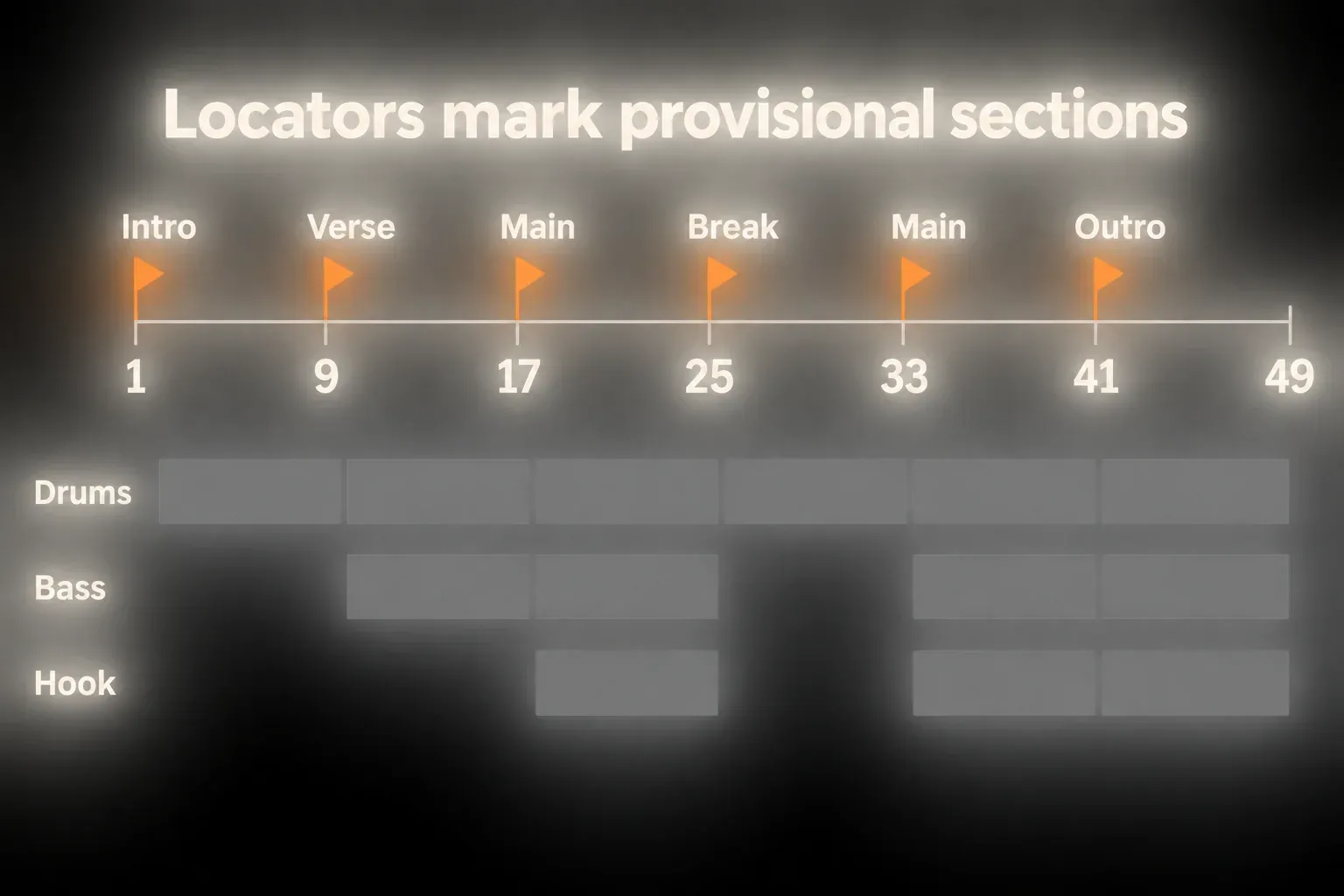
Broad labels such as intro or build work best at first. A section marked Build might need busier percussion, a rising voicing or a held pause, and if it does none of those, a different name probably describes its real role.
Copy the core idea across the timeline once
Duplicate the strongest core material across the provisional form, once, so every section starts from the same source palette. Every block now holds too much, and that is useful: to arrange now means making a series of deliberate removals instead of another search for sounds.
Switch the Arrangement Loop off and listen from the beginning. At every locator, ask:
- What new expectation should this section create?
- Which single role carries that change?
- Which existing role stops the change from being obvious?
- Could silence make the next entrance stronger?
Try removing a part before adding several new ones. If the transition gets clearer, keep the simpler version. If the song really needs a new melody or texture, add it; the point is to find what the section lacks, not to ban sound design.
Example: extend one eight-bar idea into 48 bars
Say a 4/4 loop you want to arrange already contains drums, bass, chords and a hook. Save it intact, then copy its parts through bar 48 and put locators at bars 1, 9, 17, 25, 33 and 41. Then try this arrangement:
Bars 1–8: chords and a restrained drum pattern, with no bass or hook. 9–16: add the bass, keep the hook out. 17–24: bring in the full drums and the hook. 25–32: remove the kick and bass, leaving the chords and a short answer from the hook. 33–40: bring back the bass, full drums and hook. 41–48: take the hook out first, then thin the remaining parts and let the intended ending ring out.
Listen across bars 16–17 and 32–33. Both bring in the hook with full backing, but the second return follows a break without low end, so it should feel different. If it does not, change the break before it or the returning rhythm before duplicating another eight bars. This is a test arrangement you can shorten or throw away, not a genre template.
A reference track at a comparable listening level gives a second opinion on pacing. Note how long its sections last and how the roles change, without copying its melody or assuming your sections need the same bar count.
Arrange by four forms of contrast
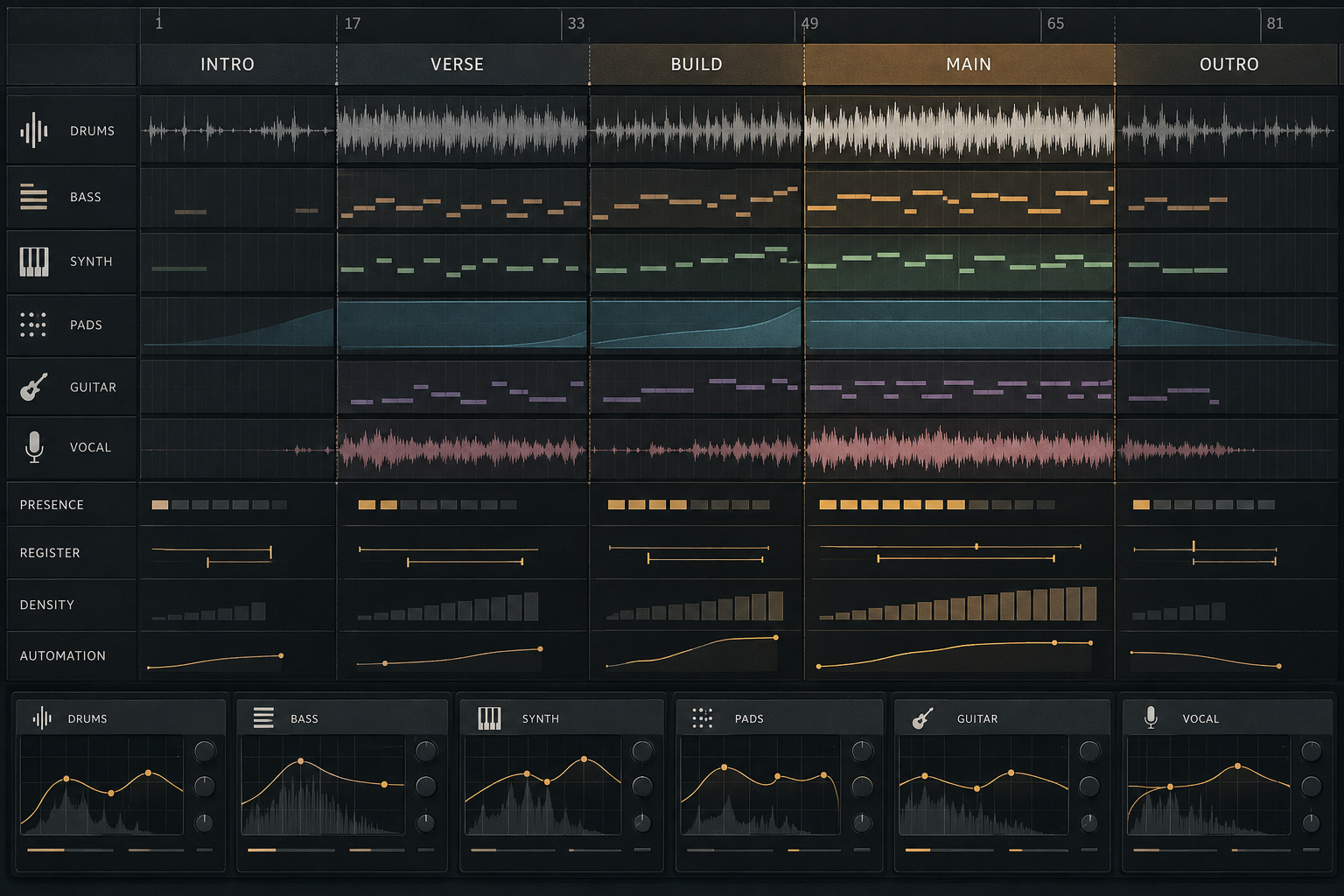
1. Presence: remove and return
The cleanest contrast is simply on or off. Let the intro leave out the bass or the full drums. Take the lead out of a verse so its return means something. Drop one beat before the main section. A mute can feel like a bigger change than an extra layer fighting for the same range.
2. Register: move the same idea
When a section needs lift or weight, shift a chord voicing, a bass octave or a melodic answer into another register. The harmony stays the same while the ear finds it somewhere new. Test the move on its own, because if it only works with several new effects, the voicing may be the wrong change.
3. Density: change event count
Density is how much happens inside a span of time. A build can use more frequent percussion, shorter gaps between notes or a busier bass ending without any new instrument, and a verse can use the same drums with fewer hits. When one dimension goes up, bring another down so the section stays readable.
4. Automation: make a state travel
Record or draw automation when a parameter movement is part of the transition: filtering a texture, changing a send, fading a part. The automation manual describes mixer and device breakpoint envelopes. Automation Arm has to be on to record parameter movements into Arrangement, while drawing an envelope needs no performed pass.
Start with one parameter so you can hear what it contributes. An effect movement that is part of the composition is worth keeping, even where a plain cut would also move between sections.
Build sections from roles, not fixed recipes
| Section function | Useful contrast | Common failure |
|---|---|---|
| Introduce the world | Expose pulse, harmony or texture with space | Playing the complete loop quietly |
| Deliver the central idea | Return the strongest rhythm, bass and hook relationship | Adding several unrelated hooks |
| Increase expectation | Raise density/register or automate one movement | Stacking noise and risers without changing the groove |
| Create relief | Remove low end, drums or a repeated lead | Keeping every role and only reducing volume |
| End deliberately | Reduce roles and define the final tail | Stopping when the copied loop ends |
These are functions, not mandatory labels. A song may open with its densest section, skip the intro or stop abruptly. What matters is whether each transition changes what the listener expects.
Audit one transition at a time
Loop from two bars before a locator to two bars after it, listen without looking and name what changed. If the only answer is “the timeline moved,” adjust one role. Then play in from the previous section, because a transition that works in isolation can still arrive too early or overstate itself.
- Mute the least necessary role at the destination.
- Change the entrance or ending of the most important role.
- Move one part’s register if the spectrum is still crowded.
- Add one automation move only if a static cut feels disconnected.
- Play through at least two sections before keeping the change.
Loop to Next Locator helps when you compare one section again and again; switch the loop off again for the full pass, because perfecting every section in isolation can make the larger arc stall.
Use time commands to test form, not just clip duplication
The Arrangement time commands change the selected timespan across all tracks, not only the track where you started selecting. Cut and Delete Time close a gap, while Paste and Duplicate Time and Insert Silence add duration. Time-signature markers inside the affected region move with those edits. Save a version first, inspect the full vertical selection, and check automation and later section boundaries afterwards.
With a saved version in place, test the form:
- remove four or eight bars from a section that keeps repeating its point;
- insert silence before a return instead of adding transition material;
- swap two sections and listen for a stronger reveal;
- duplicate a section only when its second appearance has a new job.
Compare the shorter and longer versions by playing in from the previous section, and keep the one where the next entrance feels intentional. No four- or eight-bar answer is required. Shortening a song does not automatically unload devices or save RAM.
Make the arrangement pass before the mix pass
Listen once at a low level and once from outside the ideal listening position. If two parts still fight, ask whether both need to play at the same time before reaching for EQ. Muting or rewriting one role is an arrangement decision; balancing two necessary roles is a mix decision.
If the Set is struggling, Freeze can temporarily reduce real-time processing while arrangement decisions are still open, and unfreezing lets you edit the instrument again. Flatten or an in-place bounce can remove editable material, so keep a recoverable version before committing. The song does not have to work with every effect bypassed, since a delay pattern or a processed texture may be part of the composition.
Resource impact: arrange before multiplying assets
CPU: moving clips between Session and Arrangement does not reduce processing by itself; active instruments and effects remain the real load.
RAM: many clips and loaded sample devices can raise memory use even when most of those clips are silent.
Disk and Set size: repeated consolidation, resampling and full Project copies all create new audio files. Muting an idea costs far less than printing several speculative versions.
A lean working version reuses source clips, keeps the number of loaded instruments intentional and renders finished heavy parts when the measured load justifies it, with enough disk space left for the new audio.
Muting a track does not unload its samples or effects. Use reversible Freeze where it fits, and keep editable source material whenever a committed render replaces it. Once the arrangement works, check gain staging before detailed mix decisions.
FAQ
How do I arrange a song in Ableton Live?
Move the chosen material to Arrangement View, label provisional sections with locators and copy the core parts across the timeline. Then create contrast by removing parts, changing register and density, and automating one useful transition at a time, listening from section to section before you add new content.
How do I turn an eight-bar loop into a full arrangement?
Duplicate the loop across a provisional timeline, then subtract. Let the intro reveal fewer roles, give the main section the strongest combination, build through rising activity or register, and thin the outro. Extend or reorder sections only after the contrast works.
How do I add song-section markers in Ableton Live?
Add locators in the Arrangement scrub area with the Set Locator button, the Add Locator context command or the Create menu. Name them for the musical function you expect, and rename them when the music turns out to have a different structure.
Should every song section use different sounds?
No. Silence, register, rhythm, density, articulation, automation and section length can all create contrast with the same sounds. Reusing a palette may limit extra devices and files, but it does not guarantee lower CPU or RAM use, which depends on what stays loaded and processing.
How much automation should an arrangement use?
As much as the music needs. Start with one audible movement so its effect is clear, then keep it or drop it by listening across the transition. Automation can shape a composition as well as smooth a change of section.
What is the difference between arranging and mixing?
Arranging decides which musical events happen and when; mixing balances and shapes the resulting signals. When two parts compete because they play the same role at the same time, muting or rewriting one is usually an arrangement decision before it becomes an EQ problem.
