
To resample in Ableton Live, create an audio track, pick Resampling under Audio From, set Monitor to Off, arm the track and record whatever reaches Main. Save the Project first. Afterwards, compare the result without running it through Main's effects a second time, and keep the editable source until you have listened to the entire print.
Resampling records Live's Main output in real time, so the print includes every track, return and bit of Main processing that reaches it. If you want one instrument while the rest of the mix keeps playing, record a direct source-track input instead. In this guide, resampling means recording Live's own output; converting a file to another sample rate is a different job. I checked these routing and recording details against the Live 12 documentation on September 8, 2026, and this article does not claim a performed null test.
Decide what the print must contain
| Goal | Recording input or command | What to check |
|---|---|---|
| Record the audible Main mix | Resampling | Main processing is already included; do not apply it again during comparison. |
| Print one instrument and its devices | Source track → Post FX | Before the source track’s fader and pan; shared returns are separate. |
| Include one track’s fader and pan | Source track → Post Mixer | After its mixer, not after Main processing. |
| Create delivery files or stems | Export Audio/Video | Explicit range and encoding; external hardware can require real-time rendering. |
Know what you want in the recording before you arm anything. Resampling has no list of included tracks: it records the current Main mix, and solo, mute, sends and automation all change what that is. A reference track routed straight to a hardware output does not enter Main just because you hear it through the same speakers.
Show the In/Out controls and create a destination track
Show the mixer's In/Out controls and create a new audio track, ideally outside any existing Group so inherited routing is easy to spot. Name it after the recording, something like RESAMPLE chorus texture 120 BPM. Ableton's routing documentation describes the dedicated Resampling input and how it records.
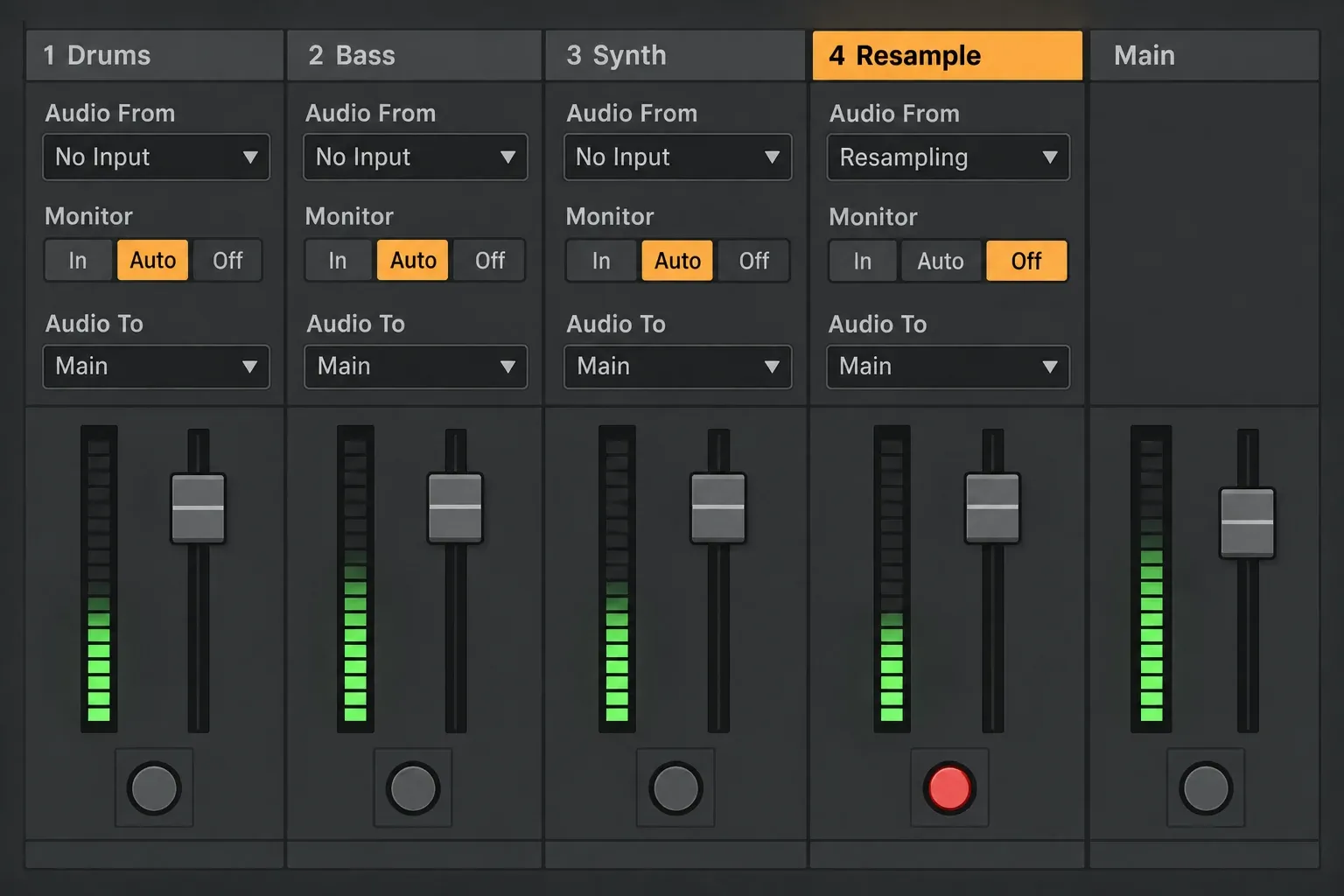
On the destination track:
- Choose Resampling in the upper Audio From chooser.
- Set Monitor to Off and leave the destination's device chain empty for the first test.
- Check Audio To and the sends. Main is a valid playback route, but once Main processing has been recorded it is no longer a neutral route for comparison.
- Arm the destination, and leave other recording tracks unarmed when their sources only play back. A live source may still need its own monitoring or arm state to make a sound.
- Confirm that signal reaches the destination and that the Main output level is safe before you start the full pass.
With the dedicated Resampling input, Live keeps the recording track's own output out of the capture while it records. Keep Monitor Off, as in Ableton's real-time resampling setup. That protection belongs to the Resampling input; a manual feedback route you build from track inputs and outputs may not get it.
Save before recording so the file belongs to the Project
Ableton stores resampled clips in the current Project under Samples/Recorded. Until the Set is saved, recordings stay in the Temporary Folder. Save the Set into a named Project before a long pass, and use Collect All and Save before moving the project to another computer.
A clip you can see is not a separate backup. Save the Project, check that the recording is there, and keep another copy of important work before you remove any source material. Collect All and Save gathers external media for transfer; it will not install third-party plug-ins on the other computer.
Record in Session or Arrangement
Session View: capture a performance into one clip
- Pick an empty Session slot on the armed resampling track.
- Start the sources you want, making sure a scene launch will not record or stop tracks you did not intend.
- Click the empty slot's record button; recording starts according to the launch quantization in force.
- Perform the mutes, sends, effects and clip launches you want in the print.
- Stop the source clips when the phrase ends, let the transport keep running for the tails, then stop the destination clip once the decay is captured. Stopping the global transport too early ends the recording as well.
Session recording shines when the performance itself is the point: a return effect you ride by hand, a generative rack, or a combination of clips that is quicker to play than to automate.
Arrangement View: print a defined timeline range
- Arm the empty destination and confirm which sources are playing from Arrangement.
- For one continuous take, switch Arrangement Loop off and put the play position before the start you want. A highlighted selection on its own neither starts nor stops recording.
- Enable Arrangement Record and start playback, including any pickup or lead-in the sound needs.
- Record past the last tail you want, then stop recording yourself. Use properly configured Punch-In/Out if you need automatic recording boundaries.
- Listen before trimming the new clip, and keep the untrimmed recording until you are sure of the endpoints.
The source and the recording share Arrangement time positions, which makes any offset easy to spot. Keep the originals for comparison, but never play them together with the print: doubled audio changes the level and can cause phase effects. Switch between the two versions using the neutral playback route described below.
Use source-only routing when Main contains too much
If you want one instrument while the rest of the song stays audible, repeatedly soloing the track and hoping no return or Main processing sneaks into the print is a gamble. Set the destination's Audio From to the source track instead, then choose the tap point:
- Pre FX: the source before its devices. On an audio track this can capture the unprocessed input; it is not the rendered sound of a MIDI instrument that has not produced audio yet.
- Post FX: audio after the source's devices, before its mixer fader and pan. This is the one for a MIDI instrument's sound and its device processing.
- Post Mixer: audio after the source's devices, fader and pan. Anything you change on that mixer ends up in the recording.
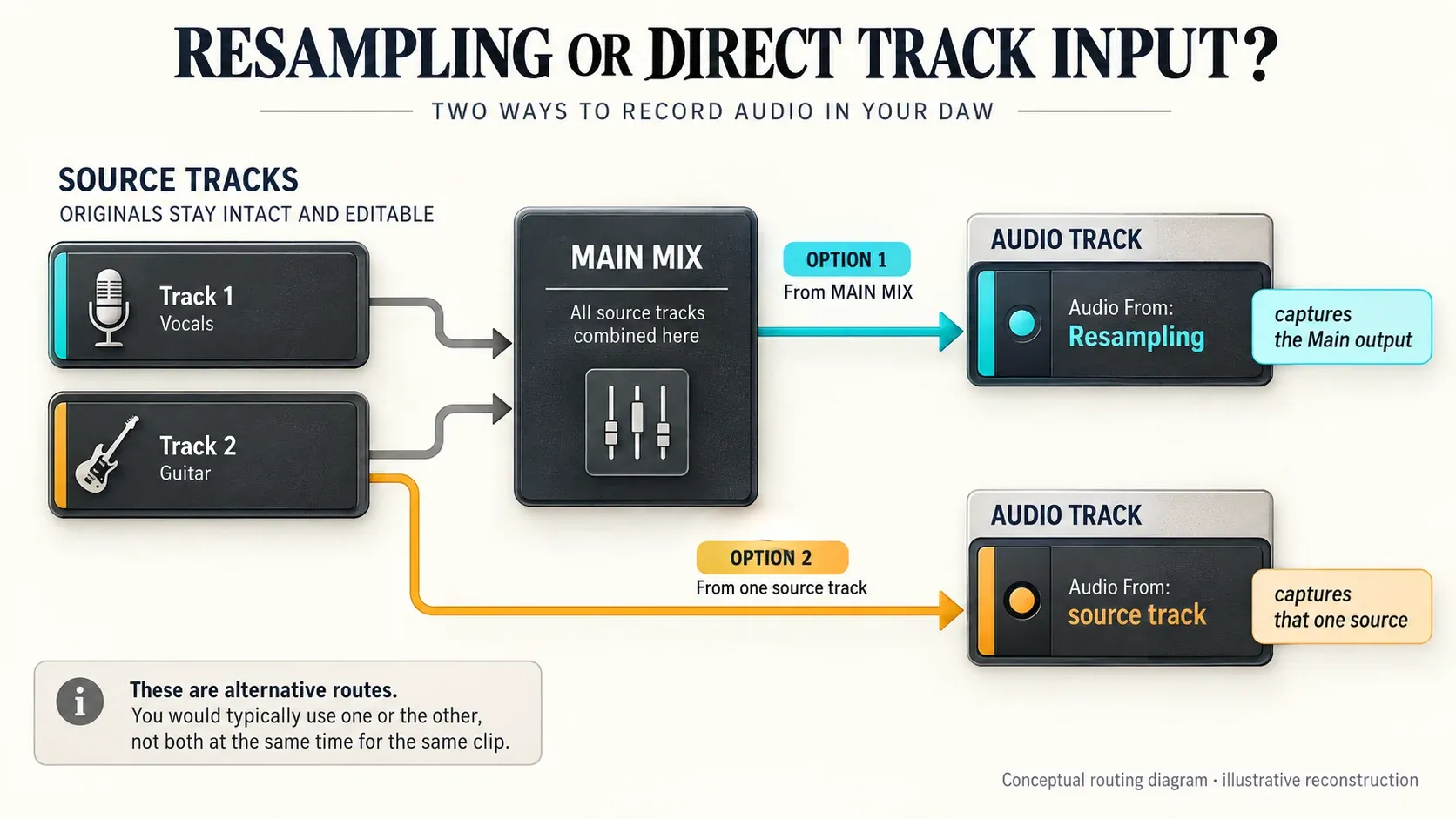
A direct track tap leaves out processing that lives outside that track, including shared return effects and Main effects. Record those paths separately, or build a controlled submix when they belong in the result. During a Post Mixer capture, think twice before soloing the recording track: that solo can silence the source mixer. For delivery files, use the export settings guide. Export is usually faster than real time, although an external hardware path can force a real-time pass.
Set internal recording to 32-bit when processing is involved
In Record, Warp & Launch Settings you choose the file type and bit depth for new recordings. Ableton's Audio Fact Sheet recommends 32-bit recording for internally routed plug-in instruments and processed audio, because recording an internal processed signal below 32-bit can lose quality.
That will not make an existing 16-bit source more detailed. What it protects is the 32-bit result of Live's internal processing and gain changes. Skip dither on a working resample that you will process again; dithering belongs at a deliberate final reduction in bit depth.
Control level without normalizing the mistake
Keep the level below clipping while you record and listen. A red Main meter warns you of an unsafe output level, but on its own it does not prove that an internally captured 32-bit floating-point file is irreversibly clipped. Lower the playback gain and inspect the result. Distortion that a clipping plug-in or an analog stage has already created cannot be undone by choosing 32-bit, so find that overload upstream and record again.
The destination fader controls playback, not the signal recorded at Audio From. If you need a different recording level, adjust the source or the Main path that feeds the input. When you compare source and print, match their perceived loudness so a level difference cannot pass itself off as better sound.
Verify before disabling the source
- Name the new clip with its content, range and version, and disarm the destination after recording.
- Turn Warp off for a check with unchanged timing, unless a deliberate tempo change is part of the test.
- For a full Main print, either use a clean Set with no Main effects or route the print directly to the same hardware output pair as Main. In the direct route, keep the print track free of effects, centered, at unity gain and with sends down; turn the hardware monitoring down first to be safe.
- Compare the print with the original one at a time. Stop the source clips while the print plays and let existing return tails die away. Soloing the print through the original Main chain repeats effects and fader gain that are already baked in.
- Listen from the first transient to the final tail, checking timing, returns, automation, stereo balance and distortion. For an isolated Post FX print, compare equivalent source and playback routing instead; the full-Main bypass rule does not apply to every stem.
- Once it checks out, deactivate the source devices you no longer need to save processing. Keep their MIDI, audio and settings in a saved version before deleting anything.
If you deliberately want another pass through the same effects for sound design, call it what it is: another processing stage, not a neutral resample. When the source changes later, go back to the preserved instrument or audio and record a new version. Never overwrite your only source with its processed result.
Choose resampling, Freeze, Bounce or export by the job
- Resampling records Main in real time; internal track routing records a selected source into a new clip.
- Freeze keeps the editable track structure available after unfreezing, while using rendered audio for playback.
- In Live 12.2 and later, Bounce Track in Place replaces the older Freeze and Flatten/Flatten commands. It commits the track in place; Bounce to New Track keeps the original on another track.
- Export creates files with an explicit range and encoding choices. External hardware is one reason a render may need real time rather than an offline pass.
Ableton's Committing Audio guide spells out what each of these commands includes. Our Freeze, Flatten and Bounce comparison is the better fit when the main goal is reducing CPU with an editable fallback. Reach for resampling when the live movements, or the way several signal paths interact, are exactly what you want to keep.
Resource impact: trade real-time processing for disk and project clarity
- CPU: the source devices keep running during capture. Deactivating them after verification can reduce processing, and muting a track is not the same as switching off every device.
- RAM: disabling a sample instrument does not guarantee its sample memory is released. If memory stays high, keep a separate editable Set, remove unneeded devices from the working copy and measure again. Leave Clip RAM Mode off unless you need it.
- Disk and Set size: every new pass adds recorded audio. Long stereo 32-bit recordings take storage and streaming bandwidth even when they replace CPU-heavy devices.
- Lowest-resource route: save, capture only the section you need, compare it through the correct route, and deactivate unneeded processing while keeping a restorable source version.
- When not to optimize: if playback is stable, keep a changing arrangement editable. Freeze can be a handier reversible step than recording a fresh full-length print again and again.
If the disk meter or the recording becomes unstable, work through the Ableton Disk Overload guide before creating more long prints.
A source-safe resampling pass
- Save the Project and a version that preserves the source tracks and settings.
- Choose Resampling for Main, Post FX for a processed instrument, or another suitable source tap, and inspect the return and Main paths.
- Set the destination to Monitor Off, leave its devices empty for the test, arm it and confirm a safe recording level.
- Start and stop recording yourself, or use properly configured punch boundaries, and include pickups and effect tails.
- Compare one version at a time. A full Main print has to bypass the Main effects and gain it already contains, or be heard in a clean Set; check Warp, timing and endpoints.
- Deactivate unnecessary source devices only after verification, and keep a separate editable version before removing anything to reclaim memory.
The MIDI and sampling hub connects this recording method to chopping samples, programming drums and checking pitch. Keep those creative edits apart from the first test, which only asks whether the recording contains the sound you intended.
FAQ
What does Resampling do in Ableton Live?
Resampling routes Live's Main output into an audio track and records it in real time. The result can include the sources, returns, automation and processing that feed Main during the pass.
How do I resample in Ableton Live 12?
Save the Project, create an audio track, choose Resampling under Audio From, set Monitor to Off, arm it and record into an empty Session slot or the Arrangement. Stop after the tail you want, because a timeline selection on its own does not stop recording. Compare the print without applying the captured Main processing twice.
Does resampling include Main effects?
Yes. Resampling captures the Main output together with the Main processing in that route. If you play the print back through the same Main chain, those effects and that gain can be applied again, so use a clean Set or a checked direct hardware-output route for a neutral full-Main comparison.
Does resampling reduce audio quality?
Record internal processed sources at 32-bit to preserve Live's internal result. Quality can still change through clipping, Warp, sample-rate conversion or recording below 32-bit. A 32-bit setting will not add detail to an unprocessed lower-bit source.
How do I resample one track without the whole mix?
Choose the source track under the destination's Audio From, then Post FX for its processed instrument sound, or Post Mixer to include its fader and pan. Pre FX suits an audio source before its devices; it cannot stand in for a MIDI instrument's rendered output. Shared returns and Main processing sit outside these track taps.
Should I delete the original track after resampling?
Keep it until the complete print is verified. Deactivating unnecessary devices saves CPU, but it may not release sample RAM. If you must remove devices from the working Set, first save a separate editable version with the original MIDI, audio and settings.
